10 mins read
How to Speed Up a Slow WordPress Website in 2026
Share Article :


In this guide, we will break down the real reasons WordPress sites become slow and the practical fixes that actually work.
A slow WordPress website is not just annoying. It costs you traffic, conversions, and trust.
Most site owners do the same thing when their website starts dragging. They install random plugins, test a few settings, maybe compress a couple of images, and hope for the best. That usually makes the problem worse, not better.
A slow WordPress site is usually caused by a handful of common issues: poor caching, oversized images, heavy CSS and JavaScript files, too many requests, bad hosting, or features that load before they are actually needed.
The good news is that you do not need ten different tools to fix all of it. You need to understand where the slowdown comes from and apply the right optimizations in the right order.
Why WordPress websites become slow
The problem usually starts when a site grows and adds more themes, plugins, images, scripts, and third-party tools without performance control.
Here are the most common reasons your WordPress site may be slow:
- No page caching
- Large unoptimized images
- Too many CSS and JavaScript files
- Render-blocking resources
- Slow hosting or high server response time
- Heavy plugins
- Too many third-party scripts
- Poor mobile optimization
- No compression
- No lazy loading for below-the-fold media
When several of these stack together, your website starts feeling slow both to users and to search engines.
Step 1: Start with a proper speed test
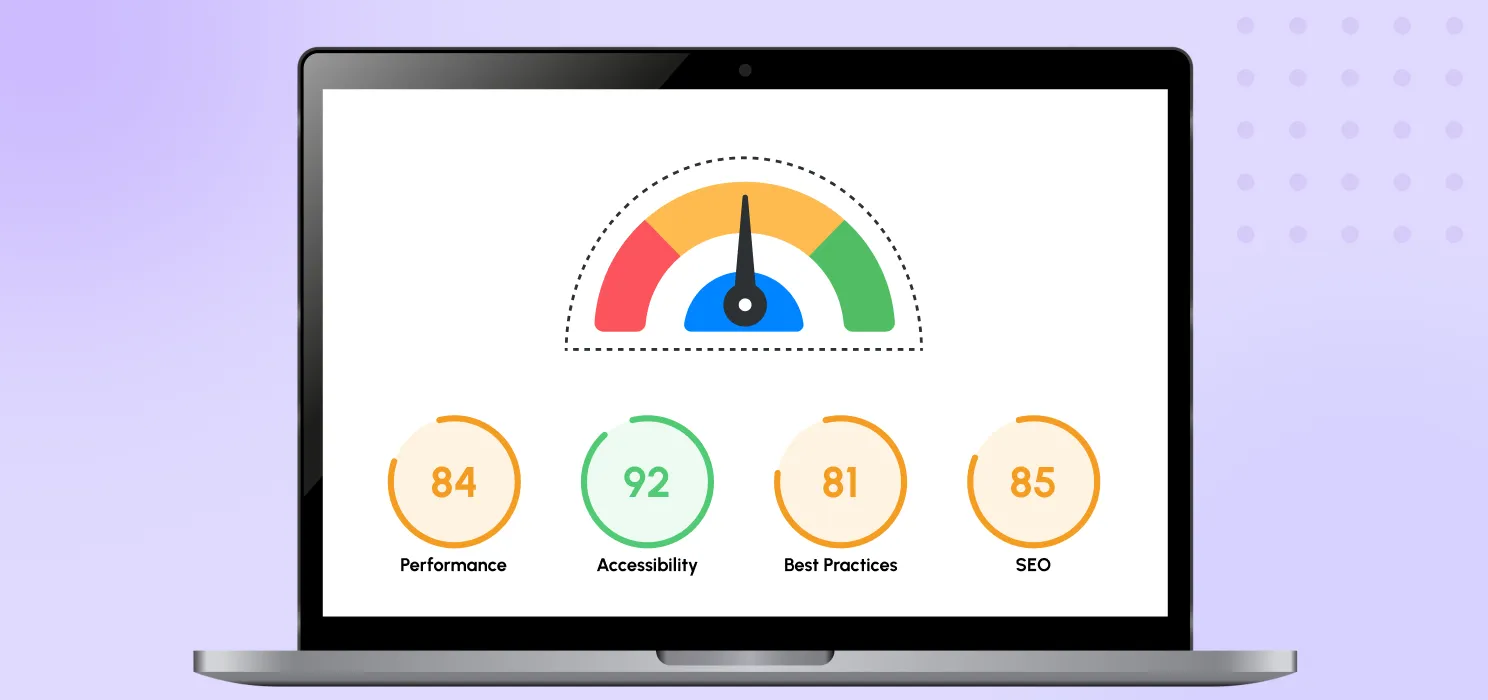
Before changing anything, test your website properly.
Check:
- Home page
- A service or product page
- A blog article
- Mobile performance
- Desktop performance
Do not make the mistake of testing only one page. A homepage may look fine while product pages or blog posts are still slow.
When reviewing your report, focus on:
- Largest Contentful Paint
- Interactivity and responsiveness
- Core Web Vitals, including LCP, INP, and CLS
- Layout stability
- Overall page load behavior
- Heavy files and blocking resources
A proper test gives you direction. Without that, you are just guessing.
Step 2: Enable page caching
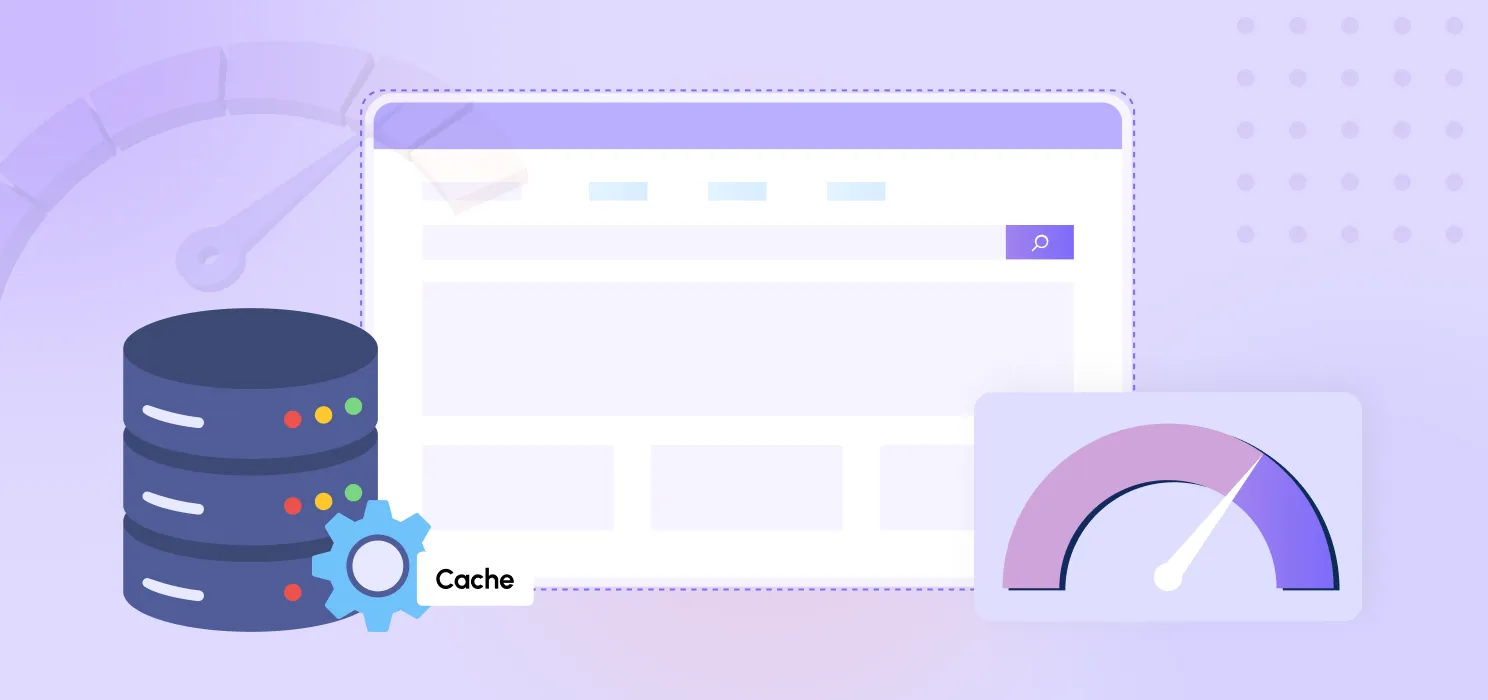
Caching is one of the fastest ways to improve load time.
Without caching, WordPress has to build each page again and again for every visitor. That takes unnecessary server work and adds delay. With full-page caching, your server can deliver a ready version of the page much faster.
This matters even more on content-heavy sites, blog sites, business sites, and many WooCommerce pages that do not need to be generated from scratch for every visit.
A good caching setup should help you:
- reduce server load
- improve page delivery speed
- make repeat visits faster
- keep traffic spikes from hitting the site as hard
This is why page caching is usually the first thing to fix before touching advanced frontend tweaks.
Step 3: Optimize images before anything else
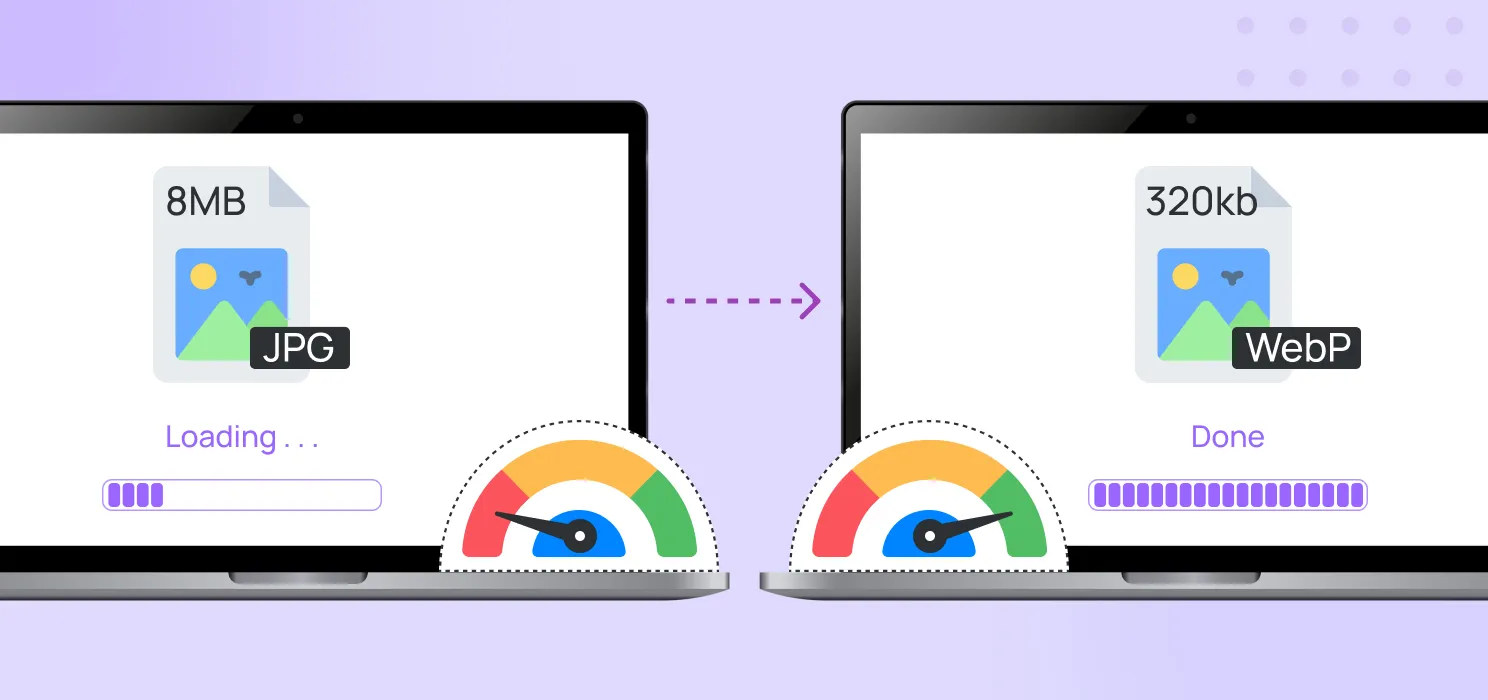
Images are one of the biggest reasons WordPress sites become bloated.
Many websites upload huge PNG or JPG files straight from design tools or phones, then expect the browser to deal with it. That is lazy and expensive.
You should:
- resize oversized images
- compress images
- use modern formats where appropriate
- avoid uploading massive hero images without reason
For most WordPress websites, image cleanup alone can make a noticeable difference.
This is also where format choice matters. WebP often helps reduce image weight without killing visual quality, which is why it is worth linking this article to your existing WebP blog.
Step 4: Do not lazy load everything blindly
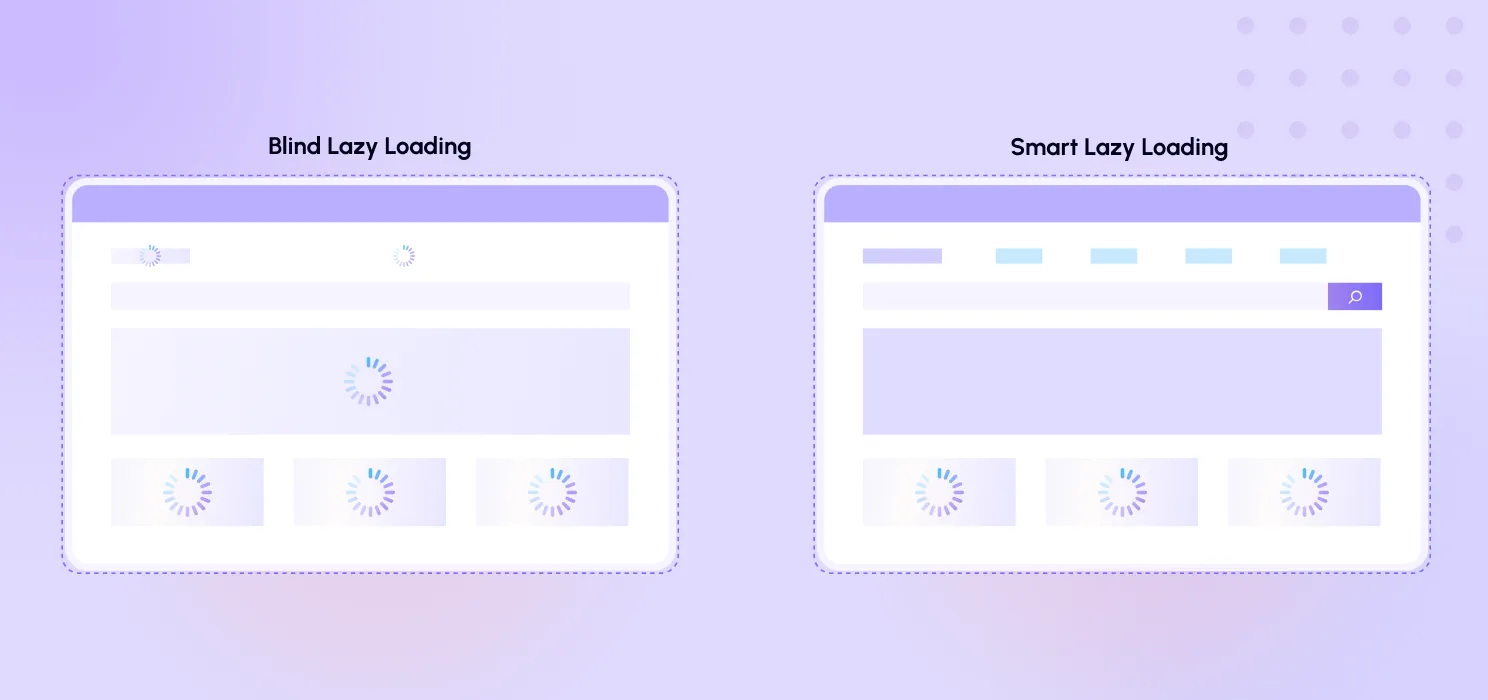
Lazy loading is useful, but a lot of people misuse it.
The goal is to delay below-the-fold images and media until they are actually needed. That reduces initial page weight and can make the first view load faster.
But here is the part people screw up: your most important above-the-fold image should not usually be lazy loaded. If your main hero image or primary visual is delayed, you can hurt the very metric you are trying to improve.
Use lazy loading carefully:
- lazy load images lower on the page
- lazy load gallery images, offscreen sections, and embeds
- do not blindly lazy load the main visible hero image
Used correctly, it helps. Used blindly, it backfires.
Step 5: Minify CSS, JavaScript, and HTML
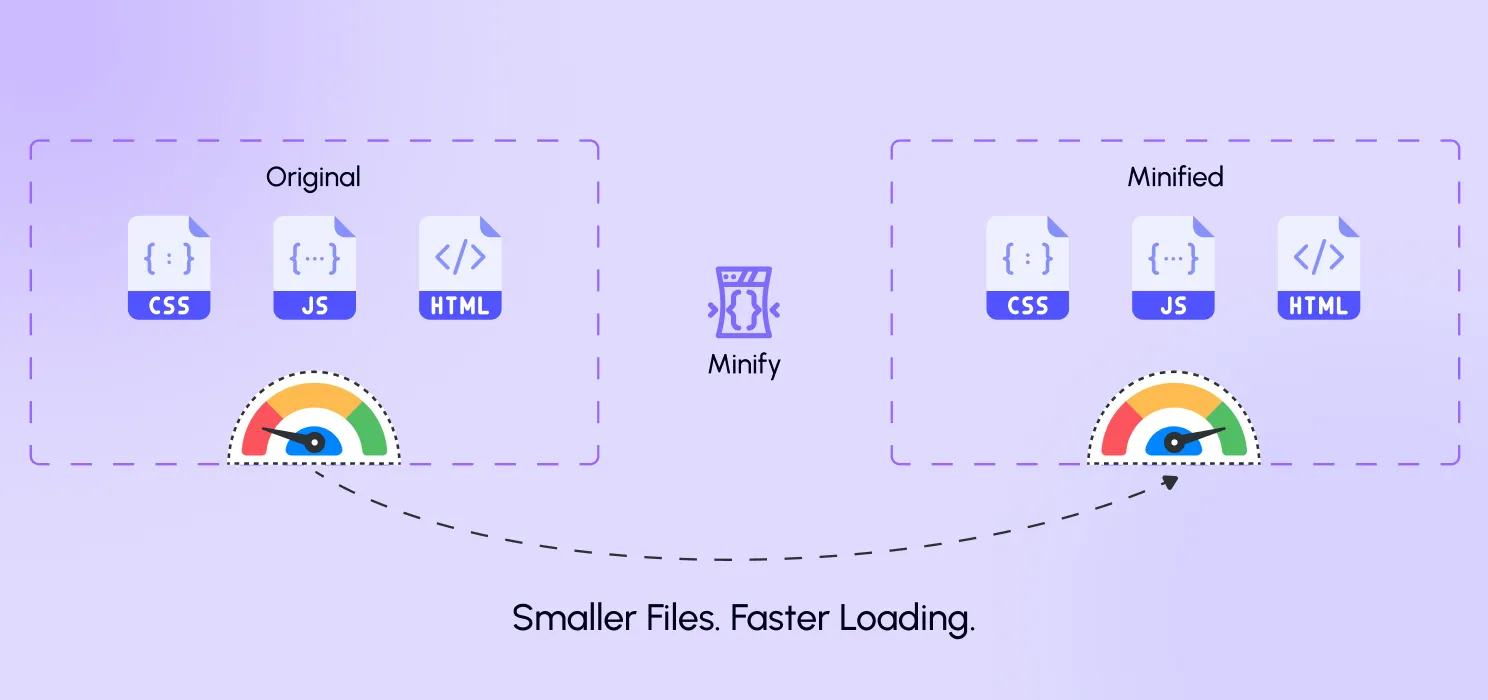
A lot of WordPress sites load messy frontend files.
Minification helps reduce file size by removing unnecessary characters from CSS, JavaScript, and HTML. It does not magically fix every performance issue, but it helps reduce payload size and improve delivery efficiency.
This is especially useful when your site loads:
- large theme stylesheets
- builder-generated files
- plugin CSS and JS
- repeated frontend assets across many pages
Minification is not a silver bullet. But ignoring it is stupid when you are trying to speed up a WordPress site.
Step 6: Be careful with file combination
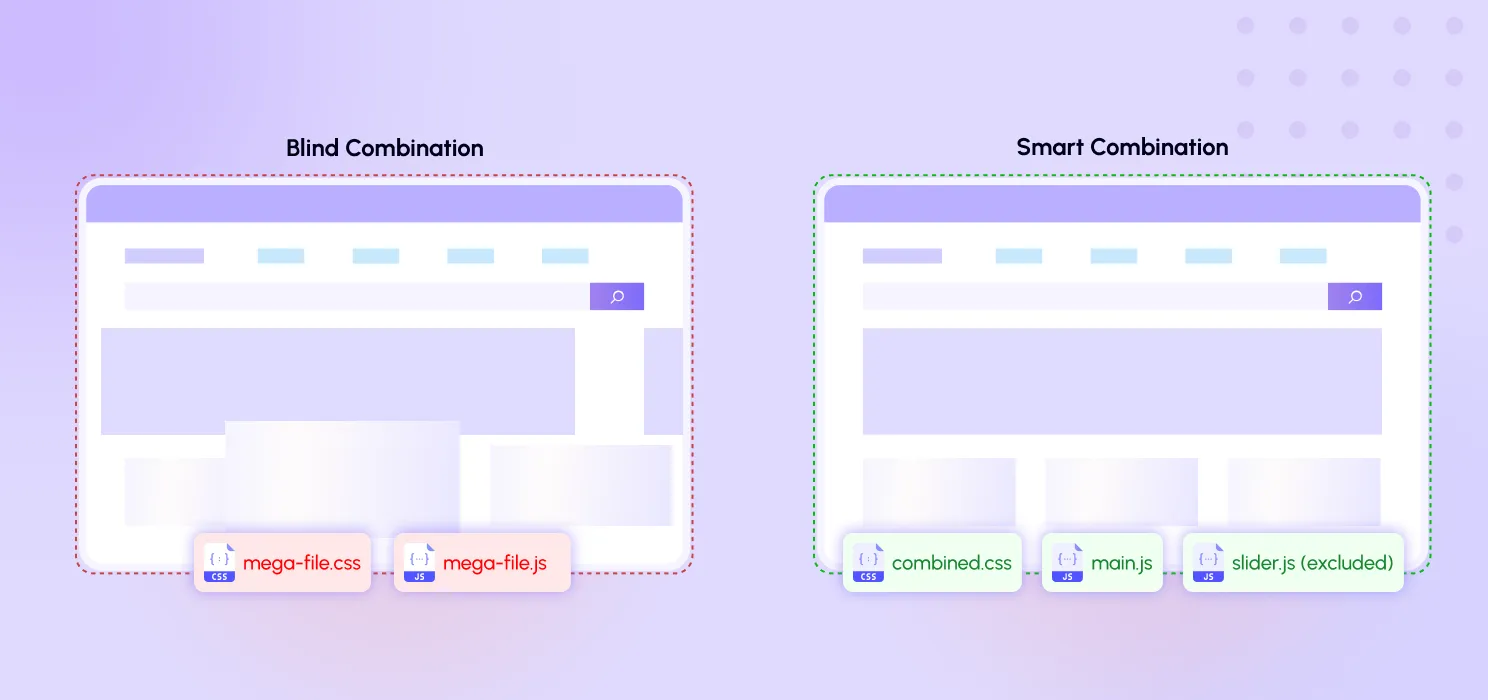
Combining CSS and JavaScript files can sometimes help reduce requests, but it is not always the right move for every website.
Some sites benefit from combining smaller files. Others can break or lose performance if combination is forced without testing. That is why serious optimization should always allow exclusions and controlled testing, not just a one-click gamble.
This is where many site owners fail. They chase aggressive settings without understanding what breaks layout, functionality, or script execution.
The right approach is:
- combine only where it makes sense
- test frontend layout after changes
- exclude files that should stay separate
- avoid one-size-fits-all settings
Step 7: Reduce render-blocking resources
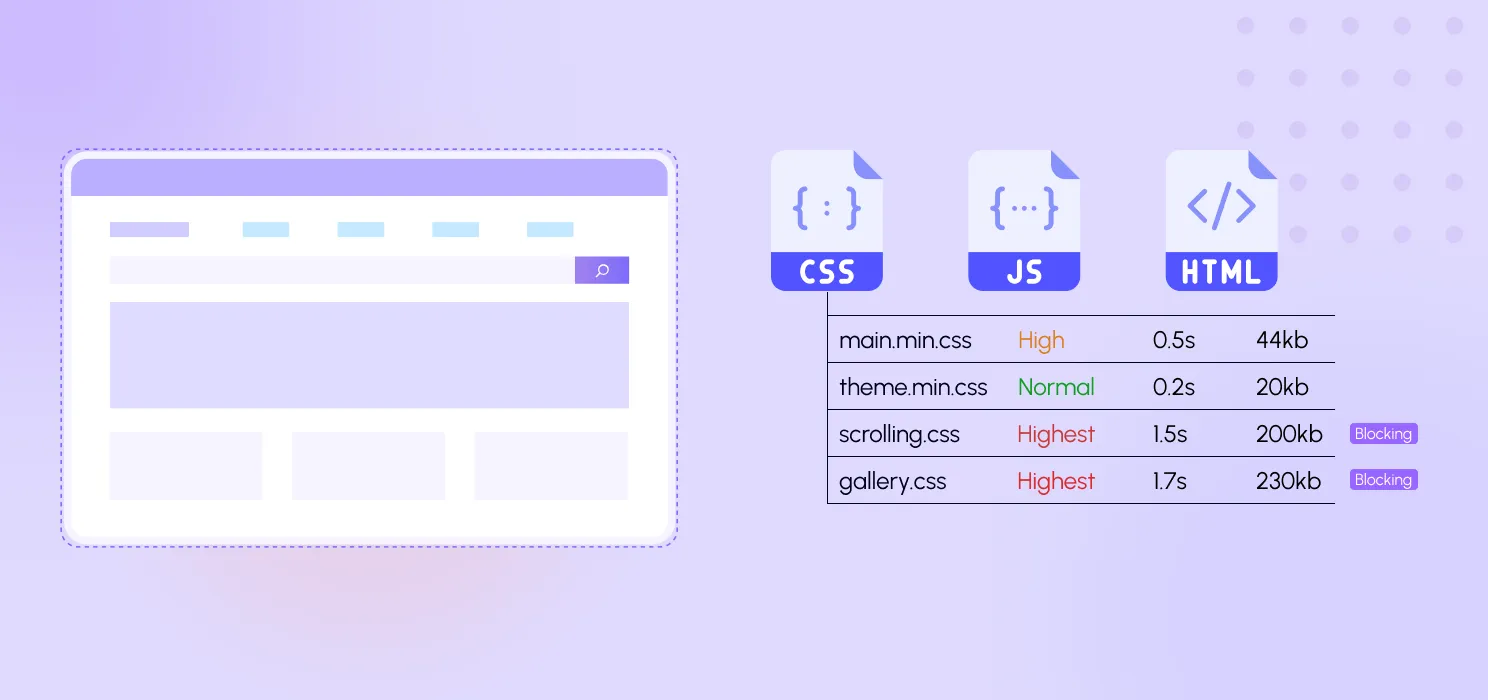
Render-blocking CSS and JavaScript can delay the browser from showing useful content quickly.
In plain English, the browser gets stuck waiting for certain files before it can finish rendering what the user sees first.
Common causes:
- heavy theme CSS
- multiple slider and animation scripts
- page builder assets
- font loading issues
- unnecessary plugin scripts on pages where they are not needed
To reduce this problem:
- trim unnecessary CSS and JS
- minify files
- combine carefully where helpful
- avoid loading features site-wide if they are only used on one section
- keep your above-the-fold area as lean as possible
This is one of the most common reasons a WordPress site feels slower than it should.
Step 8: Turn on compression

Compression is basic. If it is missing, your setup is weak.
Gzip or Brotli compression reduces the amount of data transferred between the server and the browser. That means files can be delivered more efficiently.
This is not some advanced trick. It is a standard optimization that should already be part of a serious speed stack.
If your site is loading uncompressed text-based assets, you are wasting bandwidth and slowing delivery for no good reason.
Step 9: Clean up plugins and third-party scripts
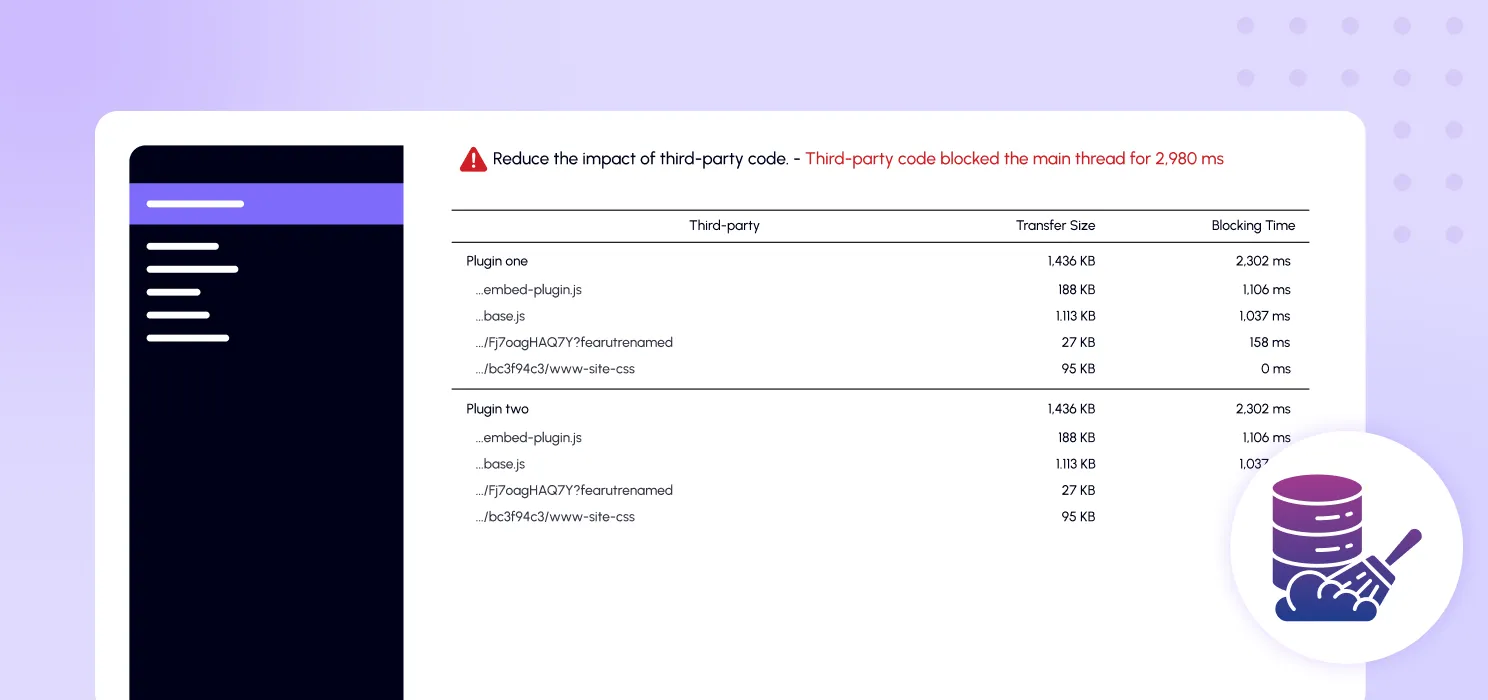
Not every plugin is a problem, but bad plugins absolutely are.
Some plugins:
- load assets on every page
- trigger slow database queries
- add tracking scripts
- inject bloated CSS or JavaScript
- duplicate functions already handled elsewhere
The same goes for third-party tools like:
- chat widgets
- ad scripts
- analytics add-ons
- social feeds
- popups
- heatmaps
You need to be ruthless here.
Ask:
- Is this tool actually important?
- Does it need to load on every page?
- Is there a lighter alternative?
- Can one plugin replace three others?
A slow website often reflects bad plugin discipline, not bad WordPress.
Step 10: Optimize for mobile, not just desktop

A site that feels okay on desktop can still be terrible on mobile.
Mobile users often face:
- slower networks
- weaker devices
- delayed rendering
- heavy images
- large script execution costs
That is why you should always review mobile performance separately.
Focus on:
- image weight
- above-the-fold content
- layout shifts
- unnecessary popups
- script-heavy sections
- font loading
A site that is barely acceptable on desktop usually feels much worse on mobile.
Step 11: Keep your most important content easy to load

Your first visible section matters most.
The browser should be able to load the main visible content quickly without wading through unnecessary junk. That means your hero section, key heading, intro copy, and primary image need to be treated as priority content.
This is where smart optimization matters more than blindly applying every trick:
- prioritize the most visible page elements
- avoid delaying key content
- remove waste before the fold
- do not overload the top of the page with sliders, animations, videos, and giant images
If users cannot see the main point of the page quickly, the page already lost.
Step 12: Use one clean optimization stack instead of patchwork fixes
This is where many WordPress sites become a mess.
Site owners install one plugin for cache, one for image optimization, one for minification, one for lazy loading, one for compression, and another plugin because the previous plugin conflicts with the builder.
That stack becomes harder to manage, easier to break, and more confusing to troubleshoot.
A cleaner setup is to use one well-structured WordPress speed optimization plugin that handles the major performance layers from one place.
That is the practical value of an all-in-one plugin approach. It reduces tool sprawl, simplifies testing, and gives you a more controlled speed workflow.
Where SpeedyGo fits into this
SpeedyGo is built for WordPress users who want to improve site speed without turning optimization into a full-time technical project.
Instead of patching performance with too many separate tools, SpeedyGo brings together the major speed layers that actually matter. You can explore the full range of SpeedyGo features here:
- page caching
- HTML, CSS, and JavaScript minification
- CSS and JavaScript combination
- Gzip and Brotli compression
- lazy loading
- mobile caching
- cache preloading
- advanced cache rules and exclusions
That kind of setup makes more sense for site owners who want control without chaos.
You still need to test carefully and optimize page by page when needed, but a unified setup is far easier to manage than a pile of disconnected plugins.
Common mistakes that keep WordPress websites slow
Here are the mistakes people repeat constantly:
- uploading huge images without resizing them
- lazy loading critical hero images
- installing too many overlapping optimization plugins
- enabling aggressive settings without testing
- ignoring mobile performance
- keeping useless plugins active
- running heavy scripts site-wide
- focusing only on scores instead of actual user experience
- using bad hosting and expecting plugins to solve everything
A plugin can help a lot. It cannot fix a fundamentally messy website by itself.
Final thoughts
If your WordPress website is slow, the answer is not random tweaking. It is structured optimization.
That’s because website speed matters for both user experience and the overall performance of your site.
Start with the basics:
- test the right pages
- enable caching
- optimize images
- reduce render-blocking files
- minify code
- use lazy loading correctly
- enable compression
- cut unnecessary plugins and scripts
- check mobile experience
- keep the top of the page light
Once those pieces are handled properly, your site becomes faster, cleaner, and easier to manage.
And if you want a simpler way to handle most of these performance layers in one place, SpeedyGo gives you a practical all-in-one workflow built specifically for WordPress.
See what fast feels like
Start free, no credit card needed — or pick the plan that fits your site.

Frequently Asked Question
Whether you’re a solo professional, a small business, or a large corporation, we have a plan that’s right for you.
Why is my WordPress website slow even with good hosting?
Because hosting is only one part of performance. Heavy images, bad plugins, too many scripts, no caching, and poor frontend optimization can still slow the site down.
Does caching really make that much difference?
Yes. For many WordPress sites, caching reduces repeated server work and improves how quickly pages are delivered.
Should I lazy load all images?
No. Lazy load below-the-fold images, but be careful with important above-the-fold images, especially your main hero image.
Is one optimization plugin better than using many?
Usually, yes. A clean all-in-one setup is often easier to manage and troubleshoot than a stack of overlapping plugins.
Can a plugin fix every speed issue?
No. A plugin helps a lot, but poor hosting, bloated design, bad scripts, and weak site structure can still limit performance.