9 mins read
How to Enable Brotli Compression on Your Server?
Share Article :



Enable Brotli compression on your server to improve website speed, reduce file sizes, and enhance overall performance. In today’s world, where every millisecond matters, website speed directly impacts user experience, SEO rankings, and conversions.
Among the many optimization techniques available, Brotli compression has emerged as a powerful solution. It compresses files more efficiently than traditional methods, helping websites load faster without compromising quality.
In this blog, we’ll walk you through how to enable Brotli compression across different hosting environments. Whether you’re using platforms like SpeedyGo, Cloudways, Bluehost, SiteGround, or tools like Cloudflare, you’ll find simple and practical methods to get started.
How to Enable Brotli Compression with SpeedyGo ?

If your website is built on WordPress, SpeedyGo is your perfect choice because it eliminates the need for multiple plugins and manual configuration by handling performance optimization automatically in one place.
If you’re using SpeedyGo, things are much simpler compared to traditional hosting environments.
First, understand what SpeedyGo is
SpeedyGo is a website performance optimization tool designed to make your site faster without requiring technical knowledge. Instead of manually configuring servers, installing multiple plugins, or handling complex settings, SpeedyGo manages everything from one place.
It works by automatically applying key performance improvements like:
- File compression (including Brotli)
- Caching
- Code optimization
- Faster content delivery
In short, it reduces the size of your website files and improves how quickly they are delivered to users.
How SpeedyGo actually works
Instead of changing your server settings directly, SpeedyGo sits on top of your website and optimizes how content is processed and delivered.
Here’s what happens behind the scenes:
- Your website files are analyzed and optimized
- Heavy files are compressed using Brotli
- Cached versions are created for faster loading
- Optimized content is delivered to users more efficiently
All of this happens automatically, without affecting your website design or functionality.

Why is this different from other platforms?
With platforms like Cloudways or Bluehost:
- You need server access
- You may need SSH commands
- Configuration can be complex
But with SpeedyGo, Everything is handled through a simple dashboard
No coding. No risk. No manual setup.
Now let’s see how to enable Brotli compression in SpeedyGo.
Step 1: Log in to your SpeedyGo account using your Gmail.

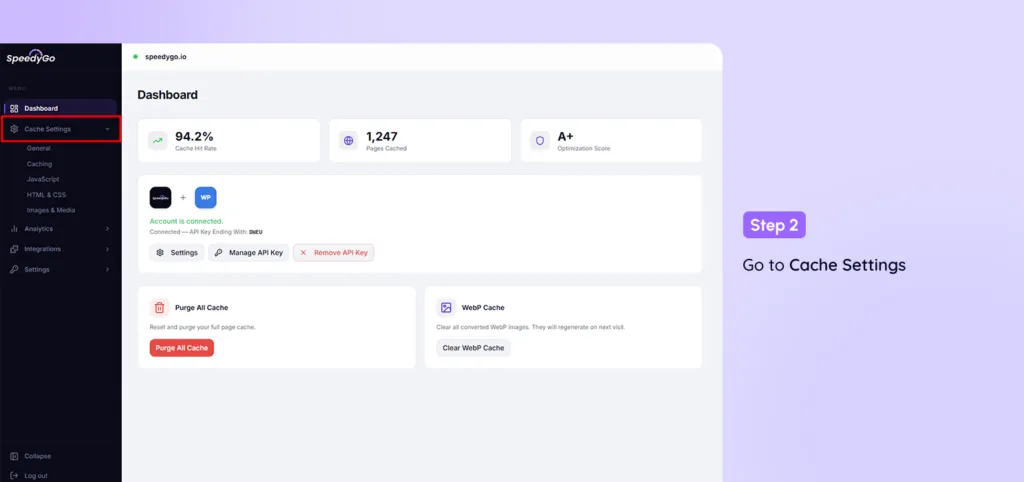
Step 2: From the dashboard, go to Cache Settings.
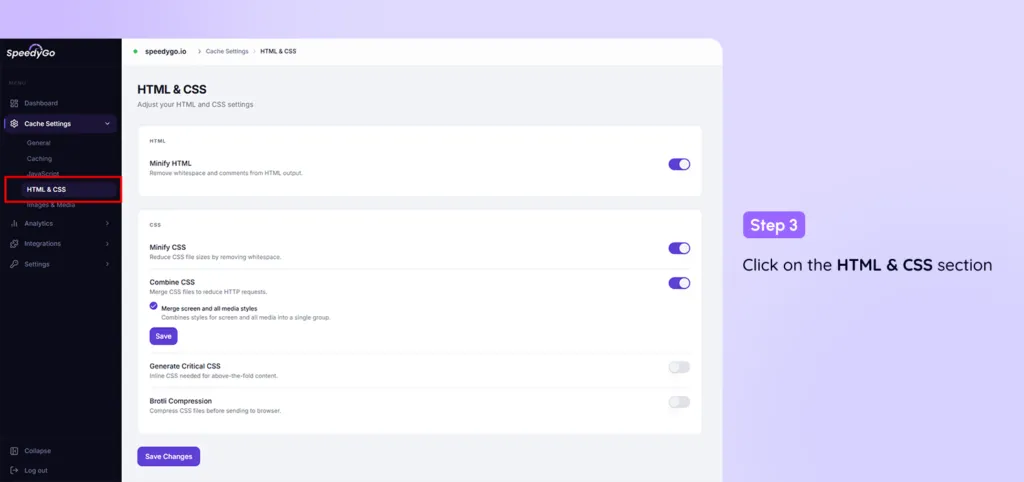
Step 3: Click on the HTML & CSS section.
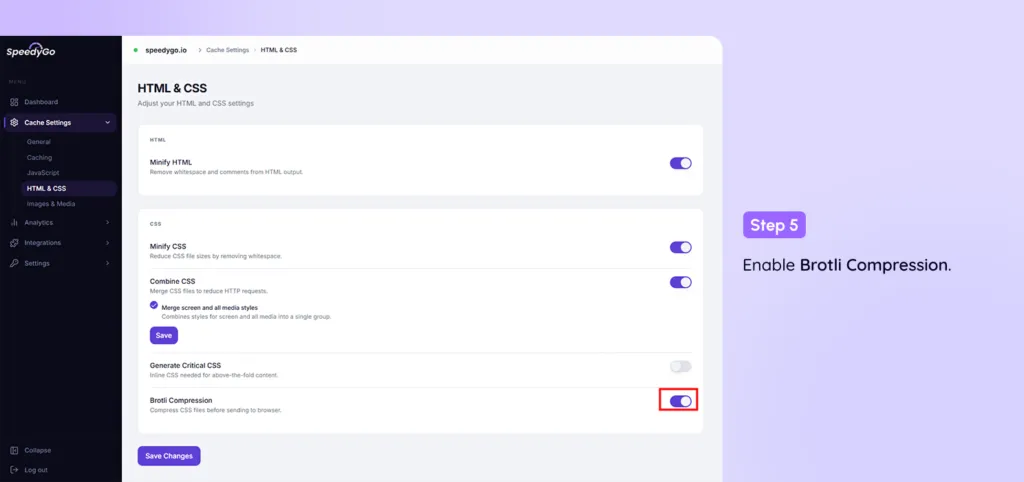
Step 4: Scroll down to find the Brotli Compression option.
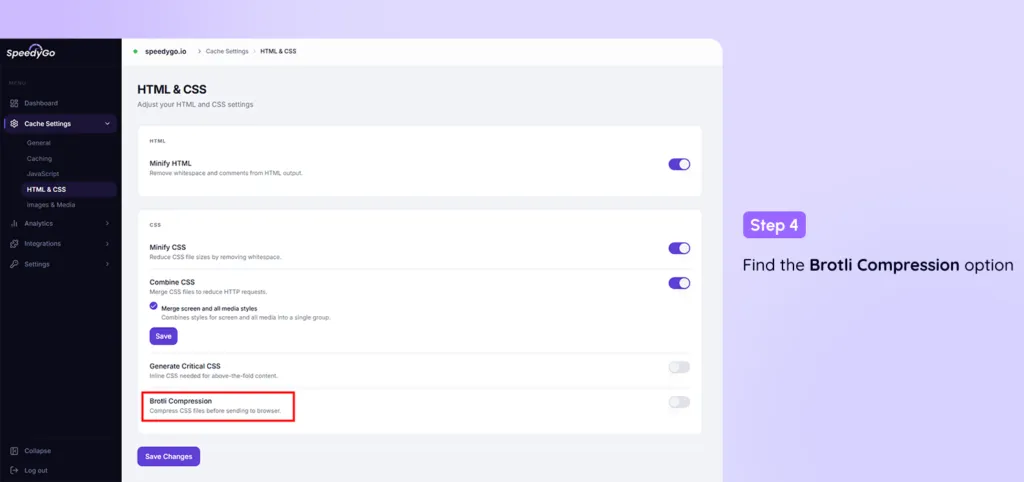
Step 5: Toggle the switch to Enable Brotli Compression.
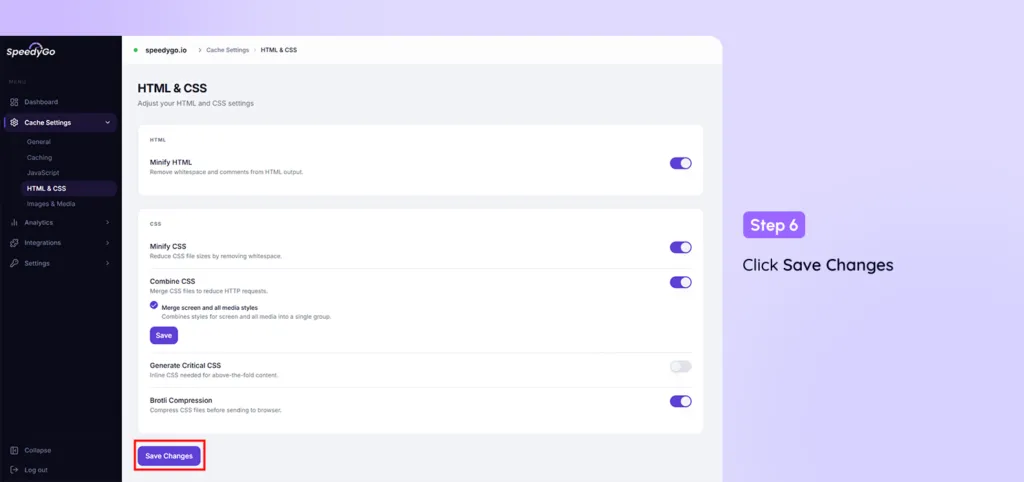
Step 6: Click Save Changes to apply the settings.
How to enable Brotli Compression in Cloudways?
Now, if you’re using Cloudways, things are a little different. Cloudways doesn’t give a simple “Enable Brotli” button like some other hosting platforms. Behind the scenes, it runs on a mix of Nginx + Apache, which means enabling Brotli is more of a server-level setup.

| First, a quick reality check If you’re not comfortable with server settings, SSH, or config files, don’t force this method. Cloudways users often prefer enabling Brotli through Cloudflare because it’s faster and risk-free. But if you want to do it directly on the server, here’s how it works. |
How to Enable Brotli Compression on Your Server in Apache (part of Cloudways stack)
Apache usually already has Brotli available; it just needs to be turned on.
Step 1: Enable the Brotli module
You’ll need SSH access for this. Run a command to activate the Brotli module on your server.
This basically tells Apache: “start using Brotli compression.”
Step 2: Configure which files should be compressed
To improve your website’s performance, you need to specify which types of files should be compressed by your web server. This is typically done in your server’s configuration file.
Recommended File Types for Compression
The following files benefit most from compression:
- HTML (text/html)
- Plain Text (text/plain)
- CSS (text/css)
- JavaScript (text/javascript or application/javascript)
Example Configuration (Apache with Brotli)
Add the following code inside the <IfModule mod_brotli.c> section of your Apache configuration:
| <IfModule mod_brotli.c> AddOutputFilterByType BROTLI_COMPRESS text/html text/plain text/xml text/css text/javascript application/javascript </IfModule> |
What This Step Does
Instead of sending full-size files to visitors, your server will now send compressed versions. This reduces load times and improves user experience, without changing how your website looks.
How to Enable Brotli Compression on Your Server in Nginx (the front layer in Cloudways)
Brotli compression can significantly reduce page load times by compressing text-based files before they are sent to users. Here’s how to enable it for Nginx.
Step 1: Locate and Edit the Nginx Configuration
Find your main nginx.conf file, usually in:
/etc/nginx/nginx.conf
Open the file for editing using your preferred text editor (e.g., nano or vim).
Step 2: Load the Brotli Modules
Add the following lines at the top of nginx.conf to load Brotli support:
| load_module modules/ngx_http_brotli_filter_module.so; load_module modules/ngx_http_brotli_static_module.so; |
Step 3: Modify Your Website’s Configuration
Open your website’s Nginx configuration file, typically found in:
| /etc/nginx/conf.d/your-site.conf or /etc/nginx/sites-available/your-site.conf |
Inside the server block, add the Brotli directives:
brotli on;
brotli_static on;
brotli_types *;
- brotli on; → Enables Brotli compression.
- brotli_static on; → Serves pre-compressed .br files if available.
- brotli_types *; → Applies Brotli compression to all file types (you can specify only certain MIME types if preferred).
Step 4: Restart Nginx
Save your configuration files and restart Nginx to apply the changes:
| sudo systemctl restart nginx or sudo service nginx restart |
Step 5: Verify Brotli Is Working
- Open your website in a browser.
- Open Developer Tools → Network tab.
- Reload the page and inspect any resource headers.
- Look for:
Content-Encoding: br
If you see br, Brotli compression is active ✅.
Notes
- This method requires SSH access, familiarity with server configuration files, and sudo privileges.
- Nginx handles requests before Apache, so enabling Brotli here ensures all static files served by Nginx are compressed.
- If you’re not comfortable editing server files, consider using Cloudflare or a similar CDN with Brotli support.
How to enable Brotli Compression in Bluehost?

Bluehost isn’t the most advanced when it comes to performance features. In many cases, Brotli isn’t something you’ll see as a clear “Enable” button like other hosting platforms. But that doesn’t mean you can’t use it.
Let’s break it down simply.
Step 1: First, check if your plan supports Brotli
Not all Bluehost plans support Brotli, especially older ones. So before doing anything:
👉 Just log in and see if the option is even available.
If it’s not there, don’t stress, I’ll show you a workaround.
Step 2: Look inside your cPanel settings
- Log in to your Bluehost account
- Go to Advanced (cPanel)
- Look for sections like:
- Performance
- Optimization
- Speed settings
If Bluehost supports Brotli on your plan, you might see a simple toggle.
If yes, just turn it ON. That’s it.
Step 3: The best workaround is to use Cloudflare
On Bluehost, the easiest and most reliable way to use Brotli is Cloudflare.
Steps:
- Connect your domain to Cloudflare
- Go to Speed → Optimization
- Turn ON Brotli
Done. No server headache. No confusion.
| How to Check if Brotli is Working Method 1: Using a browser (easiest way)
Content-Encoding: br If you see “br”, you’re good. Method 2: Use an online tool Just search: “Brotli checker” Enter your website URL, and it’ll tell you instantly if it’s active or not. |
Common Issues (and quick fixes)
Let’s say you enabled it… but it’s not working. Here’s what usually goes wrong:
- You forgot to clear the cache → Clear browser + plugin cache
- Your hosting plan doesn’t support Brotli → Use Cloudflare
- Plugin conflicts → Disable one and test
- Changes not reflecting → Give it a few minutes + refresh
One small tip (most people ignore this)
After enabling Brotli:
👉 Always test your website speed again.
Because compression works best when combined with:
- caching
- image optimization
- clean code
Brotli alone helps, but together, the difference is massive.
How to enable Brotli Compression in SiteGround?

If you’re using SiteGround, you’re already in a good place. Because, unlike other hosting providers, you don’t have to enable Brotli manually.
SiteGround already has:
- Brotli compression
- Gzip compression
👉 enabled by default on all live websites.
So the moment your site is running on SiteGround, compression is already working in the background.
So… do you need to do anything? No.
No settings. No plugins. No server changes.
| One small thing to keep in mind Brotli is not enabled on staging environments. You might not see Brotli there. |
How to confirm it’s working (just to be sure)
Even though it’s enabled by default, you can still check:
- Open your website
- Right click → Inspect
- Go to the Network tab
- Reload the page
- Click any file
- Look for:
Content-Encoding: br
If you see that → Brotli is active
Quick tip (most people miss this)
Since SiteGround already handles compression:
Focus on other things for speed:
- caching
- image optimization
- minimizing plugin

Conclusion
Brotli compression is one of the simplest yet most effective ways to improve your website speed. When you enable Brotli compression on your server, it reduces file sizes, helps your pages load faster, improves user experience, and can even boost SEO performance.
As we’ve seen, the way you enable Brotli compression on your server depends on your hosting environment. Platforms like Cloudways may require manual setup, while Bluehost often works best with tools like Cloudflare. On the other hand, providers like SiteGround handle it automatically in the background.
And if you’re using SpeedyGo, the process becomes even easier. You can quickly enable Brotli compression on your server without dealing with complex technical configurations, thanks to a simple and user-friendly dashboard.
👉 The key takeaway: No matter which platform you’re using, it’s important to enable Brotli compression on your server to get better speed and performance.
Just remember, for the best results, combine compression with caching, image optimization, and clean code. When you enable Brotli compression on your server along with these techniques, the impact on your website performance can be significant.