9 mins read
Plugin vs. Manual: Fixing Slow WordPress Site Issues
Share Article :


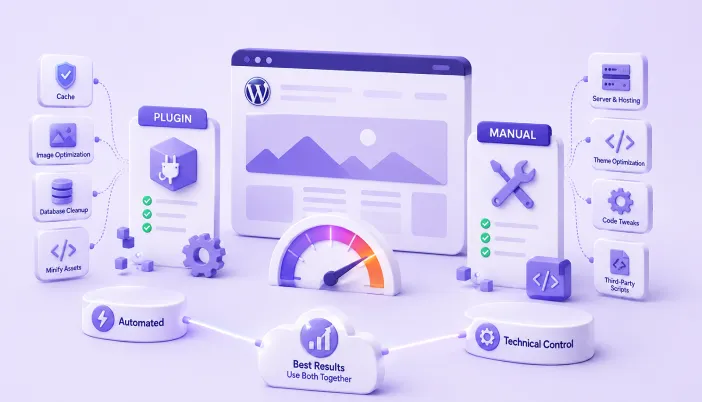
In this guide, you’ll learn when it’s better to use a WordPress speed optimization plugin and when manual optimization is the smarter choice. We’ll cover the most common causes of a slow WordPress website, compare both approaches, and help you choose the right solution to improve your site’s speed and Core Web Vitals.
If your WordPress website is running slowly, you’re probably asking the same question many website owners do: Should I use a plugin or fix the issues manually?
The answer depends on what’s causing the slowdown. While plugins can automate many optimization tasks, some performance issues require manual changes. Understanding the difference will help you choose the right approach and get the best results.
Why WordPress sites slow down in the first place
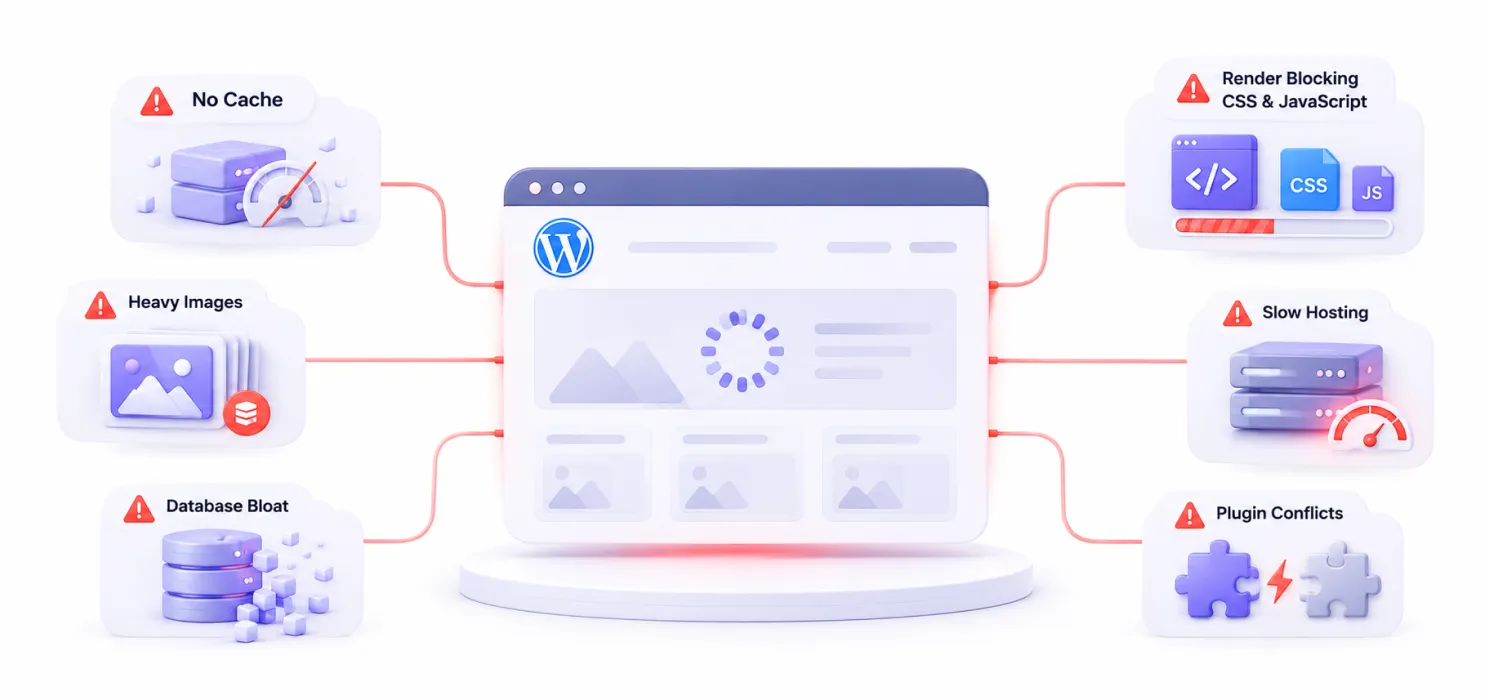
Before deciding how to fix anything, it helps to know what you’re actually fixing. Most WordPress slowdowns trace back to a handful of repeat offenders:
- No caching, meaning WordPress rebuilds every page from scratch on every visit, often running 50–200 database queries per load.
- Unoptimized images: full-resolution photos uploaded straight from a phone or camera, sometimes 2–5 MB each, with no compression or modern format.
- Database bloat: years of accumulated post revisions, spam comments, and expired transients clogging up queries.
- Render-blocking JavaScript and CSS, often from theme builders and third-party scripts like chat widgets, analytics, and font embeds.
- Slow hosting, where poor server response time (TTFB) undermines everything else you do.
- Plugin overlap, where two or more plugins quietly duplicate the same job (two SEO plugins, two caching plugins) and each adds its own overhead.
An audit usually reveals that one or two of these dominate the problem. Fixing the biggest bottleneck first almost always gets you more improvement than spreading effort evenly across all of them.
The case for plugins
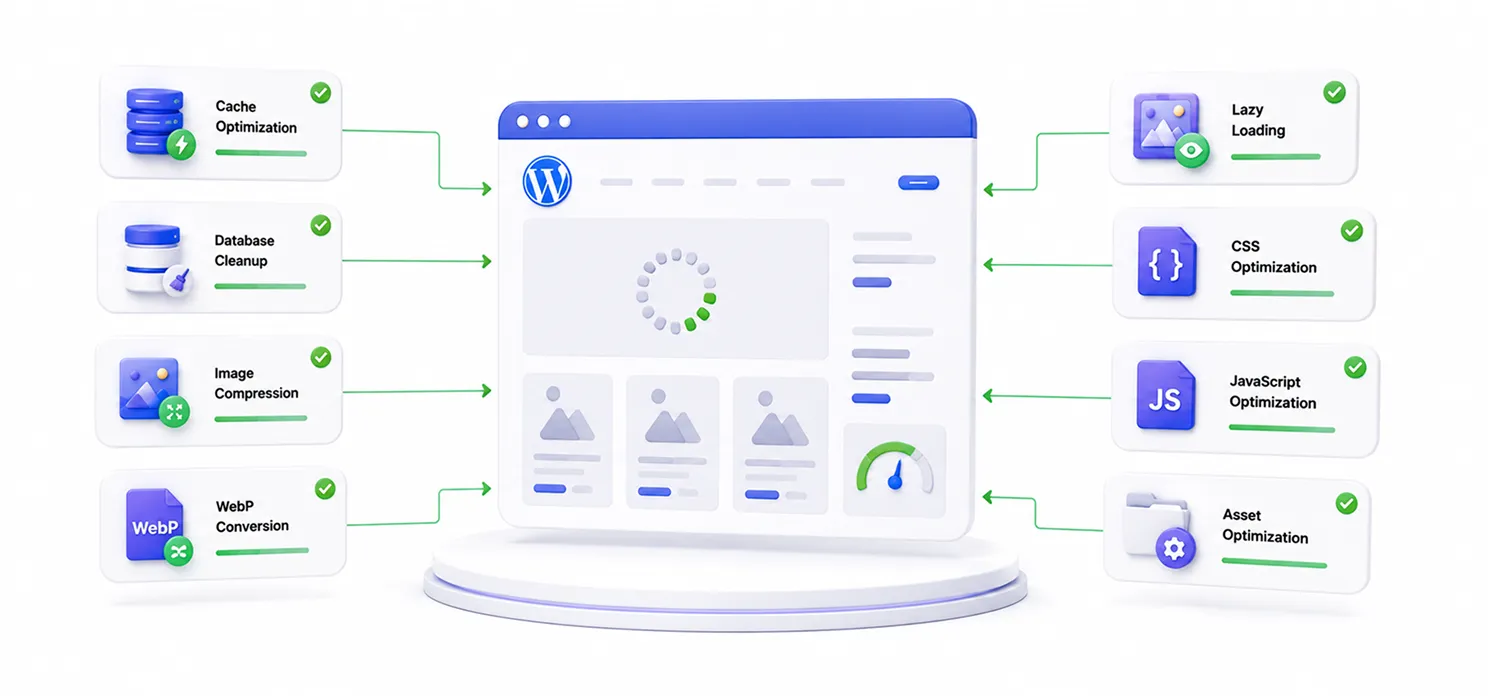
Plugins exist to automate exactly this kind of optimization, and for most site owners, they’re the right starting point. The appeal is straightforward: you get meaningful, measurable speed gains in a few clicks, without touching code or risking a broken site.
Where plugins genuinely win:
- Caching. A caching plugin generates static HTML versions of your pages so WordPress doesn’t have to rebuild them from the database on every visit. This alone can shave a full second or more off load times for repeat visitors, and it’s not something you’d want to hand-roll unless you’re comfortable with server configuration.
- Image compression and format conversion. Plugins like ShortPixel, Imagify, or TinyPNG-based tools can automatically compress uploads and convert them to WebP or AVIF, often cutting file size dramatically with no visible quality loss. Doing this manually exporting, compressing, and re-uploading every image on a large site is realistically not something most people will keep up with.
- Database cleanup. Tools like WP-Optimize, WP-Sweep, or Advanced Database Cleaner remove old post revisions, spam comments, and expired transients, and optimize database tables, all without needing to write or run SQL queries by hand. Manually cleaning a database means running SQL commands directly against live data risky if you’re not fully confident in what you’re deleting.
- Minification and combination of CSS/JS. Autoptimize and similar plugins strip whitespace and comments and combine files to cut down HTTP requests, something that’s tedious and error-prone to do by hand, especially as your site changes over time.
The tradeoffs:
- Plugins can conflict with each other, especially multiple caching or optimization plugins running simultaneously. Test thoroughly after activating anything new.
- A plugin can only automate what it’s designed to automate. It can’t fix render-blocking JavaScript baked into your theme’s page builder, and it can’t fix slow hosting.
- Every plugin you add is itself a small performance cost: more code to load, more surface area for conflicts. The right number of speed plugins is usually two or three well-chosen ones, not ten overlapping ones.
For the majority of WordPress sites blogs, small business sites, brochure sites a well-configured caching plugin plus an image optimization plugin plus a database cleanup tool covers most of the ground with minimal ongoing effort.
The case for manual fixes
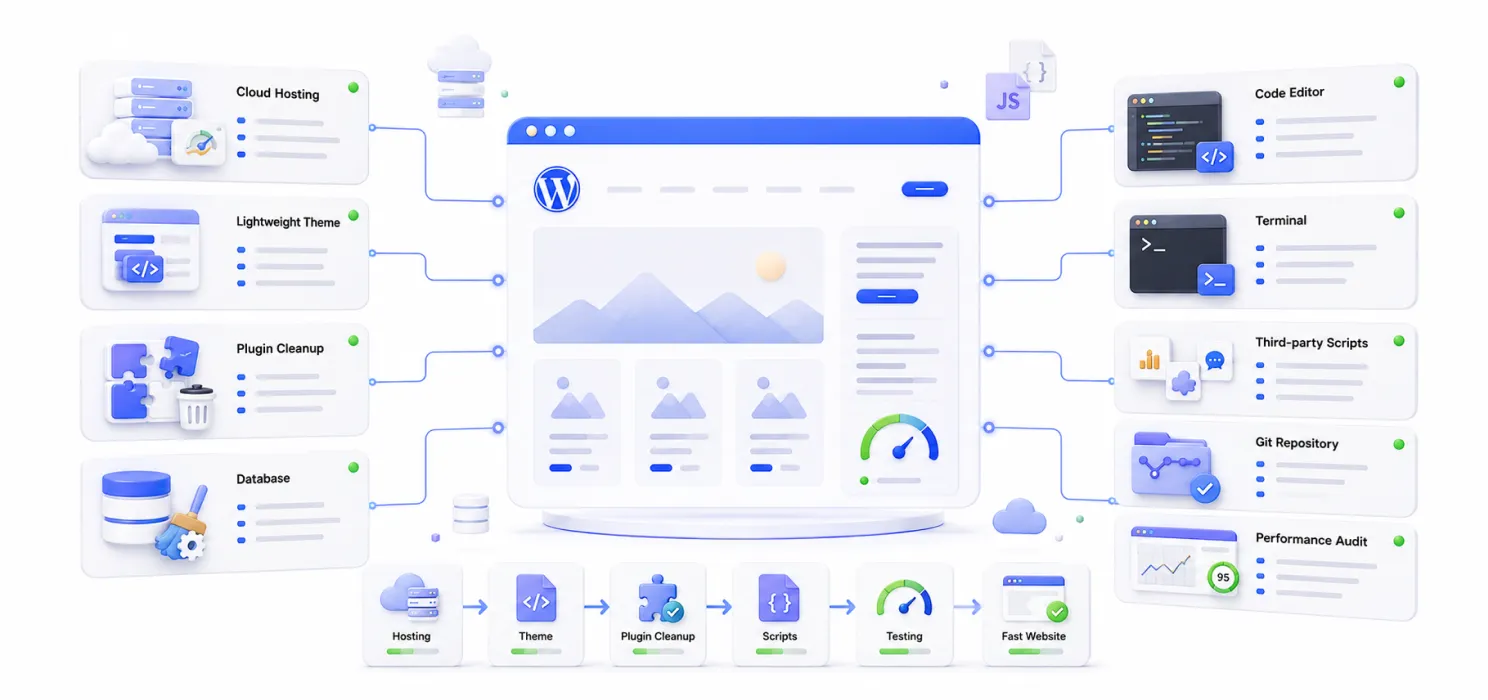
Manual optimization isn’t about avoiding plugins out of principle; it’s about handling the things plugins genuinely can’t fix, or fixing them more precisely than a general-purpose plugin can.
Where manual work is worth it:
- Removing unused plugins entirely. No plugin can uninstall other plugins for you in a meaningful way. Going through your plugin list and deactivating anything that isn’t providing core functionality or consolidating overlapping ones is manual work by nature, and it’s often the single highest-leverage fix available, since every active plugin adds overhead whether it’s being used effectively or not.
- Deferring or async-loading third-party scripts. Chat widgets, analytics tags, and font embeds often need to be manually configured to load asynchronously or after the main content, rather than blocking the page. Some caching plugins offer a basic version of this, but precise control usually means editing the script tags or using a dedicated script-management tool with manual configuration per script.
- Switching hosting. No plugin fixes slow hosting. If your server has poor TTFB, migrating to quality hosting with fast SSD storage and proper server-level caching is a manual, one-time decision that resets your baseline performance and is the foundation everything else builds on.
- Switching themes. A heavy, multipurpose theme bundled with a drag-and-drop builder can add 400KB to over 1MB of JavaScript to every page load before you’ve installed anything else. No plugin can strip that out cleanly. Moving to a lighter, purpose-built theme is a manual, structural decision, but it’s often what finally moves the needle when plugins alone plateau.
- Custom code fixes for Interaction to Next Paint (INP). This is the area where manual work is increasingly unavoidable in 2026. Many sites that look fully optimized cached, compressed images, cleaned database still fail INP because heavy JavaScript is blocking the main thread when a user clicks or taps something. Fixing this properly often means auditing event listeners, breaking up long-running scripts, and in some cases custom development work rather than another plugin install.
The tradeoffs:
- It takes more time, more technical comfort, and more willingness to test carefully (ideally on a staging site first).
- Mistakes carry more risk: editing theme files or database entries directly can break your site if you’re not careful, so backups before any manual change are non-negotiable.
- It doesn’t scale the same way. A plugin’s fix applies site-wide immediately; a manual fix often needs to be reapplied or reconsidered as your site grows and changes.
Where the two approaches meet
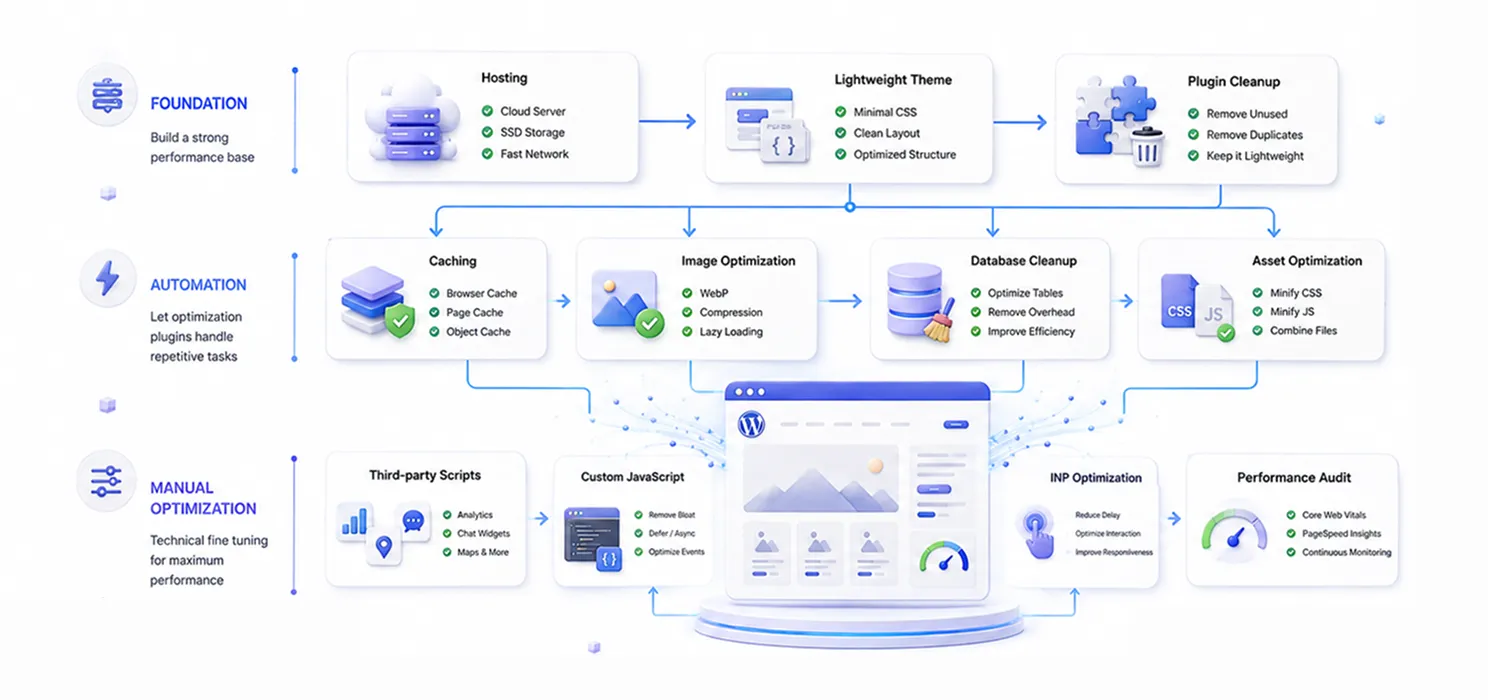
In practice, the best-performing WordPress sites don’t pick one lane; they layer both. A typical, effective approach looks like:
|
This layered approach matters because speed optimization isn’t one single fix; it’s stacked layers that compound on each other. A site with great caching but massive, unoptimized images will still be slow.
A site with perfectly compressed images but no caching will still be slow. Each layer needs attention, and each layer has a natural best-fit approach: plugin for the mechanical, repeatable stuff; manual for the structural and judgment-heavy stuff.
A simple way to decide
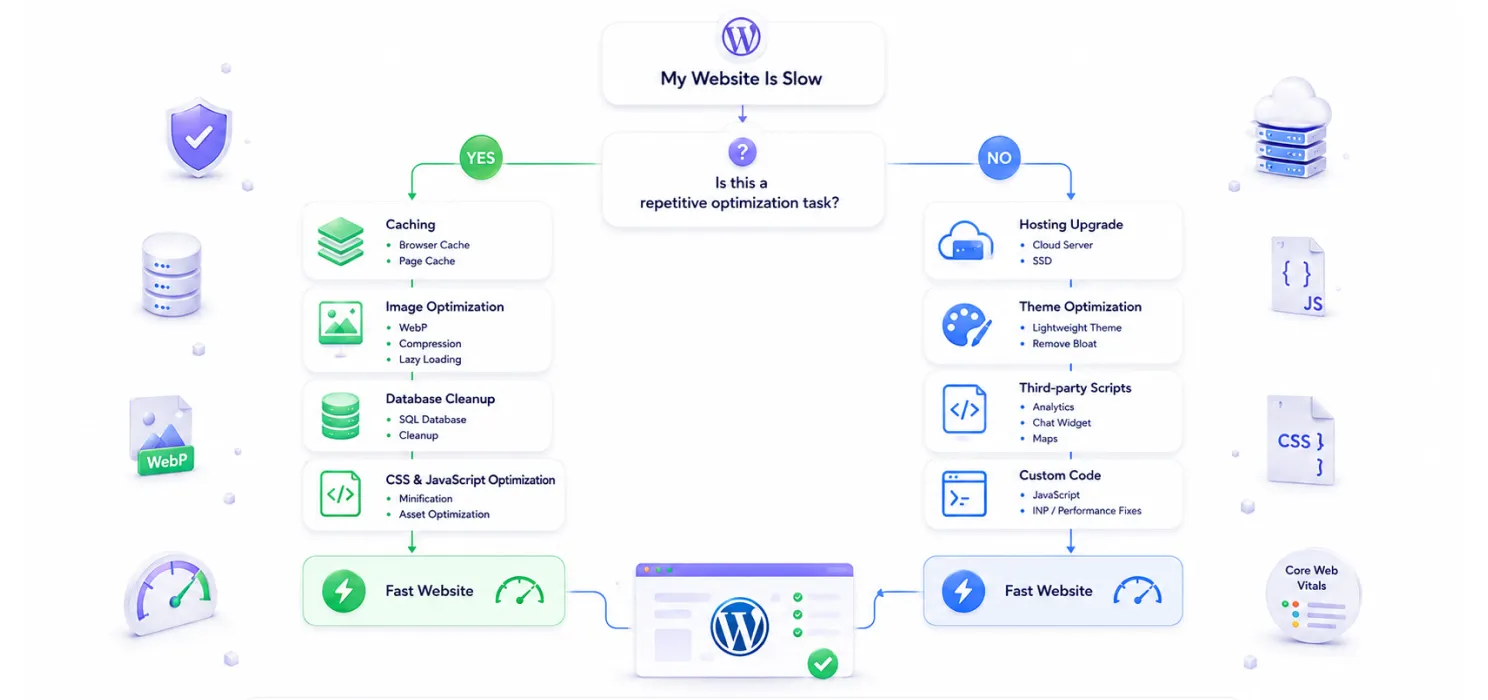
When you hit a specific slowdown, ask two questions:
Is this a repeatable, mechanical task with a clear right answer? (Compress this image. Cache this page. Delete old revisions.) → Use a plugin.
Does this require a judgment call, custom configuration, or a structural change? (Which scripts can safely load later? Is this theme fundamentally too heavy? Is our hosting the actual bottleneck?) → Do it manually, or bring in a developer.
Measure before and after, regardless of approach
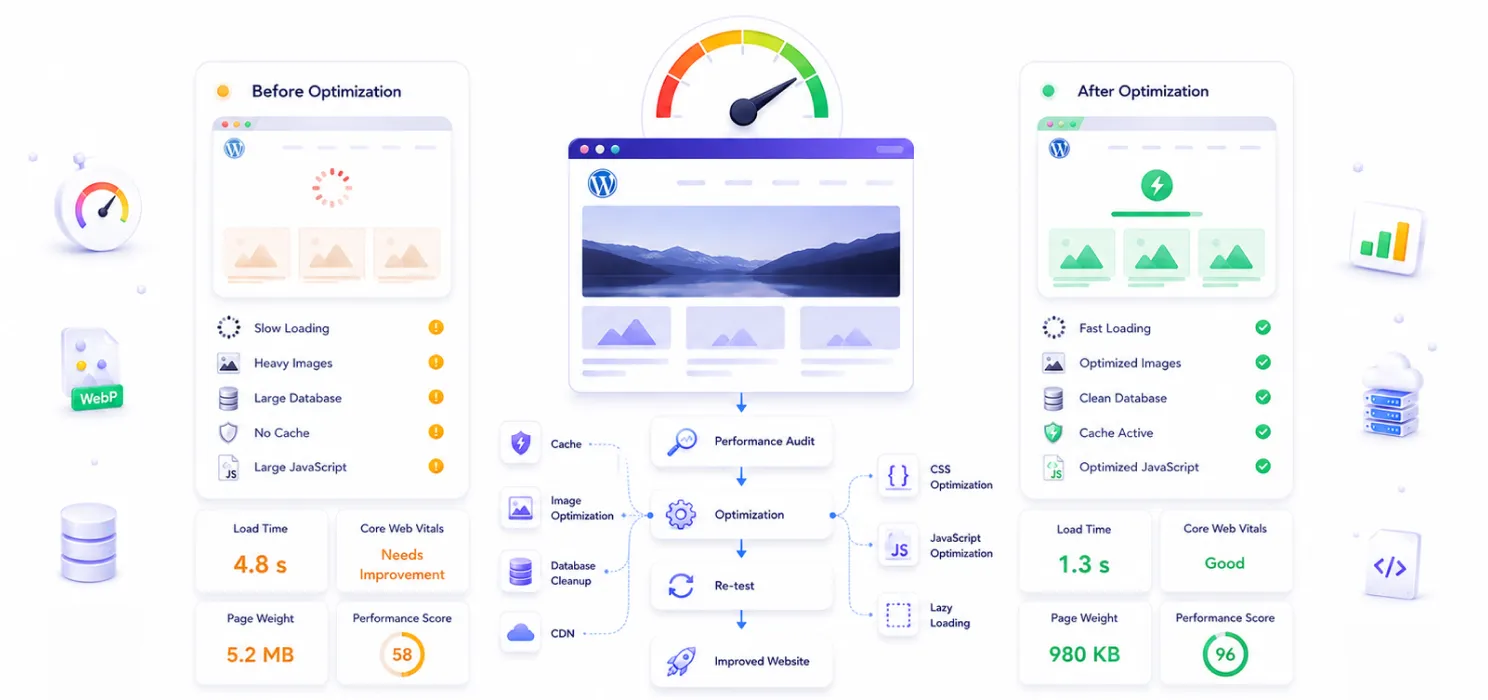
Whichever route you take for a given fix, don’t skip measurement. Benchmark your site’s current performance before making changes, using Google PageSpeed Insights for lab data and Google Search Console’s Core Web Vitals report for real-world field data.
Make one meaningful change at a time where possible, then re-test. This is the only way to know whether a given plugin or manual fix actually moved the needle, and it protects you from the common trap of installing five plugins at once and having no idea which one helped, which one hurt, and which one did nothing at all.
Speed up your wordPress site with SpeedyGo
If you want a simpler way to handle WordPress performance optimization, SpeedyGo can help automate the most time-consuming tasks. From smart caching and image optimization to WebP conversion, lazy loading, and asset optimization, SpeedyGo helps improve your website speed without requiring advanced technical knowledge.
Instead of manually configuring multiple optimization settings, you can use one complete solution to improve loading times, enhance Core Web Vitals, and deliver a smoother experience for your visitors.
The bottom line
Plugins are the right tool for mechanical, repeatable optimization: caching, image compression, database cleanup, minification, and for most WordPress site owners, a lean, well-chosen stack of two or three plugins will solve the majority of speed problems with minimal technical risk.
But plugins have a ceiling. They can’t fix slow hosting, they can’t strip bloat out of a heavy theme, and they increasingly can’t solve the JavaScript-driven responsiveness problems behind poor INP scores on their own.
The sites that consistently perform well don’t treat this as an either/or choice. They use plugins for what plugins do best, and they invest manual effort in better hosting, a leaner theme, deliberate script management, and targeted code fixes where automation genuinely can’t reach.
Start with an honest audit of what’s actually slowing your site down, fix the biggest bottleneck first, and measure after every change. That combination, more than any single plugin, is what actually fixes a slow WordPress site.
Frequently Asked Questions
Find answers to the most common questions about using plugins versus manual optimization to improve WordPress website speed and Core Web Vitals.
Is it better to use a plugin or manually optimize a WordPress site?
The best approach is to use both. Plugins are excellent for automating tasks like caching, image optimization, and database cleanup, while manual optimization is better for improvements such as upgrading hosting, replacing a heavy theme, or optimizing custom code.
Combining both methods gives you the best balance of performance and long-term website health.
Can a caching plugin fix all WordPress speed problems?
No. A caching plugin can solve one of the biggest performance bottlenecks by reducing page load times, but it won’t fix every issue.
Slow hosting, oversized images, unnecessary plugins, heavy themes, and render-blocking JavaScript also need attention if you want a consistently fast WordPress website.
How many speed optimization plugins should I install?
Two or three well-maintained optimization plugins are usually enough for most WordPress websites.
Installing too many plugins that perform similar tasks can create conflicts, increase server load, and make troubleshooting more difficult.
When should I choose manual optimization?
Choose manual optimization when your website needs changes that plugins cannot automate.
Tasks like switching hosting providers, replacing a resource-heavy theme, optimizing custom JavaScript, or removing unnecessary plugins often require manual work and can deliver significant performance improvements.
How can I check if my WordPress site is actually slow?
Step 1: Visit SpeedyGo’s Website Speed Analyzer.
Can SpeedyGo help improve WordPress performance?
Yes. SpeedyGo helps automate several important optimization tasks from one dashboard, including caching, image optimization, WebP conversion, lazy loading, and asset optimization.
This makes it easier to improve website speed and Core Web Vitals without spending hours configuring multiple tools.
What usually causes a WordPress website to become slow?
The most common causes of a slow WordPress website include:
- Poor or overloaded web hosting
- Missing or ineffective page caching
- Large, unoptimized images
- Database bloat from revisions and unused data
- Too many or poorly coded plugins
- Heavy WordPress themes with unnecessary features
- Render-blocking CSS and JavaScript files
Finding and fixing the biggest bottleneck first usually delivers the fastest and most noticeable performance improvement.
Should I measure performance after every optimization?
Measuring performance after every significant change helps you understand what actually improved your website.
Comparing results before and after each optimization makes it easier to identify effective changes, avoid unnecessary tweaks, and keep your WordPress site performing at its best.