8 mins read
Asset Management: Optimizing Images And Code For Speed
Share Article :


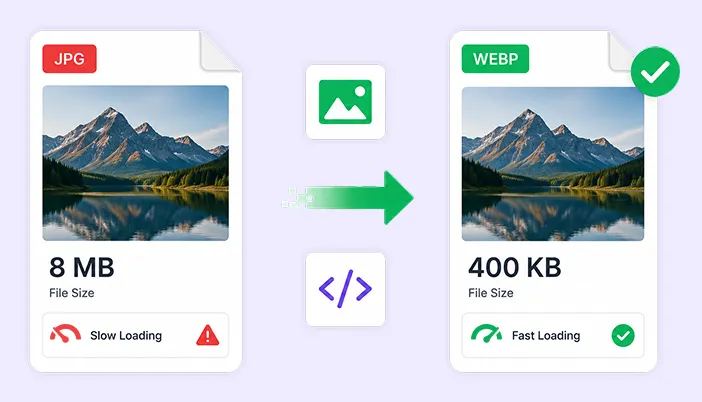
In this blog, you will learn why images and code are usually the two biggest reasons a WordPress site feels slow, how much weight they’re actually adding to your pages, and a clear set of steps for optimizing both without breaking your design.
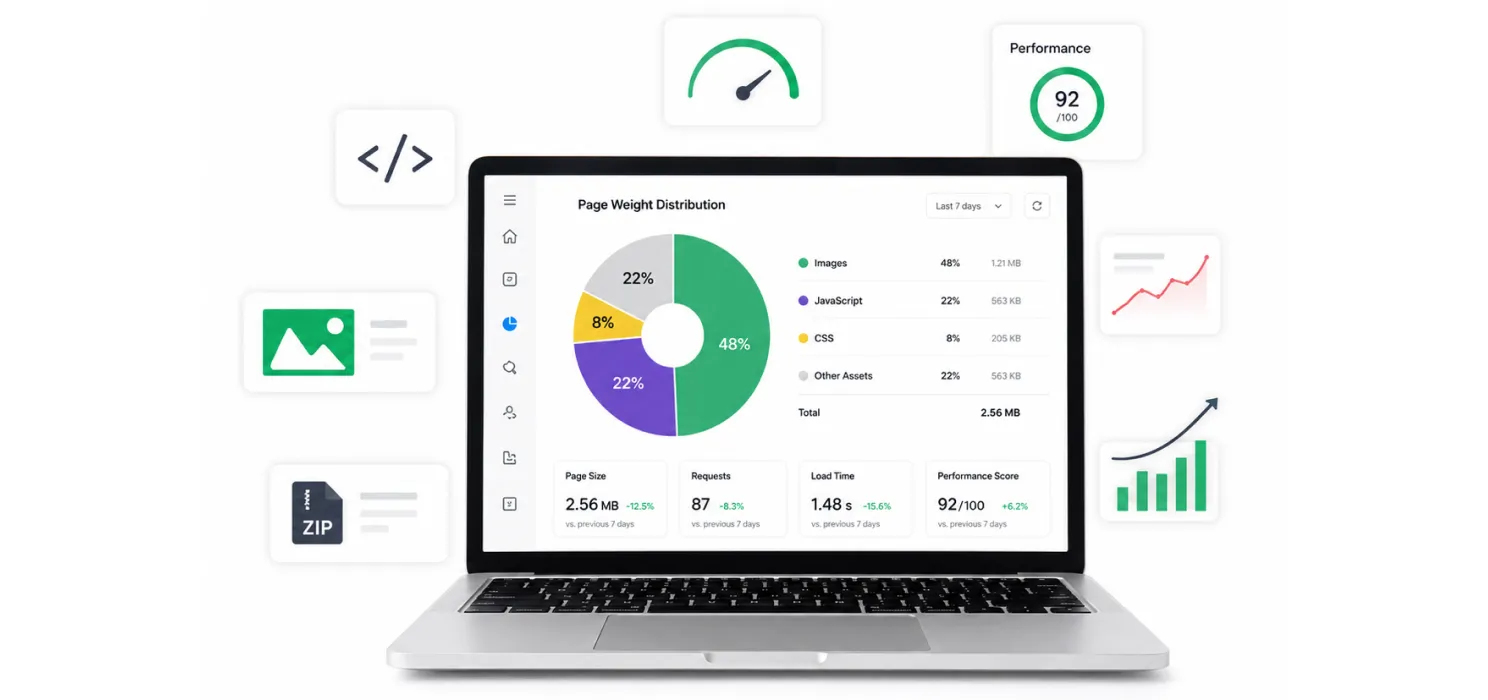
Here’s a number that explains a lot: images make up around 48% of the average web page’s total weight, and they’re the largest visible element on roughly 85% of desktop pages. In plain terms, almost half of what your visitor downloads is pictures, and the picture is very often the exact thing Google is timing when it measures your speed.
Code isn’t innocent either. JavaScript alone typically accounts for another fifth or so of total page weight, much of it loaded whether the page actually needs it or not. Between the two, images and code are responsible for the bulk of what makes a WordPress site feel sluggish. Fix them properly, and you fix most of your speed problem in one pass.
Why this is the highest-leverage fix you can make
Not every performance fix pays off equally. Server tuning and caching matter, but if a single hero image is 6MB, no amount of caching changes the fact that a visitor still has to download 6MB before they see anything. Asset management, meaning how you handle images and code, tends to deliver the biggest visible improvement for the least ongoing effort, which is exactly why it’s usually the first place worth looking.
| Asset type | Typical share of page weight | Why it matters |
| Images | ~48% | Usually the Largest Contentful Paint element, so it directly affects a Core Web Vital |
| JavaScript | ~22% | Blocks rendering and delays interactivity if not handled carefully |
| CSS | ~8% | Small individually, but render-blocking CSS delays first paint |
| Everything else (fonts, HTML, etc.) | Remaining share | Usually smaller wins, worth doing last |
As one guide on the topic put it plainly:
“Images are the single largest contributor to page weight on the average website.”
That single sentence is really the whole argument for starting here.
Part one: optimizing your images
Use the right format
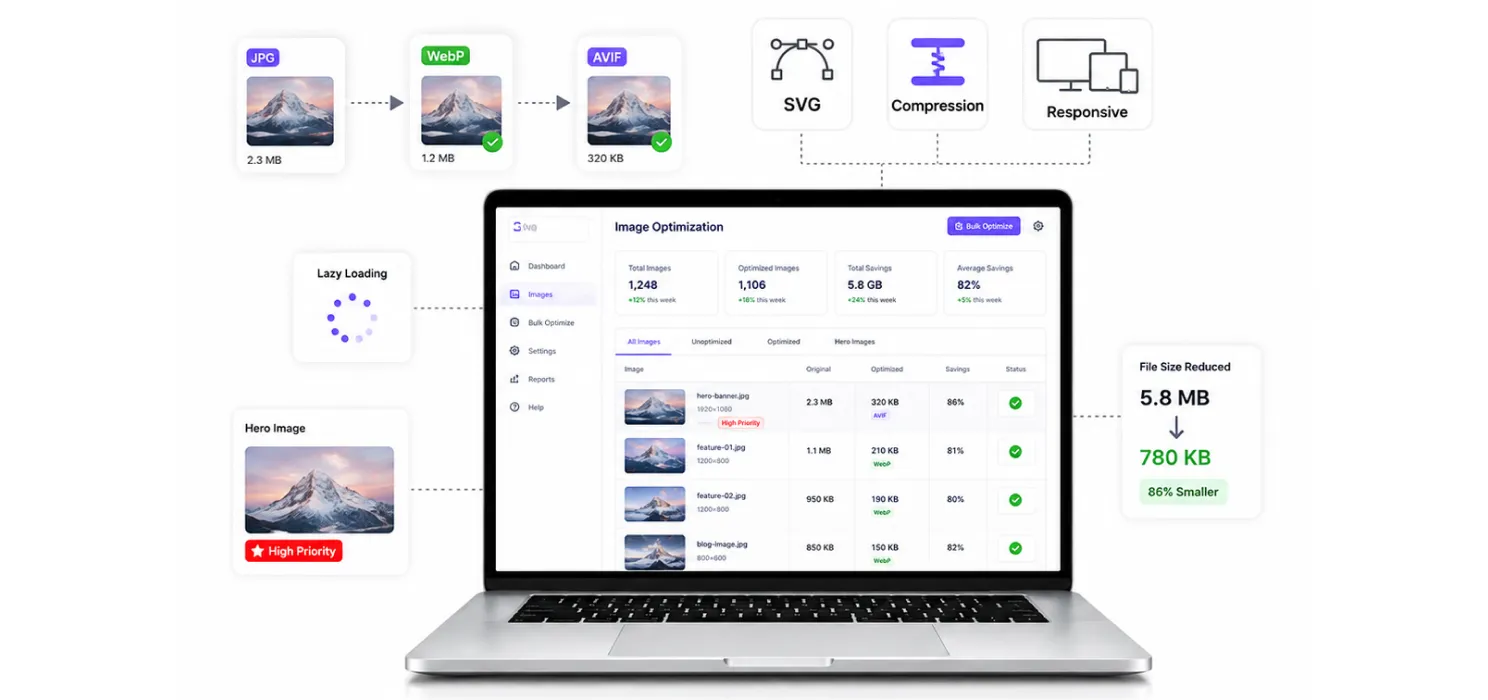
JPEG and PNG have been the default for decades, but they’re not the most efficient choice anymore. Modern formats do the same job in a fraction of the file size.
- WebP is roughly 25 to 35% smaller than JPEG at similar visual quality, and nearly every browser supports it today
- AVIF goes further, cutting file size by up to 50% compared to JPEG, and browser support has grown enough to make it the preferred format in 2026
- SVG is the right choice for logos, icons, and simple graphics. It’s infinitely scalable and tends to be tiny
- Keep a fallback in place (WebP or JPEG) for the rare visitor on an older browser, usually handled automatically through the <picture> element
Compress without losing quality
Format alone isn’t enough. Even a WebP or AVIF file can be needlessly large if it’s not compressed properly.
- Aim for a compression quality of around 75 to 80% for photos. Most visitors can’t tell the difference, but the file size drop is significant
- Keep lossless compression only for graphics with text or sharp edges, where visible artifacts would actually show
- Never upload an image straight from a camera or phone at full resolution and call it done. That single habit alone is behind a huge share of bloated WordPress sites
Tip: Export images at the actual size you display them, not the size they came in. A photo displayed at 800 pixels wide doesn’t need to be uploaded at 4000 pixels wide, no matter how good the original camera was.
Serve the right size for the right device
A visitor on a phone doesn’t need the same image file as someone on a large desktop monitor. Responsive images solve this by offering the browser several sizes and letting it choose.
- Use srcset and sizes attributes so the browser picks the smallest image that still looks sharp on that device
- Most WordPress image plugins and modern themes handle this automatically once responsive images are enabled
- Double-check it’s actually working using your browser’s dev tools. It’s a common setting that gets silently disabled by a theme or plugin conflict
Lazy-load what’s below the fold, but not what’s above it
Lazy loading delays downloading images until a visitor is about to scroll to them, which can cut initial page weight by 40 to 60% on image-heavy pages.
- Set loading=”lazy” on every image below the fold
- Never lazy-load your hero image or any image visible without scrolling. Doing this by accident is one of the most common mistakes in image optimization, and it actively hurts your Largest Contentful Paint score instead of helping it
Note: If your LCP score got worse after a “speed optimization” plugin update, check whether it accidentally lazy-loaded your hero image. This single misconfiguration undoes most of the other image work on a page.
Give your hero image priority
- Add fetchpriority=”high” to your main above-the-fold image. In Google’s own testing, this single attribute has been shown to meaningfully improve LCP timing
- Always set explicit width and height (or aspect-ratio) on every image. Without this, the browser can’t reserve space for it, and the layout jumps around as it loads, which hurts your Cumulative Layout Shift score too
Part two: optimizing your code
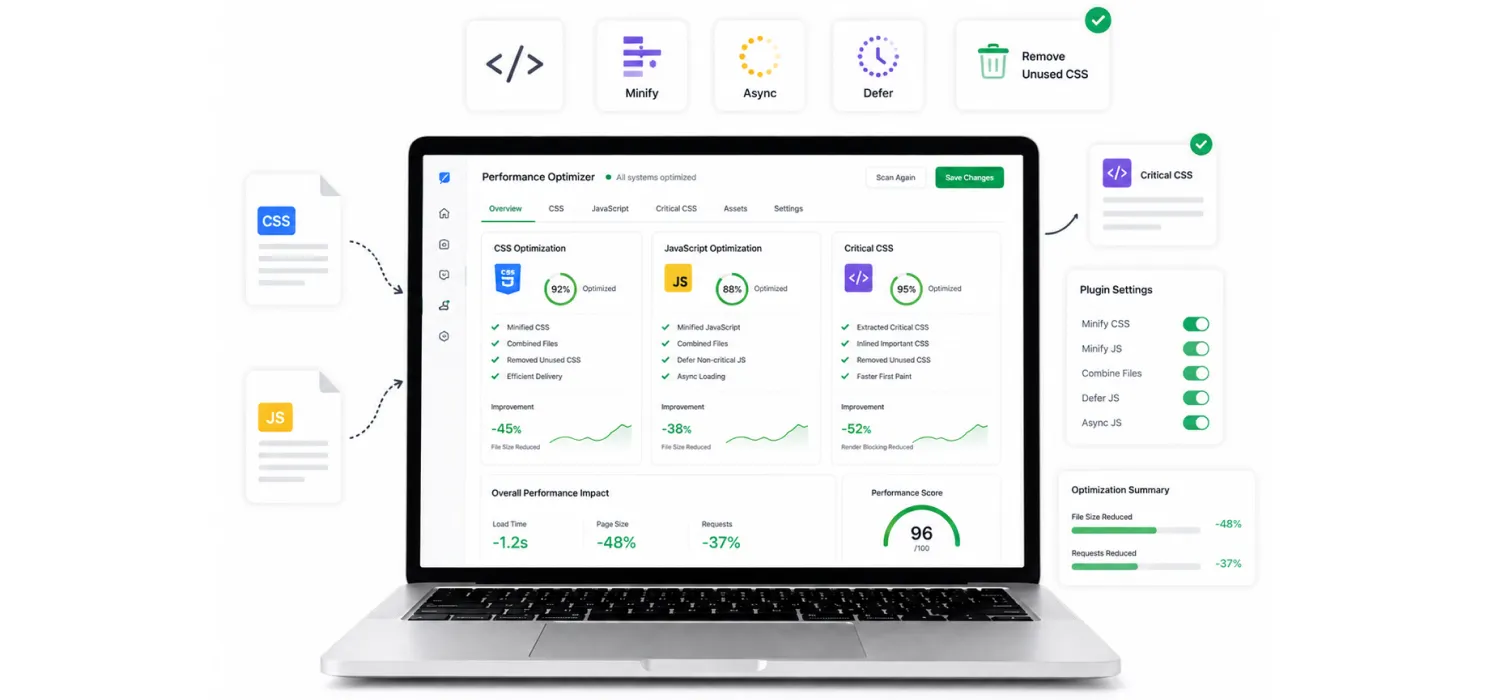
Images get most of the attention, but bloated CSS and JavaScript quietly drag pages down too, especially on WordPress sites where every plugin can add its own files.
Minify and combine your files
- Minifying CSS and JavaScript strips out unnecessary spaces, comments, and formatting, shrinking file size without changing what the code actually does
- Combining smaller files into fewer, larger ones used to matter a lot more before HTTP/2, but it can still help reduce the number of separate requests a browser has to make
- Most performance plugins (WP Rocket, Autoptimize, LiteSpeed Cache) can automate this, though it’s worth testing thoroughly after enabling it
Defer or remove what isn’t needed right away
- Non-critical JavaScript should be deferred or loaded asynchronously, so it doesn’t block the page from rendering while the browser waits for it
- Audit your plugins for ones loading scripts and styles on every page, even pages where those scripts do nothing. This is extremely common and easy to overlook
- Remove unused CSS where possible. Many WordPress themes ship with far more styling than any single page actually uses
Use critical CSS for above-the-fold content
Critical CSS means loading just enough styling to render what’s immediately visible, then loading the rest of your stylesheet afterward without blocking the page.
- This technique noticeably improves how fast a page feels, even if total load time doesn’t change much
- Several caching plugins can generate critical CSS automatically, though it’s worth reviewing the output, since automated critical CSS generation occasionally misses something and causes a brief flash of unstyled content
Tip: After any code optimization change, always check your site on both desktop and mobile, and click through a few key pages like your checkout or contact form. Aggressive JavaScript deferral occasionally breaks interactive elements that depend on scripts loading in a specific order.
SpeedyGo
Optimizing images and code manually can take time, especially if you have a large WordPress site with hundreds of images and multiple plugins adding CSS and JavaScript files. SpeedyGo helps simplify these common performance tasks by bringing several optimization features together in one place.
With SpeedyGo, you can handle image optimization, WebP conversion, lazy loading, code minification, caching, and compression without relying on several separate plugins. This makes it easier to reduce page weight and improve overall website performance while keeping your WordPress setup easier to manage.
You can explore the full range of SpeedyGo features to see how its image and code optimization tools work together to improve website speed. While SpeedyGo can automate many of these optimizations, it is still important to use properly sized images and avoid loading unnecessary scripts, since no optimization tool can fully compensate for oversized assets or unused code.
Wrapping up
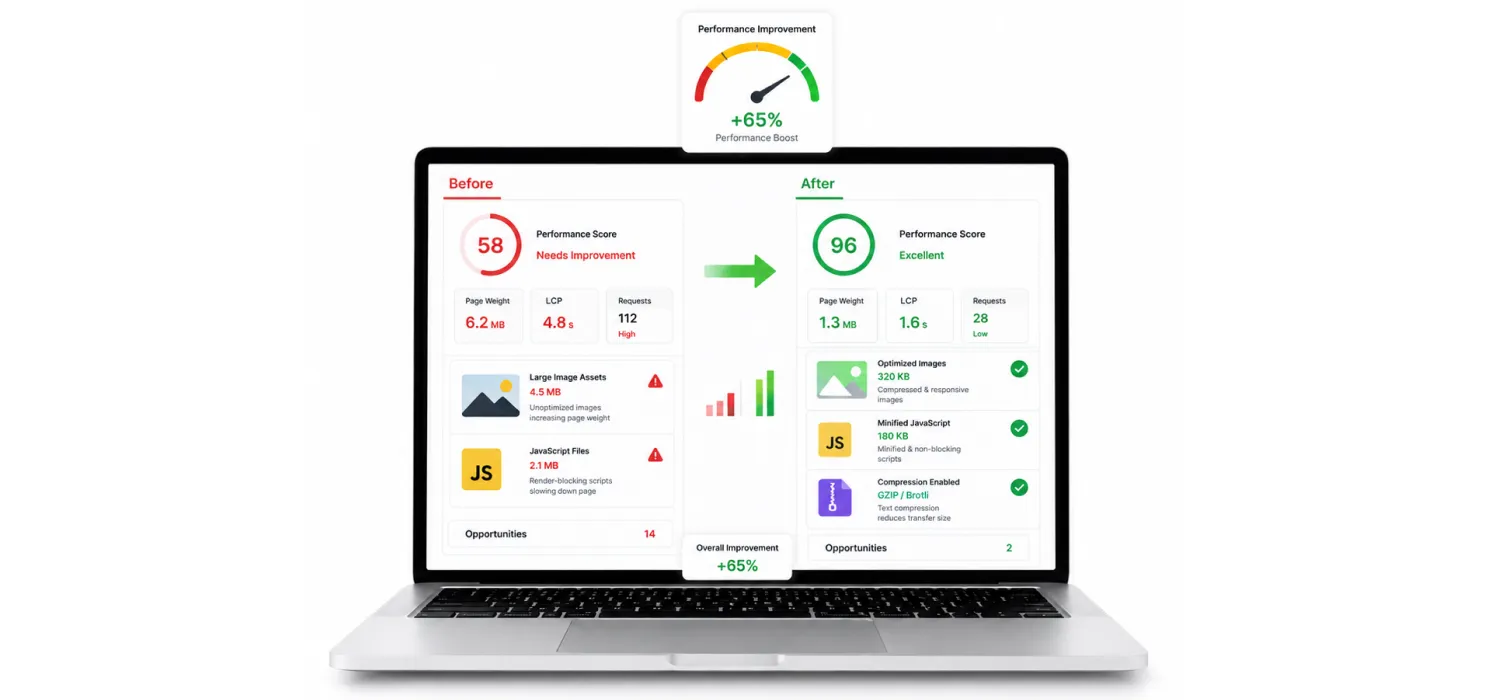
Asset management sounds like a technical, back-office kind of task, but it’s really just two questions asked over and over: is this image as small as it can be without looking worse, and is this code only loading when it’s actually needed. Answer both consistently across your site, and you’ll usually see a bigger, faster improvement than almost any other single change you could make.
Start with your heaviest pages, fix the images first since that’s where the biggest weight usually lives, then clean up the code around them. It’s not glamorous work, but it’s some of the most reliably effective work in web performance.
Frequently Asked Questions
Do I need to manually optimize every image I upload?
No. A good plugin handles compression and format conversion automatically on upload. The manual work is really just picking the right plugin once and occasionally checking it’s still working.
Will WebP or AVIF images look worse than JPEG?
At a reasonable quality setting, most people genuinely can’t tell the difference. The file size savings are large enough that it’s rarely worth sticking with older formats just for peace of mind.
Is code optimization as important as image optimization?
Images usually offer the bigger, faster win since they’re a larger share of page weight and often the LCP element itself. But on a script-heavy WordPress site, especially ones using a page builder, code cleanup can matter just as much for responsiveness and interactivity.
Can I break my site by optimizing too aggressively?
Yes, this happens more than people expect, usually from combining or deferring scripts that depend on a specific loading order. Always test key pages after making changes, and keep a backup before major settings changes.