12 mins read
WordPress Speed Optimization Strategy for High Traffic
Share Article :


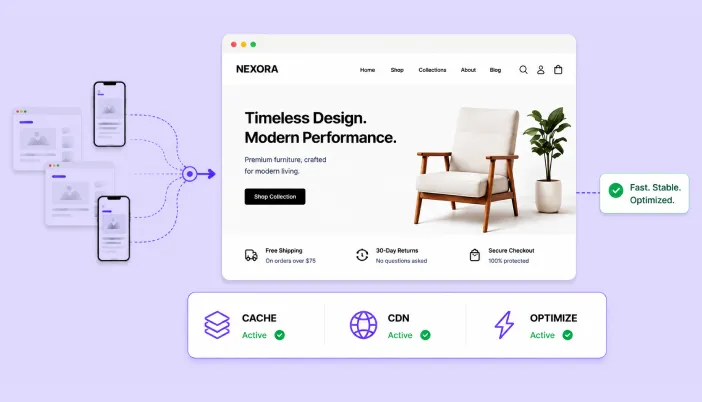
In this guide, we’ll walk through a practical WordPress speed optimization strategy for high-traffic websites from finding the real bottleneck and building the right caching layers to optimizing databases, reducing unnecessary server work, using a CDN, improving Core Web Vitals, handling dynamic pages, preparing for traffic spikes, and continuously monitoring performance.
We’ll also explain which optimizations usually make the biggest difference, what you should avoid, and where an all-in-one performance solution can simplify ongoing optimization.
High traffic changes the performance problem
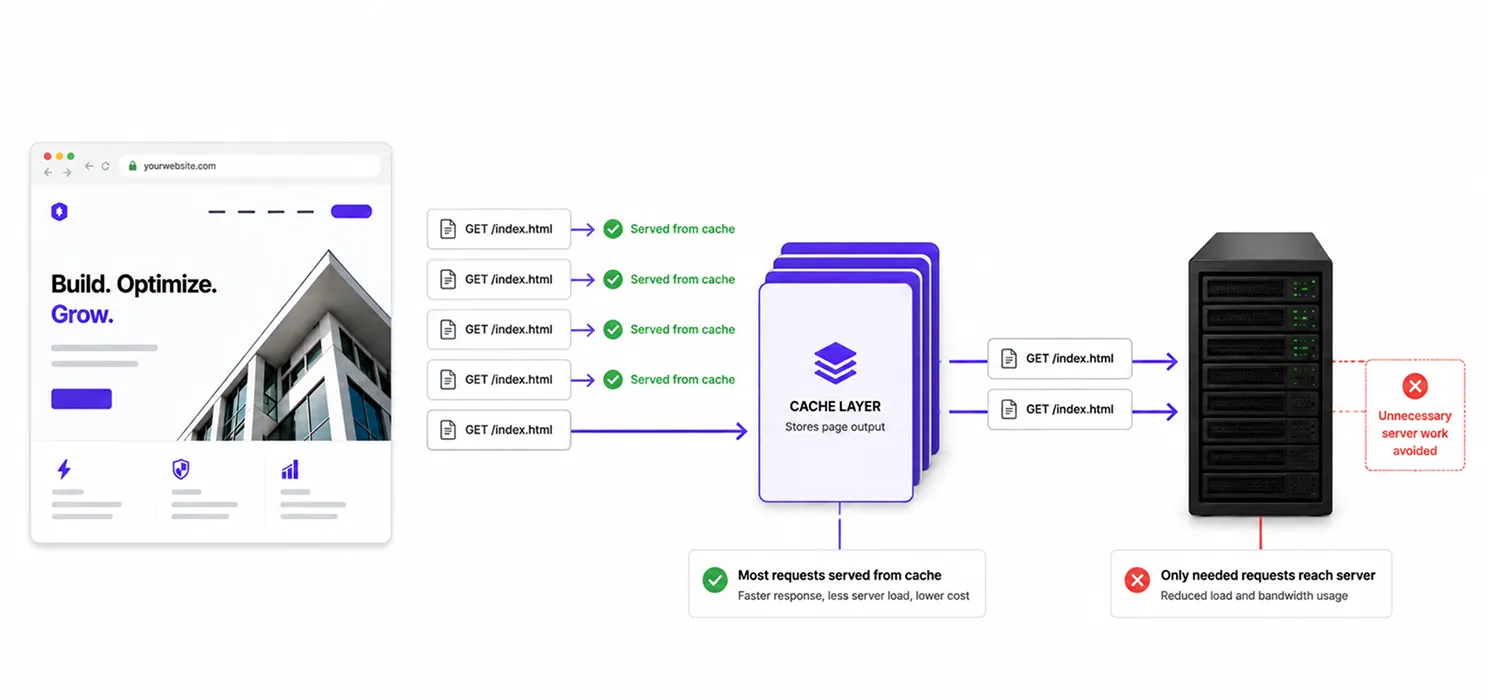
A website handling 10,000 visitors a month might run comfortably with basic hosting, caching, and a simple CDN. But at 500,000 visitors, the same setup can struggle.
Every request can trigger a chain of work:
Browser → CDN → Server → WordPress → PHP → Plugins → Database → Browser
When thousands of requests arrive together, that repeated work quickly adds up. That’s why high-traffic WordPress optimization is largely about reducing unnecessary work and serving more requests efficiently.
The fastest request is often the one your server doesn’t have to process again.
For larger WordPress sites, caching, persistent object caching, CDNs, database tuning, server optimization, and scalable infrastructure all play an important role.
What is actually slowing your website ?
Before changing anything, measure first. A poor PageSpeed score doesn’t automatically mean you need more plugins, image compression, or better hosting. The real question is:
What is actually causing the slowdown? Look at your website from four angles:
1. Front-end performance
Check page size, images, CSS, JavaScript, fonts, third-party scripts, requests, and rendering.
2. WordPress performance
Review plugins, themes, database queries, autoloaded options, configuration, and dynamic features.
3. Server performance
Monitor CPU, RAM, PHP workers, PHP version, database load, response time, and traffic spikes.
4. Delivery performance
Check CDN usage, cache hit rates, edge caching, static assets, and compression.
Your high-traffic WordPress strategy should have layers
A useful way to think about high-traffic performance is as a stack.

The goal isn’t to make every layer work harder. It’s to keep as many requests as possible away from the expensive layers.
A cached page can avoid running WordPress entirely. Object caching can reduce repeated database queries. A CDN can deliver static files without making your origin server handle every request. As traffic grows, this layered approach becomes essential for keeping WordPress fast and stable.
1. Full-page caching
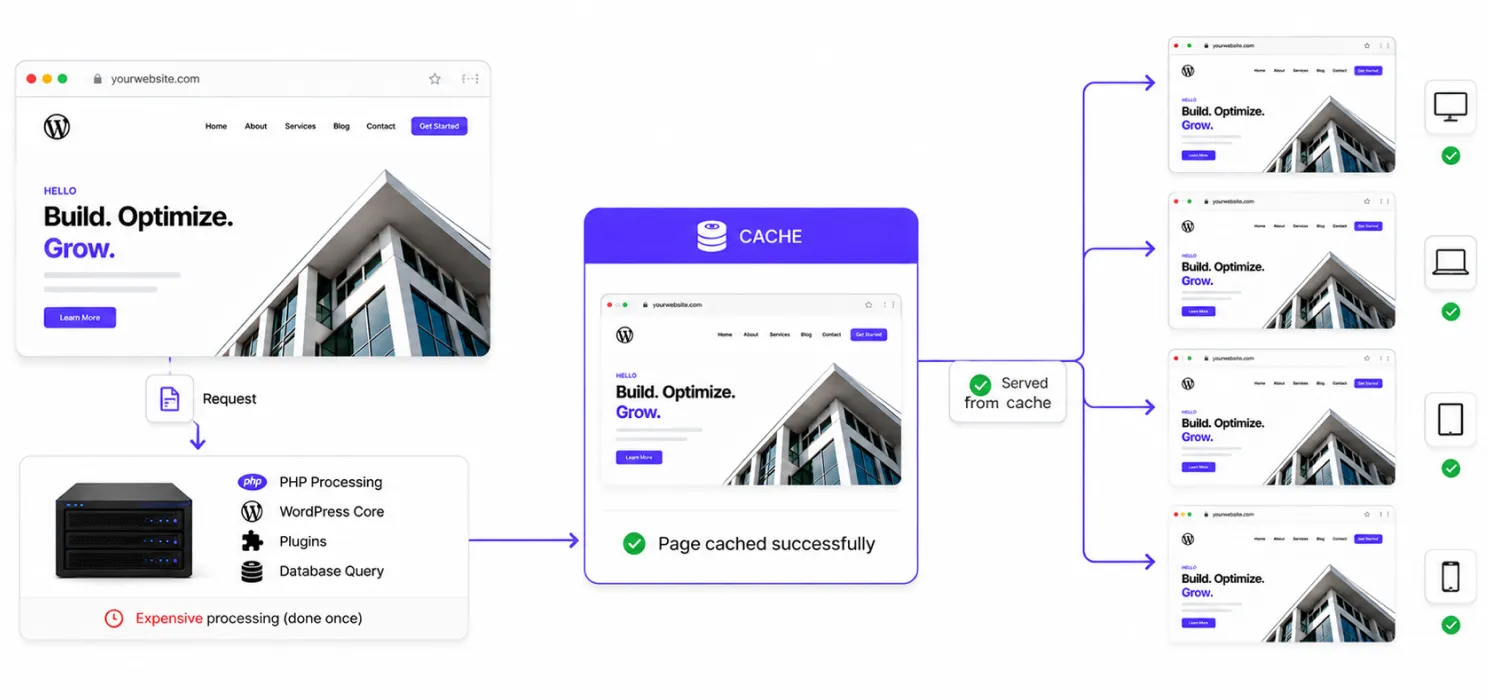
For many WordPress websites, this is the first major performance win. Without caching, a visitor requests a page and WordPress may need to:
- Start PHP
- Load WordPress
- Load plugins
- Load the theme
- Run queries
- Build the page
- Send the HTML back
Now multiply that process by thousands of visitors. Caching changes the equation. Instead of generating the same page repeatedly, WordPress can generate it once and serve a cached version to subsequent visitors.
WordPress documentation describes caching as one of the fastest ways to improve performance because cached pages can be served as static files rather than repeatedly processed by WordPress.
2. Use a CDN
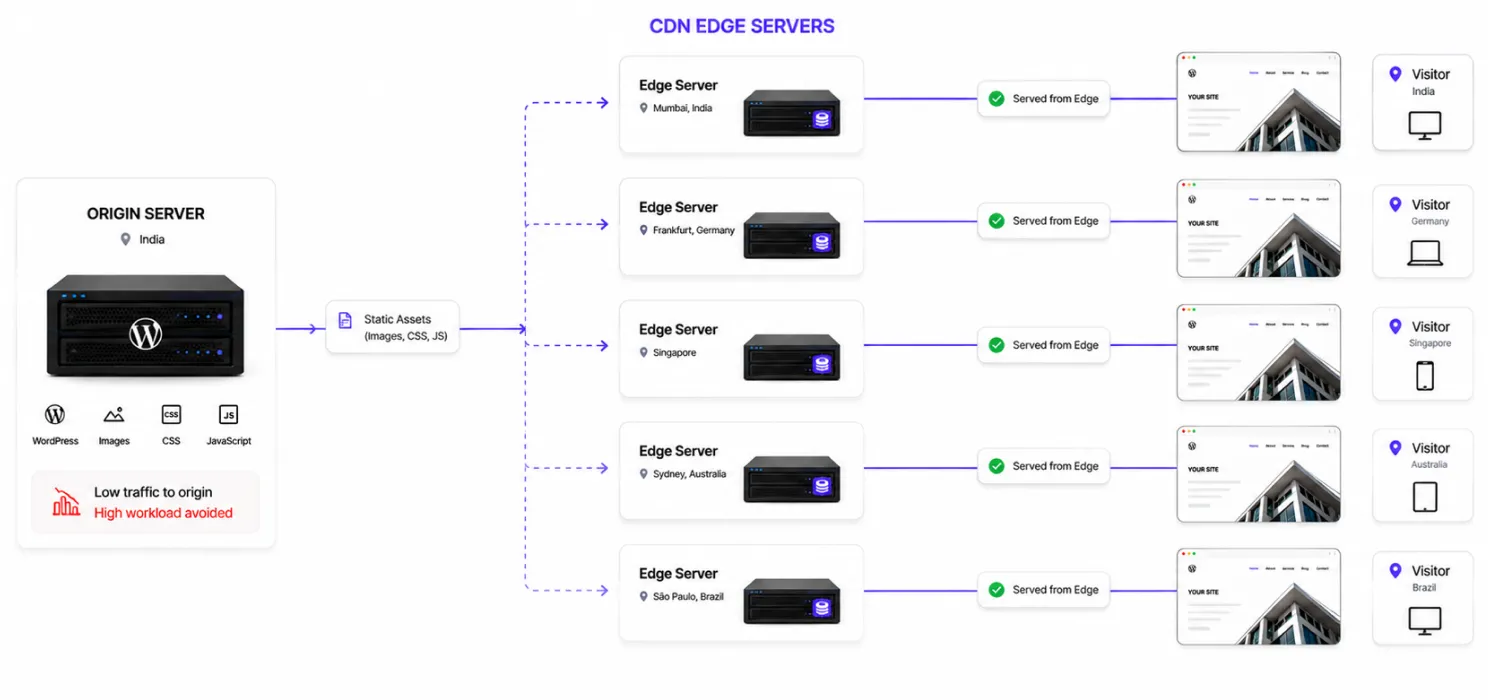
Imagine your WordPress server is located in India. A visitor is browsing your website from the United States. If every image, CSS file, JavaScript file and other static asset has to travel from your origin server to that visitor, you’re asking one server to handle a lot of delivery work.
A CDN changes that.
A Content Delivery Network stores and serves content through distributed edge servers, allowing users to receive content from a location closer to them. WordPress’s own learning resources describe CDN usage as a way to improve delivery speed and reduce the load placed on the origin server.
For a high-traffic website, that matters for two reasons: Speed + capacity.
You’re not only trying to make visitors faster. You’re trying to keep your origin server from becoming a bottleneck.
3. Object caching
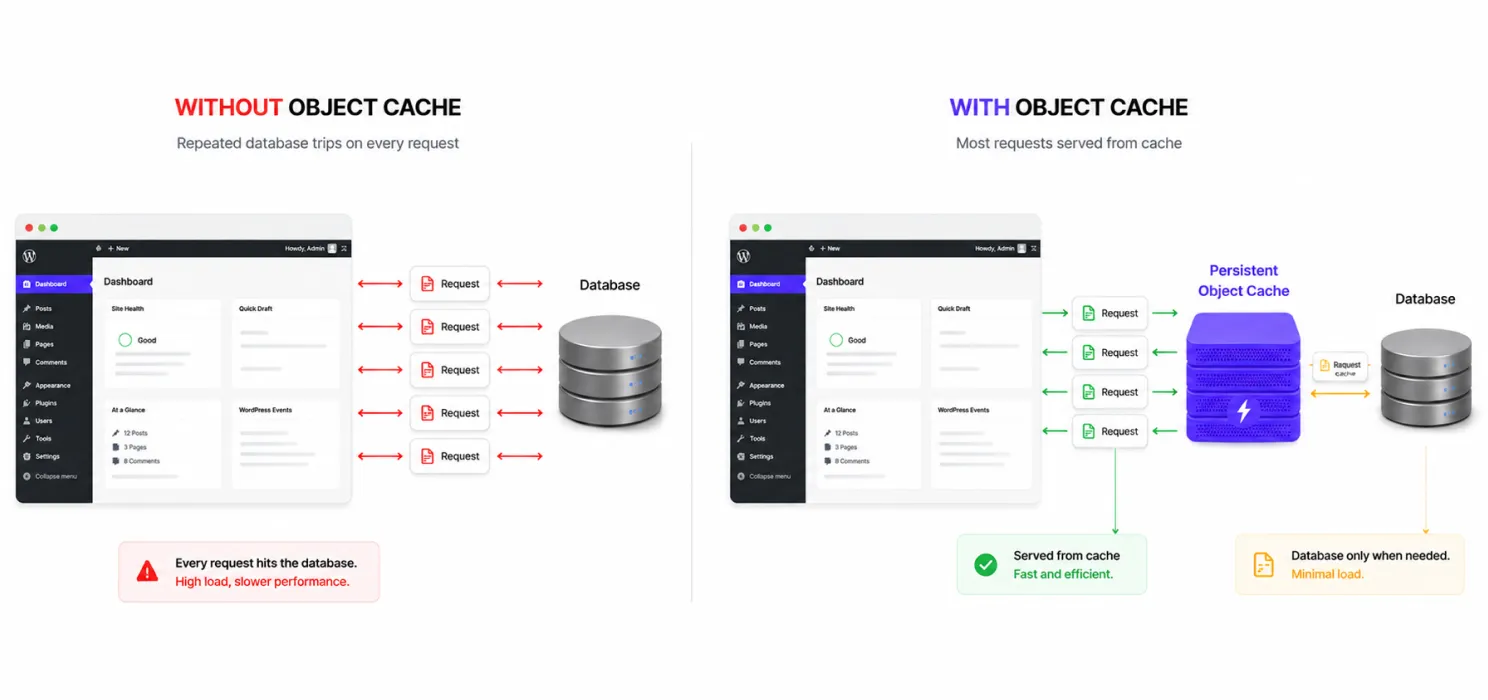
Page caching handles complete pages. Object caching works at a different level.
WordPress often needs to retrieve data from the database. Some of those operations can be expensive. Object caching stores frequently used data so WordPress can retrieve it without repeatedly going back to the database.
WordPress explains that persistent object caching can reduce database trips and improve response times, especially as traffic increases.
Common technologies include:
- Redis
- Memcached
- Other persistent caching backends
4. Don’t let the database become your hidden bottleneck
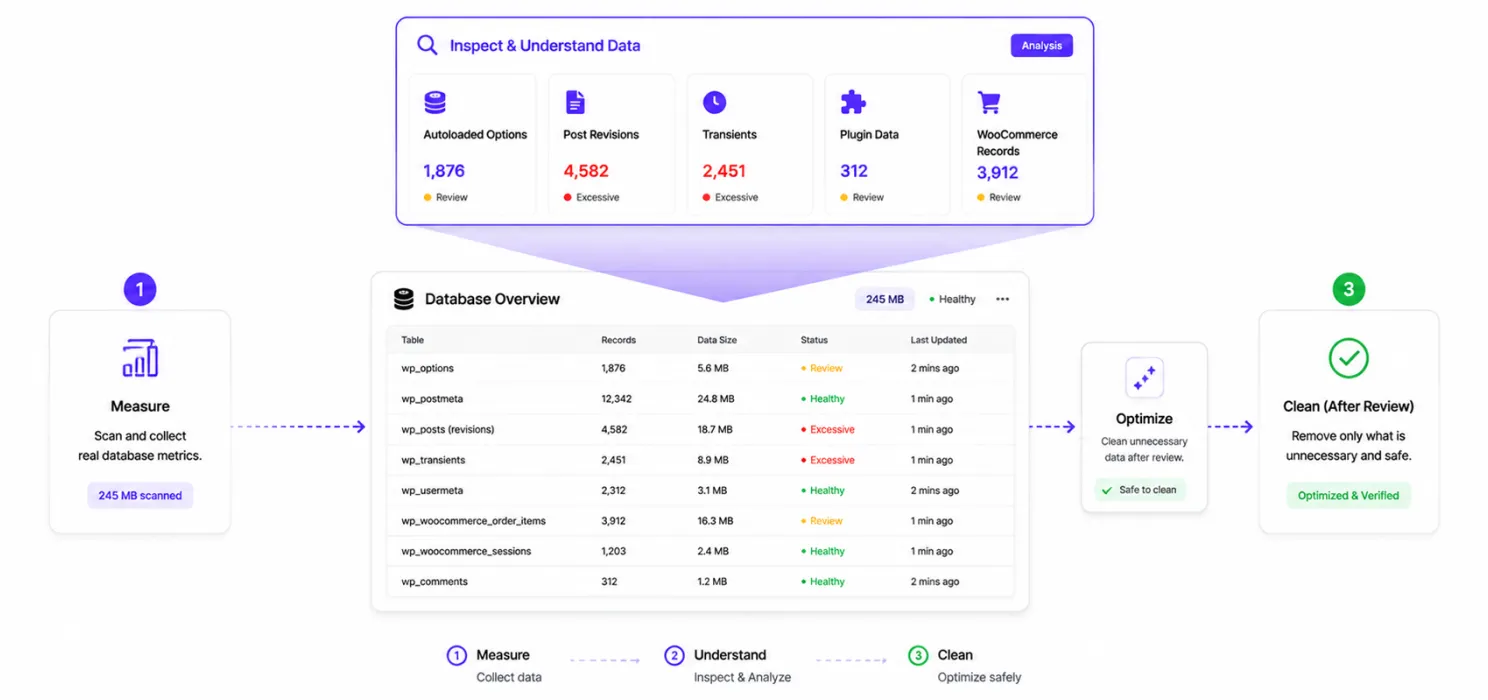
A website can have excellent caching and still struggle because the database is doing too much work.
This can happen when:
- queries are inefficient
- plugins create excessive data
- post revisions accumulate
- transients become bloated
- wp_options grows unnecessarily
- autoloaded options become excessive
- WooCommerce data becomes large
- custom queries aren’t optimized
One area worth checking is autoloaded options.
WordPress notes that excessive autoloaded options can slow websites because those values are loaded during requests; its optimization documentation suggests keeping autoloaded options under roughly 800 KB as a general target.
That doesn’t mean every website should blindly delete options.
It means: Measure first. Understand what is being loaded. Then clean up what is genuinely unnecessary.
5. Optimize the WordPress plugins
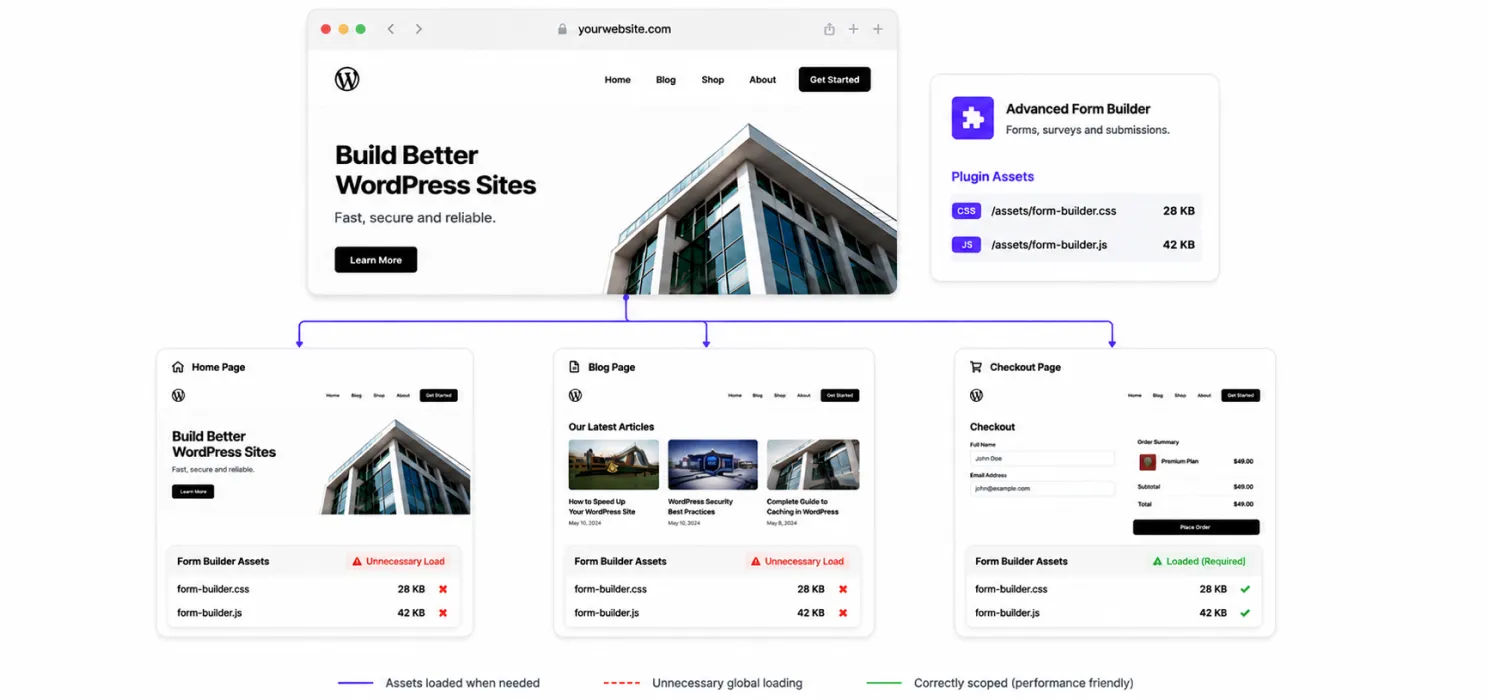
You’ve probably heard: “Too many plugins make WordPress slow.” That’s an oversimplification. Ten well-built plugins can be better than three poorly built ones.
The real question is: How much work does each plugin make WordPress perform?
A plugin may:
- add database queries
- load CSS everywhere
- load JavaScript on pages where it isn’t needed
- make external requests
- add cron jobs
- modify queries
- create large database tables
- affect admin performance
So don’t simply count plugins. Audit them.
Ask:
Does this plugin need to run on every page?
Does it load assets globally?
Does it create unnecessary database work?
Is another plugin already doing the same thing?
Is the functionality actually being used?
WordPress specifically identifies plugin and theme performance as important factors in website performance.
6. Keep your theme lean
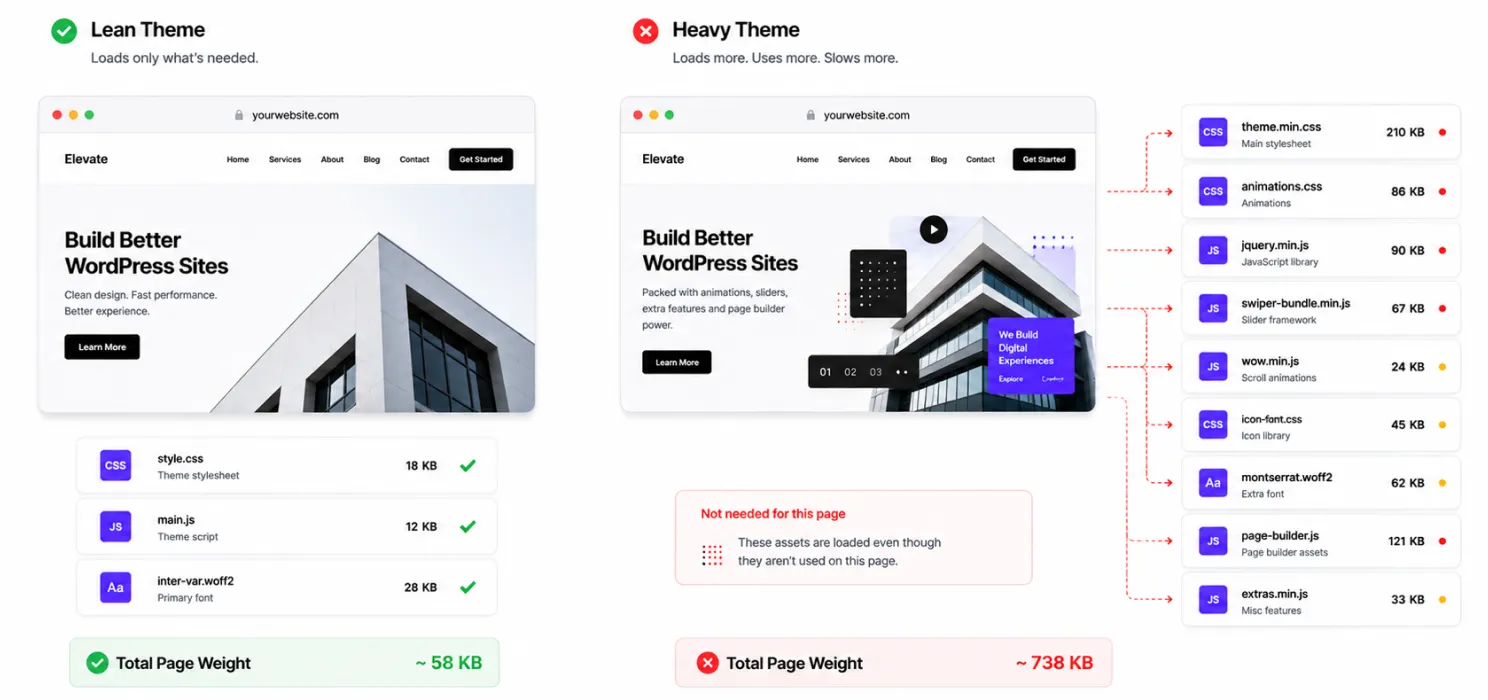
Your theme controls much more than appearance.
A heavy theme can load:
- large CSS files
- JavaScript frameworks
- sliders
- animations
- icon libraries
- additional fonts
- page-builder assets
And some of those assets may be loaded even when a page doesn’t use them. For a high-traffic website, unnecessary work gets expensive.
If one unnecessary script adds 100 KB to every page and your website serves millions of page views, that small decision becomes a much larger bandwidth and processing cost.
7. Optimize JavaScript
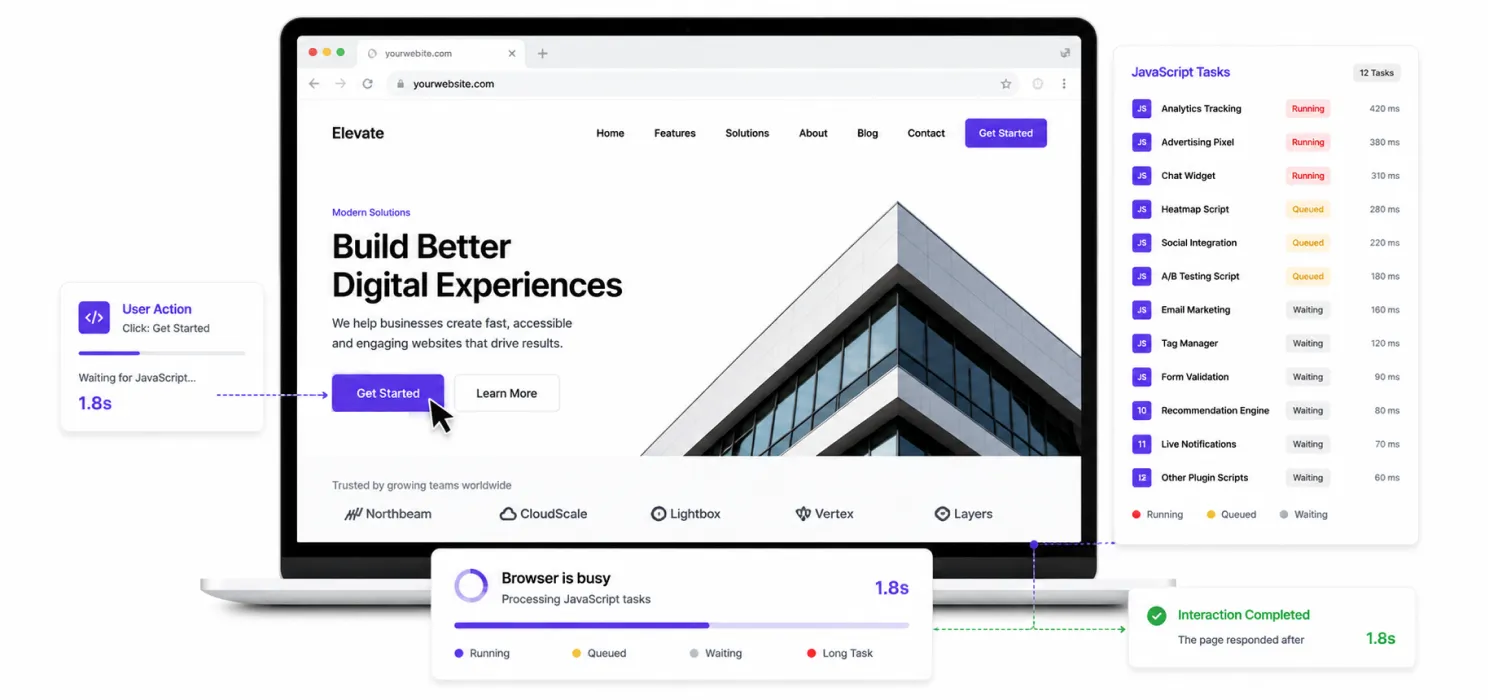
JavaScript can create a particularly frustrating performance problem. A page may look visually loaded but still feel slow because the browser is busy executing scripts. This can affect interaction responsiveness. Google’s Core Web Vitals include INP (Interaction to Next Paint), which measures responsiveness. Google recommends an INP of less than 200 milliseconds for a good user experience.
High-traffic websites often accumulate JavaScript from:
- Analytics
- Advertising
- Chat widgets
- Heatmaps
- Social integrations
- A/B testing
- Marketing tools
- Page builders
- Plugins
Don’t remove every script.
Instead, ask: Does this script contribute enough business value to justify its performance cost?
That is a much better optimization question.
8. Optimize images
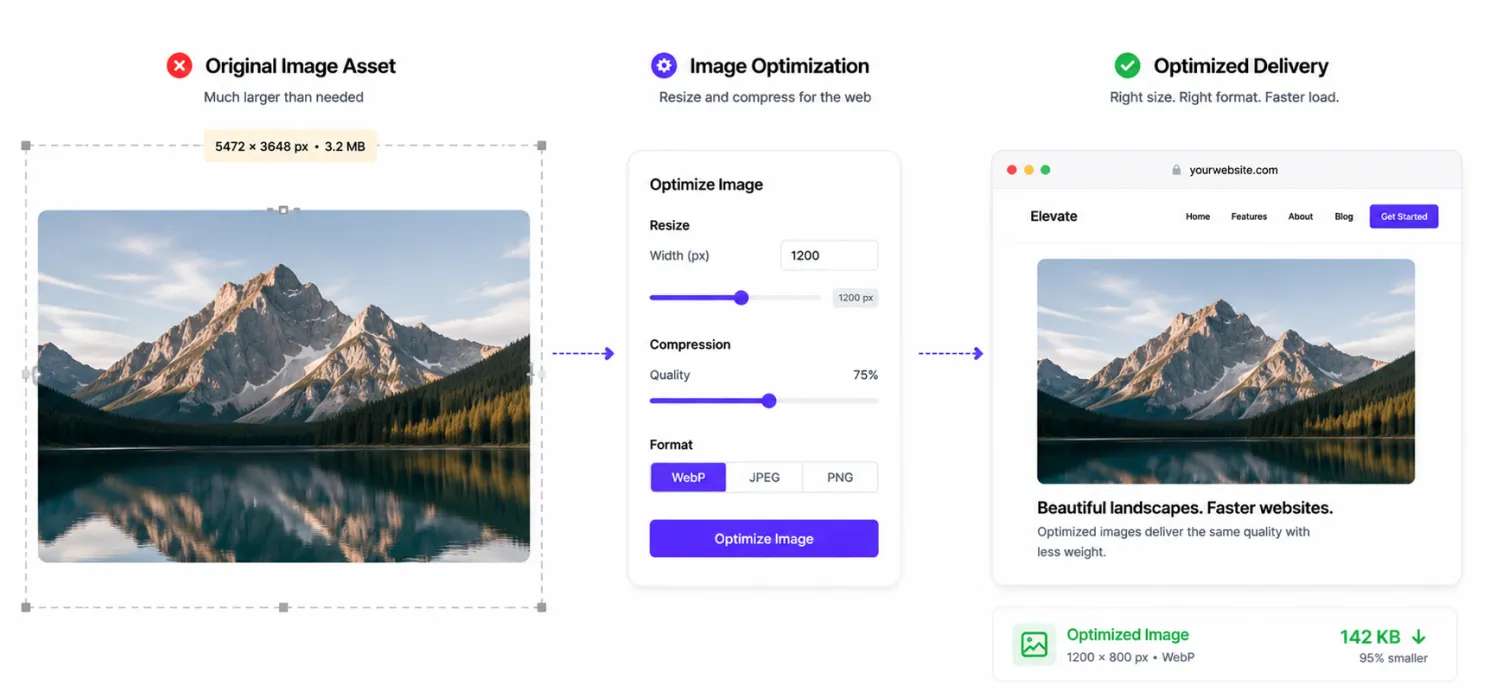
Images are often one of the easiest performance wins. A high-traffic website may serve thousands or millions of image requests.
If every image is unnecessarily large, you’re wasting:
- bandwidth
- storage
- loading time
- CDN capacity
Use:
- modern image formats
- compression
- responsive image sizes
- lazy loading where appropriate
- correctly sized images
Don’t upload a 3000-pixel image when the page displays it at 700 pixels. You’re making every visitor download something they don’t need
9. Core Web Vitals

Performance isn’t just about server capacity. Your website still needs to feel good to visitors. Google’s Core Web Vitals focus on three areas:
| Metric | What it tells you | Good target |
| LCP | Loading performance | ≤ 2.5s |
| INP | Responsiveness | < 200ms |
| CLS | Visual stability | < 0.1 |
These are Google’s recommended thresholds for a good user experience. But don’t optimize only for the score.
A website can have technically good metrics and still have a frustrating experience.
Look at:
- Mobile usability
- Navigation
- Ads
- Popups
- Layout
- Content visibility
- Interactions
- Checkout experience
Google itself recommends evaluating overall page experience rather than focusing on only one or two metrics.
10. Reduce TTFB at the source
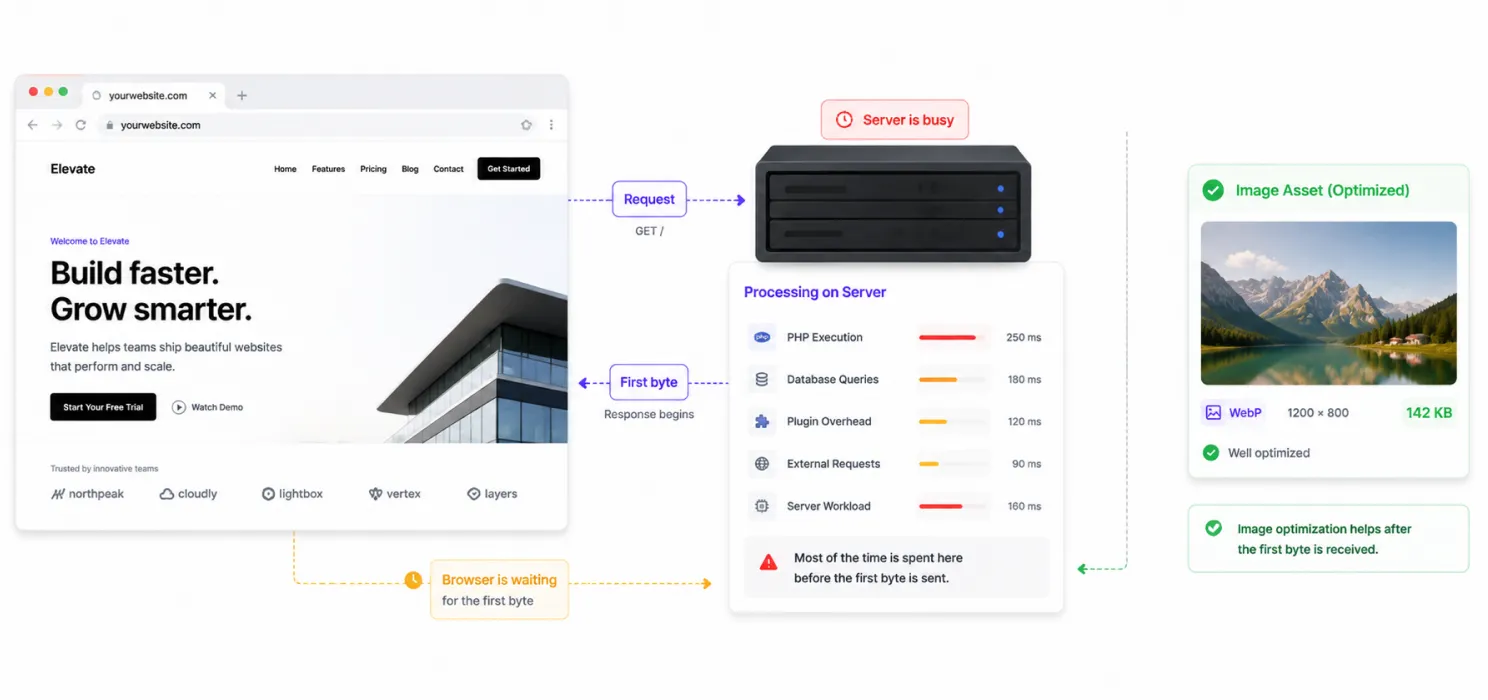
TTFB (Time to First Byte) tells you how quickly the server begins responding.
If the browser has to wait a long time before receiving the first byte, optimizing images won’t solve the whole problem.
High TTFB can come from:
- slow hosting
- overloaded servers
- PHP execution
- database queries
- lack of caching
- plugin overhead
- external requests
- poor server configuration
This is why you shouldn’t immediately start compressing images when the real problem is server response.
11. Make your hosting match your traffic
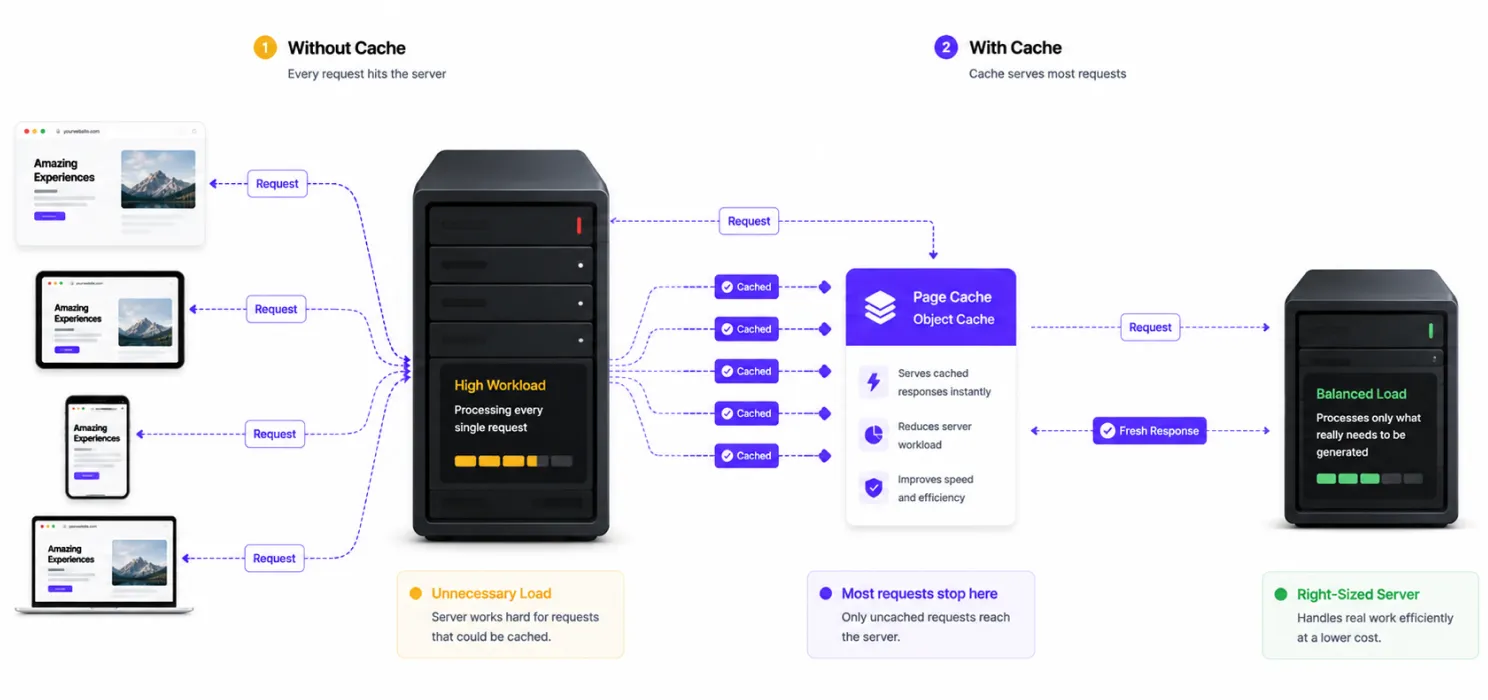
Sometimes the optimization problem isn’t WordPress. It’s infrastructure. A website receiving millions of requests cannot necessarily be treated like a small business blog.
Depending on your traffic, you may need:
- better CPU
- more RAM
- faster storage
- better PHP workers
- optimized database resources
- persistent object caching
- dedicated resources
- multiple application servers
- load balancing
WordPress’s own performance guidance notes that high-traffic installations may use multiple servers, load balancers and separate database infrastructure as they scale.
But don’t upgrade blindly. If caching can eliminate 80% of the work reaching your server, buying a much bigger server before fixing the caching strategy may simply mean paying more to process unnecessary requests.
12. Prepare for traffic spikes
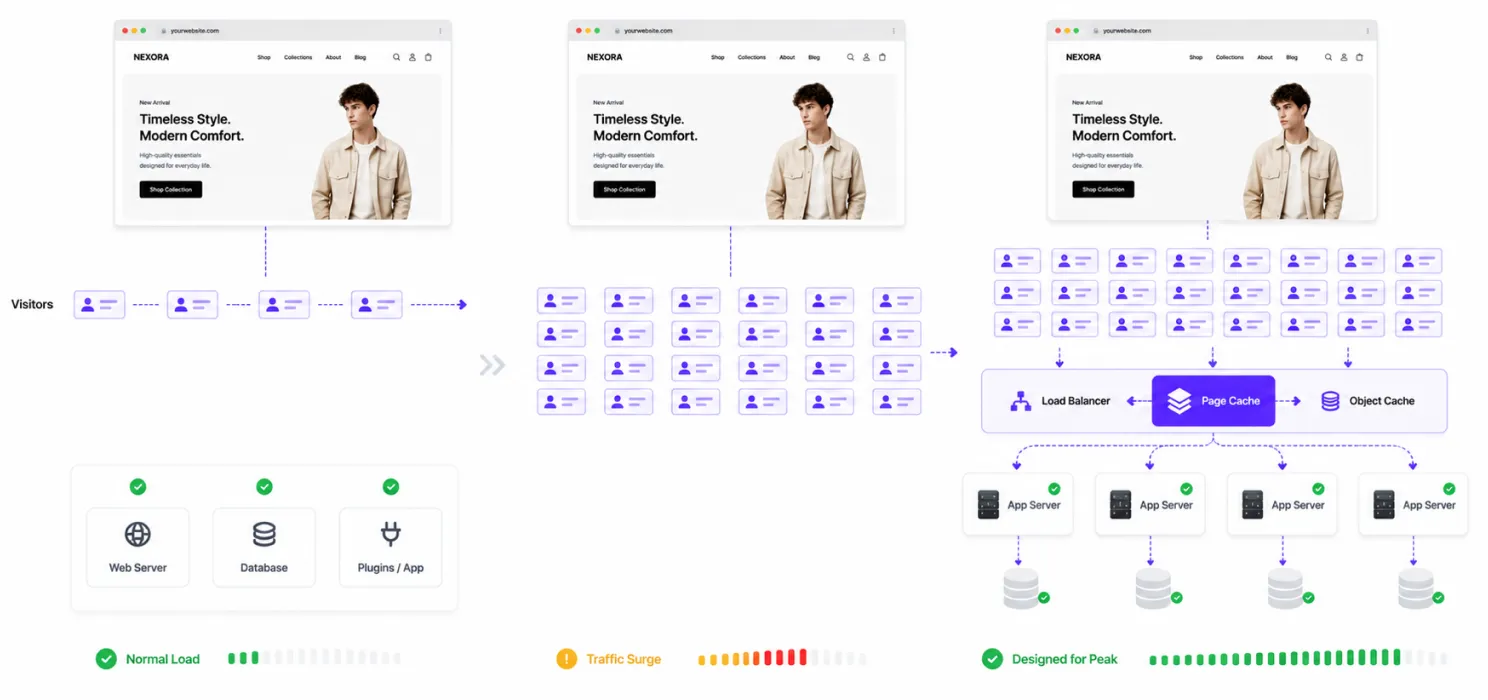
Average traffic doesn’t tell the whole story.
Imagine you normally get: 2,000 visitors/day
Then a campaign goes live.
Suddenly: 50,000 people arrive.
Or your article gets featured by a major publication. Or a product goes viral. Or your paid campaign starts performing exceptionally well. Your website needs to survive the peak.
13. Cache warming
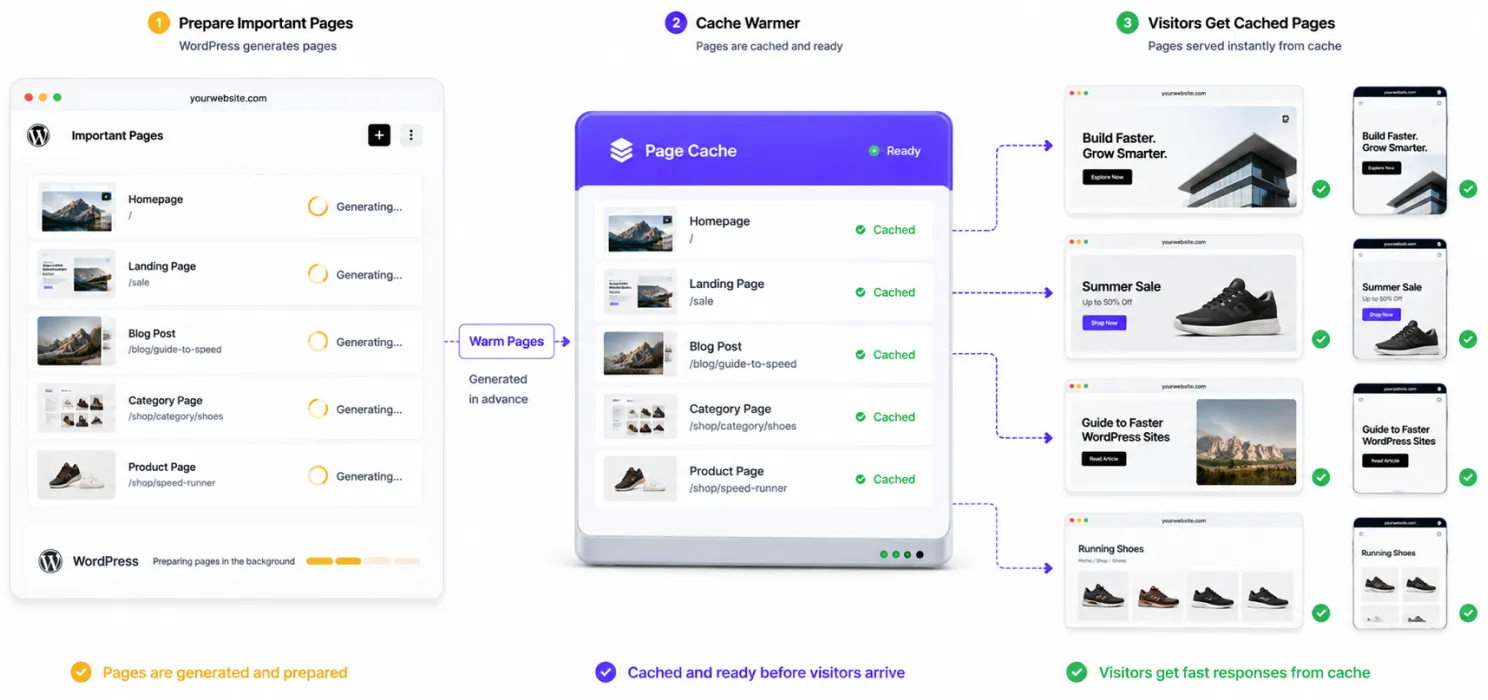
Here’s a problem many people don’t think about. You clear the cache. Now the first visitor arrives. WordPress has to generate the page again. If 1,000 visitors arrive at almost the same time, you don’t want 1,000 requests rebuilding the same page. Cache warming can help by generating important pages before visitors need them.
For high-traffic websites, consider warming:
- Homepage
- Top landing pages
- Popular blog posts
- Category pages
- Product pages
- Campaign landing pages
This is especially useful after cache purges or major content updates.
14. Content
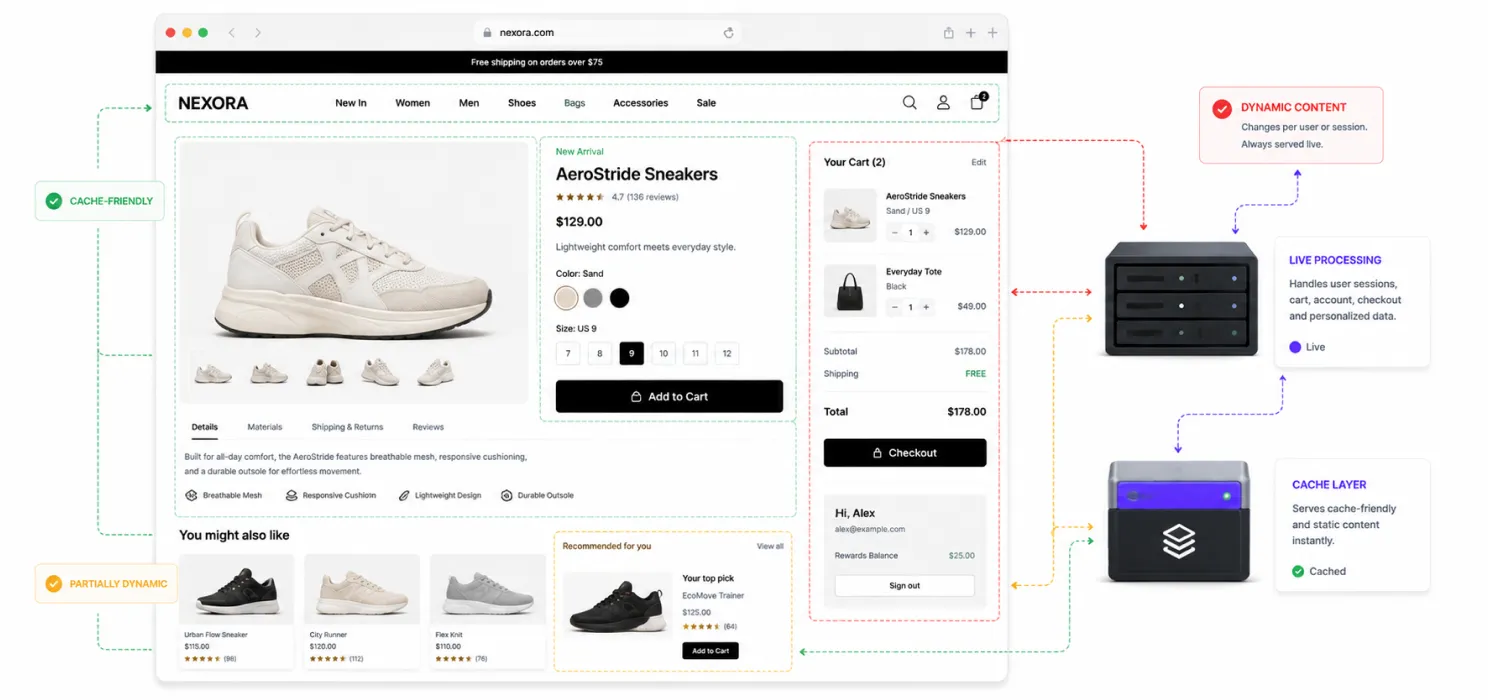
Caching becomes more complicated when pages change based on the visitor.
Examples include:
- Shopping carts
- Checkout
- User dashboards
- Membership pages
- Personalized recommendations
- Account pages
You shouldn’t simply cache everything. Instead, divide the website into: Static or cache-friendly content
Cache aggressively. Dynamic content
15. WordPress cron jobs
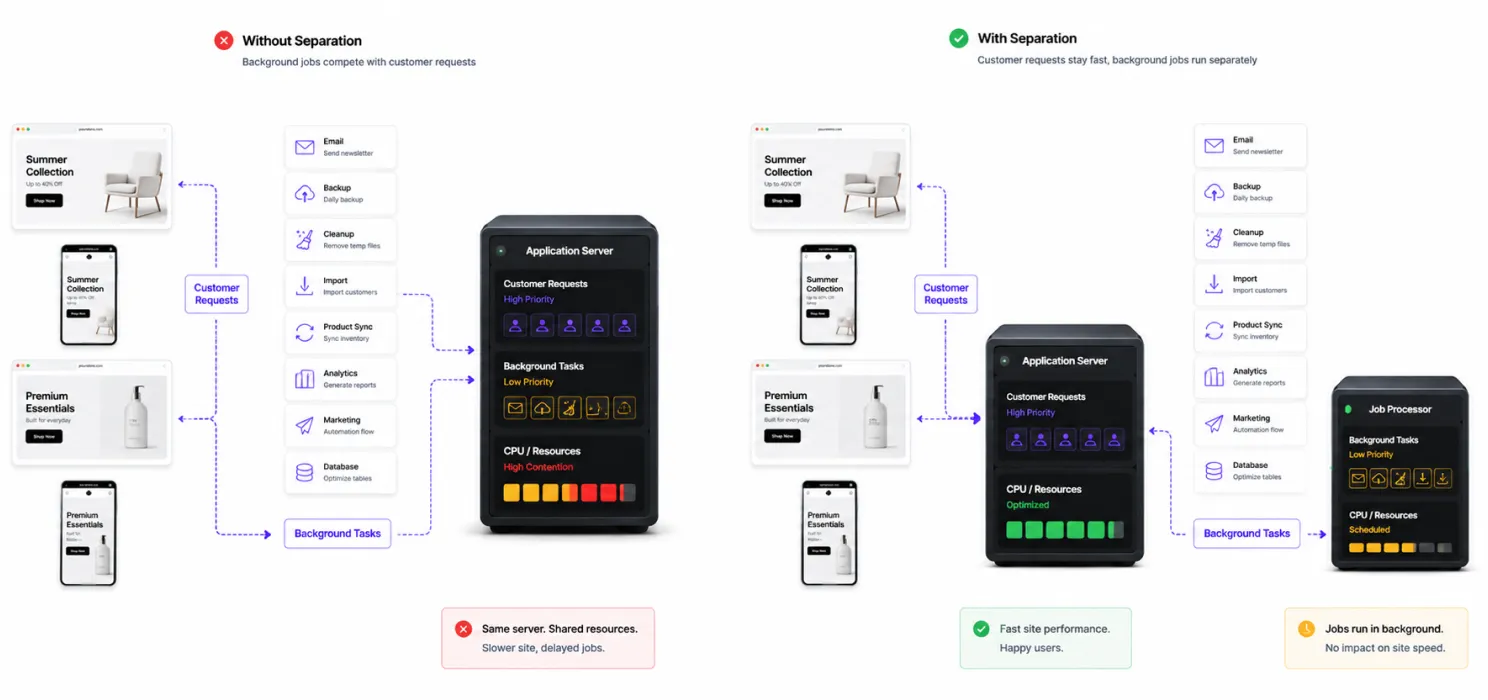
High-traffic websites can also accumulate background work.
WordPress and plugins may schedule tasks for:
- emails
- backups
- cleanup
- imports
- product synchronization
- analytics
- marketing automation
- database maintenance
If too many tasks run at the wrong time, they can compete with normal visitor traffic for server resources. For larger websites, review scheduled tasks and determine whether important background jobs should be handled separately. The goal is to avoid having resource-heavy background processes fighting with customer requests.
16. Keep software updated
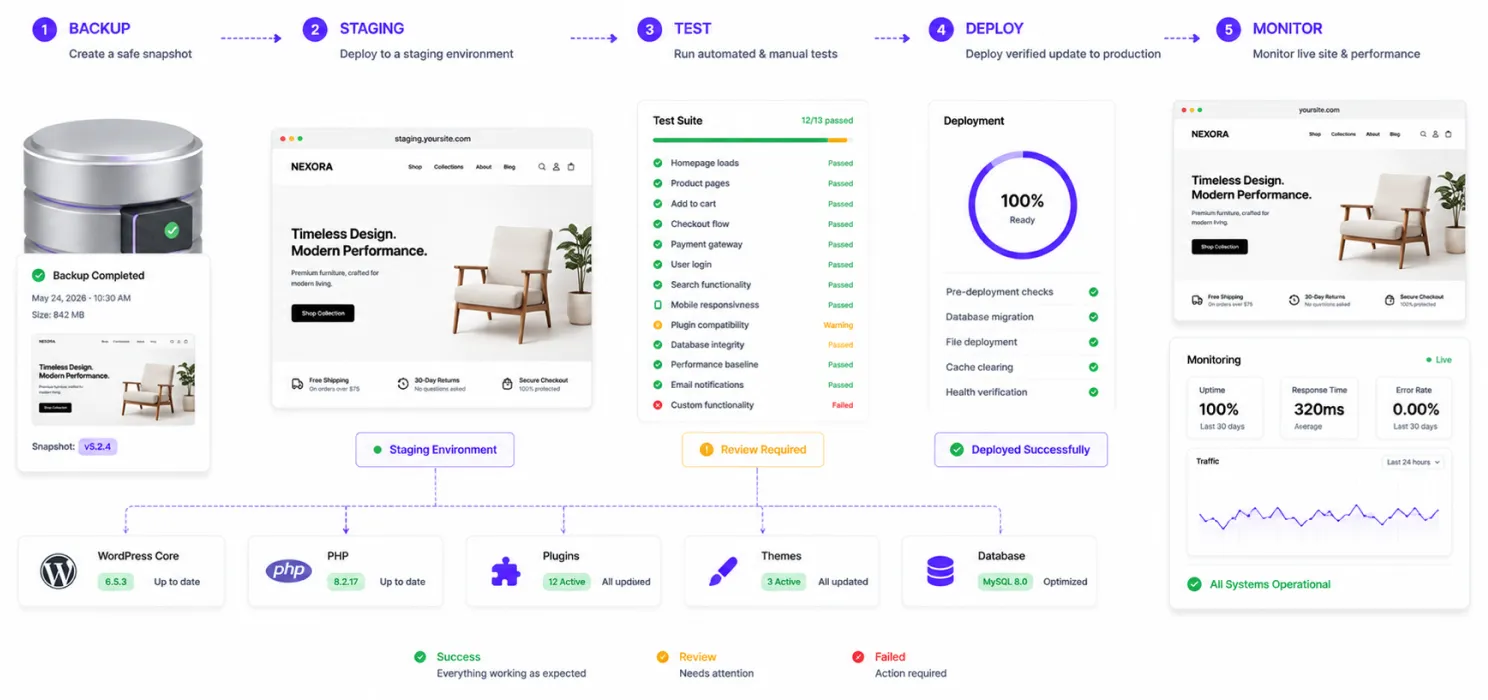
Performance optimization isn’t something you do once and then forget.
Your:
- WordPress core
- PHP
- plugins
- themes
- database
- server software
all need ongoing maintenance.
WordPress’s performance guidance recommends keeping the underlying software stack current because updates can include bug fixes and performance improvements. But on high-traffic websites, don’t blindly update production.
Use: Backup → staging → test → deploy → monitor
A performance improvement isn’t useful if the update breaks checkout.
17. Use monitoring
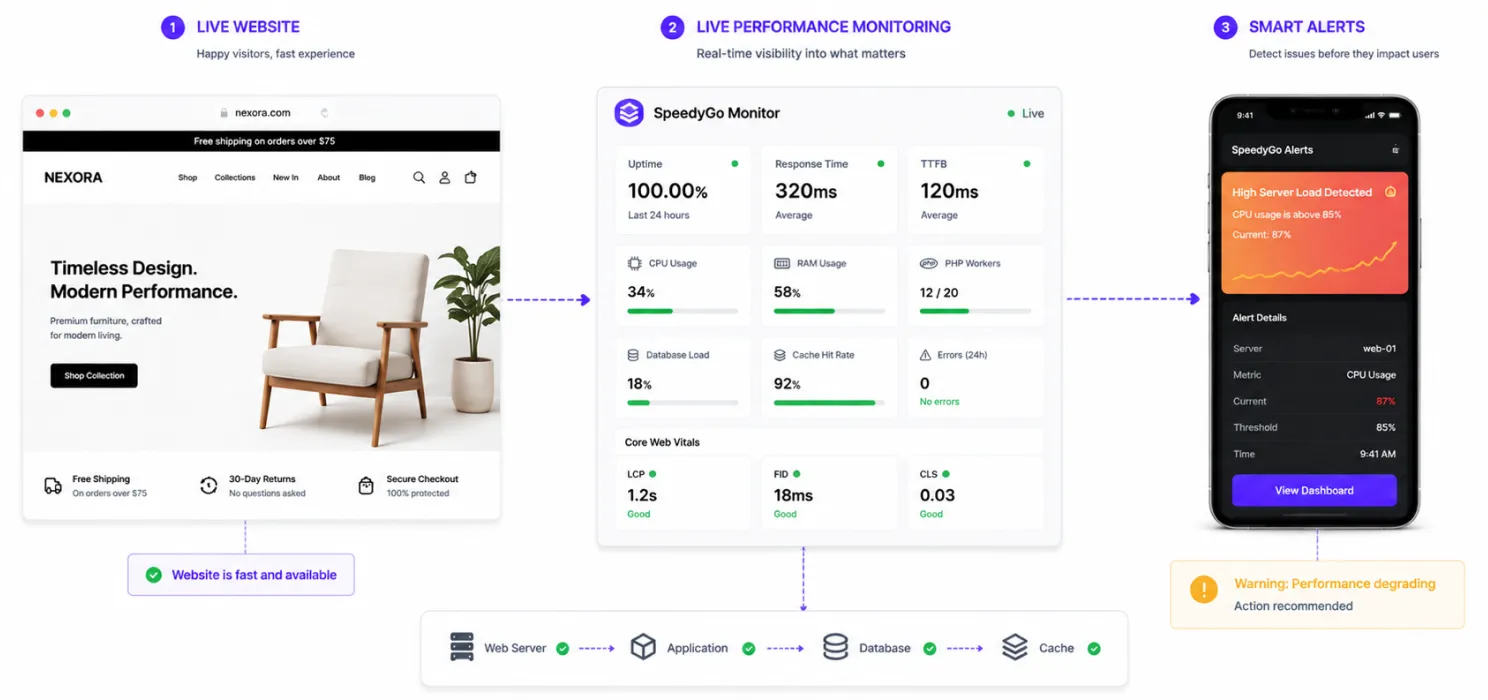
One of the biggest differences between a small website and a serious high-traffic website is monitoring.
You shouldn’t discover a performance problem because a customer emails: “Your website is not loading.”
Monitor:
- uptime
- response time
- TTFB
- CPU
- RAM
- PHP workers
- database load
- cache hit rate
- error rates
- Core Web Vitals
- traffic spikes
And establish alerts. If server load suddenly jumps from normal to dangerous levels, you want to know before the website goes down.
SpeedyGo
At this point, you may be thinking: “This sounds like a lot to manage.”
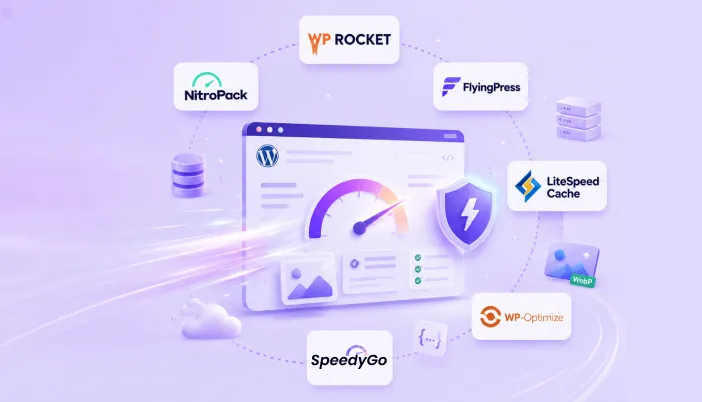
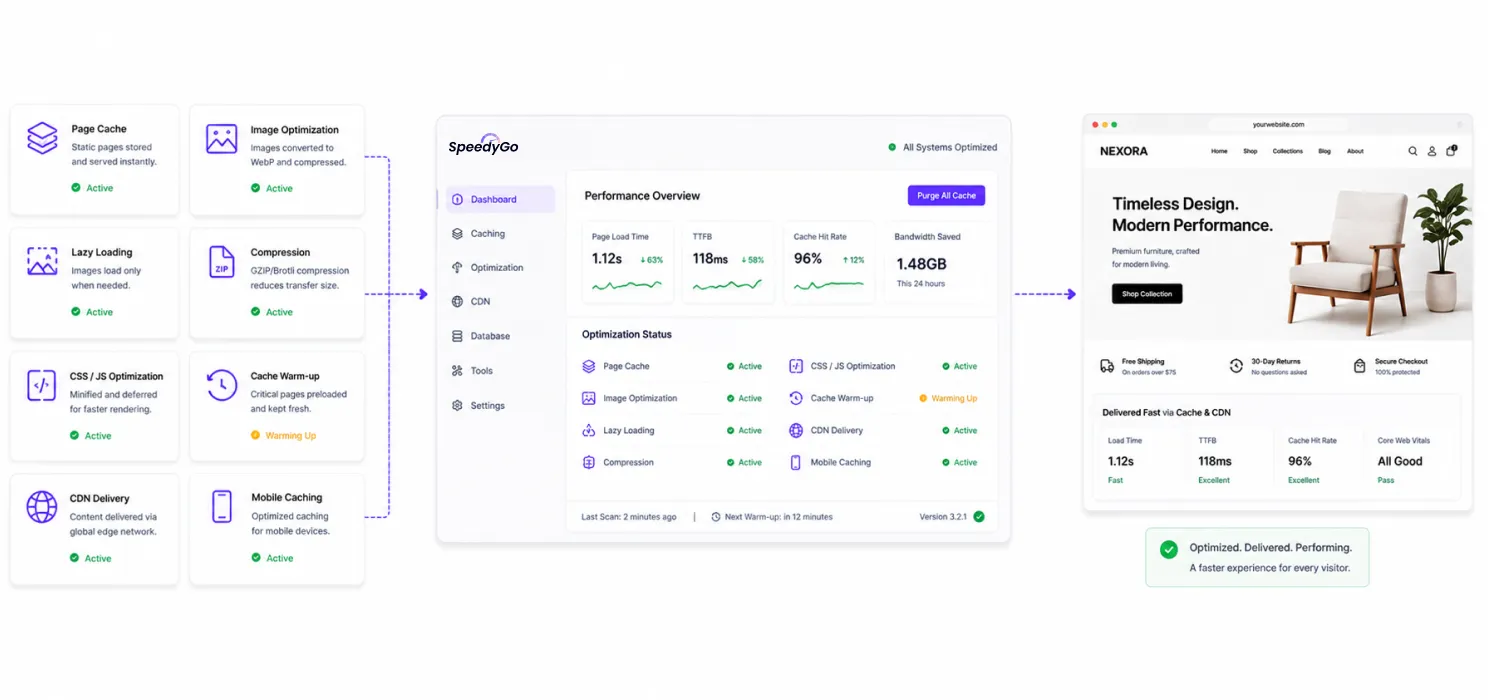
And it can be. That’s one reason WordPress performance tools exist. For everyday WordPress optimization, an all-in-one tool can simplify some of the repetitive work involved in managing caching, image optimization, compression and asset delivery.
SpeedyGo is built specifically around WordPress performance and includes features such as:
- Page caching
- Mobile caching
- WebP image conversion
- Lazy loading
- GZIP and Brotli compression
- CSS and JavaScript optimization
- JavaScript interaction delay
- Smart cache control
- Cache preload and warm-up
- Built-in BunnyCDN
- WooCommerce-aware caching
That can be particularly useful when your goal isn’t simply to run a one-time optimization test. You want a system that helps you keep performance under control as your website continues to receive traffic and content continues to change.
The important point, however, is that a plugin shouldn’t replace performance strategy. It should support it. If your database architecture is struggling, no caching plugin can magically fix every query. If your hosting cannot handle your workload, optimization can only take you so far. If a third-party script is blocking the browser, simply enabling page caching won’t solve the browser-side problem.
Tools are part of the strategy. They aren’t the entire strategy.
Final thoughts
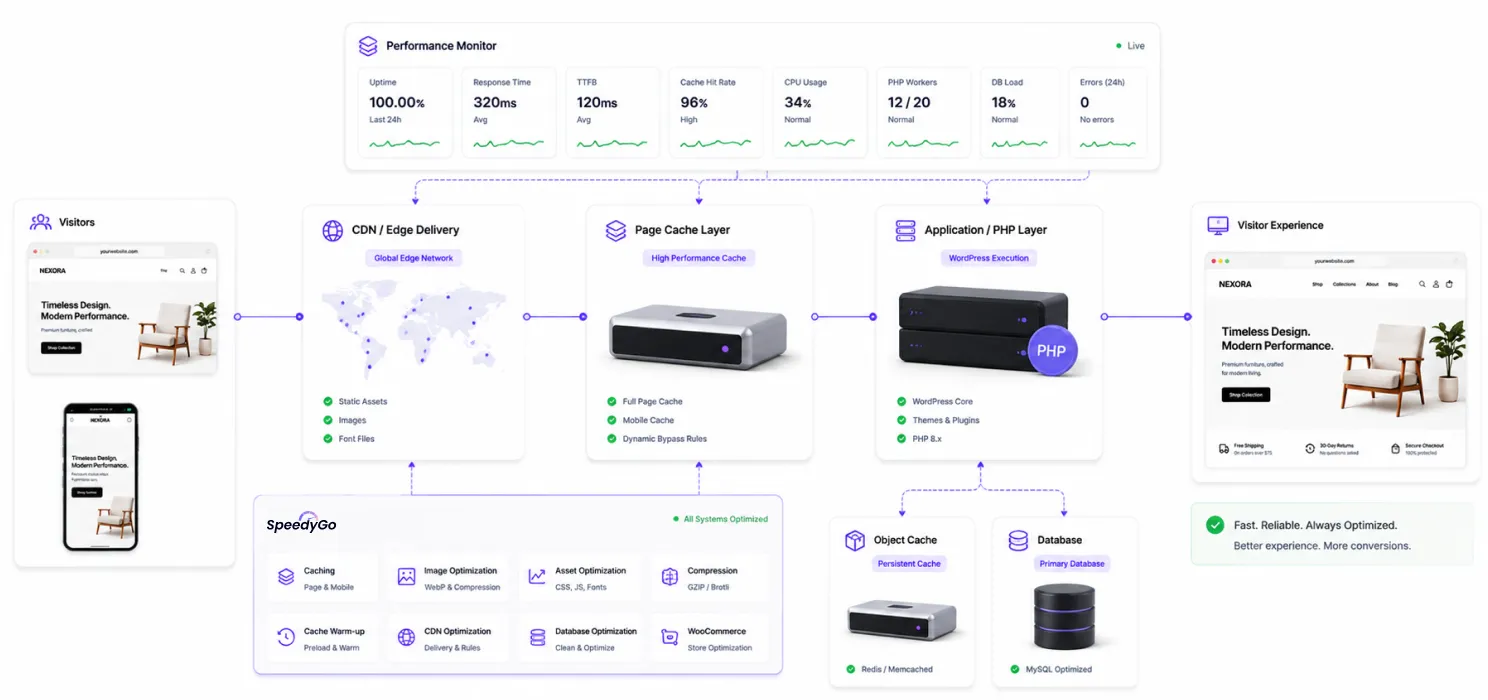
High-traffic WordPress performance isn’t solved by one plugin, CDN, or server upgrade. It’s an architecture.
Start with measurement, then improve caching, CDN delivery, object caching, databases, front-end performance, infrastructure, and monitoring.
The order matters.
Don’t upgrade your server before finding the bottleneck.
Don’t install multiple caching plugins to fix one score.
Don’t remove plugins simply because fewer is supposedly faster.
Instead, ask:
What work can we eliminate?
What can we cache?
What can we deliver closer to visitors?
What does WordPress actually need to process?
What happens when traffic doubles?
These questions create a more sustainable WordPress speed optimization strategy.
For businesses looking to simplify ongoing caching, image optimization, asset optimization, and CDN delivery, SpeedyGo brings several of these capabilities into one WordPress-focused workflow.
Because as traffic grows, performance shouldn’t become a barrier to growth.
Frequently Asked Questions
Learn how to optimize WordPress websites for high traffic with caching, CDN, database optimization, Core Web Vitals improvements, server optimization, and other practical performance strategies.
What is WordPress speed optimization for high-traffic websites?
WordPress speed optimization for high-traffic websites involves improving caching, CDN delivery, database performance, server resources, images, JavaScript, and overall site architecture. The goal is to keep the website fast and stable even when traffic increases significantly.
Why does WordPress slow down when traffic increases?
As traffic grows, more requests are sent to the server. Without proper caching and optimization, WordPress has to repeatedly process PHP, run database queries, load plugins, and generate pages. This can increase server load and response times.
Does a CDN make WordPress faster?
Yes. A CDN can serve static files such as images, CSS, and JavaScript from servers closer to visitors. This reduces the amount of delivery work handled by the origin server and can improve loading times for users in different locations.
What is persistent object caching in WordPress?
Persistent object caching stores frequently requested database information in a cache so WordPress doesn’t need to query the database repeatedly. Technologies such as Redis and Memcached are commonly used for this purpose.
How can I optimize WordPress for sudden traffic spikes?
Use full-page caching, CDN delivery, cache warming, optimized database queries, persistent object caching, sufficient server resources, and monitoring. Preparing for peak traffic rather than only average traffic helps prevent slowdowns and downtime.
Can too many WordPress plugins slow down a website?
Not necessarily. The number of plugins isn’t the only factor. Poorly coded or resource-heavy plugins can increase database queries, load unnecessary assets, create background tasks, or add server processing. Plugin performance matters more than simply counting plugins.
How do Core Web Vitals affect WordPress performance?
Core Web Vitals measure important aspects of user experience, including loading performance, responsiveness, and visual stability. Optimizing metrics such as LCP, INP, and CLS can help create a faster and more stable experience for visitors.
What is TTFB and why is it important?
TTFB, or Time to First Byte, measures how long it takes for a browser to receive the first response from the server. High TTFB can indicate issues with hosting, caching, PHP execution, database queries, or server configuration.