6 mins read
How to Speed Up WordPress: 10 Expert-Verified Steps
Share Article :


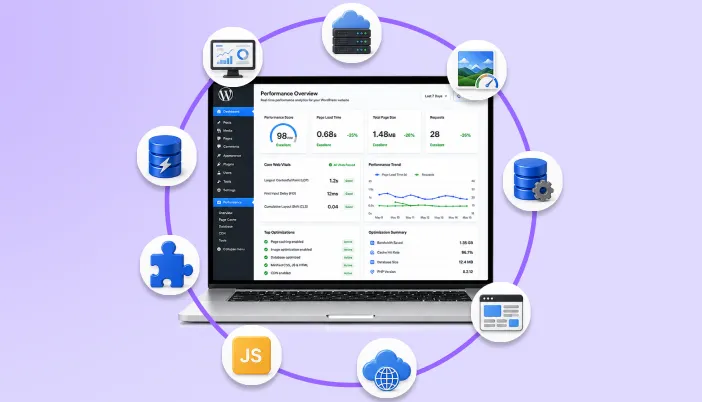
In this guide, you’ll learn how to speed up your WordPress website with practical steps that actually work. We’ll cover what slows down a website, how to identify performance issues, and the proven techniques experts use to improve loading speed, user experience, and Core Web Vitals.
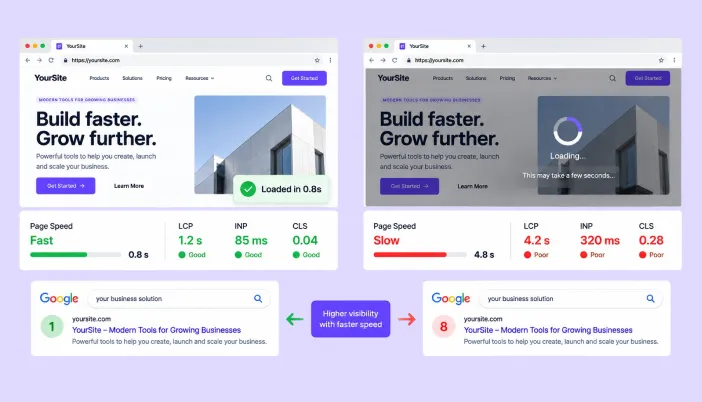
You spend hours creating content, designing pages, running ads, and bringing traffic to your website… but when someone clicks your link, the page takes 5 seconds to load. And most visitors don’t wait.
According to Google research, when page load time increases from 1 second to 5 seconds, the probability of a mobile visitor leaving increases by around 90%.
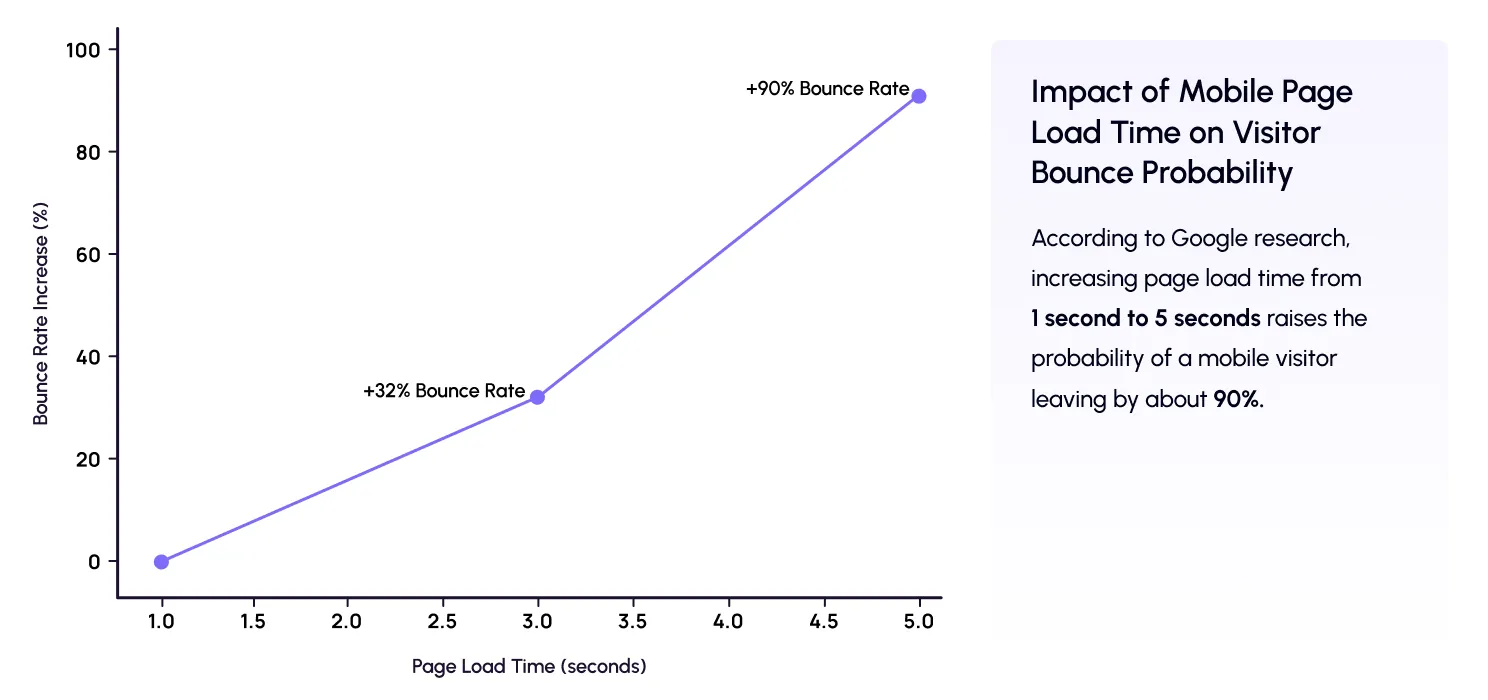
That means a few seconds of delay can quietly affect:
- Your SEO rankings
- Conversion rates
- User trust
- Revenue opportunities
But here is the thing: A slow WordPress website is rarely caused by just one problem.
Many website owners immediately install a caching plugin and expect magic results. Sometimes it helps. Sometimes it doesn’t.
Why? Because website speed is a combination of multiple factors:
- Hosting quality
- Theme structure
- Plugins
- Images
- Database health
- Code optimization
- Server configuration
- Content delivery network (CDN)
Before you optimize: Understand what is actually making your WordPress website slow
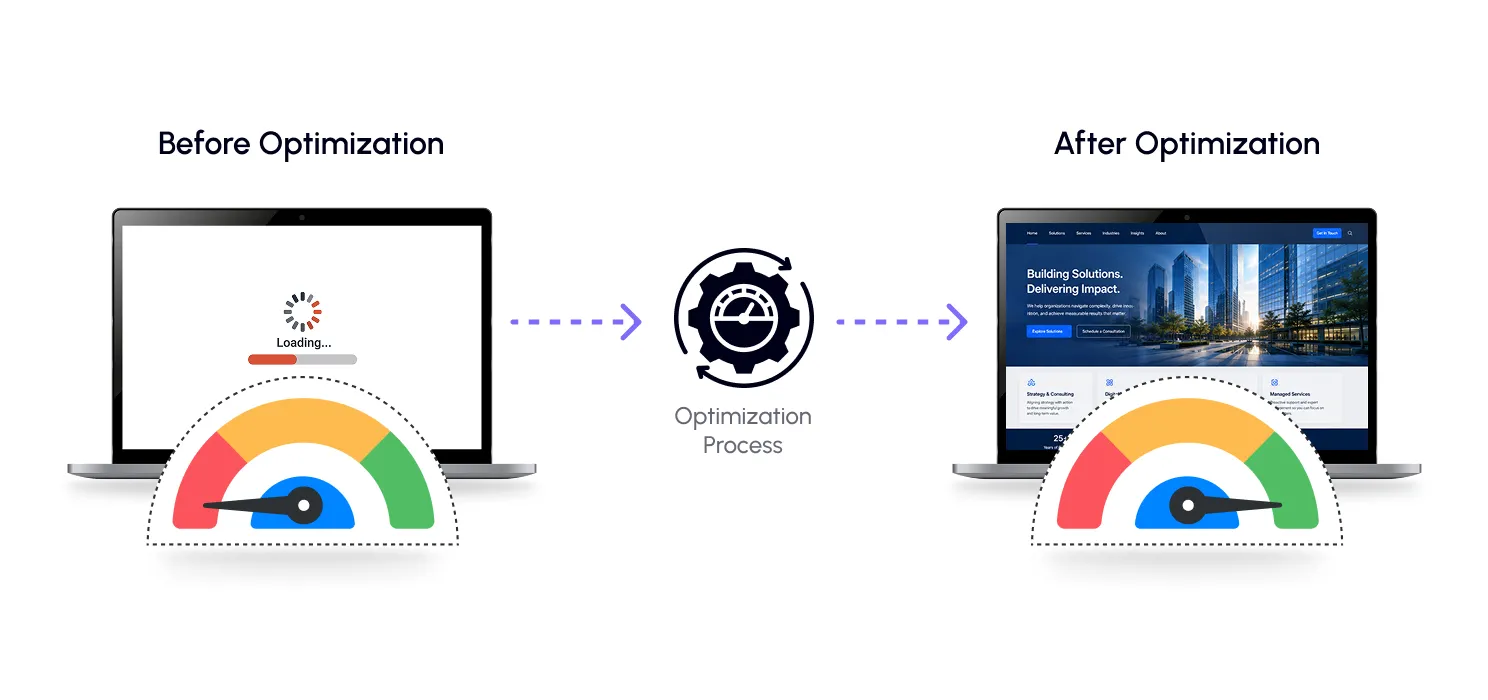
Before fixing speed issues, you need to know what is causing them.
Think of your website like a restaurant.
If customers are waiting too long, the problem may not be the kitchen. It could be:
- Slow staff
- Too many orders
- Poor organization
- Old equipment
The same applies to WordPress.
Your website slowdown could come from:
| Problem | How it affects speed |
| Cheap hosting | Server takes longer to respond |
| Heavy themes | Loads unnecessary files |
| Too many plugins | Adds extra scripts and database queries |
| Large images | Increases page size |
| Poor caching setup | Forces visitors to reload everything |
| Unoptimized database | Slows backend and frontend performance |
Before making changes, test your current performance using tools like:
- SpeedyGo
- Google PageSpeed Insights
- GTmetrix
| Do You Know? A website can have a good desktop score but still perform poorly on mobile because mobile users usually have slower connections and less powerful devices. |
How to measure WordPress speed
One common mistake website owners make is changing random settings without knowing what improved.
Speed optimization should work like this:
Test → Identify Problem → Apply Fix → Test Again
Note: Install 10 plugins → Change everything → Hope for the best
The important metrics to track are:
| Metric | What It Measures | Good Target |
| Largest Contentful Paint (LCP) | How quickly the main content loads | Under 2.5 seconds |
| First Input Delay (FID) / Interaction to Next Paint (INP) | How quickly the site responds | INP under 200ms |
| Cumulative Layout Shift (CLS) | Visual stability | Below 0.1 |
| Time To First Byte (TTFB) | Server response time | Under 800ms |
These metrics are part of Google’s Core Web Vitals, which are used to evaluate real user experience.
10 Expert-verified ways to speed up WordPress
1. Choose better hosting
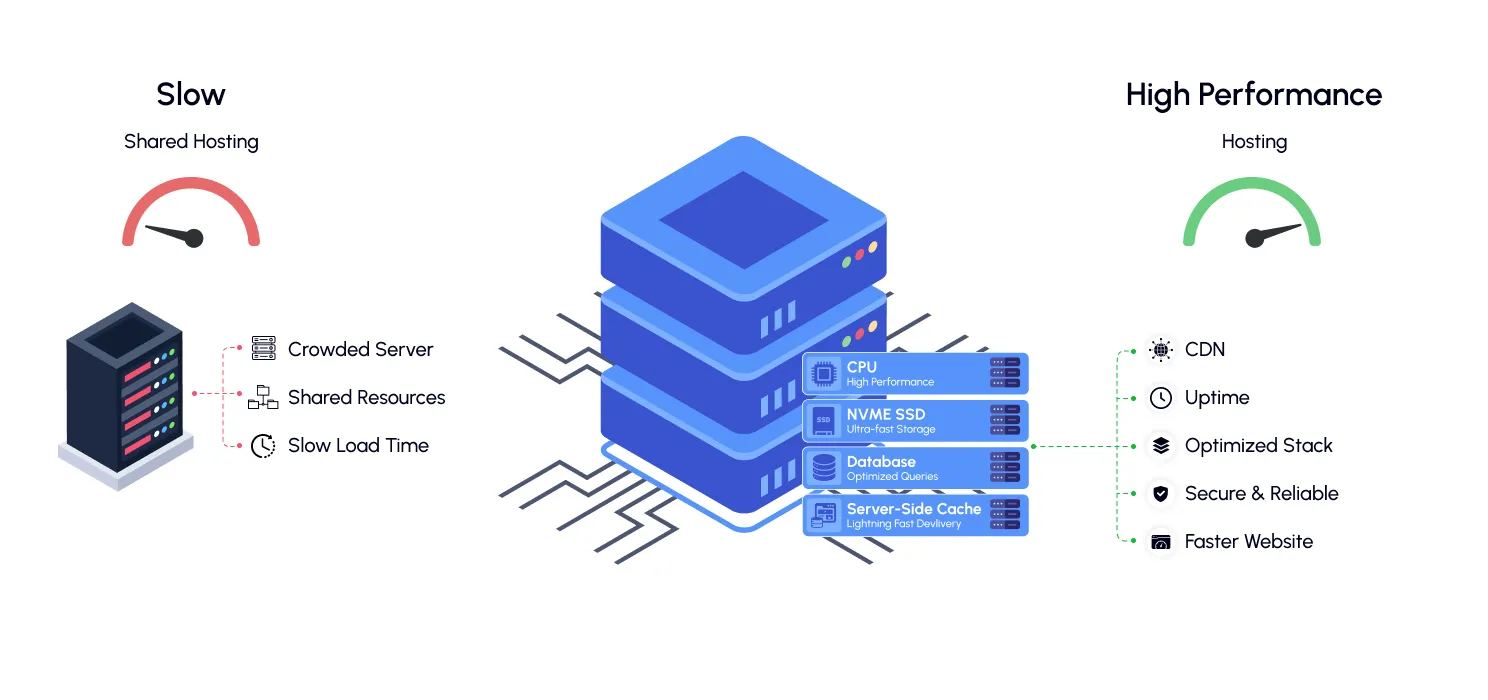
Many people try to fix a slow website by installing optimization plugins while ignoring their hosting.
But your hosting environment is the foundation of your website.
A powerful optimization setup cannot fully compensate for a slow server.
Common hosting problems:
- Limited server resources
- Slow CPU performance
- Poor database handling
- No server-side caching
- Too many websites sharing resources
Look for hosting that provides:
- Latest PHP versions
- SSD/NVMe storage
- Server-level caching
- CDN support
- Good uptime
A $3 hosting plan may work for a small blog, but it may struggle when your traffic grows.
2. Optimize your images without losing quality
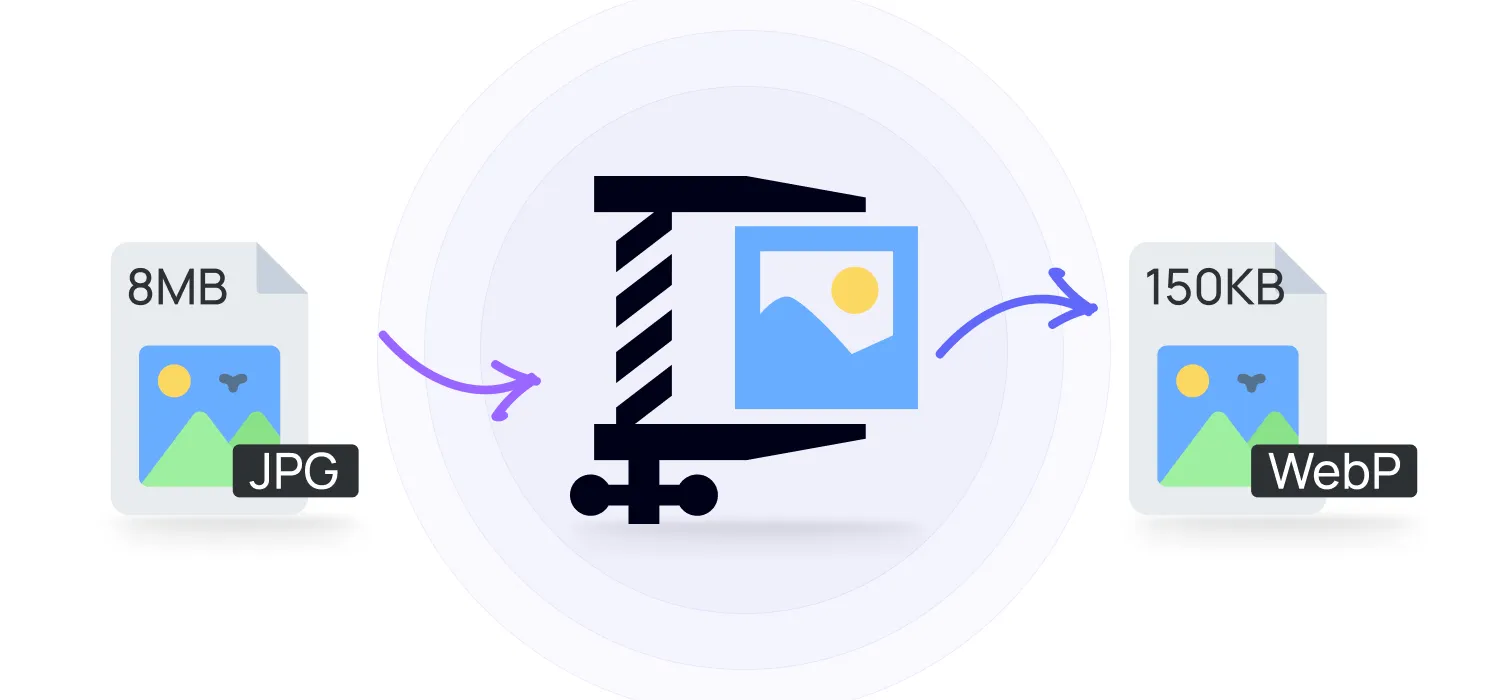
Images are usually the single heaviest thing on a page, often heavier than all your code combined. And it’s an easy problem to create by accident: uploading a 4000px photo straight from your camera when the page only displays it at 800px wide is incredibly common, and it quietly costs you seconds of load time.
Before you upload anything, resize it to the size it’ll actually display at, convert it to WebP where you can, compress it, and turn on lazy loading so images below the fold don’t load until someone scrolls to them.
Example:
A 3MB image reduced to 150KB can significantly improve loading speed.
3. Remove unnecessary plugins
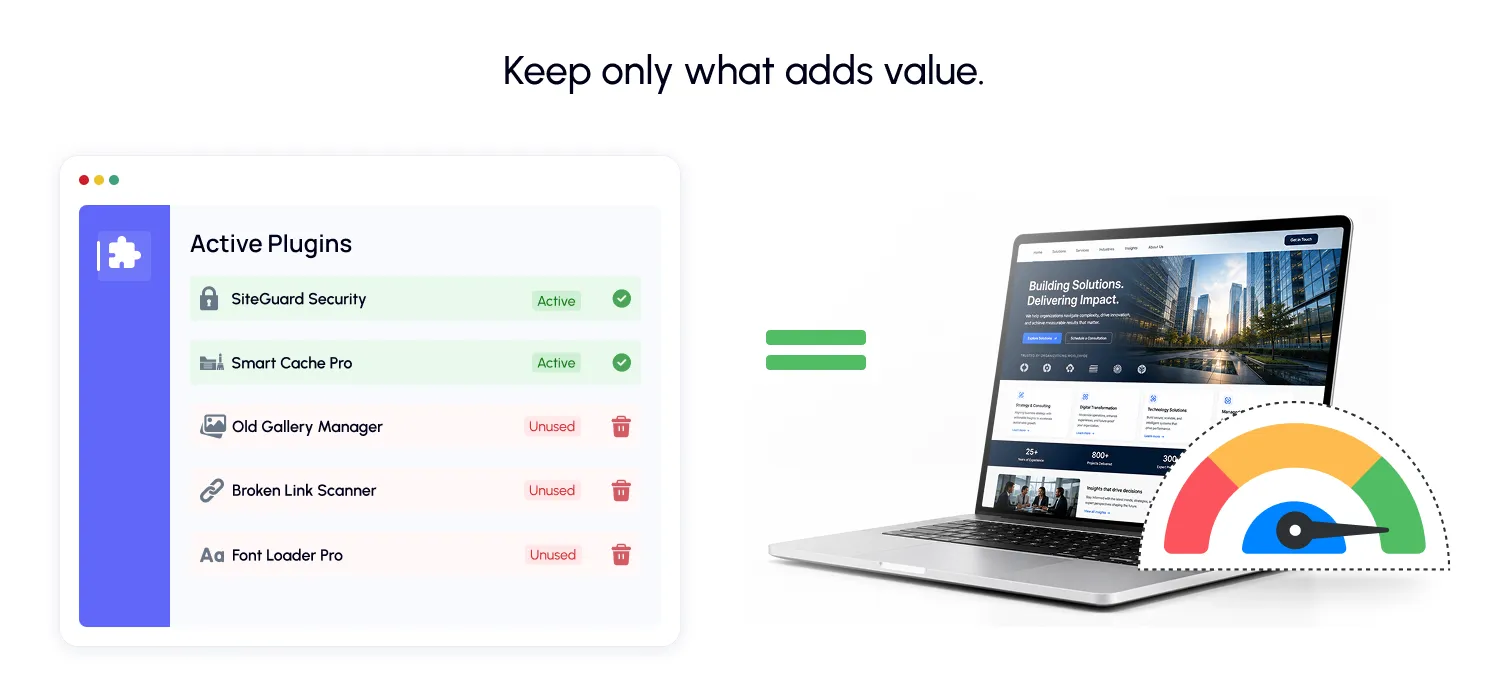
Plugins aren’t the enemy. Badly coded, redundant, or forgotten plugins are. Every plugin you install adds code that has to load, and often database queries that have to run, whether you’re actively using it or not.
Go through your plugin list and genuinely ask yourself if each one earns its keep. A site running 15 well-built, purposeful plugins will usually outperform a site running 5 that are poorly coded or doing overlapping jobs.
4. Use a reliable caching solution
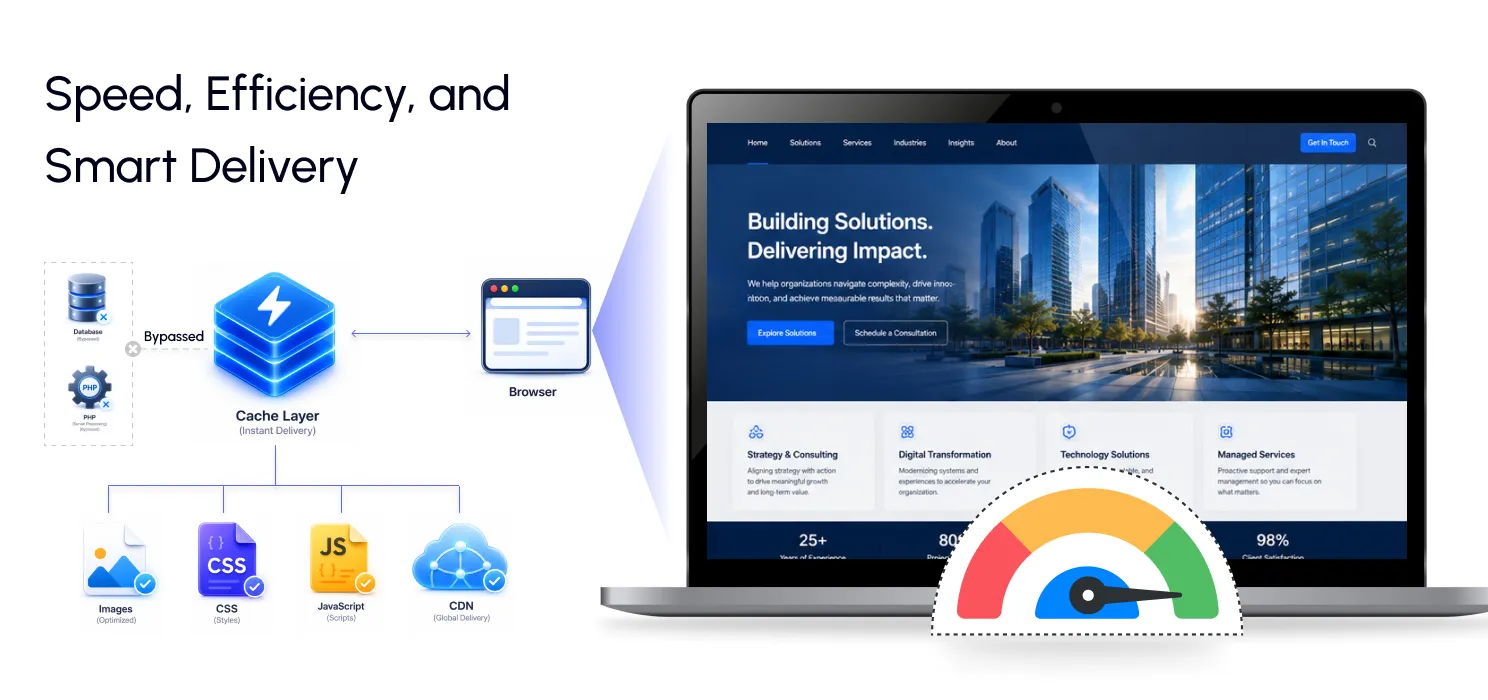
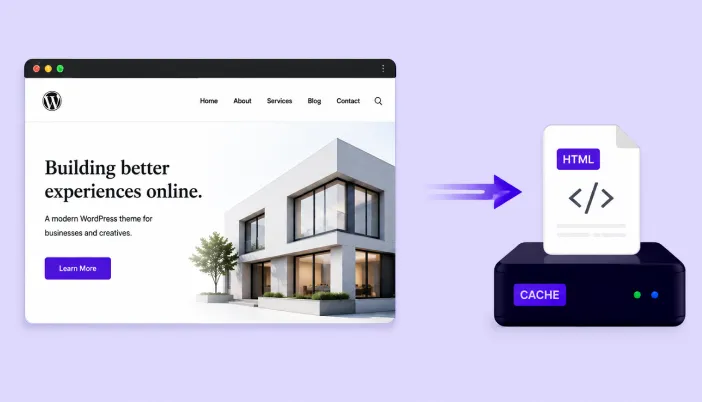
Every time someone lands on a WordPress page, the server processes PHP and runs database queries to build that page from scratch. Caching skips that work by serving up a version that’s already built.
A solid caching setup should cover page caching, browser caching, object caching, and ideally some CSS/JS optimization and CDN integration too. Tools like SpeedyGo bundle a lot of this together: caching, image optimization, asset optimization so you’re not stitching together five separate plugins to get the same result.
5. Optimize CSS and JavaScript files
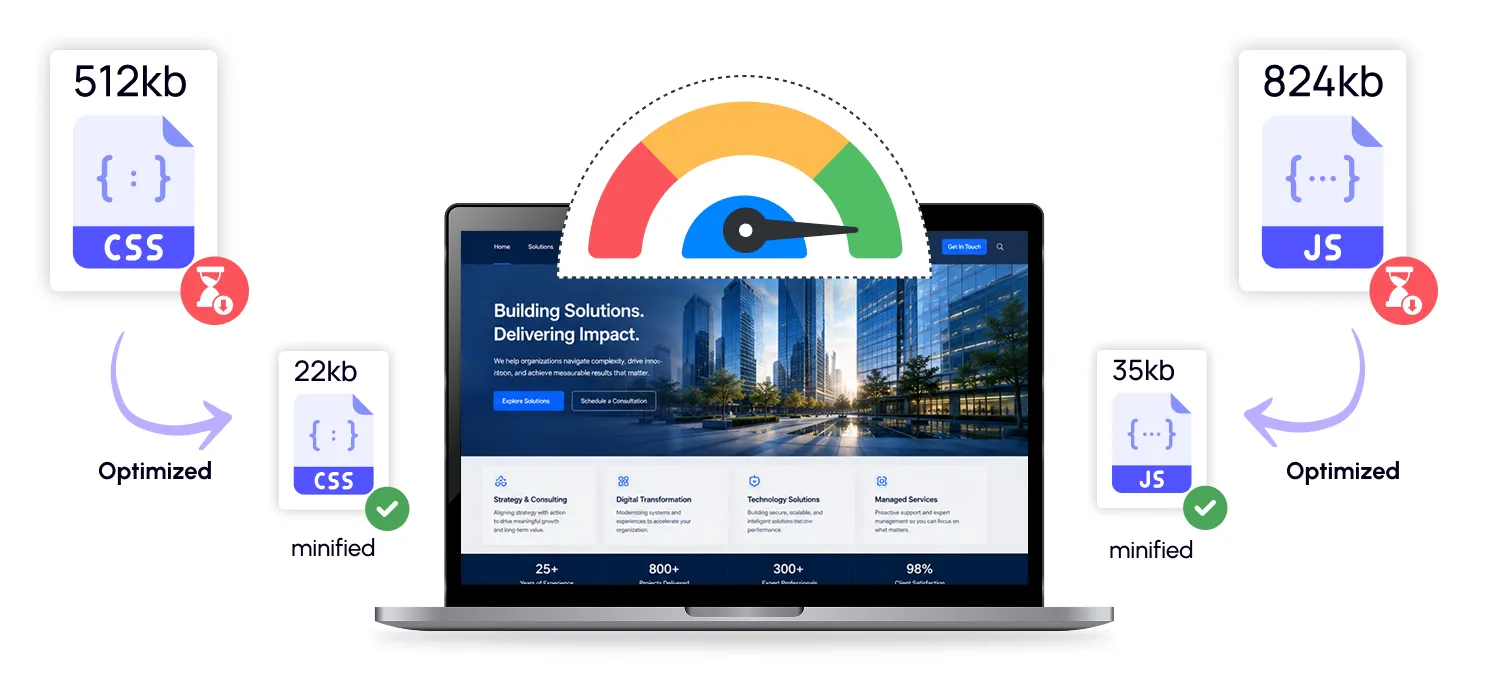
Modern websites depend heavily on CSS and JavaScript.
The problem?
Many websites load unnecessary files.
Common issues:
- Too many scripts
- Large CSS files
- Render-blocking resources
- Unused JavaScript
Optimization techniques:
- Minify CSS and JavaScript
- Remove unused files
- Delay non-critical scripts
- Load important resources first
6. Use a CDN for faster global delivery
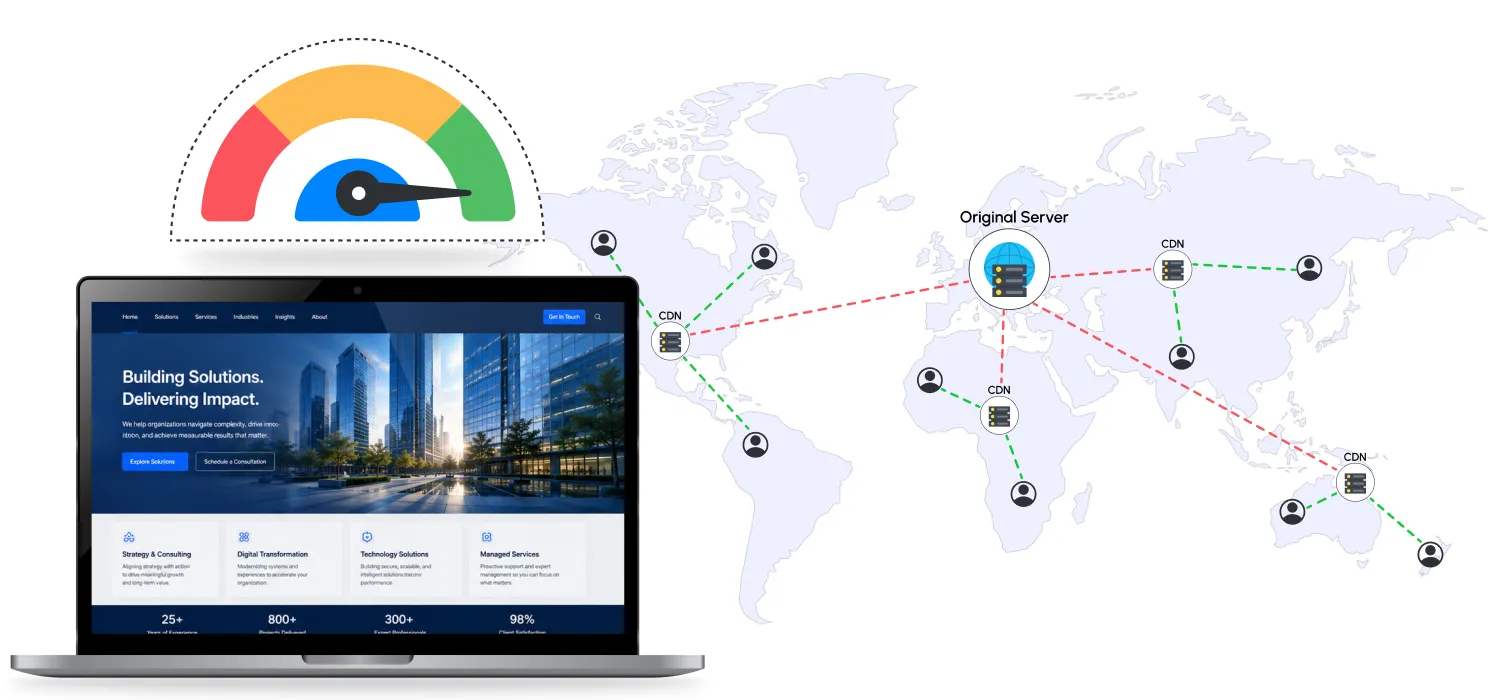
A CDN stores copies of your website files across multiple locations worldwide.
When someone visits your website, they receive files from a server closer to them.
This helps reduce:
- Loading time
- Server requests
- Bandwidth usage
A CDN is especially useful if your visitors come from different countries.
7. Keep your WordPress core, themes, and plugins updated
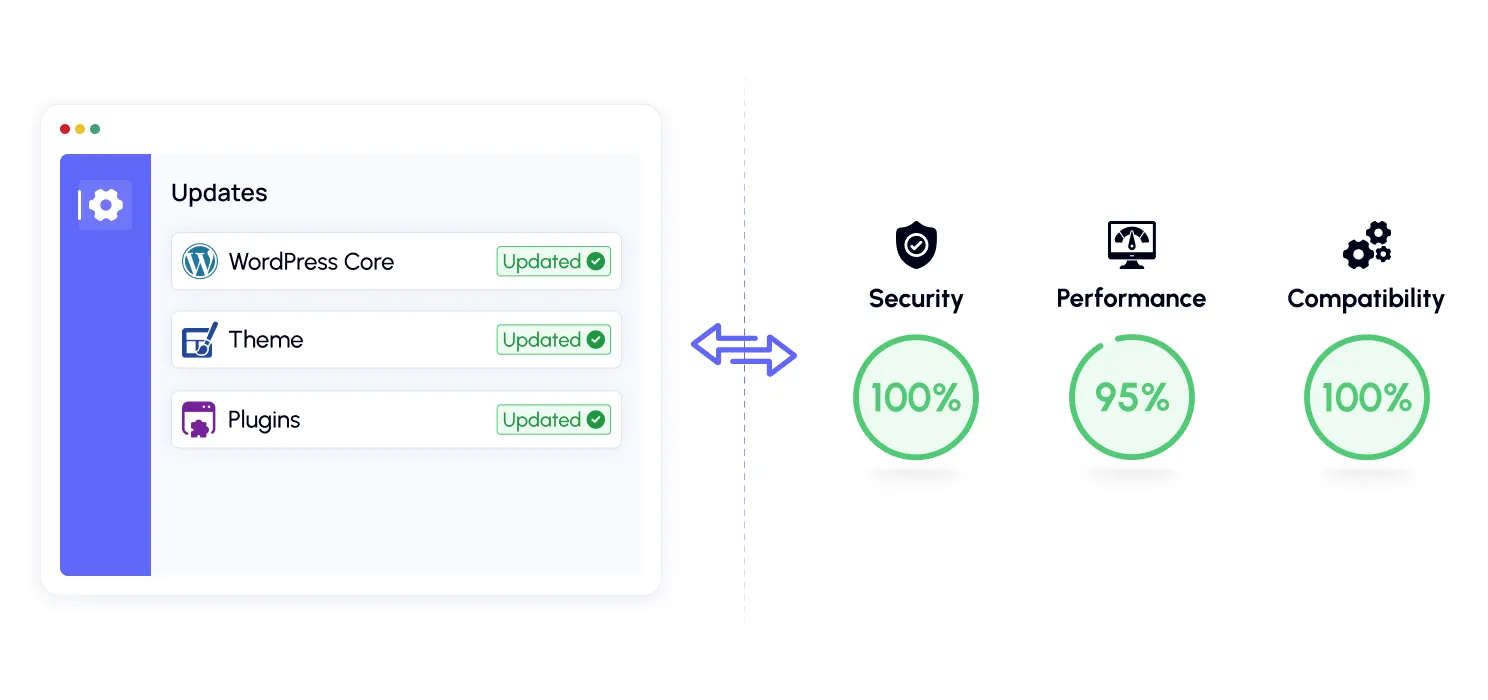
Updates are not only about new features.
They often include:
- Performance improvements
- Security patches
- Compatibility fixes
Running outdated software can slow your website and create unnecessary issues.
8. Clean and optimize your database
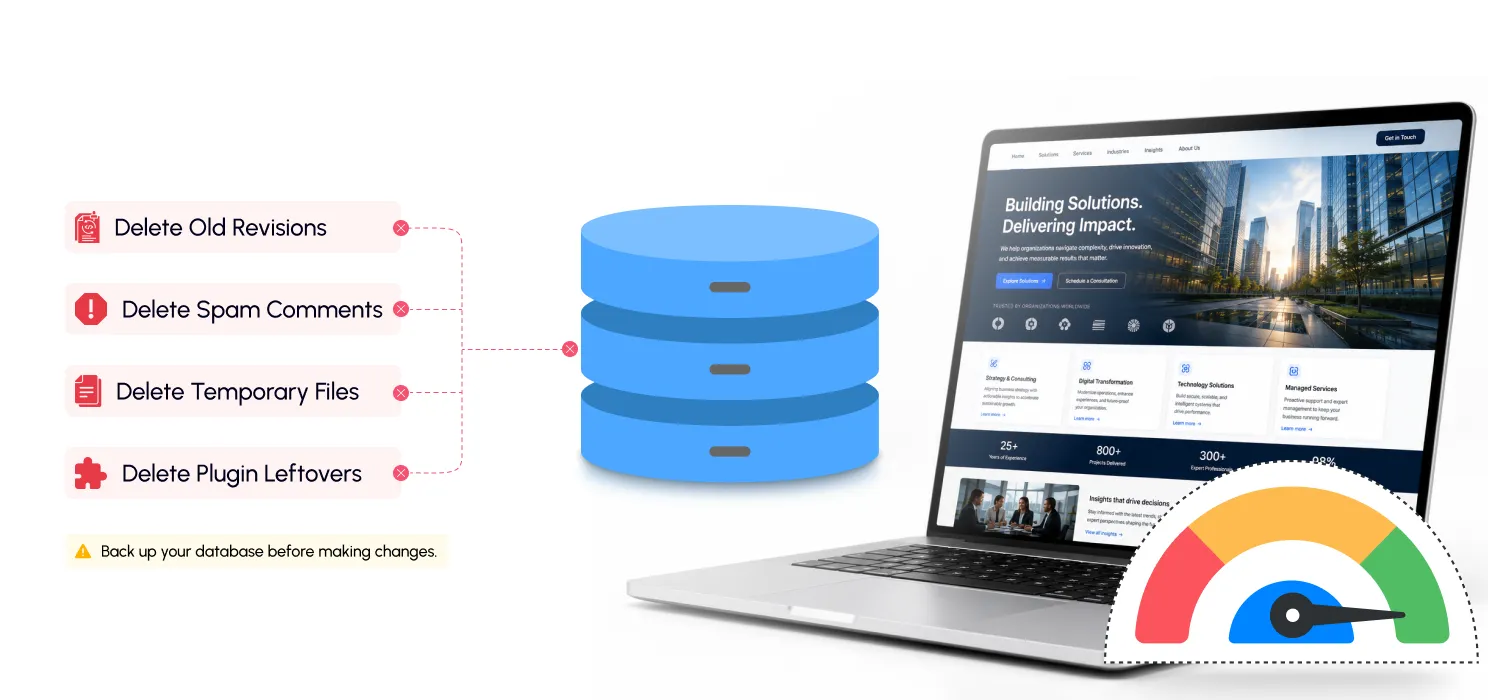
Over time, WordPress databases collect unnecessary data:
- Old revisions
- Spam comments
- Deleted plugin data
- Temporary files
Regular database cleanup can improve backend performance.
But always take a backup before making database changes.
9. Choose a lightweight theme
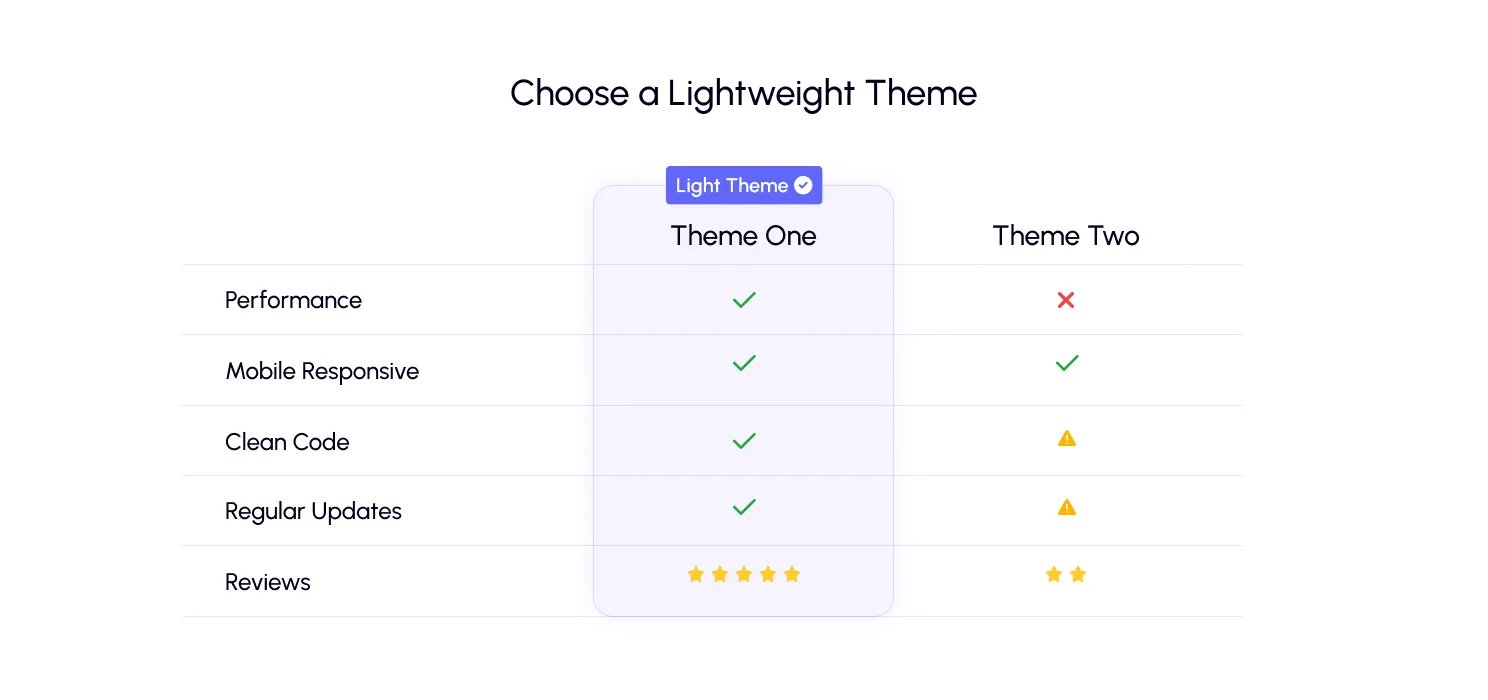
Your theme controls more than design.
A poorly optimized theme can add:
- Extra scripts
- Large CSS files
- Unnecessary animations
- Slow page builders
When selecting a theme, prioritize:
- Clean code
- Mobile responsiveness
- Regular updates
- Performance
A beautiful website that loads slowly will still create a poor user experience.
10. Monitor your website performance regularly
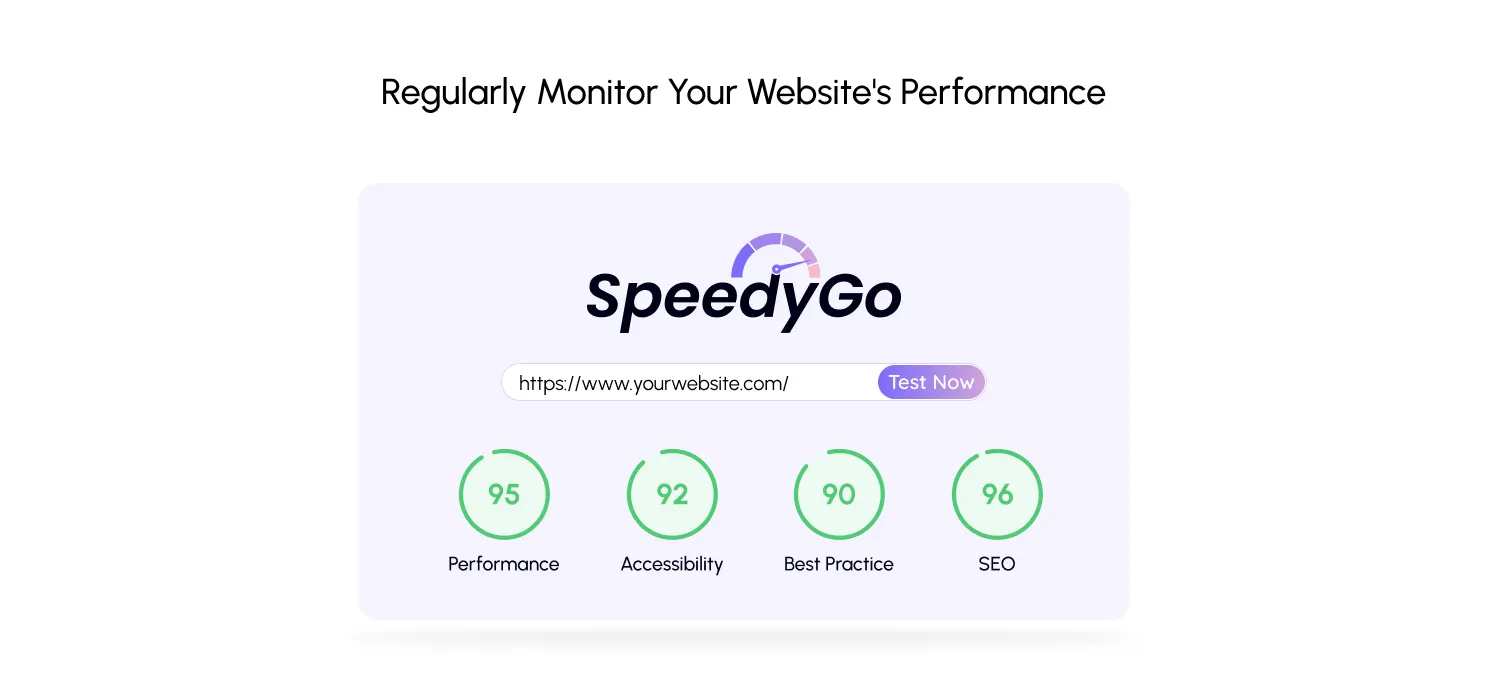
Speed optimization is not a one-time task.
Your website changes constantly:
- New plugins
- New pages
- New images
- New features
A website that is fast today may become slow after six months.
Make performance testing part of your regular website maintenance routine.
Final thoughts
There’s no single switch that makes a WordPress site fast. It’s the accumulation of a lot of smaller decisions: decent hosting, sensible images, a lean plugin list, one solid caching setup, clean code, and a habit of checking back in over time.
Measure first. Fix what’s actually broken. Keep an eye on it going forward. Do that, and you’re not just chasing a better score; you’re giving your visitors a smoother experience and giving your content an actual chance to be seen instead of abandoned mid-load.