12 mins read
WordPress speed for niche sites: blogs and portfolios
Share Article :


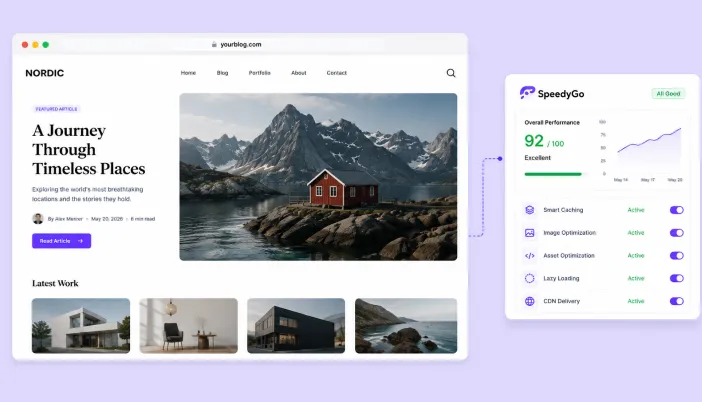
In this guide, you’ll learn how to approach WordPress speed optimization for blogs and portfolios, what usually slows these websites down, which optimizations matter most, how to handle images, fonts, videos, plugins, caching and third-party scripts, how to improve Core Web Vitals, and when a performance plugin such as SpeedyGo can help.
More importantly, you’ll learn how to optimize without stripping away what makes your website yours.
Why blogs and portfolios have different speed problems
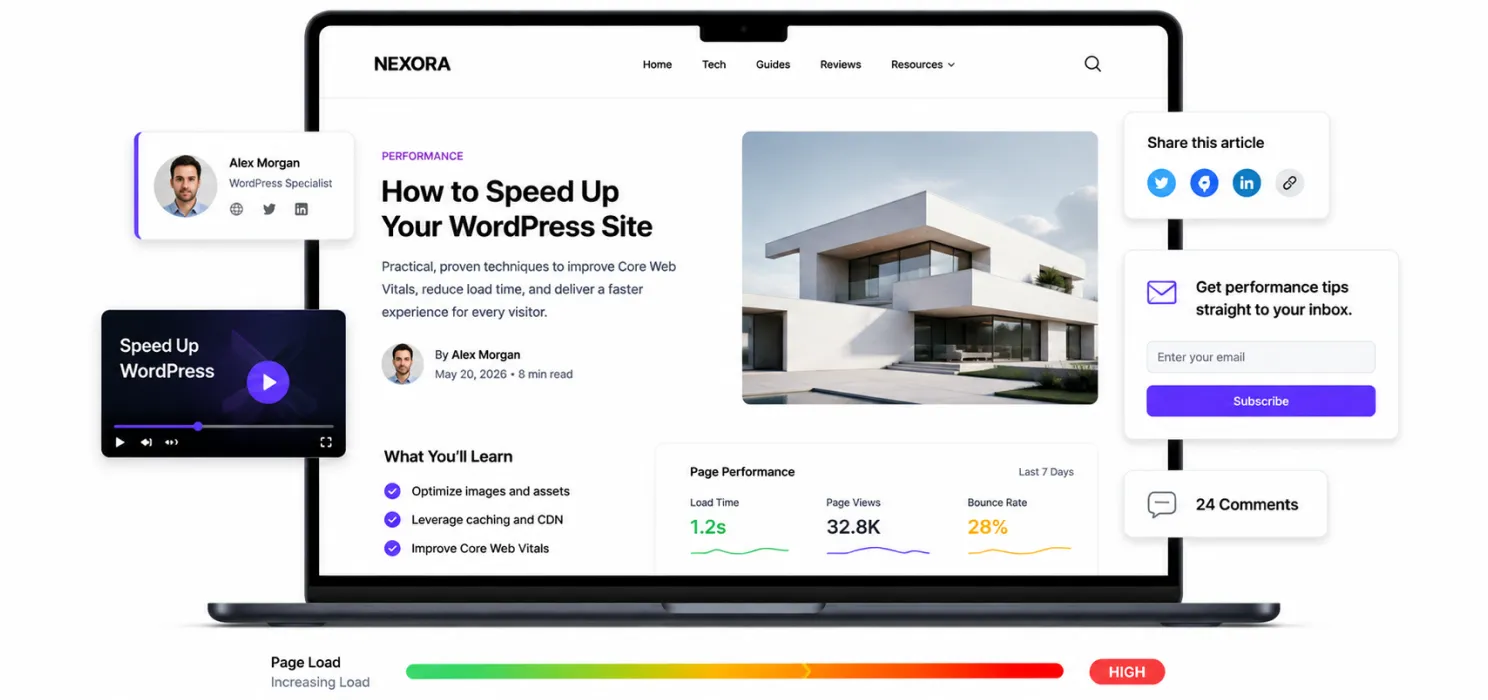
A large eCommerce store has obvious performance challenges. A high-traffic news website has obvious infrastructure challenges.
Blogs and portfolios are different. Their performance problems are often hidden inside the content itself.
A blog might have:
- hundreds of posts
- featured images
- author images
- embedded videos
- related-post widgets
- social sharing buttons
- advertisements
- analytics
- newsletter forms
- comments
- search functionality
A portfolio might have:
- large photography
- case-study galleries
- background videos
- animations
- sliders
- interactive sections
- custom fonts
- image-heavy project pages
Individually, these elements don’t look like a problem. Together, they can make a page surprisingly heavy. And that’s why WordPress speed optimization for blogs shouldn’t begin with “install a caching plugin.”
It should begin with: What is this website actually asking the browser and server to do?
Understand what “fast” means
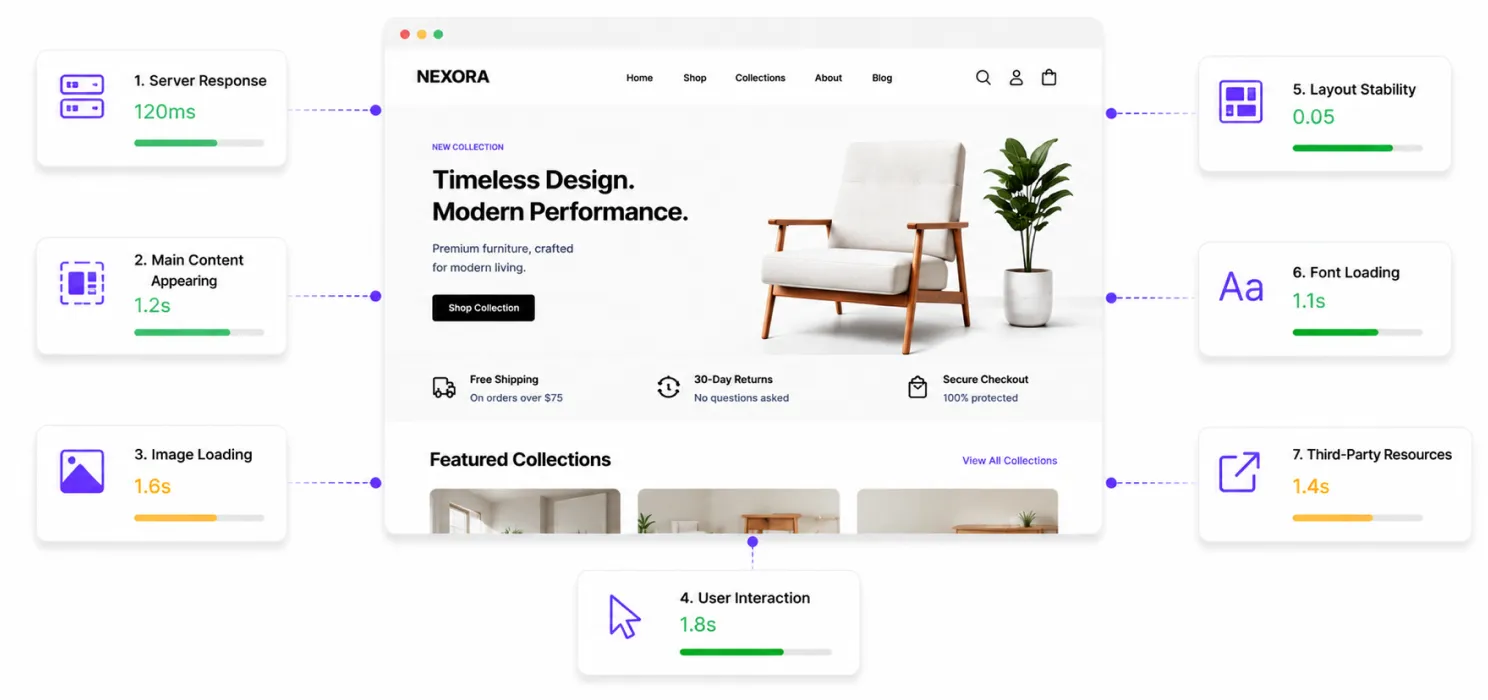
Before optimizing anything, define what you’re trying to improve.
A website can feel slow because:
- the server responds slowly
- the main content takes too long to appear
- images take too long to load
- JavaScript delays interaction
- the page shifts while loading
- fonts appear late
- too many third-party resources are loading
Start with the biggest problem: Images
If there’s one area I’d ask most blog and portfolio owners to look at first, it’s images. Why?
Because these websites are often built around images.
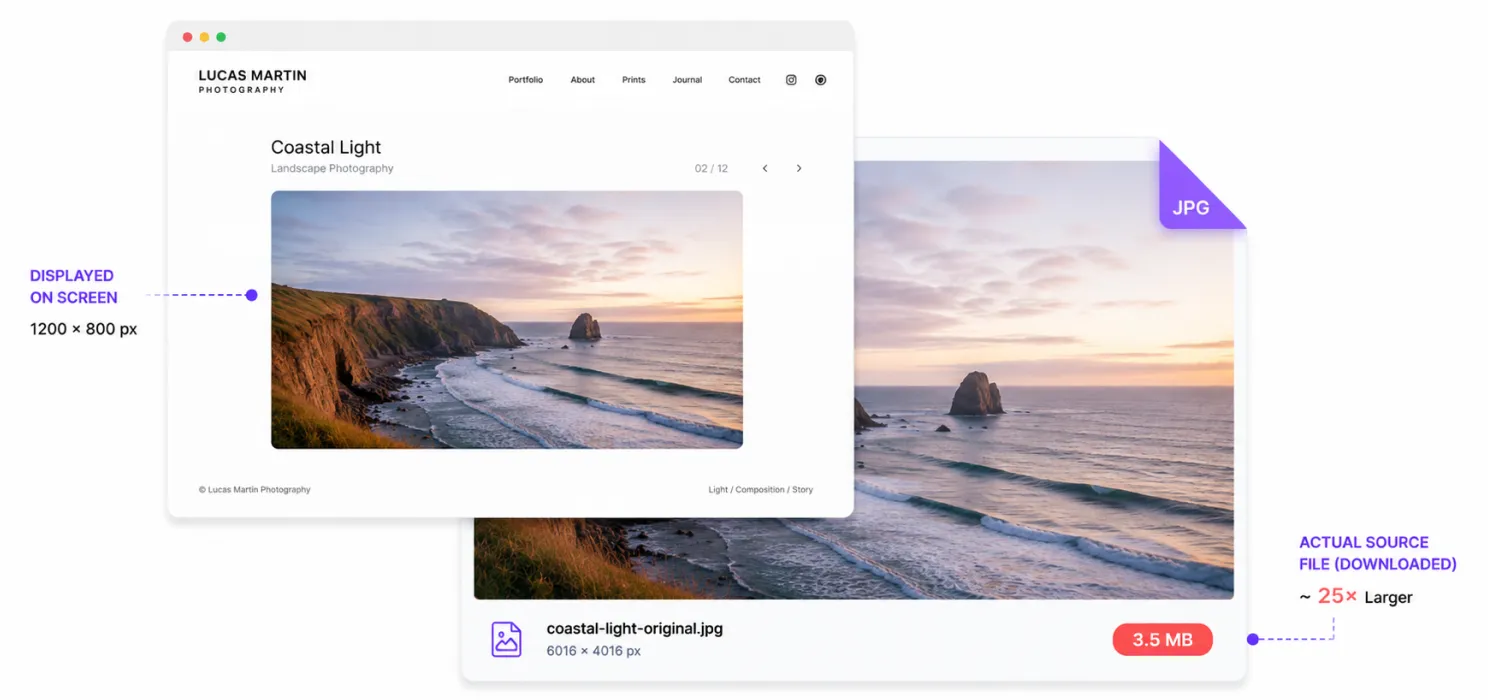
A photographer may upload a full-resolution photograph.
A designer may upload a large project mockup.
A blogger may upload a 4000-pixel screenshot because WordPress makes it easy.
The visitor may only see that image at 800 pixels wide.
They’re still potentially downloading far more data than necessary.
Think about the difference
Imagine a portfolio image is: 3.5 MB
And the page contains: 12 images
That’s potentially more than: 40 MB
of image data before you even account for CSS, JavaScript, fonts and other resources. That’s a terrible experience for someone browsing on mobile data.
Use the right image format
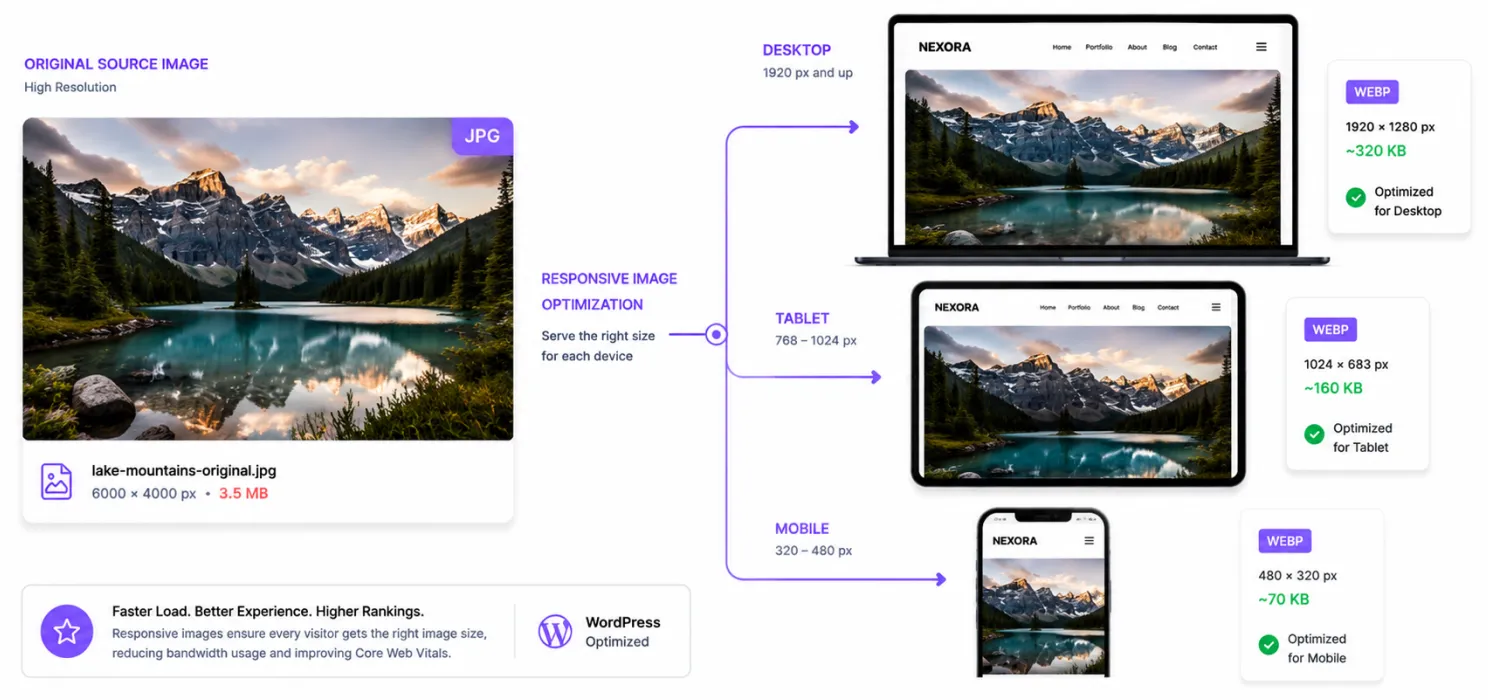
Modern image formats can significantly reduce image weight compared with older formats. For many WordPress websites, WebP is a practical choice.
The bigger lesson is: Don’t make the browser download more image data than it needs.
Use:
- appropriately sized images
- compression
- modern formats
- responsive images
- lazy loading for below-the-fold images
WordPress has built-in support for responsive images, which allows browsers to select an appropriate image size based on the device and display context.
That is useful. But you still need to make sure your original uploads aren’t unnecessarily enormous.
Don’t lazy-load everything
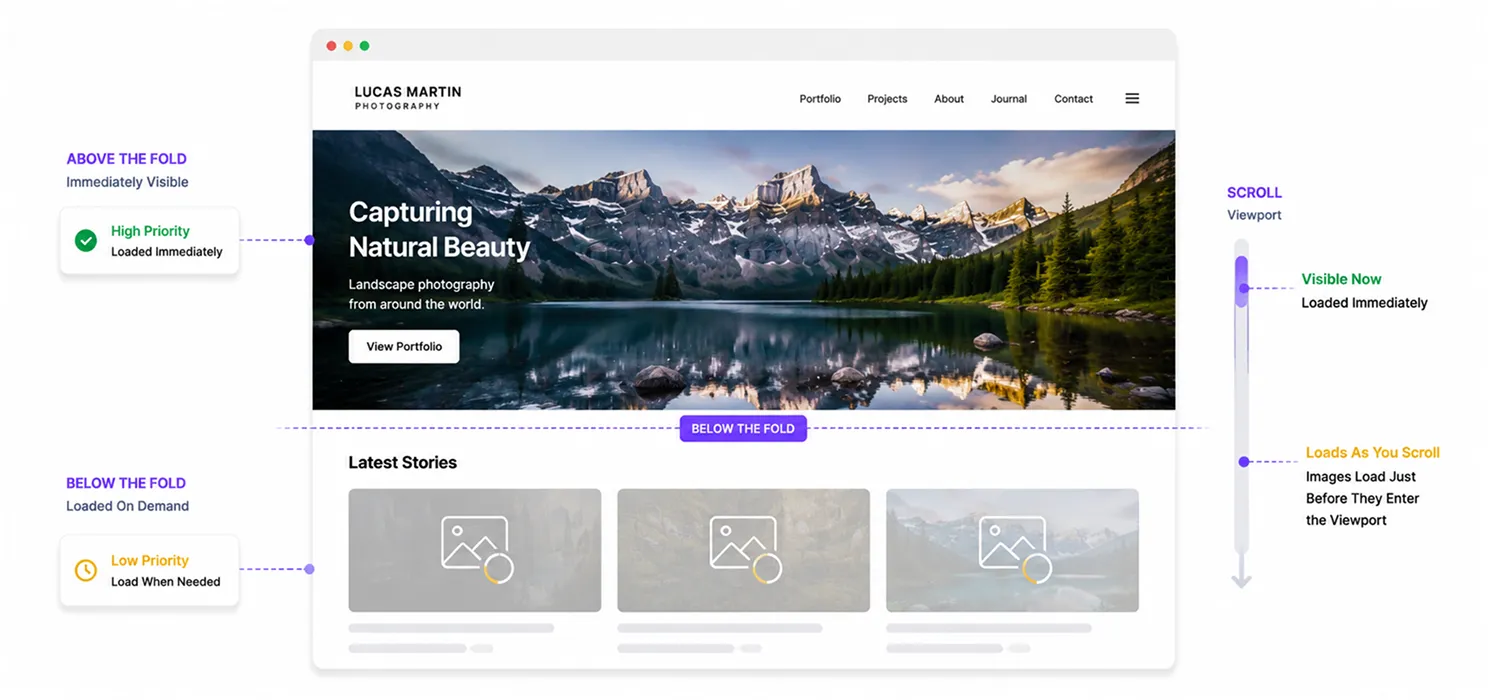
Lazy loading is useful. But like many performance techniques, it can be misused. Images below the fold are good candidates for lazy loading because the browser doesn’t need to download them immediately.
But your most important above-the-fold image may be the largest content element on the page. If you lazy-load it unnecessarily, you may delay your LCP.
So don’t think: “Lazy loading = faster.”
Think: “Load what the visitor needs first, and delay what they don’t need yet.”
That’s a much better rule.
Your portfolio hero image
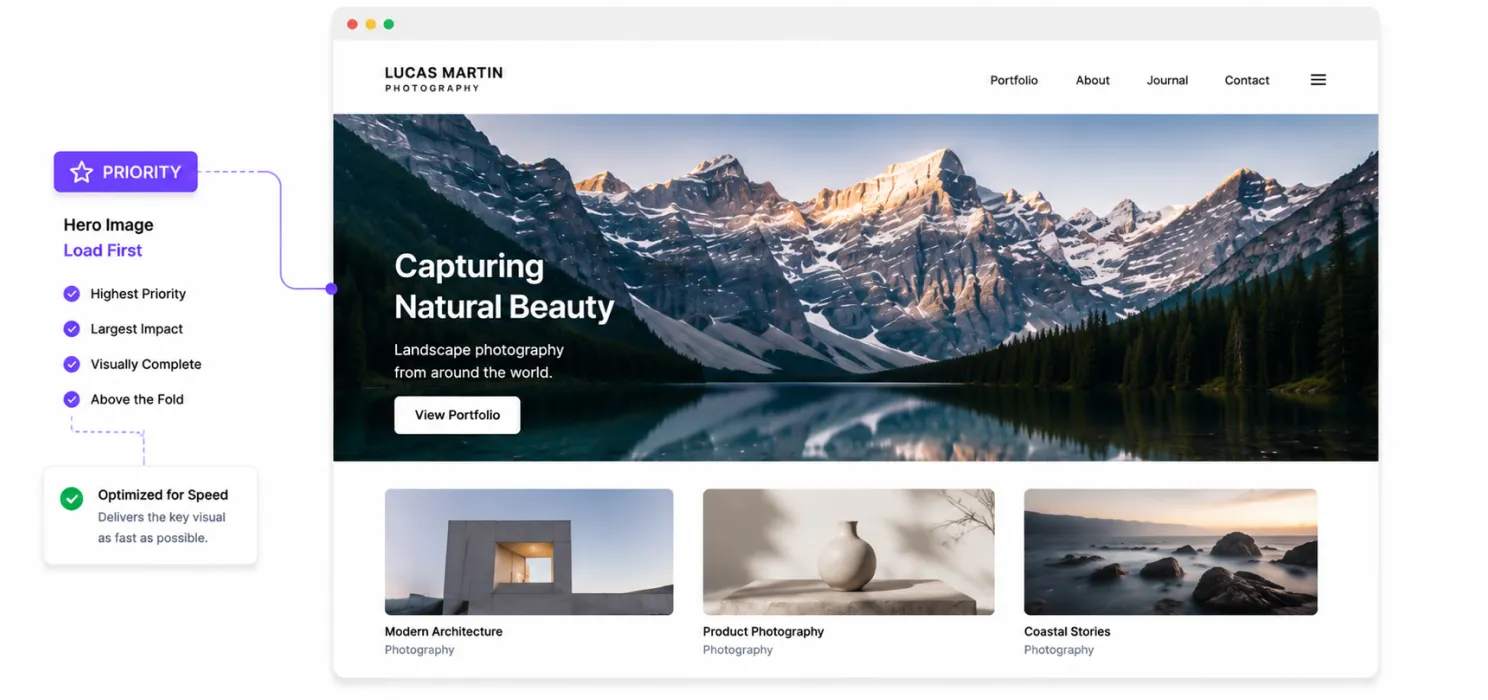
For a portfolio, the first visual is often the most important part of the page.
Maybe it’s:
- a photographer’s hero image
- a designer’s project
- a product animation
- an architecture rendering
- a personal portrait
- a case-study visual
That image needs to appear quickly. If the visitor opens your website and waits several seconds for the main visual to appear, the entire website feels slow even if everything below it loads beautifully.
Optimize the hero image for:
- file size
- dimensions
- format
- responsive delivery
- loading priority
Don’t upload a massive original photograph and expect the browser to figure everything out.
Video is beautiful. Video is also expensive.
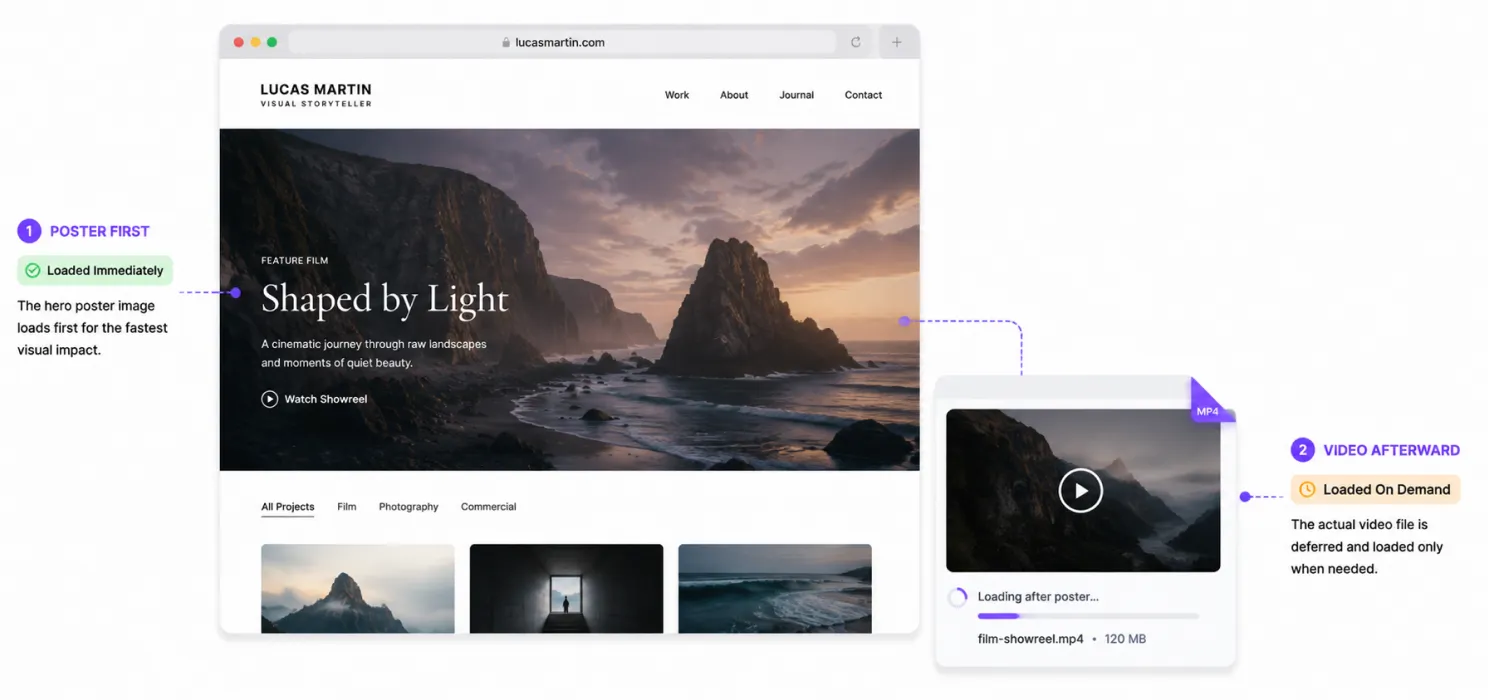
This is especially important for portfolios. A background video can instantly make a portfolio feel premium. It can also become one of the heaviest elements on the page.
Instead of automatically placing a full-resolution video in the hero section, ask:
Does the video need to autoplay?
Does it need sound?
Does it need to be full-screen?
Can a poster image be shown first?
Can the video load after the main content?
Sometimes the best performance decision isn’t removing the video. It’s changing when and how the video loads.
Your theme can make your portfolio slower
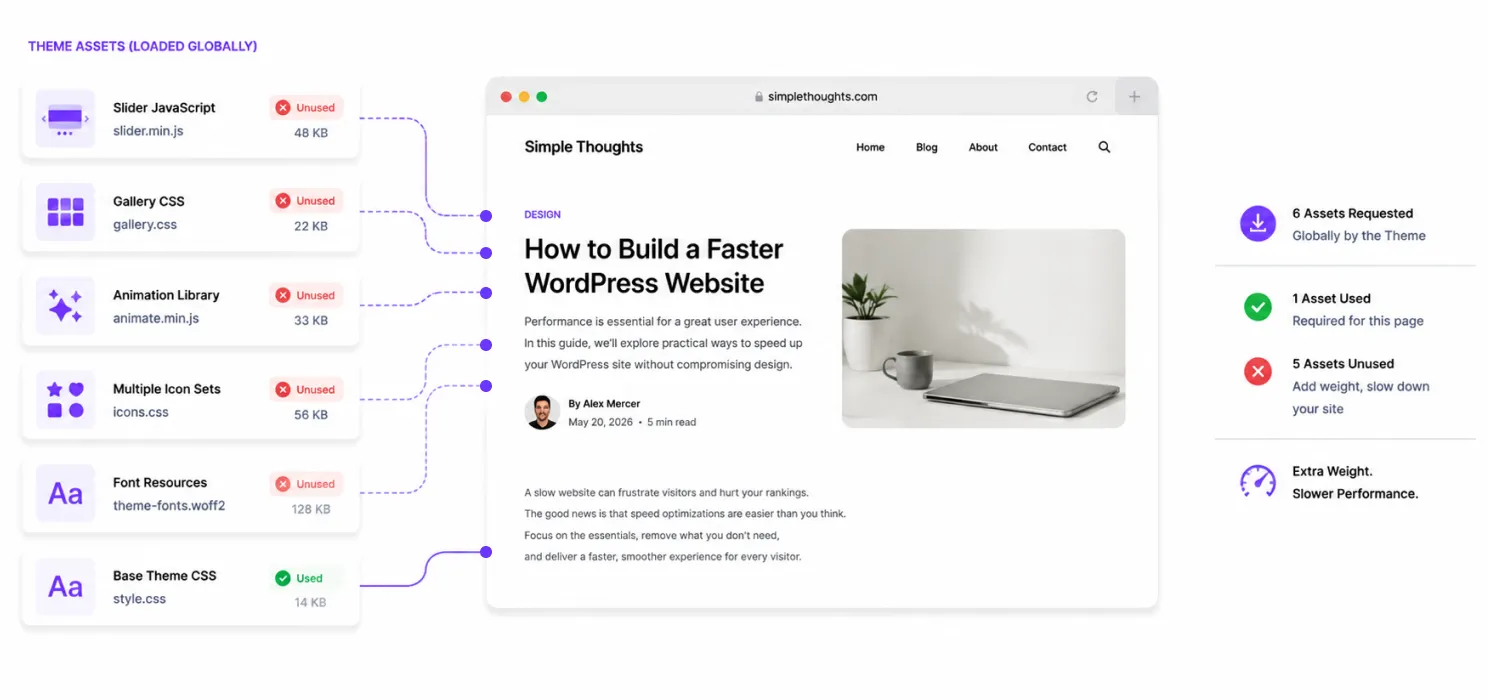
Many visual WordPress themes come with everything imaginable:
- sliders
- animations
- galleries
- icon packs
- multiple font families
- page-builder integrations
- counters
- carousels
- popups
- portfolio modules
That flexibility is convenient. But you’re probably not using all of it. Yet some themes still load resources globally.
For example, your simple blog article may not need:
- slider JavaScript
- portfolio gallery CSS
- animation libraries
- multiple icon sets
But if those assets load anyway, visitors pay the performance cost.
Audit your plugins
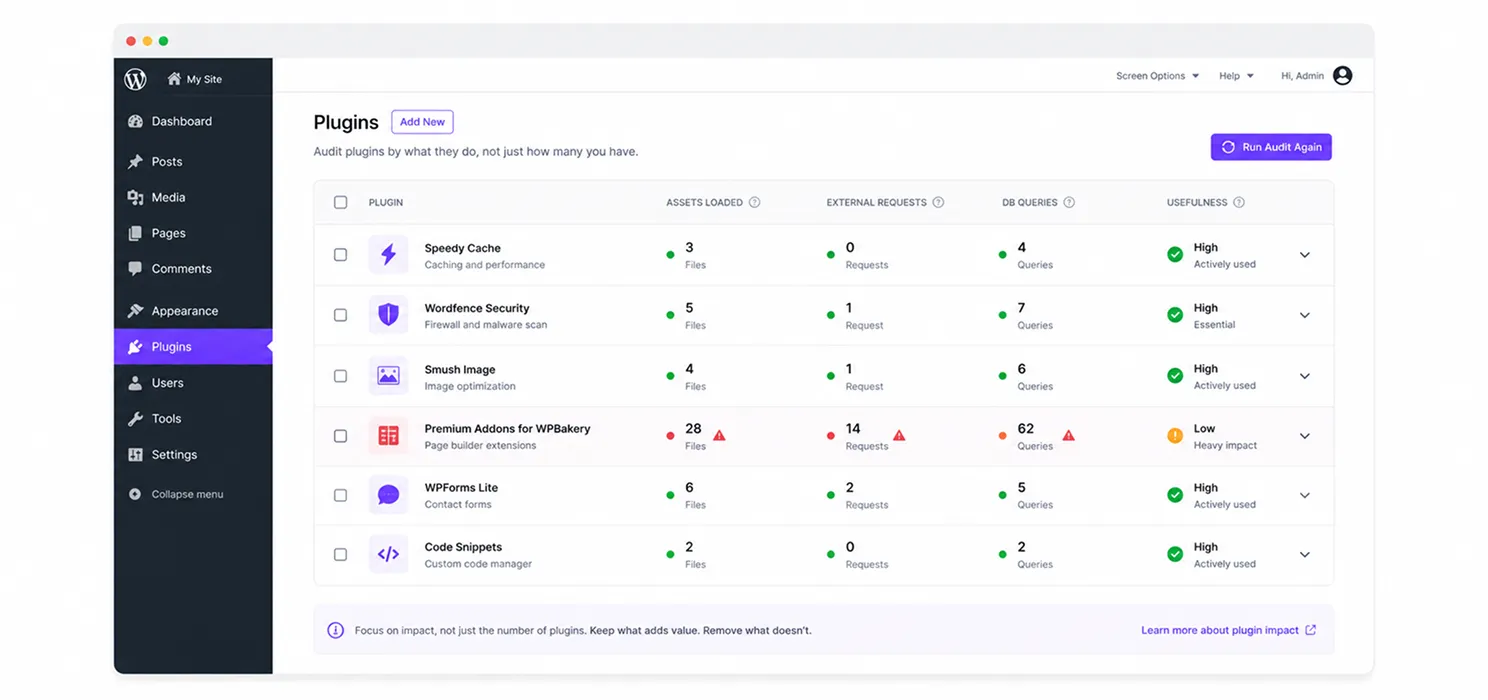
You’ve probably heard: “You have too many plugins.”
That’s not always useful advice. Five well-coded plugins may have less impact than one poorly optimized plugin.
Instead, ask:
- What does each plugin do?
- Does it load assets on every page?
- Does it make external requests?
- Does it create database queries?
- Is the functionality necessary?
- Are two plugins doing similar things?
For a blog, look particularly closely at:
- social sharing plugins
- related-post plugins
- analytics plugins
- popup plugins
- newsletter plugins
- ad plugins
- comment systems
For a portfolio, examine:
- gallery plugins
- animation plugins
- slider plugins
- page builders
- video plugins
- portfolio plugins
If a plugin isn’t providing meaningful value, removing it can be one of the simplest optimizations available.
Don’t forget your fonts
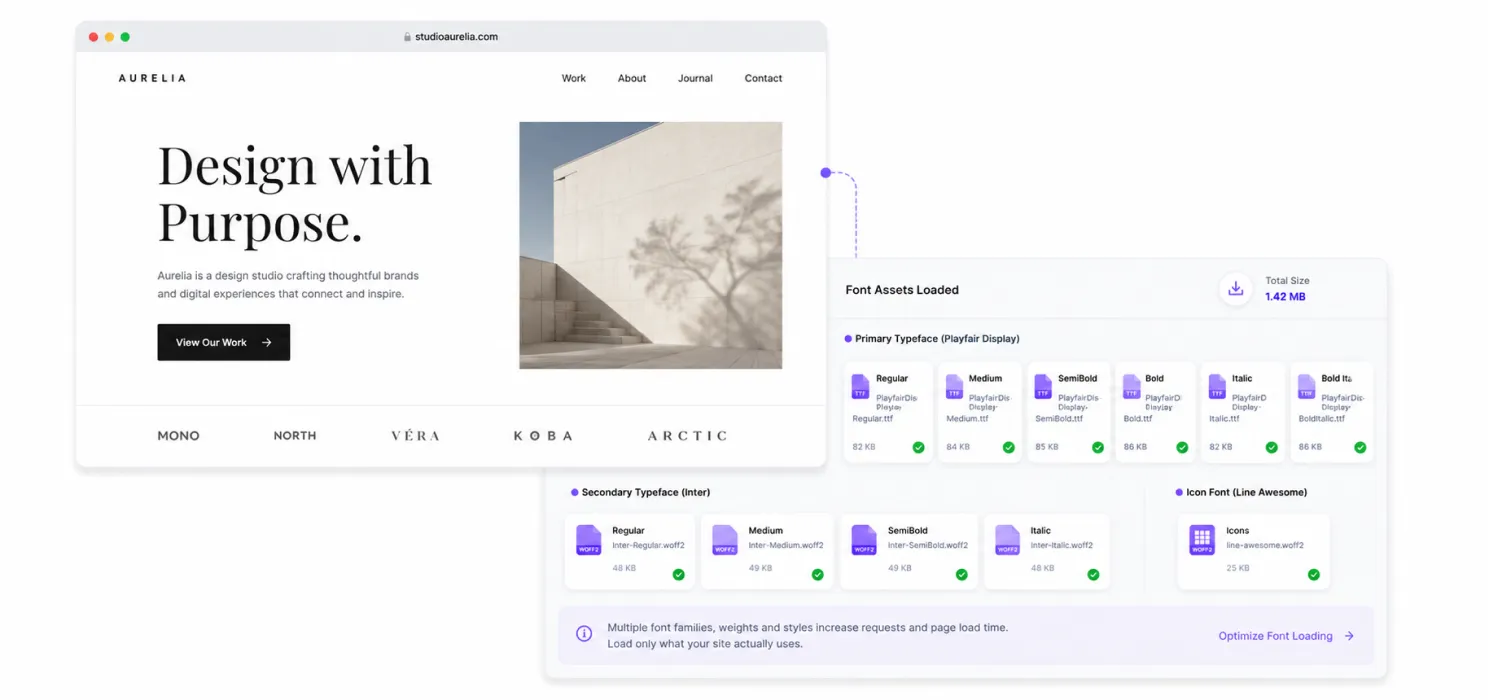
Fonts are often overlooked.
You may have:
- four font families
- multiple weights
- italic variations
- icon fonts
- custom typography
And suddenly the browser has several font files to download.
Ask yourself: Do I really need all these variations?
For many websites, a smaller typography system is enough.
For example: 1 primary font + 2 or 3 required weights may be all you need.
You should also consider:
- font-display behavior
- self-hosting where appropriate
- reducing unused weights
- preloading only truly critical fonts
Don’t preload every font.
Preloading tells the browser: “This is important. Download it early.”
If you mark everything important, nothing is truly prioritized.
Keep third-party scripts under control
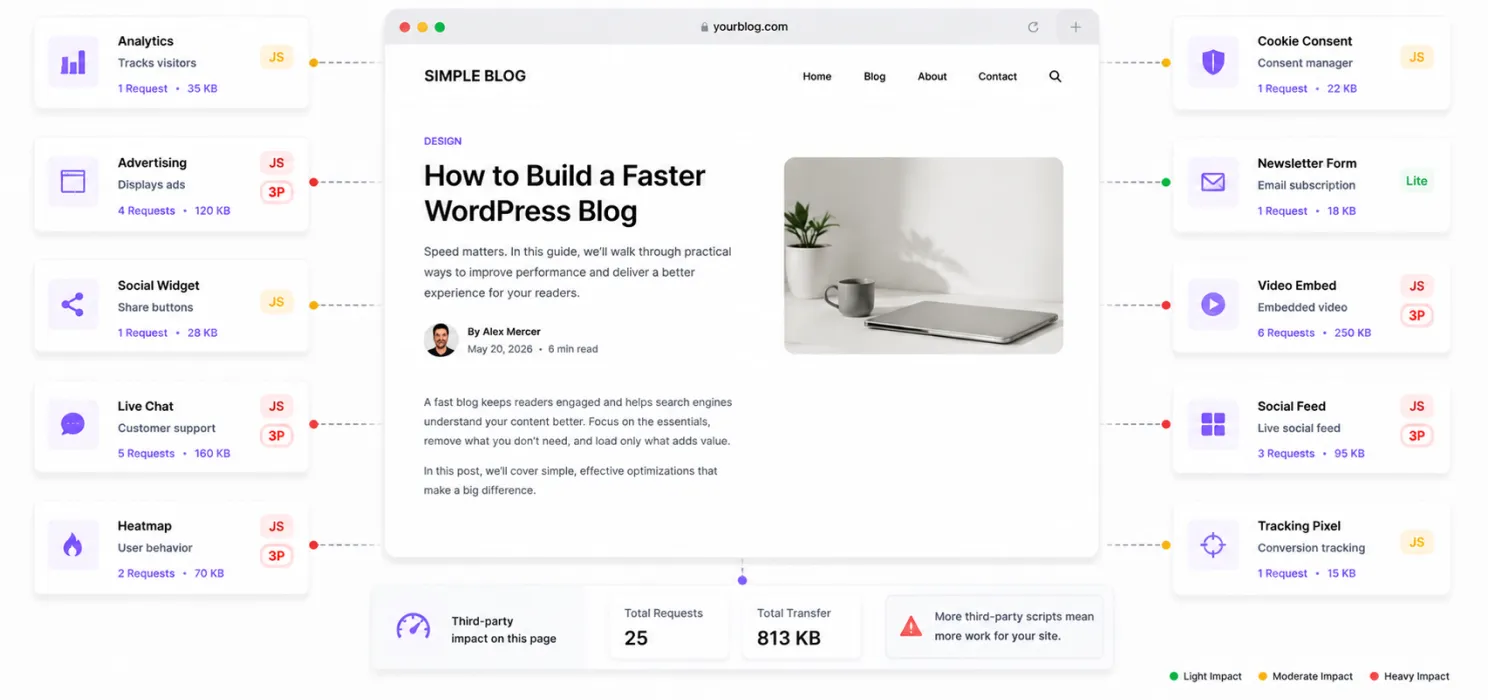
A blog can become surprisingly dependent on external services.
Think about everything you may have added:
- Google Analytics
- advertising scripts
- social widgets
- chat
- heatmaps
- cookie tools
- newsletter tools
- video embeds
- social feeds
- tracking pixels
Each one can introduce additional requests and JavaScript. The question isn’t whether analytics are useful. They often are.
The question is: Is every script earning its place on the page?
If a script doesn’t contribute enough value, consider removing it. If it is useful, see whether it can load later without affecting the primary experience.
Embedded content can be heavier
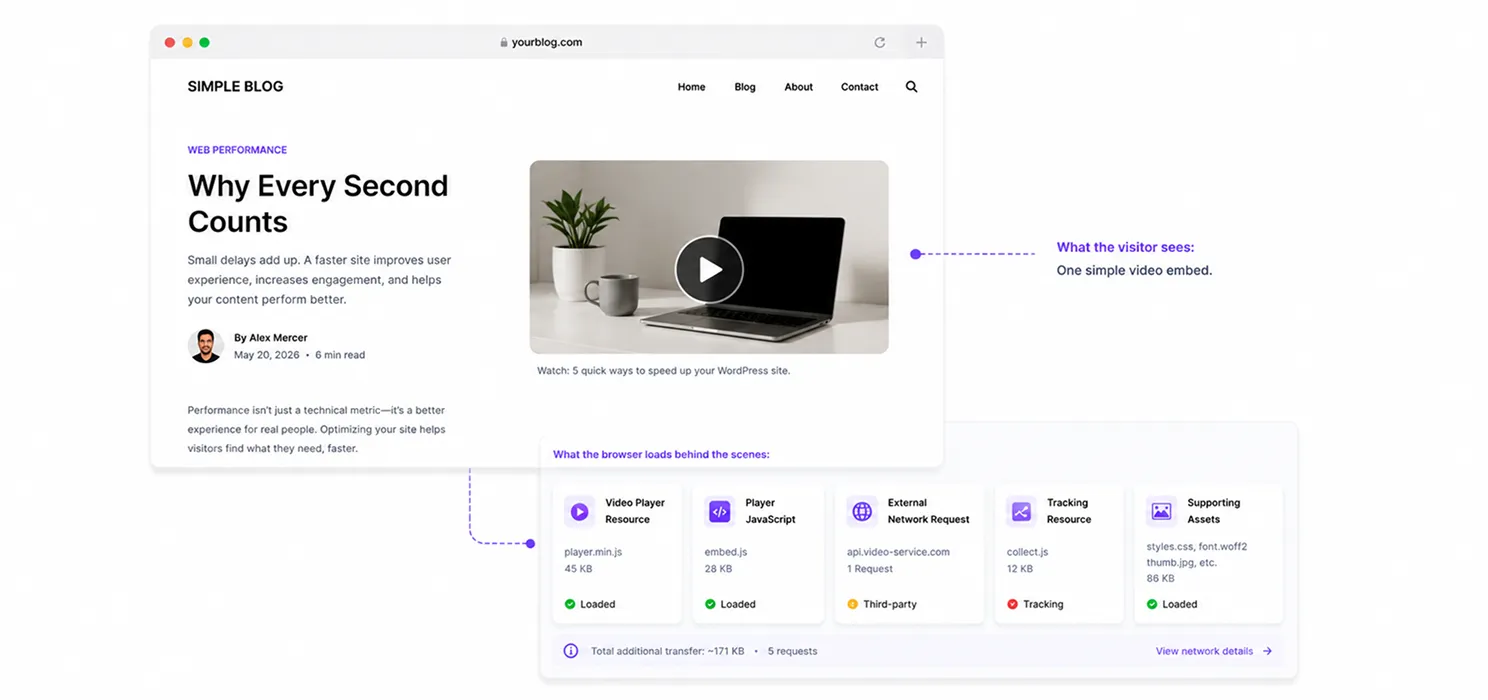
You might embed:
- YouTube videos
- Instagram posts
- maps
- social feeds
- forms
- external widgets
The page may look like it contains one simple block. Behind the scenes, that embed may load multiple resources. For content-heavy blogs, this can quickly add up.
Consider a lighter approach
Instead of loading an entire video player immediately:
Show a thumbnail → load the player when the visitor interacts.
Instead of loading a social feed immediately:
Load it after the main content is available.
This is called delaying non-critical work.
And it can make a noticeable difference.
Caching is essential for blogs
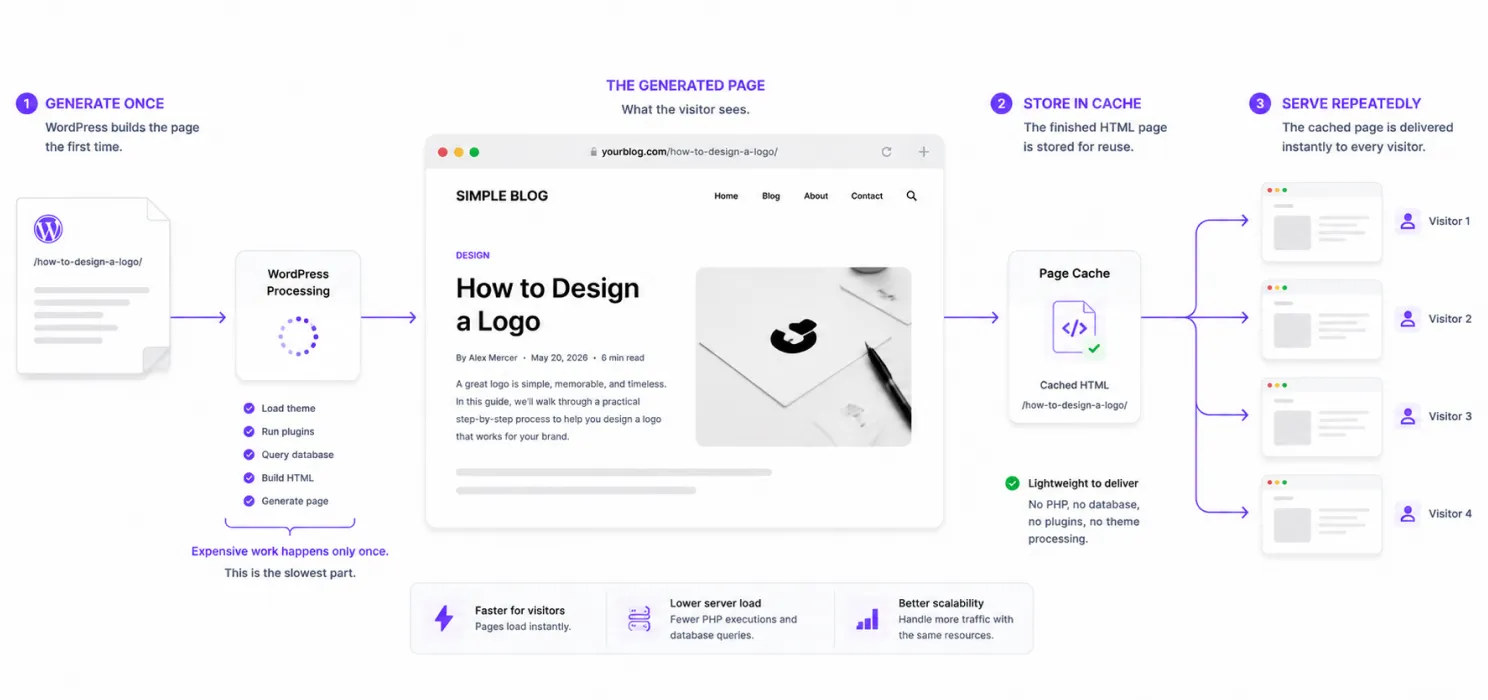
Blogs are actually great candidates for caching because much of their content doesn’t change every second.
Imagine someone visits: /how-to-design-a-logo/
The article may remain exactly the same for hours or days. There is little reason for WordPress to rebuild the entire page from scratch for every visitor.
Page caching can allow the generated HTML to be served repeatedly without executing the full WordPress stack for every request. WordPress documentation describes caching as one of the most effective ways to reduce repeated server work and improve performance.
For a blog, this can be especially useful for:
- blog posts
- category pages
- author pages
- tag pages
- landing pages
Just make sure your cache is properly invalidated when content changes.
A CDN can help content-heavy websites
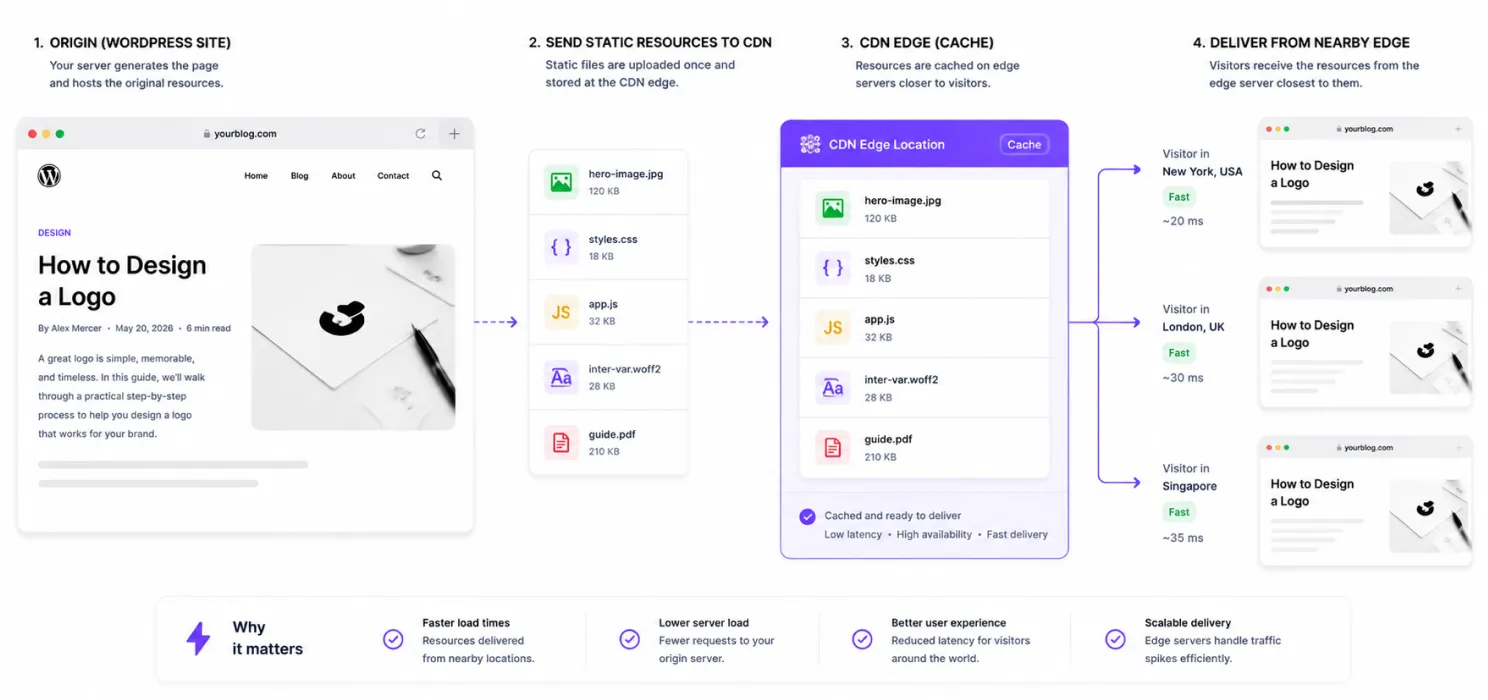
If your readers are spread across different countries, a CDN can help deliver static resources closer to them.
This is particularly useful for:
- images
- CSS
- JavaScript
- fonts
- downloadable files
A portfolio can benefit significantly because its pages may contain many large visual assets. A blog can benefit because images and other static resources don’t always need to come directly from the origin server. The result is not just potentially faster delivery. It can also reduce the work your WordPress server needs to handle.
What is database optimization?
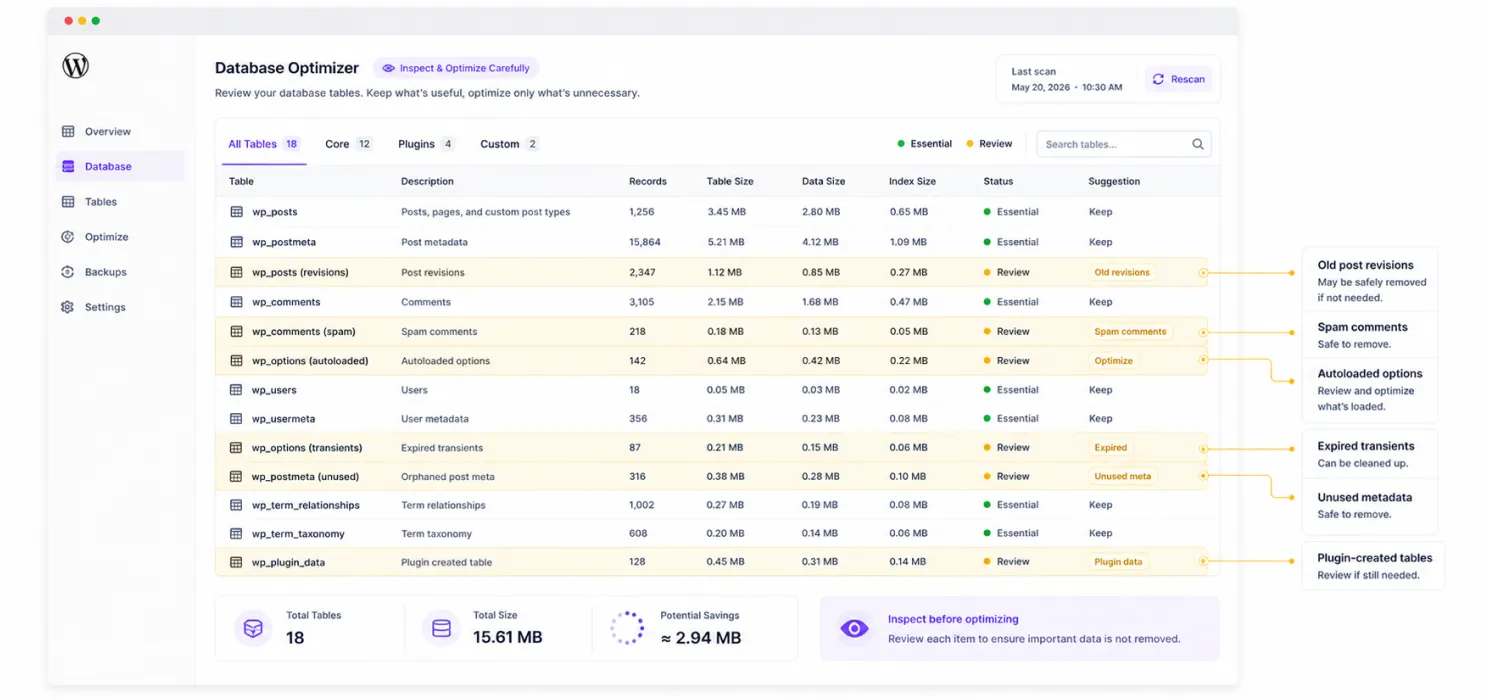
For a small portfolio with ten pages, the database may not be your biggest problem.
For a blog with:
- 5,000 posts
- 20,000 comments
- dozens of plugins
- years of revisions
- multiple custom post types
it becomes more relevant.
Look at:
- post revisions
- spam comments
- expired transients
- unnecessary metadata
- autoloaded options
- plugin-created tables
But be careful.
Don’t randomly delete database records because an optimization guide told you to.
Always understand what the data is and whether something depends on it. A good optimization process improves the database without destroying useful content or functionality.
Don’t optimize your homepage and forget your blog posts
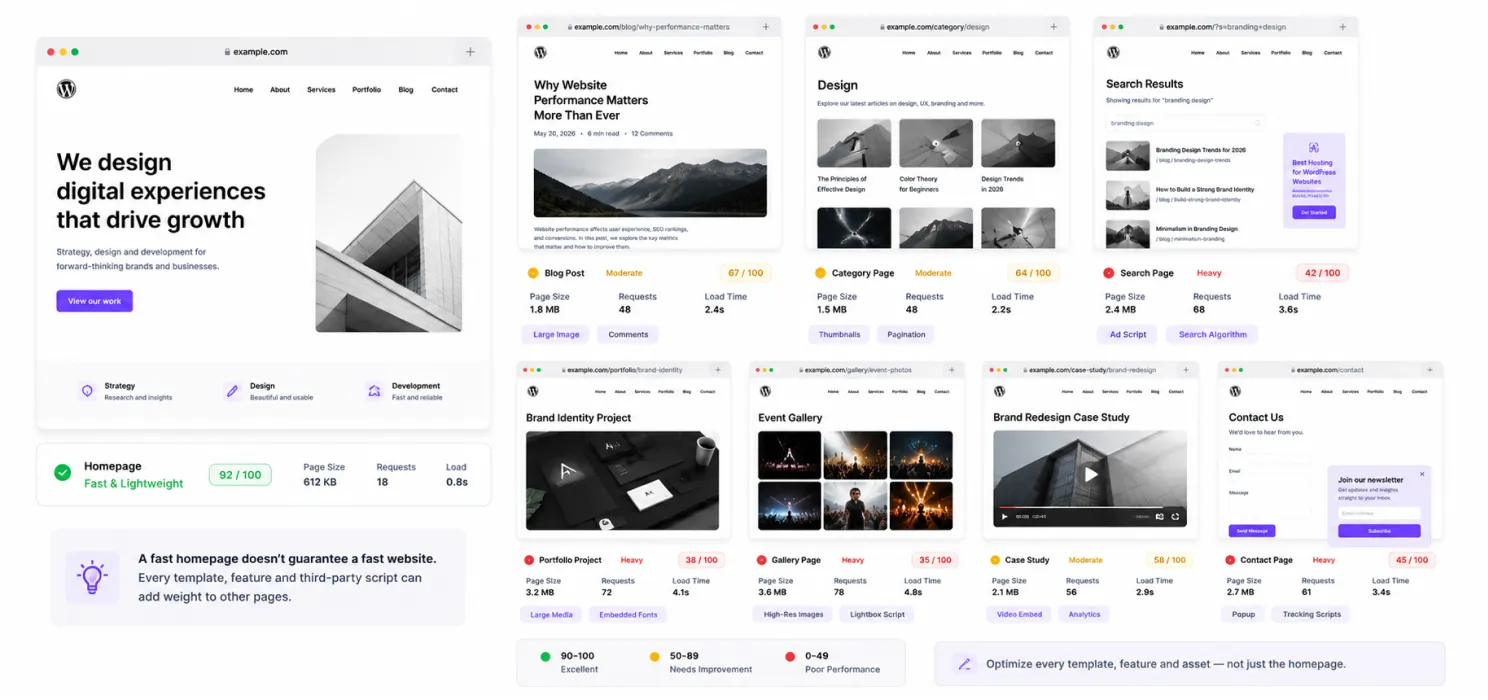
A good homepage score doesn’t mean your entire website is fast. Visitors may land directly on a blog post with a large image, videos, ads, popups, comments, and tracking scripts. Test the pages people actually visit, including individual posts, category pages, search pages, project pages, galleries, case studies, and contact pages.
Measure performance across real visitor journeys, not just one page.
Your blog’s search traffic makes speed even more important
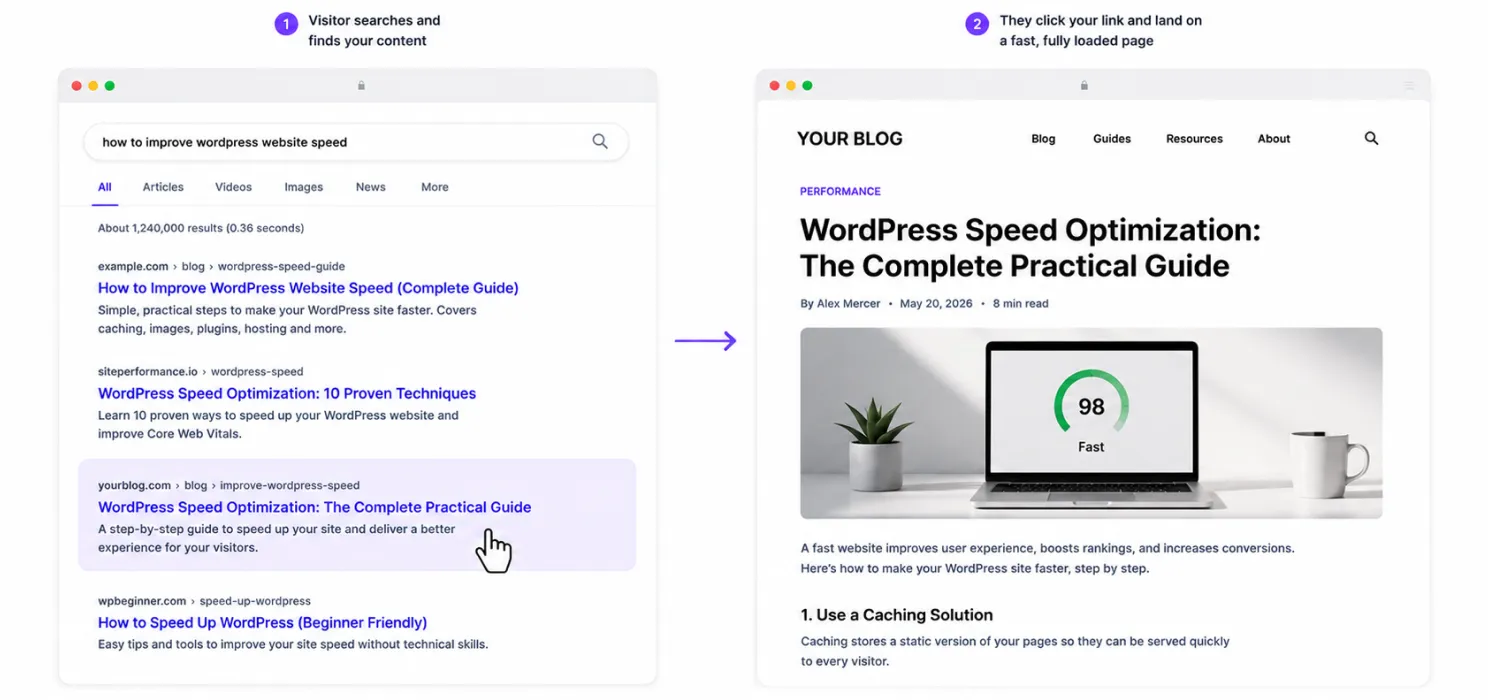
A lot of blog traffic comes from search. Someone finds your result, clicks, and then waits. That moment matters.
Core Web Vitals and page experience are part of Google’s broader search systems, but good scores alone don’t guarantee higher rankings. So don’t optimize just because Google says so.
Optimize because people who click your result deserve a fast, smooth experience.
SpeedyGo
If you’re managing a blog or portfolio yourself, you probably don’t want to spend every week investigating caching rules, converting images, configuring compression and checking whether a new plugin changed your performance.
That’s where an all-in-one WordPress performance tool can be useful.
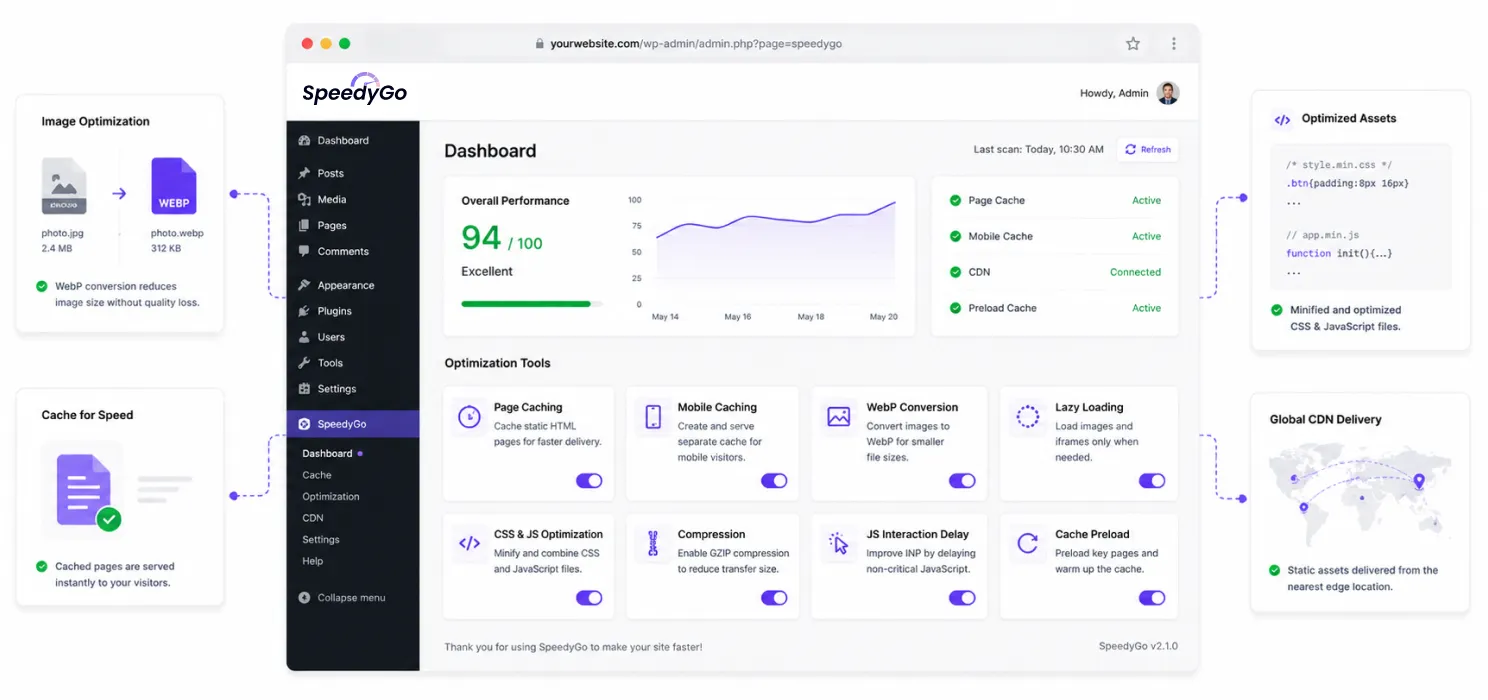
SpeedyGo brings several common optimization tasks into one place, including:
- Page caching
- Mobile caching
- WebP image conversion
- Lazy loading
- GZIP and Brotli compression
- CSS and JavaScript optimization
- JavaScript interaction delay
- Smart cache control
- Cache preload and warm-up
- Built-in BunnyCDN
- WooCommerce-aware caching
For a typical blog or portfolio, that means you can handle several recurring performance tasks without stitching together a collection of separate tools.
But there’s an important distinction. A performance plugin is not a substitute for understanding your website.
If your theme is loading 2 MB of unnecessary JavaScript, you still need to know why.
If your hosting has a high server response time, caching alone may not solve the problem.
If your portfolio is loading 30 massive images above the fold, no setting can completely compensate for that design decision.The best results usually come from combining:
Good website architecture + smart content decisions + performance optimization tools.
A practical WordPress speed optimization strategy for blogs
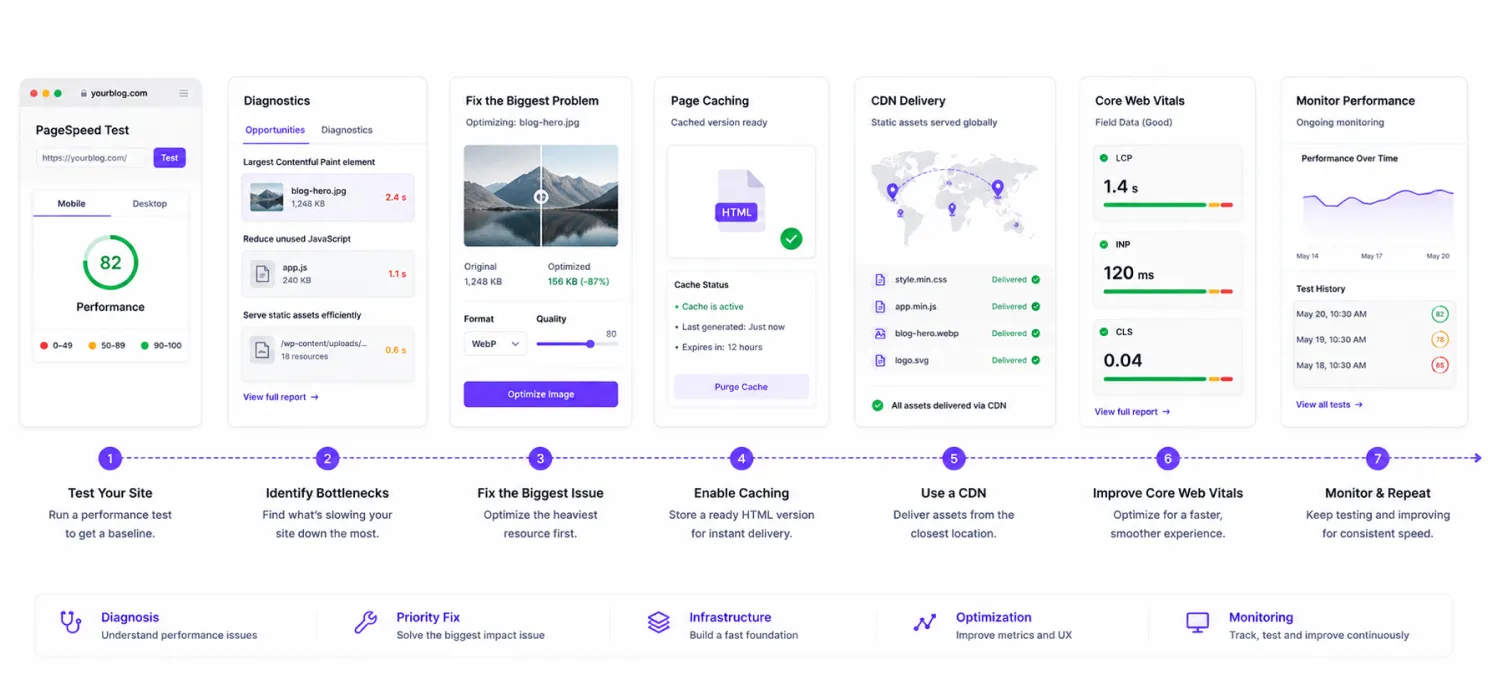
Step 1: Test key pages
Check your homepage, popular posts, category pages, and landing pages.
Step 2: Find the biggest bottleneck
Is it images, JavaScript, server response, fonts, or third-party scripts?
Step 3: Fix the biggest problem first
Don’t optimize a tiny icon while your hero image is 2 MB.
Step 4: Set up caching
Make frequently visited content easier to serve.
Step 5: Add a CDN
Deliver static assets closer to your visitors.
Step 6: Improve Core Web Vitals
Focus on LCP, INP, CLS, CSS, JavaScript, and fonts.
Step 7: Monitor
Keep testing as you publish content and add new features.
Final thoughts
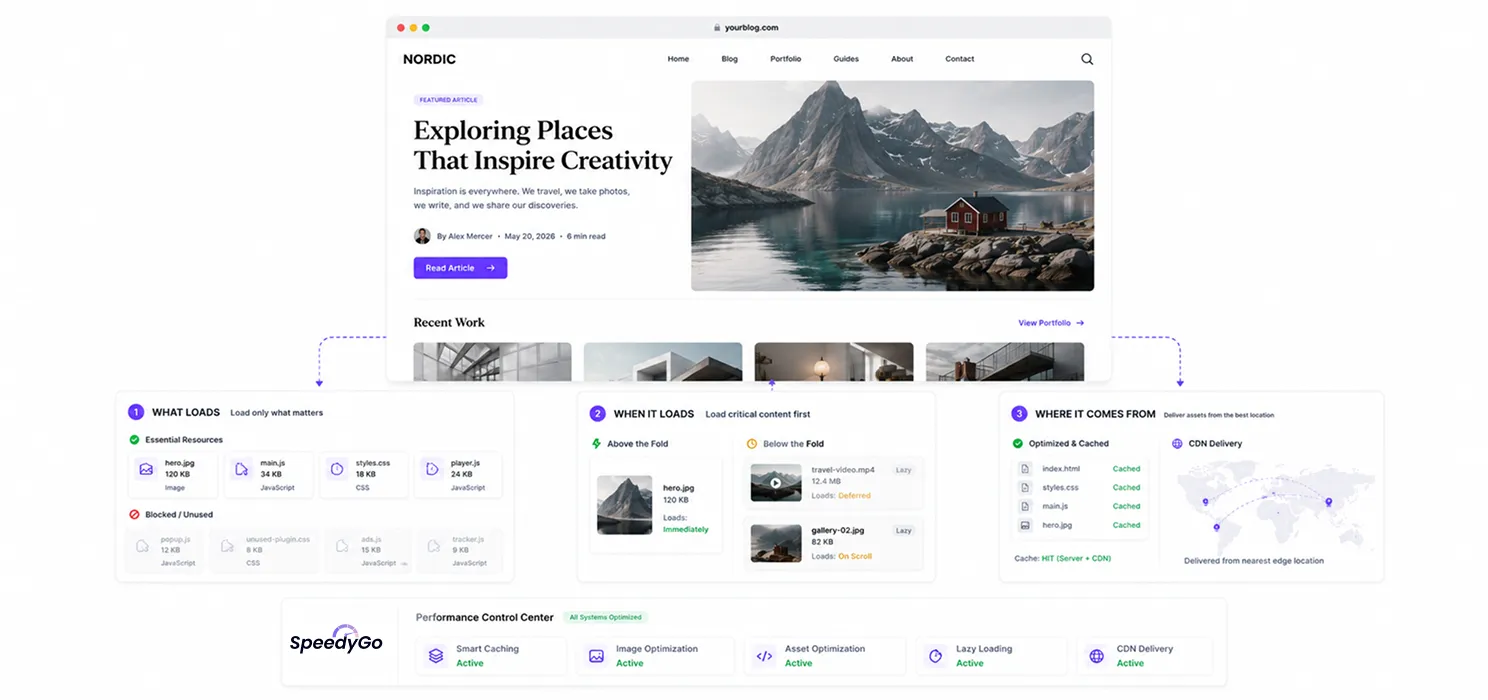
Blogs and portfolios rarely become slow overnight. It happens gradually—one large image, plugin, video, font, script, or animation at a time. Good WordPress speed optimization for blogs isn’t about removing everything. It’s about controlling what loads, when it loads, and where it comes from.
For blogs: optimized images + caching + CDN + lighter assets + controlled plugins.
For portfolios: optimized visuals + smart video loading + lightweight animation + caching + CDN.
Most importantly, measure before you optimize.
Your website can still be visual, rich, and unique. It just shouldn’t make visitors wait for it.
SpeedyGo helps simplify recurring WordPress performance with caching, image optimization, compression, asset optimization, and CDN delivery.
Frequently Asked Questions
Find answers to common questions about WordPress speed optimization for blogs and portfolios, including images, caching, CDN, plugins, Core Web Vitals, fonts, videos, and performance tools.
How can I optimize WordPress speed for blogs and portfolios?
You can improve WordPress speed by optimizing images, reducing unnecessary plugins and third-party scripts, using caching and a CDN, optimizing fonts and JavaScript, and improving Core Web Vitals. Start by identifying the biggest performance bottleneck before making changes.
How do images affect WordPress website speed?
Large and unoptimized images can significantly increase page size and loading time. Use appropriately sized images, modern formats such as WebP, compression, responsive images, and lazy loading for images that are below the fold.
How can I optimize a portfolio's hero image?
Optimize the hero image by using the correct dimensions, compressing it, choosing an efficient format, and prioritizing its loading. Avoid unnecessarily large original files because the hero image is often one of the most important elements affecting the initial loading experience.
Should I lazy-load all images on my WordPress website?
No. Lazy loading is generally useful for images below the fold, but important above-the-fold images may need to load earlier. Lazy-loading a key image can delay the Largest Contentful Paint (LCP), so loading should be prioritized based on what visitors see first.
How can I optimize videos on a WordPress portfolio?
Avoid automatically loading large videos before they are needed. Consider using a lightweight poster image first and loading the video after interaction or when appropriate. This can reduce the initial page weight while keeping the visual experience of the portfolio.