8 mins read
Fixing CLS WordPress: Eliminate Layout Shifts Instantly
Share Article :


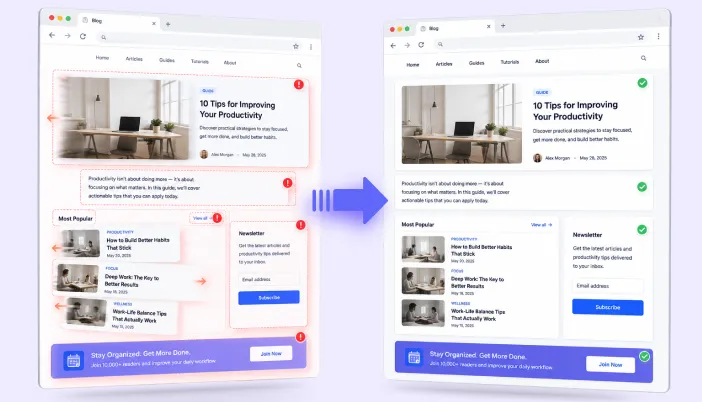
In this guide, we’ll explain what causes CLS issues in WordPress and how to fix layout shifts step by step. You’ll learn how to spot shifting elements, optimize images and fonts, handle ads and dynamic content, and improve your Core Web Vitals score for a smoother experience.
You’ve felt this before, even if you didn’t know it had a name: you start reading a paragraph, and it suddenly jumps down the page because an image above it just finished loading. Or you go to tap a button, and an ad slides in above it at the last second, so you tap the wrong thing entirely.
That’s Cumulative Layout Shift (CLS), Google’s measure of visual stability, and one of the three Core Web Vitals. A “good” score is under 0.1.
CLS is often called the easiest Core Web Vitals to fix, and that’s true, but “easy” doesn’t mean “automatic.” WordPress sites fail it constantly, for a few very consistent reasons:
|
The fix for all of it comes down to one simple idea: every visible element should claim its space before the browser has to render it. If the browser only learns an element’s real size after it’s already loaded, it has to reshuffle the page, and that reshuffle is what counts against you.
Here’s how to find every source of shift on your site and fix it, roughly in order of impact.
Step 1: Find what’s actually shifting
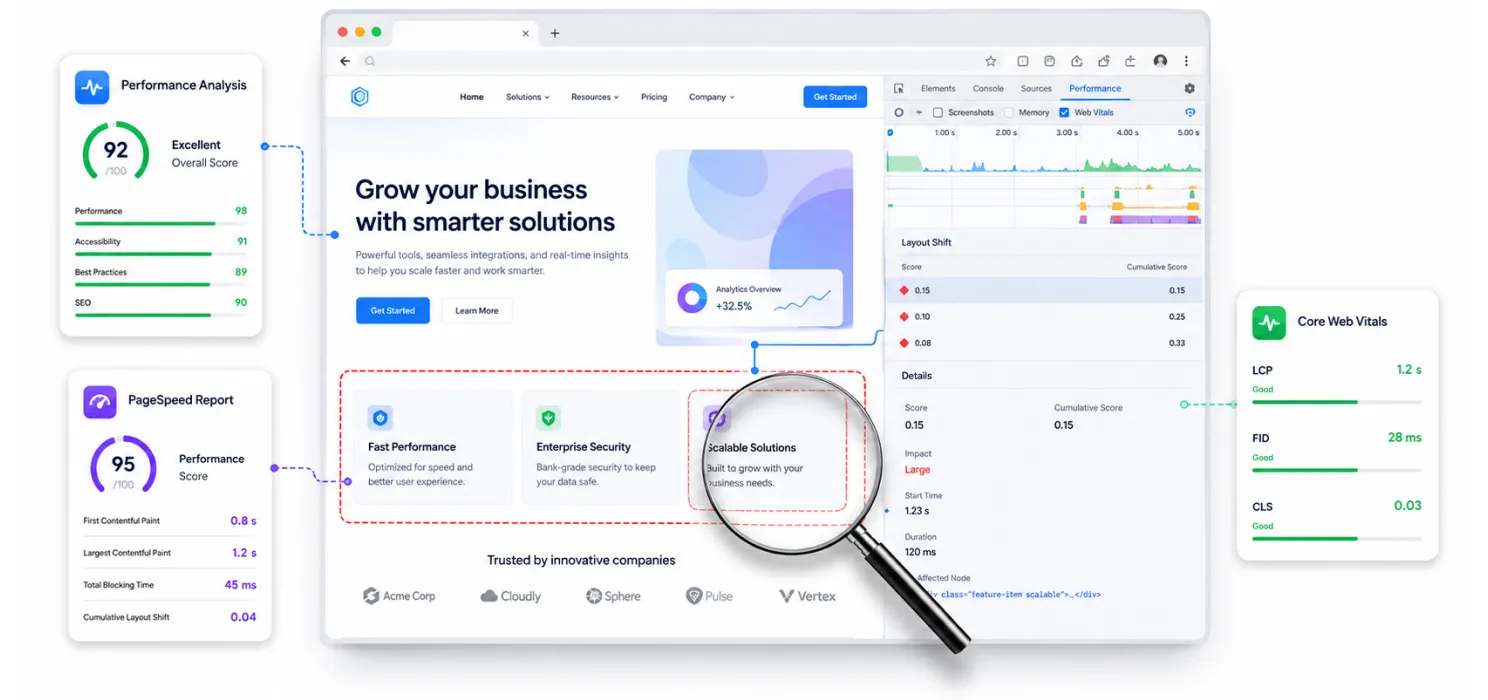
Before touching any code, figure out exactly which elements are causing shifts on your specific pages.
- Chrome DevTools: Press F12 → go to the Performance panel → click Record → reload the page → stop recording. Look for “Layout Shift” events in the summary, clicking one highlights the exact element that moved, shown as a red rectangle.
- PageSpeed Insights: Run your URL and check the “Avoid large layout shifts” section, it usually names the specific elements responsible.
- Google Search Console: The Core Web Vitals report groups failing pages by template, which helps you see if the problem affects every blog post, or just your homepage.
Diagnosing first matters because CLS fixes are specific to whatever’s causing the shift, there’s no single plugin toggle that fixes all the causes at once, no matter what an “install this one plugin” article promises.
Step 2: Images and videos without reserved space
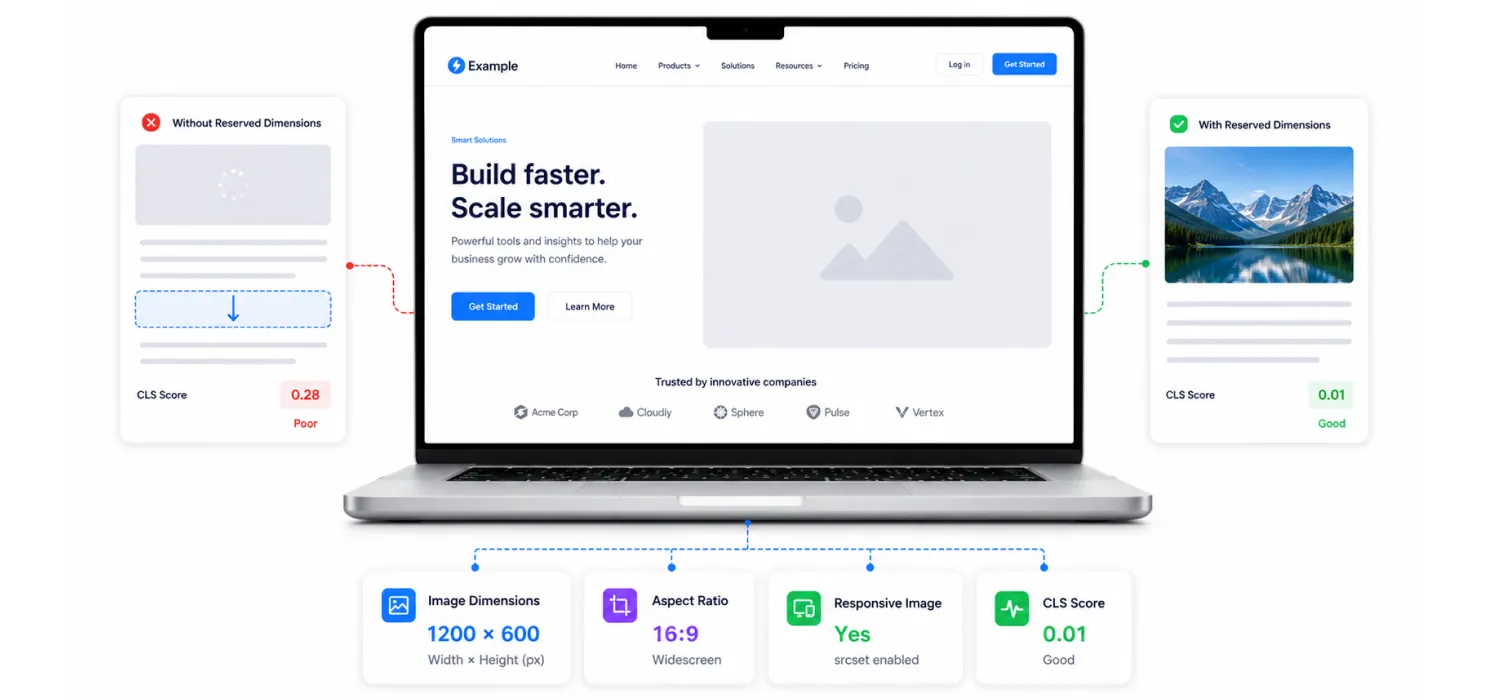
This is the single most common cause of CLS on WordPress sites and usually the biggest win to fix.
When the browser knows an image’s width and height ahead of time, it reserves that exact space in the layout before the image even finishes downloading, so nothing has to jump when it arrives.
WordPress’s block editor actually adds width and height automatically for images you insert through it. The problem is everything that skips this, classic-editor content, externally hosted images, raw <img src="..."> tags in custom templates, and background images set through page-builder widgets.
These bypass the auto-detection entirely, so the browser reserves zero space, paints the surrounding text, then jumps the layout the moment the image’s data arrives.
The fix: make sure every image and video specifies its dimensions, one way or another.
<img src=”hero.webp” width=”1200″ height=”600″ alt=”Hero image”>
If you’re outputting images through your theme’s code, pull the width and height from the image’s actual metadata instead of leaving them out:
$image_id = get_post_thumbnail_id();
$image_meta = wp_get_attachment_metadata( $image_id );
echo wp_get_attachment_image( $image_id, ‘large’, false, array(
‘width’ => $image_meta[‘width’],
‘height’ => $image_meta[‘height’],
) );For responsive layouts where the exact size changes by screen size, use aspect-ratio in your CSS instead of a fixed pixel size — it reserves the correct proportional space no matter the width:
.hero-image {
aspect-ratio: 16 / 9;
width: 100%;
height: auto;
}
Step 3: Web fonts that swap and reflow text
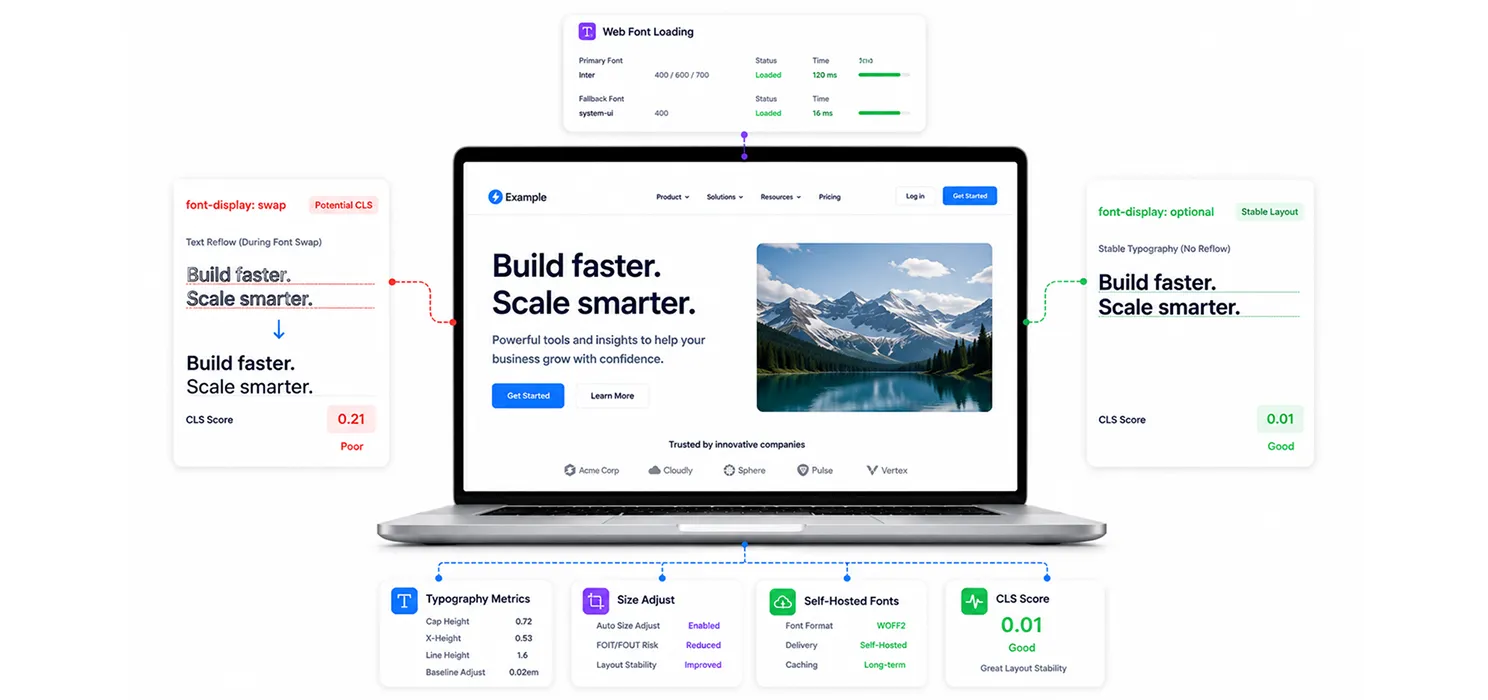
Most current WordPress default themes load Google Fonts with font-display: swap. This means the browser shows text right away using a fallback system font, then swaps it out once your custom font finishes loading.
Sounds harmless but different fonts have different character widths and heights. When the swap happens, every text block using that font can shift by a few pixels, which alone is often enough to push your CLS score into “needs improvement.”
Two practical fixes:
- Use
font-display: optionalinstead ofswapwhen you can live with occasionally showing the fallback font instead of your custom one.optionaltells the browser to skip the swap entirely if the custom font isn’t ready fast enough, avoiding the reflow, at the cost of occasionally not using your custom font on slow connections. - Match your fallback font’s size to your web font’s size, so there’s minimal shift even when a swap does happen:
@font-face {
font-family: ‘Fallback-Metric-Match’;
src: local(‘Arial’);
size-adjust: 105%;
ascent-override: 90%;
;font-display:swap;}
- Self-host your fonts, and avoid
@import. Loading fonts through CSS@importis one of the slowest ways to do it, it delays the browser from even discovering the font until the stylesheet is parsed, which hurts both LCP and CLS.
Step 4: Ads, embeds, and third-party iFrames
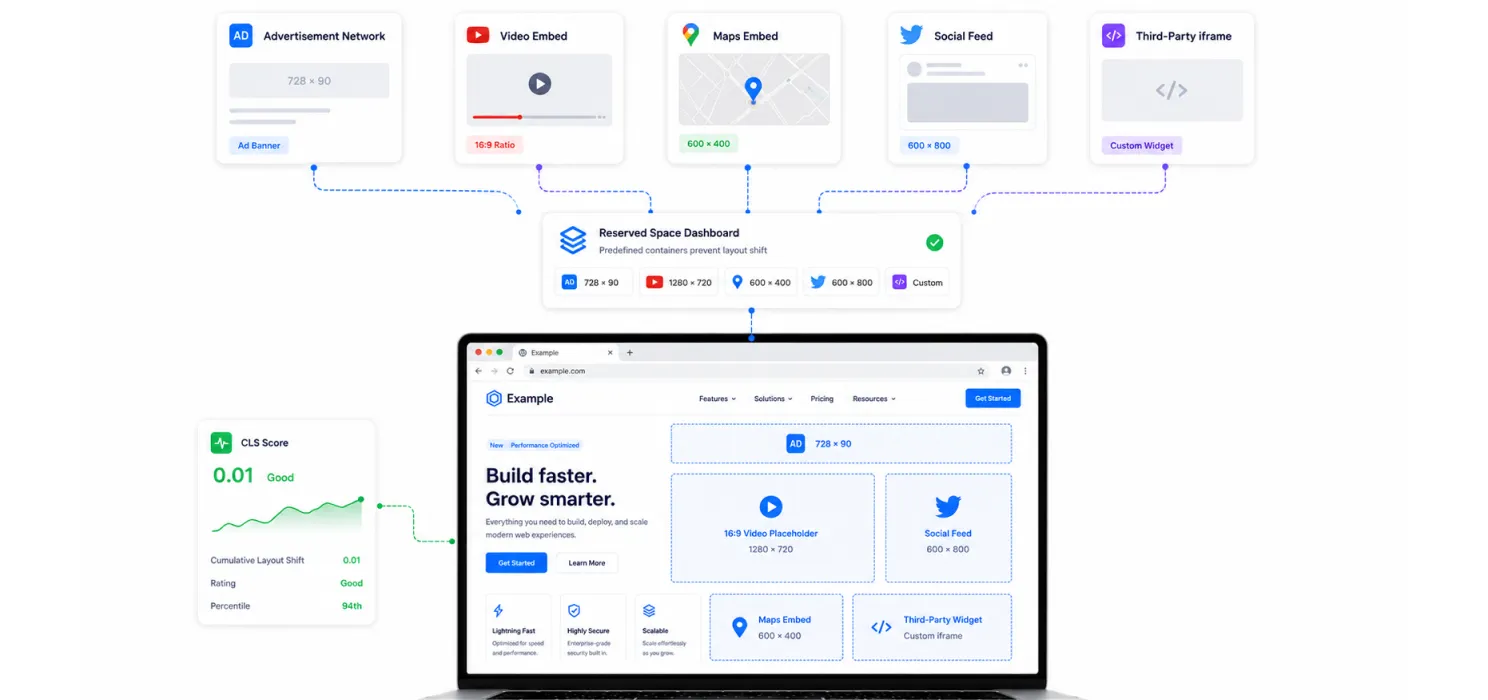
Ad units, affiliate banners, sidebar ads, YouTube embeds, and social media cards are notorious CLS offenders, their content usually loads after the rest of the page, pushing everything below it downward once it shows up.
The fix is the same idea as images: reserve the space before the content loads.
.ad-container {
min-height: 250px;
width: 300px;
}
.video-embed-wrapper {
aspect-ratio: 16 / 9;
}
A few extra rules worth following strictly:
|
Step 5: Dynamic UI: cookie banners, announcement bars, sliders
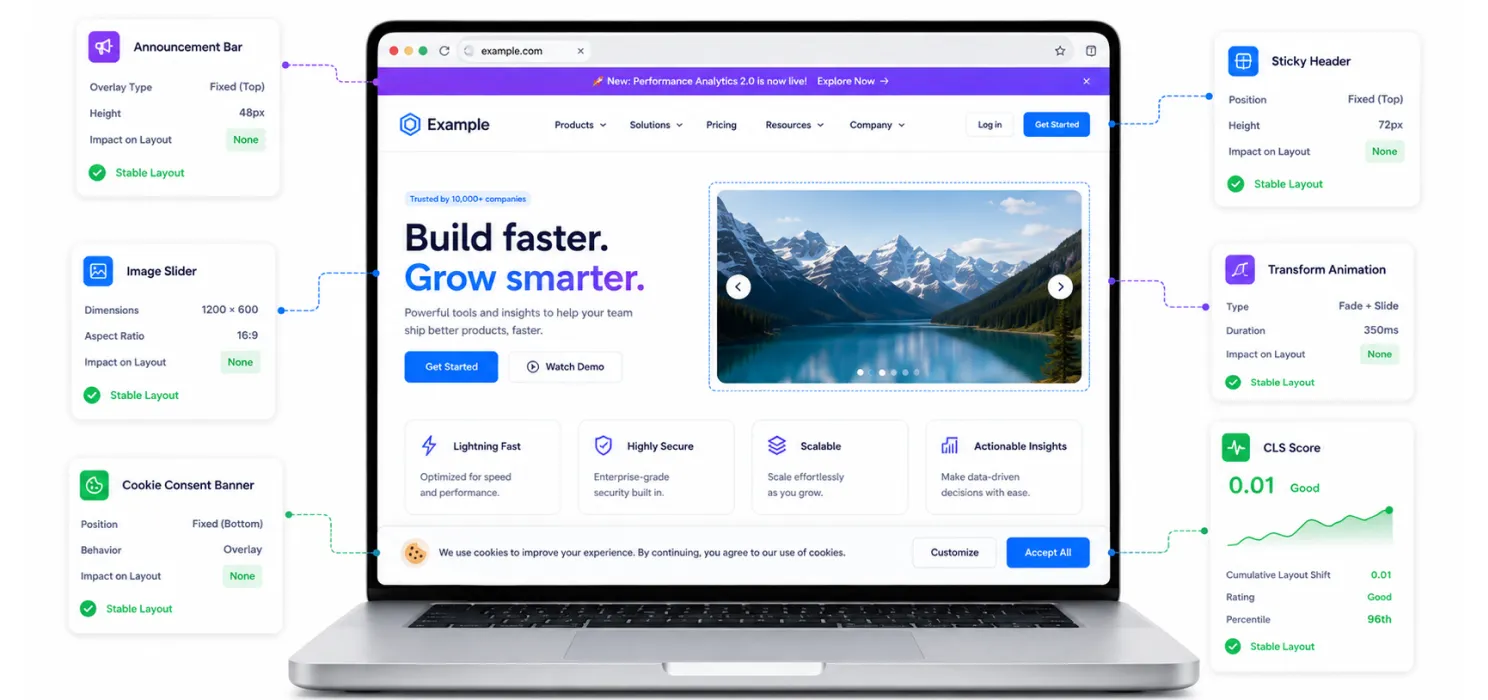
Anything added to the page after it first loads, a cookie consent banner, a promo bar, a sticky header that resizes on scroll, can shove existing content around if it isn’t handled correctly.
Cookie banners and announcement bars: anchor them with position: fixed so they overlay the page instead of pushing content down:
.cookie-banner {
position: fixed;
bottom: 0;
left: 0;
right: 0;
z-index: 9999;
}
Sliders and carousels: these are an underestimated cause of CLS, since many slider plugins resize themselves as slides load and calculate dimensions with JavaScript. Set a fixed height on the slider container upfront, rather than letting the plugin figure it out after the fact.
If you’re using Elementor or a similar builder, avoid entrance animations that use opacity plus top-based transitions, these animate properties that trigger layout shifts. Use transform instead:
/* Avoid */
.animated-element { transition: top 0.3s, opacity 0.3s; }
/* Prefer */
.animated-element { transition: transform 0.3s, opacity 0.3s; }
Step 6: Re-measure
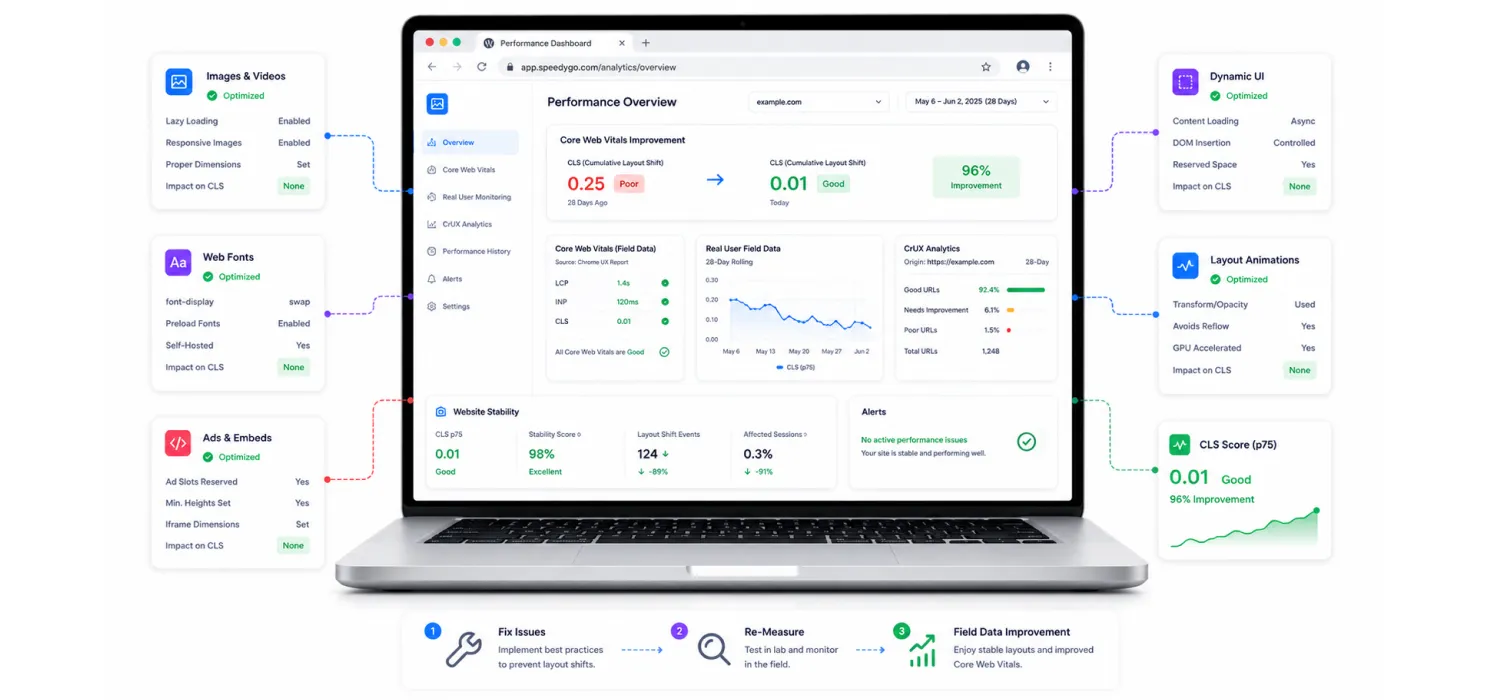
Once you’ve fixed the issues above, re-run PageSpeed Insights and check the Layout Shift overlay in DevTools to confirm the problems are gone.
But don’t expect Search Console’s Core Web Vitals report to reflect the fix right away, it’s built on a rolling 28-day window of real visitor data, so it can take up to four weeks before your reported score catches up to your actual improvement.
Quick checklist
If you’re starting from scratch, tackle things in roughly this order:
✅ Images and videos without explicit dimensions, usually your biggest win
✅ Web fonts causing text reflow on swap
✅ Ads, embeds, and iframes loading without reserved space
✅ Dynamic UI, cookie banners, announcement bars, sliders
✅ Layout-shifting animations (swap top/left/width/height for transform)
Fix WordPress performance issues with SpeedyGo
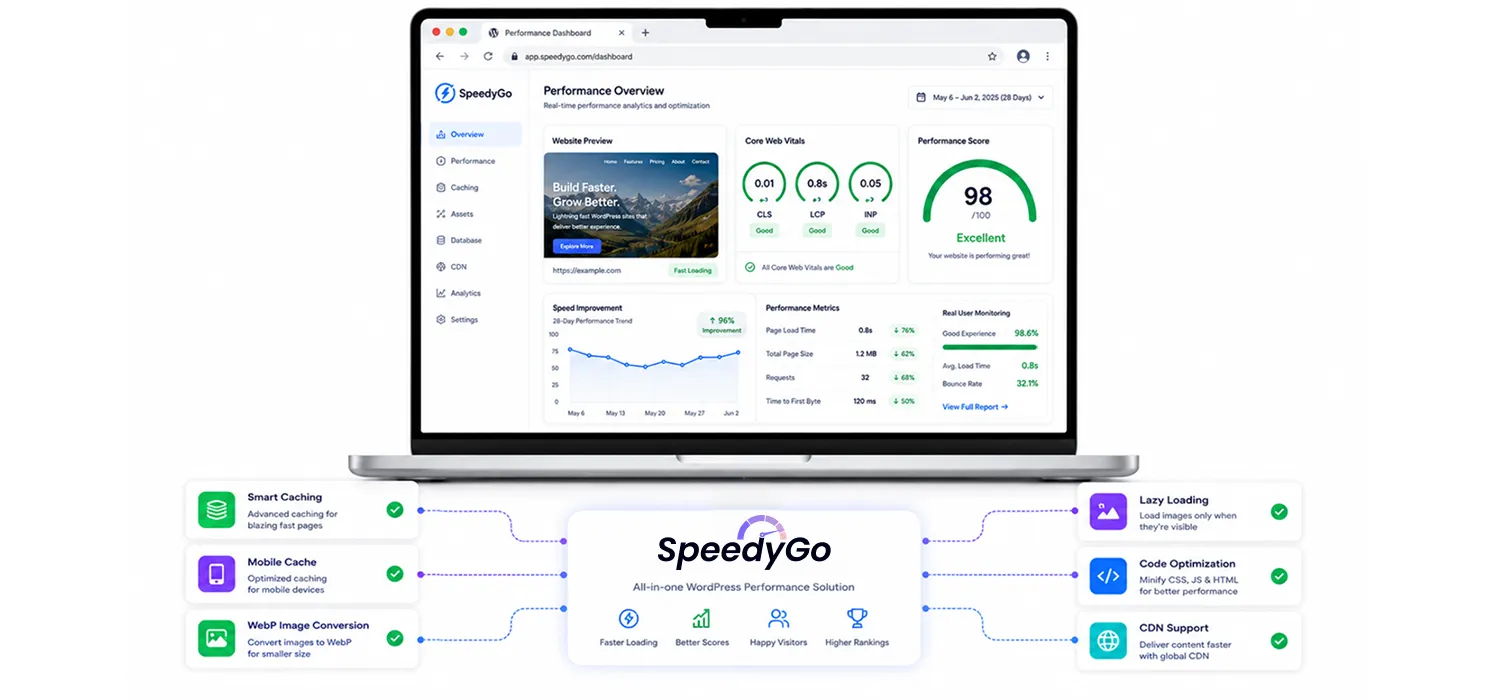
Finding and fixing CLS issues by hand can take real time, especially on a site with multiple plugins, page builders, images, and third-party embeds. That’s where SpeedyGo helps.
SpeedyGo is a WordPress performance plugin built to simplify these fixes. It combines smart caching, mobile caching, WebP image conversion, lazy loading, code optimization, and CDN support in one place, so you’re not juggling several plugins for different tasks.
Whether you’re a website owner, freelancer, agency, or WooCommerce store manager, SpeedyGo helps you improve Core Web Vitals without complicated setup.
The Bottom Line
CLS problems on WordPress almost always trace back to the same root cause, just in different disguises: something rendered before the browser knew how big it would be.
Fix that principle consistently, reserve space for every image, video, ad, embed, and dynamic element before it loads, lock down your font-swap behavior, and animate only transform/opacity and your CLS score will typically drop well under 0.1, without needing a single new plugin.
The right approach isn’t “install ten plugins and hope one fixes it.” It’s: diagnose the specific shifting element with DevTools or PageSpeed Insights, apply the targeted fix for that category, and re-test. Do that systematically across your highest-traffic pages, and layout shifts stop being a recurring warning in Search Console and start being something your visitors never notice at all. Which is exactly the point.

Frequently Asked Questions
Learn how to reduce Cumulative Layout Shift (CLS) in WordPress by fixing image dimensions, font reflows, ads, embeds, dynamic content, animations, and other common causes of layout shifts.
What is a good CLS score for a WordPress website?
A CLS score below 0.1 is considered good. CLS measures how much visible content unexpectedly moves while a page is loading. The lower the score, the more visually stable the page is for visitors.
Why does my WordPress website keep shifting while loading?
Layout shifts usually happen when the browser does not know the size or position of an element before it renders. Common causes include images without dimensions, web fonts swapping after the page loads, ads and embeds appearing late, dynamically injected banners, sliders, and animations that change layout properties.
How do image dimensions help reduce CLS?
Adding width and height tells the browser how much space an image needs before the image finishes downloading. The browser can reserve that space in advance instead of pushing surrounding content down when the image appears. For responsive layouts, using CSS aspect-ratio can also reserve the correct proportional space.
Can web fonts cause CLS in WordPress?
Yes. When a fallback font is displayed first and then replaced by a web font, differences in character width, line height, and font metrics can cause text to reflow. Using font-display: optional, matching fallback font metrics with size-adjust, and self-hosting fonts can help reduce these shifts.
How do ads and embeds cause layout shifts?
Ads, YouTube videos, social posts, maps, and other third-party embeds may load after the surrounding content has already been rendered. If their space hasn’t been reserved, they can push existing content downward when they appear. Using a container with a defined min-height or aspect-ratio gives these elements space before they load.