8 mins read
Improve WordPress TTFB with Advanced Performance Tuning
Share Article :


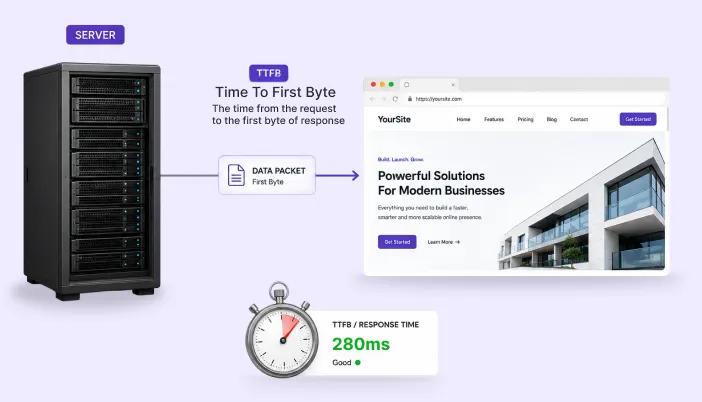
In this blog, you will learn what TTFB actually is, why WordPress sites tend to struggle with it more than others, and the real fixes that bring it down – not just “install a caching plugin and hope.”
Ever click a link and just… wait? No spinner, no loading bar, just a blank white screen for a second or two? That’s TTFB. Time to First Byte. It’s the time your server takes to say “okay, here’s your page” before your browser even starts drawing anything on screen.
Here’s a number that puts this in perspective: the average website today has a TTFB of around 620 milliseconds.
That’s right on the edge of what Google still calls “good.” And WordPress sites usually do worse than that average, not better, because of everything running behind the scenes – plugins, database calls, PHP processing – before the page can even start loading.
So if your WordPress site feels a bit slow to “wake up,” this is probably why.
So what is TTFB, really?
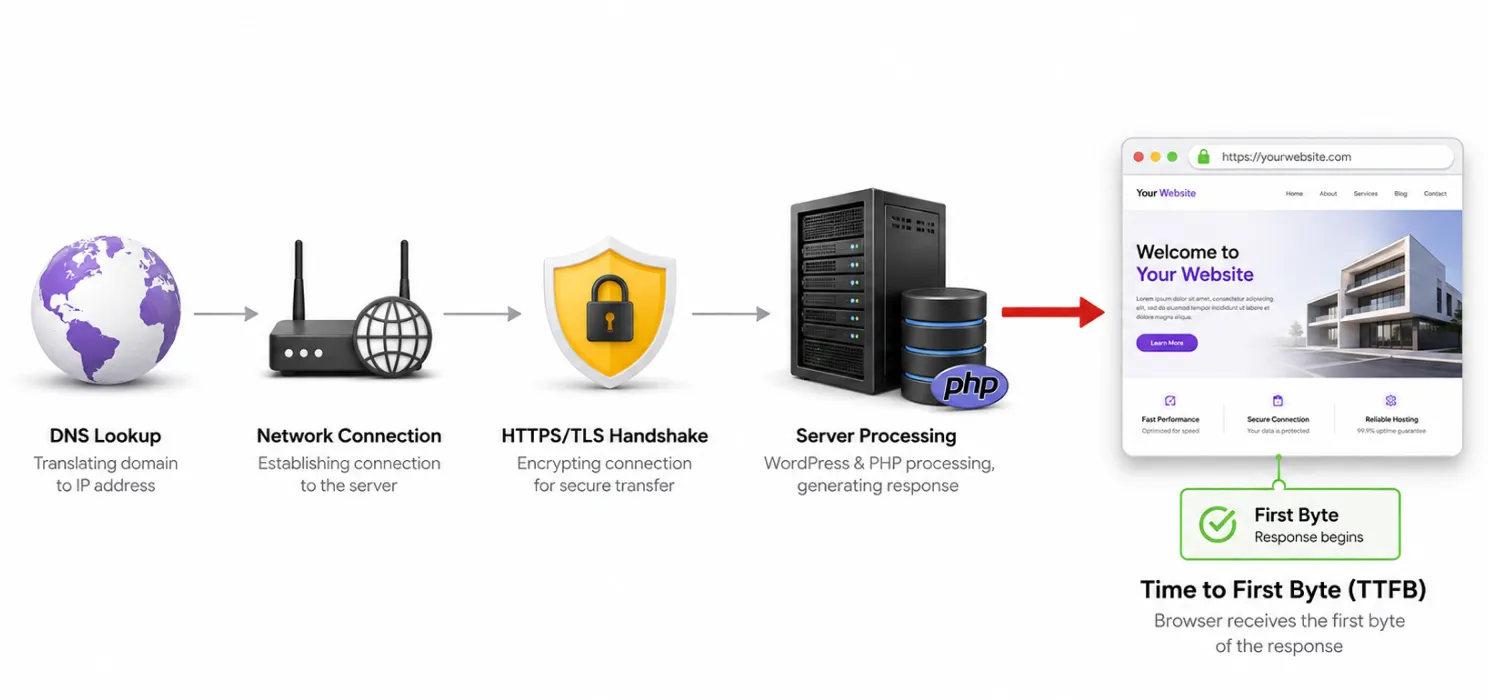
TTFB is the gap between you clicking a link and your browser getting the very first byte of data back from the server.
A few things happen in that gap:
- Your browser looks up the domain (DNS lookup)
- It connects to the server
- If it’s HTTPS (which it should be), there’s a security handshake
- The server does its work – runs PHP, talks to the database, builds the page
- Then finally, it sends back the first piece of the response
That fourth step is where WordPress usually loses time. Unlike a plain HTML file that a server can just hand over instantly, WordPress has to build the page fresh (unless it’s cached), which means database queries, plugin code running, and your theme doing its thing – all before anything gets sent to the visitor.
Here’s how Google actually put it, and it sums up why this metric matters so much:
“A slow first byte makes every other speed target harder to hit.”
That’s really the whole point. You can optimize your images, minify your CSS, do everything “right” – but if the server takes 1.5 seconds just to start responding, none of that other stuff matters yet. This is one reason website speed matters so much for the overall user experience. Nothing else can even begin until that first byte shows up.
| Note: TTFB isn’t the same thing as total page load time. You could have a fast TTFB and still have a slow-loading page because of big images or heavy scripts. TTFB is just about how fast your server gets moving – what happens after that is a separate job |
Why WordPress sites tend to struggle with this
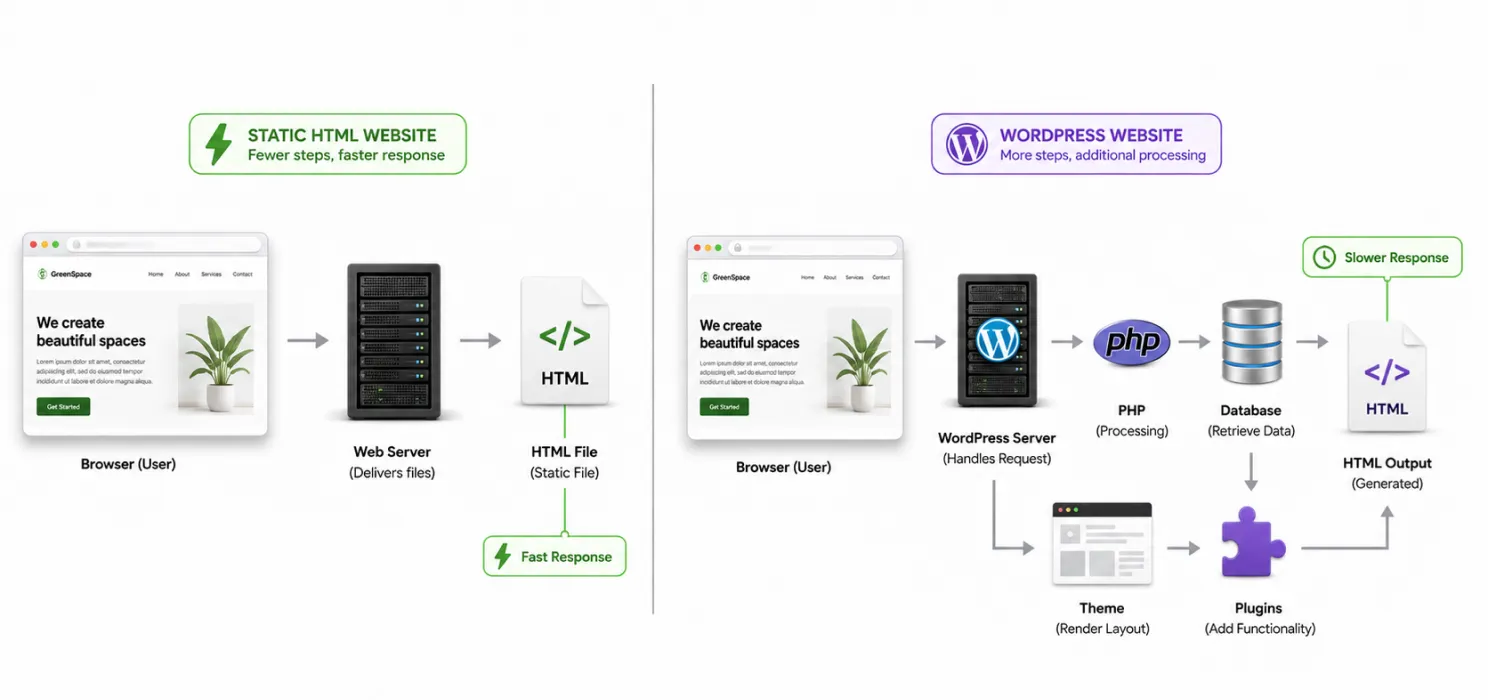
WordPress builds most pages on the fly. Every time someone visits (if the page isn’t cached), it has to boot up WordPress, run your theme’s code, query the database – sometimes several times for one page – and then assemble everything into HTML.
Now add the usual stuff most WordPress sites are carrying around: a dozen or more active plugins, a theme doing extra work in the background, and maybe cheap shared hosting where your site is sharing a server with hundreds of others. It’s no surprise TTFB creeps up, even on sites that used to feel fast.
What “good” actually looks like
| Rating | TTFB | What it means for you |
| Good | Under 800ms | Your server isn’t the bottleneck |
| Needs work | 800ms – 1.8s | Visitors are noticing the wait |
| Poor | Over 1.8s | This is hurting you – fix it first |
| Type of site | Typical TTFB | Why |
| Finance sites | ~400ms | They spend a lot on infrastructure |
| Healthcare sites | ~600ms | Older systems, extra processing |
| Media/content sites | ~700–750ms | Heavy templates, ads, lots going on per page |
| WooCommerce stores | ~650–800ms | Carts and sessions are hard to cache |
What’s usually causing a slow TTFB
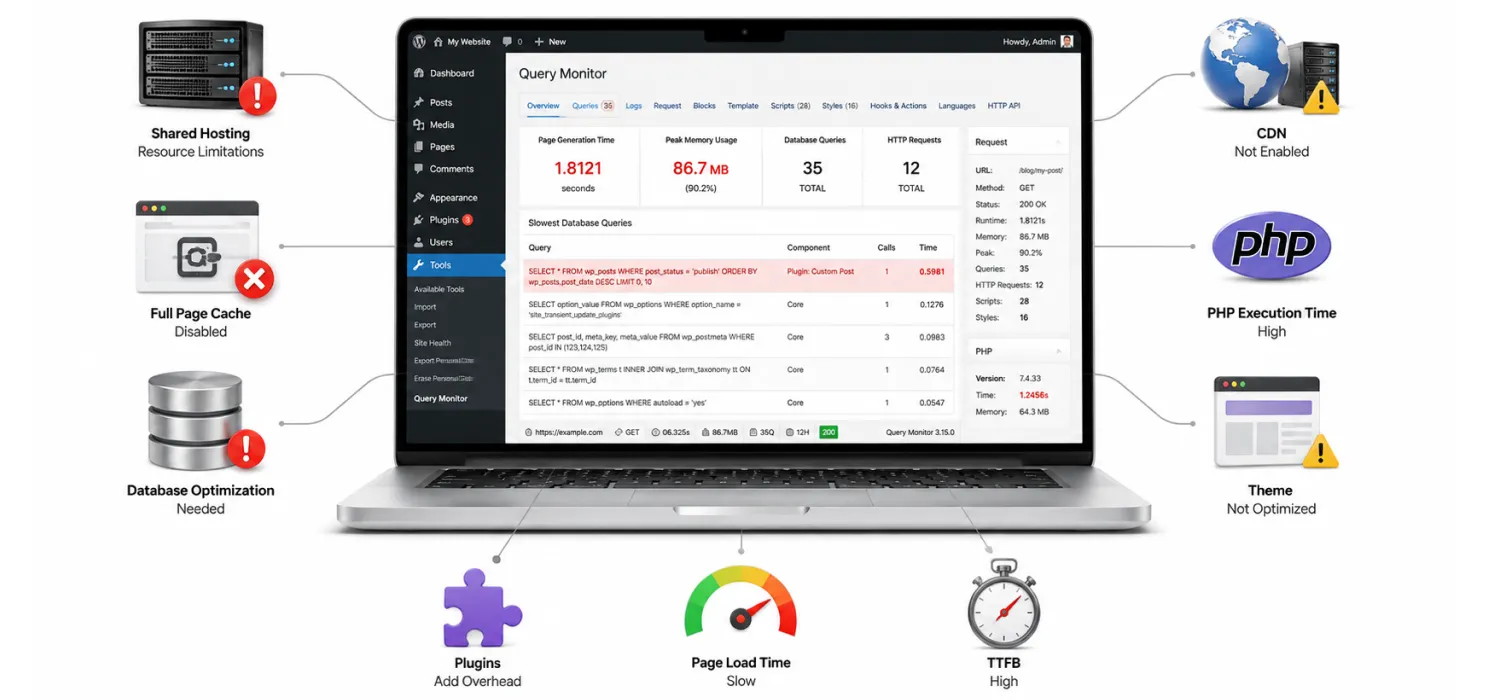
Before jumping into fixes, it helps to know the usual suspects:
- Cheap or overcrowded shared hosting
- No full-page caching, so every visit rebuilds the page from scratch
- A messy, bloated database that’s never been cleaned up
- Too many plugins, especially ones running queries on every single page
- No object caching, so the same database queries repeat over and over
- A server that’s far away from your actual visitors, with no CDN helping out
- An old version of PHP
- Poorly written theme or plugin code doing unnecessary work
Now, the actual fixes
1. Get better hosting
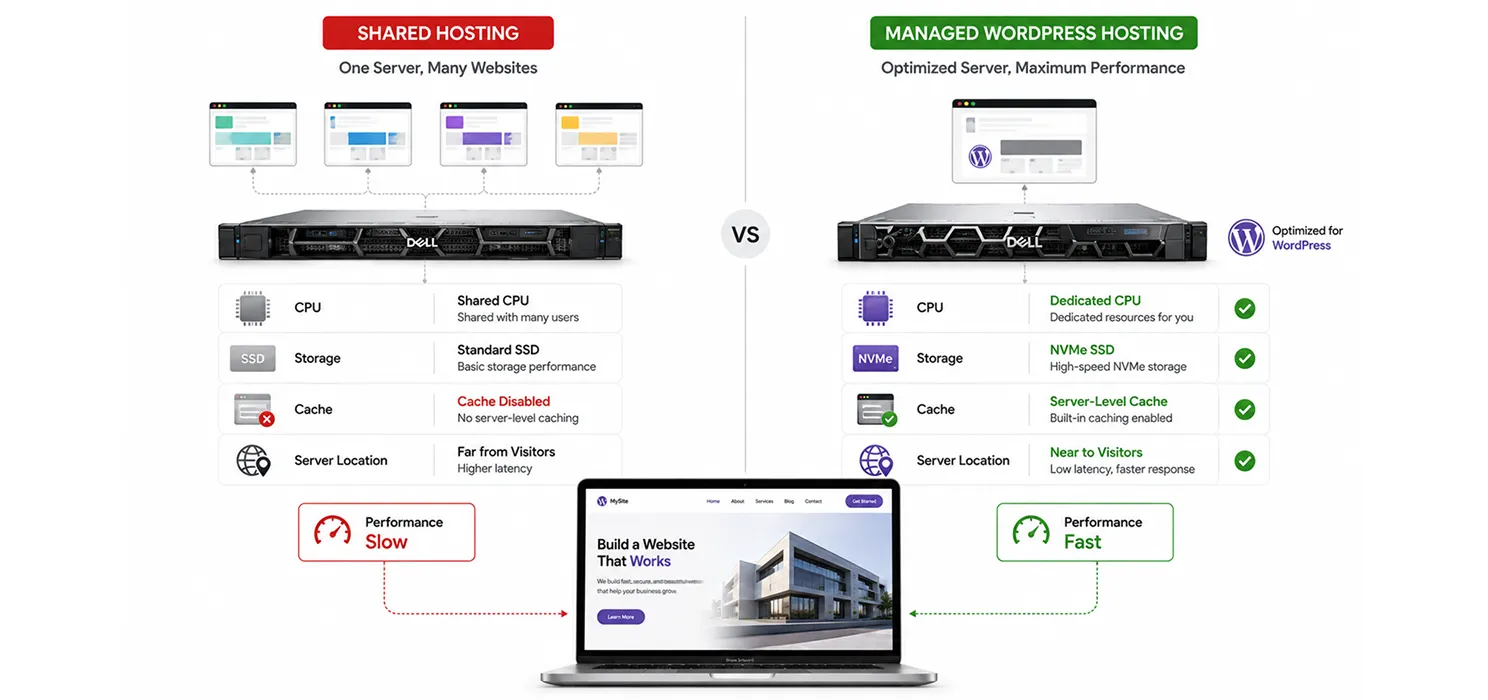
This one matters more than anything else on this list. You can tune everything else perfectly, but if your server is underpowered or overcrowded, you’re fighting a losing battle. Look for:
- NVMe storage (much faster than old-school SSD or HDD)
- Dedicated CPU resources, not an oversold shared plan
- Built-in server-level caching (a lot of good managed WordPress hosts include this)
- A server location that’s actually close to where your visitors are
| Tip: Turn off your caching plugin for a minute and test your TTFB. If it’s still over 800ms with caching off, that’s your hosting talking, not your plugins. |
2. Set up full-page caching properly
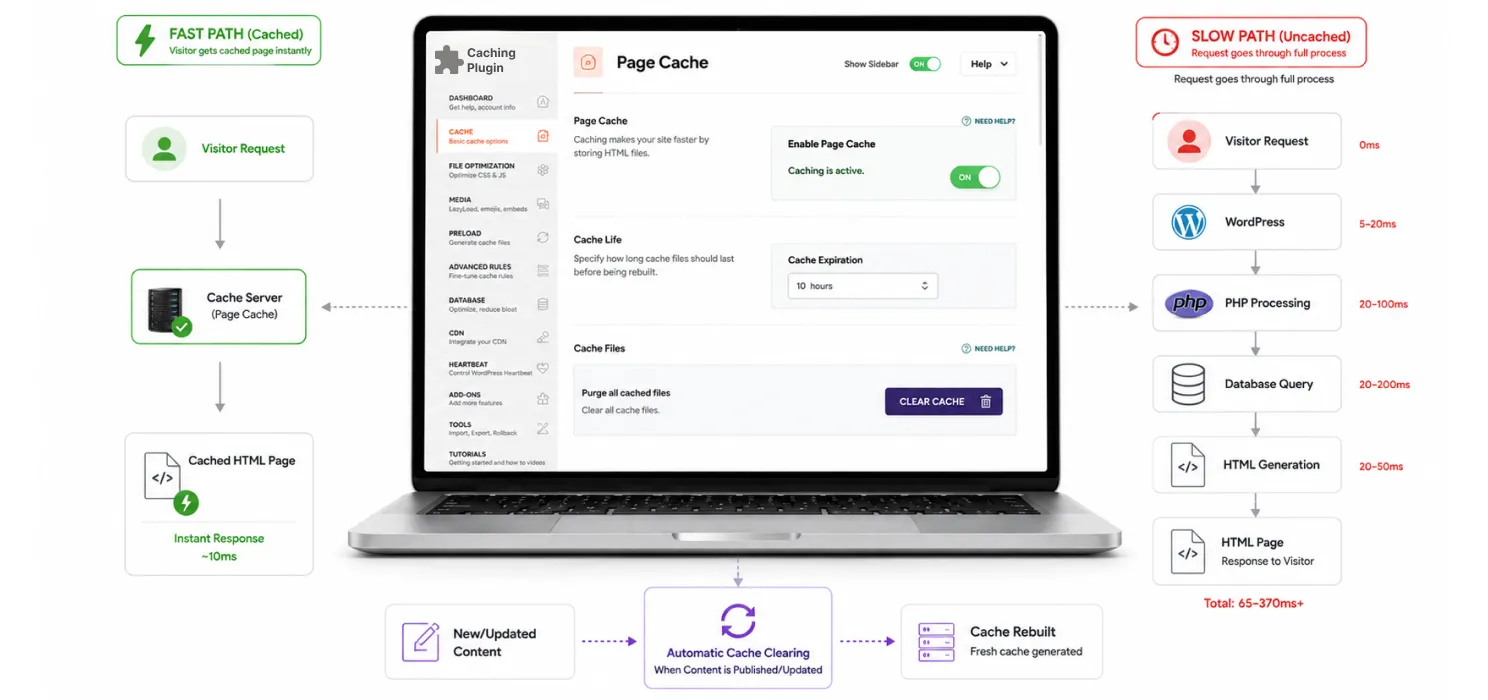
This is usually the biggest single win you can get with a WordPress speed optimization plugin. Instead of WordPress rebuilding the page every time, it just serves a saved copy.
- Use a solid caching plugin (SpeedyGo, WP Rocket, LiteSpeed Cache, W3 Total Cache), or better yet, server-level caching if your host has it
- Make sure logged-in users and dynamic pages like the cart aren’t stuck showing a cached version meant for someone else
- Set your cache to clear automatically when you publish or update content
3. Add object caching too
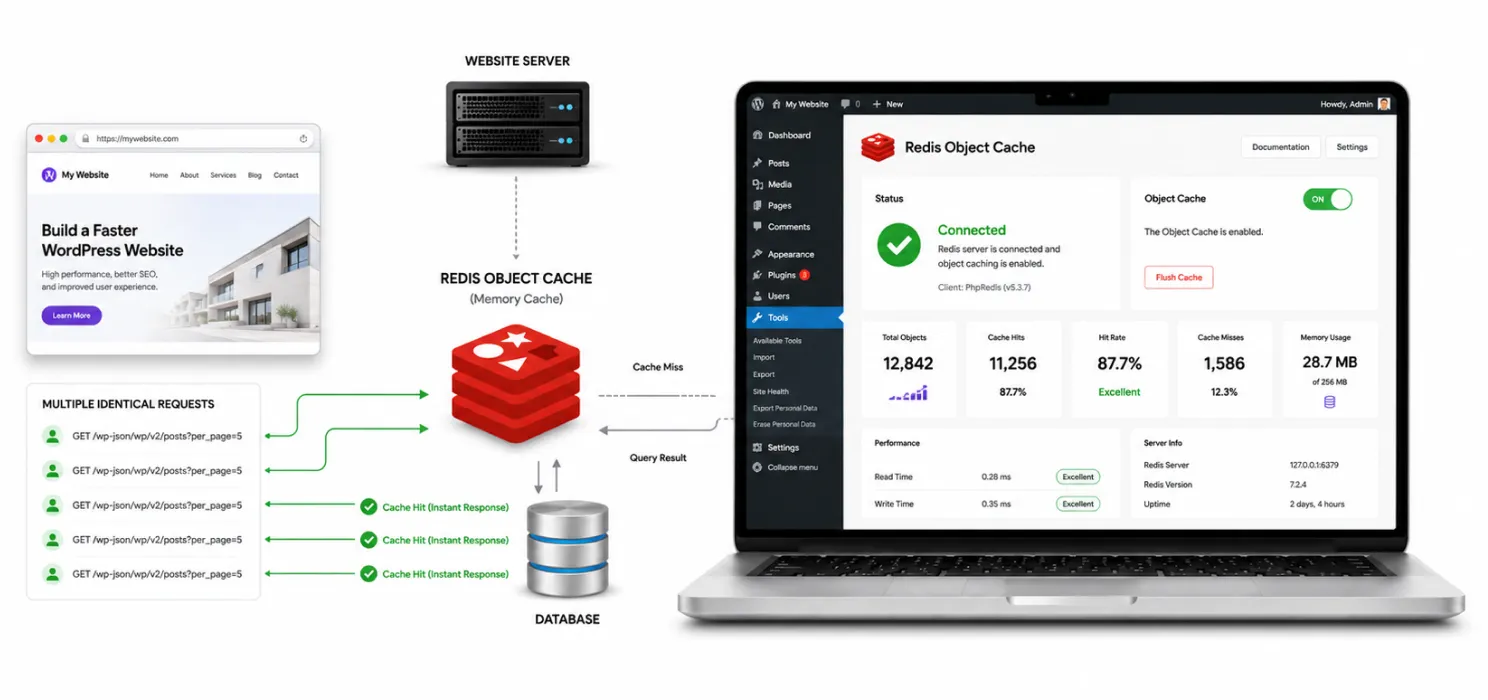
Even with page caching turned on, some things – logged-in areas, cart data, membership content – still hit the database every time. Object caching (using something like Redis or Memcached) stores those results in memory so WordPress doesn’t have to ask the database the same question over and over.
- Ask your host if Redis or Memcached is available, or install it yourself
- Connect it with a plugin like Redis Object Cache
- Actually check that it’s working – a misconfigured object cache does nothing for you
4. Clean up your database
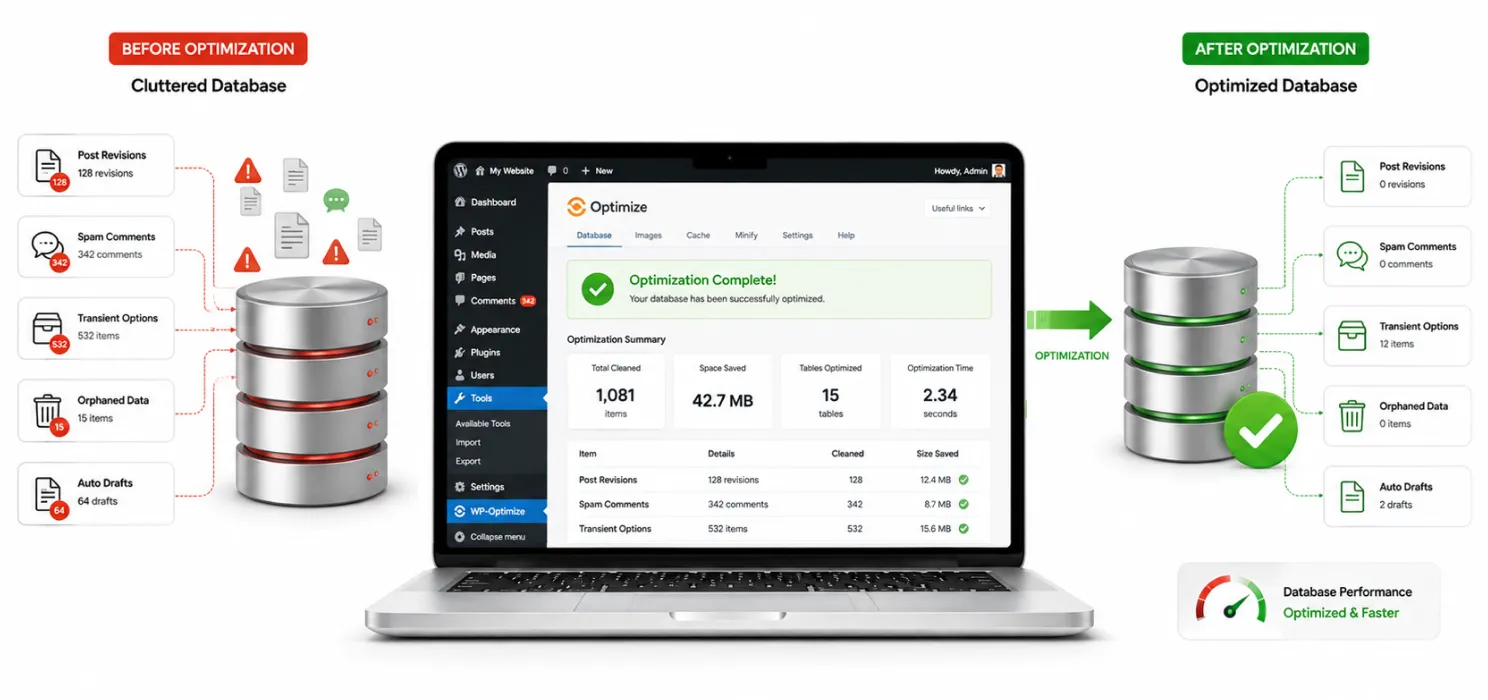
A messy database slows down every query, which slows down every page that isn’t cached.
- Delete old post revisions, spam comments, and leftover transients
- If you’ve got custom queries running, make sure the right database indexes exist
- Tools like WP-Optimize can automate the cleanup so you’re not doing it by hand
5. Update PHP and check that OPcache is on
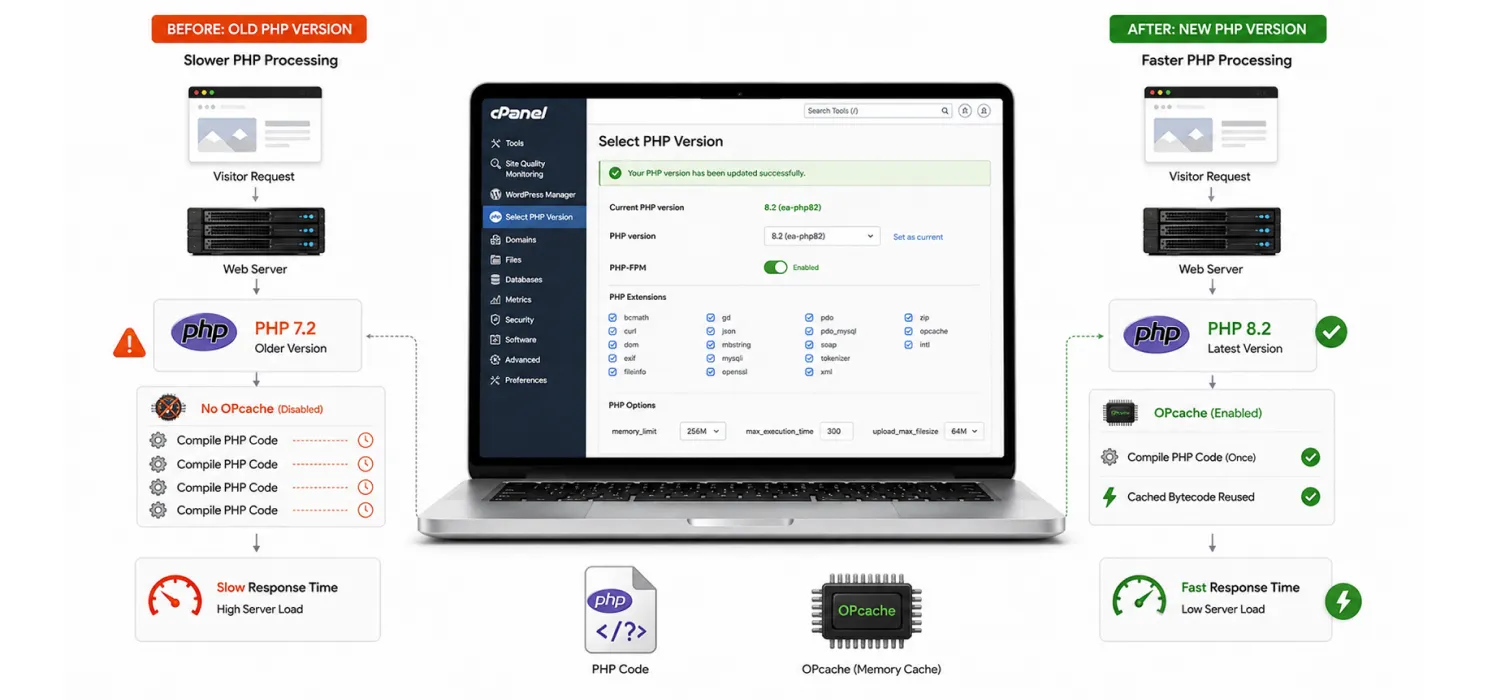
- Run the newest PHP version your plugins support – each version has been noticeably faster than the last
- Make sure OPcache is enabled on your server. It saves your server from re-compiling the same PHP code on every single request
- Double check your plugins actually support the newer PHP version, or you might be running in a slower compatibility mode without realizing it
6. Put a CDN in front of your site
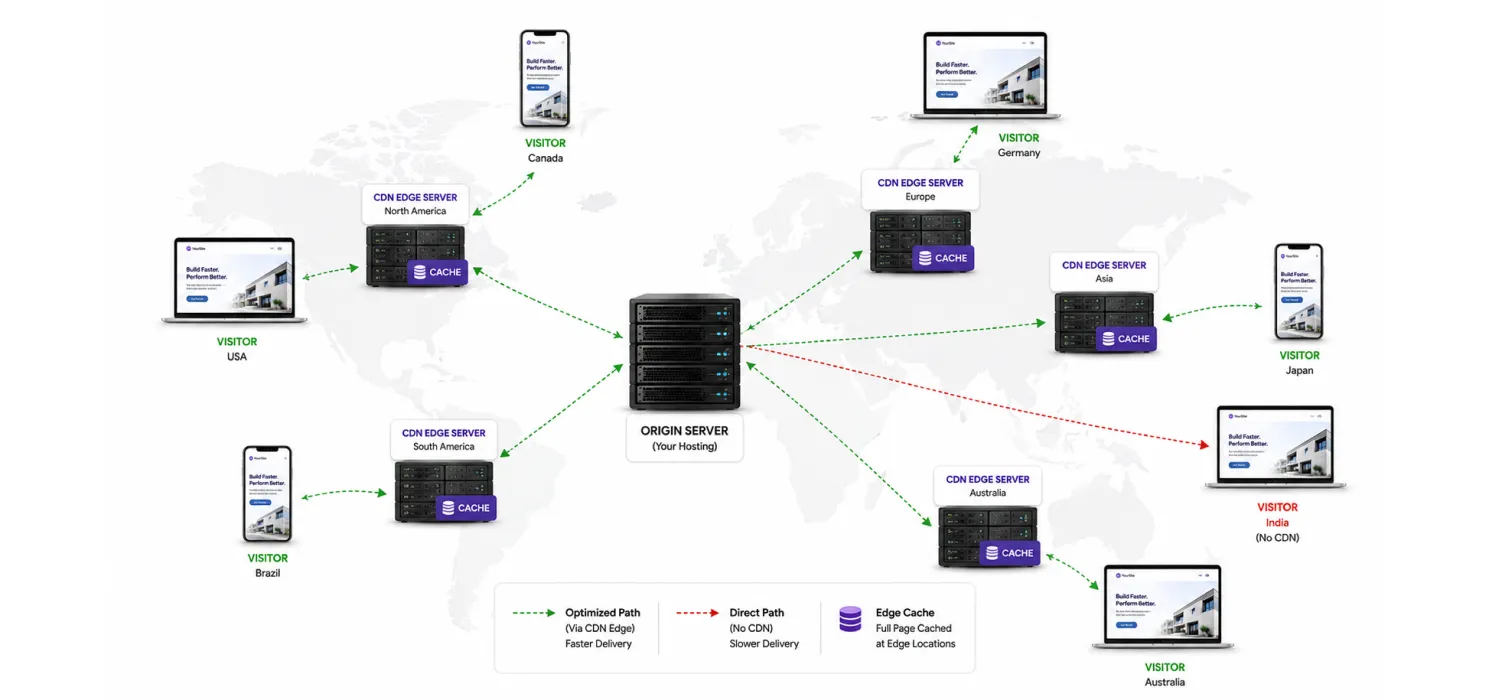
A CDN doesn’t just speed up images and CSS files anymore. Good ones can cache your entire HTML page at “edge” locations close to your visitors, so requests don’t have to travel all the way back to your main server.
- Cloudflare, Fastly, and BunnyCDN all offer this kind of full-page edge caching for WordPress
- Use this alongside your regular caching setup, not instead of it
- Double-check it’s actually caching your pages and not just static files – that’s a common setup mistake
If you want to manage caching, CDN integration, and other WordPress performance improvements from one place, explore SpeedyGo features.
7. Turn on HTTP/2 or HTTP/3
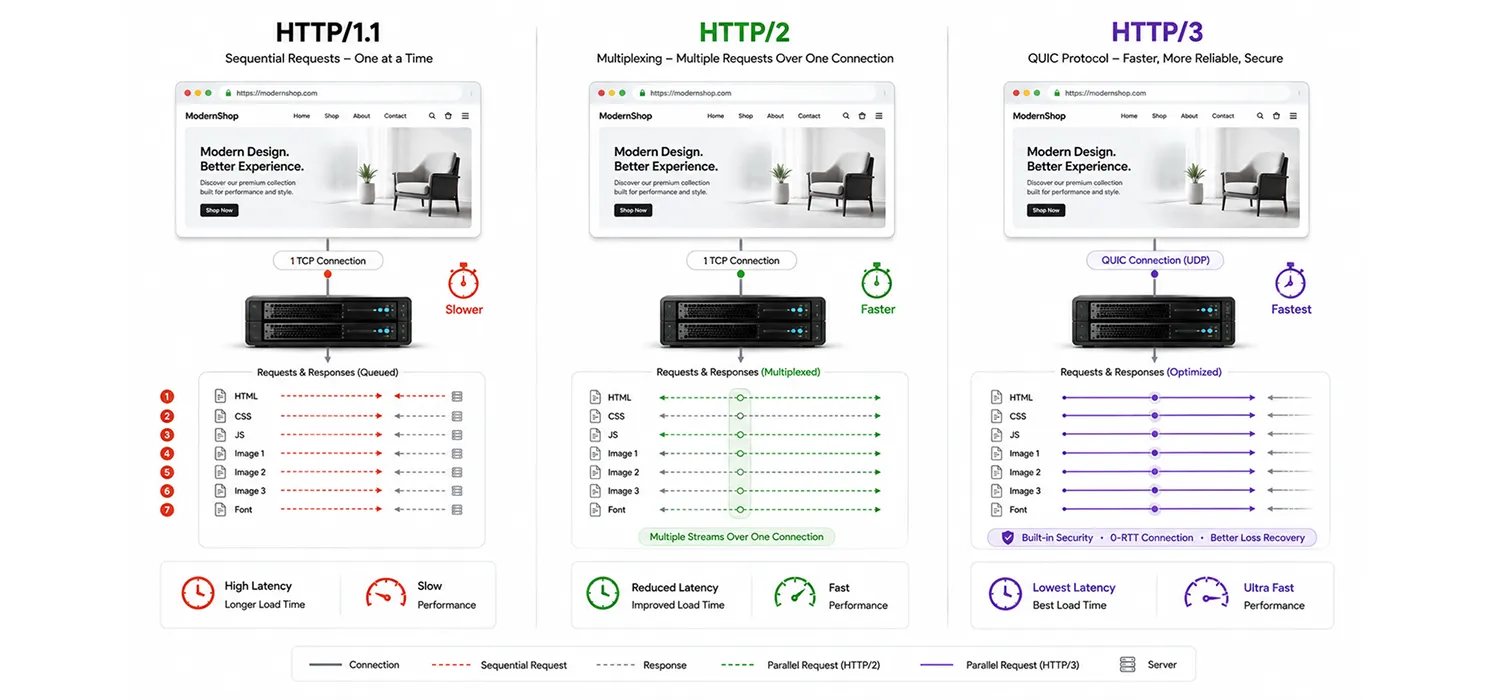
These newer protocols make the connection part of the process faster. Most decent hosts already have this on by default, but it’s worth checking, especially if you set up your own server at some point.
8. Go through your plugins
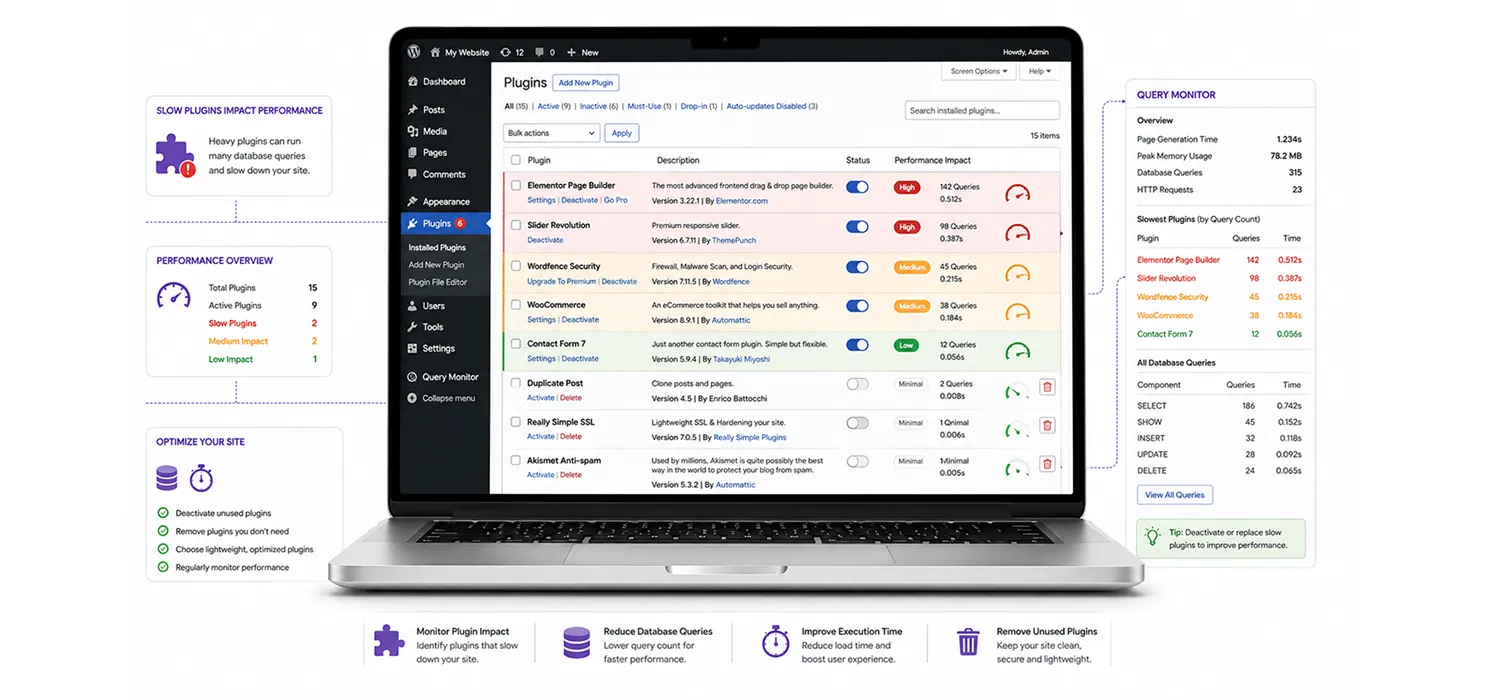
- Deactivate anything you’re not actually using
- Watch out for plugins that run database queries on every page, even pages where they’re not needed
- A tool like Query Monitor will show you exactly which plugins are slowing things down
Wrapping up
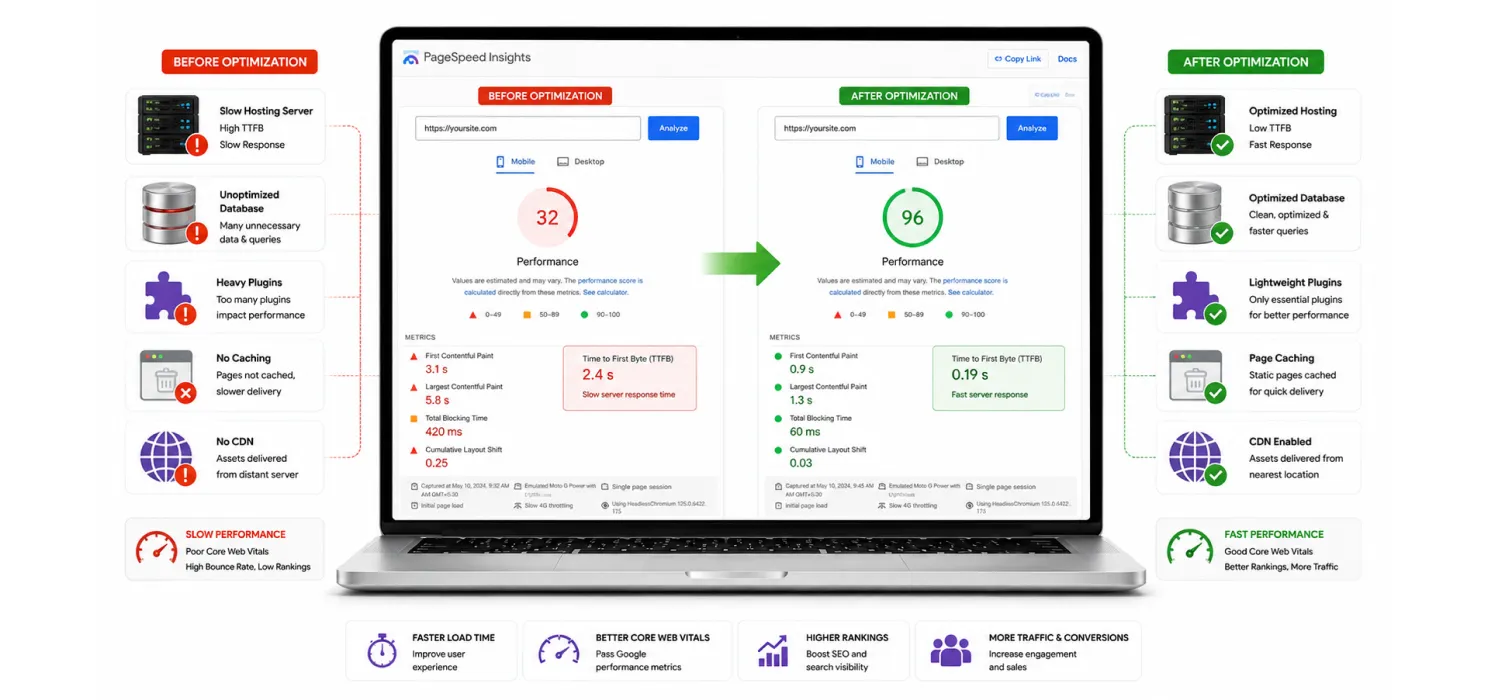
TTFB is easy to ignore because you can’t really “see” it – there’s no broken button, no missing image, just a slightly longer wait before anything shows up. But it’s the foundation everything else sits on. Fix your images and scripts all you want; if your server is slow to respond, none of that gets a chance to matter.
The good news? The real fixes here are one-time jobs. Better hosting, proper caching at every level, a clean database, and a CDN that actually caches your pages. Get those four things sorted, and most WordPress sites can get well under Google’s 800ms mark – often a lot lower.
Image optimization, including using the WebP image format, can then help improve the rest of the page-loading experience.
Quick questions people ask
Get clear answers to common questions about TTFB, including how it affects SEO, what a good TTFB looks like, whether caching can improve it, and when switching hosting may help.
Does TTFB actually affect my SEO?
Not directly, but it feeds into Largest Contentful Paint, which Google does look at as part of Core Web Vitals and page experience.
What should I be aiming for?
Under 800ms is fine. Under 400ms is great. Under 200ms and you’re doing better than most sites out there.
Will a caching plugin fix this on its own?
It’ll help a lot for cached pages, but it won’t fix a slow host, a messy database, or pages that can’t be cached (like a shopping cart). Think of it as one piece, not the whole fix.
Is switching hosts really worth it?
Honestly, often yes. If you’re on a cheap, overcrowded shared plan, moving to better hosting can shave hundreds of milliseconds off your TTFB before you even touch anything else.