9 mins read
How to Reduce LCP in WordPress and Pass the Paint Test
Share Article :


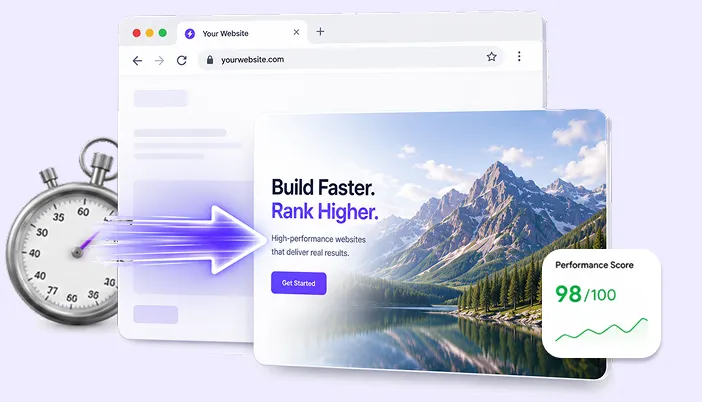
In this guide, we’ll explain what causes high LCP scores in WordPress and how to fix them. You’ll learn how to find your LCP element, optimize images, remove rendering delays, improve server performance, and use the right tools to get your website loading faster.
LCP (Largest Contentful Paint) is the metric most people picture when they think “page speed.” It’s the moment the biggest visible thing on the screen, usually a hero image, featured image, or large block of text, finishes appearing.
| Google considers a score under 2.5 seconds to be “good,” measured from real visitors. Miss that mark, and you’re not just risking your search rankings; you’re risking the first impression every visitor forms before they’ve read a single word. |
WordPress sites run into LCP problems a lot, not because WordPress itself is slow, but because of how hero content usually gets built: hidden inside CSS backgrounds, buried in sliders waiting on JavaScript, accidentally lazy-loaded, or delayed by scripts blocking the page.
The good news: LCP fixes are some of the most well-understood, mechanical fixes in web performance.
Here’s exactly what to fix, in order.
Step 1: Find out what your LCP element actually is
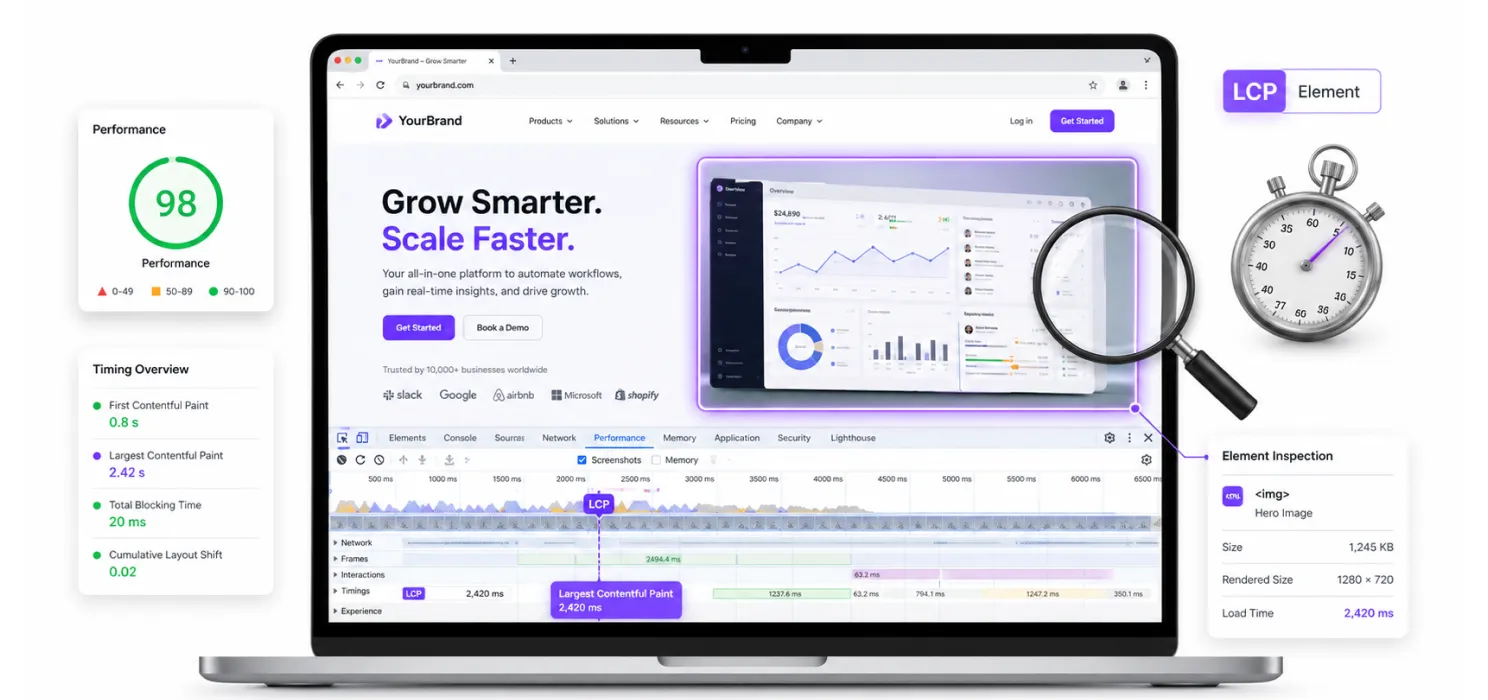
Don’t guess, confirm it.
Open Chrome DevTools, go to the Performance panel, record a page load, and look for the LCP marker on the timeline. Or, run your page through PageSpeed Insights, which names the exact element under “Largest Contentful Paint element” in the diagnostics.
This step matters more than people think. Your LCP element is often not what you’d guess; it could be an ad slot above the fold, a slider image buried deep in a page builder’s code, or even a block of heading text instead of an image. Fixing the wrong element wastes your time and won’t move your score.
For consistent testing as you make changes, run this from the command line instead of relying on fluctuating live data:
npx lighthouse <URL> –only-categories=performance –form-factor=mobile
Step 2: Understand the “Preload Scanner”
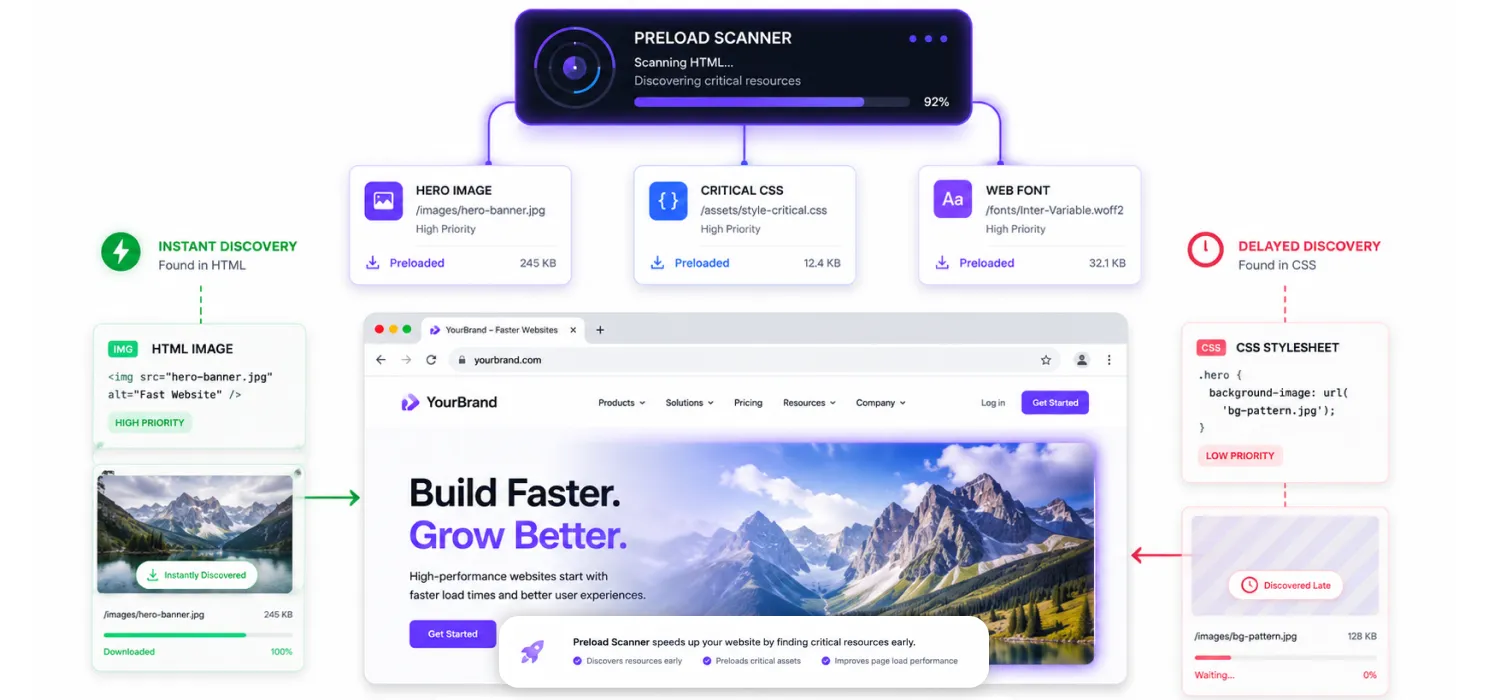
Chrome has a built-in mechanism called the preload scanner. It reads your raw HTML the moment it arrives, looking for critical resources images, CSS, fonts to start downloading before the page has even fully loaded. This is the whole game for LCP: the faster the scanner finds your LCP image, the faster it downloads, and the faster it paints on screen.
Two common mistakes break this process:
1. A hero image set as a CSS background instead of an <img> tag. An <img> tag gets noticed and queued for download instantly. A CSS background image doesn’t the browser has to load and read the stylesheet first before it even knows the image exists. That’s an extra delay before the download even starts, and it’s one of the most common reasons hero sections score poorly on LCP.
2. A hero image marked loading="lazy". Lazy loading is great for images further down the page, but applying it to your above-the-fold hero image tells the browser “this isn’t a priority,” which is the opposite of what you want.
In fact, WordPress’s own developers found that auto-lazy-loading the first image on a page hurt LCP scores by about 7% which is why WordPress now skips the first image by default. If your theme or page builder overrides this, it’s worth checking directly.
Step 3: Manually preload the LCP image
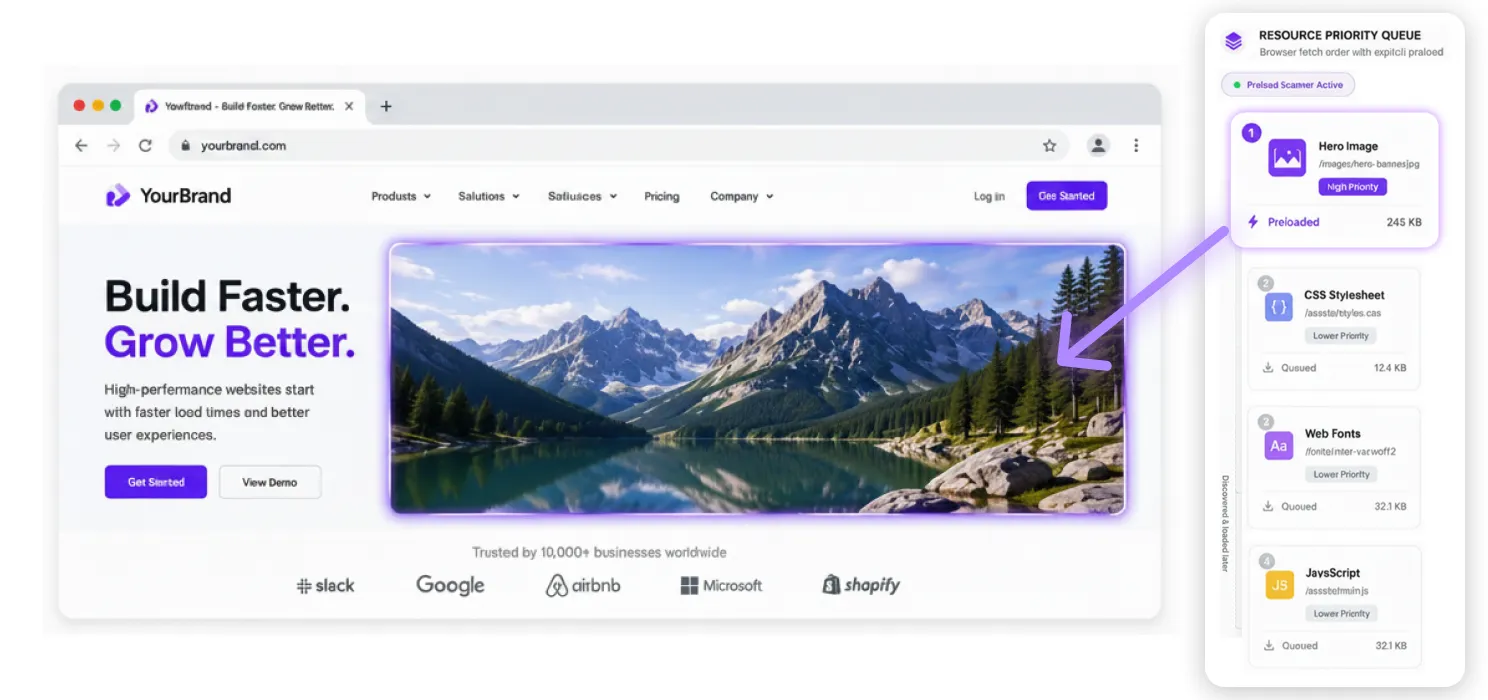
If your LCP element is genuinely hard for the browser to find on its own — like a CSS background image, or one added by JavaScript inside a slider, you can hint it manually:
<link rel=”preload” as=”image” href=”/wp-content/uploads/hero.webp” fetchpriority=”high”>
In WordPress, add this through your theme’s functions:
function add_lcp_preload() {
echo ‘<link rel=”preload” as=”image” href=”‘ . esc_url( get_theme_mod( ‘hero_image_url’ ) ) . ‘” fetchpriority=”high”>’;
}
add_action( ‘wp_head’, ‘add_lcp_preload’, 1 )
A word of caution: use fetchpriority=”high” sparingly. It’s meant to flag one resource as the most important, mark too many images this way, and the browser can no longer tell which one actually matters.
There’s also a subtler trap: if your theme loads critical CSS or blocking JavaScript in the <head>, an aggressively preloaded hero image can compete with the stylesheet for bandwidth. You end up downloading image bytes before the browser even knows where that image belongs on the page. The fix isn’t to skip preloading, it’s to also fix your critical CSS (see Step 5), so the two aren’t fighting each other.
Step 4: Fix the image itself
Once the browser can find and prioritize your image, make sure the image itself is fast:
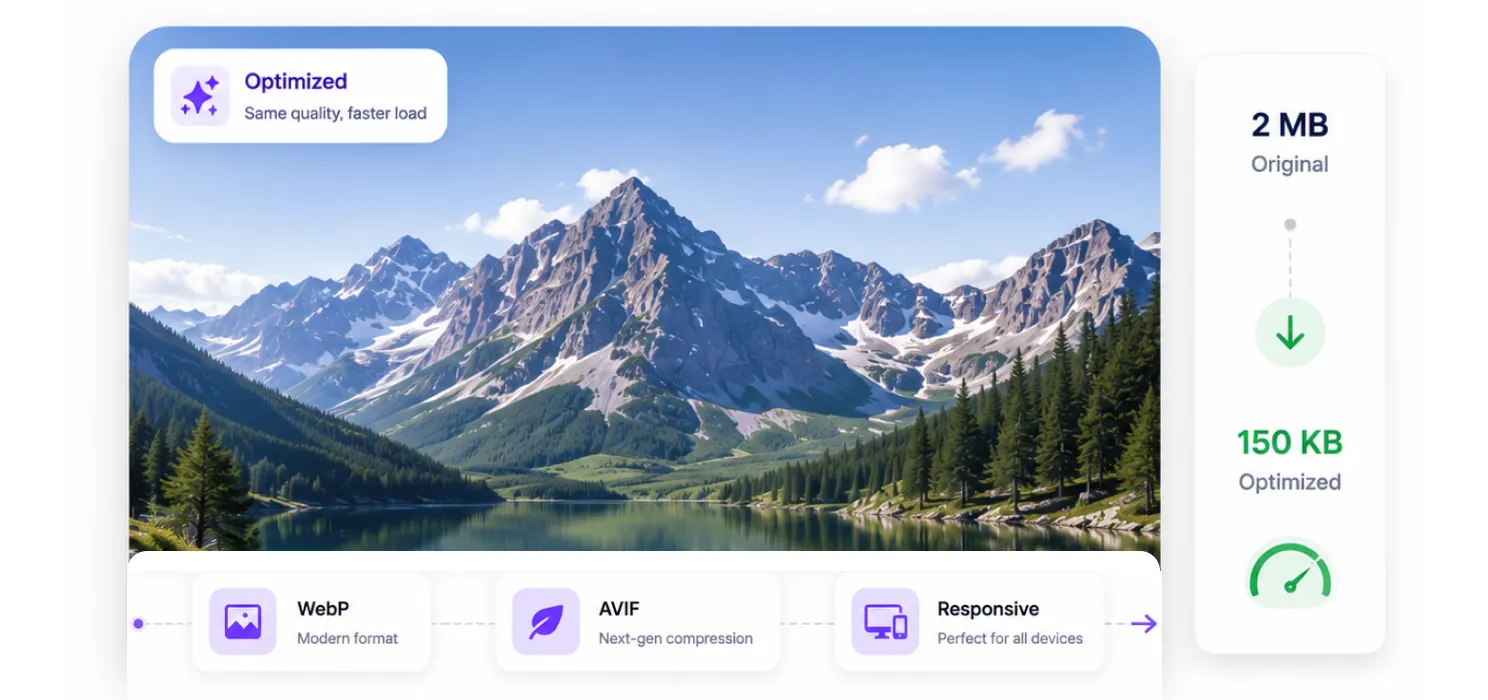
- Use modern formats. Convert hero images to WebP or AVIF. A 2MB hero image can often shrink to under 150KB with no visible quality loss, and that alone can take LCP from 3–4 seconds down to under 1.5 seconds.
For a deeper look at WebP and why it can improve website performance, check out our guide: Why WebP Is the Smarter Image Format for Faster Websites. - Match the image size to where it’s displayed. Don’t upload a 4000px-wide image into a 1200px-wide container and let CSS shrink it. Resize it before uploading.
- Use
srcsetso mobile visitors get a smaller image instead of downloading a full desktop-sized one. - Don’t upscale small images. Stretching a small image larger makes it look worse and gains you nothing.
Most image plugins (ShortPixel, Imagify, and similar tools) handle format conversion and compression automatically on upload, but it’s still worth manually checking your homepage hero and top landing page images specifically, since these have the biggest impact on your Core Web Vitals scores.
Step 5: Clear the path, fix render-blocking CSS and JavaScript
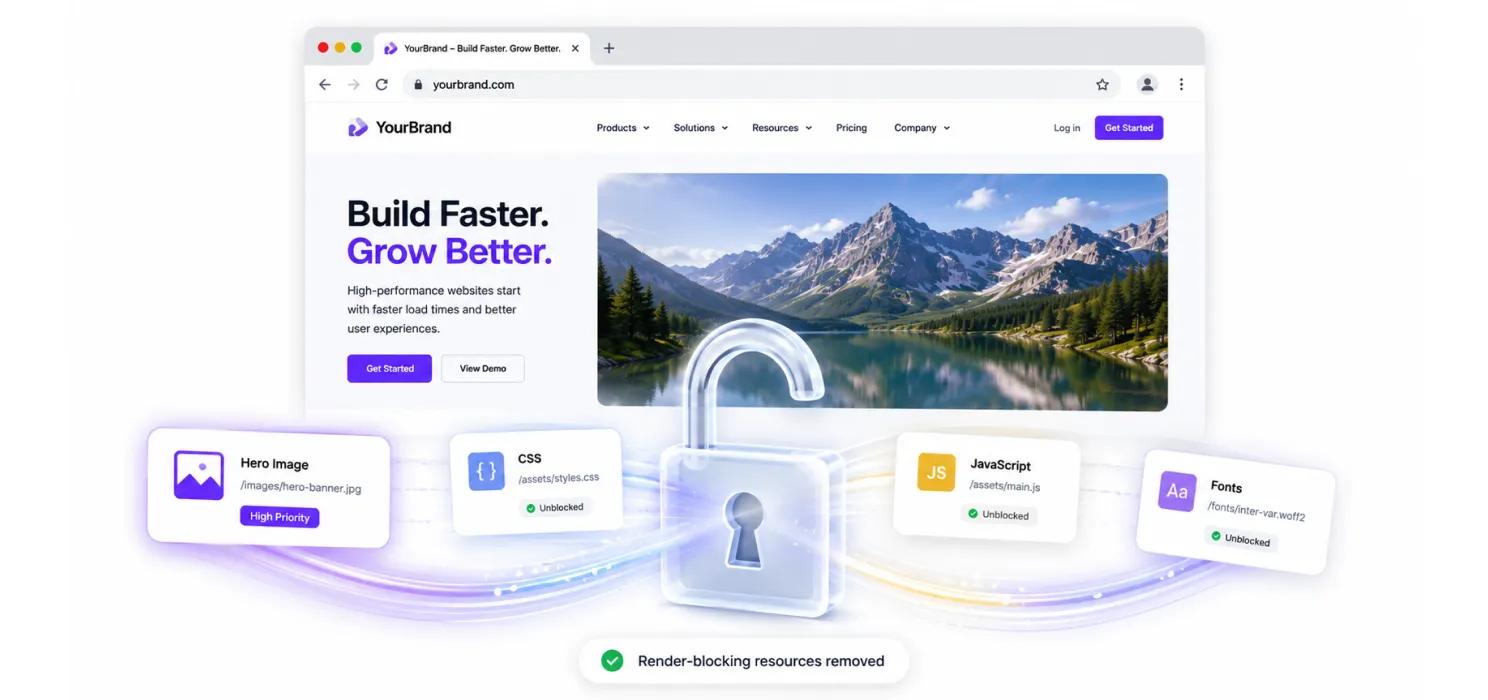
Even a perfectly preloaded, perfectly compressed image will still paint slowly if the browser is stuck parsing CSS or running JavaScript first. This sequence, HTML, CSS, and JS turning into actual pixels on screen, is called the critical rendering path, and it’s often the real bottleneck, even when the image itself looks fine on its own.
What to fix:
- Inline critical CSS. Pull out just the CSS needed for above-the-fold content and place it directly in the
<head>, loading the rest of your stylesheet afterward. Plugins like WP Rocket and FlyingPress can do this automatically. - Defer non-critical JavaScript. Chat widgets, analytics scripts, and third-party embeds don’t need to block your page from rendering, load them later or asynchronously.
- Minify and bundle your CSS/JS. This cuts down how many files compete for bandwidth with your hero image. On plugin-heavy sites, this alone can reduce total requests by 70–80%.
- Self-host your fonts and use
font-display: swap. Loading fonts from an external source (like Google’s servers) adds extra delays. Hosting them yourself removes that step, andfont-display: swapprevents invisible text while fonts load.
Step 6: Handle sliders carefully
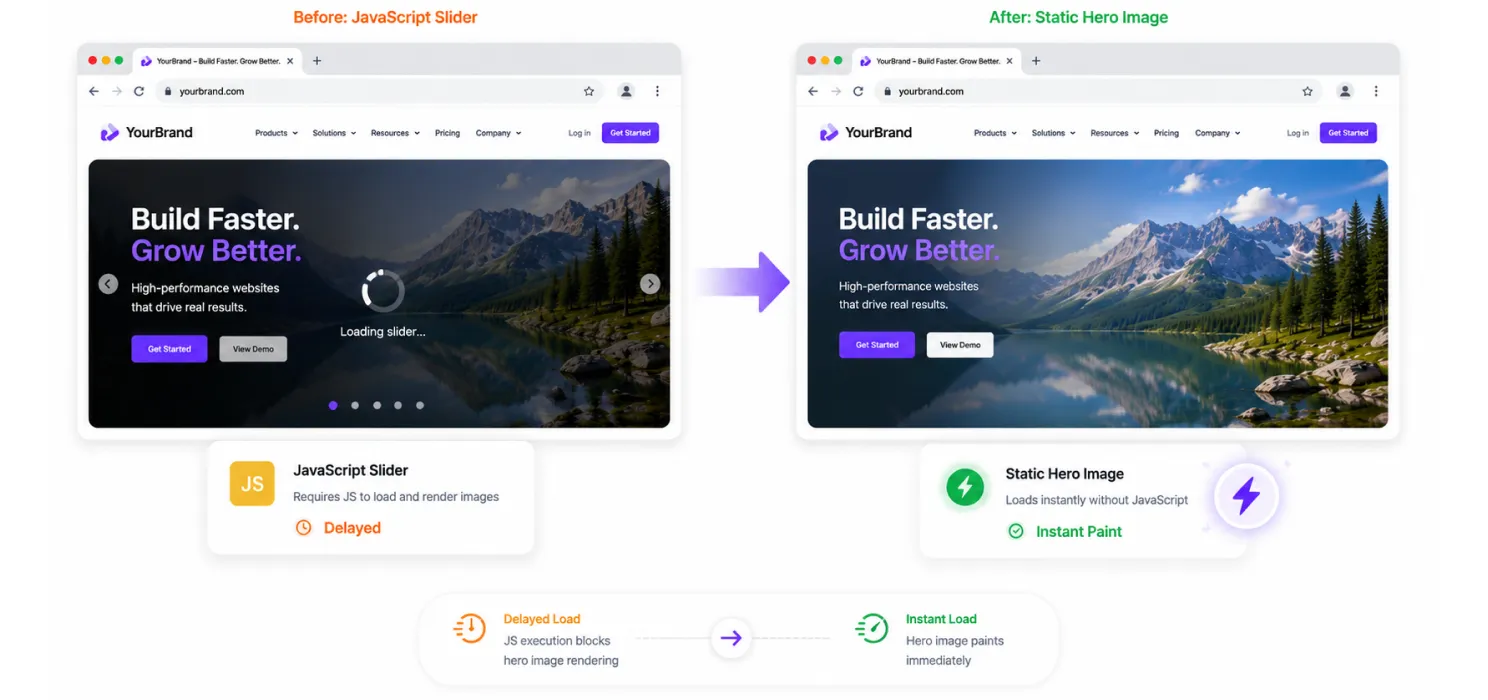
Sliders cause a lot of LCP problems because they often wait for JavaScript to load before the first slide even shows up, meaning the image your visitor actually sees doesn’t exist yet when the page starts rendering.
A proven fix: replace the first slide with a real, static <img> tag that looks identical to the slider’s first frame, and only start the slider’s JavaScript after that first image has painted (or after the user interacts with the page). This can cut LCP by a couple of seconds with zero visible difference, the slider still works exactly the same, it just doesn’t hold up the page anymore.
If you’re not attached to the slider format, it’s also worth testing a plain static hero image instead. On mobile especially, a static image often beats a carousel that has to wait on JavaScript and load multiple images before showing anything.
Step 7: Fix your server
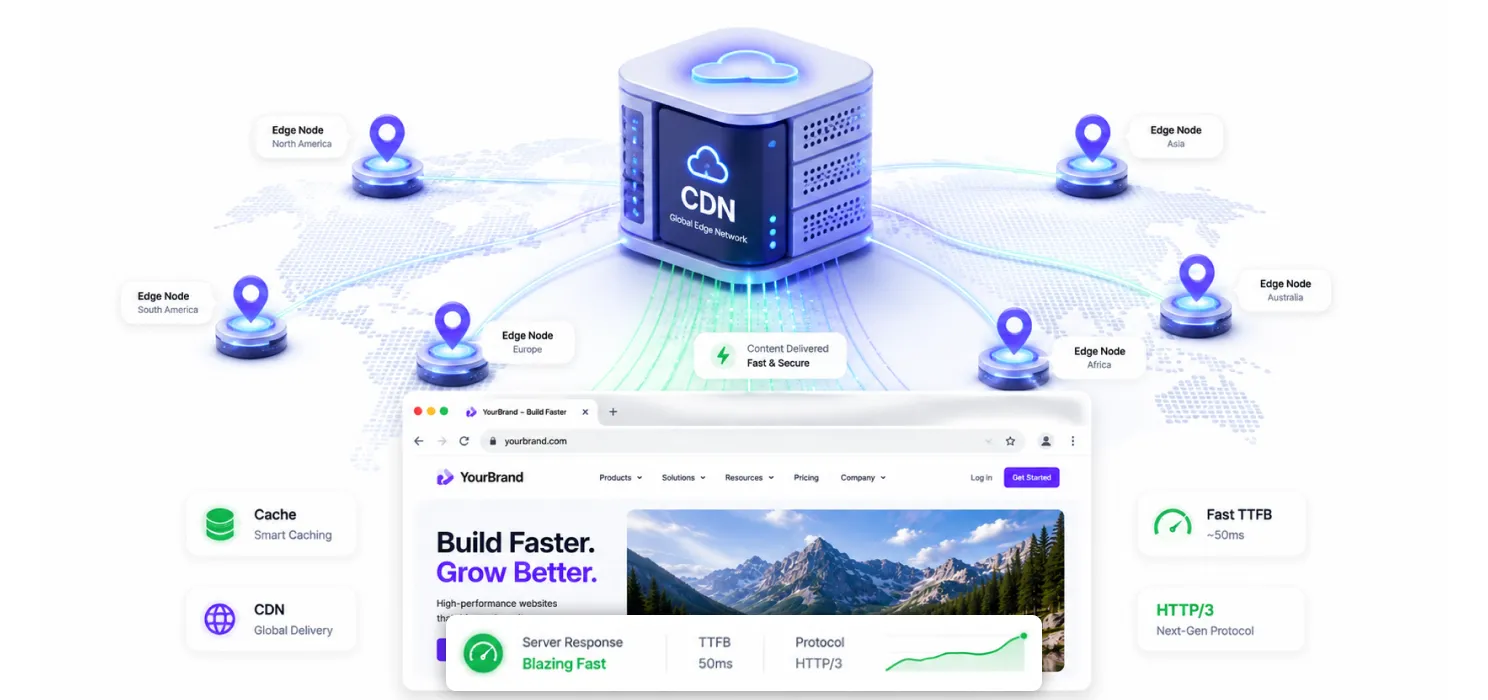
No amount of front-end tweaking makes up for a slow server. If your server takes 1–2 seconds just to respond, every other fix above starts from behind. The server-side changes that actually move the needle:
- Page caching, so WordPress isn’t rebuilding pages from scratch on every visit.
- A CDN (like Cloudflare or BunnyCDN), which serves your files from a server closer to each visitor.
- Modern PHP (8.2 or newer) and up-to-date server software, PHP upgrades alone have historically produced real, measurable speed gains.
- HTTP/2 or HTTP/3, which let multiple files download at once more efficiently than older protocols.
Quick priority checklist
Work through these in order:
✅ Confirm your actual LCP element with DevTools or PageSpeed Insights, don’t guess
✅ Remove lazy-loading if it’s been applied to that element
✅ Convert the image to WebP/AVIF and match it to its display size
✅ Preload it manually if it’s hard for the browser to discover on its own
✅ Inline critical CSS and defer non-critical JS
✅ Fix server response time and caching as your foundation
✅ Re-test after every change, and confirm results in real-world data (Google Search Console’s Core Web Vitals report), not just a single lab test
Speed up your LCP automatically with SpeedyGo
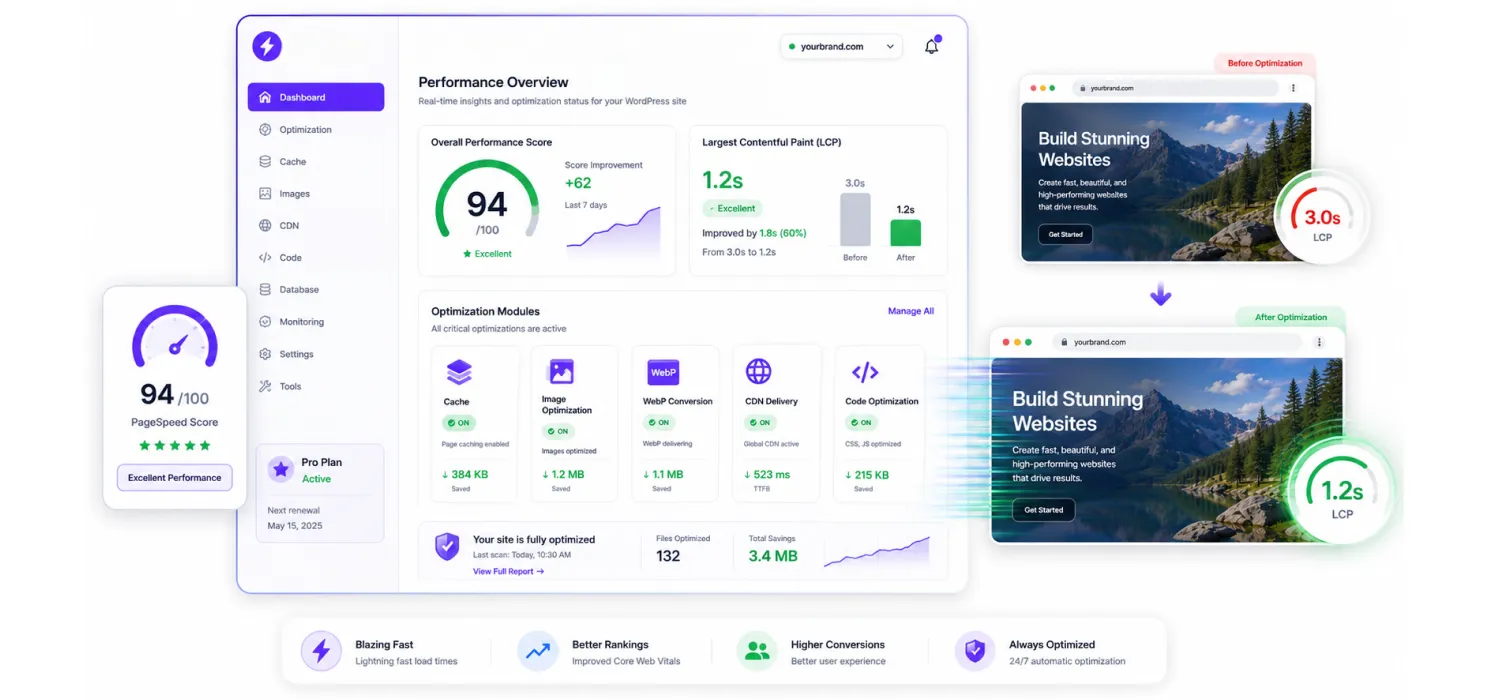
Fixing LCP manually means checking images, fixing caching, cutting heavy scripts, improving asset delivery, and constantly re-testing. SpeedyGo simplifies that process.
SpeedyGo is a WordPress performance plugin that handles the essentials automatically, smart caching, image optimization, lazy loading, code optimization, WebP conversion, and CDN delivery, helping your site load faster and improve its Core Web Vitals scores.
Instead of spending hours hunting down which files are slowing your site, SpeedyGo optimizes the areas that directly affect metrics like LCP, delivering faster images and cutting unnecessary loading, whether you run a blog, a business site, or a WooCommerce store.
The bottom line
LCP is one of the more forgiving Core Web Vitals, its fixes are concrete and mechanical, not big architectural overhauls. Find your real LCP element, make sure the browser can find it instantly, don’t lazy-load it, compress it properly, and clear the path around it. Add a solid server and caching setup underneath, and most WordPress sites can realistically get LCP under 2.5 seconds without a full rebuild.
The mistake to avoid: treating any single fix, preloading, compression, or caching, as the whole solution. They work together. A perfectly compressed hero image still loads late if it’s buried in unparsed CSS. A perfectly preloaded image still paints slowly if your server takes two seconds to respond. Work through the full path, from server to pixels, and re-test after every change so you know exactly which fix actually helped.

Frequently Asked Questions
Find answers to common questions about reducing Largest Contentful Paint (LCP) in WordPress, optimizing images, fixing render-blocking resources, improving server performance, and passing Core Web Vitals.
What is a good LCP score for a WordPress website?
A good Largest Contentful Paint (LCP) score is 2.5 seconds or less. If your LCP is between 2.5 and 4 seconds, it needs improvement, while anything above 4 seconds is considered poor.
The goal is not simply to optimize the image itself, but to make sure the browser can discover, download, and render the LCP element as quickly as possible.
How do I find the LCP element on my WordPress page?
You can identify the LCP element using PageSpeed Insights or Chrome DevTools. PageSpeed Insights shows the specific element under the “Largest Contentful Paint element” diagnostic, while Chrome DevTools can show the LCP marker in the Performance panel.
Finding the actual element first is important because it may be a hero image, heading, slider image, or even an above-the-fold ad.
Should the LCP image be lazy-loaded in WordPress?
Usually, no. If an image is the LCP element and appears above the fold, lazy loading can delay its download because the browser is being told that the image is not immediately important.
Lazy loading is better suited to images that are further down the page and outside the initial viewport.
How does WebP help improve LCP in WordPress?
WebP can reduce the file size of large images while maintaining good visual quality. A smaller hero image requires fewer bytes to download, which can help the browser display the LCP element sooner.
However, image format alone does not solve every LCP problem, the image also needs to be discoverable early and served at an appropriate size.
When should you preload an LCP image in WordPress?
Preloading is most useful when the browser has difficulty discovering the LCP image early, such as when it is loaded through a CSS background or injected by JavaScript. A preload hint can tell the browser to fetch the image sooner.
However, preloading too many resources can create competition for bandwidth, so it should generally be reserved for the resource that is genuinely critical to the initial render.
Can CSS and JavaScript cause a high LCP score even with an optimized image?
Yes. A properly compressed image can still appear late if render-blocking CSS or JavaScript prevents the browser from constructing and painting the page.
Inline critical CSS, defer non-critical JavaScript, and reduce unnecessary resources that compete with the initial render.
Why can WordPress sliders make LCP slower?
Many sliders depend on JavaScript before their first slide becomes visible.
This means the browser may have to download and execute JavaScript before it can even discover or display the hero image.
Using a static first image and initializing the slider after the initial paint can help the LCP element appear much sooner.