8 mins read
When Should You Use Preloading vs. Lazy Loading in WordPress?
Share Article :


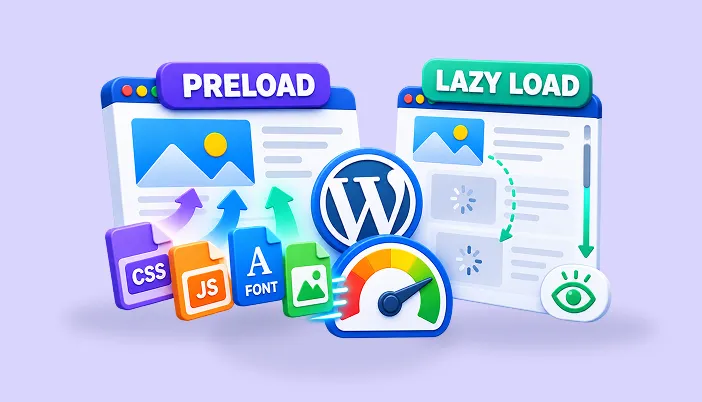
| Quick summary This guide explains WordPress preloading vs. lazy loading in plain words. You’ll learn what each one does, which files suit which, and the one mistake that slows down thousands of sites. There are charts, a comparison table, a decision flow, and a checklist. The short answer: preload what visitors see first, and lazy load what they see later. |
Imagine you’re a waiter. Some orders need to hit the table right now. Others can wait until the guest asks.
A fast website works the same way. Some files should be fetched at once. Others should hold back until they’re needed. Getting that split right is called resource loading optimization, and it’s one of the cheapest speed wins around.
The two main tools are preloading and lazy loading. They sound like opposites, and in a way they are. The trick is knowing which one to use where. Let’s sort it out.
What do preloading and lazy loading mean?
Preloading means “get this early.” Lazy loading means “wait until it’s needed.”
In WordPress, the word “preload” shows up in two places, and people often mix them up. So let’s split it.
- Resource preloading is a hint in your page code that tells the browser to fetch an important file early, such as a font or your main banner image.
- Cache preloading is something your caching plugin does. It builds the saved copies of your pages ahead of time, so no visitor has to wait for them.
- Lazy loading delays images, videos, and similar files until the visitor scrolls close to them.
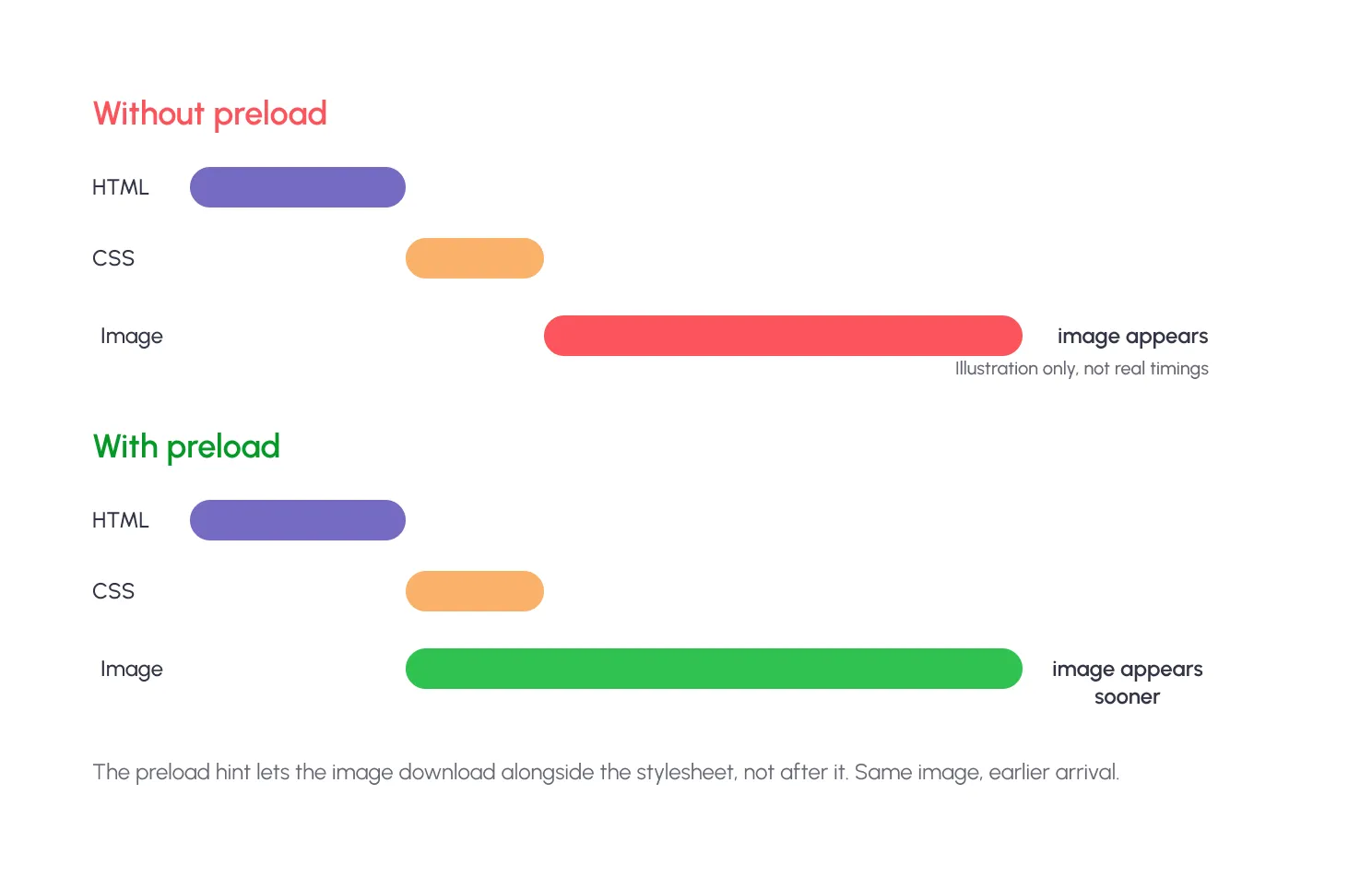
Why would a browser need a hint at all? Because it finds some files late. A hero image set in your stylesheet isn’t discovered until the stylesheet is downloaded and read. Web.dev says preload is best suited for resources “typically discovered late by the browser.”
Give me six hours to chop down a tree and I will spend the first four sharpening the axe.
~ Often attributed to Abraham Lincoln
That’s preloading in one sentence. A little preparation up front makes the main task fast.
WordPress preloading vs lazy loading: how do they compare?
Here’s the side-by-side view. Keep it handy when you’re deciding what to do with a given file.
| Question | Resource preloading | Cache preloading | Lazy loading |
| Main idea | Fetch a key file early | Build saved pages before visitors ask | Wait until the file is about to be seen |
| Who does it | The browser, told by a code hint | Your caching plugin or server | The browser or a script |
| Best for | Hero image, key fonts | Your most visited pages | Images and videos below the fold |
| Helps with | Faster first screen (LCP) | Fast first visit to each page | Less data on first load |
| Main risk | Too many preloads fight for bandwidth | Can strain a weak host | Slows the LCP image if misused |
| Never use it on | Files you rarely need | Private or personal pages | The main image at the top |
What’s the biggest lazy loading mistake in WordPress?
Lazy loading the main image at the top of the page.
It’s easy to see why it happens. “Lazy load all images” sounds like a smart, simple rule. But the browser can’t defer an image until it knows where the image sits on the page. So a lazy-loaded hero waits, and your Largest Contentful Paint (LCP) waits with it. Web.dev’s advice is direct: don’t lazy-load images likely to be in view when the page loads, especially LCP images.
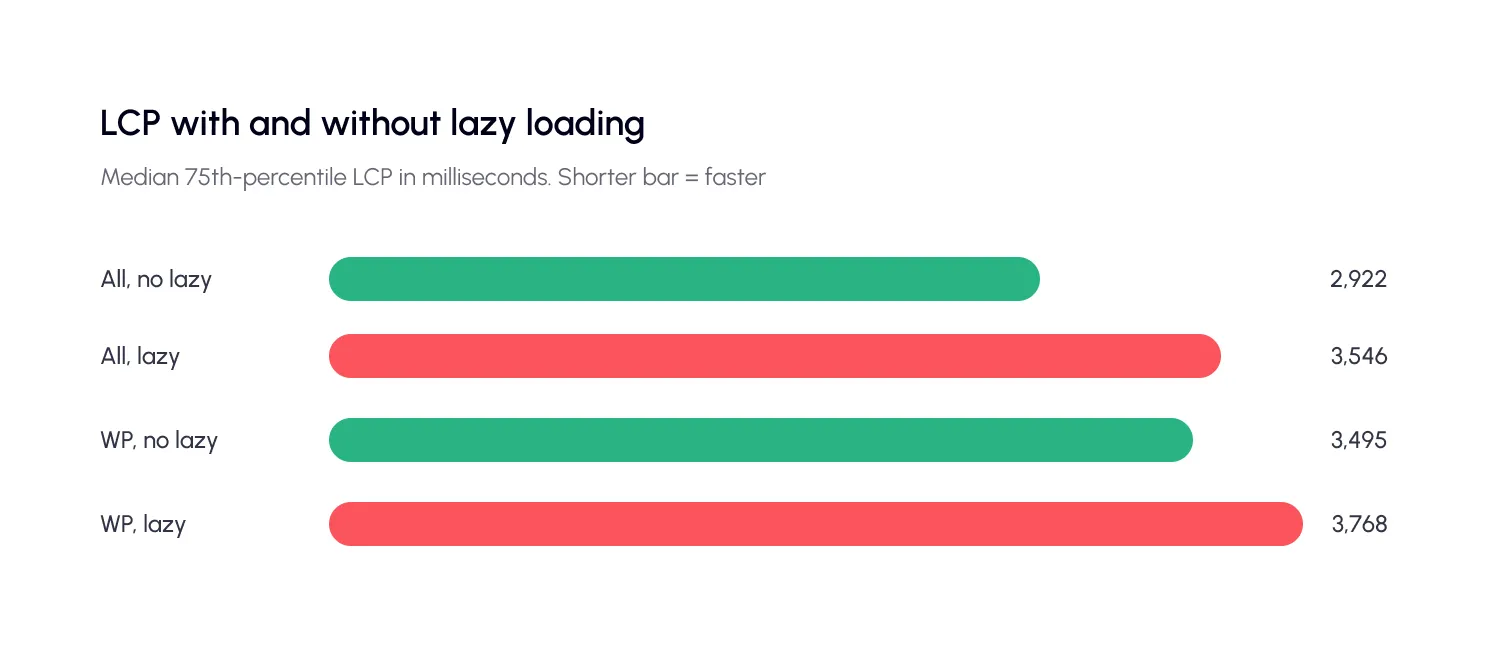
How much does it cost? Web.dev compared real-world pages. The median 75th-percentile LCP was 2,922 ms without lazy loading and 3,546 ms with it. For WordPress pages, it was 3,495 ms against 3,768 ms.
The good news: WordPress fixed much of this itself. In version 6.3, it stopped adding loading=”lazy” to images likely to be in view and began adding fetchpriority=”high” to the image it judges most likely to be the LCP image. Core’s team says that typically improves LCP by 5–10%. WordPress never puts fetchpriority=”high” and loading=”lazy” on the same image.
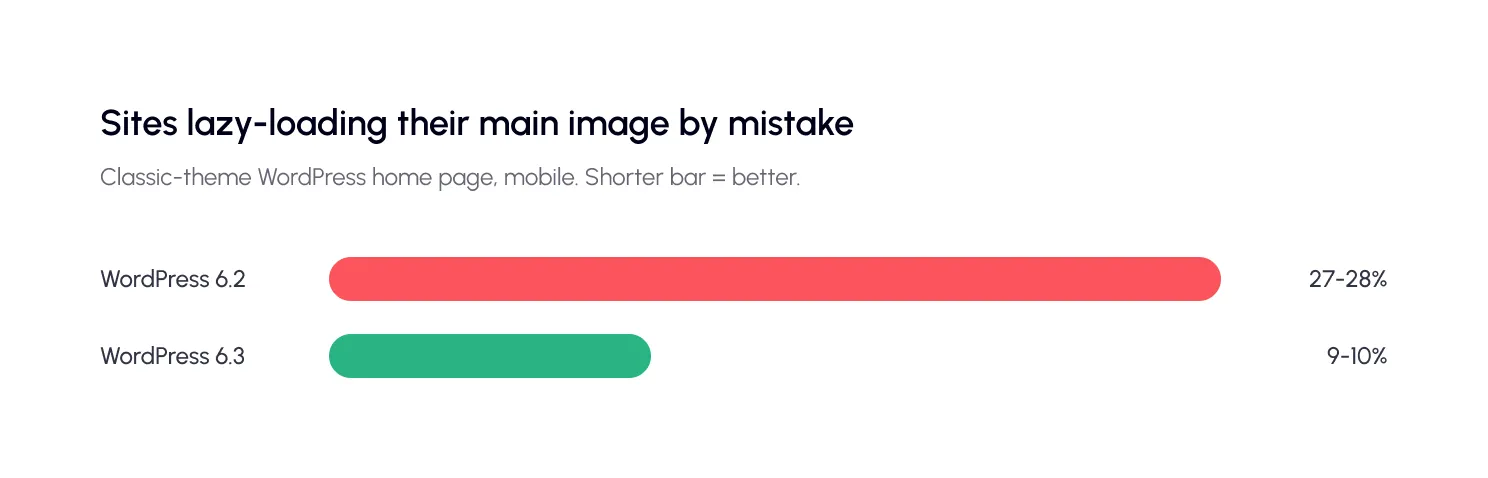
The field data backs it up. A WordPress core analysis of more than 500,000 home pages found the share of classic-theme sites lazy-loading their LCP image dropped from 27–28% in WordPress 6.2 to 9–10% in 6.3.
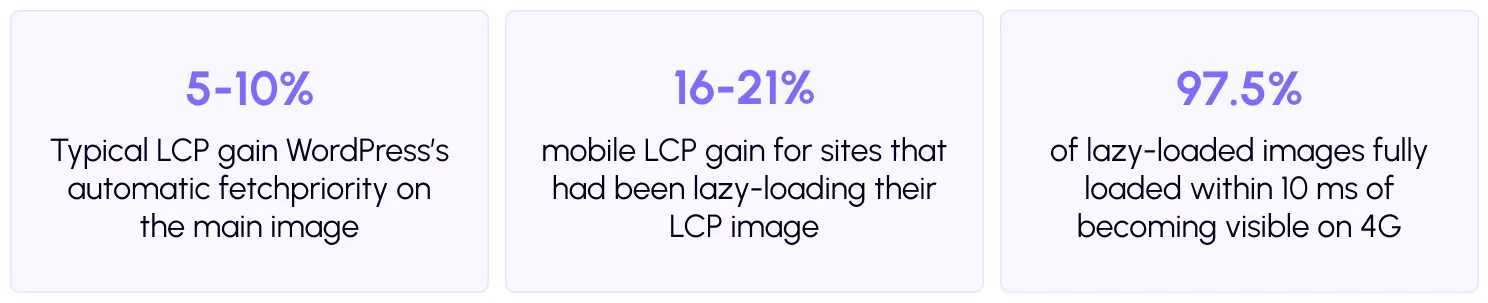
That last tile is the flip side. Done right, lazy loading is nearly invisible to visitors. Chrome’s tests found that on 4G, 97.5% of lazy-loaded images were fully loaded within 10 ms of becoming visible. On 2G, it was 92.6%.
| ⚠️ Watch out Themes, page builders and optimization plugins can add their own lazy loading on top of WordPress’s. If your hero image still lazy-loads, check each layer. Right-click the image, choose Inspect, and look for loading=”lazy” on it. |
When should you preload in WordPress?
If you want to preload WordPress files the right way, pick a few critical ones that the browser would otherwise find late. Keep the list short.
Web.dev names the best candidates. Fonts and CSS background images are not discovered until the stylesheet is downloaded and parsed. And the main hero image or a large block of text in a web font can be your LCP element, which makes a well-placed preload worthwhile. Lighthouse’s “Preload key requests” audit flags the late-discovered ones for you.
Fonts have one special rule. They’re loaded in anonymous mode, so a font preload needs the crossorigin attribute. Without it, the font gets fetched twice.
EXAMPLE FONT PRELOAD (ADDED IN YOUR PAGE HEAD)
<link rel=”preload” href=”/fonts/brand.woff2″ as=”font” type=”font/woff2″ crossorigin>
For images, WordPress already helps. It adds fetchpriority=”high” to the likely LCP image if it’s big enough. The default minimum is 50,000 pixels of width times height, so a 300×200 image qualifies, but a 200×200 one doesn’t.
| ✅ Tip Preload sparingly. Web.dev warns that if too many resources are prioritized, none of them effectively are. Chrome even logs a console warning when a preloaded file goes unused. Aim for one hero image and one or two fonts, then stop. |
When should you lazy load in WordPress?
Lazy load anything that sits below the first screen. That’s where the savings are.
HTTP Archive data shows images are usually the most requested asset type, with sites sending over 5 MB of images at the 90th percentile on desktop and mobile. Lazy loading keeps most of that off the first load. A visitor who never scrolls to the bottom never downloads the bottom.
Good candidates include:
- Images in the middle and bottom of long articles.
- Product grids past the first row or two.
- Embedded videos and maps further down the page.
- Gallery thumbnails and comment avatars.
One extra step: set width and height on your images. A lazy image that has no reserved space makes the page jump when it appears, and that hurts layout stability.
What about cache preloading?
Cache preloading solves a different problem: the slow first visit to a page.
A page cache only saves a page after someone has asked for it. So the very first visitor still waits while WordPress builds it. Cache preloading removes that wait by visiting your pages in advance and saving them. When real visitors arrive, the copies are already there.
It’s a bit like a restaurant setting every table before the doors open.
| 📝 Note Preloading is work your server does, and it uses resources. WP Speed Fix advises keeping preload rates gentle so you don’t overload your hosting. On a small plan, spread it out instead of firing everything at once. |
What does this look like on real sites?
A blog
Keep the featured image at the top eager, since it’s the likely LCP element. Lazy load every image below it. Preload your one main web font.
A WooCommerce store
Load the banner and the first row of products right away. Lazy load the rest of the grid. Use cache preloading so category pages are ready when shoppers arrive.
A photography portfolio
Prioritize the first image or two, and lazy load the long scroll of thumbnails. This keeps the first load light, even with a hundred pictures.
A page with embedded videos
Lazy load the embeds below the fold. A video player is heavy, and delaying it until it’s near the screen saves a lot of data.
What’s the preloading and lazy loading checklist?
Work through these in order. Your ticks stay on the page while it’s open.
- Run a test first. Use the free SpeedyGo speed test and note your LCP.
- Find your LCP element. It’s usually the hero image or a big heading.
- Make sure it’s not lazy-loaded. Inspect it for loading=”lazy”.
- Preload only what’s critical. One hero image, one or two fonts at most.
- Lazy load below the fold. Images, videos and embeds further down.
- Set width and height on images. This keeps the layout from jumping.
- Turn on cache preloading. Keep the pace gentle on smaller hosting.
The bottom line
Preloading and lazy loading aren’t rivals. They’re two halves of one plan. Preload and prioritize what visitors see first. Lazy load everything they’ll see later. And build your cache ahead of time so the first visit is fast, too.
If you remember just one thing from this guide on WordPress preloading vs lazy loading, make it this: never lazy load the main image at the top of the page.

Frequently Asked Questions
Preloading and lazy loading are both useful for improving WordPress performance, but using them on the wrong files can make your website slower. Here are answers to common questions about which images to lazy load, which resources to preload, how these methods affect Core Web Vitals, and whether you can use both together.
What's the difference between preloading and lazy loading?
Preloading tells the browser or server to get something early because it will be needed soon. Lazy loading tells the browser to wait and load something only when the visitor is about to see it. Preload what’s on the first screen, and lazy load what’s further down.
Should I lazy load all images in WordPress?
No. Lazy load images below the fold only. Don’t lazy load the main image at the top, because it’s usually the LCP element and lazy loading delays it.
What should I preload in WordPress?
Preload only a few critical, late-discovered files, such as your main hero image and key web fonts. Preloading too many resources means none of them get real priority.
What is cache preloading?
It builds the saved copies of your pages in advance, so the first visitor to each page gets a fast cached version instead of waiting for WordPress to build it. See the cache preloading guide
Does WordPress lazy load images by default?
Yes. WordPress adds loading=”lazy” to images by default. Since version 6.3, it avoids lazy loading images likely to be in view and adds fetchpriority=”high” to the image most likely to be the LCP element.
Can lazy loading hurt Core Web Vitals?
Yes, if applied to the main above-the-fold image. In web.dev’s data, pages with lazy loading had a median LCP of 3,546 ms against 2,922 ms without. Used below the fold only, it saves data without hurting LCP.
Can I use preloading and lazy loading together?
Yes, and you should. They work on different images. Prioritize the first-screen image and lazy load the rest. Never apply both to the same image.