14 mins read
WP Rocket Fatal Error After WordPress 7.1 Update: Cause, Fix and Recovery Steps
Share Article :


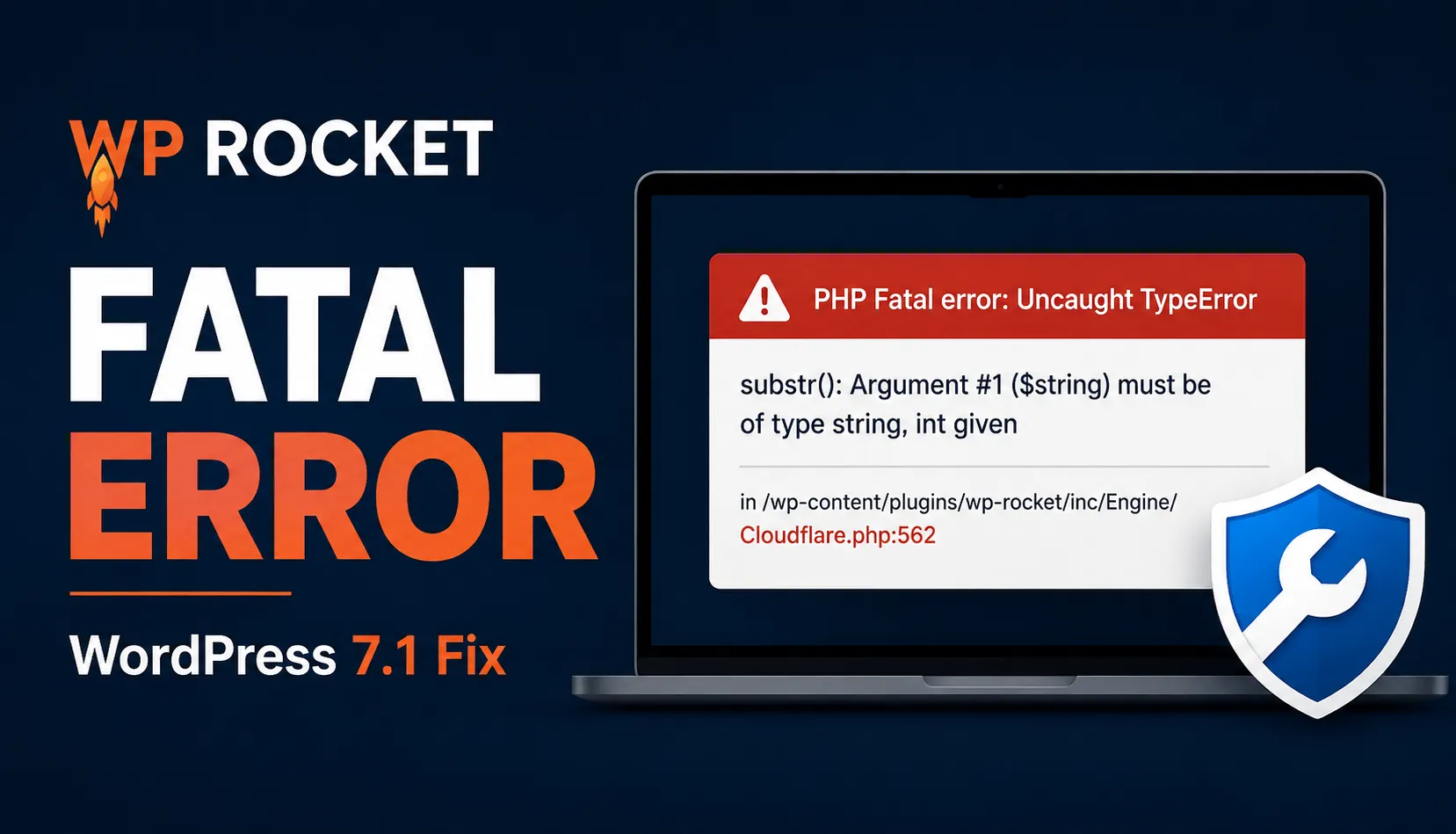
If your WordPress website started showing a critical error after upgrading to WordPress 7.1 while WP Rocket was active, you may be encountering a confirmed WP Rocket compatibility issue.
One of the most commonly reported errors looks like this:
PHP Fatal error: Uncaught TypeError: substr(): Argument #1 ($string) must be of type string, int given
The stack trace may point to:
wp-content/plugins/wp-rocket/inc/ThirdParty/Plugins/CDN/Cloudflare.php:562
The good news is that WP Rocket has released a fix.
The compatibility fix is included in WP Rocket 3.23.2.2.
If your website is currently inaccessible, the fastest safe approach is normally to temporarily deactivate WP Rocket, regain access to WordPress, install the fixed version, and then test the site before reactivating caching.
Quick Answer
If your website crashed after upgrading to WordPress 7.1 and your PHP error references:
Cloudflare.php:562
or:
substr(): Argument #1 ($string) must be of type string, int given
check your WP Rocket version first.
Update WP Rocket to 3.23.2.2 or a newer stable version containing the fix.
If you cannot access wp-admin, use WordPress Recovery Mode or temporarily deactivate WP Rocket through SFTP or your hosting File Manager.
Do not assume that Cloudflare itself caused the problem. The error occurs inside WP Rocket’s Cloudflare integration code.
WP Rocket WordPress 7.1 Issue Status
| Item | Current status |
|---|---|
| WordPress version involved | WordPress 7.1 |
| Plugin involved | WP Rocket |
| Error type | PHP TypeError |
| Error location | Cloudflare.php:562 |
| Function causing fatal error | substr() |
| WP Rocket fixed version | 3.23.2.2 |
| Cloudflare WordPress plugin required? | No |
| Recommended solution | Update WP Rocket |
If a version newer than WP Rocket 3.23.2.2 is available when you read this article, installing the latest stable version is normally preferable to deliberately installing an older fixed release.
What Error Are Users Seeing?
Affected WordPress websites may generate an error similar to:
PHP Fatal error: Uncaught TypeError: substr(): Argument #1 ($string) must be of type string, int given
The error may reference:
wp-content/plugins/wp-rocket/inc/ThirdParty/Plugins/CDN/Cloudflare.php:562
Developers may also search Google using variations such as:
WP Rocket Cloudflare.php line 562
WP Rocket substr error
substr() expects parameter 1 to be string, int given
WordPress 7.1 WP Rocket fatal error
Although the message looks complicated, the underlying PHP error is relatively simple.
What Does the substr() Error Mean?
substr() is a PHP function used to extract part of a string.
For example, PHP can use substr() to inspect the ending characters of a piece of text.
The function expects its first value to be a string.
A string is simply text such as:
wp_rocket_callback
An integer is a number such as:
12345
In this case, WP Rocket’s code could receive an integer where it expected a string.
The code then attempted to use that value with substr().
PHP rejected the incorrect data type and generated a TypeError, which could stop WordPress from completing the request.
That is why some users encountered the WordPress “critical error” screen instead of their normal website or WordPress dashboard.
Why Did WordPress 7.1 Trigger the WP Rocket Fatal Error?
The issue is more specific than saying:
WordPress 7.1 broke WP Rocket.
WP Rocket’s reported issue involves how callback information registered with WordPress hooks is processed.
WordPress plugins and themes frequently attach functions to hooks.
Internally, those callbacks can be stored using array keys.
Under certain conditions, a callback key that looks numeric can become an integer.
WP Rocket’s Cloudflare integration code was processing one of these callback keys and effectively performing an operation similar to:
substr( $key, - strlen( $method ) )
The problem occurs when $key is an integer rather than a string.
The safer approach is to ensure the key is treated as a string before using it with substr().
Conceptually:
substr( (string) $key, - strlen( $method ) )
The important point is that the fatal error came from a type assumption inside WP Rocket’s callback handling.
WordPress 7.1 exposed the condition under which that assumption could fail.
Is Cloudflare Causing the WP Rocket Error?
No evidence from the reported issue supports the simplified claim that:
Cloudflare broke WP Rocket.
This distinction is important.
There are actually three separate components people may mean when they say “Cloudflare.”
Cloudflare’s network
This includes Cloudflare DNS, proxy, CDN, caching and security services.
Cloudflare’s WordPress plugin
Cloudflare also provides a separate plugin that can be installed in WordPress.
WP Rocket’s Cloudflare integration
WP Rocket contains its own code for interacting with Cloudflare-related functionality.
The fatal error occurs inside:
WP Rocket/inc/ThirdParty/Plugins/CDN/Cloudflare.php
That means the stack trace identifies WP Rocket’s Cloudflare integration code.
It does not automatically mean that Cloudflare’s CDN or Cloudflare WordPress plugin created the error.
In fact, the test environment described in WP Rocket’s GitHub issue specifically reported that the Cloudflare WordPress plugin was not installed.
The technically accurate description is therefore:
A PHP TypeError occurred inside WP Rocket’s Cloudflare integration code while processing a WordPress callback key.
That is very different from saying Cloudflare itself failed.
Is the WP Rocket WordPress 7.1 Issue Fixed?
Yes.
WP Rocket has released version 3.23.2.2, which includes the fix for this WordPress 7.1 compatibility problem.
If you are running an affected version, updating WP Rocket should therefore be your first choice rather than modifying plugin files or permanently downgrading WordPress.
However, some users may still encounter the error because:
- their installed WP Rocket version has not been updated
- the update is not yet appearing inside their WordPress dashboard
- the website crashes before they can reach wp-admin
- their deployment still contains older WP Rocket files
- they updated WordPress before updating WP Rocket
- another plugin or theme creates the callback condition required to trigger the affected code path
The important question is not simply:
Did WP Rocket release a fix?
You also need to verify:
Is my production website actually running the fixed version?
How to Fix the WP Rocket Fatal Error on WordPress 7.1
Step 1: Check Your WP Rocket Version
If wp-admin still works, open:
Plugins > Installed Plugins
Find WP Rocket and check the installed version.
If your version predates the fix, update it.
You should use WP Rocket 3.23.2.2 or a newer stable release containing the fix.
Step 2: Update WP Rocket
If an update notification is available in WordPress, update WP Rocket normally.
After the update completes, verify the installed version rather than assuming the update was successful.
Then test:
- your homepage
- wp-admin
- several posts and pages
- important forms
- WooCommerce cart and checkout if applicable
- logged-in functionality
- PHP error logs
If everything works normally, the compatibility problem may be resolved.
What If You Cannot Access wp-admin?
This is where the issue becomes more serious.
A fatal PHP error can prevent WordPress from loading the admin dashboard.
Fortunately, you do not need wp-admin to disable a problematic plugin.
There are two common recovery options.
Option 1: Use WordPress Recovery Mode
WordPress has a built-in Recovery Mode for fatal PHP errors.
When WordPress detects certain critical errors, it may send an email to the website administrator.
The email can contain a special Recovery Mode login link.
Use that link to access WordPress.
WordPress can temporarily pause the plugin causing the fatal error for your Recovery Mode session.
Once you regain access:
- Check the WP Rocket version.
- Deactivate WP Rocket if necessary.
- Install the fixed version.
- Test the website.
- Reactivate WP Rocket.
If you did not receive a Recovery Mode email, use the next option.
Option 2: Disable WP Rocket Using SFTP or File Manager
Connect to your website using:
- SFTP
- your hosting control panel
- your hosting File Manager
Navigate to:
/wp-content/plugins/
Find the folder:
wp-rocket
Rename it temporarily to something like:
wp-rocket-disabled
WordPress will no longer find WP Rocket at the expected plugin directory.
This effectively deactivates the plugin.
Now try loading:
yourdomain.com/wp-admin/
If WP Rocket was causing the fatal error, your dashboard should normally become accessible again.
Do not delete the plugin folder unless you have a specific reason to do so.
Renaming it is safer and reversible.
Install the Fixed WP Rocket Version
Once you regain access to the website, install the newest stable WP Rocket version.
You can obtain the current plugin package through your WP Rocket account.
After installing the fixed version:
- Verify its version number.
- Reactivate WP Rocket.
- Load the frontend.
- Test wp-admin.
- Test important website functionality.
- Check the latest PHP logs.
Do not judge success based only on the homepage.
WP Rocket 3.23.2.2 Update Not Showing?
Another situation users may encounter is that they know a fixed version exists but WordPress does not show the update.
First open:
Dashboard > Updates
Then click:
Check Again
You can also refresh the Plugins screen.
WP Rocket documents a force-update parameter that can be appended to the Plugins URL:
?rocket_force_update=1
For example:
https://example.com/wp-admin/plugins.php?rocket_force_update=1
If the update still does not appear, WP Rocket also supports manually downloading the newest plugin package from your account and installing it.
For an urgent production incident, manually obtaining the current plugin package may be more practical than repeatedly waiting for an update notification.
Should You Manually Edit Cloudflare.php?
The short answer is:
Prefer the official update.
The reported technical workaround involved ensuring that the callback key was converted to a string before it reached substr().
For example:
substr( (string) $key, - strlen( $method ) )
Technically, this addresses the type mismatch.
However, directly changing a plugin’s source files is normally a temporary workaround.
Why?
Because the next plugin update can overwrite your modification.
It also creates differences between your installation and the official plugin version, making future troubleshooting more difficult.
Now that an official WP Rocket fix exists, manually editing Cloudflare.php should not be the standard solution.
If you absolutely must modify production plugin code temporarily:
- take a backup first
- document the modification
- test it in staging if possible
- replace it with the official plugin update as soon as possible
Should You Downgrade WordPress 7.1?
Downgrading WordPress may have been considered as an emergency workaround before a WP Rocket fix was available.
Now that WP Rocket has released a fixed version, updating the affected plugin is normally the better solution.
Downgrading WordPress introduces its own risks.
You may lose:
- security fixes
- compatibility improvements
- bug fixes
- database or core changes introduced by the newer release
If a rollback is absolutely necessary, make sure you have a complete website and database backup first.
For high-value production websites, perform the rollback in staging before doing it on the live site whenever possible.
What If the Fatal Error Continues After Updating WP Rocket?
If you have already installed WP Rocket 3.23.2.2 or newer and still see errors, stop assuming that every error is the original WordPress 7.1 bug.
Check the evidence.
Verify the error timestamp
Make sure you are reading a new PHP error, not a log entry created before the update.
Verify the plugin version on disk
Check that production actually contains the newest WP Rocket files.
This is especially important if your website uses automated deployments.
Check multiple servers
Larger WordPress setups may run across multiple application servers.
One server may have received the update while another still contains the older plugin.
That can create intermittent failures.
Review PHP OPcache
PHP can use opcode caching.
If your hosting or deployment architecture handles PHP file replacement unusually, your hosting provider may need to verify that the current PHP code is being executed.
Investigate other plugins and themes
The reported issue involves callback handling.
Another plugin or theme can contribute the callback condition that reaches the affected WP Rocket code.
If the original fatal error is gone but the site still behaves incorrectly, reproduce the issue in staging and test plugin compatibility systematically.
Review the complete stack trace
The filename is important, but the entire stack trace tells you how execution reached the failing function.
Do not troubleshoot based on one filename alone.
Contact WP Rocket Support
If the current WP Rocket release continues producing a WP Rocket-specific fatal error, provide support with:
- WordPress version
- WP Rocket version
- PHP version
- complete error message
- stack trace
- active theme
- active plugins
- hosting environment
- steps required to reproduce the issue
That information is much more useful than simply reporting:
WP Rocket crashed my website.
Will Clearing the Cache Fix the WP Rocket Fatal Error?
Not by itself.
This is a PHP code compatibility issue.
A normal CDN cache or WordPress page cache does not normally cause an old PHP plugin file to execute.
Therefore:
Purge cache after updating and recovering the website, but do not treat cache clearing as the main fix for the PHP TypeError.
After recovery, clear caches from the layers your website actually uses, which may include:
- WordPress page cache
- hosting cache
- reverse proxy cache
- CDN cache
This helps ensure visitors receive fresh output generated after the update.
What WordPress Site Owners Can Learn From This Incident
Compatibility issues can happen to any actively developed WordPress plugin.
The useful question is not whether software will ever have a bug.
The useful question is:
How quickly can your website recover when something breaks?
Several operational practices dramatically reduce the impact of incidents like this.
Test Major WordPress Updates in Staging
Do not use an important production website as your compatibility testing environment.
A staging website should contain a reasonably accurate copy of:
- WordPress
- plugins
- theme
- PHP version
- important integrations
Test the WordPress update there first.
Maintain Recoverable Backups
Having a backup plugin installed is not enough.
Make sure you know:
- where the backups are stored
- how frequently they are created
- whether the database is included
- how to restore them
- how long restoration takes
- whether someone on your team has actually tested the process
A backup that has never been restored is an unverified backup.
Keep SFTP or File Manager Access Available
If wp-admin becomes inaccessible, server-level file access becomes extremely valuable.
Your recovery plan should not depend entirely on WordPress loading correctly.
Monitor PHP Fatal Errors
A serious production website should not depend on a customer reporting that the site is broken.
Monitor:
- HTTP errors
- PHP fatal errors
- application logs
- uptime
- important transactions
The faster you know about a failure, the faster you can recover.
Treat WordPress Updates Like Software Deployments
For important websites, a safer workflow is:
Backup > Staging > Update > Test > Production > Monitor
That is far safer than enabling every major update automatically and hoping that the complete plugin stack remains compatible.
Looking for a WP Rocket Alternative?
If an incident like this has made you reconsider your WordPress performance setup, that is understandable.
But switching caching plugins while your production website is down should normally not be your first move.
Recover your website first.
Then evaluate alternatives calmly in staging.
SpeedyGo is another WordPress performance and caching plugin you can evaluate if you are reviewing your current setup.
SpeedyGo’s publicly documented functionality includes features such as:
- page caching
- browser caching
- CSS, JavaScript and HTML optimization
- Brotli and Gzip compression
- image optimization
- WebP support
- lazy loading
- cache preloading
- CDN functionality
- cache rules
- debugging and logging
Before replacing any caching plugin on a production website, test the new solution against your actual environment.
That includes:
- your WordPress version
- PHP version
- hosting configuration
- CDN
- theme
- WooCommerce if applicable
- critical plugins
- login functionality
- forms
- checkout flows
No serious performance plugin should be selected solely because another plugin experienced one compatibility incident.
Evaluate the complete product and your own technical requirements.
Final Thoughts
The WP Rocket fatal error on WordPress 7.1 is a documented compatibility issue involving a PHP TypeError inside WP Rocket’s Cloudflare integration code.
The commonly reported error references:
Cloudflare.php:562
and:
substr(): Argument #1 ($string) must be of type string, int given
WP Rocket has released version 3.23.2.2 containing the fix.
If your website is still inaccessible:
- Try WordPress Recovery Mode.
- Temporarily deactivate WP Rocket using SFTP or File Manager if necessary.
- Install the newest stable WP Rocket version containing the fix.
- Verify the version actually running on production.
- Test your website.
- Review current PHP error logs.
- Clear relevant caches after the code problem is resolved.
Most importantly, do not misdiagnose the issue as:
Cloudflare broke WP Rocket.
The reported failure occurs inside WP Rocket’s own Cloudflare integration code, and the original reproduction did not require the Cloudflare WordPress plugin.
Compatibility incidents like this are also a reminder that WordPress updates should be treated as production deployments.
Back up first.
Test in staging.
Update dependencies.
Verify functionality.
Monitor production.
That process will protect your website far more effectively than relying on any single caching plugin.
Frequently Asked Questions
Find answers to common questions about mobile speed, WordPress bounce rates, page load times, and practical ways to improve your website’s mobile performance.
Does WP Rocket work with WordPress 7.1?
WP Rocket experienced a compatibility issue with WordPress 7.1 that could cause a PHP fatal error. WP Rocket released version 3.23.2.2 containing a fix. Users should install the newest stable version containing that correction.
How do I fix the WP Rocket fatal error on WordPress 7.1?
Update WP Rocket to version 3.23.2.2 or newer. If wp-admin is inaccessible, use WordPress Recovery Mode or temporarily rename the /wp-content/plugins/wp-rocket/ folder using SFTP or your hosting File Manager.
What is the WP Rocket Cloudflare.php line 562 error?
It is a PHP TypeError occurring inside WP Rocket’s Cloudflare integration code. Under the reported condition, substr() receives an integer callback key instead of the string value it expects.
Is Cloudflare causing the WordPress 7.1 WP Rocket error?
The reported evidence does not show that Cloudflare itself caused the issue. The fatal error occurs inside WP Rocket’s Cloudflare integration code, and the Cloudflare WordPress plugin was not installed in the reported reproduction environment.
Which WP Rocket version fixes the WordPress 7.1 fatal error?
WP Rocket released the fix in version 3.23.2.2. If a newer stable release exists, users should normally install the newest version containing the fix.
How do I disable WP Rocket without wp-admin?
Connect to your server using SFTP or your hosting File Manager. Open /wp-content/plugins/ and temporarily rename the wp-rocket directory. WordPress will no longer load WP Rocket from its normal location.
Why am I still seeing the WP Rocket error after updating?
Verify that production is actually running the updated plugin files. Check the timestamp of the PHP error, your WP Rocket version, deployment servers, PHP OPcache where relevant, and possible interactions with other plugins or themes.
Should I edit WP Rocket's Cloudflare.php manually?
Manual editing should only be treated as an advanced temporary workaround. Because WP Rocket has released an official fix, installing the corrected plugin version is safer and easier to maintain.
Should I downgrade WordPress 7.1?
Usually not if the affected WP Rocket version can be updated. Downgrading WordPress should be considered an emergency fallback rather than the preferred long-term solution.
What should I do before updating WordPress in the future?
Maintain a recoverable backup, test the upgrade in staging, update important plugins, verify critical website functionality and monitor PHP errors after deploying the update to production.