8 mins read
Is Your WordPress TTFB Too High? 9 Fixes That Can Make Your Site Faster
Share Article :


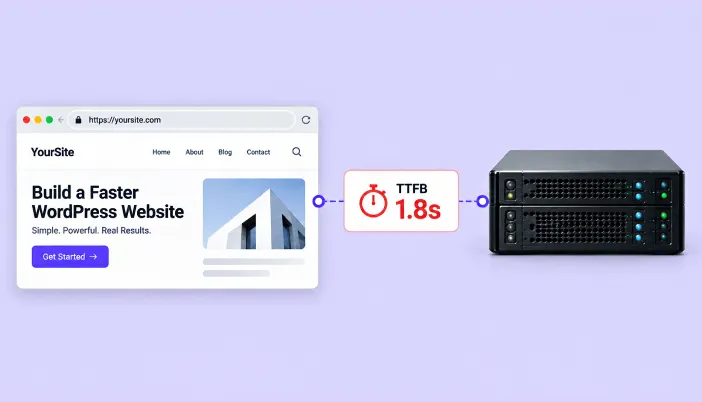
This blog covers nine practical fixes to reduce WordPress TTFB, in the order that actually moves the needle. You’ll learn what counts as a good Time to First Byte, why WordPress server response time affects everything else on your page, and exactly which changes deliver the biggest improvement for the least effort.
There’s a comparison table ranking each fix by impact and effort, a practical example, and an FAQ section covering the questions people ask most before diagnosing their own site.
What is TTFB, and why does it matter more than people think?
Time to First Byte measures the gap between a browser requesting your page and your server sending back the very first byte of a response. Nothing else can start until that happens: not rendering, not downloading images, not anything.
That’s why WordPress TTFB optimization matters more than most speed advice suggests. Google’s own documentation states that TTFB directly affects Largest Contentful Paint, the Core Web Vital that carries the most ranking weight. If your server takes 1.5 seconds just to respond, you’re starting every single visit 1.5 seconds behind, regardless of how optimized your images or scripts are.
Google considers server response time good under 200 milliseconds and poor above 600 milliseconds. For full TTFB, including DNS and connection time, under 800 milliseconds is the general target. A well-cached WordPress page should sit well under 100 milliseconds for cache hits, while uncached pages on a properly tuned server typically land in the 150 to 300 millisecond range.
Fix 1: Turn on full-page caching
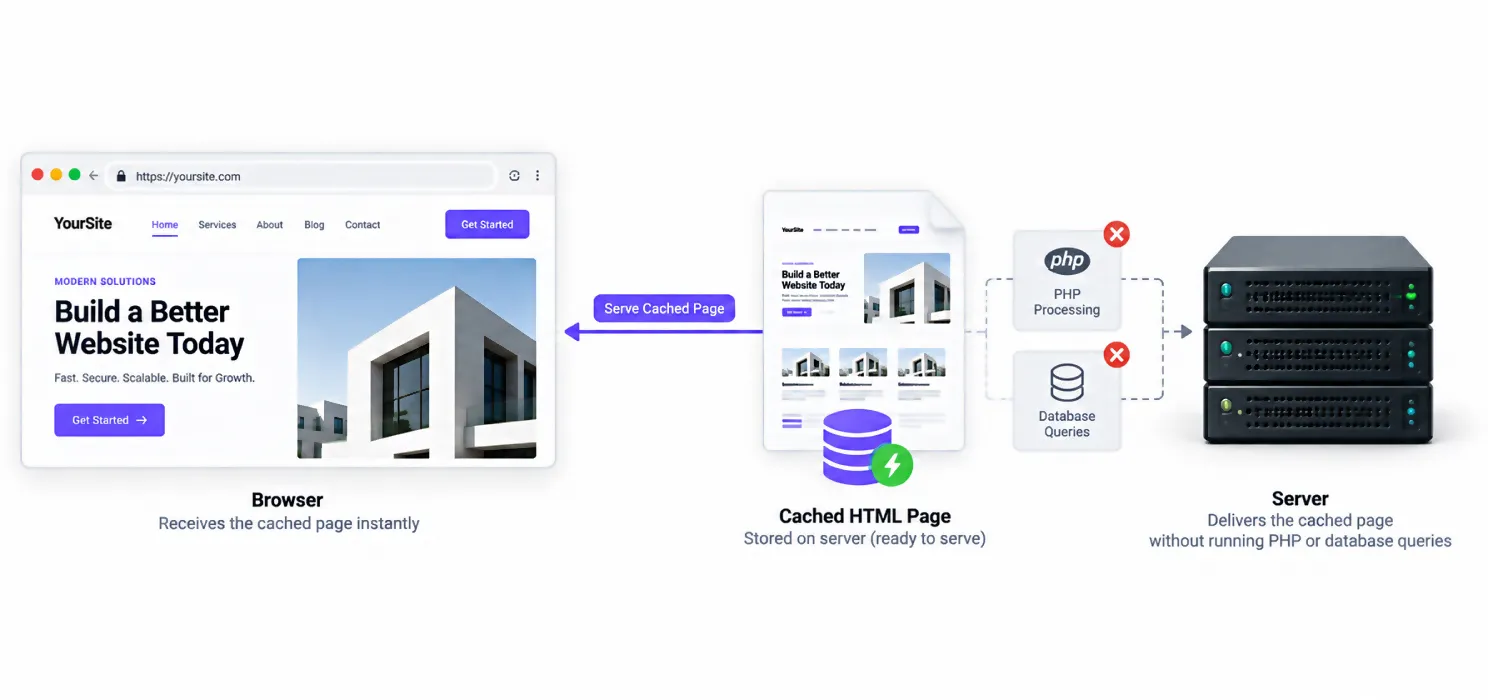
This is the single highest-impact fix available, and it should come first. Full-page caching stores a static HTML version of your page so the server can skip PHP execution and database queries entirely on repeat visits. Enabling it typically cuts TTFB by 50 to 70 percent on its own.
If you’re not already running a plugin that handles this, SpeedyGo’s full-page caching module does exactly this job with a one-click setup, no manual server configuration required.
Fix 2: Move off cheap shared hosting
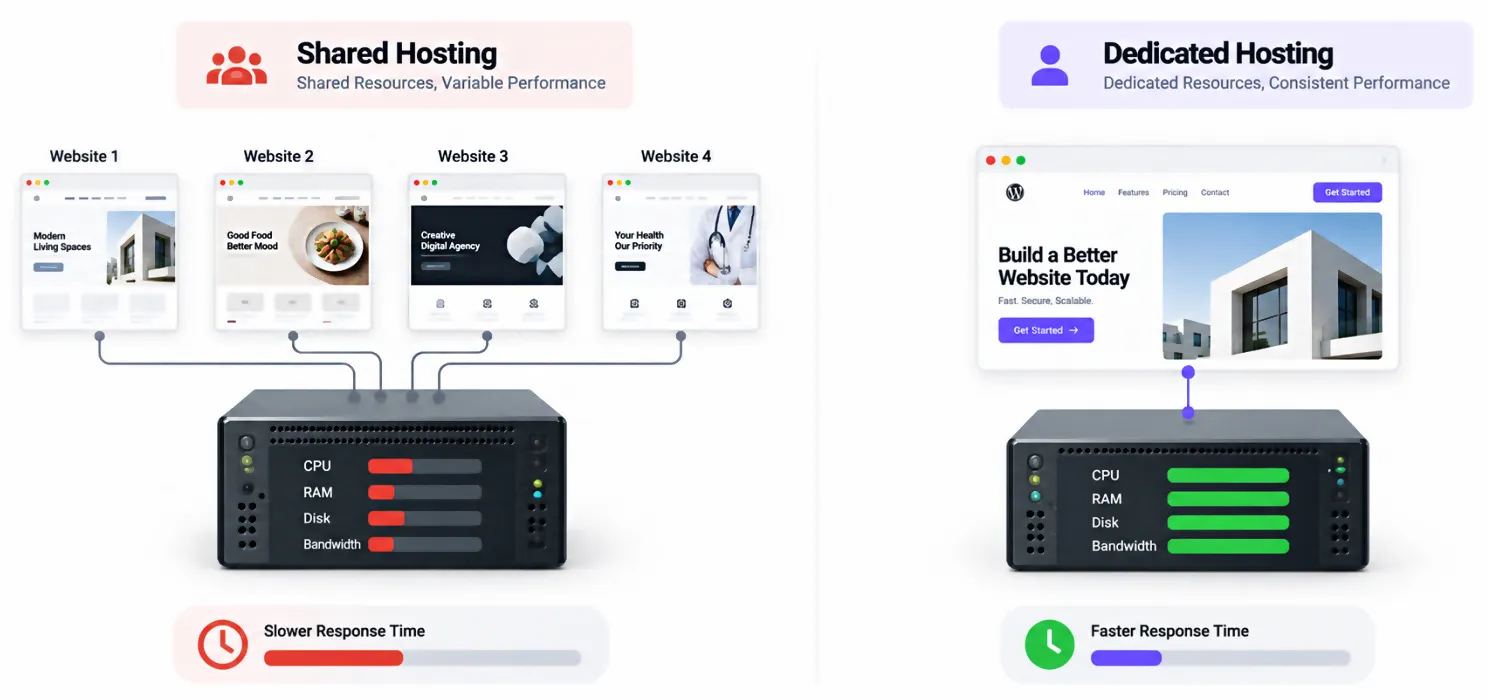
Hosting quality sets the ceiling everything else works within. Shared hosting TTFB commonly averages 400 to 800 milliseconds, while cloud hosting with dedicated resources typically runs 80 to 150 milliseconds. On shared hosting, your server’s performance depends partly on what your neighbors are doing, since resources are pooled across many sites.
This isn’t always the first fix to make, since it costs the most. But if you’ve already addressed caching and TTFB is still consistently high, hosting is usually the next place to look, not your theme or plugins.
Fix 3: Upgrade your PHP version and enable OPcache
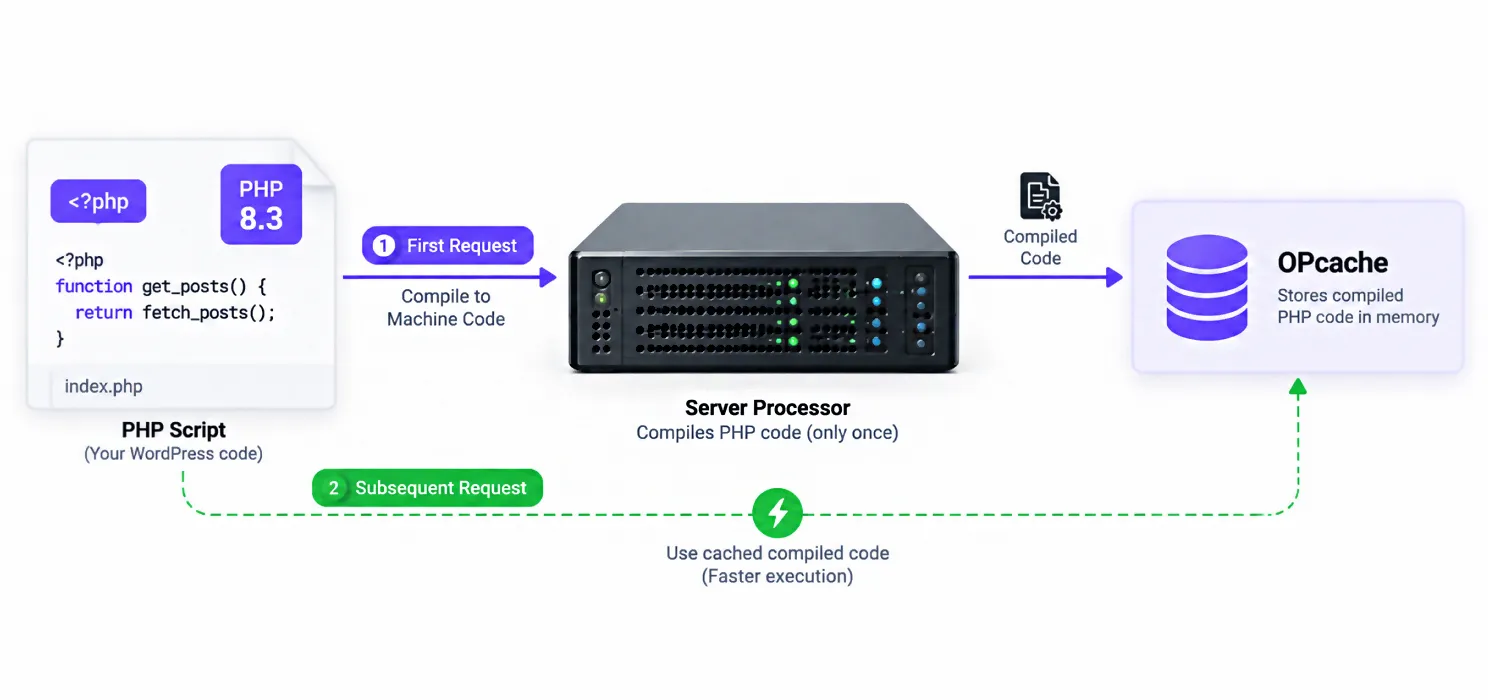
Newer PHP versions process significantly more requests per second than older ones, with PHP 8.3 measurably faster than 8.1 in real WordPress testing. This upgrade alone reduces uncached TTFB with no code changes required on most sites.
Pair it with OPcache, which caches compiled PHP so your server doesn’t recompile the same scripts on every single request. Confirm it’s enabled through your hosting control panel, and if your host allows it, raising the memory allocation gives it more room to work.
Fix 4: Add persistent object caching
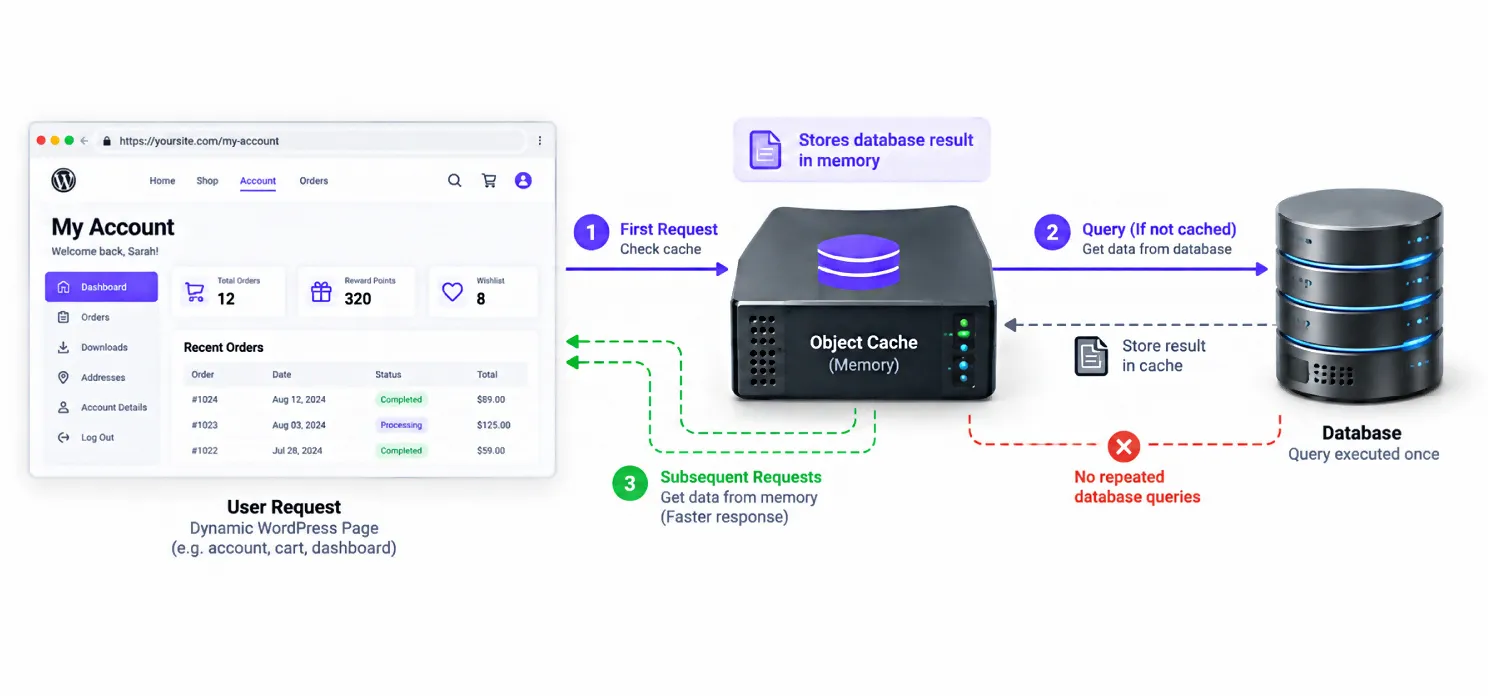
Page caching only helps visitors who aren’t logged in. Checkout pages, membership dashboards, and your WordPress admin area are dynamic by nature and skip the page cache entirely, which means their speed depends on how fast your database queries run every single time.
Persistent object caching through Redis or Memcached stores the results of those database queries in memory, so they don’t have to be repeated on every request. This is often the single biggest win available for WooCommerce and membership sites specifically, and it’s covered as a dedicated module in SpeedyGo’s documentation if your plan includes it.
Fix 5: Clean up your database
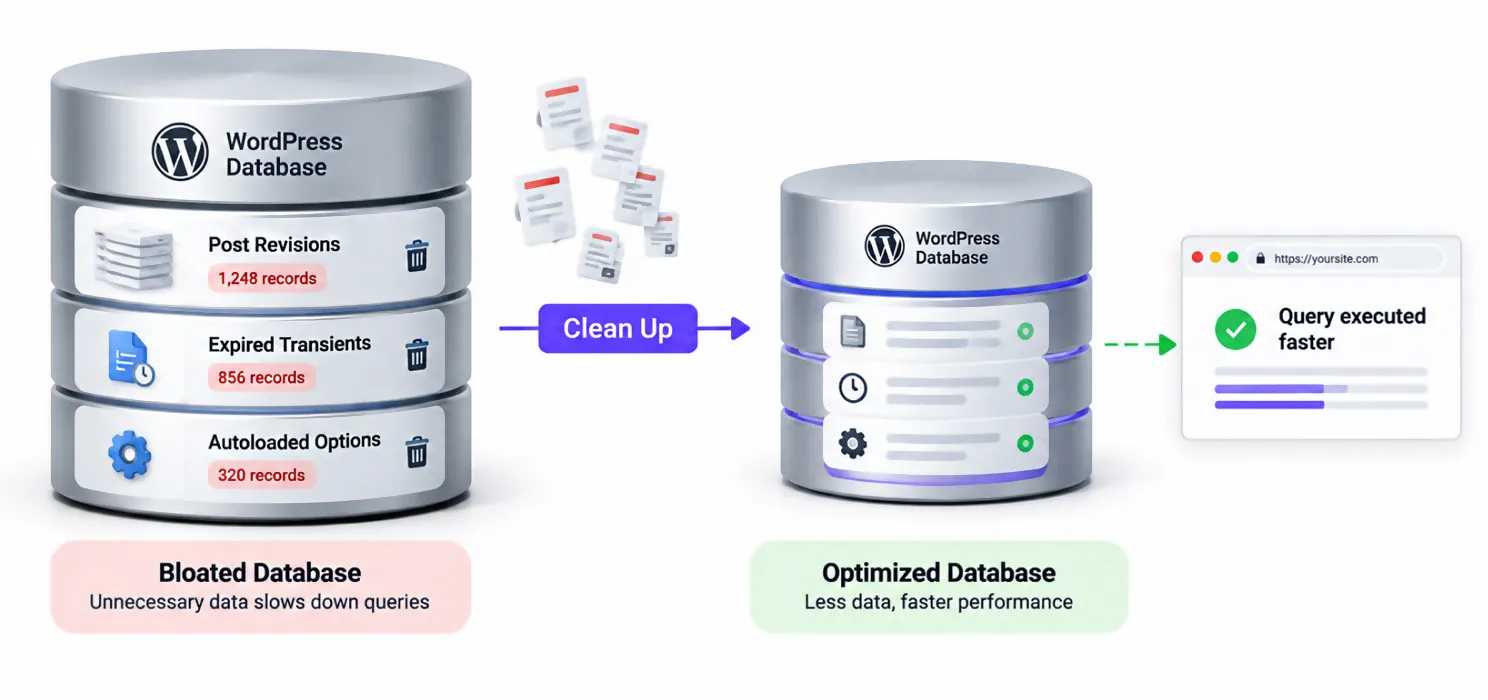
WordPress keeps post revisions indefinitely by default, and expired transients along with oversized autoloaded options in the wp_options table accumulate quietly over years. None of this shows up in a PageSpeed report, but it adds real weight to every single database query your site runs.
Reducing autoloaded data and clearing out old revisions and expired transients directly shrinks the work your database has to do before a page can even start rendering.
Fix 6: Tune your PHP-FPM worker count
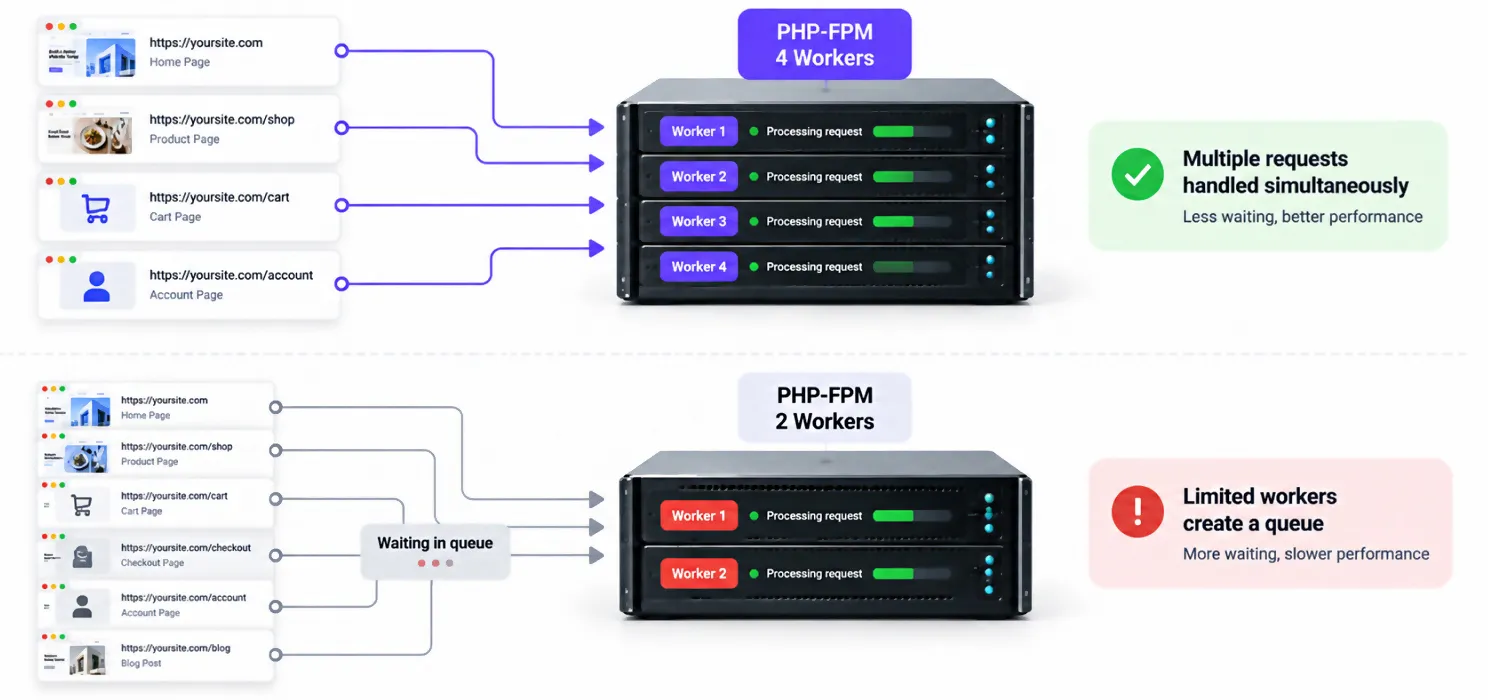
Workers are what let your server handle multiple uncached requests at the same time instead of queuing them one after another. If your worker count is set too low, visitors end up waiting in line even when nothing else is technically wrong.
Raising the worker count where your host allows it is a low-cost, high-impact change that many site owners never touch simply because they don’t know it exists.
Fix 7: Audit and remove bloated or poorly coded plugins
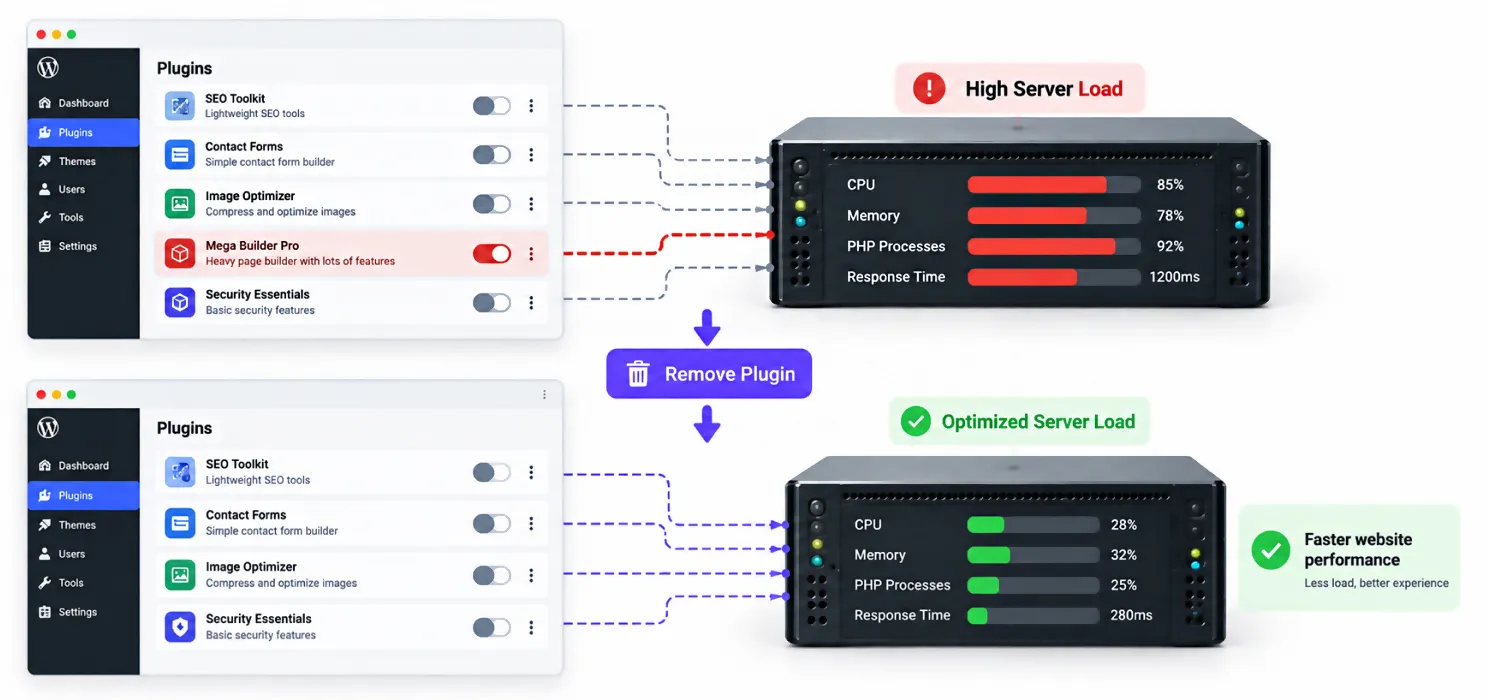
Not all plugins affect TTFB equally. Some run background tasks constantly, checking for updates or scanning content on every page load, which quietly increases server processing time with each visit. A single poorly coded plugin that adds three seconds to a request can tie up a worker that could otherwise have served over a dozen cached pages in the same window.
Regularly reviewing your active plugins and removing anything you’re no longer using is one of the simplest fixes on this list, and one of the most commonly skipped.
Fix 8: Use a CDN that caches HTML at the edge, not just static assets
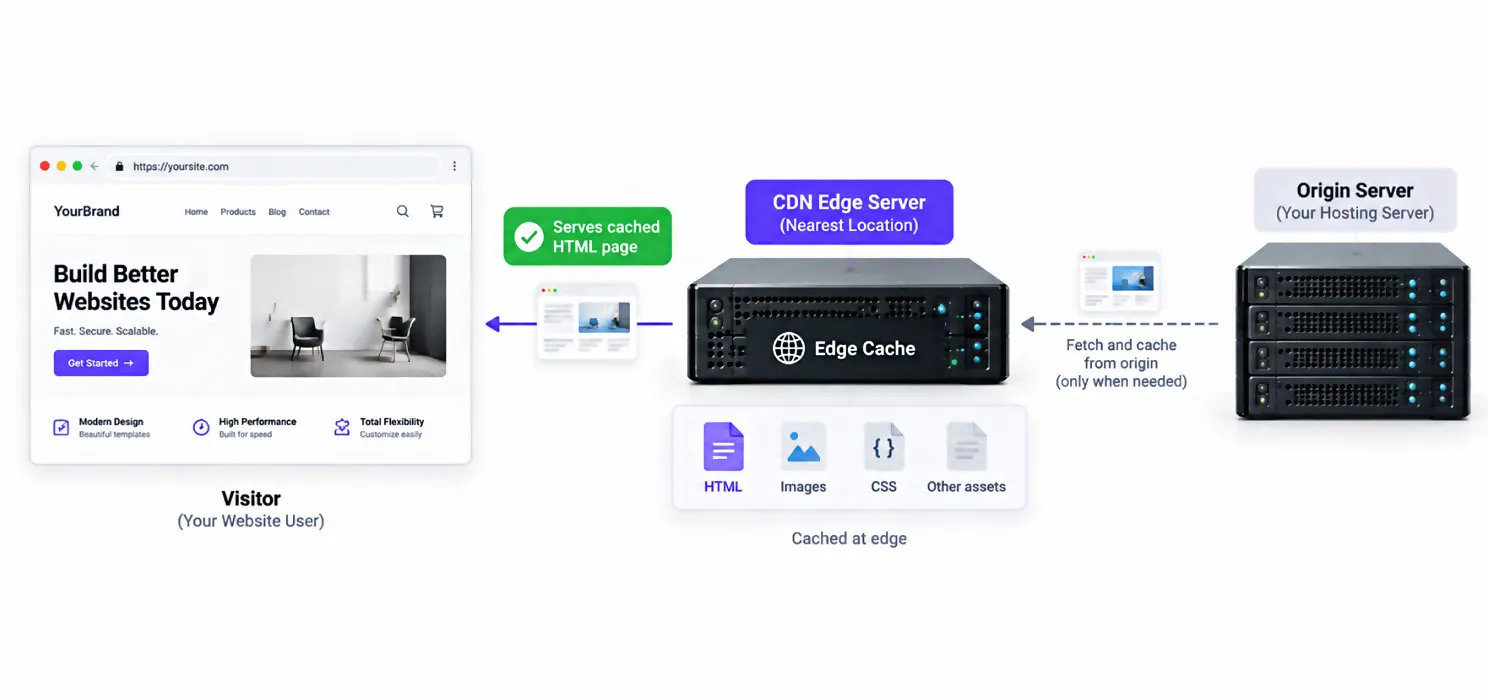
A CDN that only serves images and CSS files does nothing for your TTFB, since your HTML still has to come from your own server either way. To actually reduce TTFB, you need edge caching that serves the full HTML page from a location near your visitor.
This typically means a CDN paired directly with your caching setup, so the two work together rather than one only handling assets while the other handles nothing.
Fix 9: Address DNS and TLS overhead last
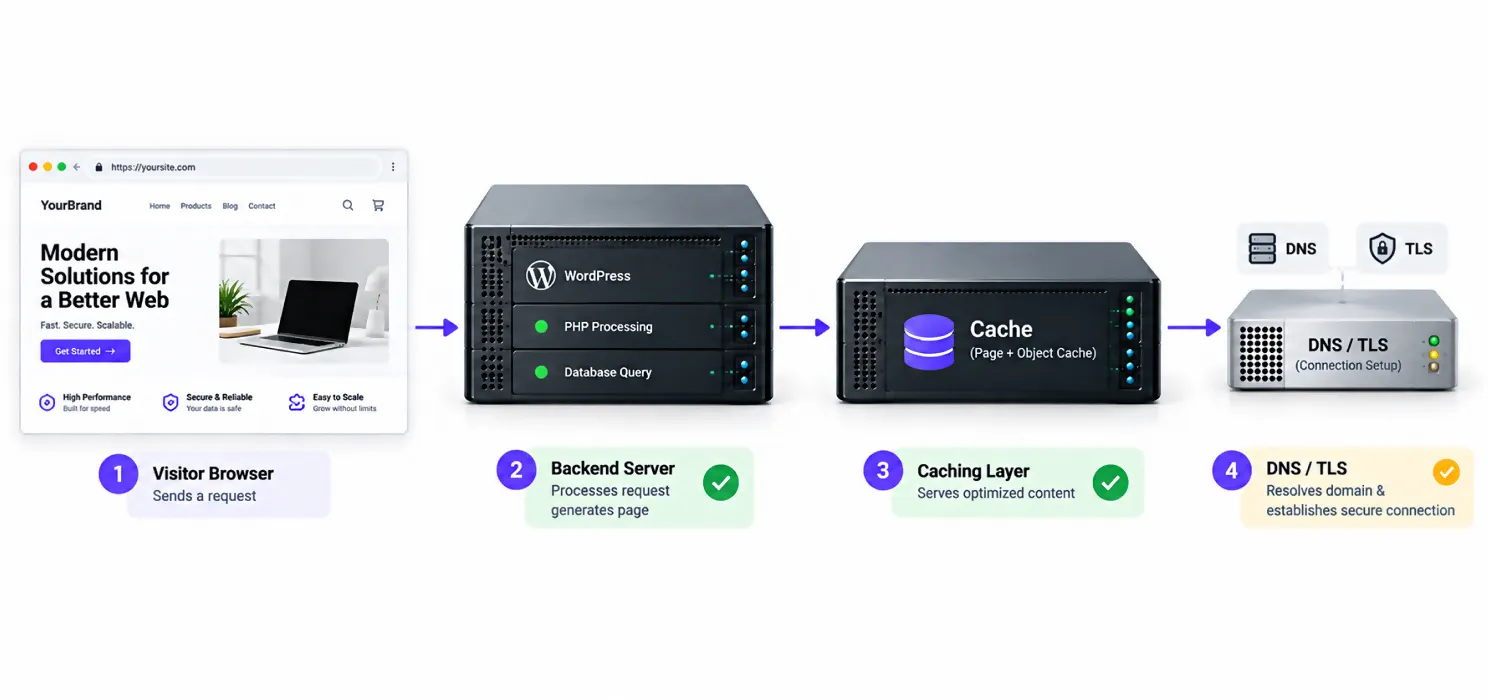
DNS lookup time and TLS handshake overhead do contribute to overall response time, but they offer the smallest marginal improvement compared to everything above. Fix your backend and caching first, then come back to DNS and TLS optimization once the bigger wins are already in place.
Which fix should you actually prioritize?
Not every fix delivers equal value for equal effort. Here’s how the nine stack up against each other:
| Fix | Effort | Typical TTFB Impact |
| Full-page caching | Low | High, often 50 to 70 percent reduction |
| Object caching (Redis/Memcached) | Medium | High, especially for logged-in pages |
| Upgrade PHP + enable OPcache | Low | Medium to high |
| Database cleanup | Medium | Medium |
| CDN with edge HTML caching | Medium | Medium to high |
| PHP-FPM worker tuning | Low | Medium |
| Plugin audit | Low | Medium |
| Better hosting | High (cost) | High |
| DNS/TLS optimization | Low | Low |
The pattern is clear: the highest-impact fixes are also some of the lowest-effort ones. That’s why caching and object caching consistently top every credible TTFB guide, while DNS and TLS tuning sit at the bottom of most priority lists.
What if TTFB is still high after trying all of this?
If you’ve worked through this list and TTFB remains stubbornly high, the problem is usually a backend issue that needs direct diagnosis rather than another setting to toggle. That’s exactly the gap covered in our guide on when a WordPress speed optimization service is actually worth it, since database queries and hosting-level bottlenecks sometimes need a developer to look at the specific site rather than a general checklist.
A practical example
A membership site had full-page caching active and a homepage that loaded quickly, but logged-in members reported the dashboard felt sluggish every time they logged in, and TTFB on those pages measured over 900 milliseconds.
The page cache was working exactly as intended for the homepage, since anonymous visitors never touched the slow parts of the site. The dashboard, however, was entirely dynamic and hit the database on every single load, with no object cache in place to store repeated query results. Setting up Redis-based object caching brought dashboard TTFB down to under 200 milliseconds, without changing a single line of the site’s actual code.
The lesson holds across most TTFB problems: the fix that helps your homepage often doesn’t help your most important, most dynamic pages, and it’s worth checking both separately rather than assuming one number represents your whole site.
Frequently Asked Questions
What is a good WordPress TTFB?
Google considers server response time good under 200 milliseconds and poor above 600 milliseconds. For total TTFB including DNS and connection overhead, under 800 milliseconds is a reasonable target. Cached pages should typically sit well under 100 milliseconds.
How do I improve Time to First Byte on WordPress specifically?
Start with full-page caching, since it typically cuts TTFB by 50 to 70 percent on its own. From there, add persistent object caching for logged-in pages, upgrade your PHP version with OPcache enabled, and clean up database bloat from old revisions and autoloaded options.
What is considered WordPress server response time, and how is it different from TTFB?
Server response time and TTFB are closely related but not identical. Server response time specifically measures how long your server takes to process a request before sending a response, while TTFB includes that plus DNS lookup and connection setup time. Both point to the same underlying backend performance.
Can a caching plugin alone fix high TTFB?
For anonymous, non-logged-in traffic, yes, often dramatically. For dynamic pages like checkout, membership dashboards, or the WordPress admin area, page caching doesn’t apply, and persistent object caching or backend fixes are needed instead.
Why is my WordPress TTFB still high even with a CDN?
Most CDNs only cache static assets like images, CSS, and JavaScript files, not the actual HTML page. If your CDN doesn’t cache HTML at the edge, your TTFB won’t improve, since the browser still has to wait for the full page to come from your origin server.
Does upgrading my hosting plan actually reduce TTFB?
Yes, meaningfully. Shared hosting TTFB commonly averages 400 to 800 milliseconds, while cloud hosting with dedicated resources typically runs 80 to 150 milliseconds. If you’ve already addressed caching and TTFB remains high, hosting is usually the next bottleneck.
How often should I check my WordPress site's TTFB?
Checking after any major change, a new plugin, a theme update, a traffic spike, or a hosting migration is good practice. Tools like GTmetrix, Pingdom, or WebPageTest can measure TTFB directly, and regular monitoring catches regressions before they become a persistent problem.