5 mins read
How to Fix Render-Blocking Resources in WordPress
Share Article :


Quick summary
That “eliminate render-blocking resources” warning in PageSpeed Insights confuses many site owners. This guide explains it in plain English. You will learn what blocks your page, which files are safe to defer, how to fix render blocking CSS and JavaScript in WordPress, and how to avoid breaking your design. A checklist is included at the end.
Imagine a visitor walks into a restaurant. The waiter is ready. The table is set. But the waiter cannot bring a single menu until the cook finishes every dish in the kitchen.
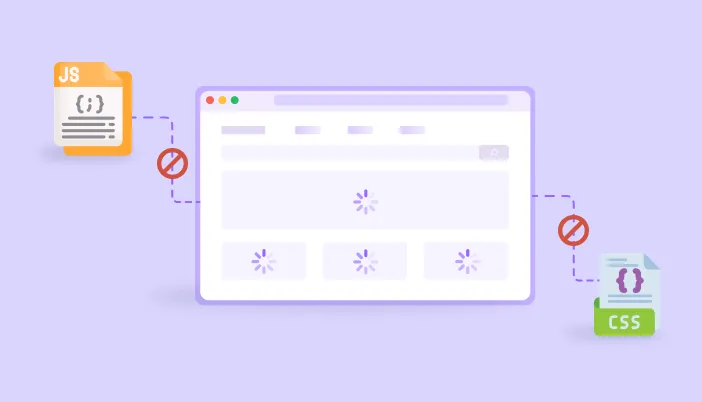
That is what render-blocking does to your website. The browser has content ready to show, but it must wait for certain files to finish first. The visitor sees a blank white page.
Let’s find out which files are causing the wait, and how to move them out of the way.
What are render-blocking resources?
When a browser opens your page, it reads the HTML from top to bottom. When it meets certain files, such as CSS stylesheets or JavaScript files in the head, it stops and waits until they download and run. Only then does it continue drawing the page.
Those files are called render-blocking resources. Google’s Lighthouse tool flags them in itsrender-blocking resources audit, and this is the warning you see in PageSpeed Insights.
A typical WordPress site can have dozens of them. Your theme adds a stylesheet. Each plugin adds its own styles and scripts. Page builders add more.
Why does it hurt speed and SEO?
Blocking delays the moment your visitor first sees something. That moment is measured as First Contentful Paint (FCP), and Google says a good FCP is 1.8 seconds or less. It also pushes back Largest Contentful Paint, one of the three Core Web Vitals.
A blank screen feels slow, even if the total load time is fine. People leave before they see your content, and Google notices how visitors experience your pages.
What is blocking your WordPress page?
Run your page through PageSpeed Insights or the free SpeedyGo speed test. The report lists each blocking file and how long it delays the page. Here are the usual culprits and what to do about each.
How to fix render-blocking resources: 6 steps
Step 2: Remove what you do not need
The best fix is deleting the file altogether. Go through your plugins. If one adds scripts and styles to every page but you use it on just one, remove it or limit it to that page. Fewer files means fewer blockers.
Step 3: Minify your files
Minifying removes spaces, line breaks, and comments, so the files are smaller and download faster. SpeedyGo offers CSS minification, JavaScript minification, and HTML minification. Smaller files block the page for a shorter time.
Step 4: Defer JavaScript
Fix render-blocking JavaScript by telling the browser to download the script in the background and run it after the page is built. That is what the defer setting does. The MDN script guide explains how defer and async differ, and WordPress 6.3 added a way to set a defer strategy for scripts.
You do not need to edit code by hand. SpeedyGo’s defer scripts feature applies this across your site. For heavy extras like chat widgets and trackers, use JS interaction delay, so they load only when the visitor taps, scrolls or moves the mouse.
Step 5: Handle your CSS
CSS is trickier, because the page needs some of it right away. The idea is simple: load the styles for the top of the page first, and the rest later. This is often called critical CSS.
Start with the safe steps. Minify your CSS, remove unused CSS where possible, and use CSS optimization settings from the docs. If you choose CSS combination, test carefully, since merging files can change how styles load. For a safe start, pick from the optimization presets.
Step 6: Test everything
Run your speed test again and compare. Then click through your pages. Open the menu, use the slider, fill in a form, and on a store, go through the cart. Check the page on a phone too. Once your scores improve and everything works, you are done.
A real-life example
A small law firm has a WordPress site with a heavy theme and six plugins. PageSpeed shows a list of blocking files, and the page stays white for almost three seconds on a phone.
The owner removes two plugins they no longer use, minifies the CSS and JavaScript, and defers scripts. They delay the live chat widget until interaction. Then they check the home page, contact form and menu on two phones.
The white screen shrinks to about a second and a half. The design looks identical, and the warning shrinks to only the few files that truly must load first.
Common mistakes to avoid
The biggest mistake is chasing zero warnings. Some files must load early. A page that looks right and feels fast is the real goal.
The second is changing every setting at once. If something breaks, you will not know which change did it. Go one step at a time.
The third is forgetting the cache. After changes, clear your cache and test in a private browser window. For more speed guides, see theSpeedyGo blog.

Frequently Asked Questions About Render-Blocking Resources
Find out what render-blocking resources are, how to fix them in WordPress, when to defer JavaScript, how to optimize CSS, and how to improve page loading speed.
What are render-blocking resources?
They are files, usually CSS and JavaScript, that the browser must download and process before it can show your page. They can leave visitors staring at a blank screen.
How do I fix render blocking resources in WordPress?
Remove unused plugins, minify CSS and JavaScript, defer scripts, delay non-essential ones, and optimize how CSS loads. Test your design after each change.
Can I remove all render-blocking resources?
No, and you should not try. CSS for the top of your page has to load early. Focus on removing or delaying what is not needed at the start.
Will deferring JavaScript break my site?
Sometimes. Scripts that depend on each other can fail if the order changes. Test menus, sliders and forms, and exclude any script that breaks.
What is the difference between defer and async?
Both load scripts in the background. Defer runs scripts in order after the page is built, while async runs each one as soon as it is ready, in any order.
Does SpeedyGo fix render-blocking resources?
SpeedyGo offers CSS and JavaScript minification, defer scripts, JS interaction delay and CSS optimization, which help reduce render-blocking files. Start with a preset and test your pages.