5 mins read
DIY WordPress Speed Optimization Checklist: What Can You Fix Without a Developer?
Share Article :


Quick summary
You can fix a lot of WordPress speed problems yourself, without writing a line of code. But some jobs really need an expert. This guide gives you a clear DIY checklist, sorts tasks into easy, medium and call-an-expert, and explains how managed WordPress speed optimization compares with doing it alone or using a plugin with human help.
Your site is slow, and you are a busy person. You are not a developer, and you do not want to become one.
The good news is that you probably do not need to. Many speed fixes are just settings and clean-up jobs.
The better news is that you can learn where your skills end and where expert help begins. That saves you time, money and a lot of frustration. Let’s draw that line.
Can you really speed up WordPress without a developer?
Yes, for most of the common problems. Big images, missing caching, too many plugins and heavy scripts can all be handled with a good plugin and some patience.
What you need is the right order and a safety net. Always back up your site before you change anything, and test on staging if your host offers it.
The aim is a site that passes Google’s Core Web Vitals: a fast main content load, a quick response to taps and a stable layout. You do not need a perfect score to get there.
What can you fix yourself, and what needs help?
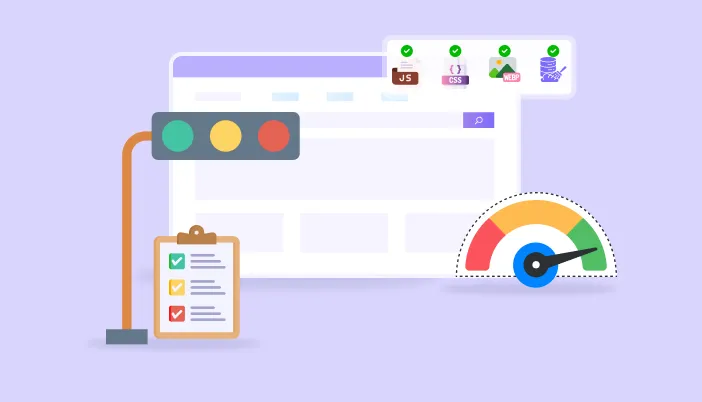
Think of speed tasks in three levels, like traffic lights.
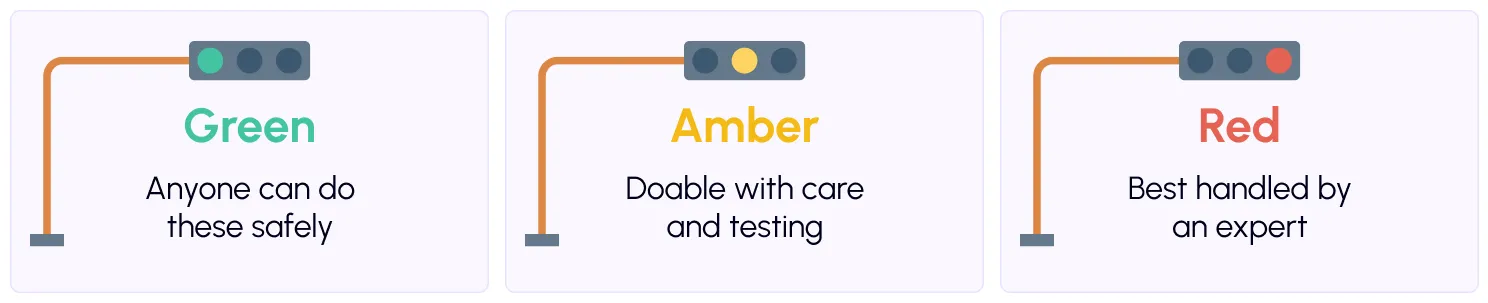
| Did you know? WordPress has a built-in Site Health screen that flags basic issues like outdated PHP. Check it first. It is free and takes a minute. |
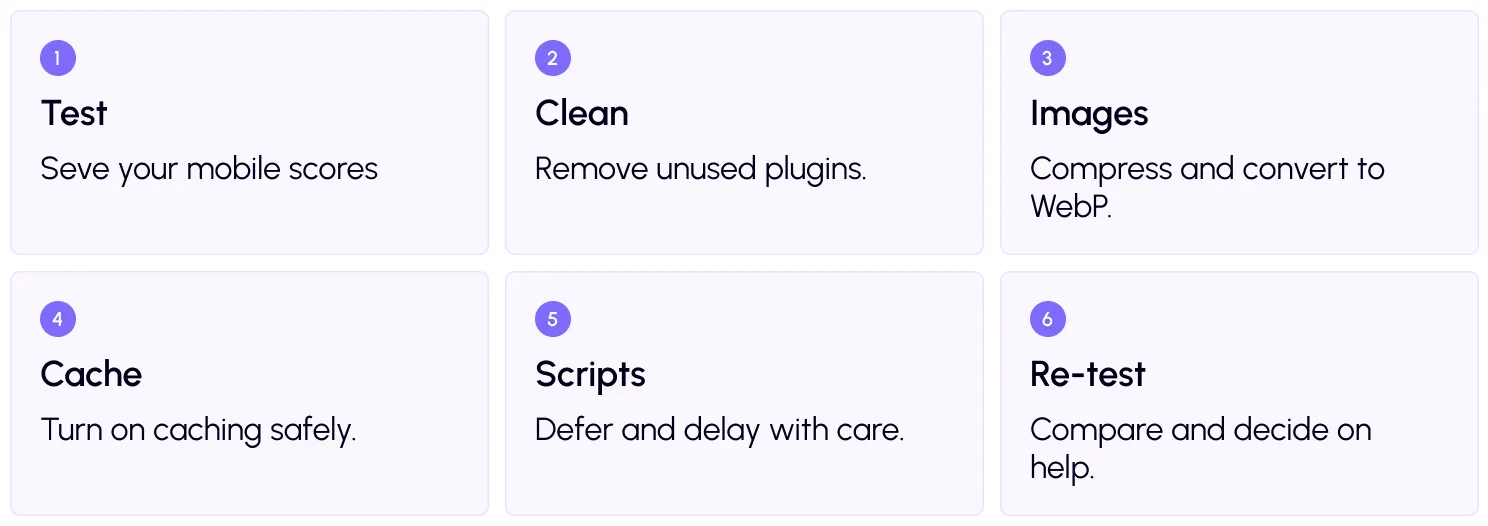
- Test first: Run your key pages through thefree SpeedyGo speed test or PageSpeed Insights. Check mobile scores, and save screenshots of how your pages look. This is your baseline.
- Clean out what you do not use: Go through your plugins and themes. If you have not used something in months, delete it. Each one can add scripts, styles, and database work to every page.
- Fix your images: Images are usually the biggest win. Resize them to the size they show at, and convert them to WebP. With SpeedyGo, you can use WebP conversion and WebP quality control without touching code. Then turn onlazy load, but keep the top image out of it. Google explains why in its guide on not lazy-loading your LCP image.
- Turn on caching: Caching saves ready-made pages so your server does less work. Start with full-page caching and browser caching. The optimization presets give a safe starting point if you are unsure which settings to choose.
- Control your scripts carefully: This is the amber zone. Use defer scripts so the page shows first, and delay JS interaction for chat widgets and trackers. Then click through your menu, forms, and, on a store, checkout. If something breaks, undo that setting. That is your sign to ask for help.
How does DIY compare with managed optimization?
There are three main ways to get your site faster.
- Fully DIY. You use a plugin and do everything yourself. It costs the least, but it uses your time and puts the risk on you.
- Plugin plus human help. You use a plugin, and you can ask real developers when something goes wrong. This sits in the middle on cost and effort.
- Managed WordPress speed optimization. A specialist or agency audits your site, applies the fixes and monitors it. It costs the most, but takes the work off you.
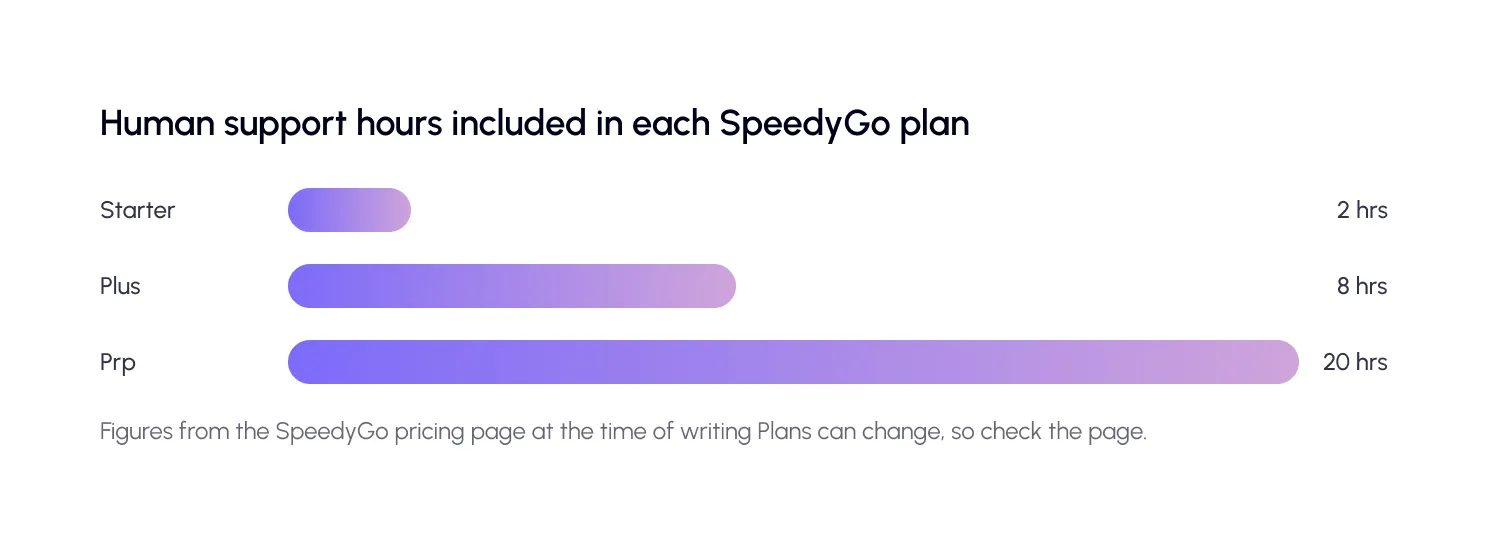
That is the real value of a WordPress speed service vs plugin choice. A plugin alone is cheap. A service alone is costly. A plugin with real people behind it gives you both.
What are the signs it is time to call a professional?
Do not feel bad about needing help. Experts exist for exactly these moments. Get help if you see any of these signs.
- You have changed settings and things keep breaking. That points to a plugin or theme conflict.
- Your server response is still slow with caching on. IfTime to First Byte stays above Google’s target of about 0.8 seconds, the problem may be hosting or the database.
- Your checkout or logins are affected. These are too important to guess on.
- You have tried everything on the checklist and still fail Core Web Vitals. The cause may be in your theme code or a heavy plugin.
A real-life example
Two site owners both have slow WordPress sites. A food blogger does everything herself. She removes unused plugins, converts images to WebP and turns on caching. Her mobile load time halves in an afternoon.
A store owner follows the same steps, but his checkout starts to lag after he delays some scripts. He is not sure which one caused it. He opens a support ticket, and a developer finds a payment script that should not have been delayed. They fix it in one session.
Both used the same checklist. The difference is that the second owner knew when to stop and ask.

Common mistakes to avoid
The first mistake is switching on every setting at once. Change one thing at a time.
The second is skipping the backup. A few minutes of safety can save days of repair.
The third is waiting too long to ask for help. If you have lost a full day to one problem, a short expert session is cheaper. For more guides, see theSpeedyGo blog.

Frequently Asked Questions
Find answers to common questions about DIY WordPress speed optimization, essential performance fixes, managed services, and when to hire a developer.
Can I optimize WordPress speed myself?
Yes, for most common problems. Use a speed plugin to handle caching, images and scripts, test after each change, and keep a backup.
What speed tasks need a developer?
Slow database queries, server and PHP configuration, plugin conflicts, theme code problems and checkout issues usually need expert help.
What is managed WordPress speed optimization?
It is a service where specialists audit your site, apply the fixes and monitor performance for you. It costs more than a plugin but saves you time.
Is a plugin or a speed service better?
It depends on your site and skills. Many small sites do well with a plugin that includes human support. Large or complex sites may need a full service.
How long does DIY speed optimization take?
A basic round of testing, cleanup, images, and caching can take a few hours. Tuning scripts and fixing problems may take longer.
Does SpeedyGo include human help?
Yes. Paid plans include human support hours, and Plus and Pro also include technical fixes. You can also try the free plan first.