5 mins read
How to Improve WordPress Speed After a Website Redesign
Share Article :


Quick summary
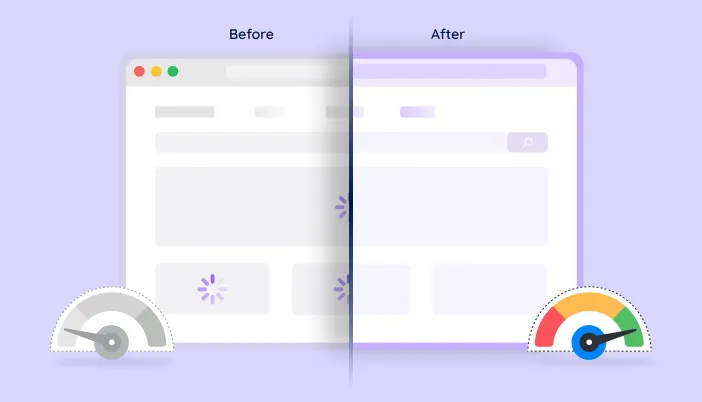
Your new design is live, and it looks great. But it loads slower than the old site. This is common, and fixable. This guide explains why redesigned sites often slow down, how to find the cause, and how to improve WordPress speed after redesign in six clear steps. It also covers how to protect your Google rankings while you do it.
Launch day felt amazing. The new site is modern, bold, and exactly what you asked for. Then you open it on your phone and wait. And wait.
You are not imagining it. Many redesigns launch slower than the site they replace. New themes, bigger images, fancy effects, and extra plugins all pile on.
The good news is that a slow redesign is usually fixed in days, not months. You just need to find out what changed. Let’s do it.
Why do redesigned sites often get slower?
A redesign changes almost everything at once. That makes it easy for speed problems to sneak in. The usual causes are:
- Heavier design choices. Full-screen videos, sliders, animations, and large hero images look impressive but cost a lot of load time.
- A new theme or page builder. Some come with extra code, many widgets, and a larger page structure.
- New or changed images. New designs often use bigger photos, and a new theme may need image sizes that do not exist yet.
- Lost settings. Caching, compression, and image settings may have been reset or no longer match the new theme.
- Leftovers. Old plugins, old theme files, and old scripts may still be loading.
How slow is too slow?
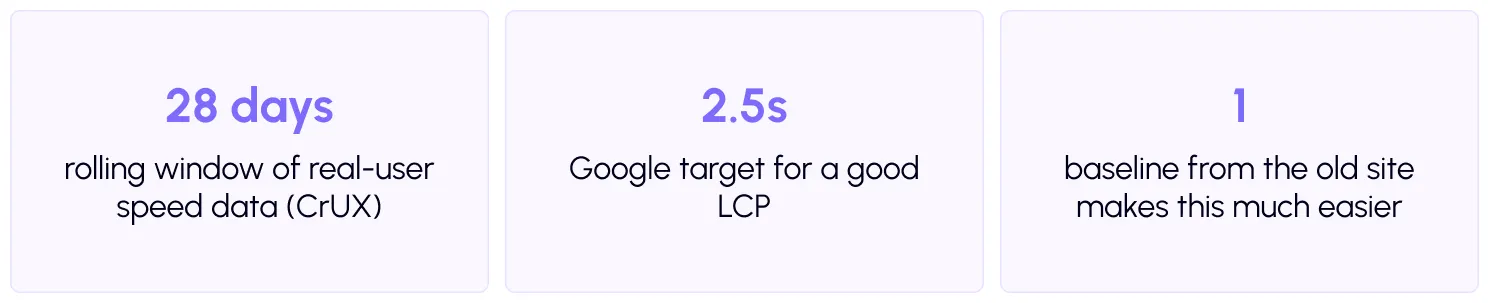
Compare your new site to the old one. If you saved speed scores before the redesign, you are in a strong position. If not, use Google’s targets. A good Largest Contentful Paint is 2.5 seconds or less, and the otherCore Web Vitals have targets too.
It matters because speed affects money. The Google and Deloitte study found that a 0.1 second mobile speed gain lifted retail conversions by 8.4%. A redesign that adds a second or two can quietly cost you leads.

Improve WordPress speed after redesign: 6 steps
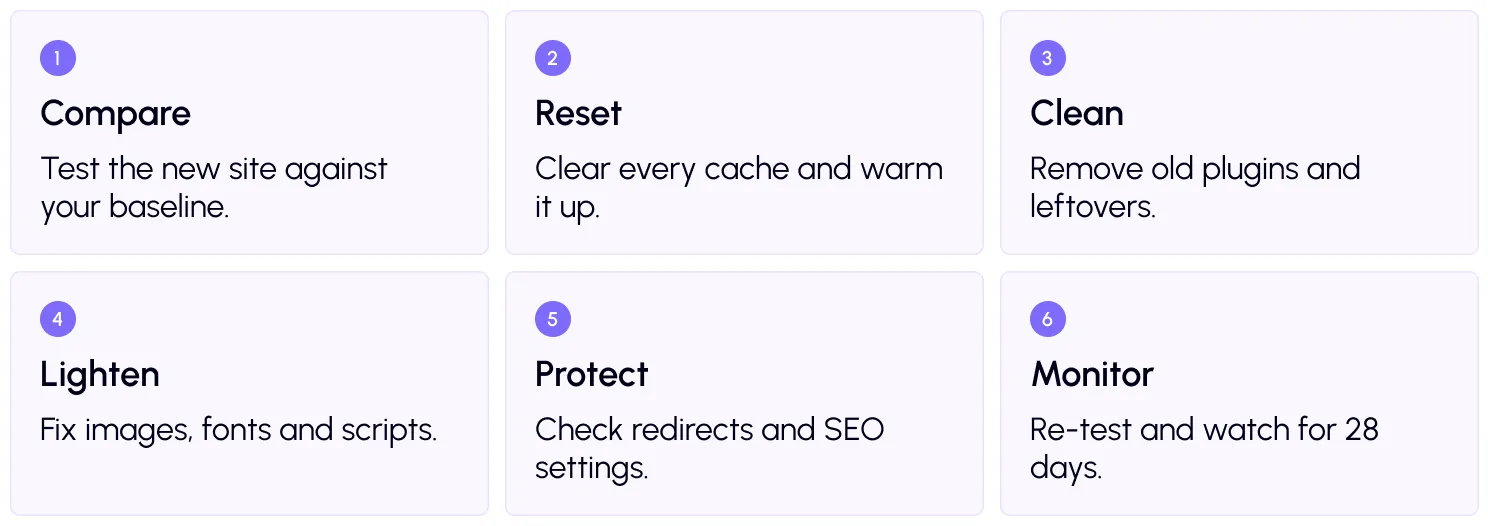
Step 1: Compare with your baseline
Run your key pages through PageSpeed Insights or the free SpeedyGo speed test. Check mobile first. Compare with scores from before the redesign. The pages that dropped the most are where to start.
Step 2: Reset and warm up your caches
A new theme often means an empty or outdated cache. Clear the page cache, then your CDN cache and your host cache. Re-check that full-page caching and mobile caching are on and still match the new design.
Then fill the cache before visitors arrive. Cache preloading and cache warm-up help your first visitors get fast pages. If you saved settings before the redesign, importing your SpeedyGo settings can restore your setup quickly.
Step 3: Clean out leftovers
Check your plugin list. Remove any plugin the new design no longer needs, such as an old slider or builder add-on. Delete unused themes. Old code can keep loading in the background and add weight to every page.
Step 4: Lighten the new design
Now fix the heavy parts. Start with images. Resize them, then use WebP conversion and lazy load for images below the first screen. Keep the top image out of lazy loading, because Google explains that lazy-loading the LCP image slows it down. We cover image formats in more detail on the SpeedyGo blog.
Next, handle scripts. Use defer scripts so the page shows first, and delay JS interaction for chat boxes and trackers. Minify your code with CSS optimization and JavaScript optimization.
Finally, look at design choices. Could a full-screen video become a still image? Do you need six animations on one page? Often a small design change gives a bigger speed gain than any setting.
Step 5: Protect your SEO
Speed is only part of post-launch health. If your URLs changed, make sure each old URL redirects to the right new one. Google’s guide onsite moves with URL changes explains how.
Also check one easy-to-miss setting. Many sites are built on staging with search engines discouraged. After launch, make sure that setting is off in your WordPress reading settings, or Google may not index your new pages.
Step 6: Re-test and monitor
Run your tests again and compare with your baseline and with the numbers from step one. Then keep an eye on Search Console’sCore Web Vitals report for the next few weeks, since real-user data updates slowly. With SpeedyGo Pro,PageSpeed analytics lets you track scores over time.
A real-life example
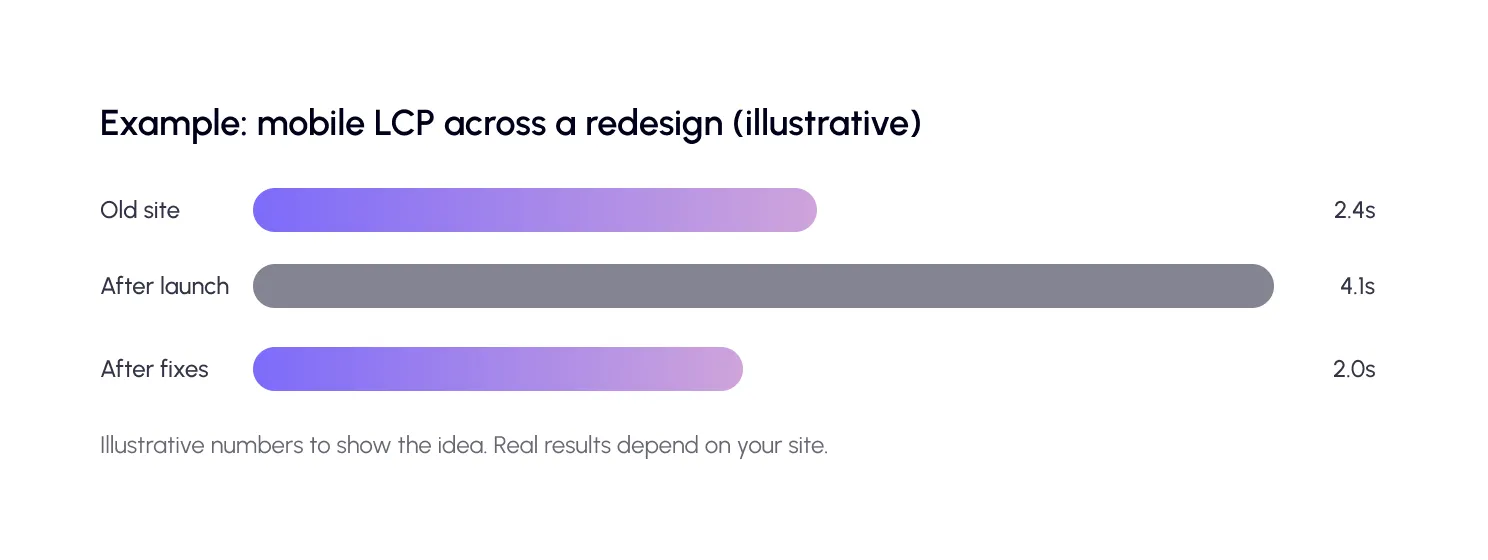
A consulting firm launches a new website. It has a full-screen video, a six-image slider, four fonts, and a new chat widget. On a phone, the main image takes over four seconds to appear. The old site loaded in about two and a half.
The team clears and warms the cache, removes two old plugins, and converts images to WebP. They replace the video with a still image, cut the fonts to two and delay the chat widget. They also double-check redirects and that search engines are allowed.
Within a day, the site is faster than the old one. A few weeks later, the Search Console data shows the improvement too, and no rankings were lost.
Common mistakes to avoid
The first mistake is blaming the host first. Often the new design is heavier, not the server.
The second is forgetting caches. After a redesign, old cached files can hide real results or break the layout.
The third is judging from one test. Run each page a few times, and judge real improvement using real-user data over several weeks.

Frequently Asked Questions
Find answers to common questions about slow WordPress websites after a redesign. Learn how to improve loading speed, optimize images and caching, fix Core Web Vitals, protect SEO rankings, and improve performance with SpeedyGo.
Why is my WordPress website slower after a redesign?
A WordPress website may become slower after a redesign because of larger images, new themes, additional plugins, animations, fonts, and JavaScript files. Caching settings may also have been reset, while unused plugins and scripts from the previous design can continue affecting performance.
How can I improve WordPress speed after a redesign?
Start by testing your website with PageSpeed Insights, then clear and preload caches, remove unnecessary plugins, optimize images, minify CSS and JavaScript, and reduce heavy design elements. Re-test your website to measure improvements.
Does redesigning a WordPress website affect SEO rankings?
Yes. A redesign can affect SEO rankings if it introduces slower loading times, broken links, missing redirects, changed content, or indexing restrictions. Maintaining proper redirects, optimizing Core Web Vitals, and checking Google Search Console can help protect your website’s search visibility.
What is a good loading speed for a WordPress website?
Google recommends a Largest Contentful Paint (LCP) of 2.5 seconds or less, Interaction to Next Paint (INP) of 200 milliseconds or less, and Cumulative Layout Shift (CLS) of 0.1 or less, measured at the 75th percentile of real-user visits.
How do I fix slow images after a WordPress redesign?
Resize oversized images, compress them, use modern formats such as WebP, and enable lazy loading for images below the initial viewport. Avoid lazy-loading the main hero image if it is the Largest Contentful Paint element.
Can caching improve WordPress speed after a redesign?
Yes. Page caching, browser caching, CDN caching, and cache preloading can reduce loading times. After a redesign, clearing outdated caches and enabling cache warm-up can help visitors receive optimized pages.