10 mins read
Why Is My WooCommerce Store So Slow?
Share Article :


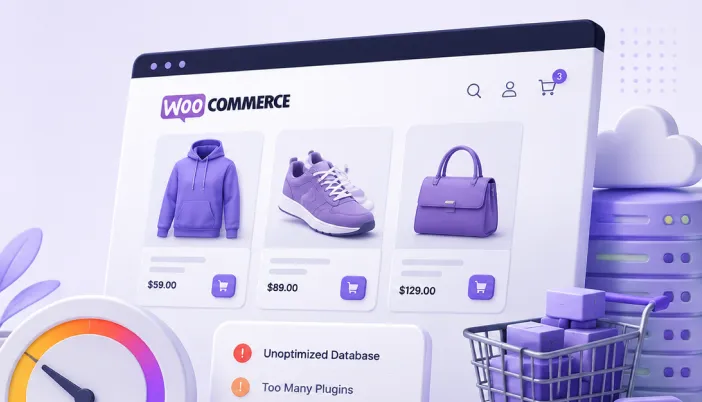
In this blog, you’ll learn why WooCommerce stores slow down as they grow, the most common performance issues affecting online stores, and practical ways to fix them. We’ll also share simple optimization tips to help your store load faster, improve the shopping experience, and increase conversions.
Most WooCommerce store owners notice the slowdown too late.
It doesn’t happen overnight. The store starts with a handful of products and loads quickly. Then you install a few plugins, add more products, connect marketing tools, and launch new features. Each change seems harmless on its own, but together they slowly turn a fast store into a slow one.
The frustrating part is that there’s rarely one thing to blame. It’s usually a combination of small performance issues that build up over time.
Let’s look at the most common reasons this happens, and how to fix them.
Why WooCommerce stores slow down differently than regular WordPress websites
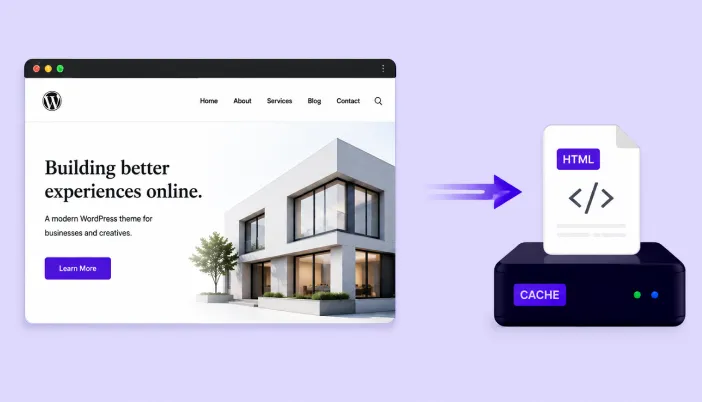
A regular WordPress website mostly serves static pages. Once a page is cached, it can be delivered to visitors very quickly.
WooCommerce works differently.
Every time someone searches for a product, filters a category, adds an item to the cart, updates the quantity, or goes through checkout, WooCommerce has to process that request in real time. These pages can’t simply be served from cache because every customer sees different information.
That’s why an online store puts much more pressure on your server than a standard business website or blog.
The more products, plugins, customer activity, and third-party integrations your store has, the more work your website has to do behind the scenes. If those processes aren’t optimized, your store gradually becomes slower not because WooCommerce is slow, but because the store has outgrown its current setup.
Let’s look at the most common reasons this happens.
1. Your cart and checkout pages can’t be fully cached
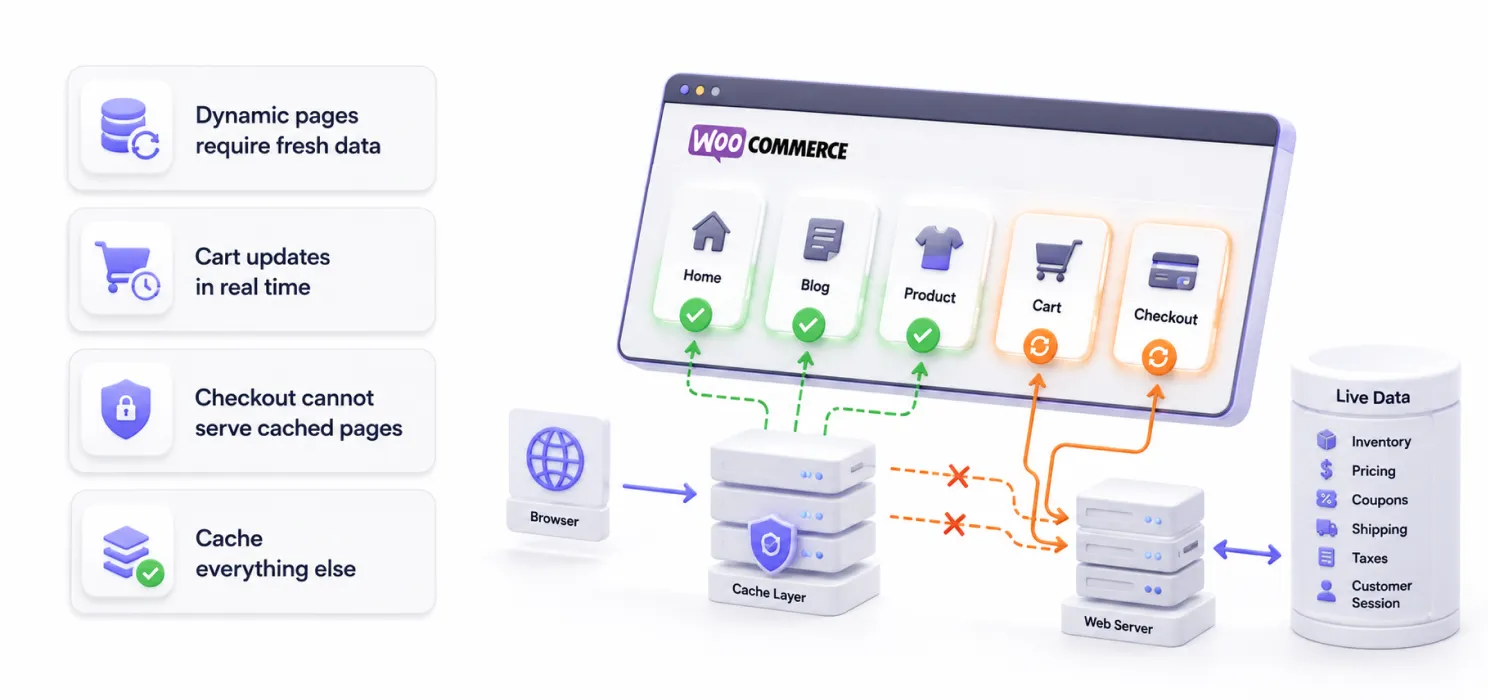
One of the biggest reasons WooCommerce stores feel slower than regular WordPress websites is that some of the most important pages can’t be fully cached.
Think about it. Every customer has a different cart, different products, different shipping options, and sometimes different prices or discounts. Because this information changes from user to user, WooCommerce has to generate these pages in real time instead of serving a pre-built cached version.
This means your server has to work harder every time someone adds a product to their cart, updates a quantity, or starts the checkout process.
A well-optimized server can handle these requests efficiently. But if your hosting, database, or WooCommerce setup isn’t optimized, these dynamic pages quickly become a performance bottleneck, especially during busy shopping periods.
How to fix it:
- Don’t force caching on Cart, Checkout, or My Account pages.
- Use page caching for the rest of your website.
- Optimize your database regularly.
- Use a performance plugin like SpeedyGo to cache pages that can be cached while automatically excluding dynamic WooCommerce pages.
2. Too many plugins aren’t the problem. The wrong ones are.
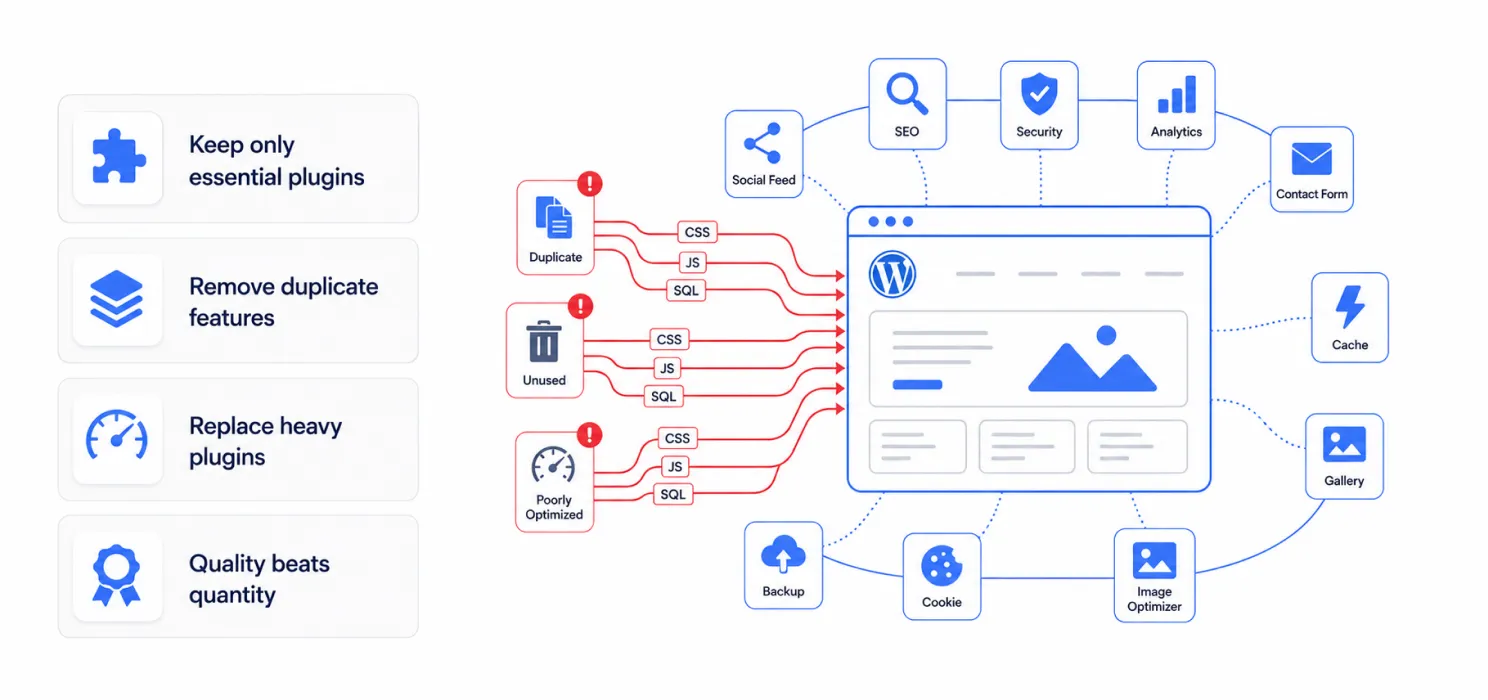
One of the oldest WordPress myths is that more plugins automatically make your website slow.
That’s not entirely true.
We’ve seen WooCommerce stores running 50+ plugins without major performance issues. We’ve also seen stores with fewer than 15 plugins that struggle to load.
The real problem isn’t how many plugins you have, it’s what those plugins do behind the scenes.
Some plugins run database queries on every page, load large CSS and JavaScript files across your entire website, make external API requests, or perform background tasks every time someone visits your store. When several of these plugins work together, the extra load adds up quickly.
That’s why simply deleting plugins doesn’t always make a store faster.
How to fix it:
- Audit your plugins and remove the ones you no longer use.
- Replace heavy plugins with lightweight alternatives whenever possible.
- Disable plugin assets on pages where they aren’t needed.
- Keep all plugins updated to their latest versions.
- Test your website after installing a new plugin instead of assuming it’s harmless.
3. Your database is working harder than you think
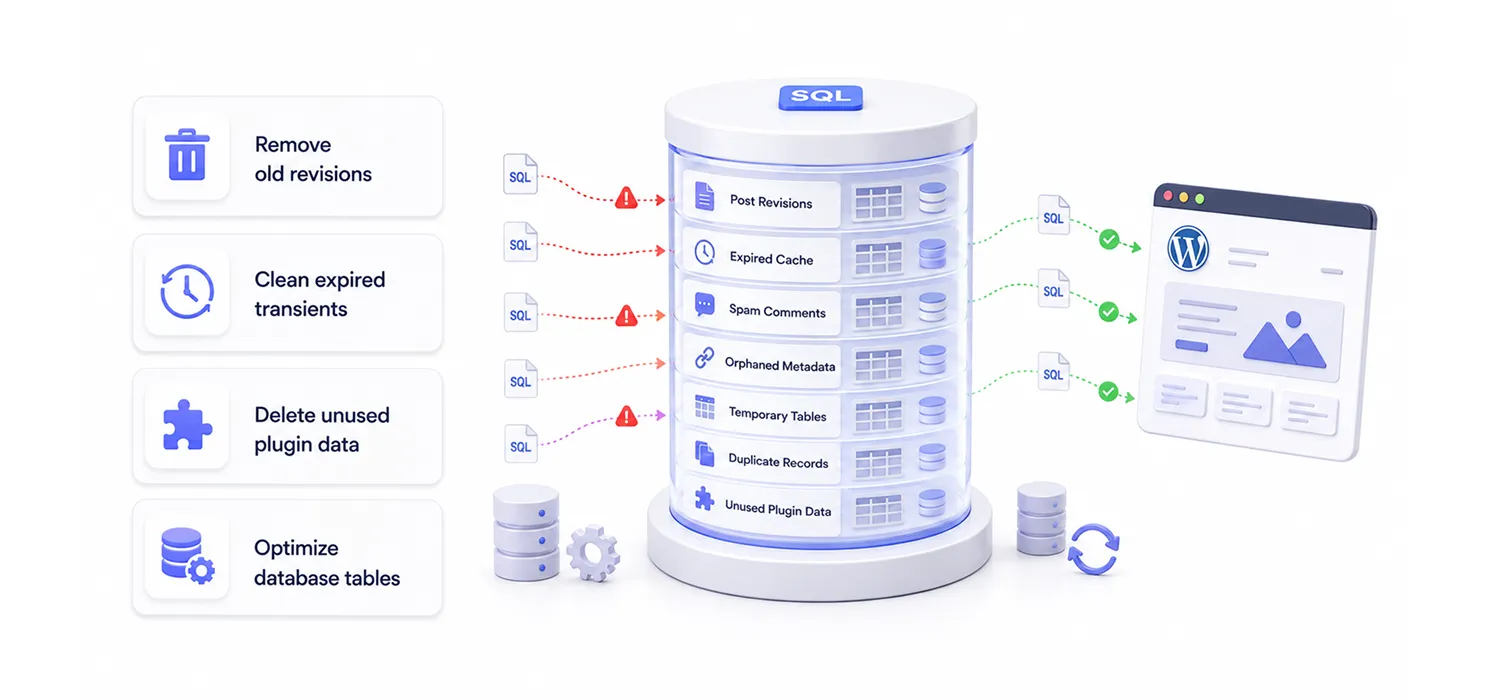
Every action in a WooCommerce store depends on the database.
When someone searches for a product, filters a category, checks stock, logs into their account, or places an order, WooCommerce has to fetch and process data before showing the page.
As your store grows, so does your database. Old revisions, expired transients, abandoned carts, order history, plugin data, and unnecessary records slowly pile up. Most store owners never notice this happening because it builds up over months, not days.
The result? Every request takes a little longer to process, and those extra milliseconds add up across your entire store.
How to fix it:
- Regularly clean expired transients and unnecessary database records.
- Remove old plugin data that is no longer needed.
- Optimize your database tables on a routine basis.
- Limit unnecessary post revisions and autoloaded data.
- Monitor slow database queries if your store has a large product catalog.
4. Third-party scripts can slow down your store more than WooCommerce
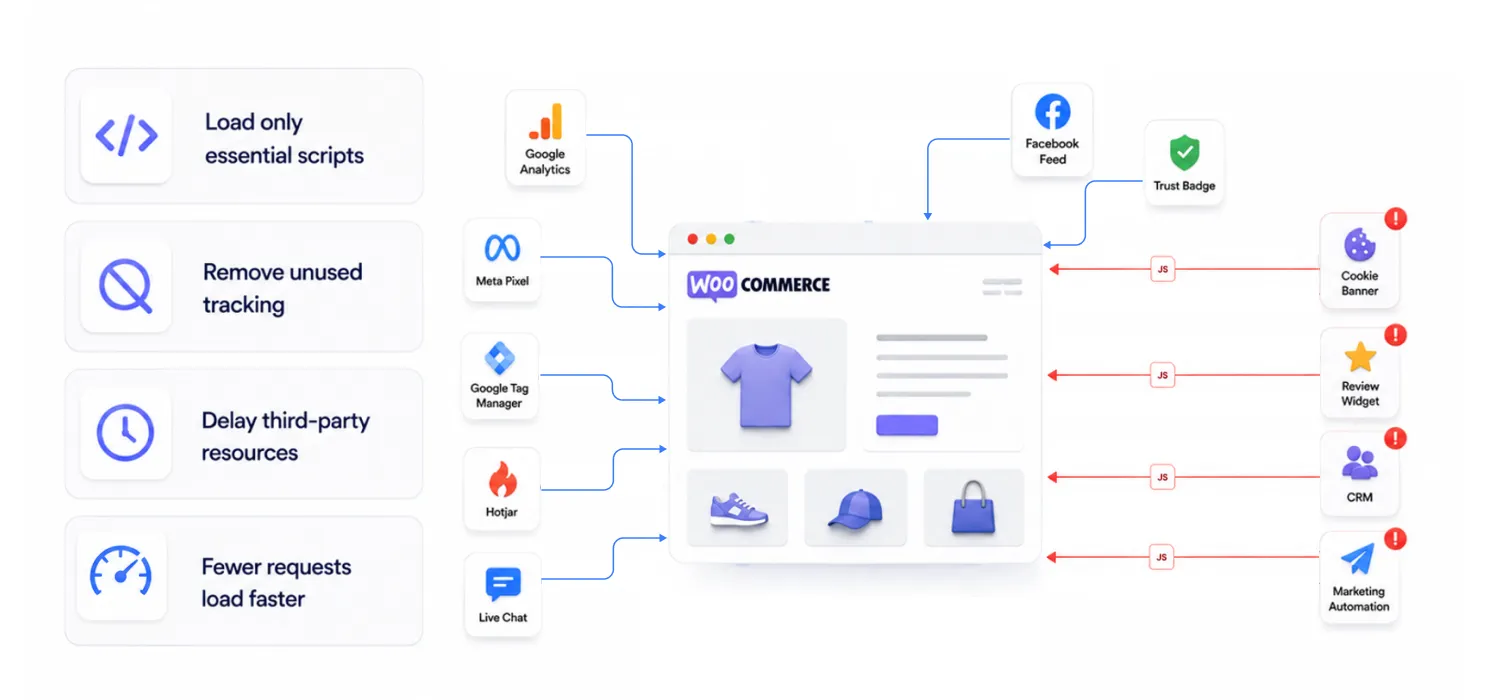
Sometimes WooCommerce isn’t the problem at all.
Many online stores keep adding third-party tools over time, Google Analytics, Meta Pixel, live chat, review widgets, heatmaps, pop-ups, marketing automation, payment tools, and customer support software. Each one seems useful on its own.
The problem is that every script needs to download, execute, and sometimes communicate with another server before your page is fully interactive.
A store with ten different marketing and tracking tools may spend more time loading third-party scripts than loading WooCommerce itself.
That’s why you can optimize your images, cache your pages, and upgrade your hosting, yet your website still feels slow.
How to fix it:
- Remove tracking and marketing tools you no longer use.
- Load third-party scripts only where they’re actually needed.
- Delay non-essential JavaScript until after the main content has loaded.
- Regularly review your website to identify scripts that are hurting performance.
5. Your product pages have become too heavy
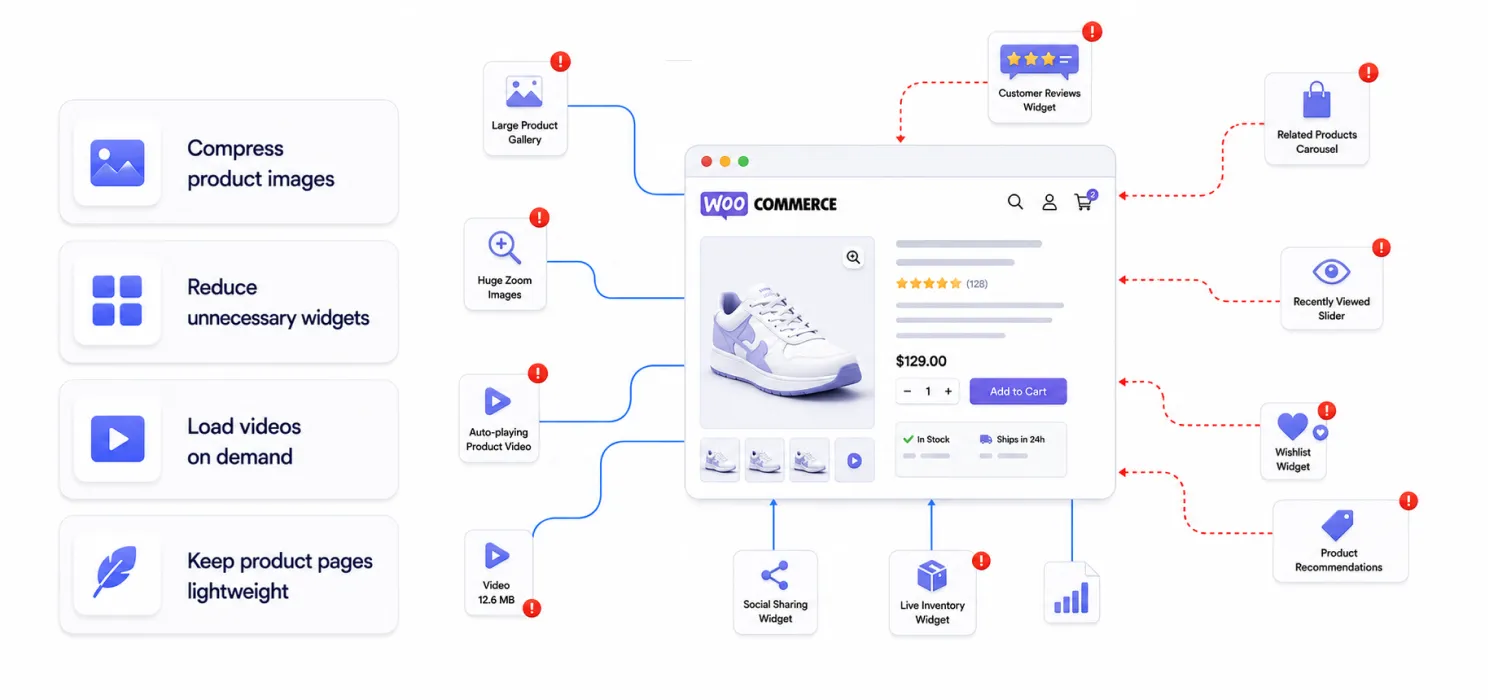
When people think about website speed, they often blame the homepage. In reality, product pages are usually the heaviest pages on a WooCommerce store.
Over time, it’s common for product pages to grow without anyone noticing. High-resolution images, image galleries, videos, variation swatches, related products, reviews, trust badges, countdown timers, recently viewed products, and recommendation widgets all get added one by one.
None of these features are bad on their own. The problem is when they all compete for attention and loading time on the same page.
A product page should help customers make a buying decision, not overwhelm their browser with unnecessary requests.
How to fix it:
- Compress and properly size product images.
- Use lazy loading for galleries and below-the-fold images.
- Remove widgets or sections that don’t add real value.
- Limit the number of related products and recommendations shown at once.
- Test your product pages regularly, not just your homepage.
6. Your search and product filters are doing more work than you realize
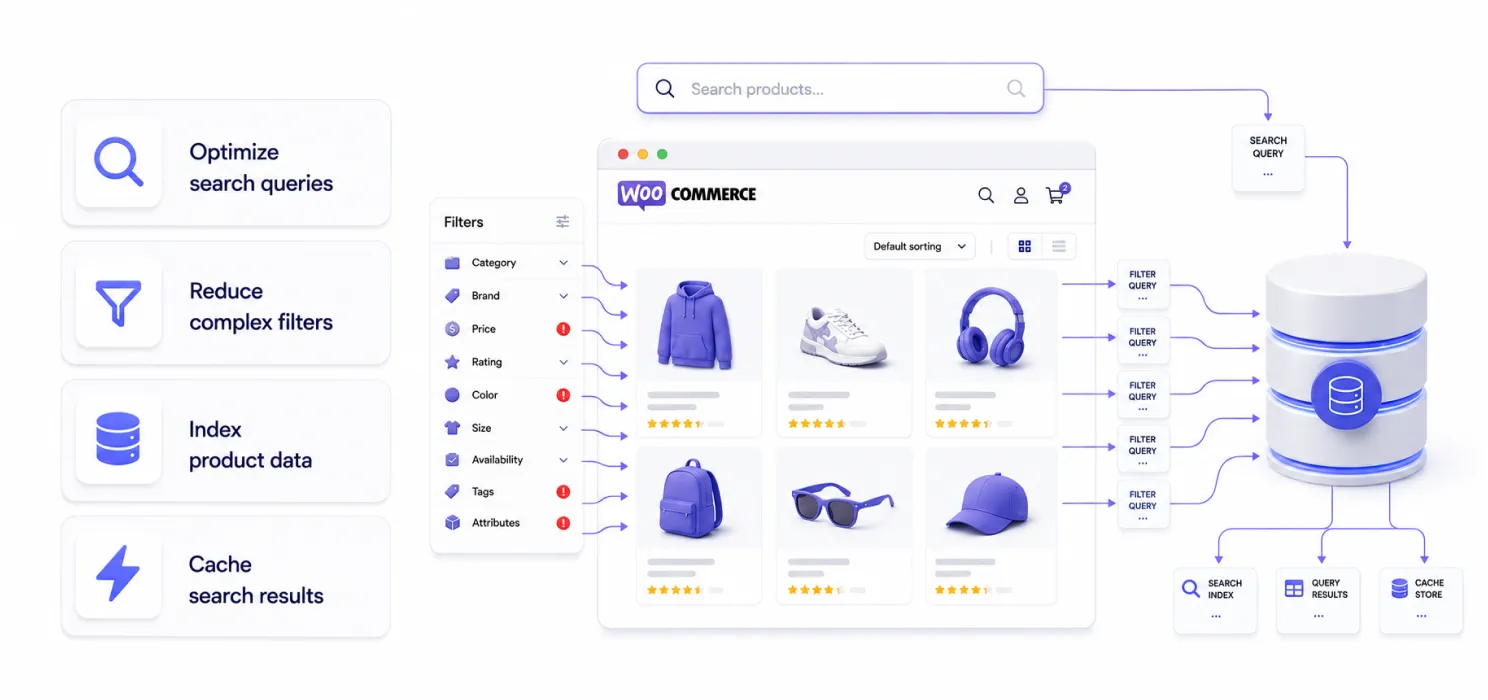
Product search and filters make shopping easier, but they also increase the amount of work your website has to do.
Every time a customer searches for a product or filters by price, brand, size, color, or category, WooCommerce has to query your database and return the right results. On stores with hundreds or thousands of products, these requests can become expensive if they aren’t optimized.
This is why some stores load quickly until a customer starts searching or applying filters. Suddenly, pages take longer to respond, even though the homepage feels fast.
It’s not that WooCommerce is slow, it’s that your search and filtering system is processing more data than your server can handle efficiently.
How to fix it:
- Use an optimized search and filtering solution designed for large product catalogs.
- Keep your product categories, attributes, and variations well organized.
- Regularly optimize your database to improve query performance.
- Monitor search and filter performance as your product catalog grows.
7. Your theme may be built for features, not performance
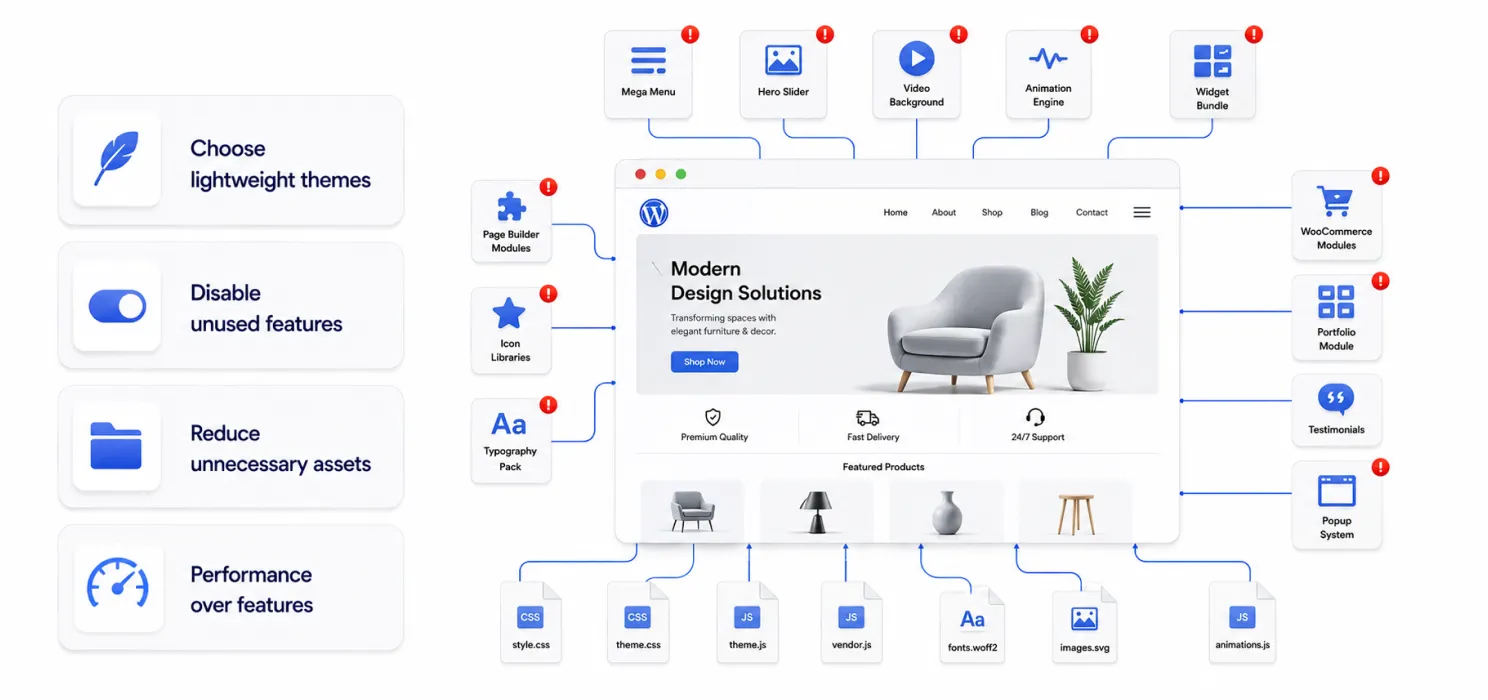
A beautiful WooCommerce theme can help your store stand out, but it can also be one of the biggest reasons your website feels slow.
Many premium themes come packed with sliders, animations, pop-ups, page builders, mega menus, icon libraries, and dozens of features designed to work for every type of store. The catch? Your website loads many of these assets even if you never use them.
Over time, this creates unnecessary CSS, JavaScript, and page bloat that affects every visitor.
A lightweight, well-coded theme often performs better than a feature-heavy theme with options you’ll never touch.
How to fix it:
- Choose a performance-focused WooCommerce theme.
- Disable features and modules you don’t use.
- Remove unnecessary fonts, animations, and icon libraries.
- Test your theme’s performance before adding more plugins to compensate for it.
8. Your store has outgrown its hosting
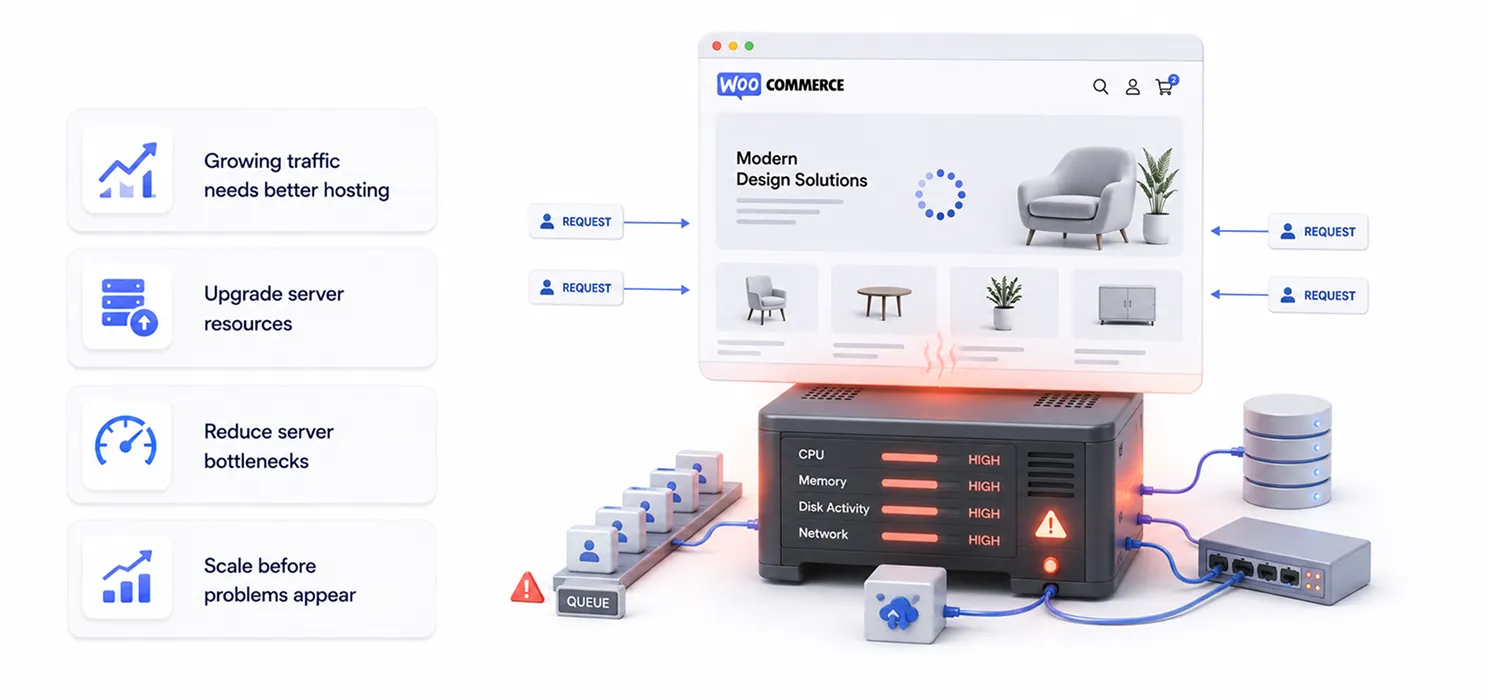
When your WooCommerce store is new, almost any hosting plan feels fast.
But as your business grows, so does the demand on your server. More products, more visitors, more orders, and more background processes all require additional resources. A hosting plan that worked perfectly a year ago may no longer be enough today.
This is why some store owners notice their website becoming slower even though they haven’t made any major changes. The store has simply grown beyond what the server can comfortably handle.
Hosting isn’t always the root cause of a slow WooCommerce store but it can become a bottleneck if your server can’t keep up with increasing traffic and real-time requests.
How to fix it:
- Monitor your server’s CPU, memory, and response times.
- Choose hosting that’s optimized for WooCommerce.
- Upgrade your hosting plan if your store has outgrown its current resources.
- Combine better hosting with proper caching and optimization for the best results.
9. You’re optimizing for speed tests instead of real customers
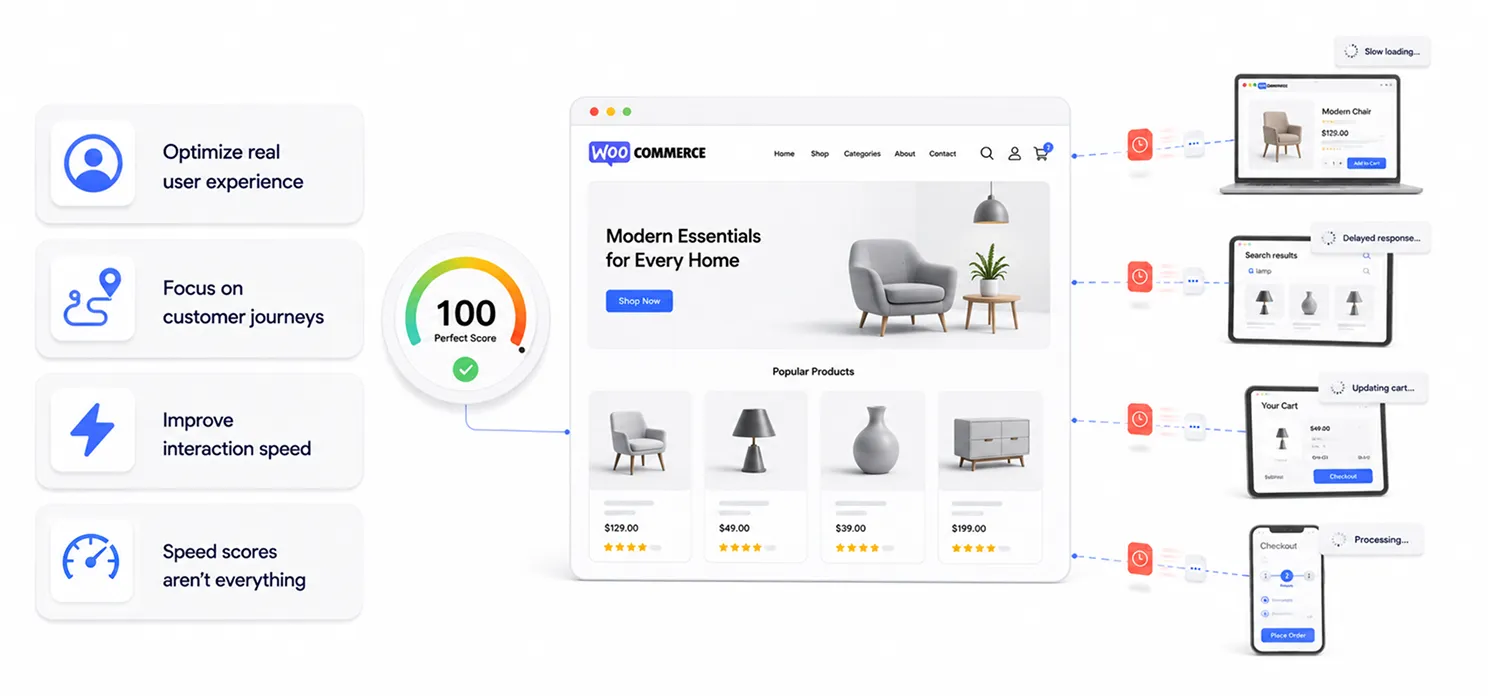
A lot of store owners celebrate when they get a high PageSpeed score.
But your customers don’t see your score, they experience your website.
It’s possible to score well in performance tests and still have a slow shopping experience. Product searches may lag, the cart might take a few seconds to update, or checkout may feel unresponsive. These are real-world interactions that matter far more than a number out of 100.
The goal isn’t to build a website that impresses testing tools. It’s to build a store that feels fast for the people who are actually buying from you.
How to fix it:
- Test your website like a customer, not just with performance tools.
- Check how quickly product pages, search, cart, and checkout respond.
- Use PageSpeed Insights and GTmetrix as guides, not the final measure of performance.
- Focus on reducing delays that customers actually notice during their shopping journey.
Conclusion
A slow WooCommerce store is rarely caused by a single issue. In most cases, it’s the result of several small performance bottlenecks building up over time, dynamic pages, heavy plugins, an overloaded database, third-party scripts, bulky product pages, inefficient search, or a hosting plan that can no longer keep up.
The good news is that you don’t have to fix everything at once. Start by identifying the biggest bottlenecks, make improvements one step at a time, and test the results along the way. Even small optimizations can make a noticeable difference to your store’s speed and your customers’ shopping experience.
If you’re looking for an easier way to optimize your WooCommerce store, SpeedyGo helps improve performance with features like smart caching, code minification, image optimization, Brotli compression, lazy loading, and more, so you can spend less time troubleshooting and more time growing your business.