9 mins read
Which WordPress Pages Should You Exclude From Caching?
Share Article :


| Quick summary This guide explains WordPress cache exclusions in plain words. You’ll learn which pages to exclude from cache, which to leave cached, and how to set rules that keep carts and logins safe without making your site slow. There are charts, a cheat-sheet table, and a checklist. The short answer: exclude only pages that are personal to one visitor. |
Caching is like photocopying a form so you don’t have to write it out again. Great for a flyer. A disaster for a form with someone’s name and address already filled in.
That’s the idea behind WordPress cache exclusions. A cache saves one copy of a page and hands it to everyone. For most pages, that’s perfect. For a few pages, it’s risky.
So which ones should you leave out? Not many, as it turns out. And leaving out too many costs you speed. Let’s find the right balance.
What are WordPress cache exclusions, and why do they exist?
A cache exclusion is a rule that says: “Don’t save or reuse a copy of this page. Build it fresh every time.”
You need these rules because a page cache is a shared copy. MDN, the web standards documentation, puts the risk clearly: if personalized content is stored in a shared cache, other users may be able to retrieve it, which can cause unintentional information leakage.
Here’s what that looks like in practice. Compare a normal page with an excluded one.
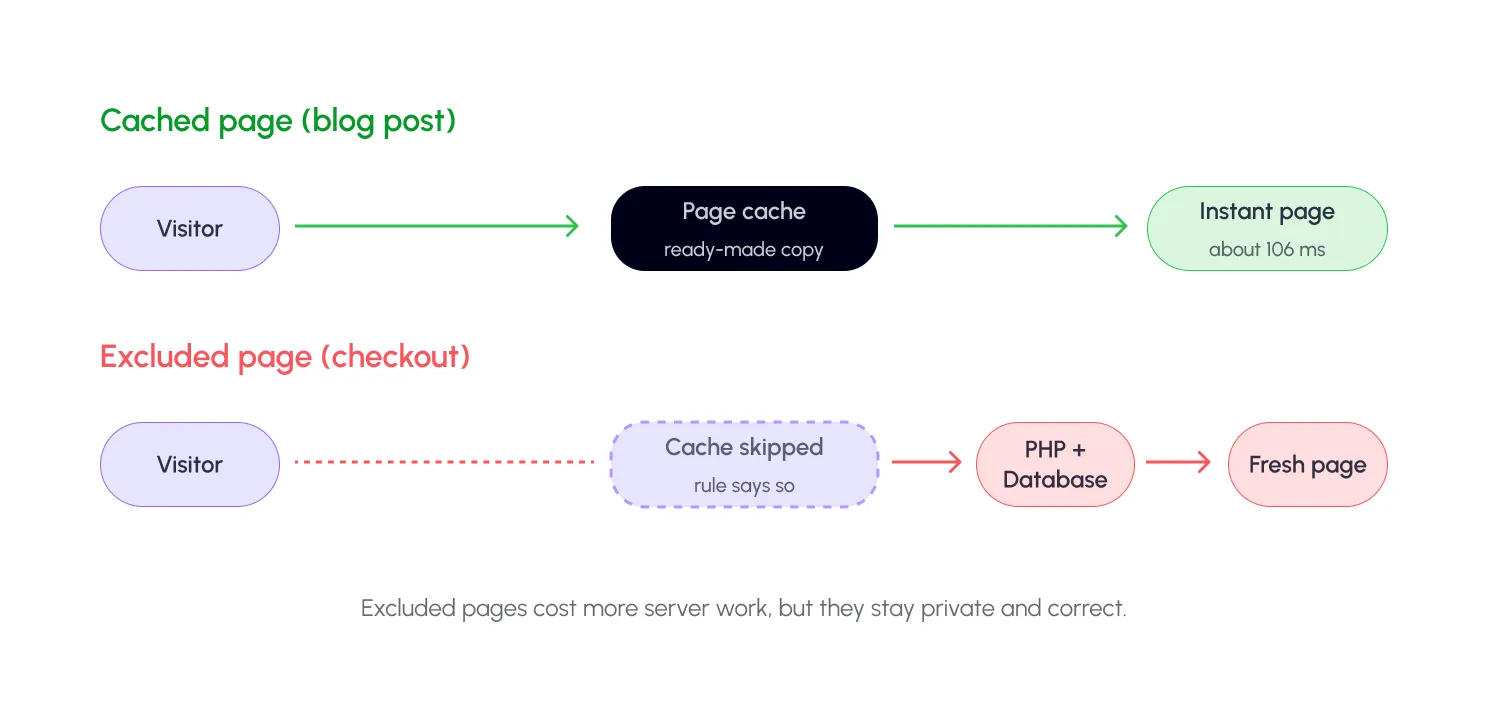
The excluded page is slower. That’s the trade. You’re paying a little speed for a lot of safety, and only where safety matters.
An ounce of prevention is worth a pound of cure.
— Benjamin Franklin
A few well-chosen exclusions are that ounce of prevention. They stop the “wrong cart” and “someone else’s name” problems before they ever happen.
Which pages should you exclude from cache?
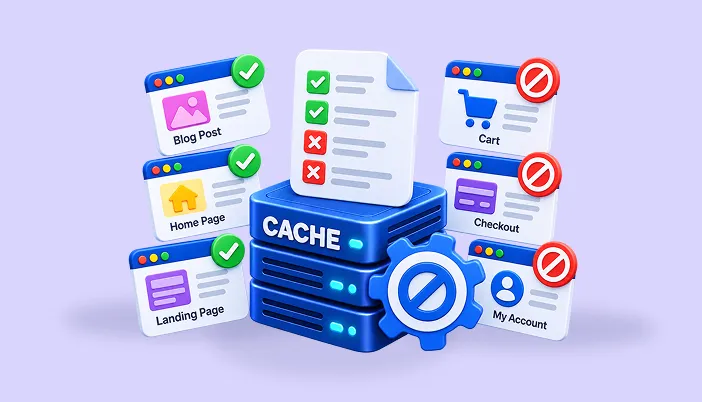
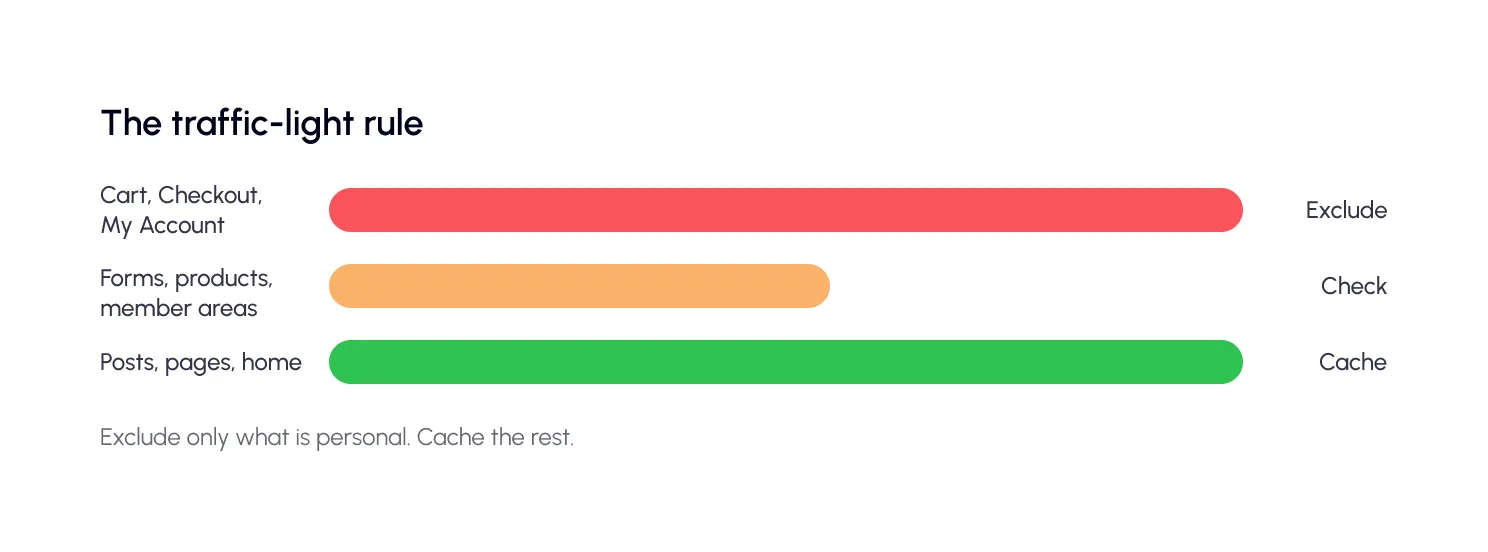
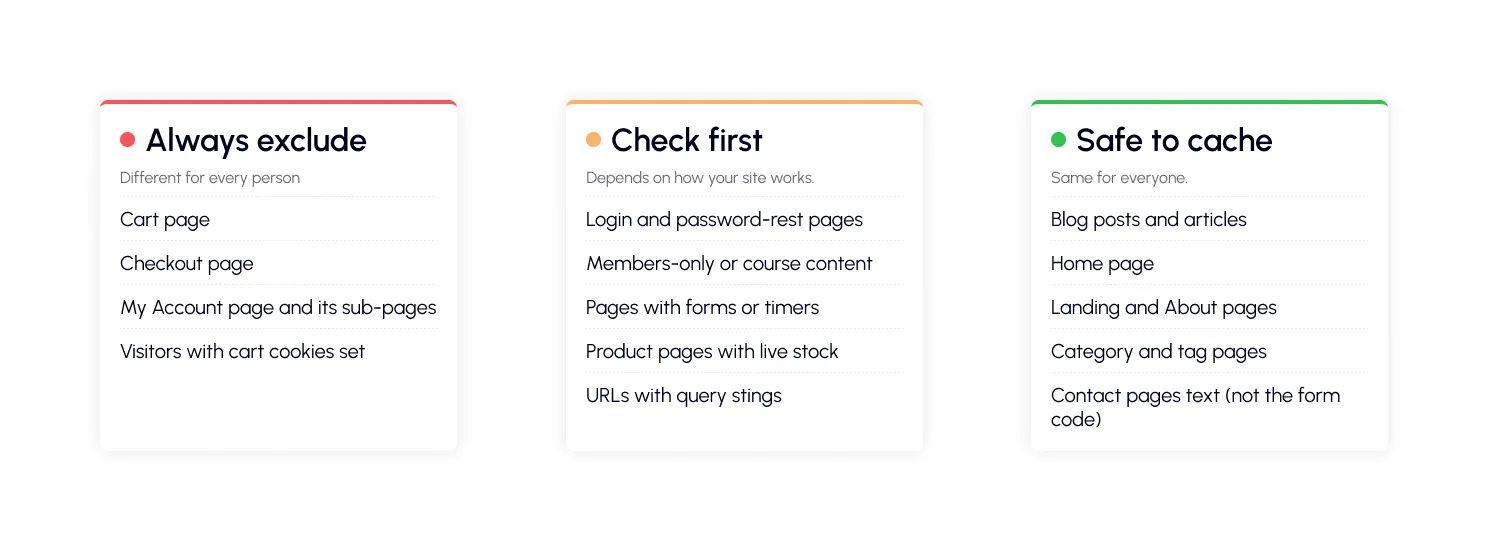
Think of three groups, like a traffic light.
The red list: no debate
WooCommerce is direct about this. Its caching guide says the cart, My Account and checkout pages need to stay dynamic because they show information specific to the current customer.
It also lists cookies your cache should respect. Among them are woocommerce_cart_hash, woocommerce_items_in_cart and wp_woocommerce_session_. When a visitor has these cookies, they have a cart, and they should get their own live page.
The stakes are real. One WooCommerce caching guide warns that a cached checkout page will never show the customer their correct cart. Customers could see other people’s account details or addresses, and trust disappears fast.
The orange list: use your judgment
Here, advice differs from site to site, and that’s okay.
Product pages are the best example. Some guides suggest excluding them because stock and prices change. WooCommerce’s own guide only requires the cart, checkout and account pages. A good middle path: cache product pages, and refresh them whenever price or stock changes.
Login and password-reset pages are another one. If customers have trouble logging in or resetting a password, excluding the account login page is a common fix.
| Did you know? Many caching tools already skip the big ones for you. Nexcess notes that the account area, cart and checkout are “already excluded” by most WordPress cache solutions, and WP Rocket automatically excludes cart and checkout pages for certain ecommerce plugins. Still, check yours. Don’t assume. |
The green list: leave it alone
Blog posts, your home page, landing pages and category pages look identical for every visitor. These are the pages where caching helps most. Don’t exclude them “just in case.”
What does a cache exclusion cheat sheet look like?
Use this table when you set up your rules. The “rule” column shows examples, so match them to your own page addresses.
| Page or request | Exclude? | Example rule | Why |
| Cart | Always | /cart/ | Shows each shopper’s own items. |
| Checkout | Always | /checkout/ | Holds personal and payment details. |
| My Account | Always | /my-account/ and /my-account/(.*) | Account data is private. |
| Cart cookies | Always | woocommerce_items_in_cart, woocommerce_cart_hash | Signals a shopper with a live cart. |
| Login / password reset | Usually | /wp-login.php or your login page | Personal sessions; fixes login glitches. |
| Members-only content | Usually | /members/(.*) | Content differs by user. |
| Query-string URLs | Check | ?add-to-cart=, ?s= | Many plugins skip these by default. |
| Product pages | Maybe not | Cache, then refresh on price or stock change | Advice varies by site. |
| Blog, home, landing pages | No | None needed | Same for everyone. Cache them. |
| Note The example paths are common defaults. Your store may use different page addresses, so check Pages in your dashboard before copying a rule. |
Can too many WordPress cache exclusions slow down your site?
Yes. This is the mistake that quietly kills speed.
Every page you exclude gets built from scratch on every visit. DebugHawk looked at 5.7 million WordPress pageviews. Cached pages had a median server response (TTFB) of 106 ms. Uncached pages sat at 723 ms.

The gap between them is 617 ms. That sounds small until you multiply it by your traffic. Here’s a simple calculation for one page that’s excluded and gets lots of visits.
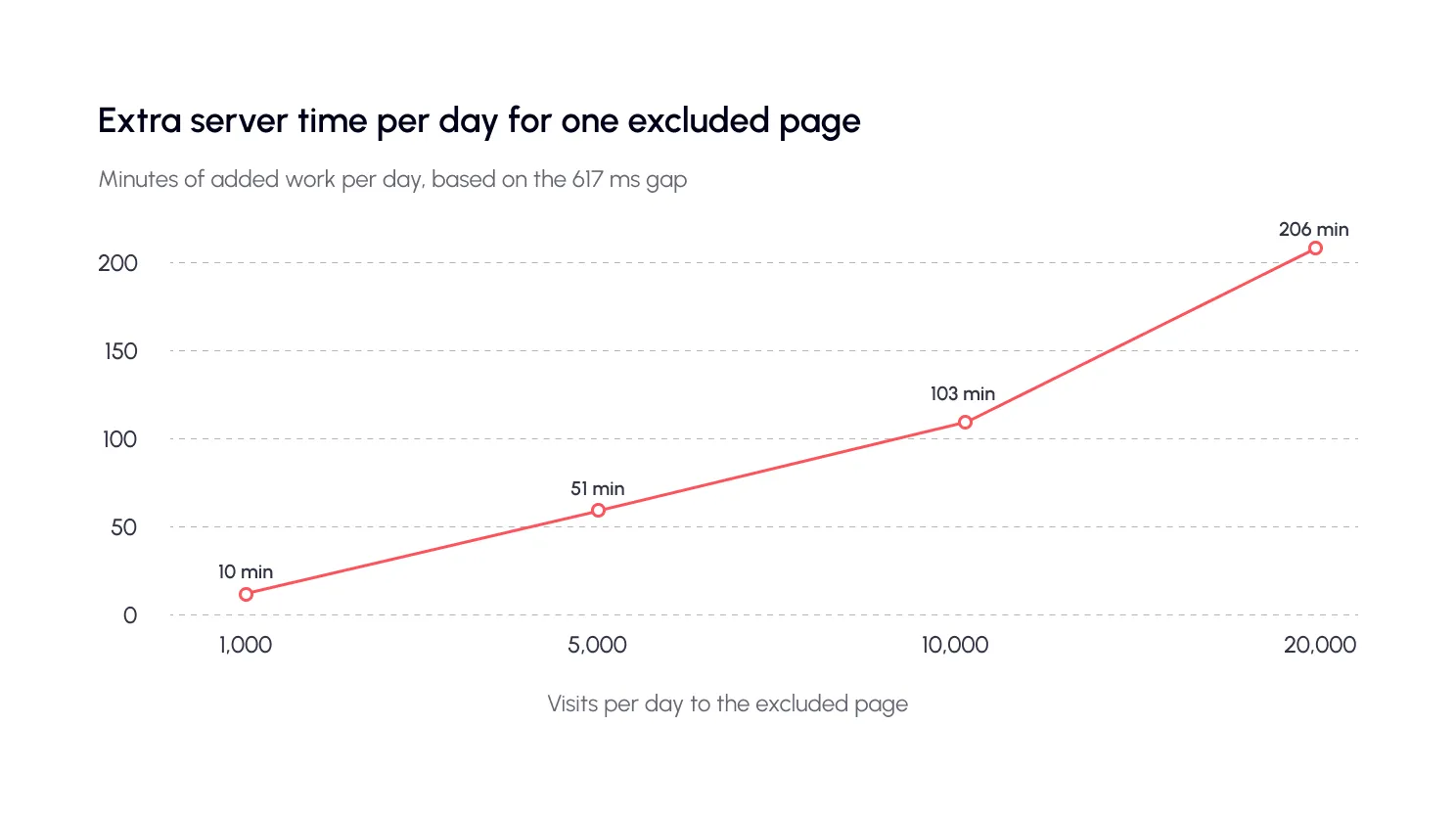
At 10,000 daily visits, one needlessly excluded page adds about an hour and 43 minutes of server work every day. That’s slower for visitors and heavier on your hosting.
| Watch out WP Rocket’s own docs warn that adding /(.*) to its “never cache” box excludes every URL on the site. One careless pattern can switch off caching for your whole website. |
So aim for a short list. In a typical store, only a handful of pages need to skip the cache. Here’s an example of what that looks like.
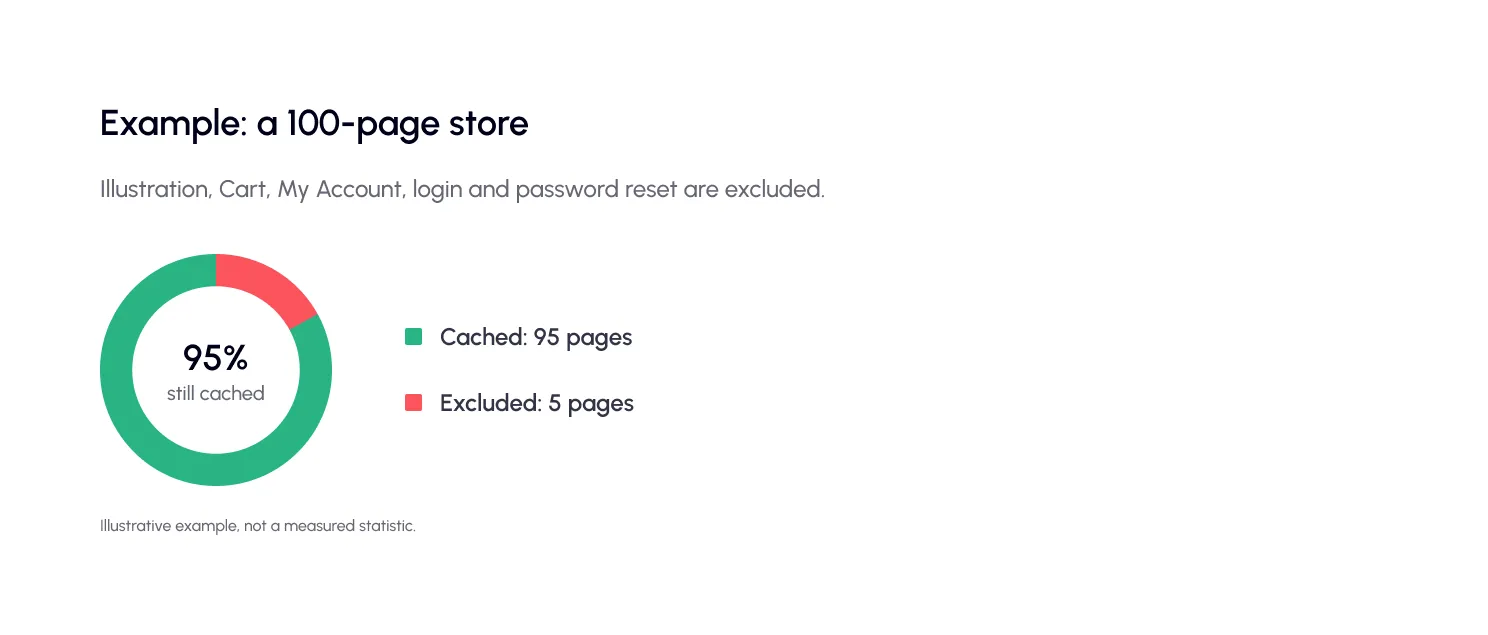
|
How do you exclude pages from cache?
Most caching plugins give you a few ways to do it. You’ll pick based on what you want to skip.
- By page or URL. Add the address to a “never cache” list, one per line. A full URL or just the path both work in WP Rocket, for example.
- By pattern. Use a pattern to cover a whole section. In WP Rocket, /events/(.*) excludes the child pages but not /events/ itself. Add both lines to cover the parent and children.
- By cookie. Skip the cache when a visitor has a cart cookie. This is how shoppers get their own live page.
- By visitor type. Treat logged-in users differently from guests.
| EXAMPLE “NEVER CACHE” LIST /cart/ /checkout/ /my-account/ /my-account/(.*) |
| Tip If your host manages the cache (some managed WordPress hosts do), your caching plugin may not control it. WP Rocket’s docs say that on hosts like Kinsta, WP Engine and Flywheel, you need to ask the host’s support to exclude the path patterns. |
Here’s the process from start to finish.

Skipping step 3 is a classic slip. An old saved copy of your cart page can keep being served even after you add the rule.
| Note: the technical sideBehind the scenes, personal pages should tell shared caches not to keep them. MDN says to use Cache-Control: private for personalized content, and warns against granting no-store too freely because it removes useful browser features like the back/forward cache. Your plugin usually handles this for you. |
What about cache excluded pages: can you still speed them up?
Yes. A page that skips the page cache can still load faster in other ways. Use a persistent object cache for database work, compress files, shrink images and serve static files from a CDN.
One catch: some tools also turn off other optimizations on excluded pages. WP Rocket’s docs note that excluding a page removes it from all other optimizations too. So read your plugin’s notes before you rely on extras.
What do cache exclusions look like on real sites?
A WooCommerce store
Exclude the cart, checkout and My Account pages, plus the cart cookies. Keep product, category and home pages cached. That’s usually it.
A membership or course site
Exclude the members-only content and the login pages. Keep the public sales pages and blog posts cached, since they bring in new visitors.
A blog with a contact form
You probably need no exclusions at all. Keep the cache fresh, and test that the form still sends.
A booking or events site
Exclude the booking and payment steps. Keep the event listings cached, and clear them whenever dates or seats change.
How does SpeedyGo help with WordPress cache exclusions?
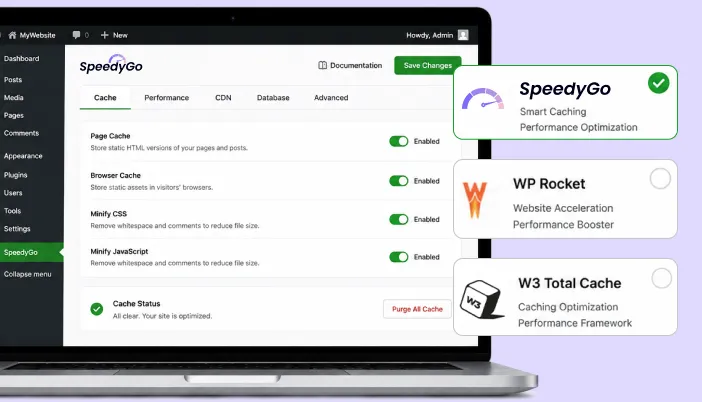
SpeedyGo is built to speed up WooCommerce and other WP stores without affecting cart or checkout functionality. That’s the heart of what exclusions protect.
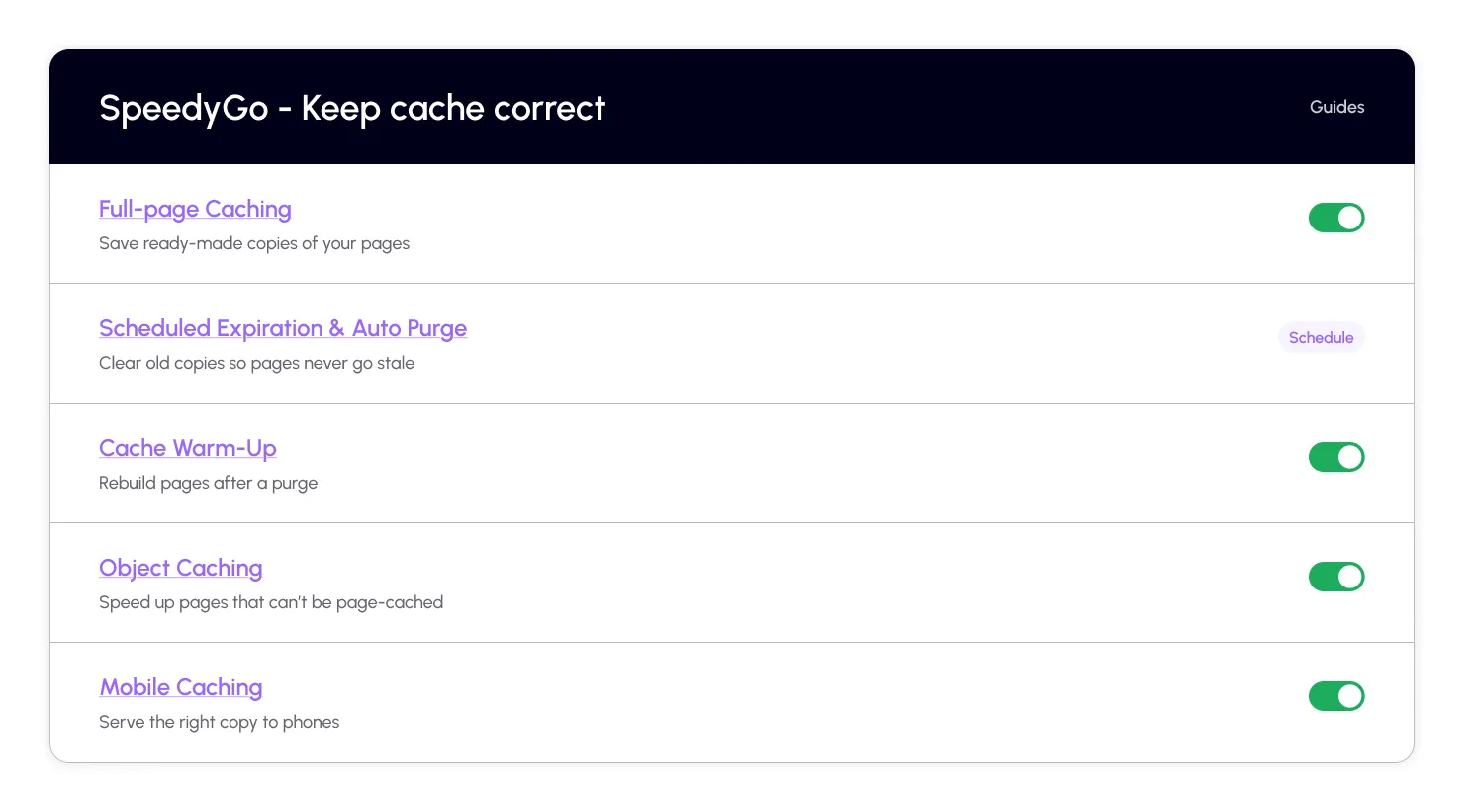
The documentation explains each caching feature step by step. Start withfull-page caching, which is the feature your exclusion rules shape. Then look at theoptimization presets for a quick, sensible setup.
Not sure what your own site needs? That’s where people help. Plus and Pro plans include technical fixes and WooCommerce support, and every paid plan includes human support hours. You can alsoopen a support ticket and describe your setup.
What’s the cache exclusion checklist?
Work through these once, then recheck after big changes. Your ticks stay on the page while it’s open.
|
The bottom line
The best WordPress cache exclusions list is short. Exclude the pages that belong to one person: the cart, checkout, and account pages. Think twice about forms, logins, and members areas. Cache everything else.
If you only remember one thing, remember this: you don’t exclude pages from cache to make them safe. You exclude them because they’re personal. Everything shared deserves to be fast.

Frequently Asked Questions
Here are answers to some common questions about which pages to exclude, how WooCommerce caching rules work, whether too many exclusions can slow down your website, and how to check that your cache settings are working correctly.
Which pages should you exclude from caching in WordPress?
Exclude pages that show information specific to one person. In a WooCommerce store, that means the cart, checkout, and My Account pages. Membership areas and login-related pages usually belong on the list too. Blog posts and landing pages should normally stay cached.
What are WordPress cache exclusions?
They are rules that tell your caching plugin not to save or serve a stored copy of certain pages, URLs, or visitors. Those requests are built fresh every time, so personal data never gets shared.
Should I exclude my whole WooCommerce shop from the cache?
No. WooCommerce advises excluding only the cart, checkout, and My Account pages, plus a few cart-related cookies. Product and category pages can usually stay cached if you refresh them when prices or stock change.
Can too many cache exclusions hurt my site?
Yes. Every excluded page is rebuilt on every visit. In a dataset of 5.7 million WordPress pageviews, uncached pages had a median server response of 723 ms, against 106 ms for cached ones. Keep your exclusion list as short as you can.
How do I exclude pages from cache?
Most caching plugins let you add URLs or patterns to a “never cache” list, one per line. You can also use cookies as rules. On some managed hosts, the host controls the cache, so you may need to ask their support team to add the exclusion. See our full-page caching guide for the basics.
Can cache excluded pages still be sped up?
Yes. You can use object caching, file compression, lighter images, and a CDN for static files. Check your plugin first, because some tools also switch off other optimizations on excluded pages.
How can I check that a page is really excluded?
Open it in a normal window and a private window as two different visitors, then compare what each sees. You can also look at the response headers in your browser’s developer tools. A page with personal content should not be served from a shared cache.