10 mins read
WordPress Database Optimization: A Technical Deep Dive
Share Article :


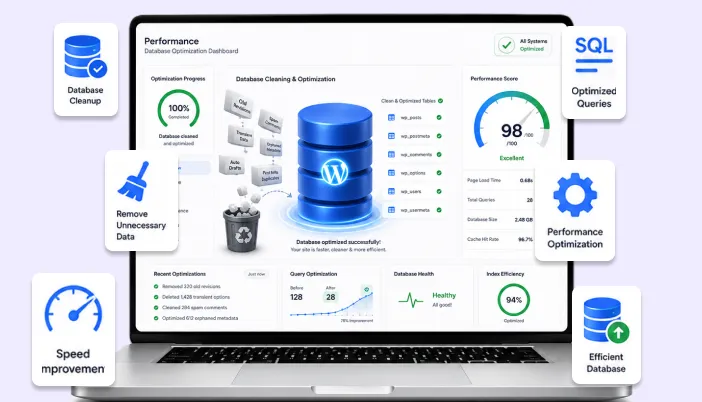
In this blog, we’ll show you how to speed up your WordPress site by cleaning up database bloat, clearing unnecessary data, optimizing slow queries, and keeping your backend healthier overall, plus how pairing this with a tool like SpeedyGo gets you an even faster site.
Most people chasing a faster WordPress site only think about two things: caching plugins and smaller images.
Those help, but they don’t fix the real problem underneath, which is a messy, bloated database.
| Here’s a simple way to think about it: caching is like putting a fast-food counter in front of a slow kitchen. It can hide the problem for a while, but the kitchen your database is still slow. Clean up the kitchen, and everything gets faster, with or without the counter out front. |
Step 1: Measure before you clean
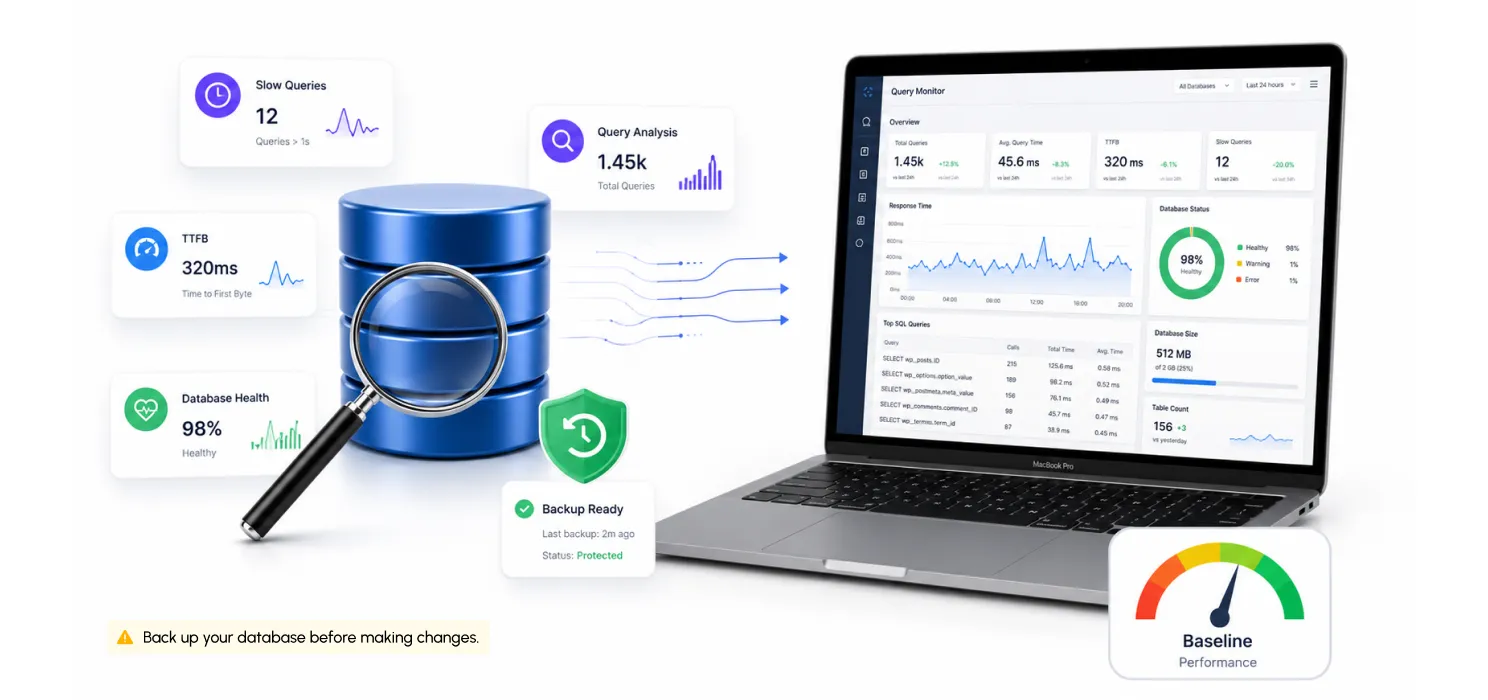
Don’t delete anything yet. First, find out what’s actually slow.
- Install the Query Monitor plugin on a staging (test) site to see which queries are slow.
- Check your server’s slow query log, if you can access it.
- Write down your current page load time (specifically “Time to First Byte”) so you can compare before and after.
| Important Note : Always back up your database first, and test changes on a staging site, never directly on your live site. |
Step 2: Fix the wp_options table
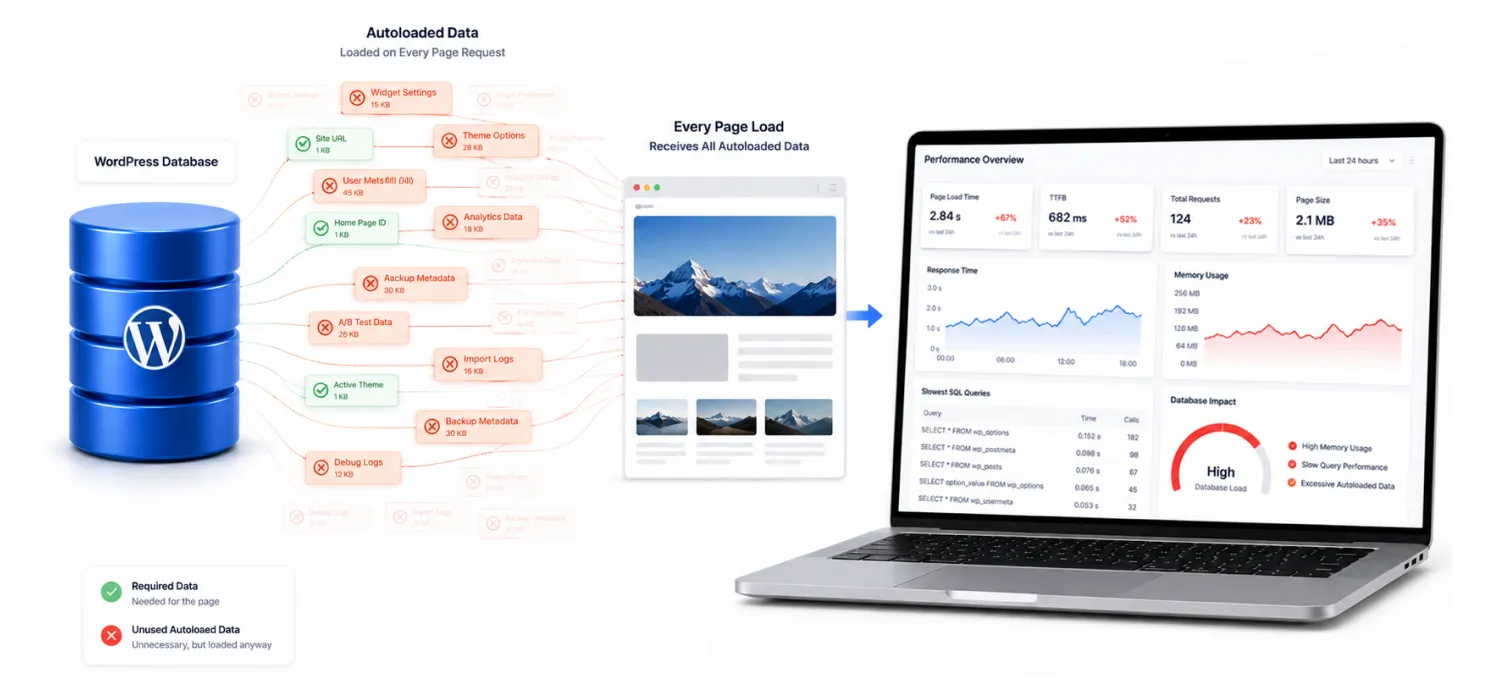
This is the single most overlooked fix.
Here’s the problem:
WordPress has a settings table called wp_options.
Some of these settings are marked “autoload,” which means they get loaded into memory on every single page view, even if that page doesn’t need them.
Over time, plugins dump extra data into this table and forget to clean it up. A bloated wp_options table can silently add 100–200 milliseconds to every page load.
How to check the damage
SELECT option_name, CHAR_LENGTH(option_value) / 1024 AS size_kb, autoload
FROM wp_options
WHERE autoload = ‘yes’
ORDER BY CHAR_LENGTH(option_value) DESC
LIMIT 20;
Check your total autoload size:
SELECT SUM(CHAR_LENGTH(option_value)) AS total_size_bytes, COUNT(*) AS total_options
FROM wp_options
WHERE autoload = ‘yes’;
What’s healthy?
- Under 500KB: good
- Over 1MB: worth investigating
- Several MB or more: actively slowing down your site
Commonculprits
| Option pattern | Typical size | Why it’s a problem |
| theme_mods_* | 50–500KB | Loads on every page, even pages that don’t use it |
| _transient_* | 100KB–10MB | Temporary data that was never cleared |
| cron_schedules | 10–100KB | Builds up over time |
| rewrite_rules | 50–500KB | Grows as plugins add new URL rules |
How to fix it
You can turn off autoload for a specific setting:
UPDATE wp_options SET autoload = ‘no’ WHERE option_name = ‘the_offending_option_name’;
⚠️ Be careful, some settings genuinely need to autoload. Turning off the wrong one can break your site. Test after every change.
If one plugin keeps causing this problem, report it to the plugin’s developer, it’s really a bug on their end.
Step 3: Clear out old transients
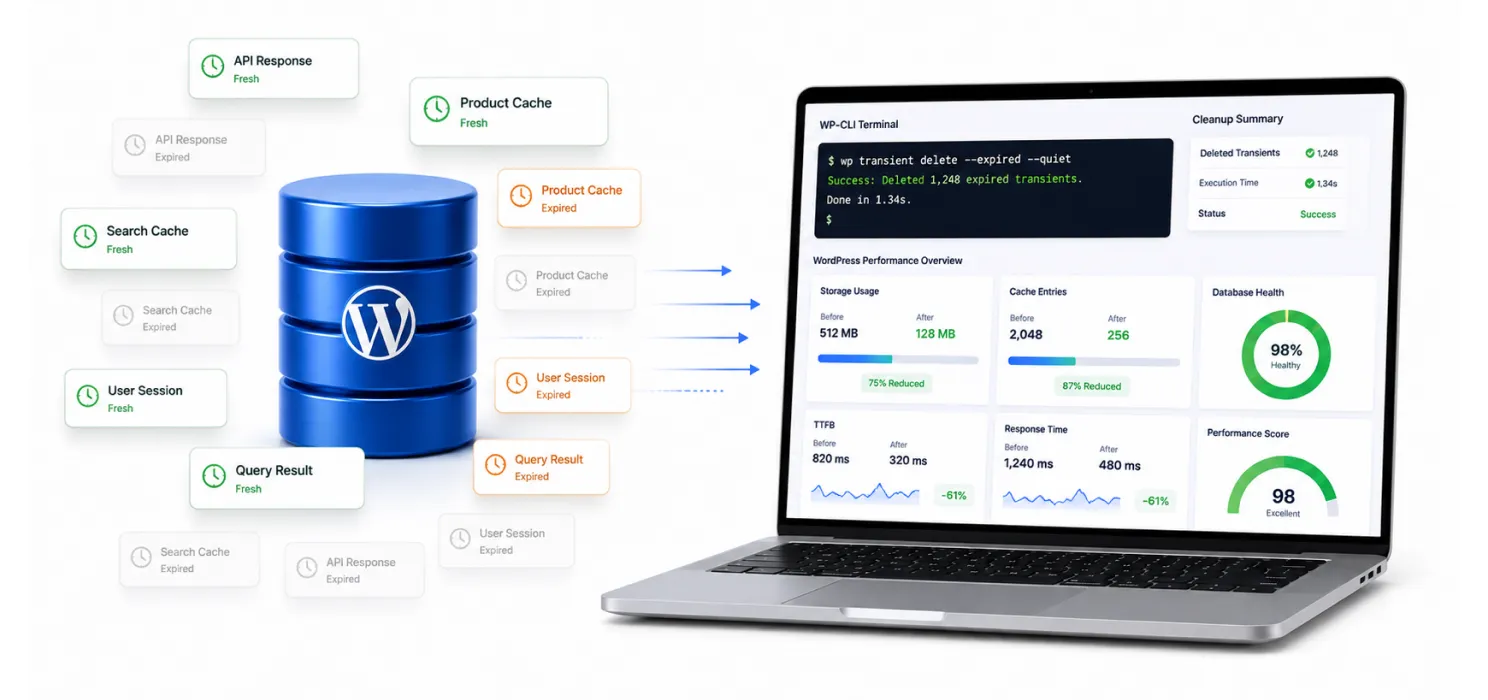
Transients are WordPress’s way of temporarily caching things like API responses.
Each one has an expiration time, but here’s the catch: expired doesn’t mean deleted. It just sits there, taking up space, until something removes it.
Check how much junk you have
SELECT COUNT(*) AS expired_transients, SUM(CHAR_LENGTH(option_value)) AS total_size_bytes
FROM wp_options
WHERE option_name LIKE ‘%_transient_%’
AND option_name NOT LIKE ‘%_transient_timeout_%’;
Clean them safely with WP-CLI
wp transient delete –expired
If you run an online store or a busy site, set this up as a recurring scheduled task, transients build back up quickly.
Step 4: Limit post revisions
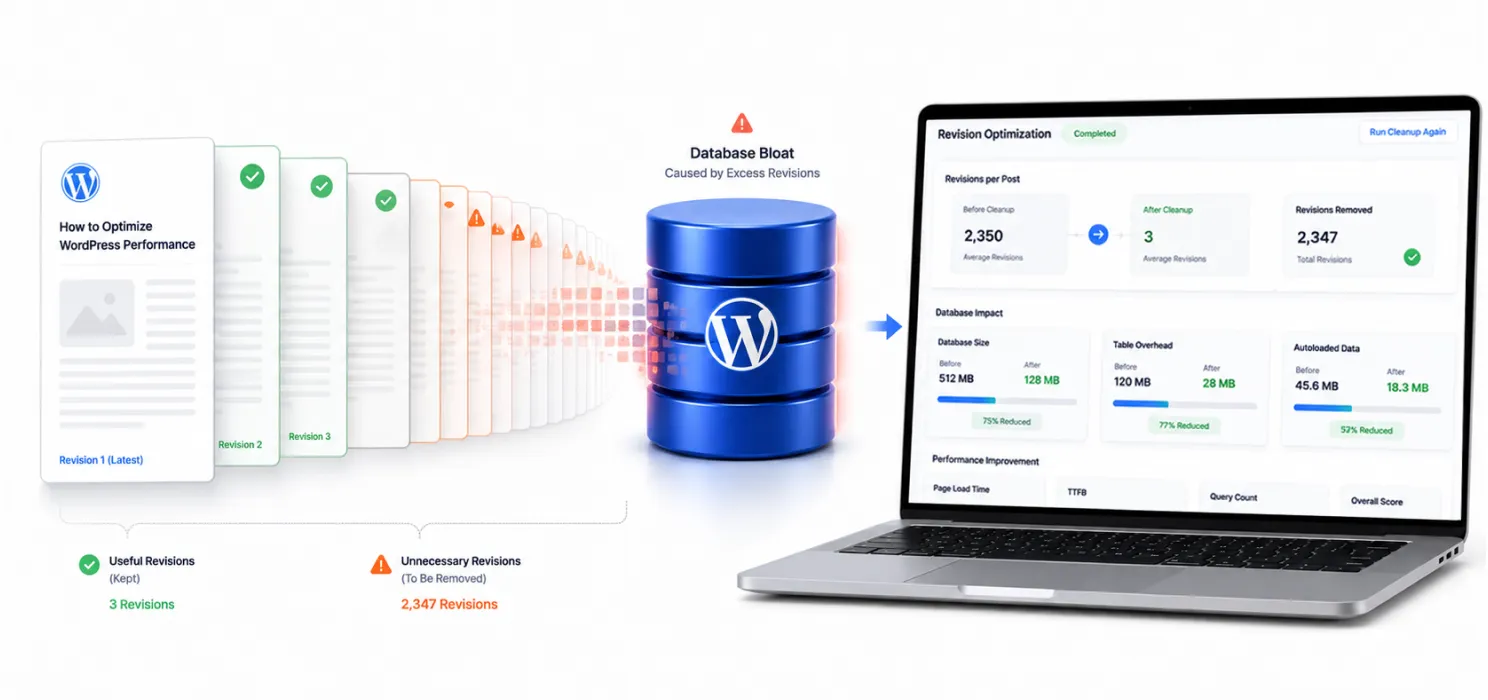
Every time you save or update a post, WordPress saves a full copy, forever, by default. On a site with lots of editing, this can mean thousands of extra rows that have nothing to do with your real content.
Check how many you have
sql
SELECT COUNT(*) FROM wp_posts WHERE post_type = ‘revision’;
Delete existing revisions
wp post delete $(wp post list –post_type=’revision’ –format=ids) –force
Stop it from happening again
Add this line to your wp-config.php file:
php
define( ‘WP_POST_REVISIONS’, 3 );
This keeps only the last 3 revisions per post; enough to undo recent mistakes without piling up forever.
Step 5: Remove orphaned metadata
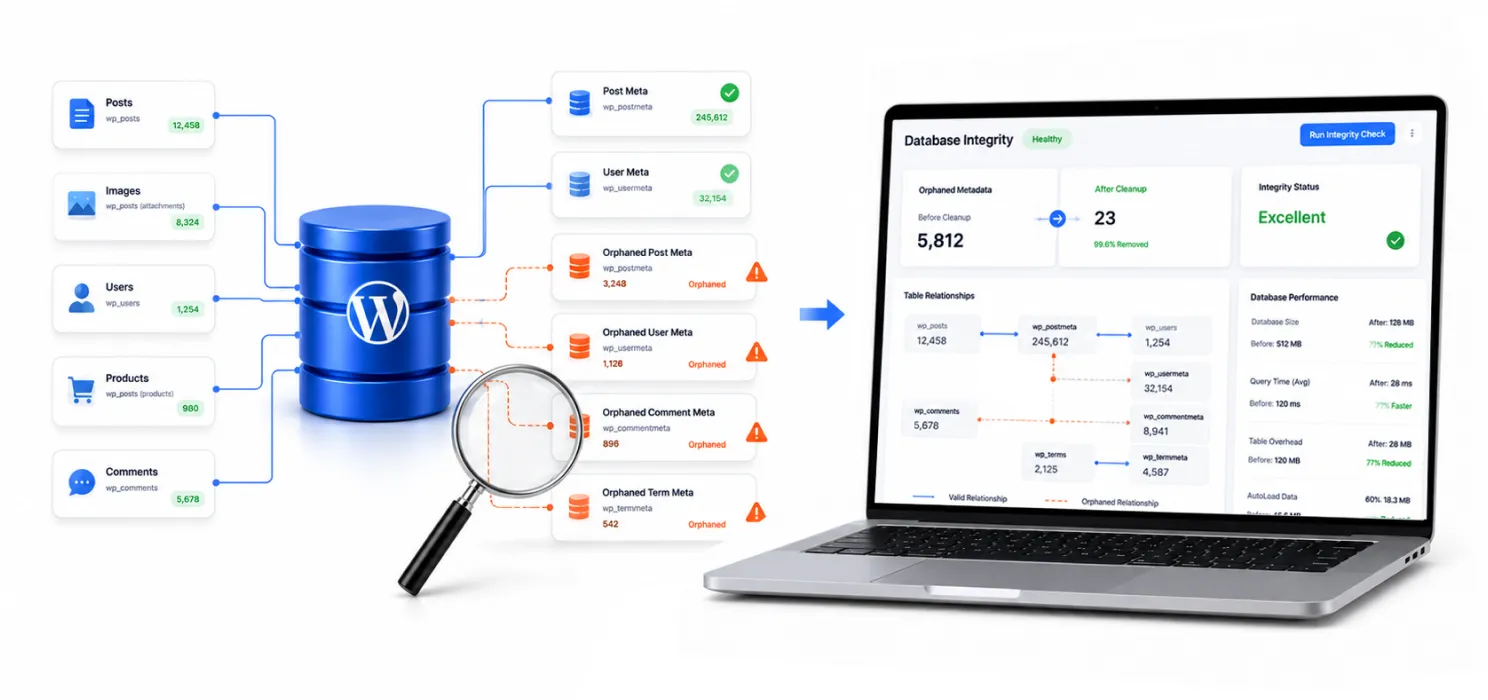
When you delete a plugin, it often leaves data behind, little bits of information pointing to posts, users, or objects that no longer exist. Most cleanup plugins miss this because it requires cross-checking multiple tables.
Find orphaned data
SELECT COUNT(*) AS orphaned_postmeta, SUM(CHAR_LENGTH(meta_value)) AS total_size_bytes
FROM wp_postmeta
WHERE post_id NOT IN (SELECT ID FROM wp_posts);
If you’d rather not run manual delete commands, a plugin like Advanced Database Cleaner can find this data and let you review it before removing anything.
Step 6: Add smart indexes
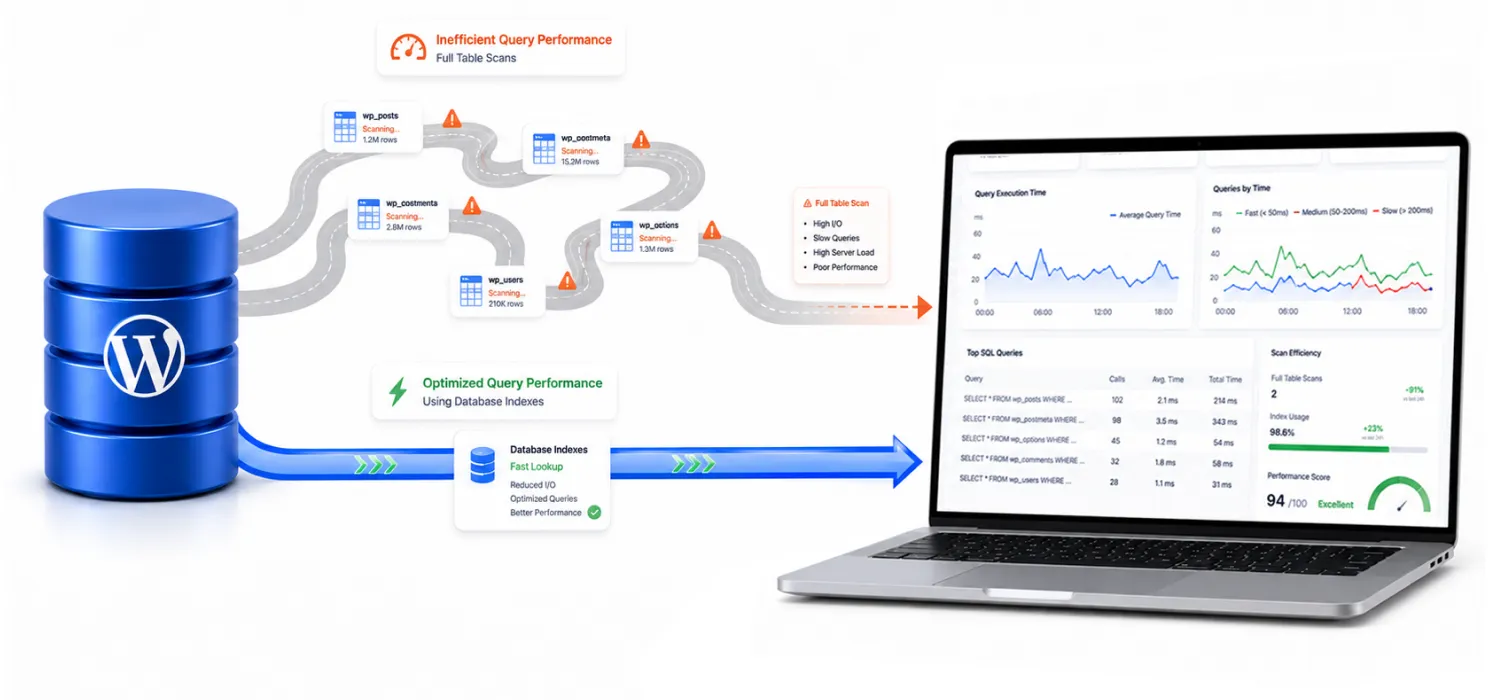
WordPress’s core tables are already indexed well for WordPress’s own needs. The problem comes from plugins and custom code that search these tables in ways the default indexes don’t support, which can force MySQL to scan entire tables.
If you’re repeatedly querying wp_postmeta for a specific custom field, add a targeted index:
sql
ALTER TABLE wp_postmeta ADD INDEX idx_meta_key_value (meta_key, meta_value(191));
(The “(191)” limits the index length, needed on many hosting setups to avoid errors.)
| Tip: Where possible, use WordPress’s built-in categories/tags system (taxonomies) instead of custom fields for filtering. Taxonomies are already properly indexed; custom field searches are much heavier. |
Step 7: Don’t ask for data you don’t need
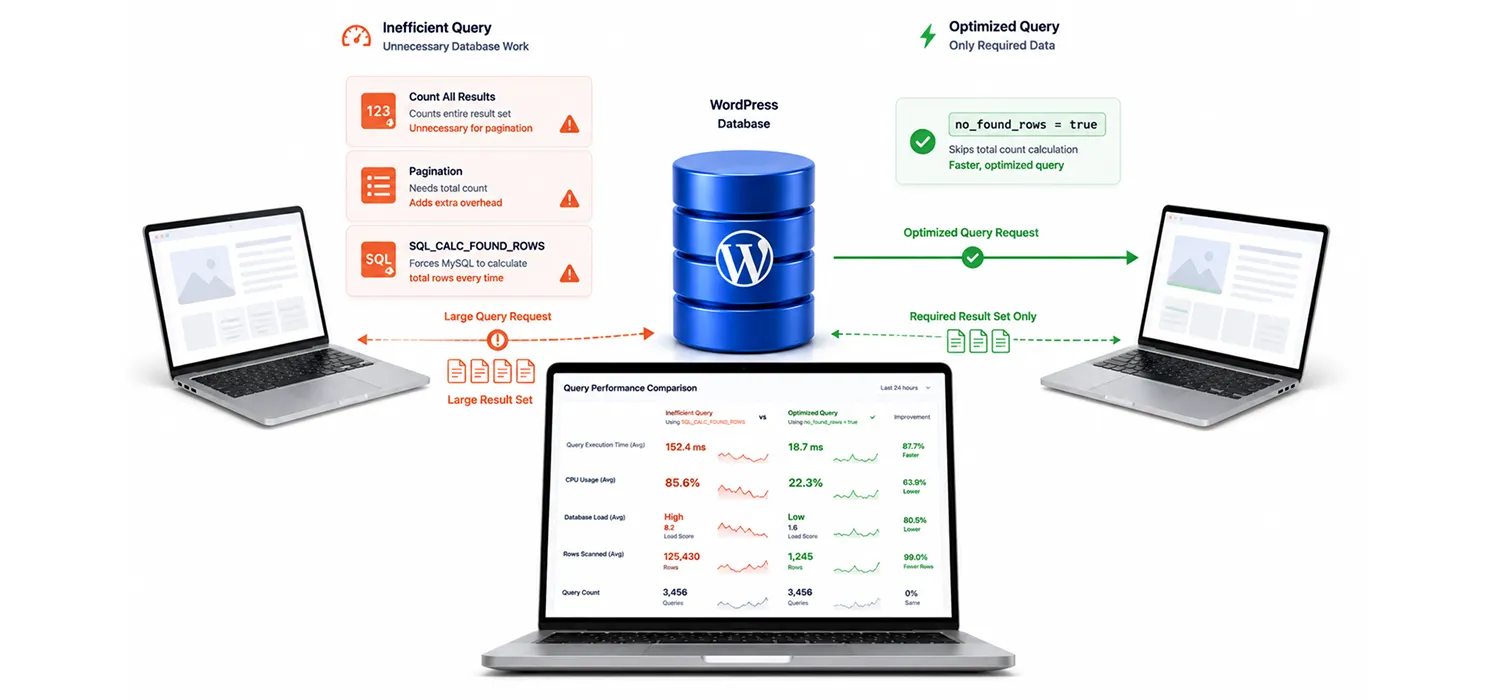
Sometimes the fix isn’t cleanup, it’s writing better queries in the first place.
If you’re not showing page numbers (like “Page 2 of 10”), skip the expensive counting query:
$query = new WP_Query( array(
‘post_type’ => ‘post’,
‘posts_per_page’ => 10,
‘no_found_rows’ => true, // skip the expensive SQL_CALC_FOUND_ROWS query
) );
This one small change can noticeably speed up large sites, for free.
Step 8: Optimize tables
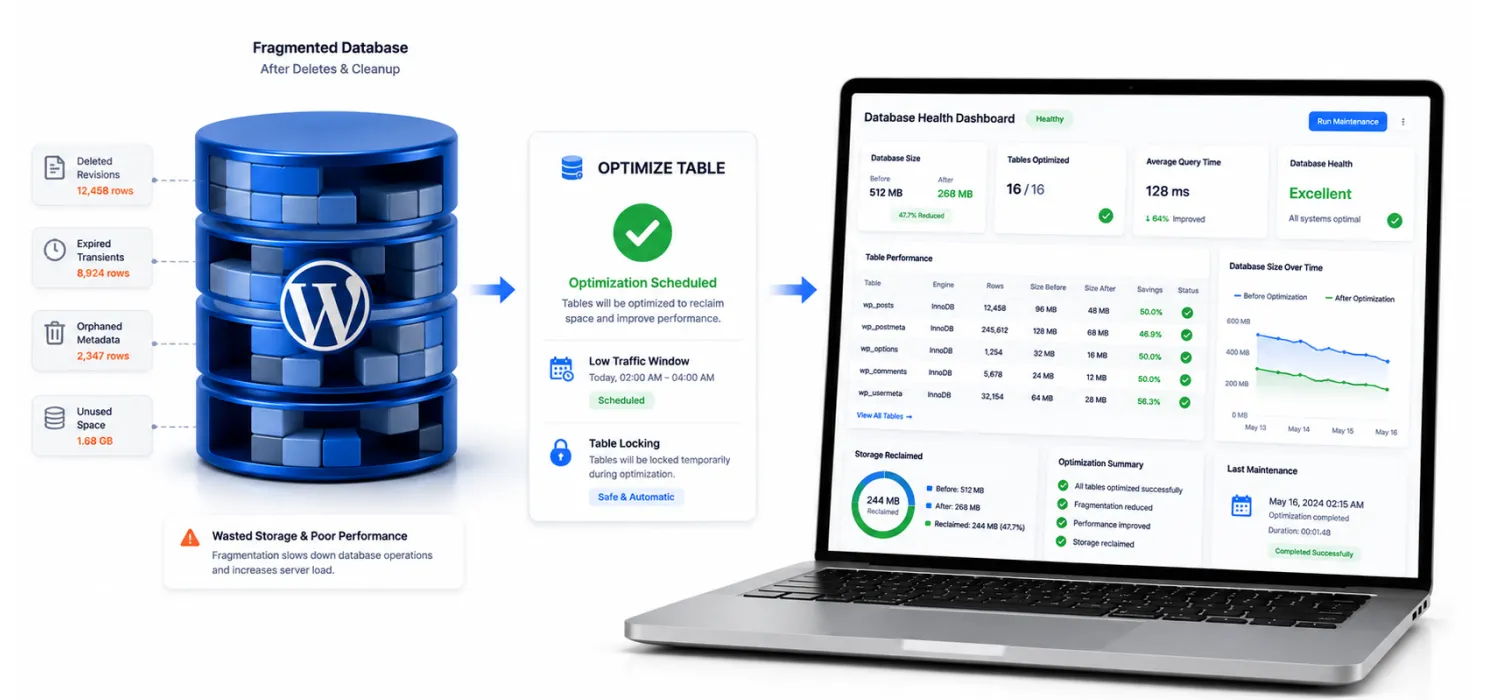
Running OPTIMIZE TABLE reclaims wasted space after a big cleanup.
But two things to keep in mind:
- It locks the table while running. Never run it during busy hours, schedule it for quiet times.
- It matters less than you’d think on modern WordPress. Old advice about running this often comes from years ago, when WordPress used a different storage system (MyISAM). Today’s WordPress uses InnoDB, where this command helps far less than the old advice suggests.
Rule of thumb: run it once after a big cleanup, not as a routine weekly task.
Step 9: Automate ongoing maintenance
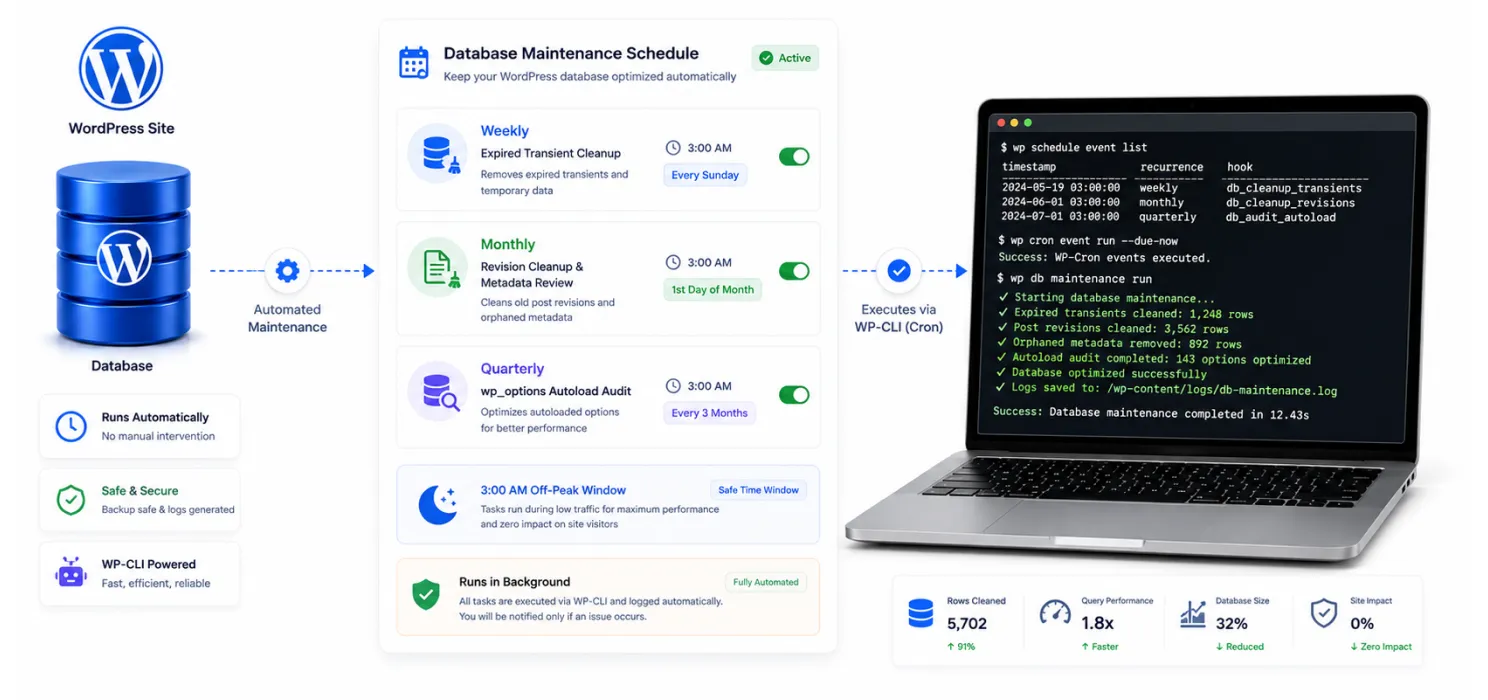
Bloat comes back. Set up a recurring schedule instead of doing this by hand every time:
- Weekly: delete expired transients
- Monthly: clean revisions, check for orphaned metadata
- Quarterly: full review of autoloaded options
Example cron job (runs at 3am every Sunday, during low traffic):
0 3 * * 0 wp transient delete --expired --path=/var/www/your-siteStep 10: Going bigger
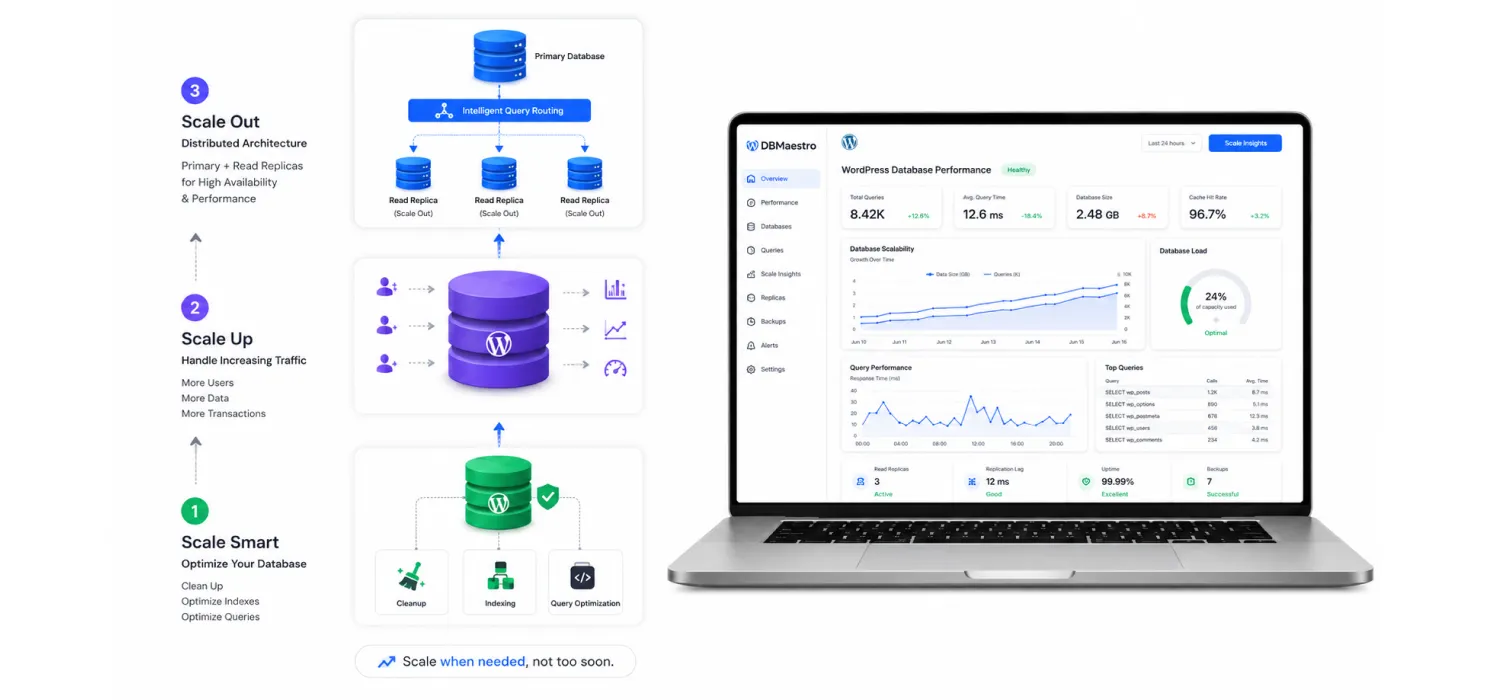
If you’ve done everything above and you’re still database-bound at high traffic, the next step is spreading read queries across multiple database servers.
WordPress supports this through a tool called HyperDB, which sends read queries to backup (“replica”) servers while writes still go to the main one.
This is an advanced setup, only worth it once you’ve already fixed the basics above.
Quick priority checklist
Do these in order for the best results:
✅ Clean up autoloaded options in wp_options (biggest impact)
✅ Clear expired transients and limit post revisions, then automate both
✅ Add no_found_rows to queries that don’t need page counts
✅ Add targeted indexes where needed; prefer taxonomies over custom fields
✅ Clean up orphaned metadata from deleted plugins
✅ Run OPTIMIZE TABLE only after big cleanups, during quiet hours
✅ Consider read replicas (HyperDB) only if you’re still stuck at scale
Take your WordPress performance further with SpeedyGo
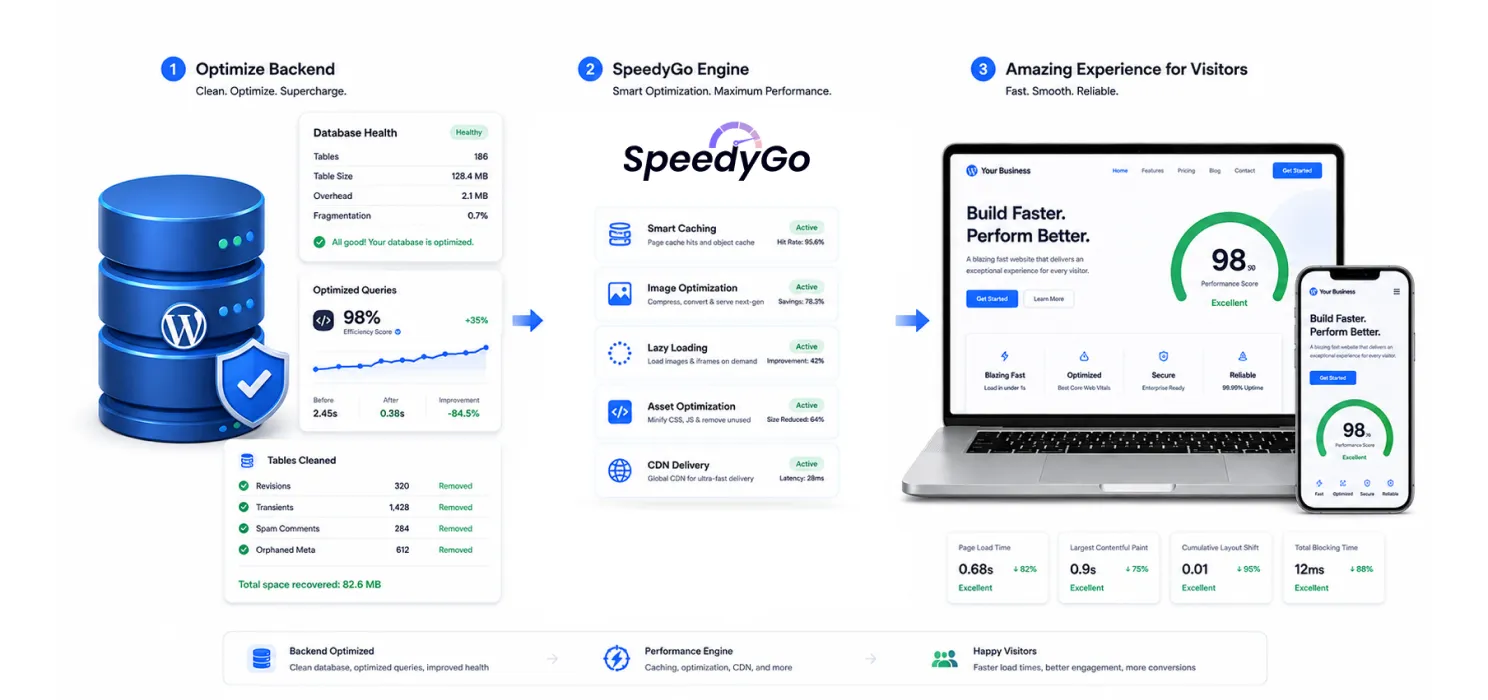
Optimizing your WordPress database is an important step toward improving website speed, but it is only one part of the bigger performance picture.
A clean database helps WordPress process requests more efficiently, but your visitors experience speed through factors like caching, image delivery, file optimization, and frontend performance.
This is where SpeedyGo helps.
SpeedyGo is a WordPress performance optimization solution designed to simplify website speed improvements without requiring complicated technical setups.
It combines essential optimization features like
– smart caching,
– mobile caching
– WebP image conversion
– lazy loading
– code optimization
– CDN support
to help your website load faster.
Instead of managing multiple tools for different performance issues, SpeedyGo brings important optimization features together in one place.
It helps reduce unnecessary loading time, improve page delivery, and create a smoother experience for your visitors.
Why database optimization alone is not enough
Database cleanup can remove unnecessary data, reduce overhead, and improve how WordPress handles backend processes. However, a visitor does not directly interact with your database. They interact with your website pages, images, scripts, and content delivery speed.
Even after cleaning your database, your website can still feel slow because of:
- Large image files
- Unoptimized CSS and JavaScript
- Missing caching layers
- Slow content delivery
- Heavy frontend resources
SpeedyGo helps address these frontend performance challenges by optimizing the areas that directly impact your visitors.
How SpeedyGo helps improve WordPress performance
Smart page caching
SpeedyGo creates optimized versions of your pages so returning visitors can access content faster without WordPress processing every request from scratch.Mobile optimization
With dedicated mobile caching, SpeedyGo helps ensure your website delivers a faster experience for users browsing on smartphones and tablets.Image optimization & WebP conversion
Images are often one of the biggest reasons websites become slow. SpeedyGo helps convert images into modern WebP formats and reduces unnecessary file sizes while maintaining quality.Lazy loading
Instead of loading every image and video immediately, SpeedyGo loads resources when they are needed, helping improve initial page load times.Asset optimization
CSS and JavaScript files can increase loading time when they are not optimized. SpeedyGo helps manage these resources to reduce unnecessary delays.CDN integration
SpeedyGo helps deliver website assets efficiently by using content delivery technology, allowing visitors to access resources faster from different locations.
A complete approach to WordPress speed
The fastest websites are not built by focusing on one single improvement. Database optimization, caching, image optimization, and frontend improvements all work together to create better performance.
By combining database maintenance with a tool like SpeedyGo, website owners can build a stronger WordPress foundation while improving the experience their visitors actually see.
Whether you run a blog, business website, WooCommerce store, or client websites, SpeedyGo helps make WordPress optimization simpler, faster, and more manageable.
The bottom line
A database cleanup isn’t about clicking one “optimize” button and hoping for the best. Real improvements come from:
- Cleaning up autoload bloat and expired transients
- Adding the right indexes
- Cutting unnecessary query overhead
Meanwhile, some “common wisdom” like running OPTIMIZE TABLE constantly, does far less than people think on modern WordPress.
The websites that actually get faster are the ones that measure first, fix the biggest problems first (autoload size and query overhead), and treat database maintenance as an ongoing habit, not a one-time spring cleaning.
Caching and image compression still matter, but if your database is a mess underneath, you’re building speed on a shaky foundation.
Frequently Asked Questions
Find answers to common questions about WordPress database optimization, database cleanup, performance improvements, and how to maintain a faster WordPress website.
What is WordPress database optimization?
WordPress database optimization is the process of cleaning unnecessary data, reducing database bloat, optimizing queries, and improving how WordPress retrieves information.
A well-optimized database helps reduce server workload and contributes to better website performance.
Why is database optimization important for WordPress?
Database optimization helps WordPress process requests more efficiently by removing unnecessary data and improving query performance.
This can reduce server response times and create a faster experience for your visitors.
How often should I optimize my WordPress database?
Most websites benefit from regular maintenance.
Cleaning expired transients weekly, reviewing revisions monthly, and auditing your database every few months helps prevent unnecessary database growth and keeps performance consistent.
What causes WordPress database bloat?
Database bloat is commonly caused by post revisions, expired transients, unused plugin data, orphaned metadata, spam comments, and unnecessary autoloaded options that accumulate over time.
Can SpeedyGo improve WordPress performance after database optimization?
SpeedyGo complements database optimization by improving frontend performance through caching, WebP conversion, lazy loading, asset optimization, and CDN support. Together, these optimizations create a faster overall website experience.
How can I check my WordPress database performance?
Start by analyzing your website with SpeedyGo‘s Website Speed Analyzer.
Step 1: Visit https://speedygo.io/speedygo-pagespeed-test/
Step 2: Enter your email address.
Step 3: Enter your website URL.
Step 4: Click Test Now.
Step 5: Review your performance report to identify bottlenecks affecting your website’s speed and Core Web Vitals.
Can database optimization alone fix a slow WordPress website?
Database optimization improves backend efficiency, but it isn’t the only factor affecting website speed. Large images, slow hosting, missing caching, render-blocking resources, and frontend optimization also play a major role in overall performance.