5 mins read
WordPress Speed Optimization for Elementor, WooCommerce and Membership Sites
Share Article :



Quick summary
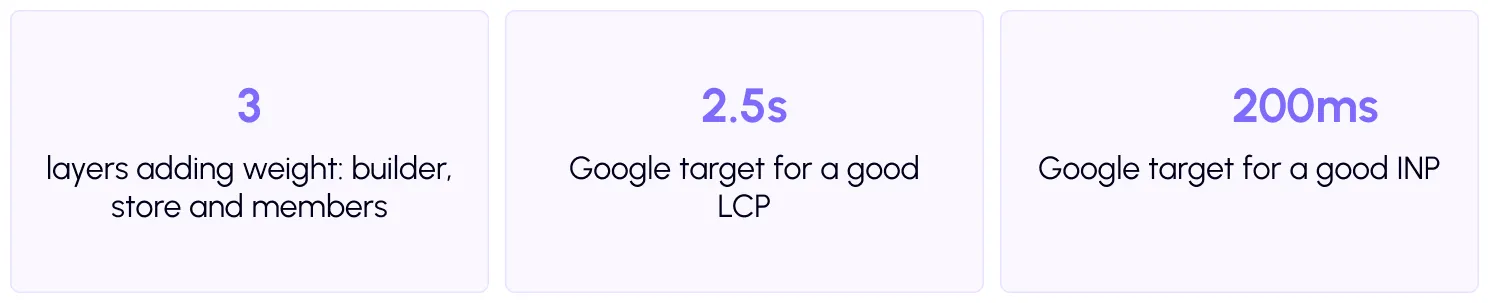
Complex sites mix a page builder, a store and member-only areas, and each layer adds weight. Standard speed advice does not always fit them. This guide covers WordPress speed optimization for complex websites: which pages to cache, which to leave alone, how to speed up logged-in members, and how to test every type of visitor. It ends with a checklist.
Your site started simple. Then you added Elementor for the design, WooCommerce to sell, and a membership plugin for a members-only area.
Everything works. But now the home page is heavy, the checkout takes a moment, and members complain that their dashboard crawls.
When you search for speed tips, most say “turn on caching.” That helps, but on a complex site, it is only part of the story. Let’s look at the full picture.
Why are complex WordPress sites harder to speed up?
Because they have two kinds of pages that need opposite treatment.
- Public pages look the same for everyone. Your home page, sales pages and blog are examples. These can be saved and served very fast.
- Private pages change for every person. A cart, a checkout, a member dashboard or a course lesson all depend on who is logged in. These cannot simply be saved and handed to someone else.
Many caching tools skip logged-in visitors for this reason. So when members say the site is slow, page caching alone will not fix it. You need to speed up the work behind the scenes too.
Step 1 and 2: Map your pages, then cache the public ones
List every page type on your site, and mark it public or private. Then turn on full-page caching and mobile caching for the public ones, and make sure the private pages are excluded. Use scheduled expiration and auto purge so product prices and stock stay correct.
These public pages are also your search traffic. A faster home page and product pages help new visitors, and Google measures them withCore Web Vitals.
Step 3: Lighten your Elementor layouts
Complex sites often use Elementor for every page, and heavy layouts add up. Flatten nested sections, remove empty containers and limit animations. Google’s Lighthouse warns when a page has an excessive number of page elements, which is common with deeply nested builder layouts.
Step 4: Speed up the private pages
Here, caching the page is not the answer. Think about what runs behind the page.
The database. Member areas and stores ask the database many questions. Object caching saves common answers in memory, and WordPress has a built-in object cache that works best with a persistent store. Use Query Monitor to find slow queries and the plugin responsible.
The server. Logged-in traffic cannot lean on page caching, so it uses more server power. Check that your hosting plan has enough resources, and look at your Time to First Byte on private pages. A good TTFB is 0.8 seconds or less.
The files. Turn onbrowser caching and useCDN integration so images, videos, and downloads reach members quickly.
Step 5: Tame plugins and scripts
Complex sites collect plugins: page builder add-ons, payment gateways, membership tools, review widgets, chat and pop-ups. Remove what you do not use, and load page-specific ones only where needed.
Then control the scripts. Usedefer scripts andJS interaction delay for extras like chat and pop-ups, which also helps yourINP score. But do not delay payment, cart or login scripts. Test them first.
Step 6: Test as every kind of visitor
This is where complex sites differ most. Do not test only as an admin, because admins see different pages than real users. Test as four people:
A logged-out visitor browsing your public pages. A customer adding to the cart and checking out. A logged-in member opening their dashboard and content. And a first-time visitor on a phone.
Run thefree SpeedyGo speed teston public pages, and time the private ones by hand on a real phone. Compare scores with your baseline.
A real-life example
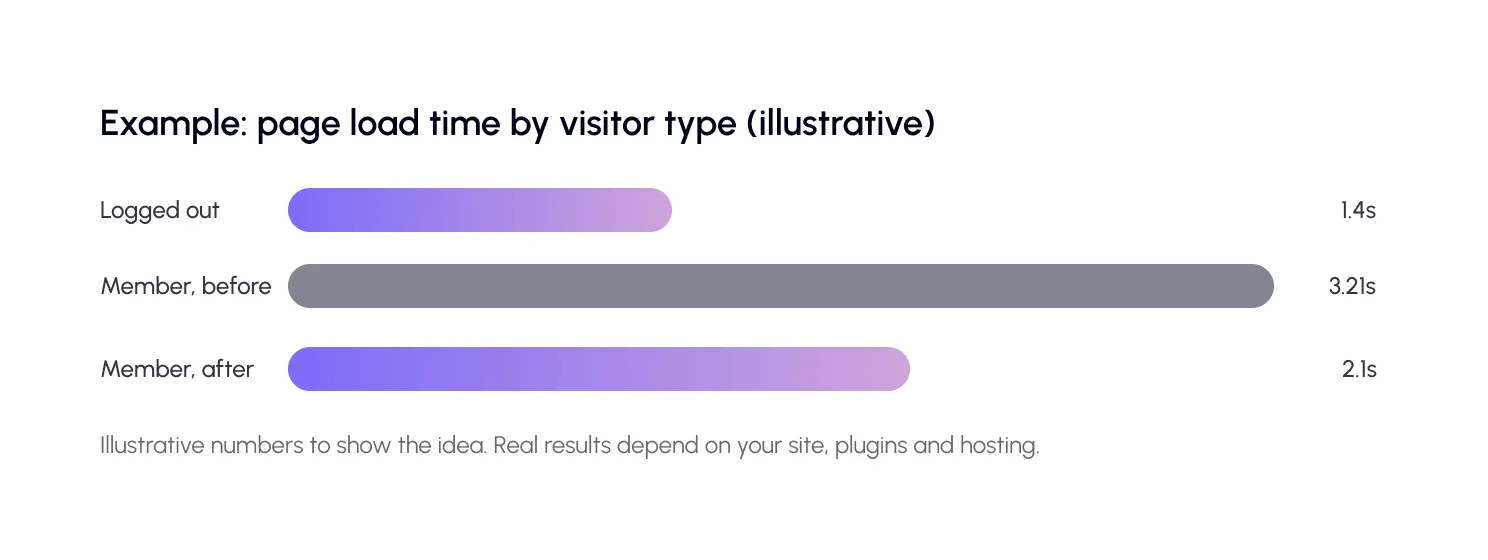
An online course business uses Elementor for design, WooCommerce for selling courses, and a membership plugin for lessons. Public pages load fine, but members say lessons are slow and the dashboard lags.
The owner marks all pages as public or private. Public pages get caching, WebP images, and lighter Elementor sections. For members, they add object caching, deliver lesson files through a CDN, remove two heavy add-ons and delay the chat widget. They test with a real member account on a phone.
Public pages stay fast, and the member dashboard becomes much quicker. Support messages about “slow lessons” stop.
Common mistakes to avoid
The biggest mistake is caching private pages. It can leak information between users, and the speed gain is never worth that risk.
The second is testing only as an admin. You will miss the problems real members face.
The third is copying advice meant for simple blogs. A complex site needs a plan for each page type.

Frequently Asked Questions
How do I speed up a WordPress membership site?
Cache public pages, exclude member pages, add object caching, find slow database queries, use a CDN for files and media, and make sure your hosting has enough resources.
Can I use page caching on a membership site?
Yes, for public pages like your home and sales pages. Do not cache member-only pages, because their content is different for each logged-in user.
Why is my site slow for logged-in users?
Logged-in pages usually skip page caching, so WordPress builds them fresh each time. That uses more server power and database queries. Object caching and better hosting help.
Do Elementor and WooCommerce slow each other down?
Together they add more scripts, styles and page elements. Clean layouts, fewer add-ons and safe caching keep them running well side by side.
Which scripts should I never delay on a store or member site?
Payment, cart, checkout and login scripts. Delaying these can break sales and sign-ins. Test every change.