Reason behind the website performing slowly on mobile responsive and its solution

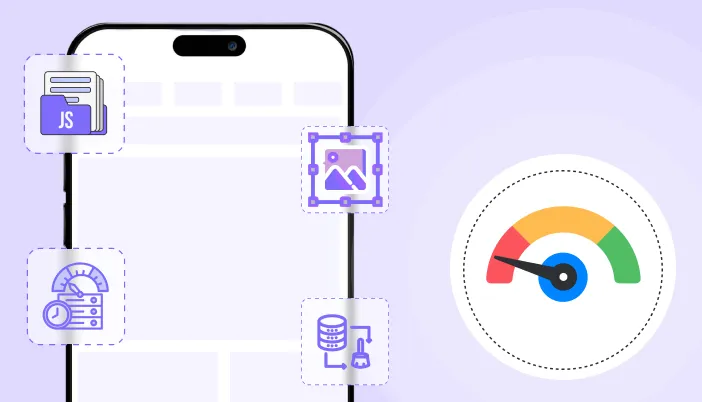
If your website feels fine on desktop but slow on mobile, that is not a mystery. Mobile performance is harder because phones are weaker than laptops, networks are slower, and mobile browsers are less forgiving when you ship heavy pages.

Most people chase a single mobile score and then do random tweaks. That wastes time. You need to fix the real bottlenecks that hurt mobile users.

This guide breaks down the main reasons websites perform slowly on mobile and the solutions that actually move the needle.

First, measure mobile performance the right way

Before you change anything, understand what you are looking at.

  • Core Web Vitals are based on real user experience data (field data), not just a lab test. ( Google for Developers)
  • PageSpeed Insights includes both lab data (Lighthouse simulation) and field data (real users). These can differ a lot, so do not assume one test run represents reality. ( web.dev)

What to do:

  1. Test in PageSpeed Insights on mobile
  2. Check Search Console Core Web Vitals report (field data)
  3. Compare a few key templates, not just the homepage (blog post, service page, product page if WooCommerce)

If field data is bad, your real users are suffering. If lab data is bad, you have clear debugging opportunities.

The most common reasons a site is slow on mobile (and the solutions)
Reason 1: Images are too heavy for mobile

Images are often the heaviest resource on a page, and optimizing them can significantly improve performance. ( web.dev)

What goes wrong:

  • huge hero images
  • product images uploaded at full resolution
  • no responsive sizing
  • too many images loaded at once

Solutions:

  • resize images to the maximum size you actually display
  • compress aggressively for mobile
  • use modern formats where possible (WebP is a practical default for most sites)
  • ensure responsive images are served (so phones do not download desktop-sized images)

Tie-in:

  • link to your WebP article and position it as the simplest win
Reason 2: Too much JavaScript on mobile (INP gets crushed)

Core Web Vitals includes INP (responsiveness). Heavy JavaScript and long main-thread tasks hurt responsiveness, especially on slower phones. ( Google for Developers)

What goes wrong:

  • sliders, animations, and page builders pushing tons of JS
  • multiple analytics and marketing tags
  • chat widgets and popups loading immediately
  • scripts loaded site-wide even when not needed

Solutions:

  • remove scripts that are not essential
  • load scripts only on pages where they are needed
  • defer non-critical JS (but do not break core functionality)
  • reduce third party scripts on mobile, or load them after user interaction

Reality check:
If you keep adding third-party tools, no speed plugin will save you. You are choosing bloat.

Reason 3: Render-blocking CSS and JS delay first paint (mobile LCP suffers)

Render-blocking resources delay how quickly the user sees meaningful content. This commonly hits LCP. ( Google for Developers)

What goes wrong:

  • giant CSS bundles loaded before the page renders
  • too many CSS files from plugins
  • JS in the head delaying rendering

Solutions:

  • minify CSS and JS
  • reduce unused CSS where possible
  • be careful with combining files (it can help or break things)
  • exclude problematic files instead of forcing aggressive settings everywhere

Tie-in:

  • link to your render-blocking resources article
Reason 4: Layout shifts make mobile feel broken (CLS problems)

CLS is one of the Core Web Vitals. If content jumps around, users hate it. ( Google for Developers)

What goes wrong:

  • images without width and height
  • ads or embeds loading late and pushing content
  • popups injected above content
  • late-loading fonts changing text size

Solutions:

  • set image dimensions
  • reserve space for embeds and ad containers
  • avoid injecting banners above existing content after load
  • keep popups controlled, especially on mobile
Reason 5: Slow server response time makes mobile worse

A slow server hurts everyone, but mobile users feel it more due to network latency.

What goes wrong:

  • no full-page caching
  • slow hosting or overloaded shared server
  • uncached dynamic pages doing heavy database work

Solutions:

  • enable full-page caching for cacheable pages
  • use proper exclusions for dynamic pages (especially if WooCommerce)
  • add compression
  • consider object caching for database-heavy sites

If you run WooCommerce, take this seriously: WooCommerce performance work often includes caching strategy, image optimization, database maintenance, minification, and CDNs. ( The WooCommerce Developer Blog)

Reason 6: Too many requests (mobile networks get punished)

Mobile networks have higher latency, so lots of small requests can be slower than fewer optimized ones.

What goes wrong:

  • multiple CSS and JS files
  • too many font files
  • icon libraries loaded on every page
  • separate scripts for each small feature

Solutions:

  • minify and (carefully) combine where it helps
  • remove unused libraries
  • reduce font weights and font families
  • limit heavy icon packs
Reason 7: You are testing the wrong pages

People optimize the homepage and ignore the pages that convert.

What goes wrong:

  • product pages slow but not tested
  • checkout slow but ignored
  • blog posts heavy with ads and embeds

Solutions:

  • test your top landing pages
  • test your top conversion pages
  • test worst-performing templates
  • prioritize fixes that impact those pages first
A practical mobile speed fix checklist (in the right order)
  1. Check field vs lab data in PageSpeed Insights and Search Console (Google for Developers)
  2. Fix the biggest images first (resize, compress, modern format) (web.dev)
  3. Turn on caching for cacheable pages
  4. Minify CSS and JS
  5. Reduce render-blocking assets (defer non-critical, remove unused) (Google for Developers)
  6. Cut third-party scripts (or delay until interaction)
  7. Fix CLS issues (dimensions, reserved space) (Google for Developers)
  8. Re-test mobile on the same key pages

Do not do ten changes at once. If you do, you will not know what helped or what broke.

How SpeedyGo fits into mobile performance fixes

SpeedyGo is positioned as an all-in-one WordPress speed optimization plugin with features that map directly to common mobile issues: caching, minification, CSS and JS combination, compression, lazy loading, mobile caching, cache preloading, and advanced rules. (Google for Developers)

In plain terms, that means you can use one tool to:

  • speed up delivery (caching + compression)
  • reduce payload (minification, controlled combination)
  • reduce offscreen load (lazy loading)
  • apply mobile-specific handling (mobile caching)

But you still need discipline. If your site is overloaded with heavy themes and third-party scripts, no plugin fixes bad decisions.

See what fast feels like

Start free, no credit card needed — or pick the plan that fits your site.

Core Web Vitals for WordPress: What They Mean and How to Improve Them

If you run a WordPress website and care about SEO, user experience, or conversions, you need to understand Core Web Vitals. Google defines Core Web Vitals as metrics that measure loading performance, interactivity, and visual stability. Right now, the three metrics that matter are Largest Contentful Paint, Interaction to Next Paint, and Cumulative Layout Shift. (Google for Developers)

A lot of WordPress site owners obsess over the score without understanding what the metrics actually mean. That is backwards. The score is just a signal. The real question is whether your page feels fast, stable, and responsive for real users. Google itself recommends focusing on good Core Web Vitals as part of a strong overall page experience. (Google for Developers)

In this guide, you will learn what each Core Web Vital means, what usually hurts it on WordPress websites, and what you can actually do to improve it without blindly toggling settings and hoping for the best.

What are Core Web Vitals?

Core Web Vitals are a set of user-focused performance metrics. Google says they measure three things:

  • loading performance through LCP
  • responsiveness through INP
  • visual stability through CLS

Google’s recommended thresholds are:

  • LCP: 2.5 seconds or less
  • INP: less than 200 milliseconds
  • CLS: less than 0.1

Google also evaluates these using the 75th percentile of real user data, not just one perfect test run on your own device. (Google for Developers)

That last point matters. A website may look fine on your laptop and still fail for real users on slower phones, weaker networks, or heavier pages.

Why Core Web Vitals matter for WordPress websites

WordPress sites often grow messy over time. More plugins, more scripts, bigger images, more widgets, more CSS, more JavaScript, more third-party tools. That combination usually hits Core Web Vitals hard.

Google has been explicit that strong Core Web Vitals support both user experience and search performance. That does not mean one score alone decides rankings, but bad user experience is still a problem you cannot ignore. (Google for Developers)

For WordPress sites, Core Web Vitals matter because they often reveal deeper issues such as:

  • slow server response
  • oversized hero images
  • heavy page builders
  • bloated theme files
  • third-party scripts
  • layout shifts from ads, embeds, or image sizing mistakes
  • delayed interaction from too much JavaScript

If you fix these properly, your website usually becomes better for both users and business.

Metric 1: Largest Contentful Paint, or LCP

LCP measures when the largest visible image, text block, or video in the viewport is rendered. In plain English, it is a strong signal for when the main content of the page actually becomes visible to the user. Google recommends keeping LCP at 2.5 seconds or less. (web.dev)

What usually causes poor LCP in WordPress

The biggest WordPress causes are:

  • heavy hero images
  • slow server response time
  • unoptimized above-the-fold content
  • render-blocking CSS and JavaScript
  • too many competing requests during initial load
  • lazy loading the most important image by mistake

web.dev notes that LCP includes delays such as redirects, connection setup, and Time to First Byte, which means bad hosting or slow server response can absolutely hurt it. web.dev also emphasizes that LCP is about the largest visible content, not just any random resource on the page. (web.dev)

How to improve LCP on WordPress

Start with the obvious fixes:

  • optimize the main hero image
  • use properly sized images
  • use modern image formats where appropriate
  • reduce render-blocking CSS and JavaScript
  • enable caching
  • use compression
  • avoid overloading the first screen with sliders, videos, or heavy effects
  • do not lazy load the primary above-the-fold image

That last mistake is common. web.dev has documented that too much lazy loading can correlate with worse LCP performance, especially on WordPress sites. Lazy loading is useful for offscreen content, but not for the main content users need immediately. (web.dev)

Metric 2: Interaction to Next Paint, or INP

INP measures responsiveness. Google recommends an INP below 200 milliseconds. It replaced FID as the Core Web Vitals responsiveness metric in March 2024. (Google for Developers)

What INP actually means

INP looks at user interactions on a page and measures the time from user input through event handling until the browser can paint the next frame. web.dev explains that INP improves on FID because it considers overall interaction responsiveness, not just the delay of the first interaction. (web.dev)

That makes INP more realistic. A page can seem fine on initial load and still feel slow when users click filters, open menus, type into forms, or interact with carts and product options.

What usually causes poor INP in WordPress

Common reasons include:

  • too much JavaScript running on the page
  • heavy page builder logic
  • plugin scripts firing on every page
  • large DOM size
  • main-thread blocking from third-party tools
  • slow interaction handling on WooCommerce or dynamic pages

In plain English, if your site is doing too much work when the user taps or clicks, responsiveness gets worse.

How to improve INP on WordPress

Focus on reducing unnecessary JavaScript and unnecessary interaction work.

Practical fixes:

  • remove scripts you do not need
  • stop loading plugin assets site-wide if they are only used on a few pages
  • reduce third-party widgets
  • simplify interaction-heavy components
  • test filters, menus, search boxes, and forms on mobile
  • be careful with heavy sliders, popups, and animation libraries

web.dev’s guidance on optimizing INP is very clear on one point: improving responsiveness usually takes repeated diagnosis and cleanup, not one magic switch. (web.dev)

Metric 3: Cumulative Layout Shift, or CLS

CLS measures visual stability. Google recommends a CLS score below 0.1. Unlike LCP and INP, CLS is not measured in seconds or milliseconds. It is a score based on how much content shifts and how far it shifts unexpectedly. (Google for Developers)

What usually causes poor CLS in WordPress

The most common causes are:

  • images without width and height
  • videos or embeds without reserved space
  • ads or widgets that load later and push content around
  • dynamic banners or popups inserted above existing content
  • web font swaps that change layout size

web.dev specifically calls out images without dimensions, ads and embeds without dimensions, dynamically injected content, and web fonts as common CLS problems. (web.dev)

How to improve CLS on WordPress

This is usually more straightforward than people think:

  • set width and height for images
  • reserve space for videos, iframes, embeds, and ads
  • avoid injecting content above existing content after load
  • test popups and cookie banners carefully
  • watch for font changes that alter spacing or line wrapping

If content jumps while the page is loading, users hate it. It makes the website feel broken, even if the load time is technically acceptable.

Real user data vs lab data: stop confusing the two

A lot of people misuse PageSpeed Insights.

Google’s PageSpeed Insights shows both field data and lab data. Field data reflects real user experience over a trailing 28-day period. Lab data comes from Lighthouse in a simulated environment. PSI reports the 75th percentile for field metrics, and the Core Web Vitals assessment passes only when the required metrics are in the good range. (Google for Developers)

This matters because:

  • lab data helps you debug
  • field data tells you what real users experienced
  • a green Lighthouse score does not automatically mean your real user metrics are fixed
  • one quick test does not cancel a month of poor user experience

If you do not understand this difference, you will misread your own progress.

What usually hurts Core Web Vitals on WordPress sites

Here is the blunt version. Most WordPress Core Web Vitals problems come from the same repeat offenders:

  • large hero images
  • too many plugins
  • bloated themes or builders
  • bad caching setup
  • too much CSS and JavaScript
  • unnecessary third-party scripts
  • poor mobile optimization
  • images and embeds without reserved dimensions
  • using lazy loading too aggressively
  • weak hosting or slow TTFB

You do not fix Core Web Vitals by chasing every warning. You fix them by removing waste from the loading path and interaction path.

A practical Core Web Vitals improvement workflow for WordPress

If you want a sensible process, use this order:

1. Measure properly

Check PageSpeed Insights and Search Console first. Look at page-level and origin-level data where available. Review both mobile and desktop.

2. Fix LCP first

If your main content loads late, nothing else feels fast. Start with the hero section, main image, server response, and render-blocking files.

3. Fix obvious CLS mistakes

Set image dimensions. Reserve space for embeds and ads. Test dynamic components.

4. Reduce JavaScript for better INP

Remove heavy scripts and interaction bloat. This is especially important for mobile.

5. Retest after each meaningful change

Do not enable ten things at once and then wonder what broke.

This is not glamorous, but it works.

How SpeedyGo can help with Core Web Vitals

SpeedyGo’s public feature set includes full-page caching, HTML/CSS/JS minification and combination, browser and object caching, Gzip and Brotli compression, lazy loading, mobile-specific caching, cache preloading, scheduled expiration, and advanced cache rules. Those features map directly to several common Core Web Vitals issues on WordPress sites. (WordPress.org)

In practical terms, that means SpeedyGo can help support improvements such as:

  • faster delivery through caching and compression
  • smaller frontend payloads through minification
  • reduced request overhead through controlled combination
  • better offscreen media handling through lazy loading
  • cleaner handling of page-specific behavior through advanced rules and exclusions

That does not mean a plugin magically fixes every bad site. If your theme is bloated, your hosting is weak, or your pages are overloaded with third-party junk, you still need cleanup. But a solid all-in-one optimization plugin can simplify the speed stack and make Core Web Vitals work more manageable.

Common mistakes people make when trying to improve Core Web Vitals

These are the usual self-inflicted mistakes:

  • focusing only on desktop tests
  • chasing the score instead of the real issue
  • lazy loading the main hero image
  • enabling aggressive file optimization without testing
  • ignoring layout shift from ads, cookie bars, and popups
  • keeping too many third-party scripts
  • assuming hosting alone will solve everything
  • confusing Lighthouse lab data with real user data

If you do any of these, you are slowing yourself down before the site even improves.

Final thoughts

Core Web Vitals are not magic, and they are not optional if you care about modern website performance.

For WordPress, the path is usually clear:

  • improve LCP by speeding up the main visible content
  • improve INP by reducing interaction-heavy JavaScript
  • improve CLS by stopping layout jumps

Then test again using the right tools and the right expectations.

If you want a cleaner way to apply caching, compression, minification, lazy loading, and related optimization from one place, SpeedyGo gives you a practical WordPress-focused setup that aligns well with the work required to improve Core Web Vitals. (WordPress.org)

See what fast feels like

Start free, no credit card needed — or pick the plan that fits your site.
How to Speed Up a Slow WordPress Website in 2026

A slow WordPress website is not just annoying. It costs you traffic, conversions, and trust.
Most site owners do the same thing when their website starts dragging. They install random plugins, test a few settings, maybe compress a couple of images, and hope for the best. That usually makes the problem worse, not better.
The truth is simple. A slow WordPress site is usually caused by a handful of common issues: poor caching, oversized images, heavy CSS and JavaScript files, too many requests, bad hosting, or features that load before they are actually needed.
The good news is that you do not need ten different tools to fix all of it. You need to understand where the slowdown comes from and apply the right optimizations in the right order.
In this guide, we will break down the real reasons WordPress sites become slow and the practical fixes that actually work.

Why WordPress websites become slow

WordPress itself is not the real problem. A clean WordPress installation can be fast. The problem usually starts when a site grows and adds more themes, plugins, images, scripts, and third-party tools without performance control.

Here are the most common reasons your WordPress site may be slow:

  • No page caching
  • Large unoptimized images
  • Too many CSS and JavaScript files
  • Render-blocking resources
  • Slow hosting or high server response time
  • Heavy plugins
  • Too many third-party scripts
  • Poor mobile optimization
  • No compression
  • No lazy loading for below-the-fold media

When several of these stack together, your website starts feeling slow both to users and to search engines.

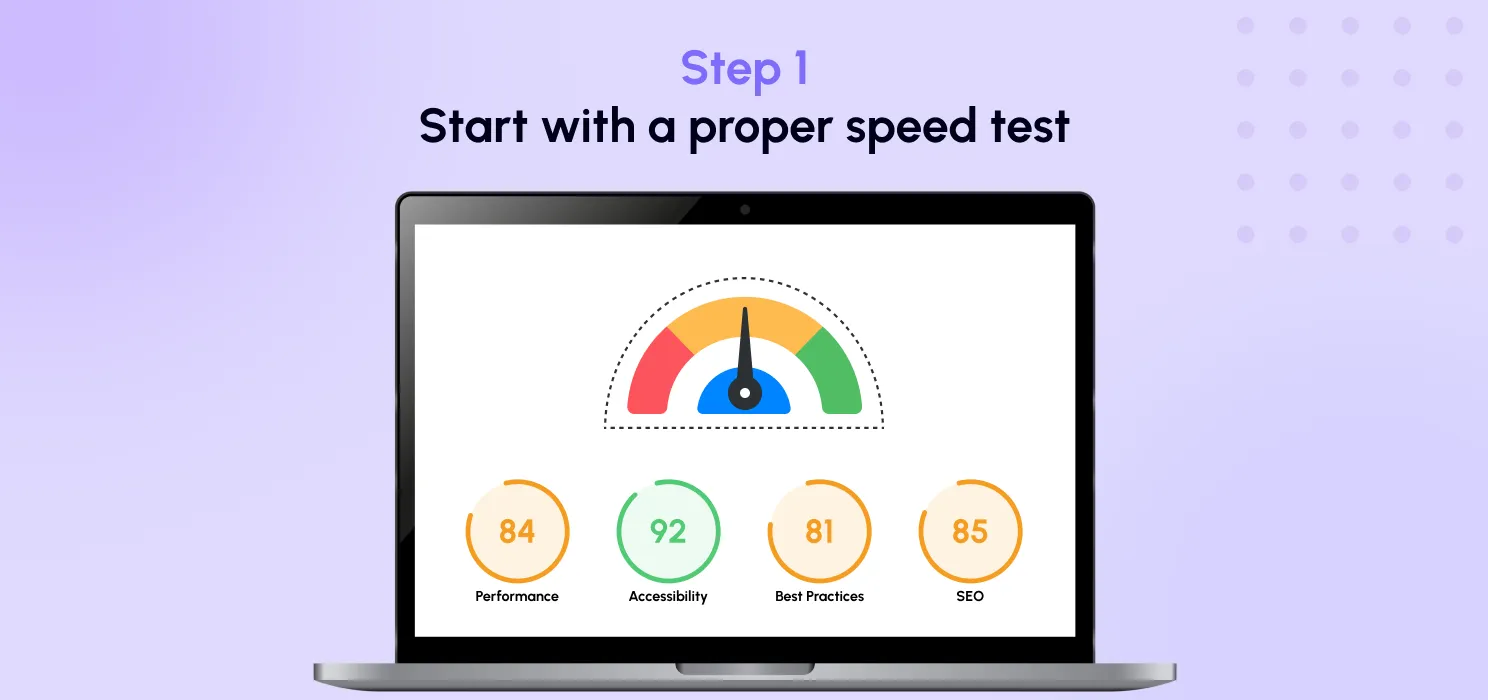
Step 1: Start with a proper speed test

Before changing anything, test your website properly.

Check:

  • Home page
  • A service or product page
  • A blog article
  • Mobile performance
  • Desktop performance

Do not make the mistake of testing only one page. A homepage may look fine while product pages or blog posts are still slow.

When reviewing your report, focus on:

  • Largest Contentful Paint
  • Interactivity and responsiveness
  • Layout stability
  • Overall page load behavior
  • Heavy files and blocking resources

A proper test gives you direction. Without that, you are just guessing.

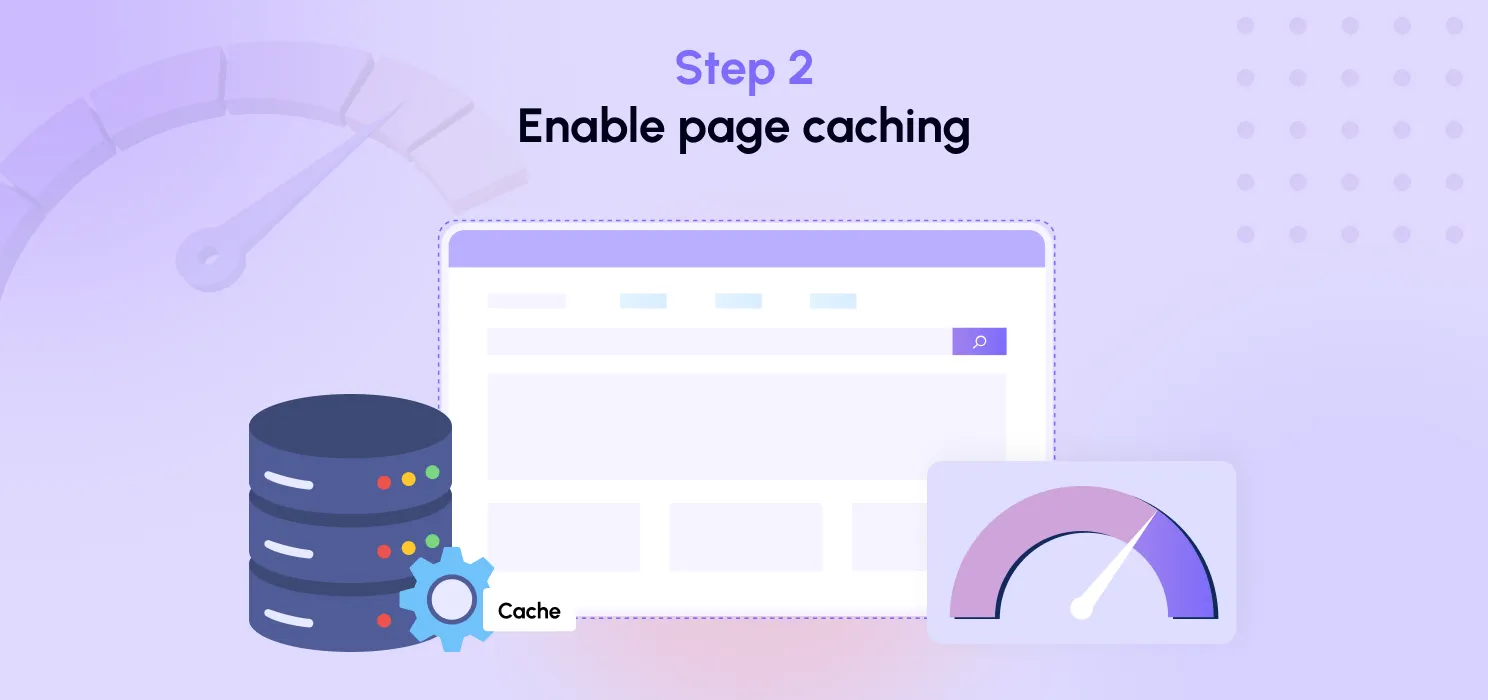
Step 2: Enable page caching

Caching is one of the fastest ways to improve load time.

Without caching, WordPress has to build each page again and again for every visitor. That takes unnecessary server work and adds delay. With full-page caching, your server can deliver a ready version of the page much faster.

This matters even more on content-heavy sites, blog sites, business sites, and many WooCommerce pages that do not need to be generated from scratch for every visit.

A good caching setup should help you:

  • reduce server load
  • improve page delivery speed
  • make repeat visits faster
  • keep traffic spikes from hitting the site as hard

This is why page caching is usually the first thing to fix before touching advanced frontend tweaks.

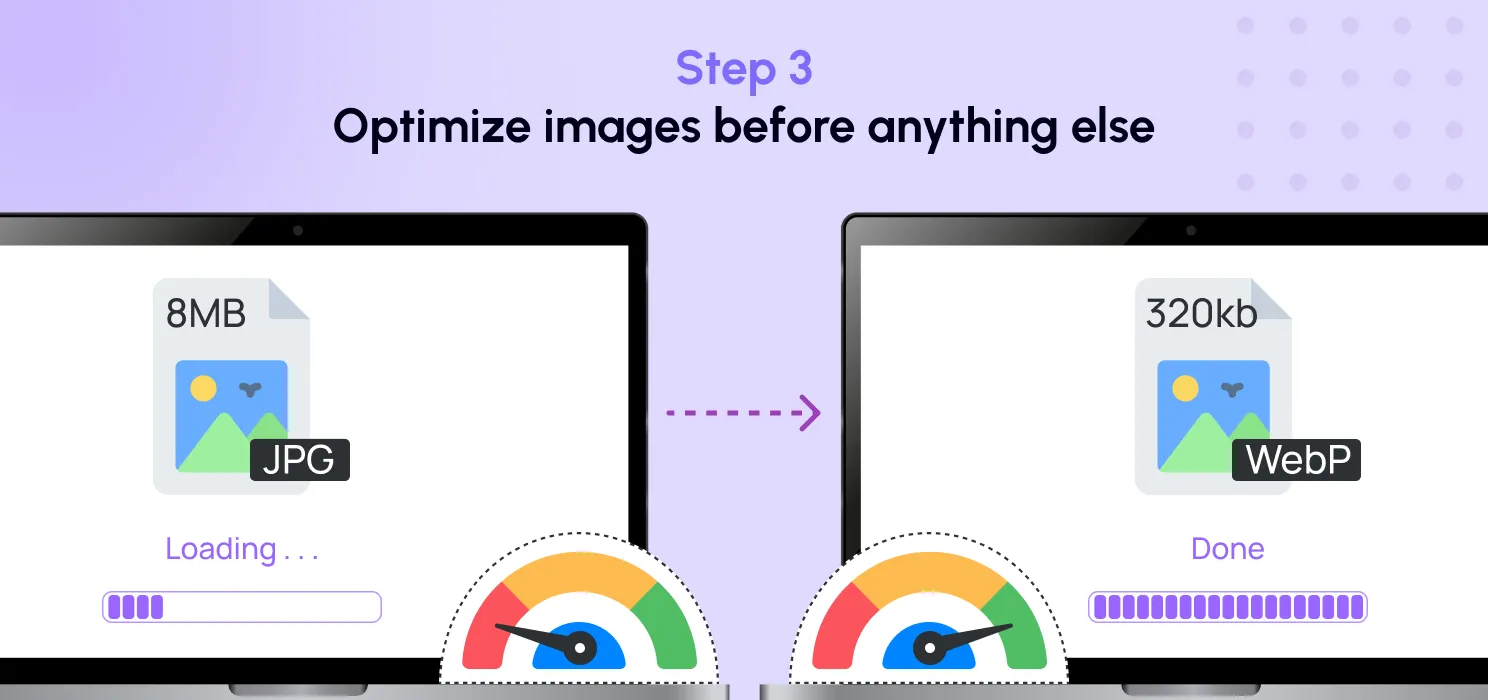
Step 3: Optimize images before anything else

Images are one of the biggest reasons WordPress sites become bloated.

Many websites upload huge PNG or JPG files straight from design tools or phones, then expect the browser to deal with it. That is lazy and expensive.

You should:

  • resize oversized images
  • compress images
  • use modern formats where appropriate
  • avoid uploading massive hero images without reason

For most WordPress websites, image cleanup alone can make a noticeable difference.

This is also where format choice matters. WebP often helps reduce image weight without killing visual quality, which is why it is worth linking this article to your existing WebP blog.

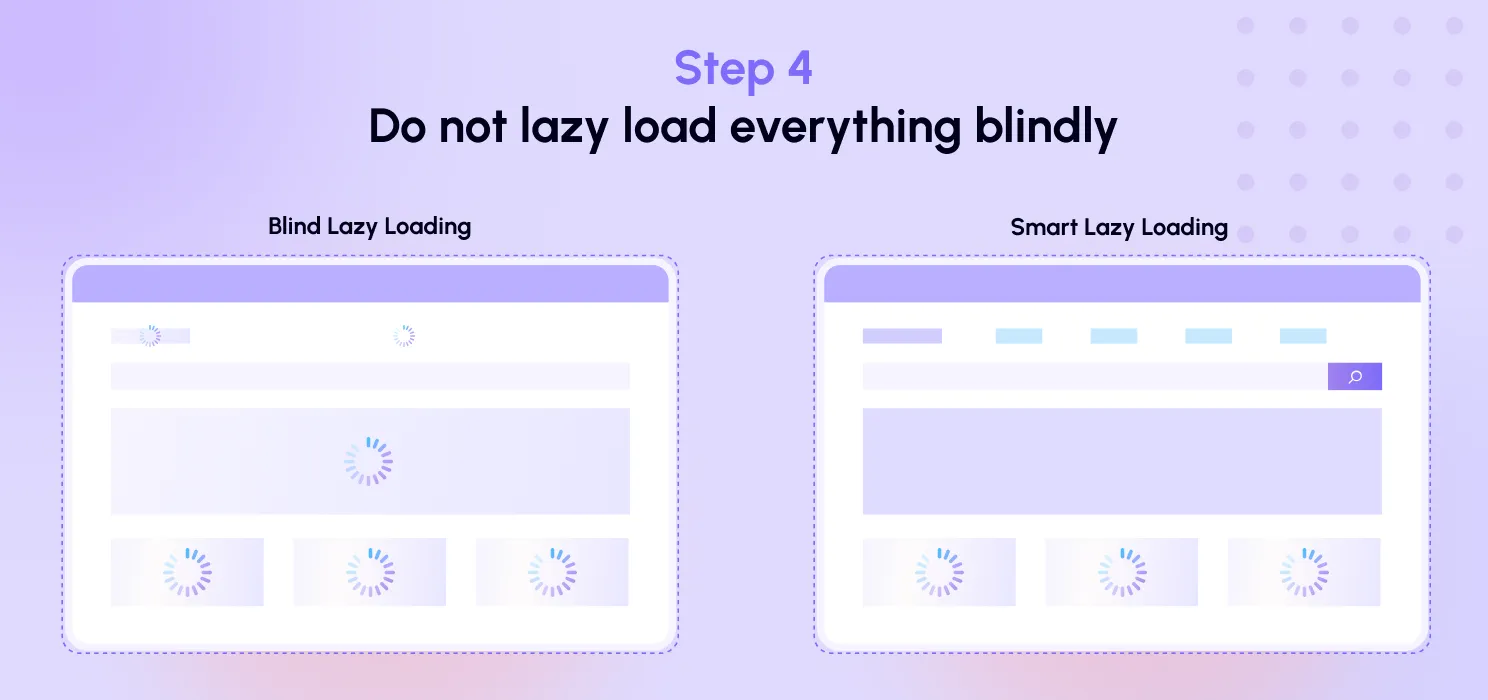
Step 4: Do not lazy load everything blindly

Lazy loading is useful, but a lot of people misuse it.

The goal is to delay below-the-fold images and media until they are actually needed. That reduces initial page weight and can make the first view load faster.

But here is the part people screw up: your most important above-the-fold image should not usually be lazy loaded. If your main hero image or primary visual is delayed, you can hurt the very metric you are trying to improve.

Use lazy loading carefully:

  • lazy load images lower on the page
  • lazy load gallery images, offscreen sections, and embeds
  • do not blindly lazy load the main visible hero image

Used correctly, it helps. Used blindly, it backfires.

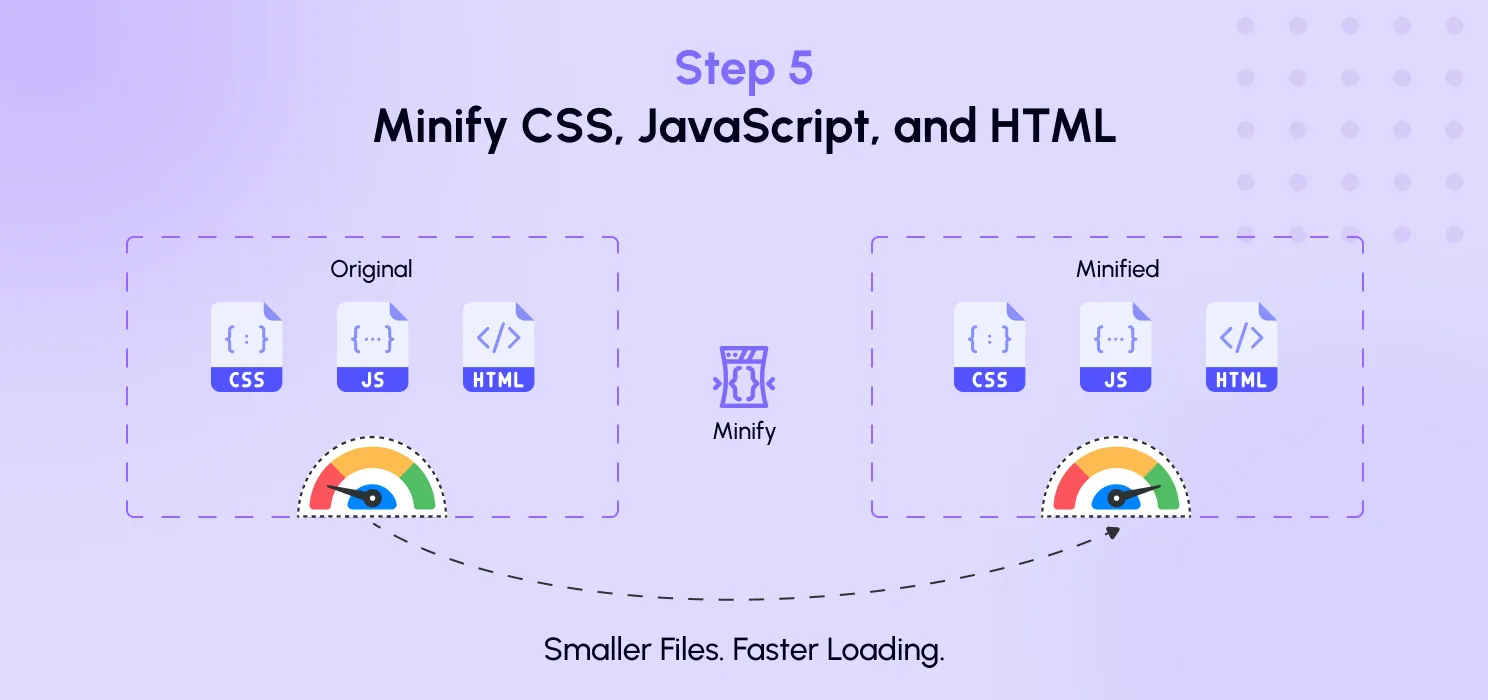
Step 5: Minify CSS, JavaScript, and HTML

A lot of WordPress sites load messy frontend files.

Minification helps reduce file size by removing unnecessary characters from CSS, JavaScript, and HTML. It does not magically fix every performance issue, but it helps reduce payload size and improve delivery efficiency.

This is especially useful when your site loads:

  • large theme stylesheets
  • builder-generated files
  • plugin CSS and JS
  • repeated frontend assets across many pages

Minification is not a silver bullet. But ignoring it is stupid when you are trying to speed up a WordPress site.

Step 6: Be careful with file combination

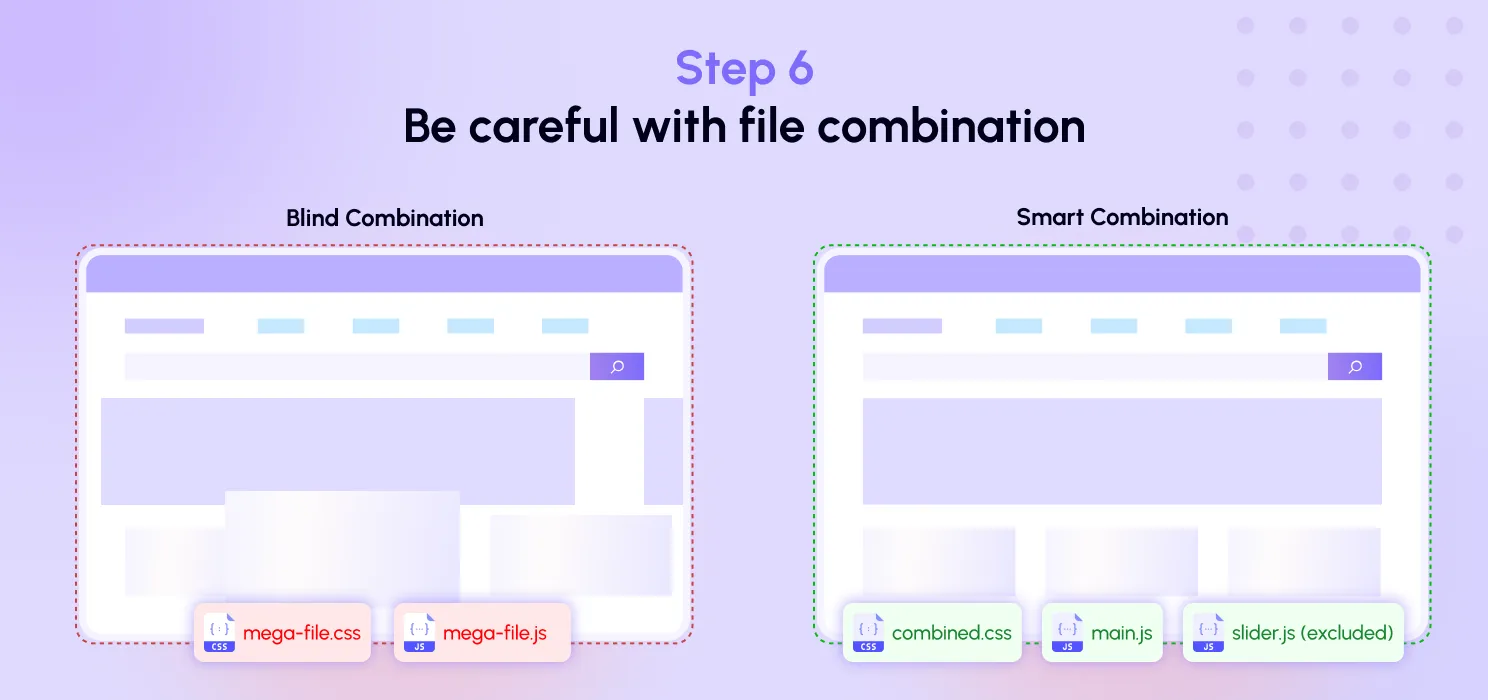
Combining CSS and JavaScript files can sometimes help reduce requests, but it is not always the right move for every website.

Some sites benefit from combining smaller files. Others can break or lose performance if combination is forced without testing. That is why serious optimization should always allow exclusions and controlled testing, not just a one-click gamble.

This is where many site owners fail. They chase aggressive settings without understanding what breaks layout, functionality, or script execution.

The right approach is:

  • combine only where it makes sense
  • test frontend layout after changes
  • exclude files that should stay separate
  • avoid one-size-fits-all settings
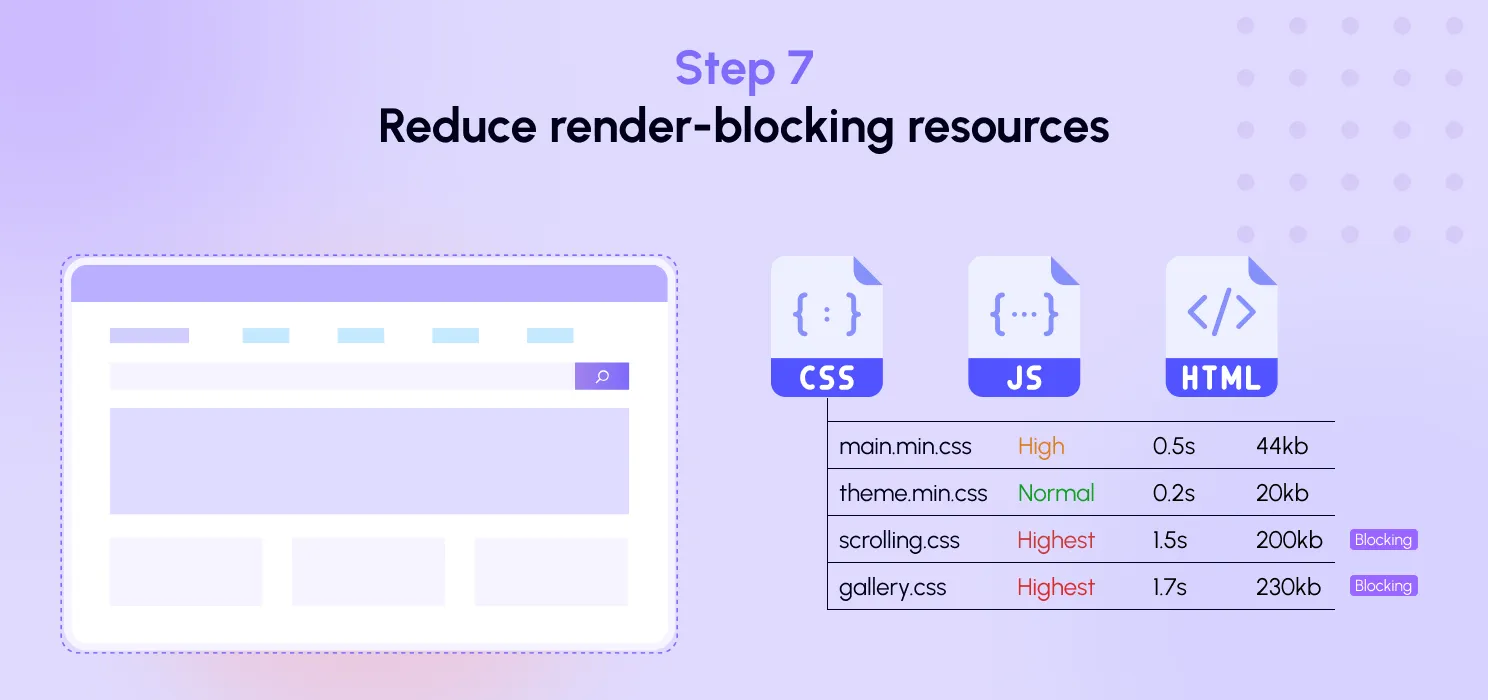
Step 7: Reduce render-blocking resources

Render-blocking CSS and JavaScript can delay the browser from showing useful content quickly.

In plain English, the browser gets stuck waiting for certain files before it can finish rendering what the user sees first.

Common causes:

  • heavy theme CSS
  • multiple slider and animation scripts
  • page builder assets
  • font loading issues
  • unnecessary plugin scripts on pages where they are not needed

To reduce this problem:

  • trim unnecessary CSS and JS
  • minify files
  • combine carefully where helpful
  • avoid loading features site-wide if they are only used on one section
  • keep your above-the-fold area as lean as possible

This is one of the most common reasons a WordPress site feels slower than it should.

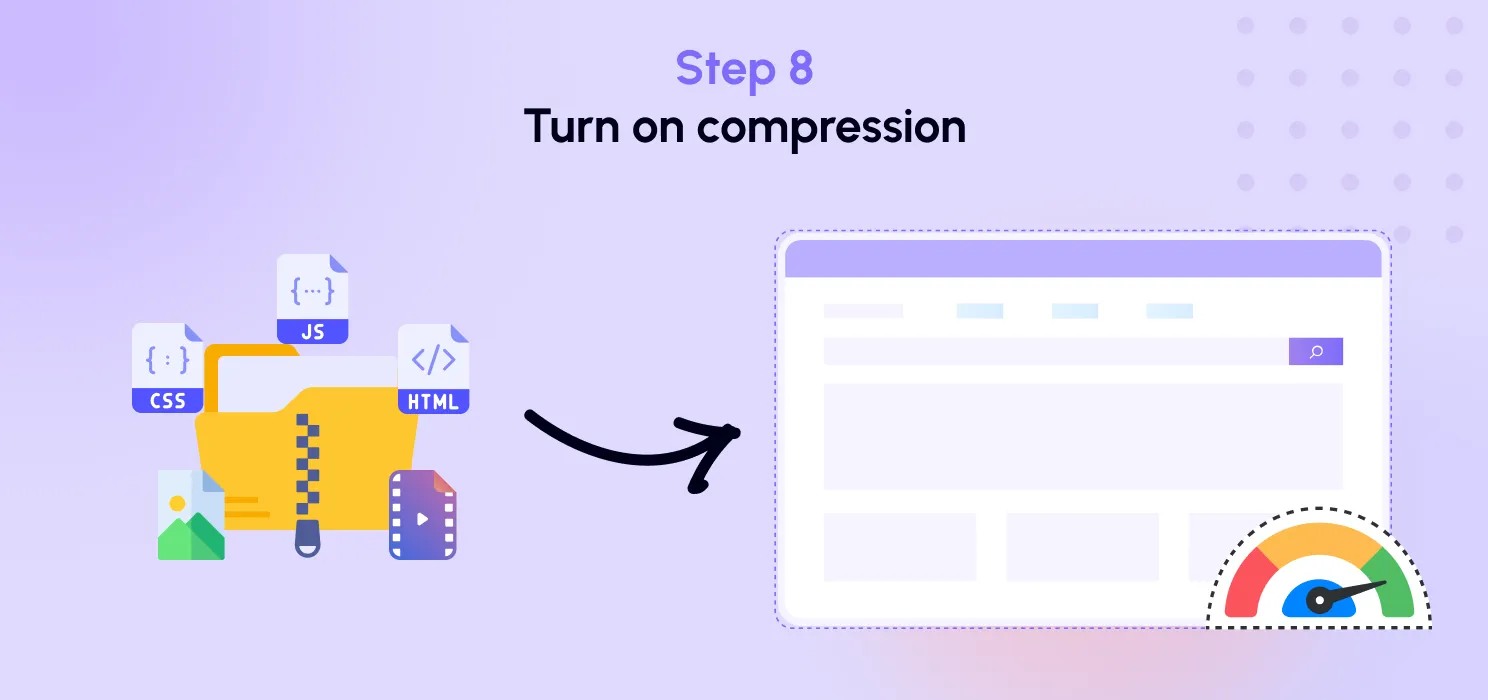
Step 8: Turn on compression

Compression is basic. If it is missing, your setup is weak.

Gzip or Brotli compression reduces the amount of data transferred between the server and the browser. That means files can be delivered more efficiently.

This is not some advanced trick. It is a standard optimization that should already be part of a serious speed stack.

If your site is loading uncompressed text-based assets, you are wasting bandwidth and slowing delivery for no good reason.

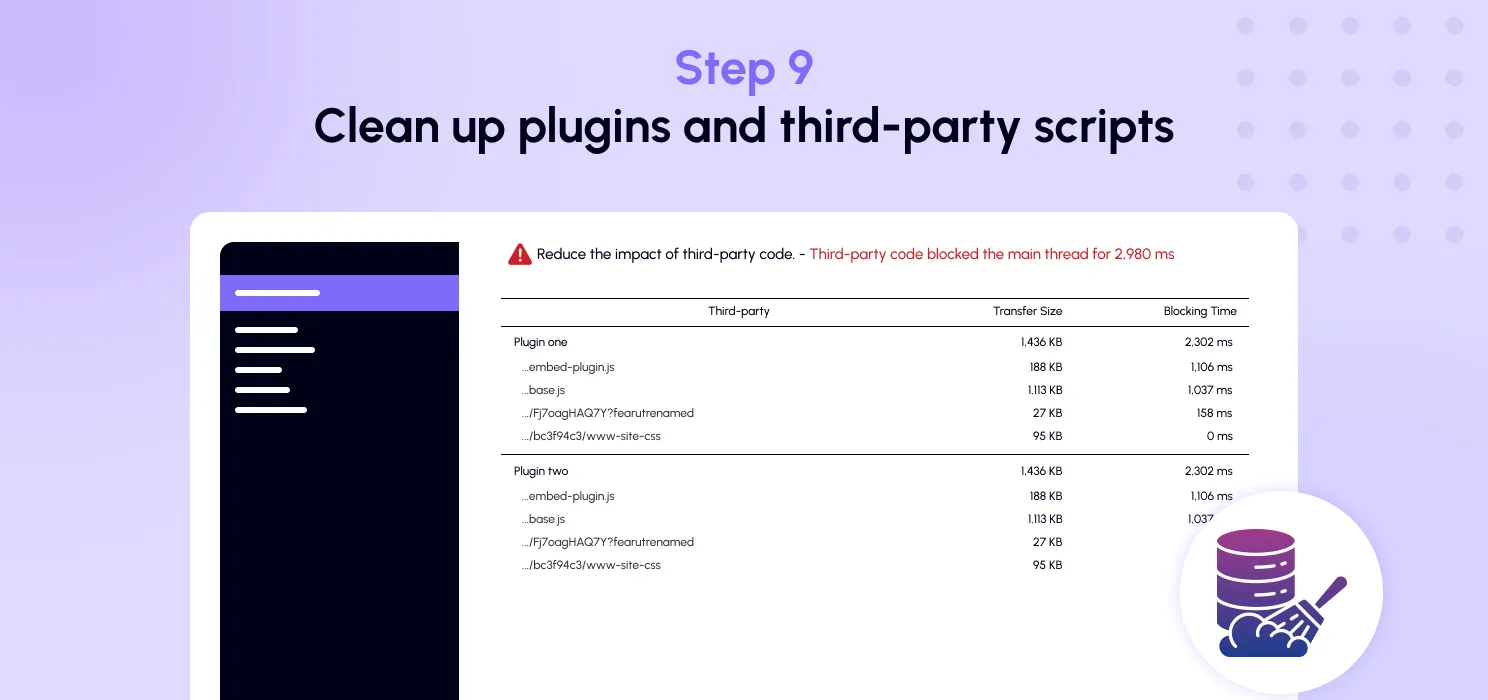
Step 9: Clean up plugins and third-party scripts

Not every plugin is a problem, but bad plugins absolutely are.

Some plugins:

  • load assets on every page
  • trigger slow database queries
  • add tracking scripts
  • inject bloated CSS or JavaScript
  • duplicate functions already handled elsewhere

The same goes for third-party tools like:

  • chat widgets
  • ad scripts
  • analytics add-ons
  • social feeds
  • popups
  • heatmaps

You need to be ruthless here.

Ask:

  • Is this tool actually important?
  • Does it need to load on every page?
  • Is there a lighter alternative?
  • Can one plugin replace three others?

A slow website often reflects bad plugin discipline, not bad WordPress.

Step 10: Optimize for mobile, not just desktop

A site that feels okay on desktop can still be terrible on mobile.

Mobile users often face:

  • slower networks
  • weaker devices
  • delayed rendering
  • heavy images
  • large script execution costs

That is why you should always review mobile performance separately.

Focus on:

  • image weight
  • above-the-fold content
  • layout shifts
  • unnecessary popups
  • script-heavy sections
  • font loading

A site that is barely acceptable on desktop usually feels much worse on mobile.

Step 11: Keep your most important content easy to load

Your first visible section matters most.

The browser should be able to load the main visible content quickly without wading through unnecessary junk. That means your hero section, key heading, intro copy, and primary image need to be treated as priority content.

This is where smart optimization matters more than blindly applying every trick:

  • prioritize the most visible page elements
  • avoid delaying key content
  • remove waste before the fold
  • do not overload the top of the page with sliders, animations, videos, and giant images

If users cannot see the main point of the page quickly, the page already lost.

Step 12: Use one clean optimization stack instead of patchwork fixes

This is where many WordPress sites become a mess.

Site owners install one plugin for cache, one for image optimization, one for minification, one for lazy loading, one for compression, and another plugin because the previous plugin conflicts with the builder.

That stack becomes harder to manage, easier to break, and more confusing to troubleshoot.

A cleaner setup is to use one well-structured optimization tool that handles the major performance layers from one place.

That is the practical value of an all-in-one plugin approach. It reduces tool sprawl, simplifies testing, and gives you a more controlled speed workflow.

Where SpeedyGo fits into this

SpeedyGo is built for WordPress users who want to improve site speed without turning optimization into a full-time technical project.

Instead of patching performance with too many separate tools, SpeedyGo brings together the major speed layers that actually matter, including:

  • page caching
  • HTML, CSS, and JavaScript minification
  • CSS and JavaScript combination
  • Gzip and Brotli compression
  • lazy loading
  • mobile caching
  • cache preloading
  • advanced cache rules and exclusions

That kind of setup makes more sense for site owners who want control without chaos.

You still need to test carefully and optimize page by page when needed, but a unified setup is far easier to manage than a pile of disconnected plugins.

Common mistakes that keep WordPress websites slow

Here are the mistakes people repeat constantly:

  • uploading huge images without resizing them
  • lazy loading critical hero images
  • installing too many overlapping optimization plugins
  • enabling aggressive settings without testing
  • ignoring mobile performance
  • keeping useless plugins active
  • running heavy scripts site-wide
  • focusing only on scores instead of actual user experience
  • using bad hosting and expecting plugins to solve everything

A plugin can help a lot. It cannot fix a fundamentally messy website by itself.

Final thoughts

If your WordPress website is slow, the answer is not random tweaking. It is structured optimization.

Start with the basics:

  • test the right pages
  • enable caching
  • optimize images
  • reduce render-blocking files
  • minify code
  • use lazy loading correctly
  • enable compression
  • cut unnecessary plugins and scripts
  • check mobile experience
  • keep the top of the page light

Once those pieces are handled properly, your site becomes faster, cleaner, and easier to manage.

And if you want a simpler way to handle most of these performance layers in one place, SpeedyGo gives you a practical all-in-one workflow built specifically for WordPress.

See what fast feels like

Start free, no credit card needed — or pick the plan that fits your site.