5 mins read
How to Switch WordPress Caching Plugins Without Breaking Your Site
Share Article :


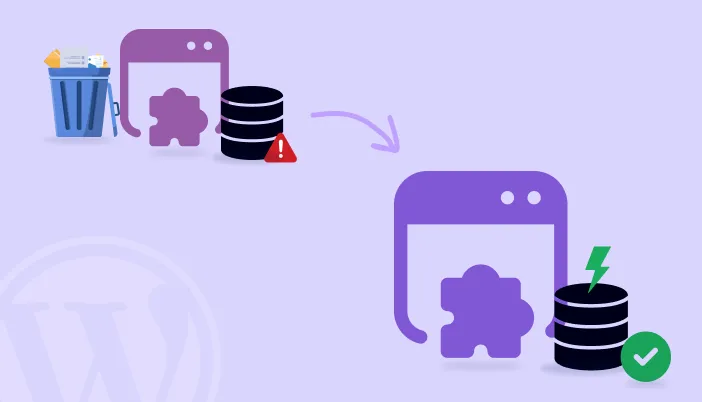
| Quick summary Switching caching plugins sounds simple, but a rushed switch can leave you with a broken layout, old pages, or a slower site. This guide shows how to switch WordPress caching plugins safely. You will learn what to back up, what the old plugin leaves behind, how to test, and what to check afterwards, with a checklist to follow. |
Picture this. You install a new caching plugin, click activate, and your home page turns into a mess. The menu is missing. The images are gone. Your phone rings.
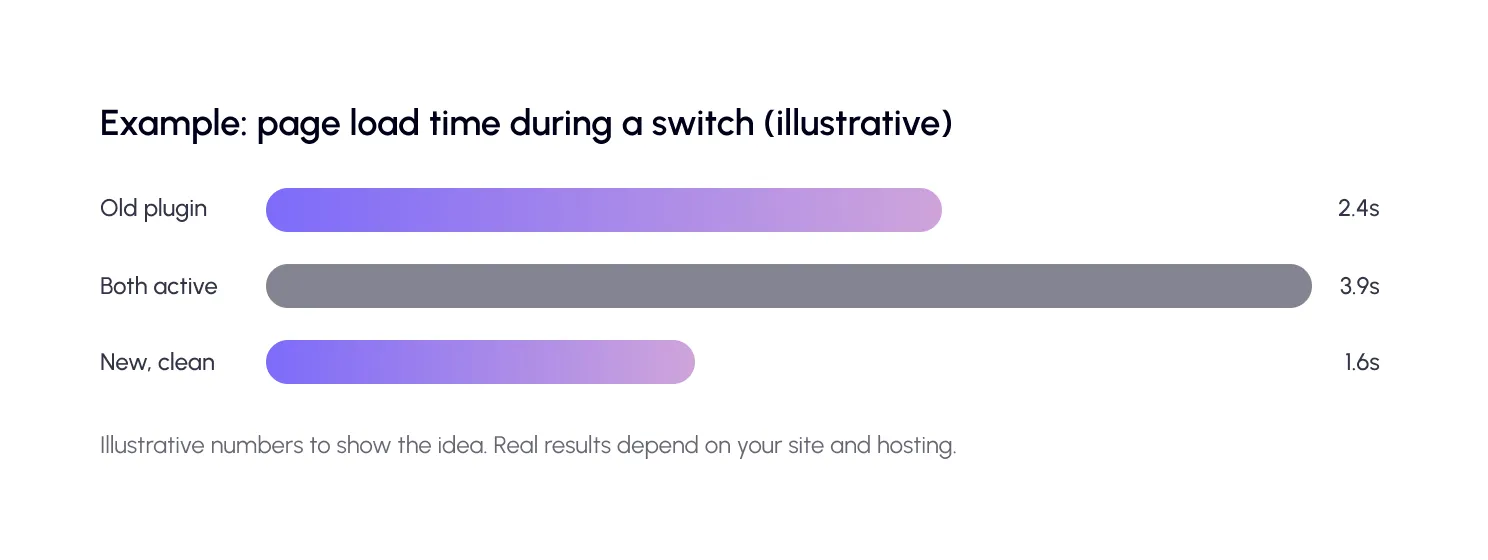
It is a common story. And it usually has one cause: two plugins were trying to do the same job at the same time, or the old one left something behind.
The good news is that a careful switch takes less than an hour. Let’s do it the safe way.
Why would you switch caching plugins?
People change caching plugins for a few simple reasons. The old one is slow or too complex. It stopped getting updates. Support was poor. Or the site grew, and it needs better tools for images, scripts or a CDN.
Whatever your reason, switching is normal. Caching matters because speed matters. Google found that 53% of mobile visits are abandoned if a page takes longer than 3 seconds to load. A good caching setup helps you stay under that line.

What goes wrong when you switch?
Most problems come from four mistakes.
- Running two caching plugins together. Both try to store pages and change the same files. They fight, and your site pays for it.
- Leftover files and rules. Deactivating a plugin does not always clean up after it. Old cache files and settings can stay on your server.
- Old cached pages. Your visitors, your CDN or your browser may still hold copies made by the old plugin.
- No backup. If something breaks and you have no backup, the fix is slow and stressful.
How to switch WordPress caching plugin: 6 steps
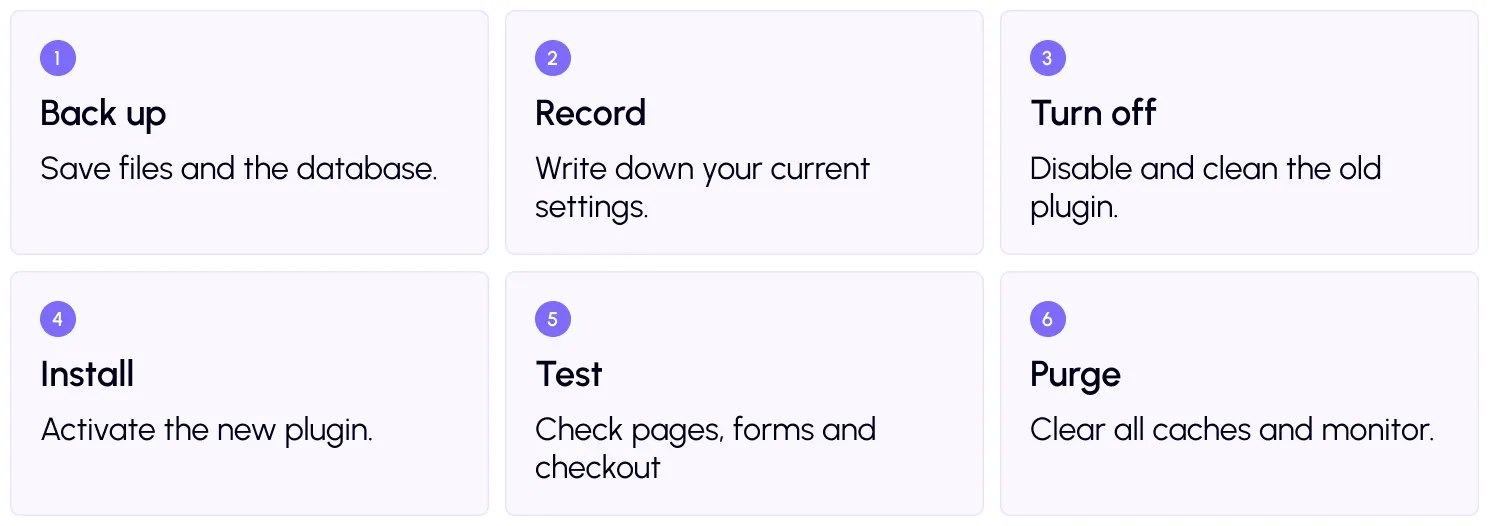
Follow these steps in order. Do not skip the backup.
Step 1: Back up your site
Take a full backup of your files and database. WordPress explains the process in itsbackup guide. Your host may also offer one-click backups.
If you can, do the whole switch on a staging copy first. Staging is a private test version of your site. If it breaks, your visitors never see it.
Step 2: Write down your settings
Open the old plugin and note what is turned on. Look at cache lifespan, mobile caching, excluded pages, and any CDN or script settings. Take screenshots.
Pay special attention to exclusions. These are pages that should never be cached, like the cart, checkout, and account pages on a store. You will need to set them again in the new plugin.
Step 3: Turn off and clean the old plugin
Before deactivating, clear the old plugin’s cache from its own menu. Then turn off its optimization features, such as minify, lazy load, and CDN rewrites. Deactivate it, and delete it if you no longer need it.
Now check for leftovers. Look at the file list in the table above. If your host gives you a file manager, confirm that old cache folders and drop-in files are gone. If you are not sure, ask your host or developer before deleting anything.
Step 4: Install the new plugin
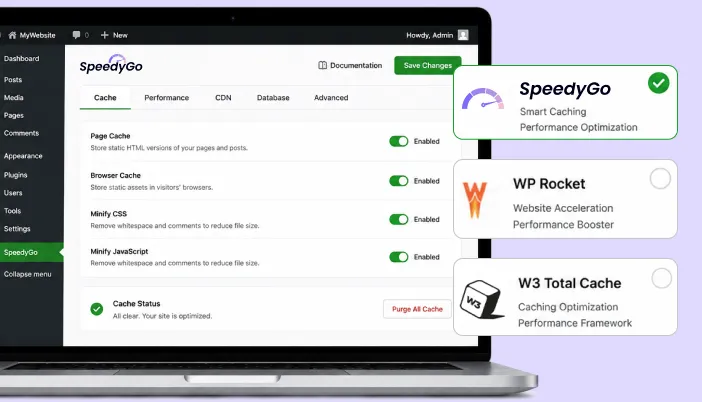
Install and activate the new plugin. With SpeedyGo, follow theinstall and setup guide. Then pick a starting point from theoptimization presets instead of turning on everything.
Start simple. Turn on full-page caching first. Add more features one at a time, and test after each one. This makes any problem easy to trace.
Step 5: Test your site properly
Do not just check the home page. Visit key pages while logged out, and check on a phone. Click through the menu, submit a form, and search. On a store, add a product to the cart and walk through checkout.
Usemobile caching settings if your site looks different on phones. Then check yourCore Web Vitals scores: LCP, INP, and CLS.
Step 6: Purge every cache and monitor
Clear the new plugin’s cache. Also clear your CDN cache and your hosting cache, if your host has one. Otherwise, visitors may still see pages made by the old plugin.
Then help your cache fill up fast. SpeedyGo offerscache preloading and cache warm-up, so early visitors get fast pages. Set a schedule with scheduled expiration and auto purge so content stays fresh.

Common mistakes to avoid
The biggest mistake is turning on every feature at once. If something breaks, you will not know which setting did it.
The second is forgetting cache exclusions. Caching a cart or account page can show one customer another customer’s data, so always exclude these.
The third is switching in the middle of a busy sale or campaign. Pick a quiet time instead.

Frequently Asked Questions
Find answers about switching WordPress caching plugins safely, avoiding plugin conflicts, clearing old cache files, protecting SEO, and testing your website after migration.
Can I use two caching plugins at the same time?
No. Two caching plugins can conflict, break layouts and slow the site down. Use one caching plugin at a time.
How do I switch WordPress caching plugin safely?
Back up your site, note your settings, clear and remove the old plugin, install the new one, test key pages, and purge every cache. Use staging if you can.
Do I need to delete the old plugin?
Yes, once you have turned off its features and cleared its cache. Deleting it avoids conflicts and removes leftover files in most cases.
Will switching plugins hurt my SEO?
Not if you switch carefully. Your content and URLs do not change. A well-tested switch often improves speed, which helps SEO. Errors during a bad switch are the real risk.
Why does my site still look old after switching?
Old copies may be stored in your CDN, host cache or browser. Clear all of them, and test in a private browser window.
Can SpeedyGo help me migrate?
Yes. Paid plans include human developer support, and you can start on the free plan to test it first.