
Mobile caching creates and maintains a completely separate cache for mobile visitors. When enabled, SpeedyGo stores one cached version for desktop browsers and a separate one for mobile browsers, ensuring each device type always receives the correct cached file.
Dashboard path: Cache Settings → Caching & Preloading
Section: Mobile Caching
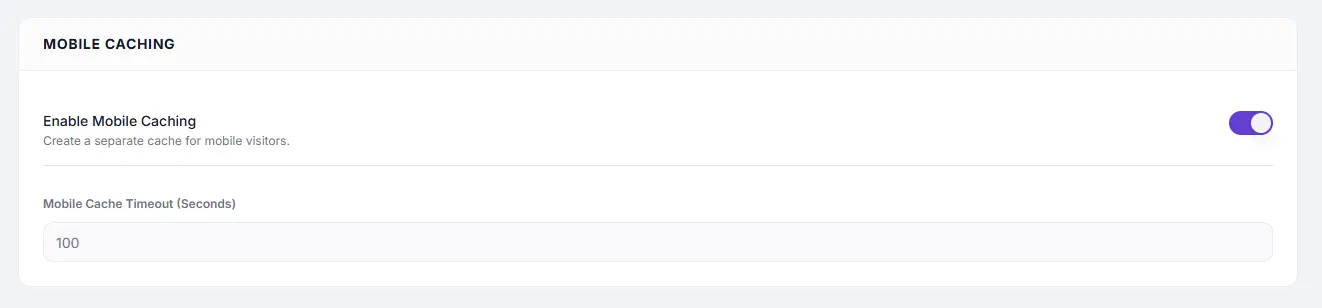
Settings #
| Setting | Type | Description |
|---|---|---|
| Enable Mobile Caching | Toggle | Creates a separate cache for mobile visitors. |
| Mobile Cache Timeout (Seconds) | Number | How long mobile-specific cached pages are kept. Default: 100. |
Recommended Values #
| Setting | Recommended | Notes |
|---|---|---|
| Mobile Cache Timeout | 86400 (24 hours) | Match your Full Page Cache Expiry Time for consistency |
When to Use #
| Situation | Recommendation |
|---|---|
| Your theme serves different HTML to mobile vs desktop (adaptive/dynamic serving) | Enable — essential for correct caching |
| Your theme is fully responsive (same HTML, CSS adjusts layout) | Not needed — Full Page Caching handles both |
| You use a dedicated mobile plugin (e.g. WPtouch) | Enable — the mobile plugin serves different markup |
How to Enable #
- Go to Cache Settings → Caching & Preloading.
- Under Mobile Caching, toggle Enable Mobile Caching to ON.
- Set Mobile Cache Timeout in seconds (e.g.
86400). - Click Save Changes.
Troubleshooting #
| Symptom | Likely cause | Fix |
|---|---|---|
| Mobile visitors see desktop layout | Mobile caching off with adaptive theme | Enable Mobile Caching |
| Mobile cache timeout too short, pages regenerate too often | Low timeout value | Increase Mobile Cache Timeout to match FPC Expiry |
Tips #
Note: Most modern WordPress themes are fully responsive — they serve the same HTML to all devices and rely on CSS media queries to adapt the layout. If this describes your theme, you do not need Mobile Caching.


