5 mins read
How to Fix Slow WordPress Admin Dashboard Performance
Share Article :


Quick summary
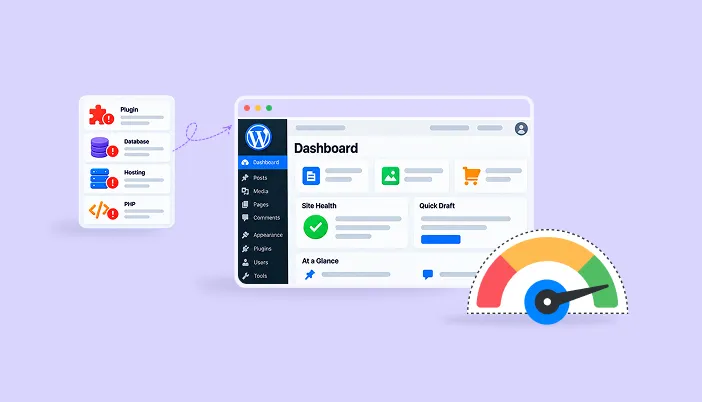
When your WordPress admin crawls, every task takes longer: writing posts, editing pages, checking orders. This guide explains why a WordPress admin gets slow, how to find the real cause and how to fix it step by step. It also explains why normal speed plugin settings often do not help the backend, so you do not waste your time.
You click “Posts” and watch a spinner. You open the editor and wait. You save a page and wait again. Your public site is fine, but the backend feels like wading through mud.
A slow admin is not just annoying. It slows your whole team and makes you avoid updating your own site.
The good news is that the causes are limited, and most are fixable in an afternoon. Let’s find yours.
Why is the WordPress admin slow when the site is fast?
Because the two work differently. Your public pages can be saved and served from a cache, so visitors get them instantly. Your admin screens cannot. Each admin page is built fresh, for you, with your own data and permissions.
So a site can feel fast to visitors and slow to you. And that means the usual front-end speed tricks, like caching pages, minifying files, and lazy-loading images, do very little for the backend.
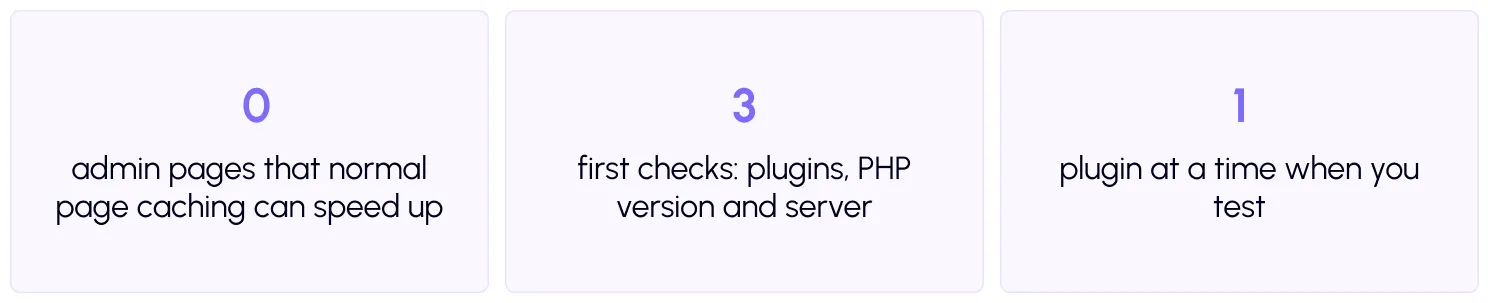
What usually makes the admin slow?
Here are the common causes, and what you will notice with each.
Step 1: Back up first
You will be turning things off and changing settings. Take a full backup of your files and database first, and use staging if your host offers it.
Step 2: Measure what is slow
Do not guess. Install the free Query Monitor plugin. It shows slow database queries on each admin page and tells you which plugin or theme caused them. You can also open your browser’s developer tools, go to the Network tab, and reload a slow admin page to see which requests take the longest.
Check WordPress’s own Site Health screen too. It flags basic problems like an outdated PHP version.
Step 3: Isolate the slow plugin
Plugins are the most common cause. The Health Check and Troubleshooting plugin has a Troubleshooting Mode that disables plugins and switches to a default theme for you only. Your visitors see no change. Turn plugins back on one by one, and watch for the moment the admin slows down.
Step 4: Check PHP, memory and hosting
Old software is slow software. WordPress publishes its recommended server requirements, and PHP only supports certain versions with fixes and updates, as listed on the PHP supported versions page. Ask your host to move you to a current, supported PHP version, then test your site.
Also check your PHP memory limit. A low limit makes heavy admin screens slow or cause errors. Your host can raise it. If your admin is slow on every page even after fixing plugins, your hosting plan may simply be too small for your site. Shared plans with strict limits often struggle with big stores and page builders.
Step 5: Tame Heartbeat and clutter
WordPress uses theHeartbeat API to do things like autosave and show who else is editing. It sends repeated background requests while you work. On weak servers or with many editors, this adds up. A developer or a trusted plugin can slow the Heartbeat rate or turn it off on screens where it is not needed.
Next, tidy the dashboard. Open “Screen Options” at the top of the admin and untick widgets you never use. Reduce “items per page” on long lists. Dismiss old plugin notices.
Finally, look at your database. Old revisions, spam comments and expired temporary data make post lists and settings slower. We cover this in our guide to database cleanup on theSpeedyGo blog. Always back up first.
Step 6: Add object caching and re-test
Page caching cannot help the admin, but object caching can. It saves common database results in memory, so WordPress does less repeated work. WordPress has a built-in object cache, but it works best with a persistent store like Redis, which many hosts offer. SpeedyGo documents object caching as part of its caching tools, so check whether your host supports it.
Then re-test. Open the same admin screens you timed before, and compare. Check the editor, the posts list and, on a store, the orders screen.
Common mistakes to avoid
The first mistake is blaming the front-end speed plugin or caching. They rarely cause admin slowness, and they rarely fix it.
The second is deactivating plugins on a live site with no plan. Use Troubleshooting Mode or staging so visitors never see problems.
The third is jumping straight to a new host. Fix plugins, PHP and the database first, since these cost nothing.

Frequently Asked Questions
A slow WordPress admin dashboard can happen for several reasons, from heavy plugins and outdated PHP versions to database issues and limited server resources. Here are answers to some common questions about why wp-admin becomes slow, how to find the cause, and what you can do to make your WordPress backend run faster.
Why is my WordPress admin so slow?
Common causes are heavy or conflicting plugins, outdated PHP, low memory, weak hosting, a bloated database and constant background requests like Heartbeat.
How do I fix a slow WordPress admin dashboard?
Back up, use Query Monitor to find slow queries, test plugins in Troubleshooting Mode, update PHP, check memory and hosting, clean the database and add object caching.
Does page caching speed up the WordPress admin?
No. Admin pages are built fresh for each logged-in user, so page caching does not apply. Object caching and better hosting can help.
Can plugins slow down wp-admin?
Yes, and they are the most common cause. Some run slow queries, show many notices, or contact outside servers on every admin page.
What is the Heartbeat API?
It is a WordPress feature that sends regular background requests for autosaves and post locking. On weak servers, too many of these can slow down the admin.
Will SpeedyGo make my admin faster?
SpeedyGo focuses on your visitor-facing speed, and it keeps its footprint light by only running the features you enable. For admin slowness, start with plugins, PHP, hosting and the database.