
Object caching stores the results of expensive database lookups — menus, widget data, WordPress option queries, transients — in memory. Instead of hitting the database on every request, WordPress reads the cached result directly from memory, which is orders of magnitude faster.
Dashboard path: Cache Settings → Caching & Preloading
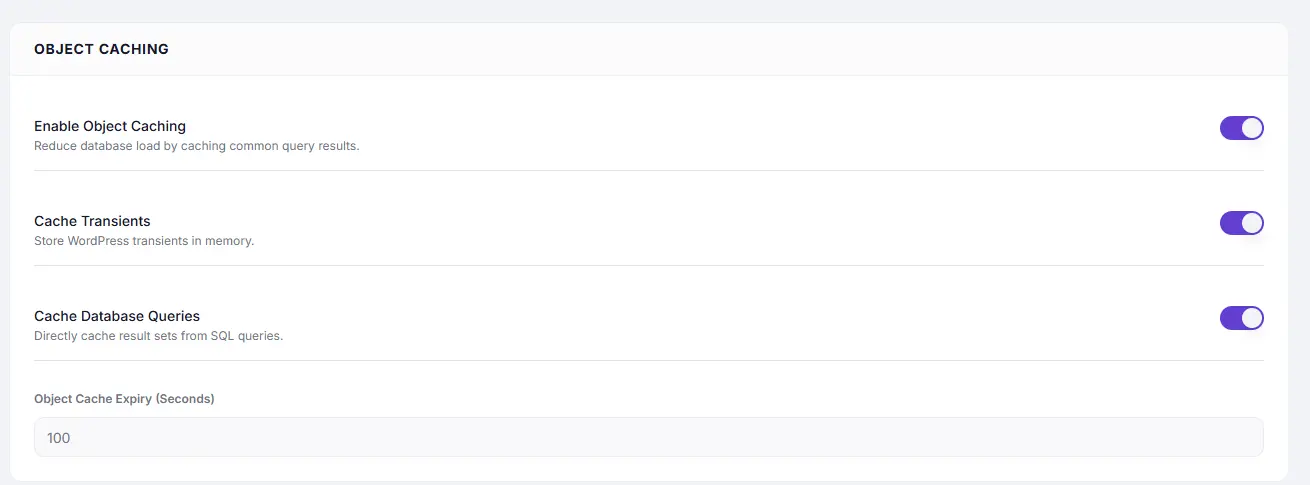
Section: Object Caching
Requirements #
Object caching requires a persistent cache backend installed on your server:
- Redis (most common) — Redis server + the Redis Object Cache plugin, or WP Redis
- Memcached — Memcached daemon + the W3 Total Cache or Memcached Object Cache drop-in
Without a persistent backend, WordPress uses a per-request in-memory cache that is discarded at the end of each PHP request — toggling these settings will have minimal effect.
Ask your host whether Redis or Memcached is available on your plan. Most managed WordPress hosts (Kinsta, WP Engine, Cloudways) include Redis by default.
Settings #
| Setting | Type | Description |
|---|---|---|
| Enable Object Caching | Toggle | Master switch. Reduces database load by caching common query results. |
| Cache Transients | Toggle | Stores WordPress transients in the object cache (Redis/Memcached) instead of the database. |
| Cache Database Queries | Toggle | Caches raw SQL SELECT query result sets so identical queries skip the database entirely. |
| Object Cache Expiry (Seconds) | Number | How long cached objects are kept before being invalidated. Default: 100. |
Recommended Values #
| Setting | Recommended | Notes |
|---|---|---|
| Object Cache Expiry | 3600 (1 hour) | Good default for most sites. Lower to 300 if data changes frequently. |
| Cache Transients | ON | Safe for all sites — speeds up API response caches, plugin data |
| Cache Database Queries | ON (with caution) | Disable on sites with highly dynamic data or membership-level content |
How to Enable #
- Confirm your host has Redis or Memcached available.
- Go to Cache Settings → Caching & Preloading.
- Under Object Caching, toggle Enable Object Caching to ON.
- Enable Cache Transients and Cache Database Queries.
- Set Object Cache Expiry in seconds.
- Click Save Changes.
Troubleshooting #
| Symptom | Likely cause | Fix |
|---|---|---|
| Settings enabled but no performance improvement | No persistent cache backend installed | Install and activate Redis or Memcached on your server |
| Membership content leaking to wrong users | Query results cached across users | Disable Cache Database Queries; use user-specific cache keys |
| Stale data appearing after content update | Expiry is too long | Lower Object Cache Expiry or implement cache invalidation hooks |
Tips #
Tip: Cache Transients is the safest option to enable first — it caches plugin API responses and computed data without risk of user-data leakage.
Note: Cache Database Queries is more powerful but requires care on sites where different users see different content for the same URL.


