5 mins read
How to Optimize Web Fonts in WordPress for Faster Loading
Share Article :


Quick summary
Fonts make your site look great, but each one is a file the browser must download. Too many can delay your text, shift your layout and slow your page. This guide shows how to optimize fonts WordPress speed in simple steps: cut extra fonts, use the right format, load them smartly and handle Google Fonts the right way. It ends with a checklist.
You open a website. The page appears, but the text is missing. A blank gap sits where a heading should be. Then, a second later, the words pop in and everything shifts.
That flicker is a font problem. And it happens on thousands of WordPress sites, often with no one noticing.
Fonts are small compared to images, so they get ignored. But they can quietly cost you speed and layout stability. The fix is easy once you know where to look.
Why do fonts slow down your WordPress site?
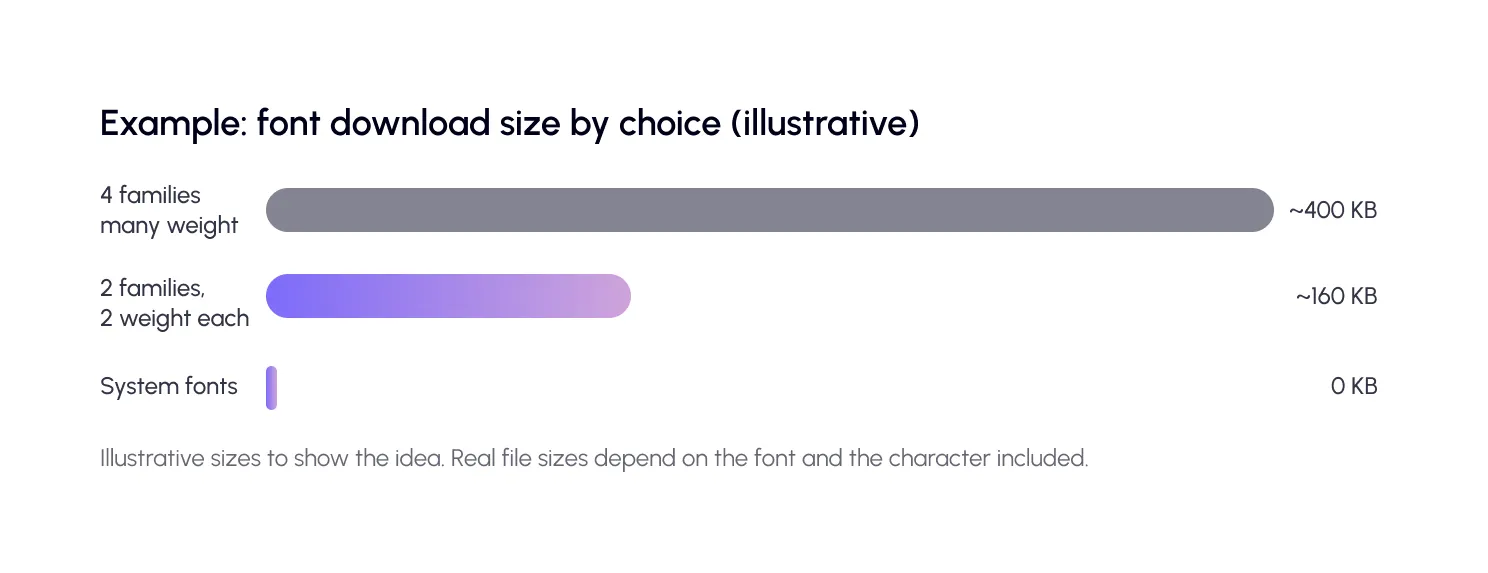
Every font family and every weight is its own file. Regular, bold, and italic are three downloads. A theme that loads four families with three weights each can ask for a dozen files before it shows a single sentence.
Fonts also cause two visible problems. Some browsers hide text until the font arrives, which looks like a blank space. Others show a backup font first, then swap, which makes the layout jump. That jump is measured as Cumulative Layout Shift, one of Google’s Core Web Vitals.
If your main heading is your biggest element, a late font can also delay Largest Contentful Paint. So WordPress font optimization can help several scores at once.
How do you see which fonts your site loads?
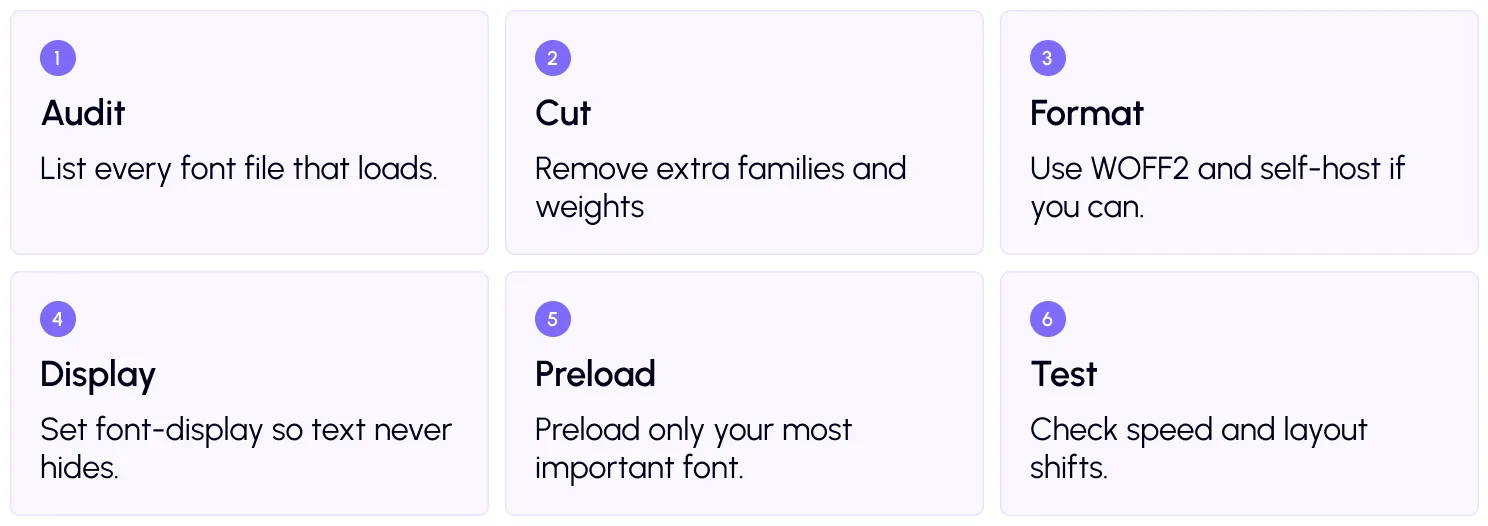
Start by looking. Open your site in Chrome, press F12, and open the Network tab. Filter by “Font” and reload the page. You will see every font file, its name and its size.
You can also run your page through PageSpeed Insights or the free SpeedyGo speed test. Note the score, and check for advice about fonts and layout shifts.

Font optimization plan: 6 steps
Step 2: Cut what you do not need
This is the biggest win. Use no more than two families, and only the weights you truly use, such as regular and bold. Skip italics and light weights unless they matter to your design.
Step 3: Use WOFF2 and self-host
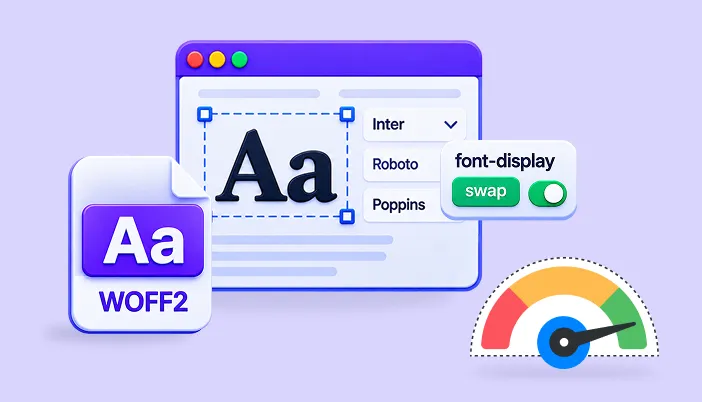
WOFF2 is a compressed font format supported by all modern browsers. If you self-host, download your fonts in WOFF2 and upload them to your site. Fonts that are served from your own domain, or through a CDN, skip the extra connection to Google. If you use a CDN, our CDN integration can help deliver your static files faster.
If you need only some languages, choose a smaller “subset” of the font. Fewer characters mean a smaller file.
Step 4: Set font-display
The font-display setting tells the browser what to do while a font is loading. With the “swap” value, the browser shows text right away in a backup font, then switches when your font is ready. The MDN guide to font-display explains every option.

Step 5: Preload your key font
Preloading tells the browser to fetch a file early. Use it for the one font that appears at the top of your page, usually your heading or body font.Google explains preloading critical assets in detail.

Do not preload every font. Too many preloads compete with each other and with your main image, which can make things slower. Preload one or two files at most.
Step 6: Test and combine with caching
Re-run your tests and check for layout shifts. Then support your work with caching. Browser caching lets returning visitors keep your font files, and full-page caching makes the whole page load faster. SpeedyGo’s CSS optimization also reduces style code that fonts depend on.
WordPress themes often load fonts through plugin settings, so check your theme or builder settings first. For a wider view on speed, browse the SpeedyGo blog.
A real-life example
A food blogger notices her site flickers on phones. Her theme loads four font families with nine weights in total, plus an icon font. Her main heading appears late, and the page jumps as it loads.
She keeps two families with two weights each, and removes the unused ones. She self-hosts the files in WOFF2, adds font-display swap and preloads only the heading font. The blank gap disappears. The layout stays steady, and the page feels calmer and quicker.
The design barely changed. Visitors just stopped seeing the flicker.
Common mistakes to avoid
The first mistake is loading fonts from many sources at once, such as your theme, a plugin, and Google. You end up downloading the same font twice.
The second is preloading everything. Preloading is for the few files that matter most.
The third is judging by looks alone. A font can look the same to you and still cost visitors half a second.

Frequently Asked Questions About WordPress Font Optimization
Find out how to optimize web fonts in WordPress, improve Google Fonts performance, use font-display swap, preload critical fonts, and reduce layout shifts.
How do I optimize fonts in WordPress?
Remove unused fonts and weights, use WOFF2, self-host where possible, set font-display to swap, preload your main font and enable caching. Then test your speed and layout stability.
Are Google Fonts bad for speed?
Not by themselves. The problems come from loading too many families and weights, and from the extra connection to Google. Limit them or self-host.
Should I preload fonts in WordPress?
Preload only the one or two fonts used at the top of your page. Preloading too many files can slow down other important resources.
How many fonts should a website use?
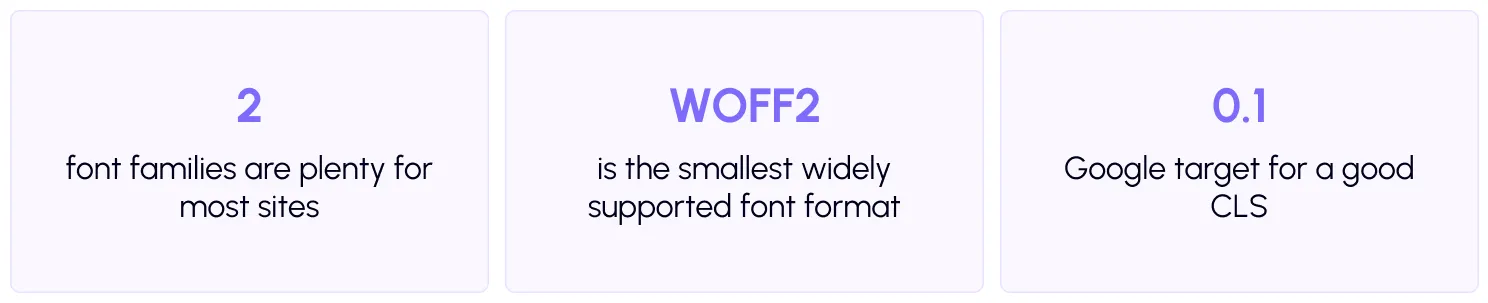
Two families is enough for most sites, with only the weights you actually use. Fewer fonts mean fewer downloads.
Does SpeedyGo help with fonts?
Yes. SpeedyGo plans include deferred font loading, and its caching, CSS optimization and CDN support help fonts and other files load faster.