
SpeedyGo integrates with Bunny CDN to distribute your site’s assets across a global network of edge servers. When CDN is enabled, images, CSS, JS, and fonts are uploaded to Bunny Storage and served to visitors from the nearest edge location — reducing origin server load and dramatically improving load times for international visitors.
Dashboard path: Integrations → CDN
Stats Cards #
| Card | Plan | Description |
|---|---|---|
| Monthly Bandwidth | Free + Pro | CDN bandwidth consumed this billing period vs your plan limit. |
| Storage Used | Pro only | Bunny Storage space occupied by synced assets. |
| Total Synced Pages | Pro only | Number of pages whose assets have been pushed to CDN. |
| Last Purge Executed | Pro only | Timestamp of the most recent cache purge. |
| Last Global Sync | Pro only | Timestamp of the most recent full sync operation. |
Status Card #
Shows your CDN connection details:
- Pull Zone Host — your Bunny CDN domain (e.g.
yourzone.b-cdn.net) - Storage Cluster (Pro) — your Bunny Storage zone name
Settings #
Bunny CDN Integration section #
| Setting | Plan | Description |
|---|---|---|
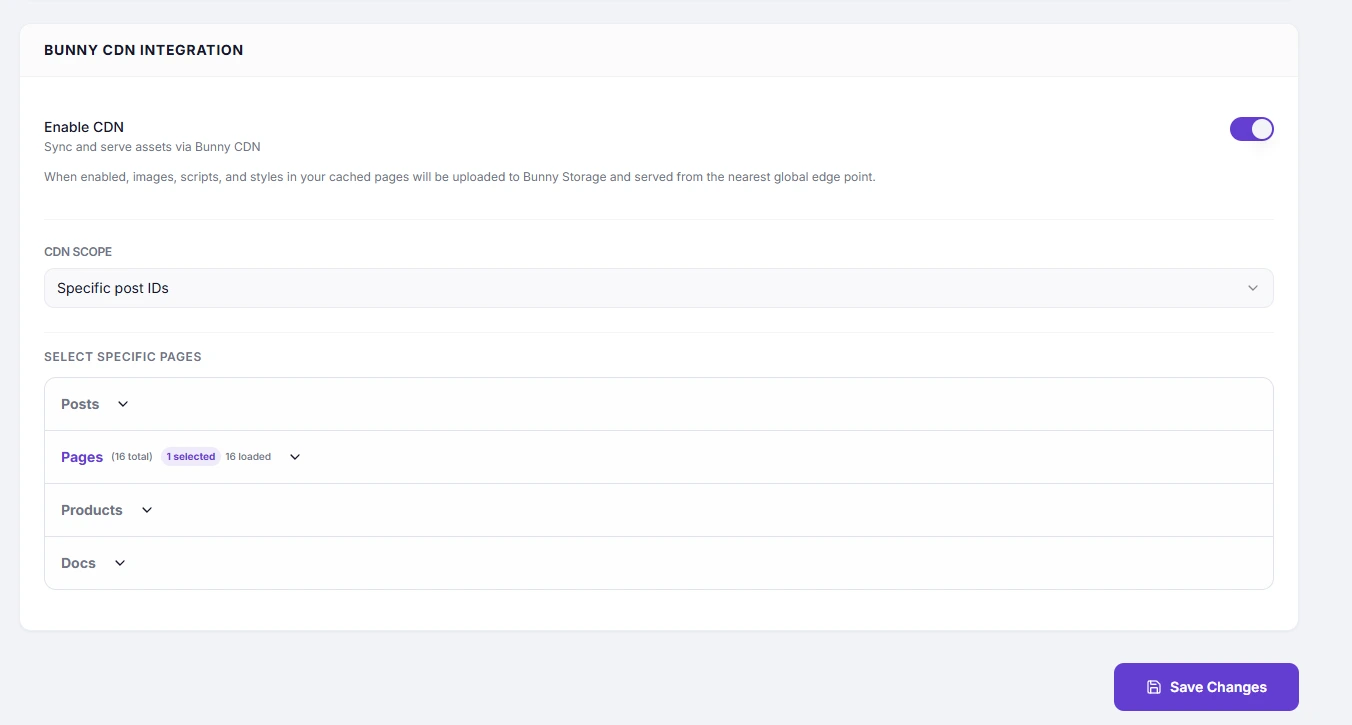
| Enable CDN | Free + Pro | Master switch. When ON, assets in cached pages are uploaded to Bunny Storage and served from the global edge. |
| CSS Files | Free | Serve CSS stylesheets via CDN. |
| JavaScript Files | Free | Serve JS scripts via CDN. |
| Media | Free | Serve media uploads (images, video) via CDN. |
| Fonts | Free | Serve web font files via CDN. |
| CDN Scope | Pro only | Whole Site — sync all pages. Specific post IDs — sync only selected pages. |
| Select Specific Pages | Pro only | Accordion picker to select individual posts/pages per post type for CDN sync. |
How to Enable #
- Go to Integrations → CDN.
- Toggle Enable CDN to ON.
- Free plan: select which asset types to serve via CDN (CSS, JS, Media, Fonts).
- Pro plan: set CDN Scope — start with Whole Site.
- Click Save Changes — on Pro plans, a sync starts automatically.
- Monitor the Sync Progress banner at the top of the page.
CDN Scope (Pro only) #
| Option | When to use |
|---|---|
| Whole Site | Most sites — syncs all pages and their assets to the CDN |
| Specific post IDs | Sites with dynamic or personalised pages that should not be served from the edge (e.g. member dashboards, account pages) |
When Specific post IDs is selected, an accordion list appears. Expand a post type, search, and tick the pages whose assets you want synced to CDN.
Actions #
| Button | Plan | Description |
|---|---|---|
| Save Changes | Free + Pro | Saves settings. On Pro with CDN enabled, triggers a CDN asset sync. |
| Purge All Cache | Pro only | Invalidates all CDN-cached assets. Assets are re-fetched on next visitor request. |
| Stop Sync | Pro only | Aborts a sync in progress. |
Sync Status #
A status banner appears at the top of the page during and after sync operations:
| Status | Meaning | Action |
|---|---|---|
| Syncing | Assets are being extracted and uploaded to Bunny Storage | Wait — do not leave the page |
| Completed | All assets pushed to CDN successfully | None needed |
| Failed | An error occurred | Click Retry Synchronization; check connection error details |
| Stopped | Sync was manually aborted | Click Resume Sync to continue from where it stopped |
Troubleshooting #
| Symptom | Likely cause | Fix |
|---|---|---|
| CDN toggle grayed out or disabled | Bandwidth limit exhausted | Upgrade plan or wait for the next billing cycle |
| Assets not loading from CDN after enabling | Sync not yet complete | Wait for the Sync Completed status |
| Sync stuck on Syncing for a long time | Network or plugin issue | Click Stop Sync, then click Save Changes to restart |
| Images still served from origin | Media asset type not selected (Free plan) | Enable Media in the asset type checkboxes |
Tips #
Tip: On Pro plans, enabling CDN and clicking Save Changes automatically triggers a full site sync. You do not need to do anything else — just monitor the sync status banner.
Note: CDN Scope “Specific post IDs” is useful for WooCommerce sites where the cart, checkout, and account pages should always be served from origin (to preserve session state), while product and blog pages benefit from CDN delivery.


