10 mins read
Eliminating Render- Blocking Resources on Your Site
Share Article :



In this blog, you will learn what render-blocking resources actually are, why WordPress sites tend to pick up more of them than almost any other platform, and what you can actually do about it, explained the way we’d explain it if you asked us over coffee, not the way a technical manual would.
Have you ever clicked on a website and just sat there, staring at a blank white screen? Not a broken page, not an error, just nothing. And then, a second or two later, it all pops up at once?
That’s not a coincidence, and it’s usually not your internet connection either. There’s a good chance your browser was stuck waiting on a file it wasn’t allowed to skip past. And here’s the thing that makes this worth caring about: 53% of mobile visitors will just leave if a page takes longer than three seconds to load. Not slow down and keep waiting. Leave. So if your site does this, even occasionally, you’re probably losing people before they ever see what you built.
We want to walk you through exactly what’s going on here, why WordPress sites seem to run into this more than most, and what you can actually do about it. No jargon dump, we promise. Just a clear explanation of a problem that’s genuinely fixable once you understand it.
Okay, so what’s actually happening in that blank screen moment?
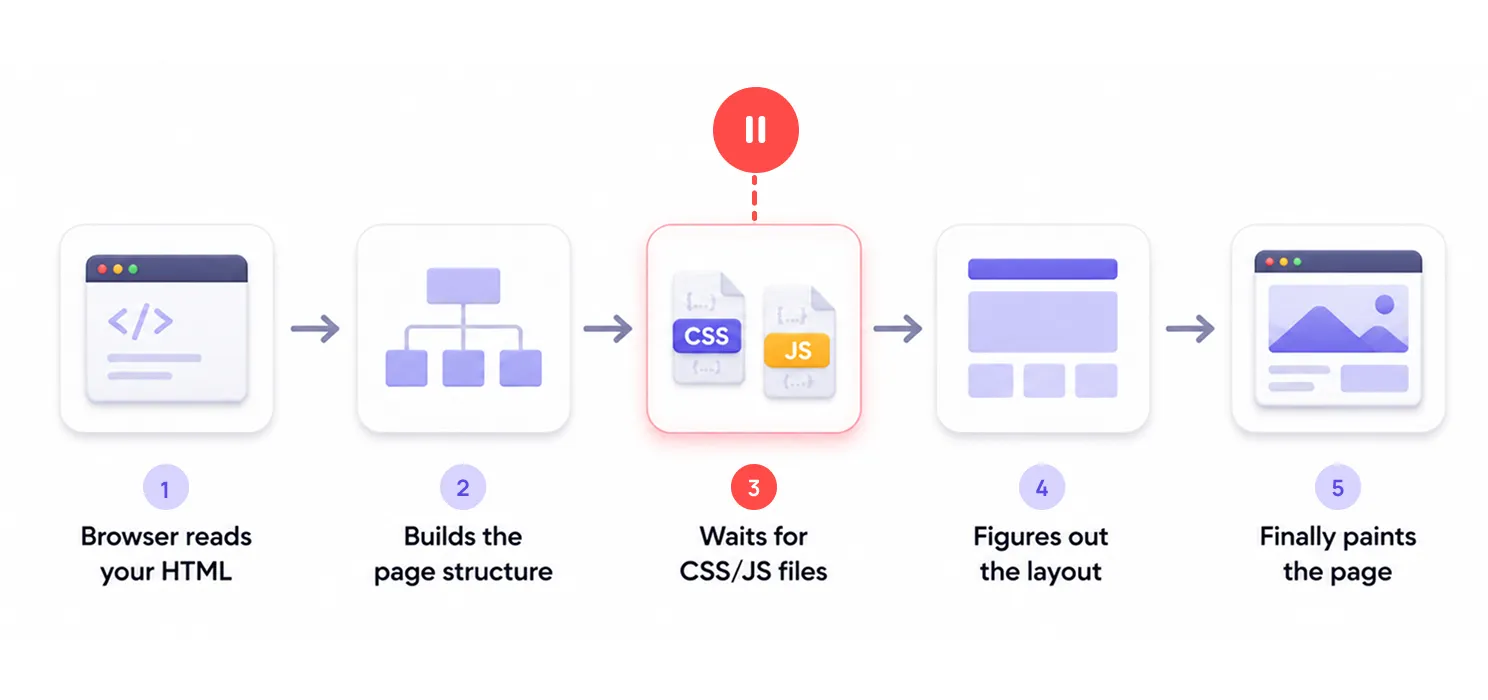
Think of your browser like someone reading instructions to build furniture. It can’t just start hammering things together randomly; it has to read the instructions in order. First it reads your page’s HTML. Then it starts figuring out how everything should look and where everything should go. But before it’s allowed to actually draw anything on your screen, it needs to fully load certain files first, mainly your CSS and some of your JavaScript.
If those files are big, or slow, or there are just too many of them, your browser sits there waiting. Not doing anything wrong, just following the rules it has to follow. That waiting period is what we call “render-blocking,” and it’s the actual reason for that blank screen you’ve probably seen a hundred times without knowing why.
Here’s how one performance guide put it, and honestly, it’s hard to say it better:
“Render-blocking resources delay rendering milestones like the First Contentful Paint.”
In other words: your server can respond instantly, your hosting can be excellent, and none of that matters if your browser is still stuck waiting on a stylesheet before it’s allowed to show anything at all.
| Quick note: not every file causes this. Some scripts are set up to load quietly in the background without holding anything up. We’ll get into exactly which ones do and don’t a little further down. |
Which files are actually the problem?
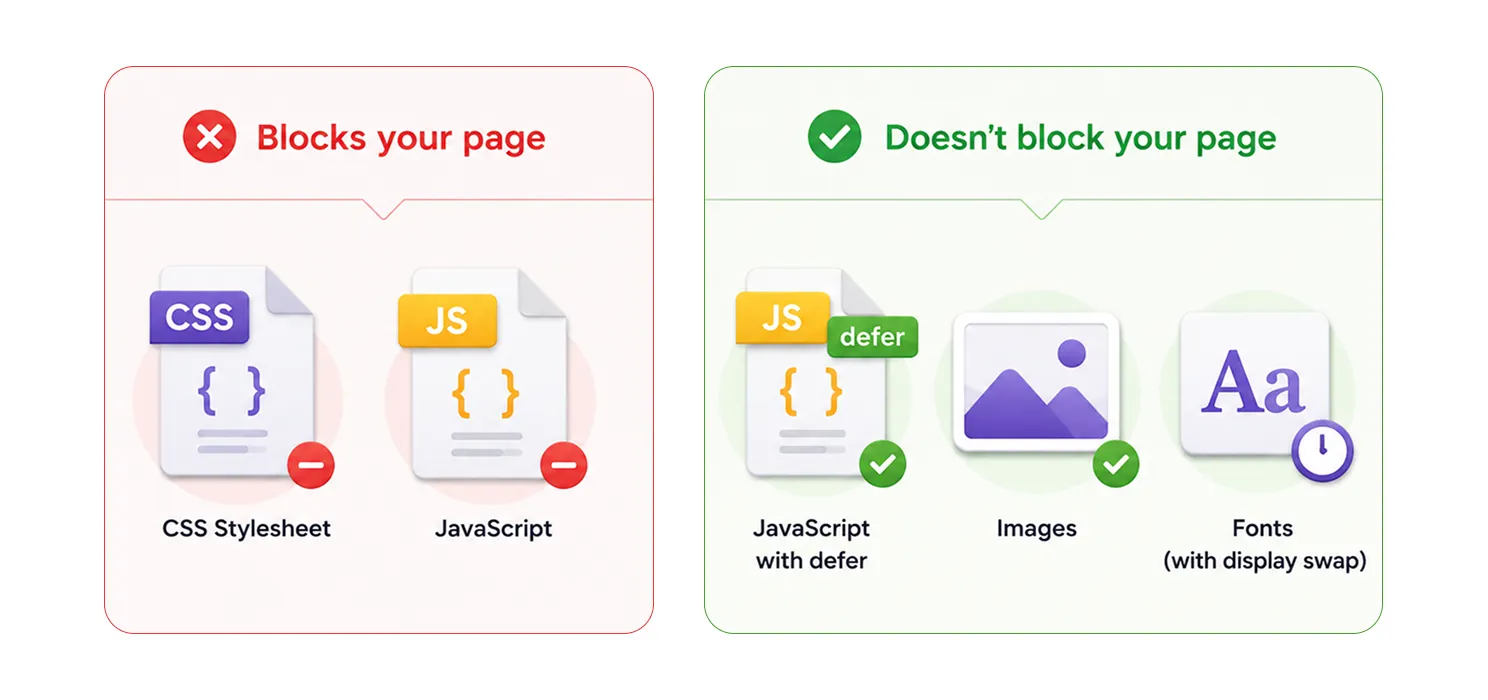
Not everything on your page is guilty here. It really comes down to a handful of specific things:
- CSS files sitting in your page’s head section almost always block rendering. Your browser genuinely can’t safely draw anything until it knows how things are supposed to look.
- JavaScript files without any special instructions block rendering too. Your browser stops everything and waits for that script to finish before moving on.
- JavaScript marked as “defer” doesn’t cause this problem. It loads quietly in the background and only runs once your page is already built.
- Images don’t block rendering at all, though a slow main image can still be its own separate headache (that’s a topic for another day).
So really, the two things doing most of the damage are stylesheets and scripts that haven’t been told they’re allowed to wait their turn.
Why does WordPress seem to have this problem more than other sites?

Here’s something worth understanding about WordPress specifically. Every plugin you install is allowed to add its own CSS and JavaScript to your site. And by default, most of them load that stuff on every single page, whether that page actually needs it or not.
Think about what a normal WordPress site is carrying around after a year or two:
- A page builder loading its entire style library, even on pages that use a tiny fraction of it
- A chat widget script loading on every page, even your privacy policy page that nobody’s trying to chat from
- An old analytics tool nobody’s checked in months, still quietly loading in the background
- A theme loading five font files and an icon library you’re not even using anymore
None of this happened because someone made a bad decision. It built up slowly, one plugin at a time, each one reasonable on its own. That’s just how WordPress sites tend to grow, and it’s exactly why this problem sneaks up on people instead of appearing all at once.
How do you actually find out what’s slowing your site down?
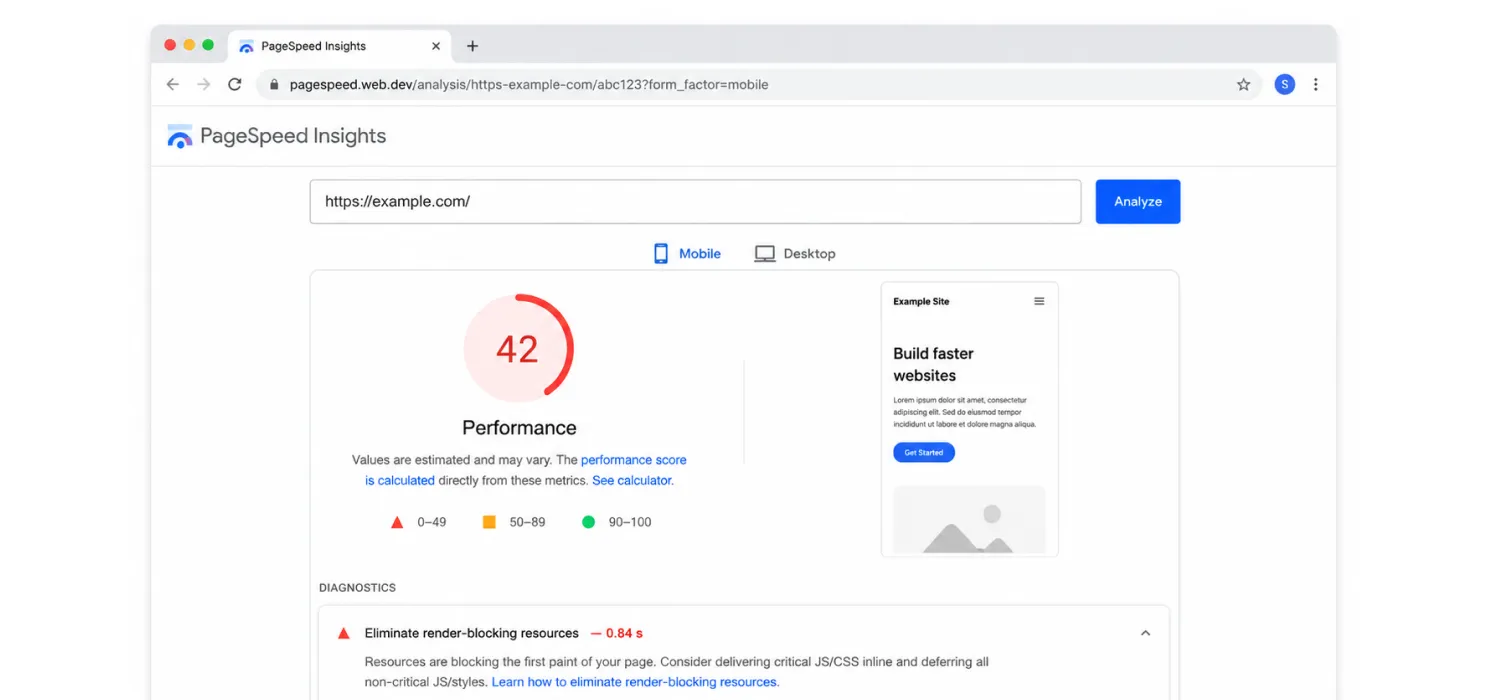
Before touching anything, you really want to know exactly what’s causing the problem. Guessing here is how people accidentally break something that wasn’t even the issue.
Here’s what we’d actually use:
- Google PageSpeed Insights. Just paste in your URL. It’ll list out exactly which files are blocking your page, along with roughly how much time each one is costing you.
- GTmetrix. Similar idea, but shows it to you visually as a timeline, so you can literally see which file is holding things up and when.
- Chrome DevTools’ Coverage tab. This one’s less known, but genuinely useful. Open your browser’s developer tools, find “Coverage” under More Tools, and it’ll show you how much of a loaded file is actually being used on that page. Sometimes it’s shockingly little.
| Tip: Don’t just test your homepage. A blog post, a product page, and your contact page can each be loading a completely different mix of plugin files. What’s blocking one page might not even exist on another. |
So, how do you actually fix this?
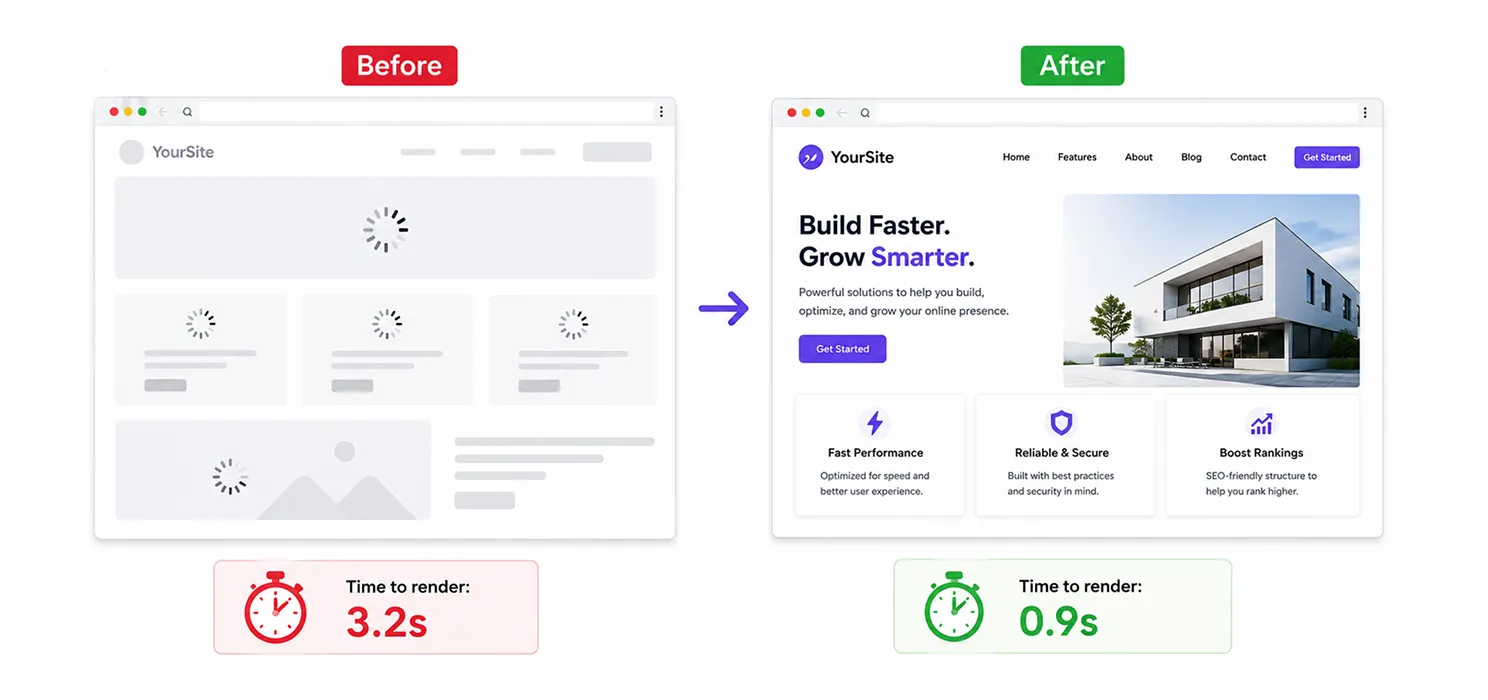
Let’s go through this like we’re doing it together, one piece at a time.
First, tell your scripts they’re allowed to wait
Most of the JavaScript on your site doesn’t need to run the second your page loads. Your chat widget, your analytics, most of your interactive features, none of it needs to hold up the page.
- Add “defer” to scripts that don’t need to run immediately
- Only use “async” for scripts that don’t depend on anything else on your page, since those can still interrupt things at unpredictable moments
- A good performance plugin (WP Rocket, LiteSpeed Cache, Autoptimize) can do this for you automatically, though it’s worth double checking which scripts got left out
Then, let your visible content show up first
This one’s called “critical CSS,” and it basically means loading just enough styling to show what’s visible on screen right away, while the rest of your stylesheet catches up quietly in the background.
- This is often what makes a page feel instant, even if the total load time hasn’t changed all that much
- Several caching plugins can generate this for you, but it’s worth checking your homepage and your most important pages afterward, since it can occasionally miss something and cause a quick flash of unstyled text
Get rid of what you’re not even using
Deferring a file helps, but it’s even better to just not load something your page never needed in the first place.
- Use that Coverage tab we mentioned earlier to spot big files that are barely being touched
- A lot of plugins let you turn off their scripts on pages where their feature doesn’t even show up
- If your theme came loaded with fonts or icon sets you’re not using, it’s worth trimming those out too
Handle your fonts so text doesn’t just disappear
- Set your fonts to “swap” so your text shows up in a normal fallback font immediately, instead of staying invisible until your custom font finishes loading
- Only load the font weights you’re actually using in your design. Every extra one is another file competing for attention
| Note: be honest with yourself about third-party scripts here. Chat tools, ad pixels, old tracking codes, they’re often the biggest offenders, and also the ones you have the least control over since someone else built them. It’s worth asking whether each one still earns its spot on your site. |
A few things to watch out for
We’ve seen these mistakes cause more damage than the original problem:
- Deferring every single script at once without testing, which can quietly break a form or a slider that needed a script to load in a specific order
- Setting up critical CSS once and never checking it again, so it slowly goes out of date as your design changes
- Removing a script that turns out to actually matter on a page nobody thought to test, like a payment script that only loads at checkout
- Trying to preload too many things at once, which just creates a new traffic jam instead of clearing the old one
SpeedyGo
If you’ve read this far and thought “okay, this makes sense, but I don’t really want to manually defer scripts and generate critical CSS by hand,” that’s a completely fair reaction. Most site owners don’t want to become performance engineers, they just want their site to feel fast.
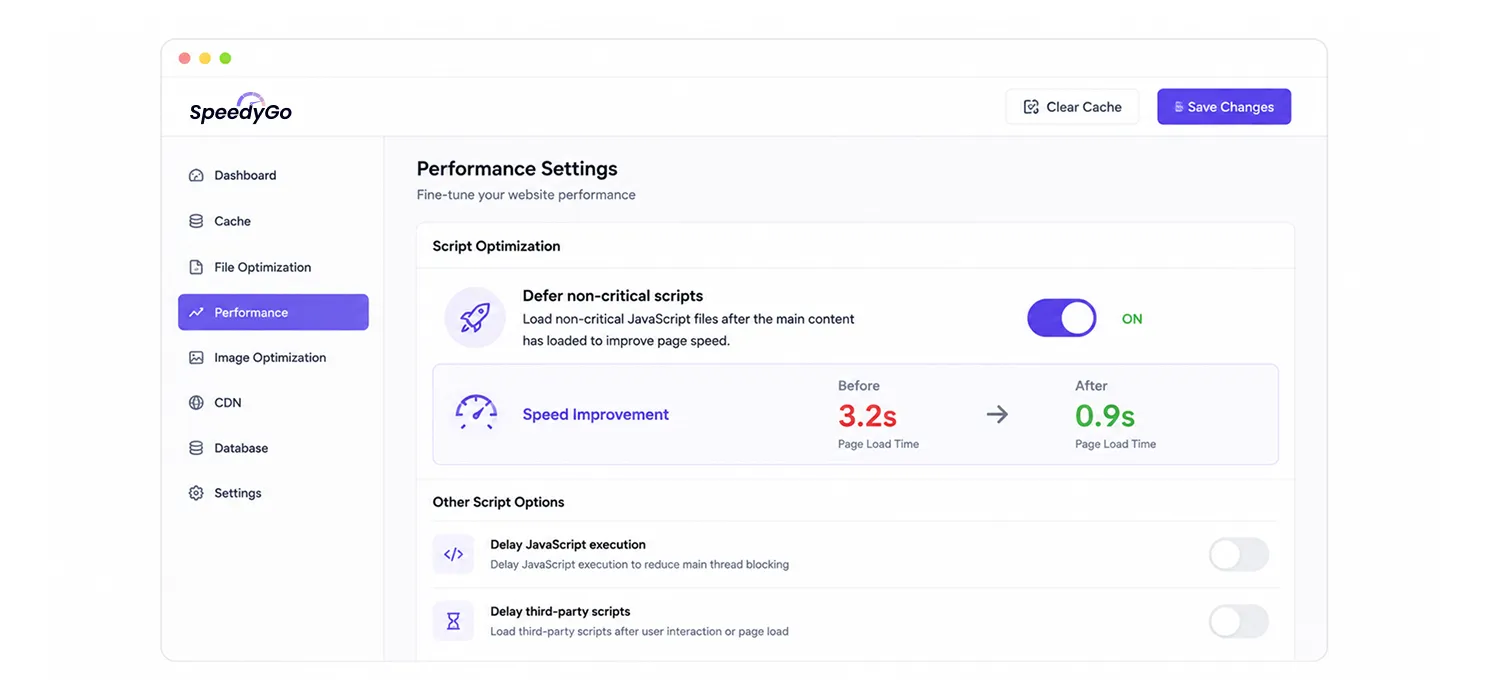
This is basically the gap a tool like SpeedyGo is built to sit in. Instead of you going plugin by plugin, script by script, trying to figure out what’s safe to defer and what isn’t, it handles the render-blocking cleanup as part of its regular optimization pass, along with the caching and asset work we’ve talked about elsewhere on this blog. You still get to see what changed and roll it back if something doesn’t look right, which matters, since we’ve stressed throughout this post that testing after any change here is genuinely important.
We’re not saying it’s the only way to solve this. Everything we’ve walked through above can absolutely be done manually with the plugins we mentioned. It’s just that for a lot of people, having this bundled into one place they already trust, rather than stitched together from four different tools, is simply the more realistic path to actually getting it done.
The bottom line
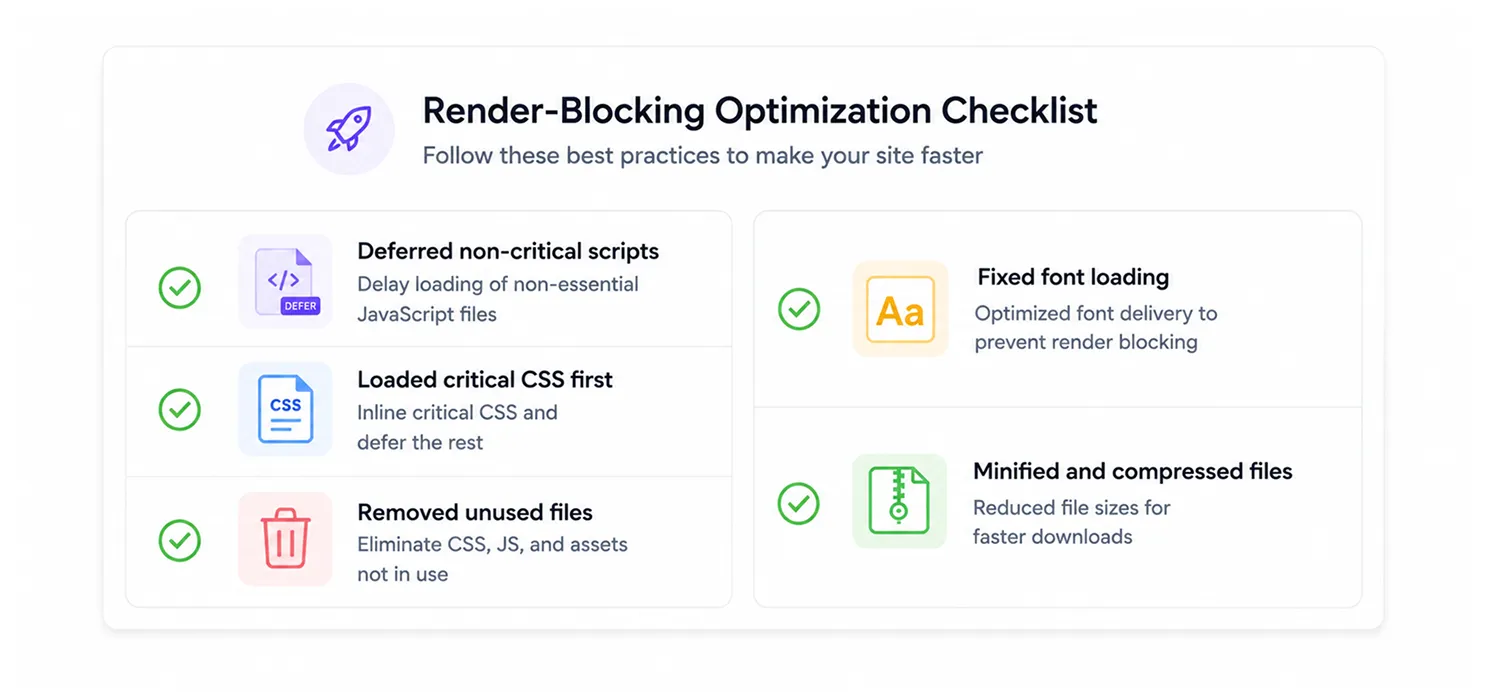
Here’s what we want you to take away from all this: that blank screen your visitors sometimes see isn’t random, and it’s rarely one single thing gone wrong. It’s usually a slow buildup, one plugin, one script, one “we’ll deal with this later,” until a page that should feel instant is making people wait for no real reason.
The fix is genuinely simple in concept, even if it takes a bit of patience to do properly. Figure out what’s actually blocking your page. Decide what genuinely needs to load first. Let everything else catch up after. That’s really the whole idea, and once it’s done, the gap between someone clicking your link and actually seeing your site gets a whole lot shorter.

Frequently Asked Questions
Find answers to common questions about SpeedyGo, WordPress website performance, speed optimization, features, setup, pricing, and more.
Will this actually help my Google ranking?
It can, yes. This kind of fix directly improves how fast your page visually loads, which feeds into Core Web Vitals, something Google does pay attention to.
Do I need to know how to code to fix this?
Mostly, no. A good performance plugin handles the bulk of it. The trickier bits, like trimming unused CSS on specific pages, are a bit more hands-on, but still doable without deep coding knowledge.
I turned on my plugin's settings and it's still showing up. Why?
Some plugins and themes hardcode how their own files load, which can sneak right past your caching plugin’s settings. Those usually need to be handled individually.
How often should I check this again?
Any time you add a new plugin or change your theme, it’s worth a quick recheck. This has a way of creeping back in quietly.