9 mins read
Winning At E-commerce: Speed Up Your WooCommerce Store
Share Article :


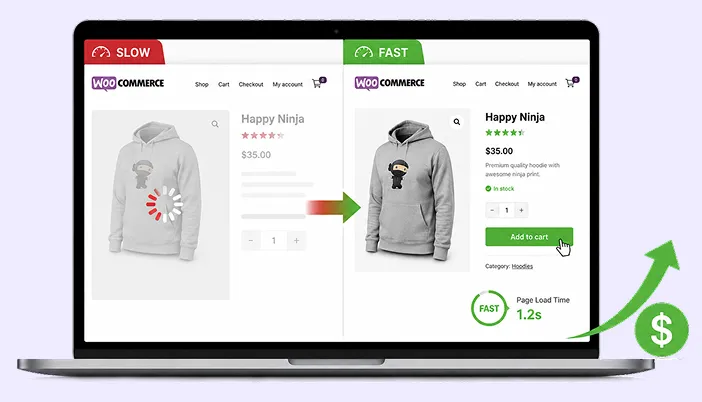
In this blog, you will learn why speed matters more for a WooCommerce store than for almost any other kind of site, what’s usually slowing yours down specifically, and a practical, prioritized way to fix it, starting with what actually moves revenue first.
Here’s a number that should get your attention if you’re running a store:
WooCommerce sites that load in under two seconds see a 40% higher conversion rate than slower ones. Not a nice-to-have improvement, but a genuinely huge difference in how many visitors actually become customers.
And if that’s not enough, the average WooCommerce store loses about 70% of carts to abandonment, and speed is one of the few levers you can pull that touches that number directly.
So let’s be honest about what’s going on here. This isn’t really a technical topic dressed up as a business one. It’s a revenue topic that happens to require some technical work. Understanding why website speed matters is important because every second can affect how visitors interact with your store.
Why a store is genuinely harder to keep fast than a regular site
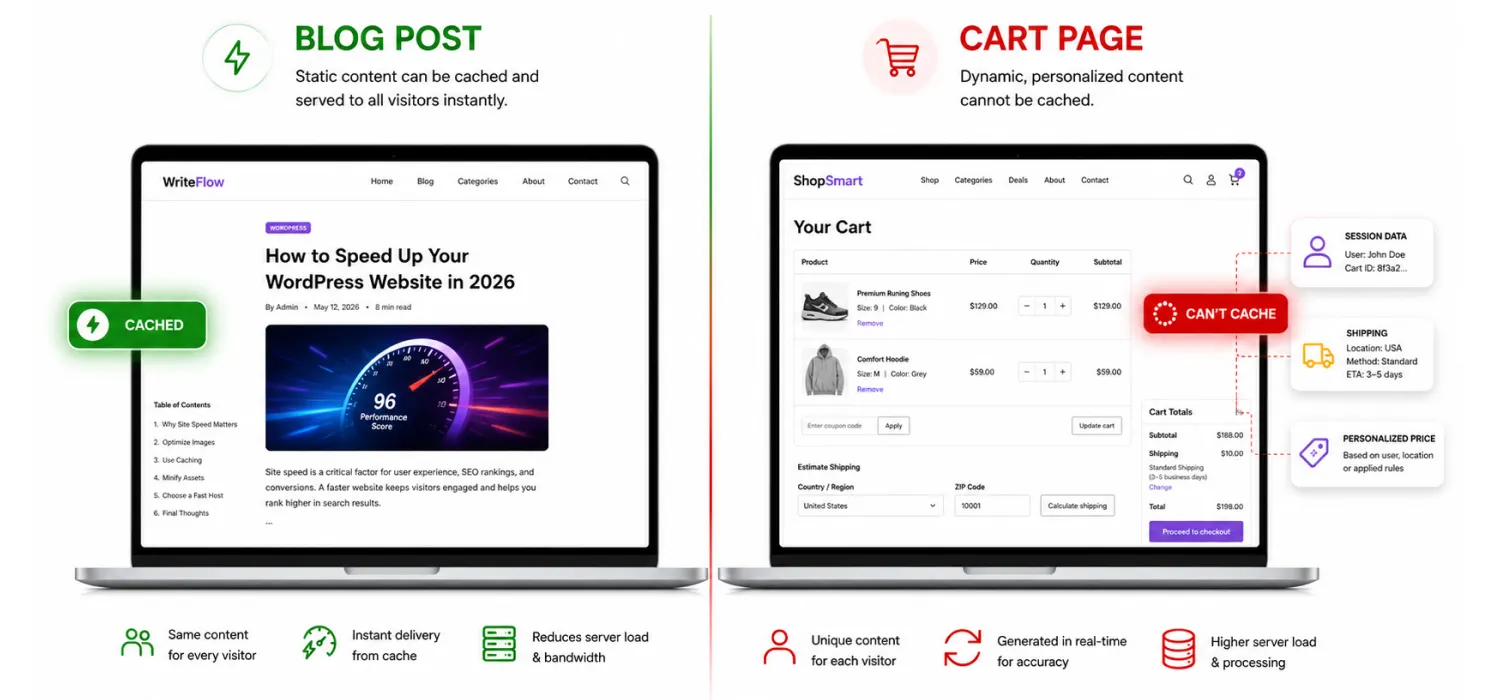
A regular WordPress page can usually be cached and served instantly to every visitor, since it looks the same no matter who’s looking at it. Your cart page can’t work that way. It has to know exactly what’s in each specific visitor’s cart, what shipping options apply to them, and sometimes what price they’re seeing based on active promotions. That means your cart, checkout, and account pages are almost always running fresh, uncached, on every single visit.
Add product galleries with multiple high-resolution images, variation selectors, reviews, related products, and a handful of marketing plugins, and you’ve got a page doing a lot more work than your average blog post, precisely on the pages where speed matters most to your bottom line.
What that actually costs you in real numbers
The math here is worth doing once, because it tends to change how seriously people take this. One widely cited example: a store making $1,000 a day in revenue can lose roughly $250,000 a year from just a single one-second delay in page load time. That’s not a rounding error; that’s a real chunk of annual revenue tied to something as specific as one second.
| Load time | Typical conversion behavior |
| Under 2 seconds | Highest conversion rates, around 3% or better in many studies |
| 2 to 4 seconds | Noticeably lower conversions, bounce rate climbing |
| Over 4 seconds | 63% of shoppers will bounce before ever seeing your product |
| 6 seconds or more | Roughly two out of every three shoppers leave |
What’s usually slowing a WooCommerce store down specifically
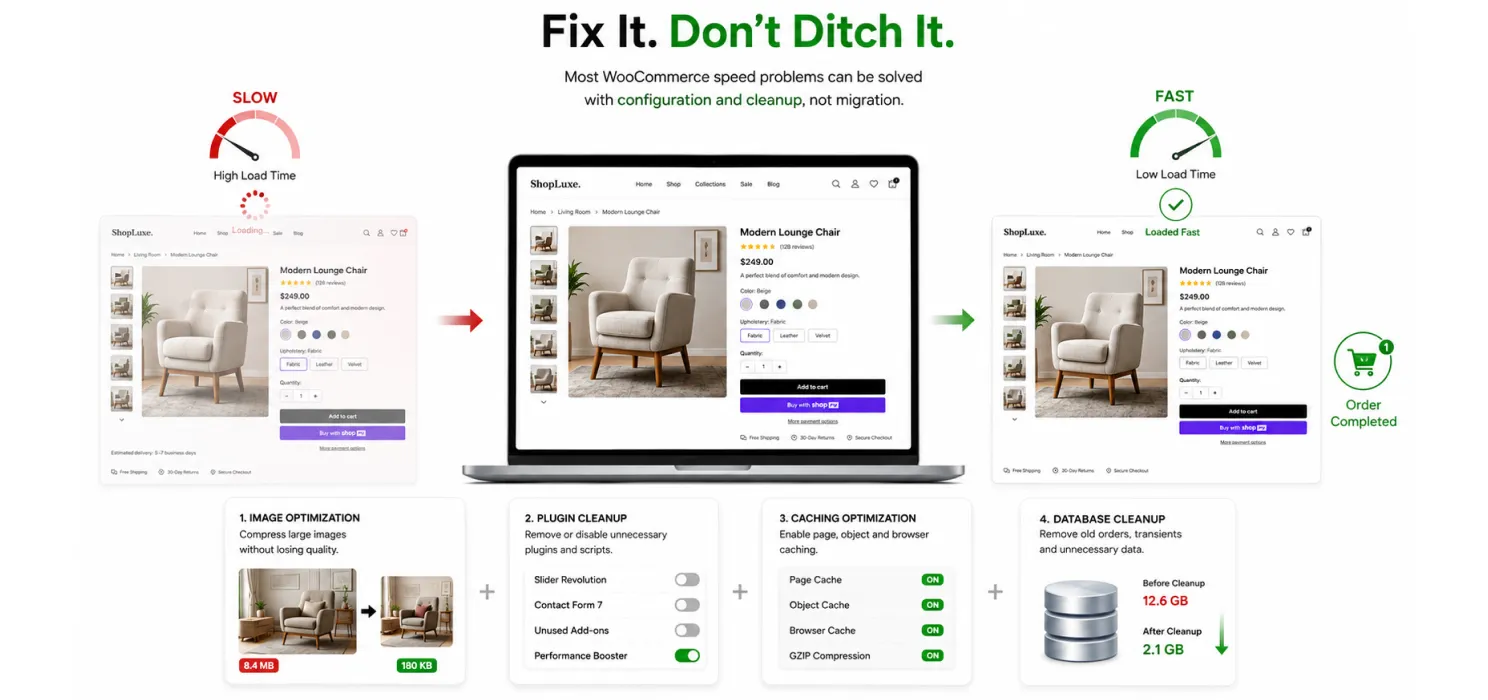
This is where WooCommerce differs from a typical WordPress site, and it’s worth knowing the usual suspects before diving into fixes.
- Large, uncompressed product images, especially galleries with 5 or more photos per product
- Variation and swatch plugins that load extra JavaScript on every single product page
- Checkout and cart pages that can’t be cached, so every visit hits the database fresh
- Payment gateway scripts (Stripe, PayPal, and similar) loading on every page instead of only where they’re needed
- Related product and “you might also like” widgets running extra queries to generate recommendations
- Review plugins pulling in extra data and scripts, even on pages with no reviews yet
- Order history that’s grown for years, quietly bloating the database tables WooCommerce queries on nearly every page
As one industry breakdown put it plainly:
“90% of WooCommerce speed issues are fixable without changing platform.”
That’s genuinely encouraging, because it means most of this is a matter of configuration and cleanup, not a sign you picked the wrong platform or need to migrate somewhere else entirely.
The actual fixes, roughly in order of impact
1. Get hosting that’s actually built for WooCommerce
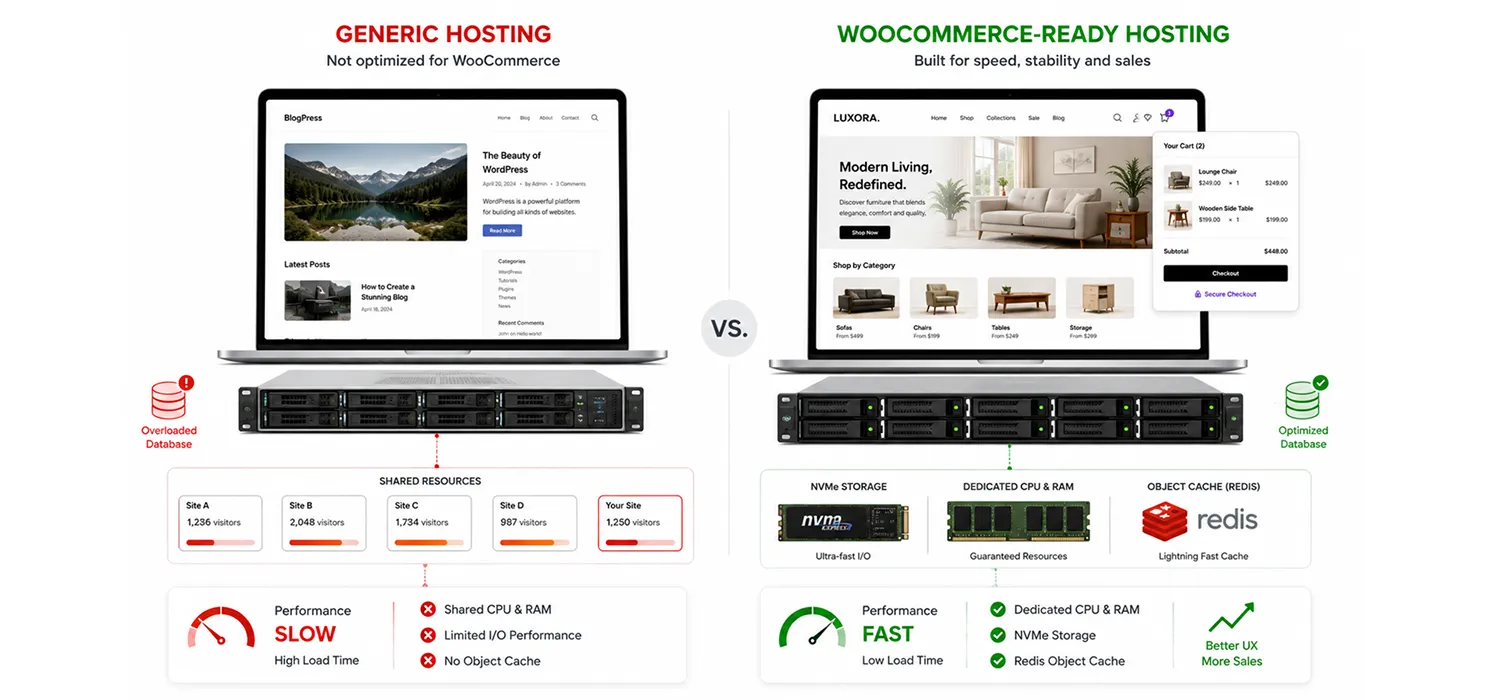
| Note: Generic WordPress hosting and WooCommerce-ready hosting are not the same thing. A store handles more database queries per visit than a typical blog, since carts, sessions, and inventory checks all involve real-time data. |
- Look for hosts that specifically advertise WooCommerce optimization, not just general WordPress hosting
- NVMe storage and dedicated resources matter even more here than on a content site, since your database is working harder
- Your hosting also affects WordPress TTFB, so reducing server response time should be part of your performance strategy.
- Confirm the host supports object caching (Redis or Memcached), which matters a lot for a store’s dynamic pages
2. Cache everything you safely can, and exclude what you can’t
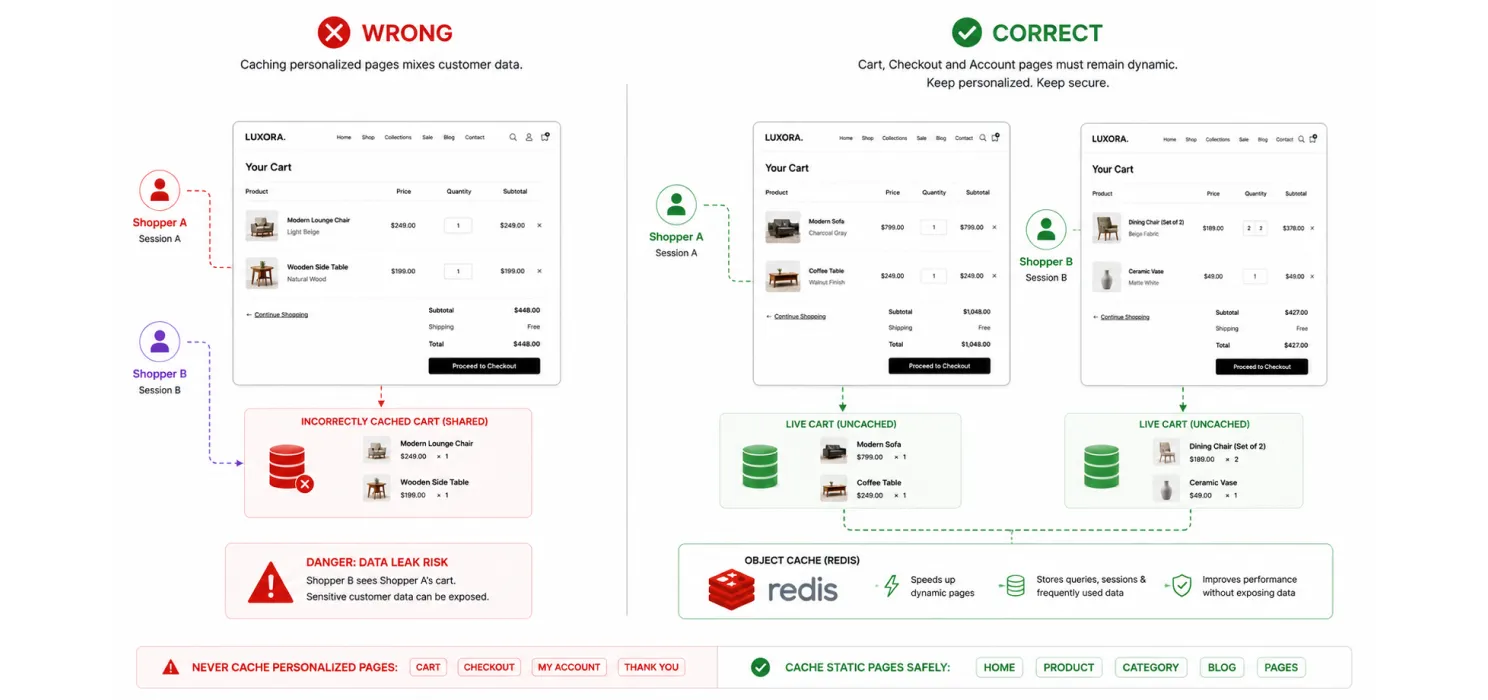
- Enable full-page caching for your product and category pages, since these can generally be cached like normal content
- Explicitly exclude cart, checkout, and account pages from full-page caching, caching these incorrectly can show one customer another customer’s cart
- Add object caching so the parts of your store that can’t be page-cached (like session data) at least avoid repeating the same database queries over and over
- A performance tool can also help manage several of these optimizations from one place. You can explore SpeedyGo features to see how caching and other WordPress performance settings can be handled.
3. Get serious about product images
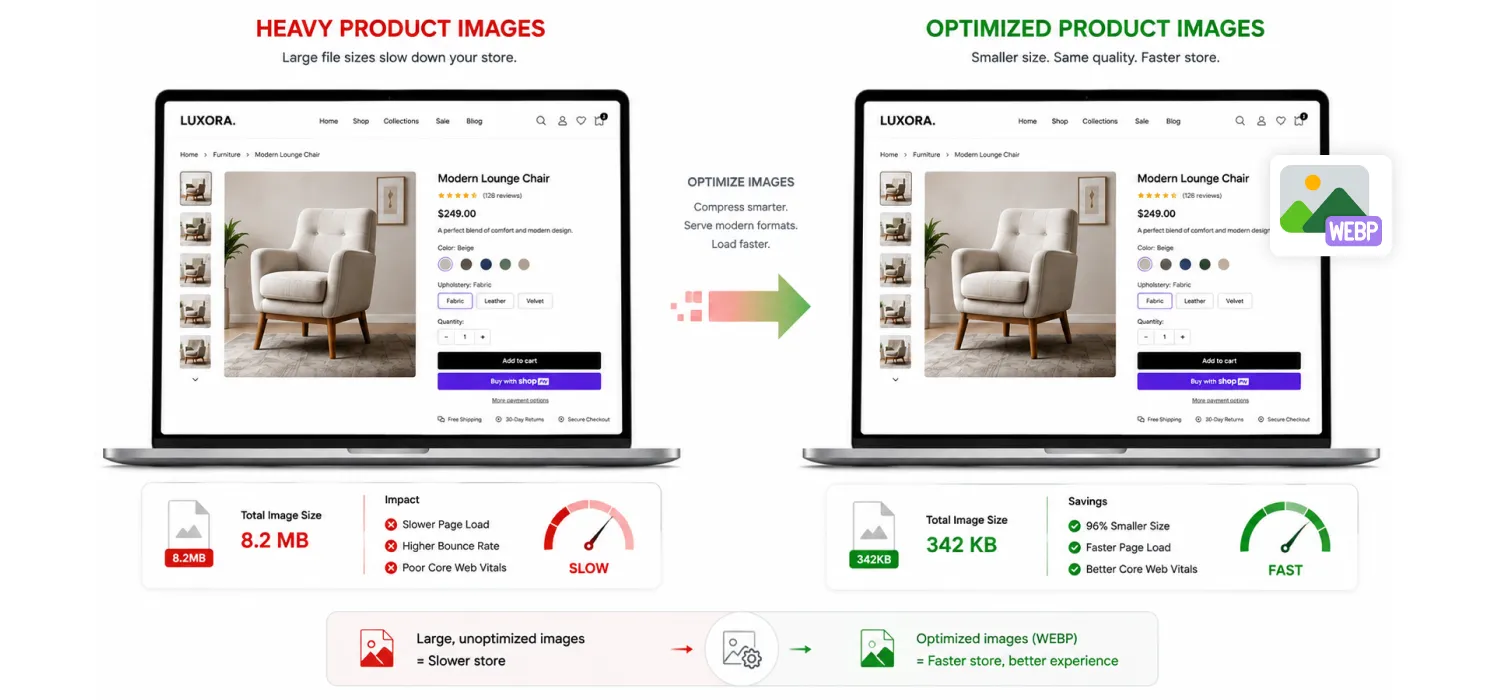
- Compress every product photo, and use modern formats like WebP, product galleries are often the single heaviest part of a store’s pages
- Lazy-load anything below the fold, but never lazy-load the main product photo a visitor sees first
- Set a maximum upload size and resolution standard for your team, so this doesn’t quietly become a problem again in six months
- For a broader approach to performance, see these strategies for optimizing images and code in WordPress.
| Tip: Audit your five highest-traffic product pages specifically, not a random sample. These pages carry a disproportionate share of your actual revenue, so speeding them up first gives you the fastest return on the time you put in. |
4. Trim what’s loading at checkout
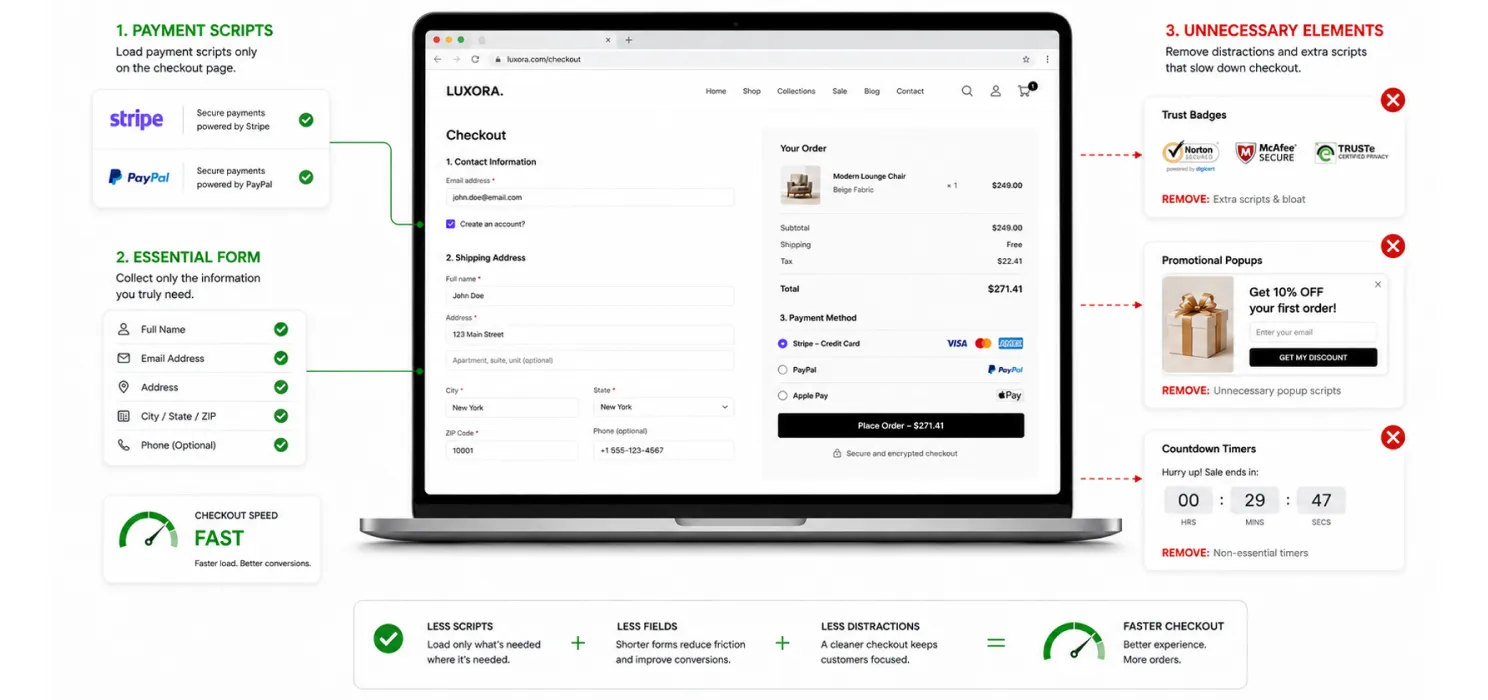
- Only load payment gateway scripts (Stripe, PayPal, and similar) on the checkout page itself, not site-wide
- Reduce the number of checkout fields to what you genuinely need. Fewer fields load faster and also reduce abandonment on their own
- Review any trust badges, upsell popups, or countdown timers on checkout. Each one is another script competing for the same load time
5. Clean up your database regularly
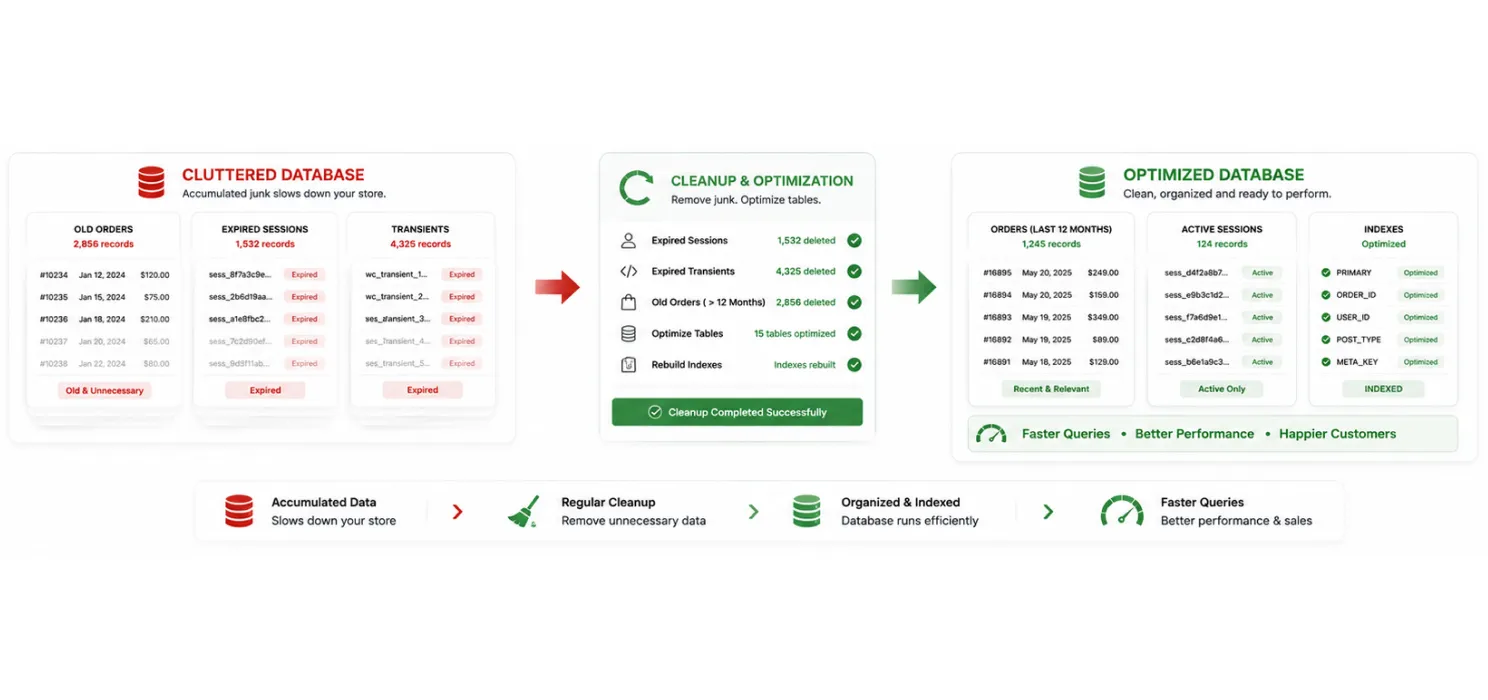
- WooCommerce stores accumulate order data, session records, and transients quickly, especially at scale
- Use a plugin like WP-Optimize to clean up your WordPress database, including expired sessions and old transients, on a schedule, not just once.
- If your store has years of order history, make sure your database has proper indexes, since unindexed order queries get slower as your catalog and order count grow
6. Take mobile seriously, since it’s probably most of your traffic

Roughly 70% of WooCommerce traffic now comes from mobile devices, but mobile conversion rates typically run 40 to 60% lower than desktop, and speed is a big part of why.
- Test your store specifically on a mid-range phone over a throttled connection, not just your own fast wifi
- If your store still feels slow on mobile, understanding the reasons websites perform slowly on mobile can help you identify the underlying problems.
- Make sure the “Add to Cart” button is easy to tap and doesn’t require zooming or precise targeting
- A sticky “Add to Cart” button has been shown to lift mobile conversions by around 15%, and it’s a relatively simple addition
Quick wins vs the bigger investments
| Quick wins (do these first) | Bigger investments (worth planning for) |
| Compress existing product images | Migrating to WooCommerce-specific hosting |
| Enable page caching on product and category pages | Rebuilding a bloated theme or page builder setup |
| Exclude cart/checkout from full-page caching | Adding a CDN with edge caching for global stores |
| Clean up expired sessions and transients | Restructuring checkout flow to reduce fields |
| Add lazy loading below the fold | Auditing and replacing heavy third-party plugins |
If you’re looking for an all-in-one WordPress speed optimization plugin, SpeedyGo combines several performance optimizations in one tool.
Tools worth knowing for this
| Task | Common options |
| Image compression | ShortPixel, Imagify, Smush |
| Caching and performance | WP Rocket, LiteSpeed Cache (with WooCommerce-specific settings) |
| Database cleanup | WP-Optimize, Advanced Database Cleaner |
| Diagnosis | Query Monitor, Google PageSpeed Insights, GTmetrix |
You should also monitor Core Web Vitals for WordPress alongside basic load-time metrics, especially for your product and checkout experience.
Tying this back to actual revenue
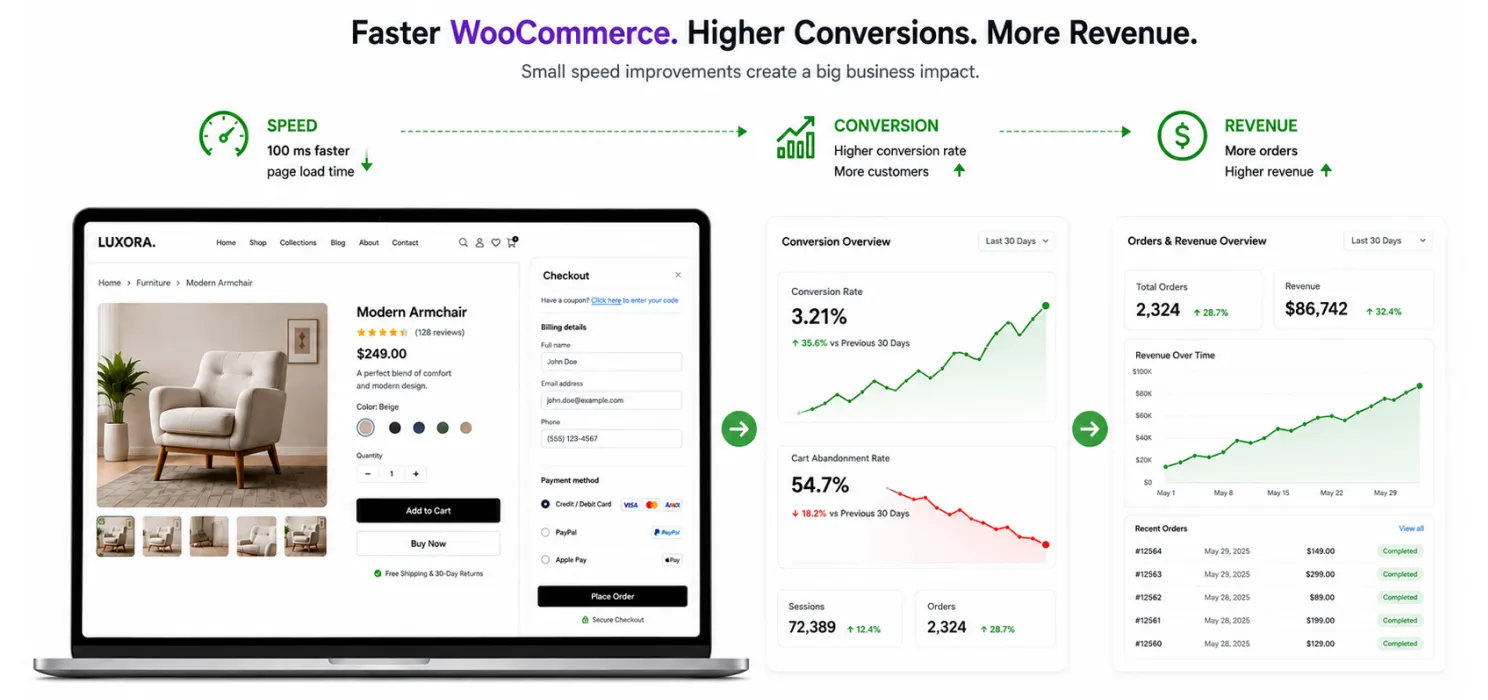
| Note: Don’t just measure this in milliseconds. Track it against conversion rate and cart abandonment before and after, since that’s the number that actually matters to the business, and it’s the number that justifies the time spent on this in the first place. Performance can also influence search visibility, which is why it’s worth understanding how website speed affects SEO as part of your overall optimization strategy. |
A simple way to frame it for anyone on your team who isn’t technical: every 100 milliseconds shaved off your product and checkout pages has been linked to a real, measurable lift in conversion rate in industry research. It’s not a huge number per change, but it adds up fast across a full year of traffic, and unlike a lot of marketing spend, it’s a cost you pay once.
To conclude
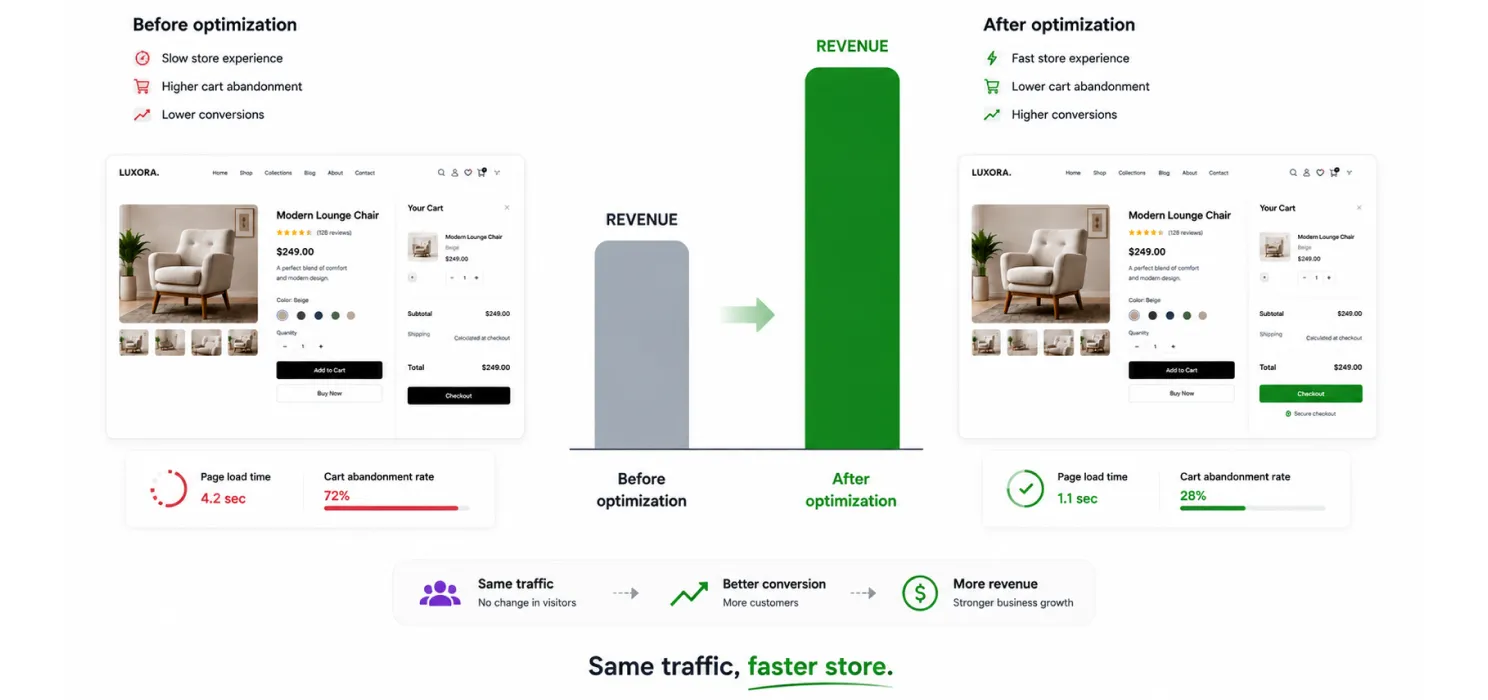
A slow WooCommerce store isn’t just a technical annoyance, it’s a quiet, ongoing revenue leak that’s easy to underestimate because it never shows up as a single dramatic problem. It shows up as a slightly lower conversion rate, a slightly higher cart abandonment rate, month after month, until you actually run the numbers and see what it’s been costing you.
The good news, genuinely, is that most of this is fixable without rebuilding your store from scratch. If you’re dealing with broader WordPress performance problems beyond WooCommerce, this guide explains how to speed up a slow WordPress website Better hosting, smarter caching, cleaner images, and a leaner checkout will get most stores a long way there. Start with your highest-traffic product pages and your checkout flow, since that’s where speed and revenue overlap the most directly, and work outward from there. For a broader approach, our guide to WordPress speed optimization covers the key areas you should review across your site.

WooCommerce Store Speed: Frequently Asked Questions
Find answers to common questions about WooCommerce speed, caching, hosting, database cleanup, and improving store performance.
Do I need to migrate off WooCommerce if my store is slow?
Almost never. Most WooCommerce speed issues can be fixed through better hosting, caching, image optimization, database cleanup, and plugin optimization without switching platforms.
Will caching break my cart or show customers the wrong prices?
It can if configured incorrectly. Cart, checkout, and account pages should be excluded from full-page caching because they contain customer-specific and real-time information.
How often should I clean my WooCommerce database?
A monthly cleanup is reasonable for most stores. High-volume stores may benefit from more frequent cleanup of expired sessions, transients, and other unnecessary data.
Is speed more important than adding new features to my store?
Speed is essential for making every feature usable. A new feature that makes your store slower can hurt conversions, so performance should be considered alongside new functionality.
What is usually slowing down a WooCommerce store?
Common causes include large product images, heavy plugins, excessive JavaScript, uncached dynamic pages, database bloat, payment gateway scripts, and poorly optimized hosting.
How can I improve WooCommerce speed on mobile?
Optimize images, reduce unnecessary scripts, enable caching where appropriate, use a CDN, test on mid-range mobile devices, and simplify the mobile shopping and checkout experience.