9 mins read
Can You Cache Dynamic WordPress Content Without Breaking Your Site?
Share Article :


| Quick summary This guide explains WordPress dynamic content caching in plain words. You’ll learn how to let WordPress cache dynamic content without leaks, which pages should never be cached, and three simple ways to keep carts, logins, and forms working. There are charts, a table, a flow, and a checklist. The short answer: yes, you can, if you sort your pages first. |
Picture a shopper adding a jacket to their cart. They click to the next page. The cart says “empty.” Or worse, it shows a stranger’s name.
That’s the nightmare every store owner fears. And it’s the main reason many people switch caching off and live with a slow site instead.
But you don’t have to choose between fast and safe. WordPress dynamic content caching is a matter of sorting your pages into the right buckets. Once you do, most of your site can be cached without a single broken cart.
What is dynamic content in WordPress?
Dynamic content is anything that can change from one visitor to the next, or from one minute to the next.
A normal blog post is static. Everyone sees the same words and pictures. A page that says “Welcome back, Anna” or shows “3 items in cart” is dynamic. It depends on who is looking.
Here are the usual suspects:
- Cart, checkout, and My Account pages in a WooCommerce store.
- Menus that change when you’re logged in.
- Forms that carry a one-time security code.
- Live stock counts, prices, and countdown timers.
- Recommended products based on what someone viewed.
You’ll also hear the term personalized content caching. It simply means caching a page while keeping the personal bits, like a name or a cart count, from leaking to the wrong person.
Why is it worth caching dynamic WordPress pages at all?
Because without a cache, WordPress does a lot of work for every single visit.
Each time, the server runs PHP, asks the database a bunch of questions, builds the page, and then sends it. A cache skips all that. It keeps a ready-made copy and hands it over instantly. Think of a restaurant that preps its sauces in the morning instead of cooking each one from scratch when you order. This is what dynamic page caching does. It takes a page that PHP normally builds on the fly and saves the finished result.
How big is the difference? DebugHawk studied 5.7 million WordPress pageviews from October to December 2025. The median server response time (TTFB) was 106 ms for cached pages and 723 ms for uncached ones.
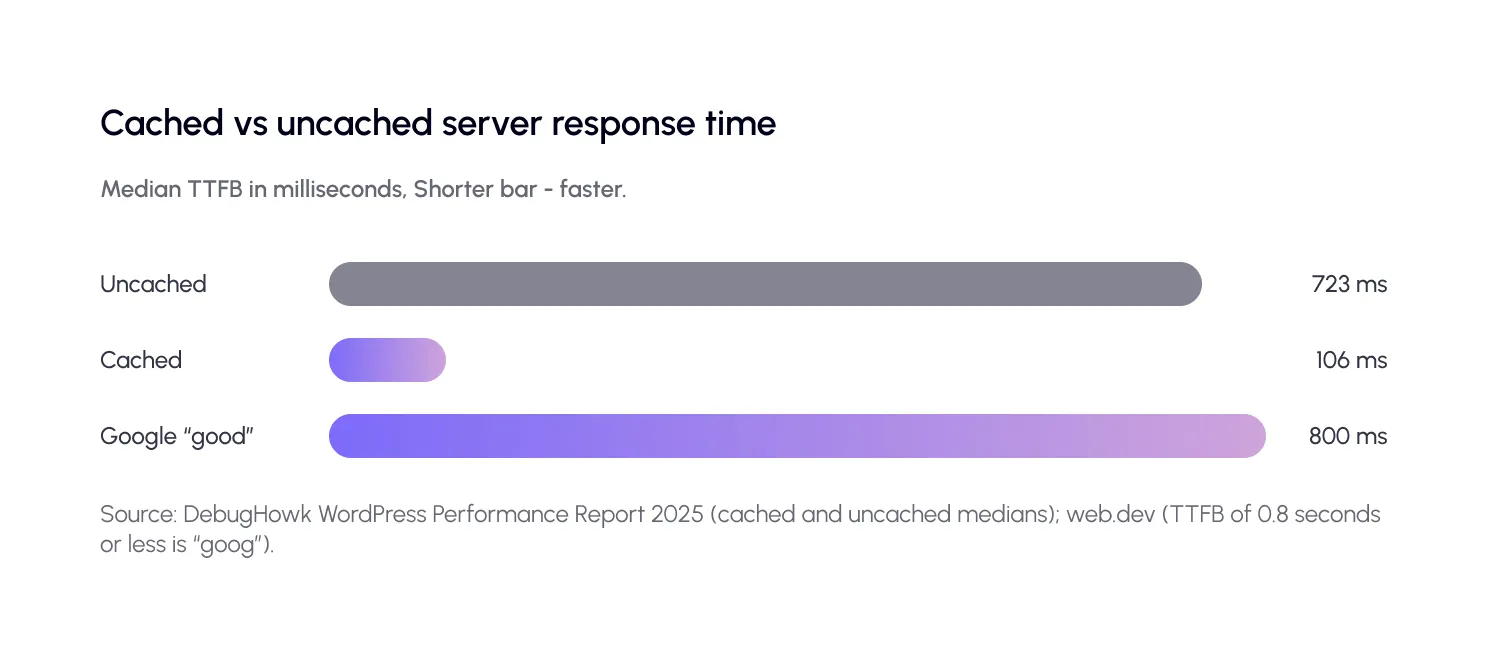
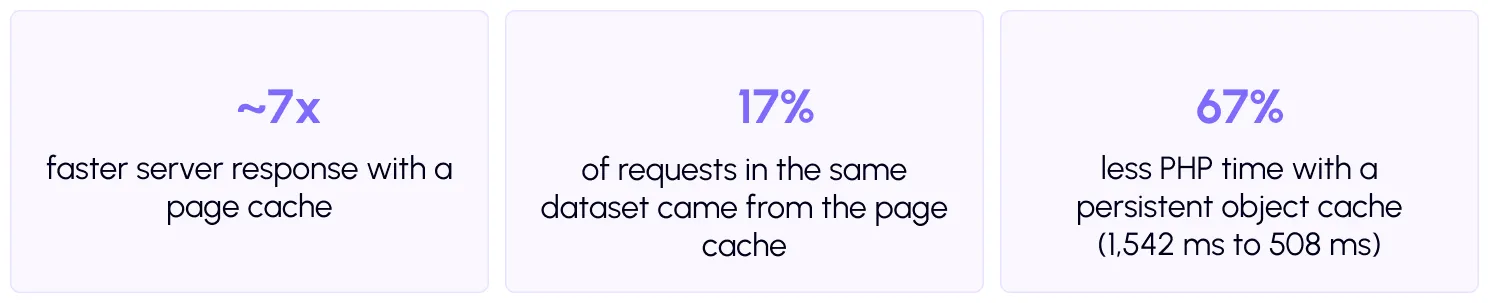
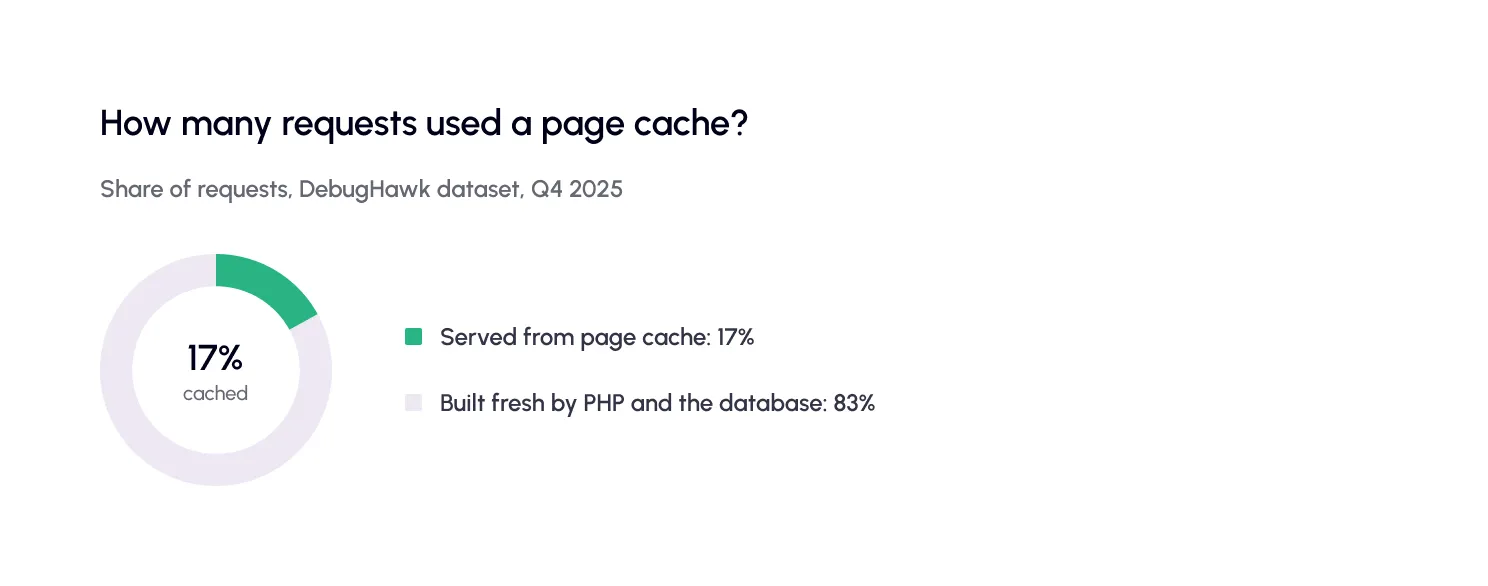
That’s close to seven times faster. Notice something else, too. The uncached median still sits under Google’s 800 ms “good” line, but only just. On a busy day, or a weaker host, it won’t. Look at the middle number. Only 17% of requests were served from a page cache. The report doesn’t say why. But it points to a gap: most visits still make the server rebuild the page from scratch.
That joke has lasted for decades because it’s true. Saving a copy is easy. Knowing when that copy has gone stale is the hard part. The rest of this guide is mostly about that.
How can WordPress dynamic content caching break your site?
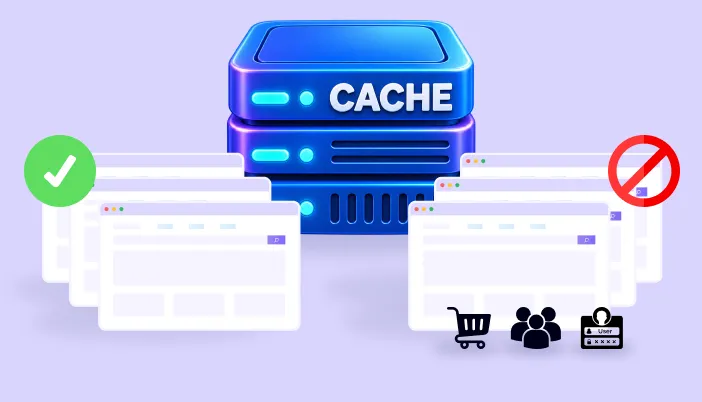
It breaks when a saved page meant for one person gets shown to another, or when a saved page goes out of date.
Here is the classic mix-up:
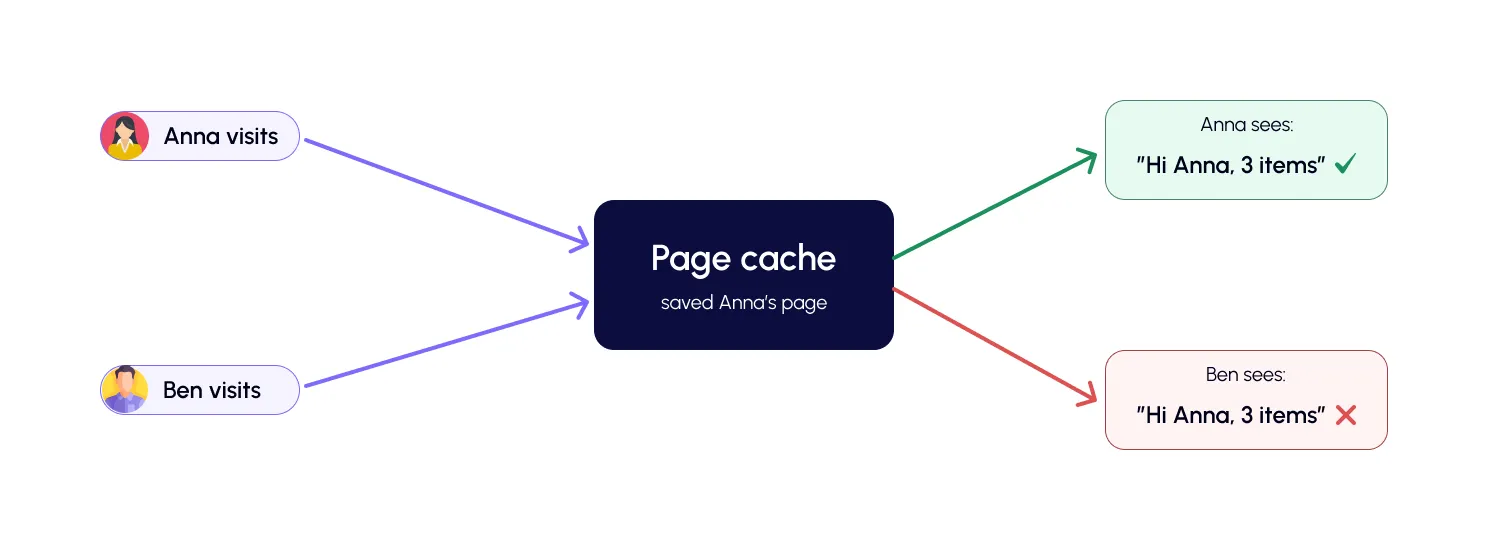
Anna’s page got saved with her name and cart in it. Ben got the same copy. That’s the worst case, and it’s easy to avoid. But there are three other problems worth knowing.
The “empty cart” bug
A cart page gets cached while it’s empty. Every later visitor then sees an empty cart, even after adding products. Sales drop and nobody knows why.
The expired security code
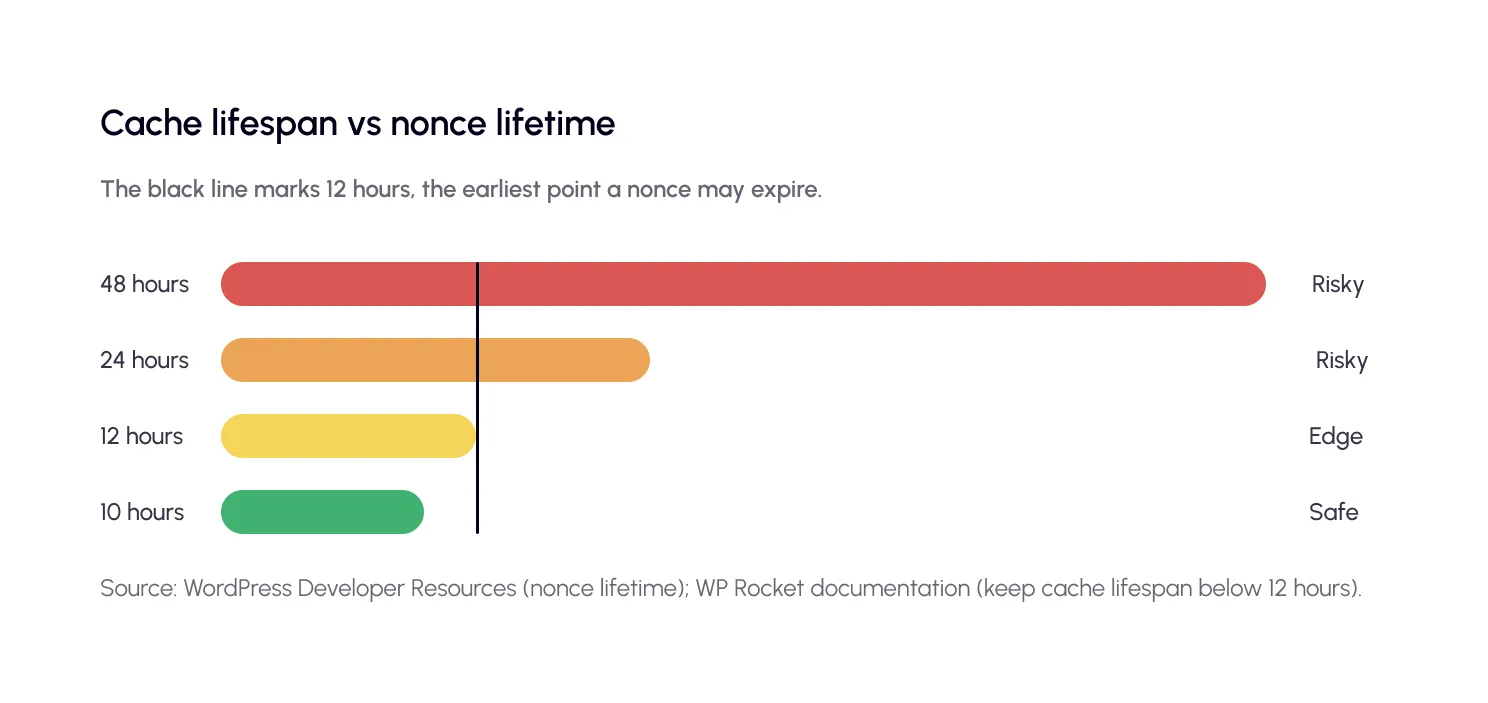
WordPress uses one-time codes called nonces to protect forms and actions. The official docs say a nonce lasts one day by default, and WordPress works in two half-day “ticks.” That means a nonce is valid for 12 to 24 hours.
Now imagine a cached page that’s two days old. Its form carries a nonce that died yesterday. A visitor submits it and gets an error. WP Rocket’s guide warns that this can break forms, post grids, and sometimes a whole page.
| Did you know? A nonce is not a password. It’s a short-lived token that proves a request came from your own page. That’s why an old cached page can hold a code that no longer works. |
Old prices and stock
You mark a product “sold out,” but the cached page still says “in stock.” Customers order things you can’t ship. That’s a stale cache, and it’s why purging matters as much as saving.
Which WordPress content can you cache, and which can’t you?
Good dynamic page caching starts with sorting every page type into one of three buckets: cache it, cache it carefully, or leave it alone. This table gives you a starting point.
| Content type | Cache it? | How to keep it safe |
| Blog posts and landing pages | Yes | Full-page cache. Purge when you edit the post. |
| Home and category pages | Yes | Use a short lifespan or auto-purge so new posts show up. |
| Product pages | Carefully | Cache, but refresh when price or stock changes. |
| Pages with forms | Carefully | Keep cache lifespan under 12 hours so nonces stay valid. |
| Pages with personal bits (name, cart count) | Carefully | Cache the shared page, then load the personal part separately. |
| Cart, checkout, My Account | Never | Exclude from page cache. These are different for every customer. |
| Logged-in dashboards | Not with page cache | Speed them up with object caching instead. |
WooCommerce says the same about its core pages. Its caching guide states that the cart, My Account and checkout pages need to stay dynamic because they show information specific to the current customer. It also lists cookies to exclude, including woocommerce_cart_hash and woocommerce_items_in_cart.
| Watch out Don’t “exclude everything just to be safe.” If you skip the cache on every page, you lose the speed gain. The goal is to exclude only the pages that truly need it. |
How does WordPress cache dynamic content safely? Three methods
You have three tools. Most sites use a mix of all three.
Method 1: Leave private pages out of the cache
The simplest, safest option. Tell your caching plugin to skip the cart, checkout and account pages, plus any logged-in visitor. Nothing personal is ever saved, so nothing can leak.
Method 2: Cache, but refresh often
For pages that change slowly, save a copy, then replace it on a schedule or when something changes. This is where your cache lifespan matters.
If your pages contain nonces, keep the lifespan under 12 hours. WP Rocket suggests starting around 10 hours. A shorter life means a few more rebuilds, but no broken forms.
Method 3: Cache the page, load the personal part later
This is the clever one. The shared page is cached. A tiny piece of code then fetches the personal bit, like a cart count, after the page appears. Everyone gets the speed, and each person still sees their own data.
It takes support from your theme or plugins, so it’s not a one-click fix on every site. But for stores and membership sites it’s the best of both worlds.
| Note Pages you can’t page-cache still have a speed-up. A persistent object cache stores database results. In the DebugHawk data, median PHP time on public pages fell from 1,542 ms to 508 ms with one. It’s a boost for the work behind the page. |
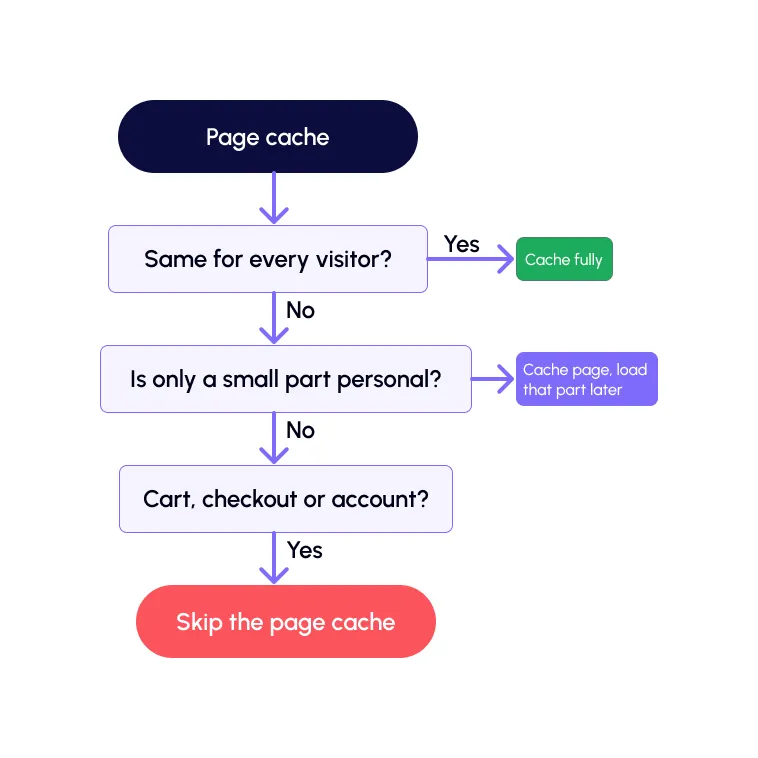
Not sure which method fits a given page? Follow this flow.
What does this look like on real sites?
A blog with comments
Mostly static. Cache the posts, purge when you publish or edit, and refresh before nonces expire. Comment forms stay working.
A WooCommerce store
Cache your product and category pages. Leave the cart, checkout and account pages alone. For a cart count in the menu, use the “load later” method. This is the most common setup and the one with the most to lose if done wrong.
A membership or course site
Public sales pages can be cached fully. Member areas are personal, so skip the page cache there and rely on object caching and a good server.
A deals site with countdown timers
Keep the page cached, but run the countdown in the browser. That way the saved page stays valid while the timer still ticks correctly.
How does SpeedyGo handle WordPress dynamic content caching?
SpeedyGo gives you the caching tools for dynamic page caching, and the human help, to do this without guesswork.
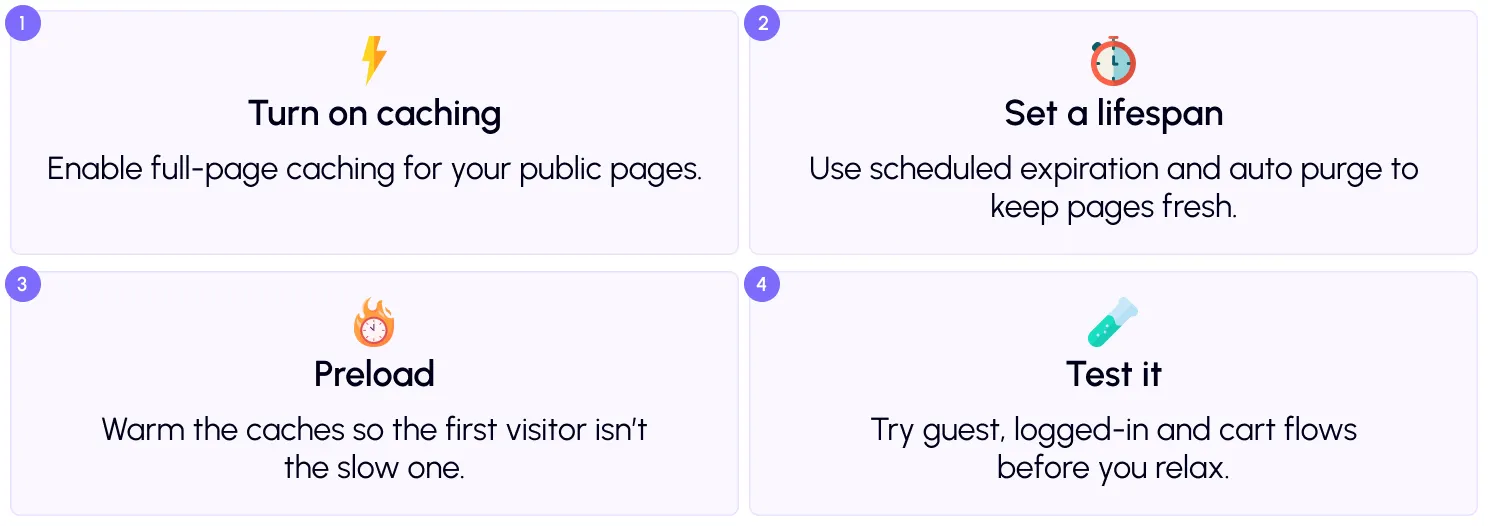
Its eCommerce optimization is built to speed up WooCommerce and other WP stores without affecting cart or checkout functionality. And you don’t have to be a developer to use it. Here’s the usual path:
Each option has its own guide in the documentation, so you can learn what a setting does before you switch it on.
Start with theoptimization presets if you want a quick, sensible setup. Then read aboutcache warm-up andbrowser caching to help returning visitors.
| Note: which plan? Page caching is included in every SpeedyGo plan. Plus adds advanced caching and WooCommerce support, and it’s the plan SpeedyGo’s pricing FAQ suggests for most small business sites. Free and Starter are fine for a simple blog. |
Dynamic sites sometimes need a second pair of eyes. That’s where support hours help. Here’s how much human support each plan includes.
What’s the safe-caching checklist?
Go through these in order. Your ticks stay on the page while it’s open.
- Measure first. Run the free SpeedyGo speed test and note your starting score.
- List your dynamic pages. Cart, checkout, account, members area, forms.
- Exclude private pages. Make sure cart, checkout and My Account skip the page cache.
- Set the lifespan under 12 hours if your pages have forms or other nonces.
- Turn on preloading. A warm cache means the first visitor gets the fast version too.
- Test like a customer. Browse as a guest, log in, add to cart and check out in two browsers.
- Test again after any update. New plugins can add new dynamic parts.
The bottom line
So, can you cache dynamic WordPress content without breaking your site? Yes. The trick is to stop thinking of your site as “cached” or “not cached.” Think of it as many page types, each with its own rule. Cache what everyone shares. Protect what’s personal. Refresh before things go stale. Do that, and WordPress dynamic content caching becomes one of the safest speed wins you can make.


Frequently Asked Questions
Here are answers to some common questions about which pages you can cache, which ones to exclude, how cache lifespan works, and how to keep your WordPress website fast without breaking important features.
Can you cache dynamic content in WordPress?
Yes, but you need to be careful. Pages that show the same content to everyone can usually be cached. Pages with personal information, such as carts, checkout and account pages, should generally be excluded from full-page caching. You can also cache shared content while loading personalized sections separately.
What is dynamic page caching?
Dynamic page caching means saving a ready-made copy of a page that WordPress would normally build using PHP and database queries. When another visitor requests the page, the server can deliver the saved version instead of generating it again.
Will caching break my WooCommerce cart and checkout?
It can if your caching plugin saves customer-specific pages. WooCommerce cart, checkout and My Account pages should generally be excluded from full-page caching. After changing your cache settings, always test adding products to the cart and completing an order.
How long should my WordPress cache lifespan be?
It depends on how often your content changes and whether your pages contain time-sensitive information. If a cached page includes WordPress nonces, a cache lifespan of around 10 hours can be a useful starting point, although the right setting depends on your website.
What is personalized content caching?
Personalized content caching means saving the parts of a page that everyone can see while keeping visitor-specific information separate. For example, a product page can be cached while the shopping cart count loads separately for each customer.