
Browser caching sends HTTP cache headers that tell visitors’ browsers to store static files (images, CSS, JS, fonts) locally. On repeat visits the browser serves these files from its local cache instead of re-downloading them, making the page load significantly faster.
Dashboard path: Cache Settings → Caching & Preloading
Section: Browser Caching
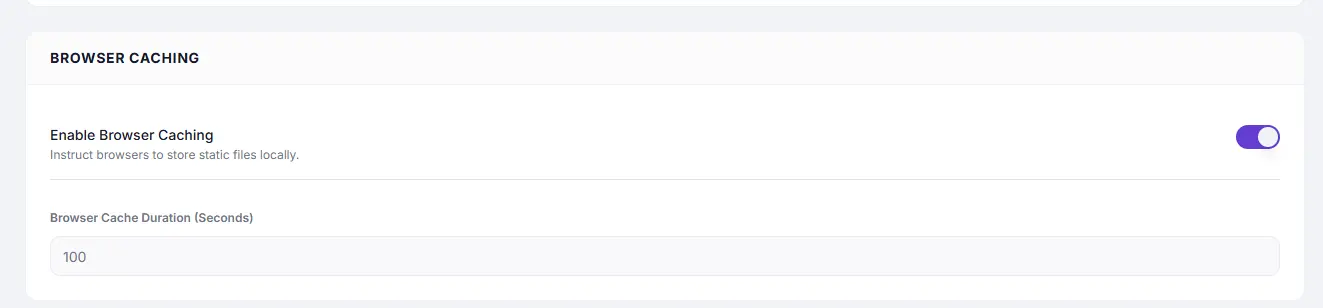
Settings #
| Setting | Type | Description |
|---|---|---|
| Enable Browser Caching | Toggle | Activates browser cache headers for static assets. |
| Browser Cache Duration (Seconds) | Number | How long browsers keep local copies of assets before checking for updates. |
Recommended Values #
| Duration | Seconds | Best for |
|---|---|---|
| 1 hour | 3600 | Assets that change frequently |
| 1 day | 86400 | General sites with occasional updates |
| 1 week | 604800 | Stable themes and plugins |
| 30 days | 2592000 | Recommended for most sites — CSS, JS, fonts rarely change |
| 1 year | 31536000 | Completely static assets (logos, brand images) |
Recommended starting value: 2592000 (30 days)
How to Enable #
- Go to Cache Settings → Caching & Preloading.
- Under Browser Caching, toggle Enable Browser Caching to ON.
- Set Browser Cache Duration (e.g.
2592000for 30 days). - Click Save Changes.
How it Works #
When a visitor loads your site, SpeedyGo adds Cache-Control headers to static files. The browser stores these files locally and reuses them on subsequent visits without making network requests — until the duration expires.
Troubleshooting #
| Symptom | Likely cause | Fix |
|---|---|---|
| CSS/JS changes not appearing after update | Browser serving stale cached files | Rename or version your asset files, or lower the cache duration |
| Browser caching not reflected in PageSpeed | Host-level caching overrides SpeedyGo headers | Check your server/CDN configuration; the host-level setting takes precedence |
Tips #
Tip: If you deploy theme or plugin updates frequently, use a shorter duration (
86400) during development and increase to2592000once stable.
Note: Browser caching controls how long the visitor’s browser stores assets. It is separate from SpeedyGo’s server-side full page cache.


