12 mins read
The Ultimate Guide to WordPress Speed Optimization
Share Article :


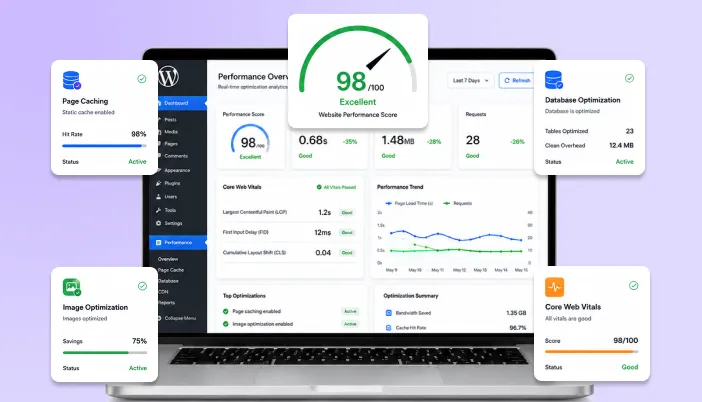
In this blog, you will see how you can speed-optimize your WordPress website, why WordPress speed optimization is important, what causes a website to slow down, and the practical steps you can take to improve its performance. You’ll also learn how to optimize your hosting, theme, caching, images, CDN, database, and Core Web Vitals to create a faster, smoother experience for your visitors.
Be honest with yourself for a second: when was the last time you actually sat and watched your own website load?
If you did that right now, would you be proud of what you saw? Or would you be quietly wincing?
WordPress itself isn’t slow. In most cases, websites become slow over time. Somewhere between that first exciting install and today, your site probably picked up a few extra pounds: a plugin here, an uncompressed photo there, a theme with fifteen features you never use, and now it’s carrying weight it doesn’t need.
This guide is about helping you find that weight and put it down, layer by layer, without needing a computer science degree to do it.
Why should you even care about this?
Website speed isn’t just a technical score. It affects real people.
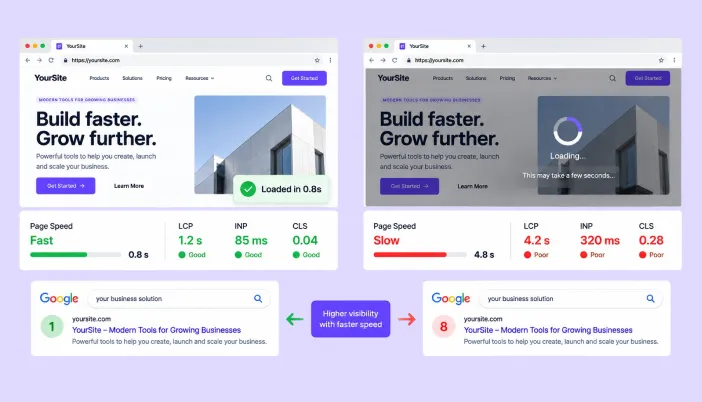
Visitors decide within seconds whether to stay or leave. If your website is slow, they won’t wait; they will simply go back to Google and choose another result.
| Here’s a number that should genuinely bother you: back in 2006, an Amazon engineer named Greg Linden discovered that every extra 100 milliseconds of page load time cost the company roughly 1% in sales. That’s one-tenth of a second. Read that again. A tenth of a second, and money quietly walked out the door. Almost twenty years later, people still cite this number because nothing has come along to disprove it; if anything, we’ve all gotten more impatient, not less. |
And honestly, think about your own habits. How often do you wait for a slow website to load instead of clicking the back button?
There’s a phrase in the web performance world that’s stuck around for over a decade, coined by Steve Souders, the engineer who more or less invented the discipline of “web performance” while running the teams at Yahoo and later Google. He called it the Performance Golden Rule:

“80-90% of the end-user response time is spent on the front-end. Start there.”
In simple words, most speed problems visitors notice come from things like your hosting, theme, images, and caching, not complicated code.
That’s actually good news because these are areas you can improve without being a developer. This guide will focus on those practical changes first to help you build a faster WordPress website.
Before you read another word, do this
Open a new tab, visit Google PageSpeed Insights, and test your homepage.
Do it now, not later.
Seeing your website’s actual speed score will help you understand the problems better. Instead of thinking about website speed as just a concept, you’ll know exactly where your website stands and what needs improvement.
Okay, so where do you even start?
When your website feels slow, the first thing most people do is install a caching plugin. It seems like the easiest fix.
But here’s the truth: your hosting is often the real reason behind a slow WordPress website.
If your server is slow or overloaded, even the best optimization plugins can’t fully fix the problem.
If possible, consider moving to a reliable managed WordPress hosting provider. These platforms are built specifically for WordPress and often include better performance, caching, and CDN support.
Not ready to switch hosting yet? That’s okay. Start by asking your current hosting provider:
- Are you using PHP 8.x?
- Do you support object caching with Redis or Memcached?
These two factors can have a bigger impact on your website speed than you might expect.
Your theme
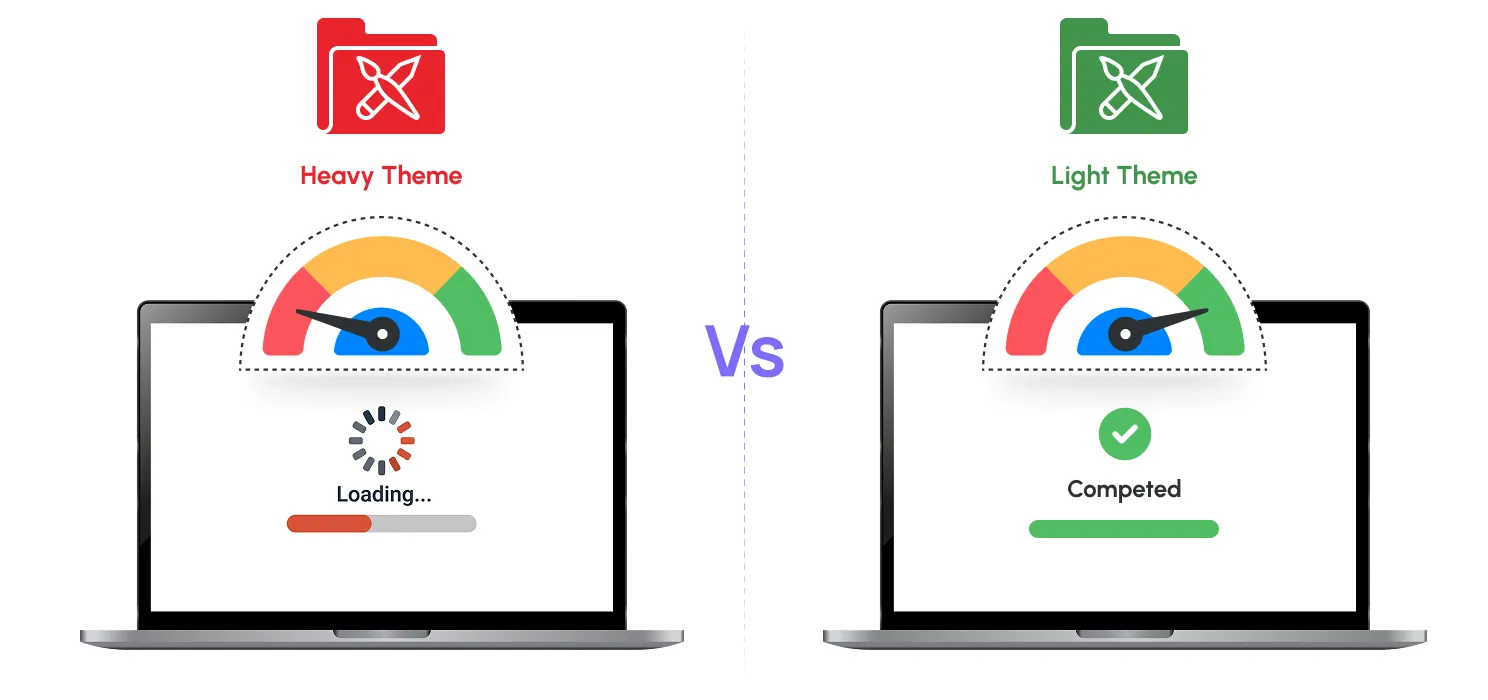
Ever wondered why two websites with similar content can load at completely different speeds?
The answer is often the theme.
Many themes come packed with extra features like page builders, sliders, and animations. While these features may look useful, they also add extra code that can slow down your website even if you never use them.
Lightweight themes like GeneratePress and Astra are often faster because they only load what your website actually needs.
Already using a heavy theme? Check its settings and disable features you don’t use. Removing unnecessary elements can make a noticeable difference in your website speed.
Caching
If you do only one thing after reading this guide, start with caching.
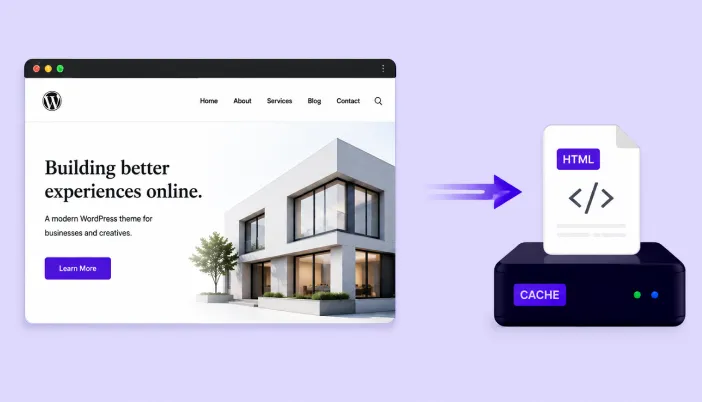
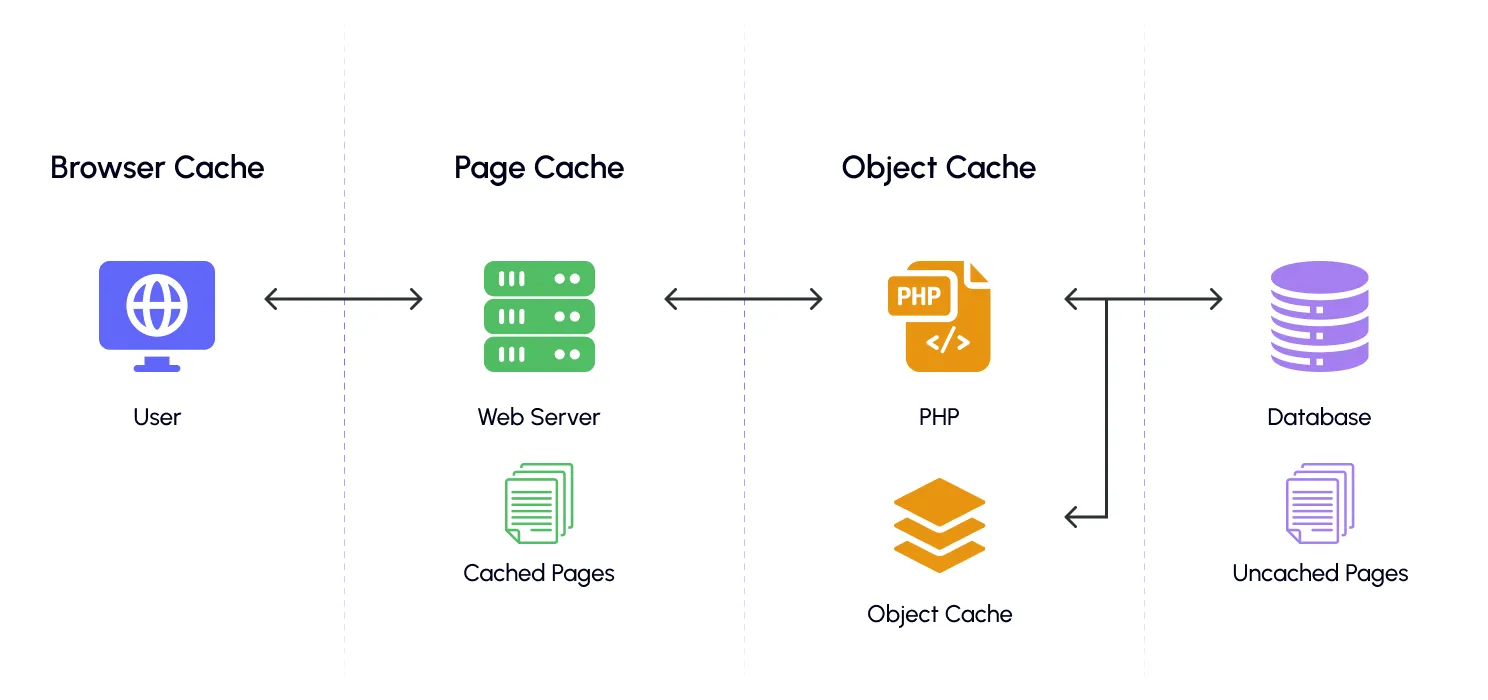
Think of it this way: without caching, WordPress creates a page from scratch every time someone visits your website. It has to fetch data, run processes, and build the page again and again.
Caching creates a ready-to-use version of your page and delivers it much faster.
For many websites, enabling caching can reduce loading times by 50% to 80%. That’s a major improvement, not just a small adjustment.
There are two main types of caching:
- Page caching: Saves a complete version of your page so visitors can load it quickly without WordPress rebuilding everything every time. This usually gives the biggest speed improvement.
- Object caching: Stores frequently used database results in memory using tools like Redis or Memcached. This helps dynamic areas like dashboards, shopping carts, and logged-in pages perform better.
So, which caching plugin should you choose? Let’s compare the most popular options and see what actually works.
| Plugin | Cost | Best for | Setup time | Watch out for |
| SpeedyGo | Free & Paid plans | WordPress users who want an all-in-one speed optimization solution with caching, image optimization, CDN, and performance tools | ~10–15 minutes | Best results come with proper configuration based on your website needs |
| WP Rocket | Paid (annual) | People who want a simple setup without spending time on technical settings | ~15 minutes | Annual renewal fee |
| LiteSpeed Cache | Free | Websites hosted on LiteSpeed servers | ~30 minutes | Works best only with LiteSpeed hosting environments |
Whatever plugin you choose, make sure to enable browser caching as well. It helps returning visitors load your website faster by avoiding unnecessary downloads of files that haven’t changed.
For a simpler approach, tools like SpeedyGo combine multiple optimization features in one place, including caching, image optimization, code minification, and CDN integration, so you don’t have to manage multiple plugins separately.
Optimize your images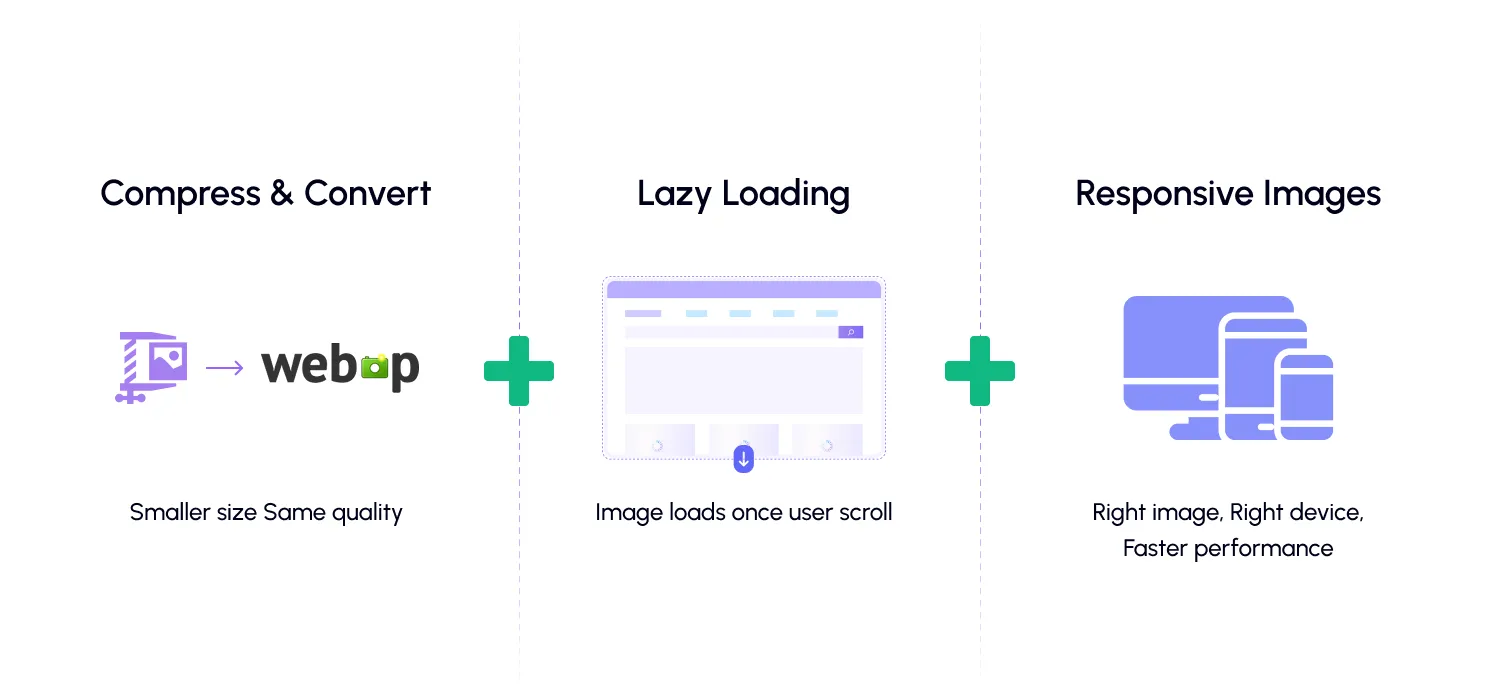
Quick question: when’s the last time you checked the file size of a photo before uploading it to a blog post? If you’re like most people, the honest answer is “never.” And that’s exactly how sites end up with a beautiful hero photo straight off an iPhone that quietly weighs 4MB and drags your load time into double digits.
Here are three simple steps:
- Compress and convert images: Convert images to modern formats like WebP or AVIF to reduce file size while keeping good quality. Tools like SpeedyGo, ShortPixel, Imagify, and Smush can automate this process.
- Enable lazy loading: Load images only when visitors scroll to them instead of loading every image at once.
- Serve the right image size: A mobile visitor doesn’t need the same large image size as someone browsing on a desktop.
The payoff here can be almost shocking: converting a JPEG-heavy page to WebP with lazy loading has been shown to lift a mobile PageSpeed score from the low 50s into the 80s, on its own, before touching anything else.
| Did you know? WordPress has quietly shipped native lazy loading since version 5.5; it automatically adds loading=”lazy” to images below the fold without you lifting a finger. So part of this step might already be working for you. The bigger opportunity most people are still missing isn’t the lazy loading; it’s the compression and format conversion nobody ever gets around to |
Use a CDN
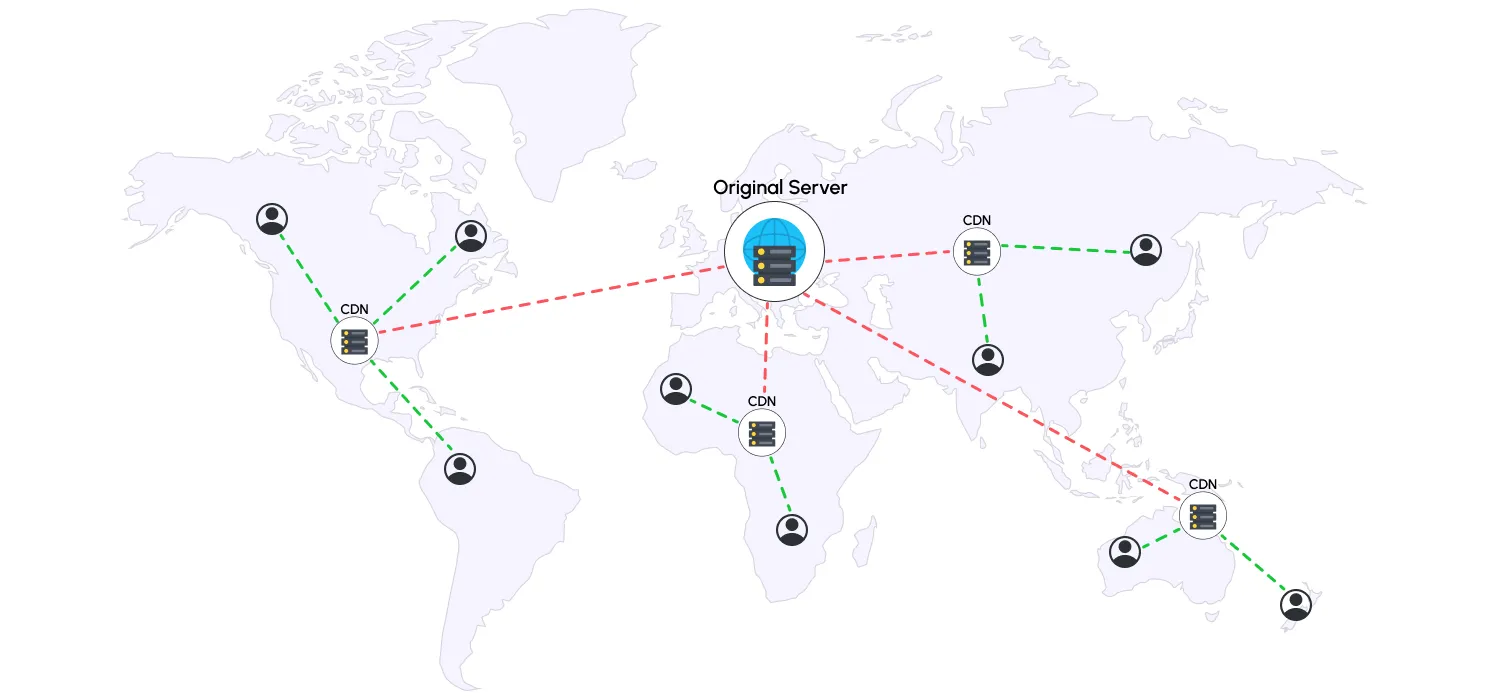
Here’s something many website owners don’t think about: your website’s server is located in one specific place, but your visitors can be anywhere in the world.
For example, if your server is in the US and someone visits your website from India or Europe, the data has to travel a longer distance before the page loads.
A Content Delivery Network (CDN) solves this by storing copies of your website files like images, CSS, and JavaScript on multiple servers around the world. This allows visitors to load files from a server closer to their location, making your website faster.
A CDN can significantly improve loading times, especially for visitors who are far away from your main server.
Popular CDN options like Cloudflare provide features such as CDN delivery, DNS management, security protection, and performance optimization tools.
If your website serves visitors from different locations, adding a CDN is one of the easiest ways to improve speed and user experience.
Clean up your code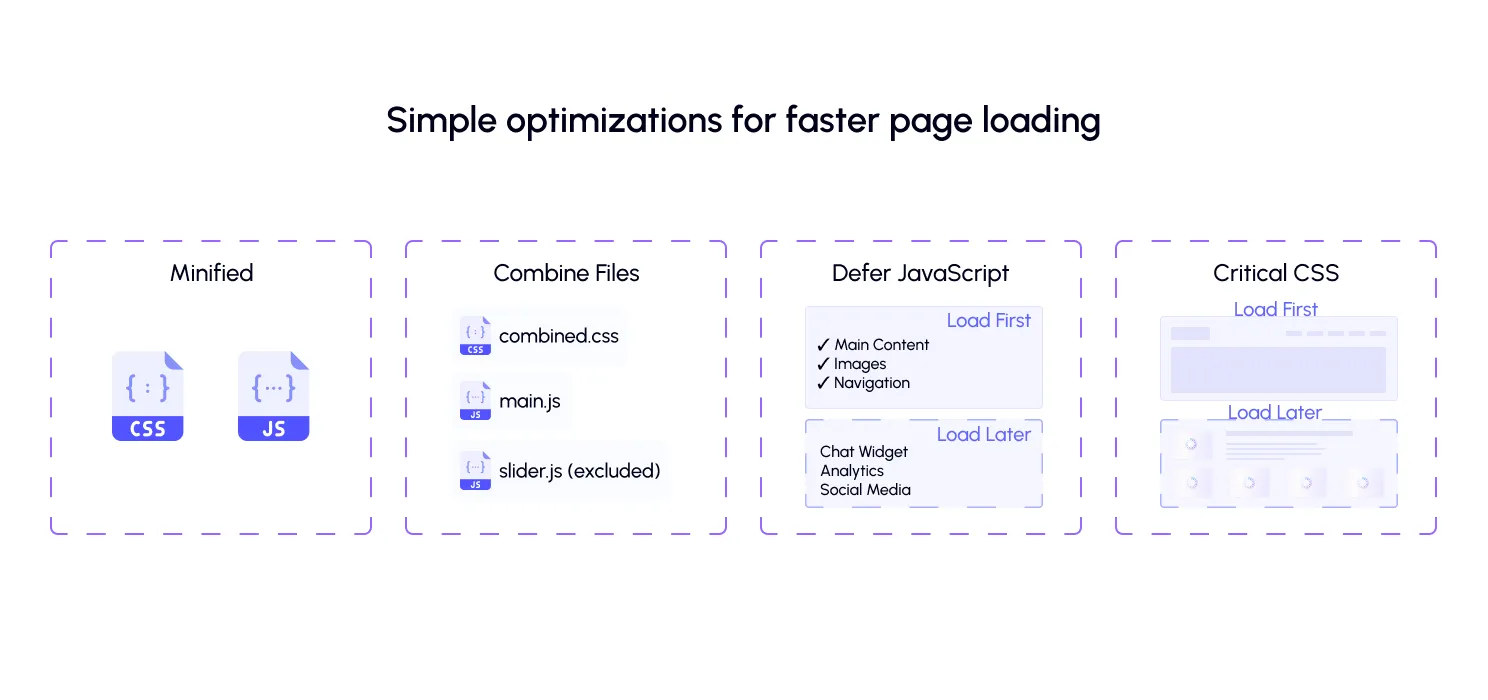
Once your hosting, caching, and images are optimized, the next step is improving your website’s code.
Over time, websites collect unnecessary code that can slow down loading times. A few simple optimizations can help your browser load pages faster:
- Minify CSS and JavaScript: Remove unnecessary spaces, comments, and extra code to reduce file size.
- Combine files: Reduce the number of separate files the browser needs to load.
- Defer non-critical JavaScript: Load elements like chat widgets, analytics, and social media scripts after the main content loads.
- Optimize critical CSS: Load the CSS needed for the visible part of the page first, so visitors see content faster.
Most speed optimization plugins offer these options. However, enable them one by one and test your website after each change. Some settings can conflict with certain plugins or themes, and testing helps you identify what caused any issues.
Clean up your database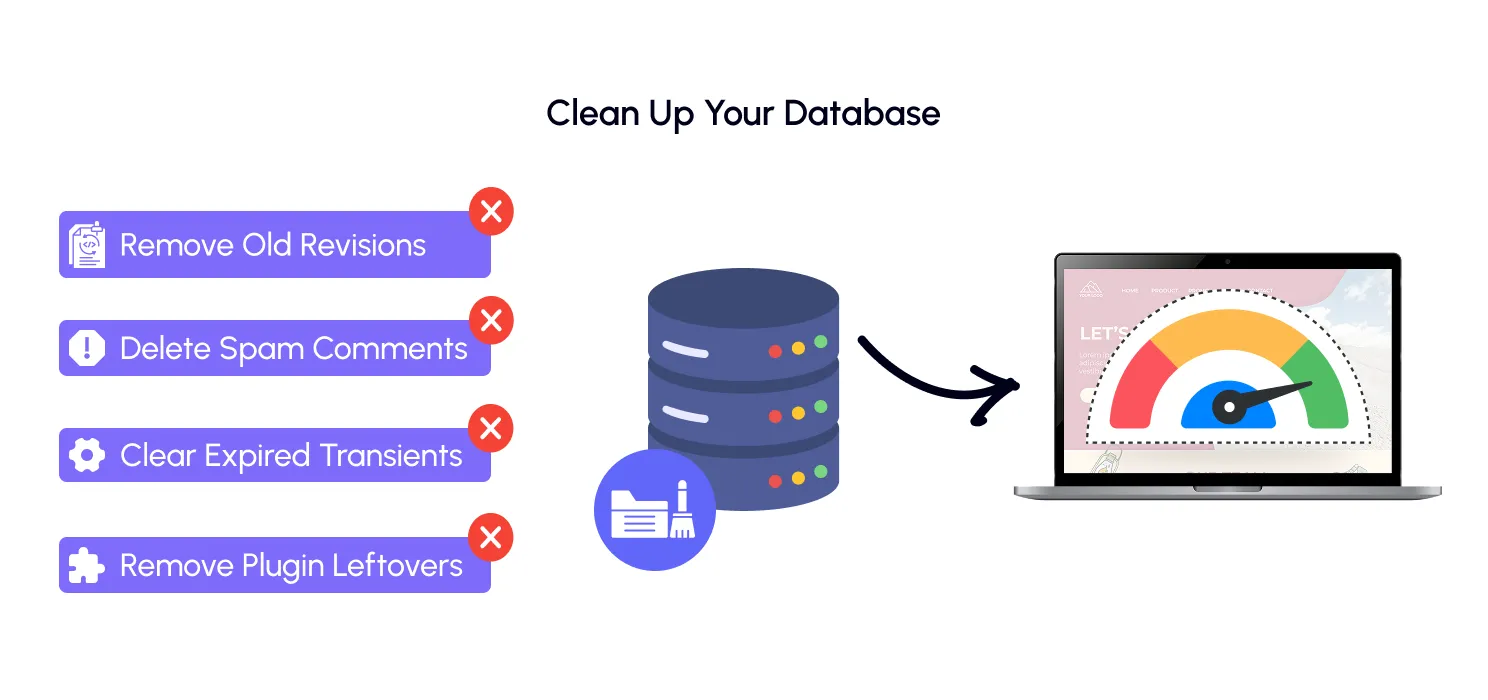
Ever cleaned out a junk drawer you’d been avoiding for years? That’s basically what your WordPress database needs. Post revisions, spam comments, expired transients, orphaned metadata from plugins you deactivated two years ago none of it is visible to your visitors, but your database still has to sift through it every time it answers a query.
Tools like WP-Optimize can automate this process by removing unnecessary data and keeping your database clean.
Also, don’t forget to check your plugin list regularly. Even deleted plugins can leave behind unused data that takes up space and affects performance.
The server settings nobody talks about
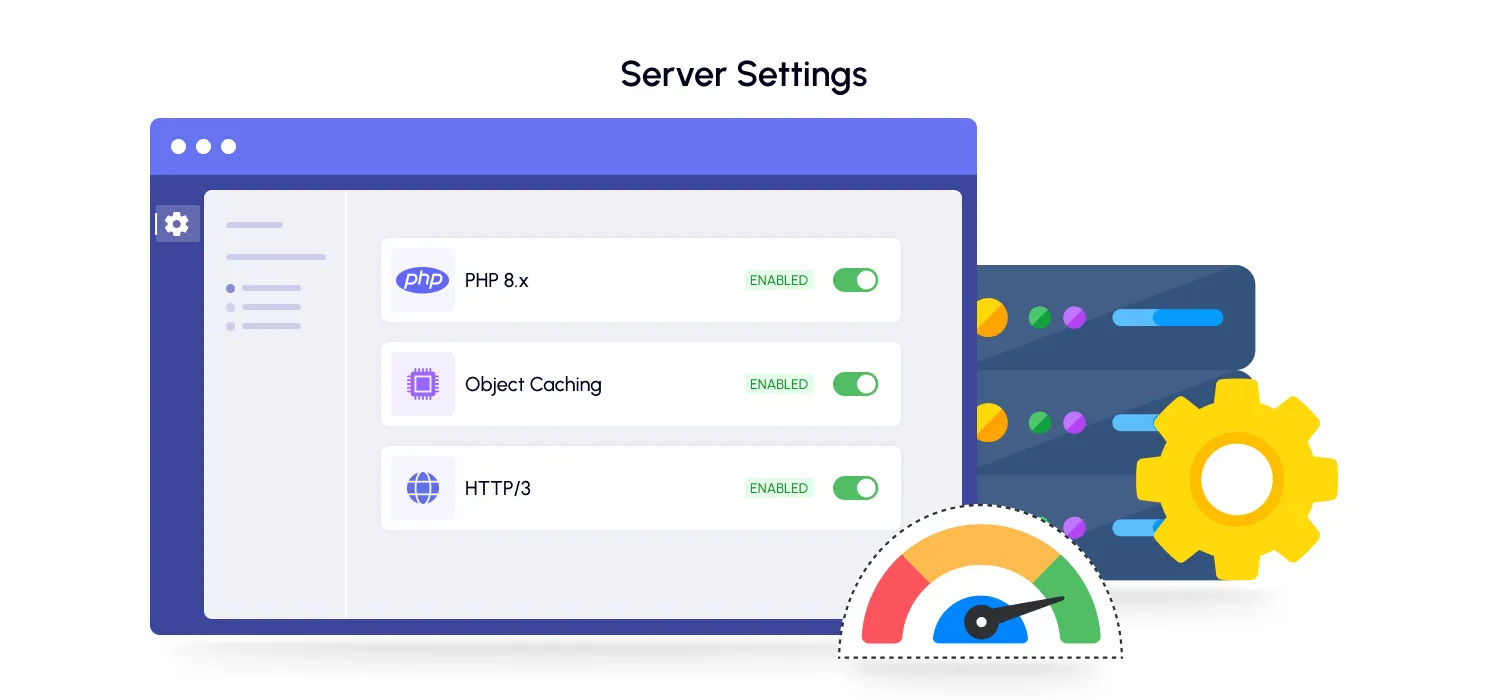
Three changes here matter more than most people realize, mostly because they live outside WordPress’s own dashboard where nobody thinks to look:
- PHP version. PHP 8.x runs roughly three times faster than PHP 7.4 on WordPress benchmarks. If your host still has you on something older, upgrading is one of the easiest, highest-payoff changes available to you. Check plugin compatibility first, but don’t skip this one.
- Object caching. Confirmed your host supports Redis or Memcached earlier? Now’s the time to actually turn it on through your caching plugin.
- HTTP/2 or HTTP/3. Make sure your host and CDN are serving over a modern protocol, so multiple requests can travel over one connection instead of queuing up politely, one at a time.
Core web vitals
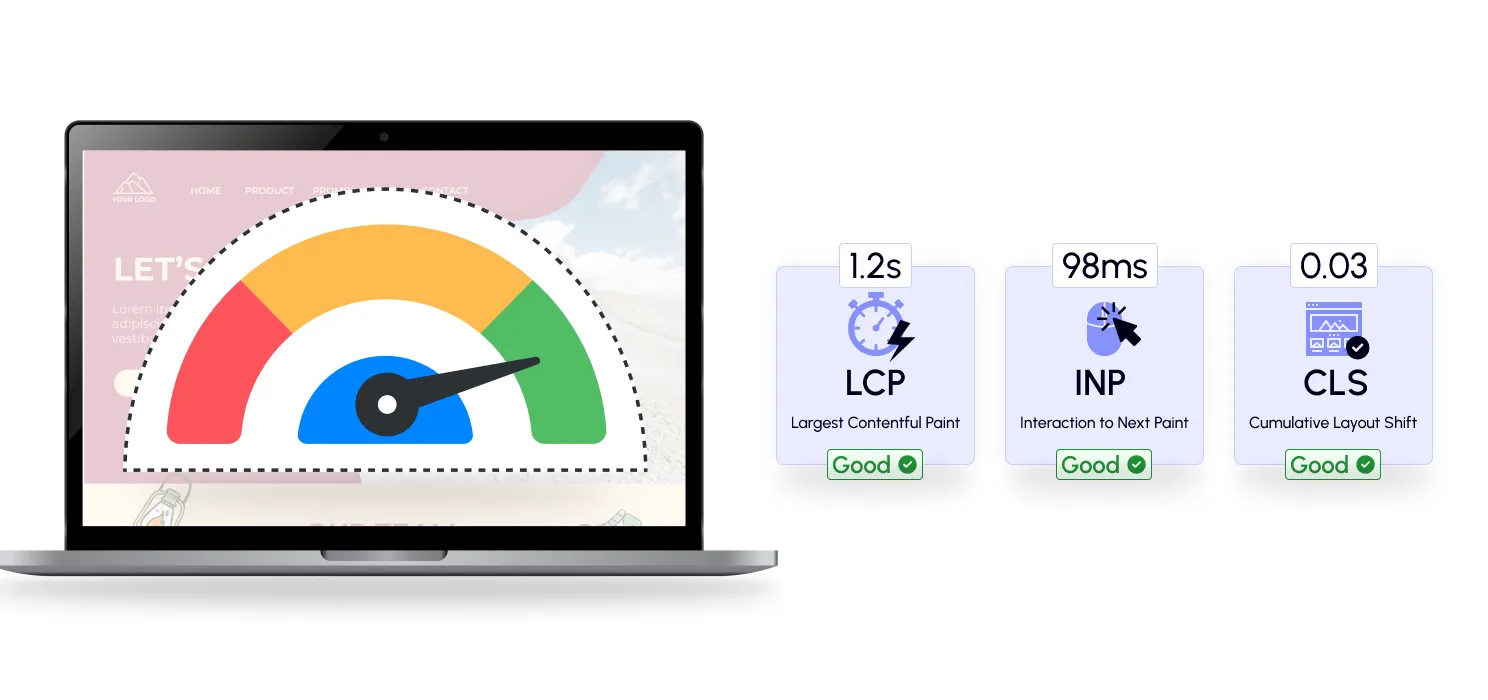
Core Web Vitals are Google’s key performance metrics that measure how fast and user-friendly your website feels.
Here are the three metrics you should know:
- Largest Contentful Paint (LCP): Measures how quickly the main content of your page loads. Aim for under 2.5 seconds.
- Interaction to Next Paint (INP): Measures how quickly your website responds when someone clicks, taps, or interacts with it. Lower is better.
- Cumulative Layout Shift (CLS): Measures how stable your page is while loading. A good score is 0.1 or lower. If buttons, images, or text move around as the page loads, visitors can become frustrated.
To improve these metrics, optimize images, reduce unnecessary JavaScript, reserve space for images and ads, and use fast-loading fonts. Small improvements in these areas can make your website feel much faster and provide a better user experience.
So, test it. Then test it again.
Website speed optimization isn’t something you do once and forget. It needs regular checking because new plugins, updates, images, and changes can slowly affect your performance.
Use different tools to understand different speed issues:
- SpeedyGo: Monitor your website performance, analyze speed issues, and optimize key areas like caching, image optimization, code minification, and CDN settings from one place.
- Google PageSpeed Insights: Check Core Web Vitals and see how your website performs for real users.
- GTmetrix: Find out which files or elements are slowing down your page with detailed performance reports.
- WebPageTest: Get a deeper look at how your website loads, including when important elements appear.
- Google Search Console: Track your Core Web Vitals performance over time and see if your improvements are working.
For most small websites, a quick monthly check of images, caching, and plugins is enough. Larger websites should perform regular audits, especially after major plugin updates or hosting changes.
So, what are you actually going to do about it?
Pick one thing from everything above. Just one. Install a caching plugin this afternoon, or compress your images tonight. Then go re-run PageSpeed Insights and watch your own number move.
Watching your own website become faster because of a few changes you made is a satisfying feeling, and once you see the impact, you’ll want to keep improving it.
Bringing it all together
If you remember nothing else from this guide, remember the order things matter in: hosting first, then your theme, then caching and images. Those three alone will usually account for most of the improvement your site actually needs. Everything after that code tweaks, database cleanup, server tuning is real, but it’s the fine print, not the headline.
A WordPress site that loads in under two seconds doesn’t happen by luck. It’s the sum of a handful of deliberate choices, checked on every so often, adjusted as your site grows. Do the work once, keep an eye on it, and speed stops being something you worry about and starts being something you just quietly have.