5 mins read
How to Choose a WordPress Speed Optimization Plugin for Your Site
Share Article :



Quick summary
There are dozens of speed plugins, and all of them promise a faster site. This guide shows you how to choose a WordPress speed optimization plugin that fits your site: what to diagnose first, which features matter, red flags to avoid, a simple scorecard and a safe way to test before you commit. It ends with a checklist.
You search for “best WordPress speed plugin” and get a long list. Every plugin says it is the fastest, the easiest, and the most complete.
So you pick the one with the most five-star reviews, install it, and turn on everything. Your site breaks. Or nothing changes.
The problem is not the plugin. It is the way we choose. A good pick starts with your site, not with the plugin’s sales page. Let’s do it properly.
What should you decide before looking at any plugin?
Start with a speed test. You cannot choose the right tool until you know what is slow. Run your key pages through thefree SpeedyGo speed test and check the mobile results.
Then match your problem to a type of fix:
Slow server response needs caching, and maybe better hosting. Heavy images need compression and modern formats like WebP. Heavy scripts and styles need minification, defer, and delay features. Visitors far away need a CDN.
Write down your top two problems. These are your must-haves. Everything else is a bonus.
How do you score and compare plugins?
Pick two or three plugins to shortlist, and score each one. Here is a suggested weighting you can adjust.
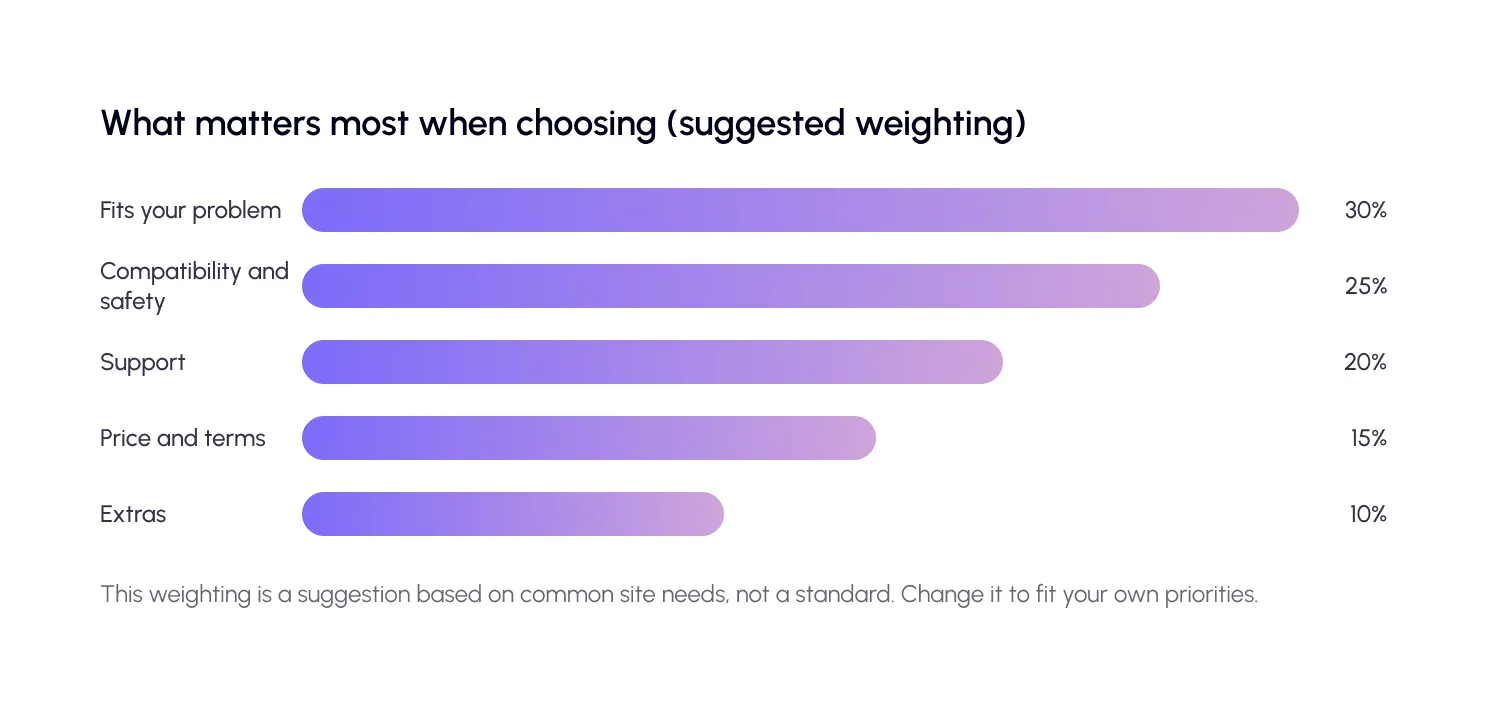
- Does it fit your problem?Check that the plugin covers your top two must-haves well. If your problem is images, a plugin with weak image tools is a poor choice, no matter how popular it is.
- Is it compatible and safe?Check that it works with your theme, page builder, and host. Look for a compatibility list, and read the documentation. For stores, check how it treats cart and checkout pages.
- Is it maintained?Look at when the plugin was last updated and which WordPress version it was tested with. You can see this on its page in the WordPress plugin directory or on the developer’s site. An abandoned plugin can become a security and compatibility risk.
- What support do you get?When something breaks at 9 p.m., a help article may not be enough. Check whether you can reach real people, and how many hours of help are included. SpeedyGo, for example, includes human support hours on paid plans, and technical fixes on Plus and Pro.
- What are the price and terms?Read the fine print. Is it a subscription or a one-time license? How many sites does one plan cover? Is there a refund policy or a free plan to test? The cheapest plan is not always the best value if it covers only part of what you need.

What are the red flags to avoid?
- Promises of a perfect 100 score. No honest plugin can guarantee it, because results depend on your site, theme, and hosting.
- No clear refund policy or trial. You should be able to test before you commit.
- No updates for a long time. WordPress changes often, and plugins must keep up.
- Hidden limits. Check bandwidth, image conversion, and site limits before you buy.
- Requiring many other plugins. If a plugin needs a stack of add-ons to work, the setup gets heavy and complex.
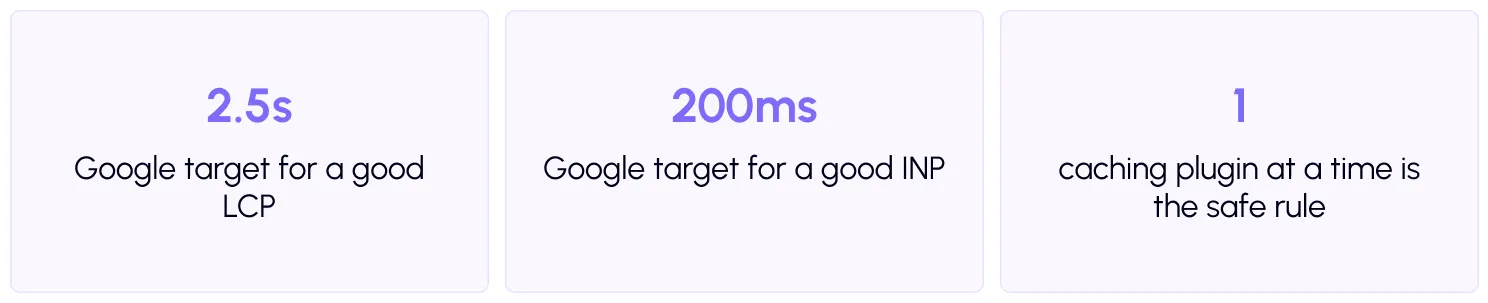
First,back up your site. Use a staging copy if your host offers one. Install one plugin at a time. If you already use a caching plugin, switch carefully and do not run two together.
| Tip Do not judge by one test. Run each page three times, check mobile, and compare real changes in how the site feels, not only the score. Google’s Core Web Vitals are a better yardstick than a single number. |
SpeedyGo
We are the team behind SpeedyGo, so judge us by the same scorecard. Here is the honest picture.
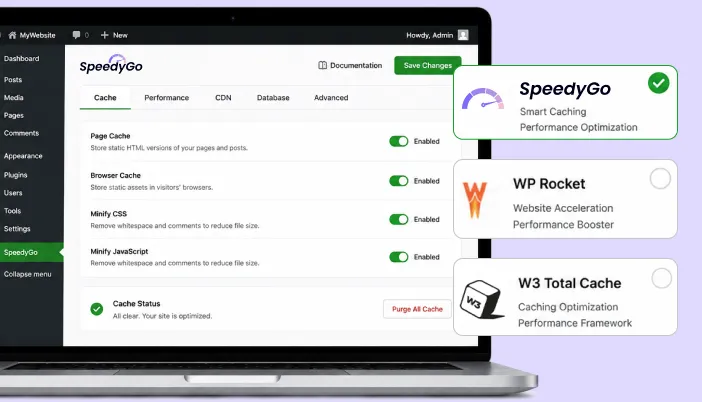
SpeedyGo covers full-page caching, WebP conversion, lazy load, CSS and JavaScript optimization, deferring scripts, JS interaction delay, and CDN integration. It runs only the features you enable, and it includes human developer support.
Some things to know before you choose it. It is a recurring subscription, not a lifetime license. Each paid plan covers one website, and agencies can contact sales for multiple sites. WooCommerce support starts on the Plus plan. And the free plan has limits, including a small CDN and image conversion allowance. If those terms do not suit you, another plugin may be a better fit.
For more comparisons, browse the SpeedyGo blog, where we cover caching plugins and CDNs.
Common mistakes to avoid
The first mistake is choosing by popularity alone. A famous plugin may not fit your problem.
The second is turning on every feature at once. Add them gradually and test.
The third is running two plugins that do the same job. Pick one for each task.

Frequently Asked Questions
Have questions about WordPress speed optimization plugins? Here are answers to some common questions about choosing the right plugin, comparing features, and improving your website’s speed.
How do I choose a WordPress speed optimization plugin?
Test your site first, list your top problems, and shortlist plugins that cover them. Check compatibility, support, price and terms, then test on staging.
What features should a speed plugin have?
Page and browser caching, image optimization with WebP, CSS and JavaScript optimization, defer and delay options, CDN support and, for stores, safe WooCommerce handling.
Can I use more than one speed plugin?
Avoid running two caching plugins together. You can use separate tools for different jobs, but make sure they do not duplicate features.
Is a free speed plugin enough?
For small, simple sites, often yes. Larger sites and stores usually benefit from advanced features and human support.
Will a speed plugin fix a slow server?
It can reduce the work your server does through caching, but it cannot make a very weak host fast. If server response stays slow, consider better hosting.
Is SpeedyGo right for me?
If you want one-click caching, WebP images, script control and human support from a lightweight plugin, it is worth a try. Start with the free plan or use the 14-day money-back guarantee.