6 mins read
Why Is WordPress Server Response Time Important?
Share Article :


| Quick summary Server response time is how long your server takes to start answering a visitor. If it is slow, everything else waits. This guide explains WordPress server response time in simple words: what it is, what a good time looks like, why it matters for speed, SEO, and sales, what causes a slow response, and how to fix it in five steps. |
You walk into a shop and ask a question. The person behind the counter just stares at you for two full seconds before saying a word.
It does not matter how helpful they are after that. You already feel the delay. You might even walk out.
Your website does this to visitors every day. The pause before your server starts answering is called server response time. Let’s look at why it matters and how to shorten it.
What is server response time?
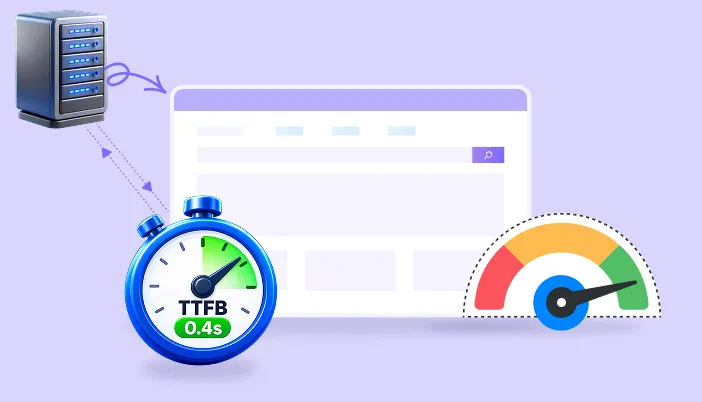
Server response time is the wait between a visitor asking for your page and your server sending back the first piece of data. It is usually measured as Time to First Byte, or TTFB.
That wait includes a few small steps: finding your server, connecting securely, and, most importantly for WordPress, your server building the page. Building a page means running PHP code and asking the database many questions. A slow server or a slow build means a long pause.
Why does server response time matter so much?
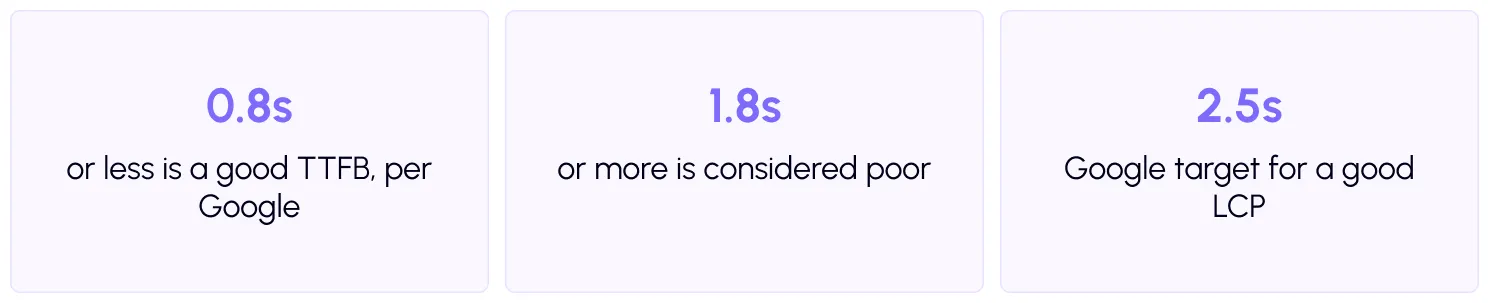
- Because everything else has to wait:Your browser cannot start loading images, styles, or scripts until your server answers. So a slow response pushes back every other step. It is the first part of Largest Contentful Paint. If your first byte takes two seconds, you have almost used up your whole 2.5-second LCP budget before the page has even started.
- Because visitors do not wait: Speed affects behavior. The Google and Deloitte study found that making a mobile site just 0.1 seconds faster lifted retail conversions by 8.4%. A slow server response is a quiet way to lose orders, leads, and readers.
- Because Google notices too:Server speed also affects how search engines crawl your site. Google’s documentation on managing crawl budget says that when a site responds quickly, Google can crawl more of it. A slow server may limit how often and how deeply Google visits. Faster responses also help your Core Web Vitals, which are part of Google’s page experience signals.
| Did you know? You cannot fully fix a slow server response with image compression or script tweaks. Those help later steps. If the first byte is late, only server-side fixes, like caching, will move that number. |
What makes WordPress server response slow?
| Cause | What you notice | Fix |
| No page caching | Every visit is slow, even to the same page | Turn on full-page caching |
| Old PHP version | Slow page building | Move to a supported, current PHP |
| Heavy theme or plugins | Slow uncached pages and slow admin | Remove unused ones, replace heavy ones |
| Slow database queries | Slow archives, searches and stores | Clean up, add object caching |
| Weak or crowded hosting | Slow at busy times or on all pages | Review your plan and host |
| Visitors far from the server | Fast near you, slow abroad | Use a CDN |
| Outside calls from plugins | Random slow spots | Remove or replace those plugins |
How do you measure your server response time?
Run your page through the free SpeedyGo speed test, and look at server response or TTFB.
Test two kinds of pages. A cached page shows how fast your site can be. An uncached page shows how much work your server does when nothing is saved. Some setups skip the cache when a URL has a random query string at the end, which can show the uncached time, but this varies by cache plugin, so check yours.
If you like the command line, this simple command prints the time to the first byte:

| Note Test a few times and at different hours. Response time can change with traffic, so a single reading can mislead you. Use the middle of three runs. |
Step 2: Turn on page caching
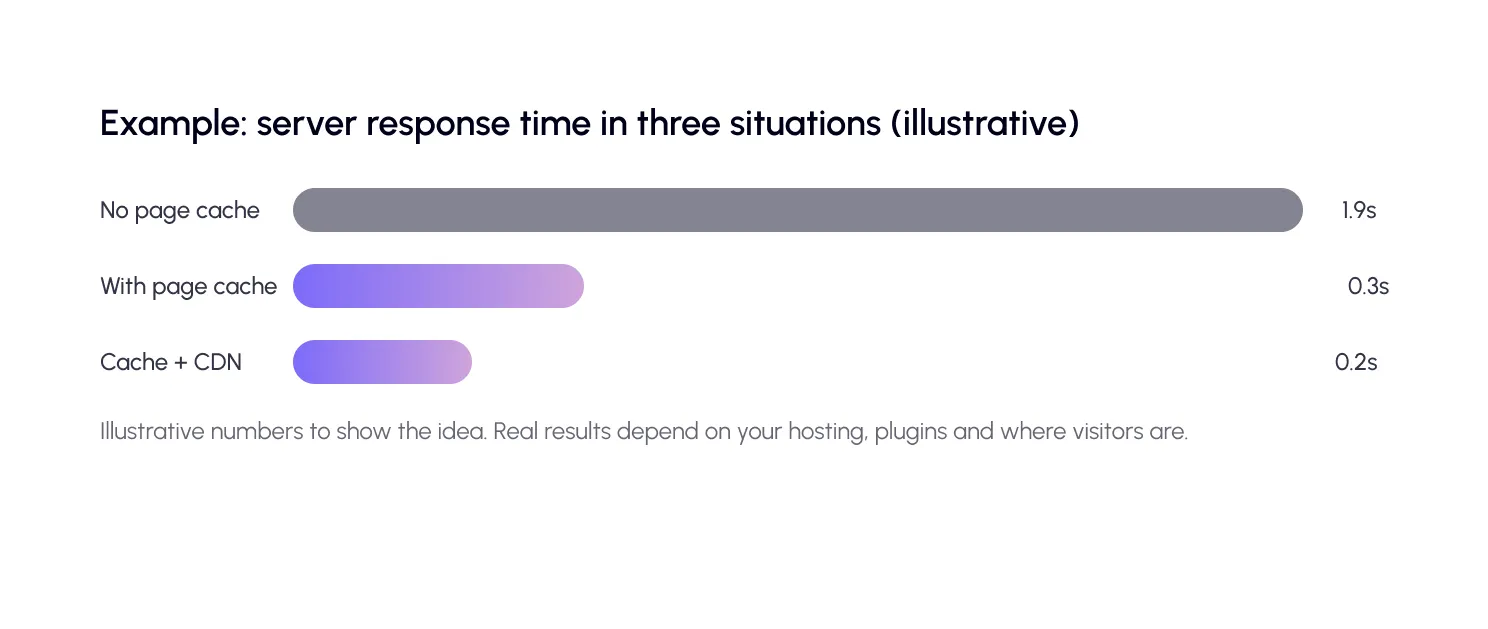
This is almost always the biggest win. Instead of building each page again for each visitor, your server hands out a saved copy. SpeedyGo offers full-page caching, and you can add cache preloading and cache warm-up so the first visitors do not hit an empty cache. Set scheduled expiration and auto-purge so saved pages stay fresh.
Step 3: Update PHP and trim plugins
WordPress publishes its recommended server requirements, and PHP only supports certain versions, as listed on the PHP supported versions page. Ask your host to move you to a current supported version, and test your site afterwards. Then remove plugins you do not use. Every plugin adds work to every uncached page.
| Tip Always back up before updating PHP. Some old plugins and themes break on newer versions, and it is better to find that out on a staging copy than on your live site. |
Step 4: Look at the database
Install the free Query Monitor plugin to find slow database queries and the plugin responsible. Then consider object caching, which saves common query results in memory, if your host supports it. We cover cleanup in more detail on the SpeedyGo blog.
Step 5: Decide on hosting and a CDN
If your response time is still slow after caching and plugin fixes, your host may be the limit. Signs include slowness at busy times, resource limit warnings, and slow admin screens. Then it is worth looking at a better plan or host. If visitors are spread across countries, addCDN integration so files are delivered from nearby servers.
Be honest about the limits of any plugin. A caching plugin cuts the work your server does, but it cannot make a very weak server powerful.

Your server response checklist
- Measure TTFB on cached and uncached pages, three runs each
- Turn on full-page caching
- Use cache preloading or warm-up after clearing the cache
- Set auto-purge so saved pages stay fresh
- Move to a current, supported PHP version after a backup
- Remove unused plugins and heavy themes
- Find slow queries with Query Monitor
- Add object caching if your host supports it
- Test from the regions your visitors live in
- Use a CDN if visitors are far away
- Review your hosting plan only if the response is still slow
Common mistakes to avoid
The first mistake is switching hosts before trying caching. It is often the cheapest and fastest fix.
The second is testing only cached pages. They hide how slow the server is when the cache is empty.
The third is trying to fix server response with front-end tweaks. Minifying files helps later steps, not the first byte.

Frequently Asked Questions
Here are answers to some common questions about server response time, TTFB, caching, hosting, PHP versions, and how to identify and fix the issues that may be slowing down your WordPress website.
What is a good server response time for WordPress?
Google suggests around 0.8 seconds or less for a good TTFB. Above about 1.8 seconds is considered poor.
Why is my WordPress server response time slow?
Common causes are no page caching, old PHP, heavy plugins, slow database queries, weak hosting and visitors far from the server.
How do I improve WordPress server response time?
Turn on page caching, update PHP, remove unused plugins, check slow queries, add object caching and consider a CDN or better hosting if it is still slow.
Does server response time affect SEO?
Yes, indirectly. It affects your loading speed and Core Web Vitals, and Google can crawl a fast site more efficiently.
Will a CDN improve server response time?
It helps visitors who are far from your server, because files come from nearby locations. It does not fix slow page building on your own server, so use caching too.
Can SpeedyGo improve my server response time?
SpeedyGo’s page caching and object caching reduce the work your server does, which helps response time. It cannot fix a very weak host, so check your hosting if it stays slow.