7 mins read
How to Reduce JavaScript Bloat in WordPress and Improve Your INP Score
Share Article :


| Quick summary Too much JavaScript makes WordPress pages freeze when people tap or click. That hurts your INP score and your sales. This guide explains in plain English how to reduce JavaScript in WordPress, how to defer and delay scripts safely, and how to check your results. You will finish with a simple plan you can follow today. |
You click “Add to cart.” Nothing happens. You click again. Still nothing. Then the page suddenly wakes up and adds the item twice.
Your visitors feel this every time a site is heavy with scripts. They do not know the word “JavaScript.” They only know the site feels broken, and many leave.
The fix is not magic. It is about doing less work in the browser. Let’s walk through how to reduce JavaScript WordPress sites carry, step by step.
What is JavaScript bloat?
JavaScript is the code that makes a page interactive: menus, sliders, pop-ups, chat boxes, tracking and forms. It is useful. The problem starts when you load far more of it than the page needs.
On WordPress this happens easily. Every plugin, theme feature and page builder adds its own scripts. Marketing tools like analytics, ad pixels and heatmaps add more. Soon a simple page loads 30 or 40 script files.
The Web Almanac, which studies millions of sites, found that the typical mobile page shipsmore than half a megabyte of JavaScript. And many WordPress pages carry far more than that.
What is INP, and why should you care?
INP stands for Interaction to Next Paint. It measures how quickly your page reacts after someone taps, clicks or types. If the page shows a response fast, INP is low. If the page lags, INP is high.
INP became an official Core Web Vital in March 2024 and replaced the older FID metric. Google’s guidance says agood INP is 200 milliseconds or less, and anything above 500 milliseconds is poor.
Many sites struggle here. In the Web Almanac’s data, only about3 in 4 mobile websites had a good INP, while desktop sites did far better. Phones are slower, so heavy JavaScript hurts them most.
Better INP also helps SEO. It is part of Core Web Vitals, and a smoother site keeps visitors longer. Want to see where you stand? Run thefree SpeedyGo PageSpeed test first.
Why does JavaScript slow down your clicks?
Your browser has one main “worker” for the page. Think of a single cashier at a shop. If the cashier is busy counting a huge pile of coins, the next customer must wait.
JavaScript is that pile of coins. When a script runs for a long time, the browser cannot respond to a tap. Any task that runs longer than 50 milliseconds is called along task, and long tasks are the main cause of a poor INP.
How do you find the scripts slowing your site?
Before you delete anything, find out what is actually loading. Two free tools help.
Check unused code in Chrome
Open Chrome DevTools and use theCoverage tool. It shows how much of each script is never used on that page. If a contact form script loads on your blog posts and 95% is unused, you have found bloat.
Look for the usual suspects
On most WordPress sites the heaviest scripts come from these sources:
- Page builders and slider plugins
- Chat widgets, pop-ups and social feeds
- Analytics, ad pixels and tag managers
- Plugins that load on every page, even when used on just one
The difference between normal, async, defer and delay
Not every script needs to load at the same time. You can tell the browser when to run each one. This is the heart of WordPress JavaScript optimization.
You can read howasync and defer work on MDN. WordPress itself added built-in support for adefer loading strategy in version 6.3, but you still have to set it for every script by hand or through code.
How to reduce JavaScript in WordPress: a 5-step plan
Work through these steps in order. Test after each one, so you know what helped and what broke.
Step 1 and 2: measure, then remove
The best script is the one you never load. Go through your plugins. If you have not used one in months, delete it. If a plugin only works on your contact page, load it only there.
A common example is a form plugin that loads its scripts on every single page. Limiting it to one page can remove a large chunk of code from your whole site.
Step 3: minify your JavaScript
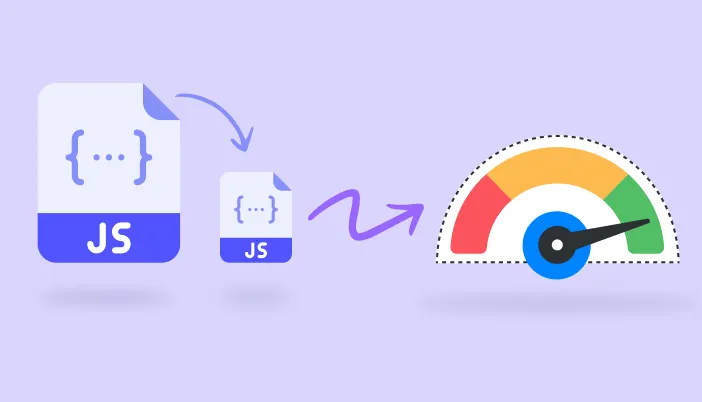
Minifying removes extra spaces, line breaks and comments. The code works the same, but the file is smaller. SpeedyGo does this withJavaScript minification, and it can also useJavaScript combination to merge files. Test combination carefully, because it can occasionally cause conflicts.
Step 4: defer JavaScript in WordPress
To defer JavaScript WordPress pages, you tell the browser to show the content first and run the scripts after. Visitors see the page sooner, and the browser is free to respond to taps. SpeedyGo’sdefer scripts setting does this for you across your site.
Step 5: delay scripts until interaction
This step is the biggest win for improve INP WordPress sites. Chat widgets, ad pixels and social embeds do not need to load while the visitor is still reading. So you wait until the first scroll, tap or mouse move.
SpeedyGo’sJS interaction delay does exactly this. It is available from the Starter plan and up. You can read the full guide toJavaScript optimization in the docs.
A real-life example
Imagine a small business site built with a page builder. Each page loads 35 scripts. Chat, analytics, a heatmap, a review widget and a slider all start at once. On a mid-range phone, the first tap takes over half a second to respond.
The owner removes two unused plugins, minifies the rest, defers theme scripts and delays the chat and heatmap until interaction. Now the browser has far less work to do at load. The first tap reacts quickly because the main thread is free.
To keep track of changes over time, SpeedyGo Pro includesPageSpeed analytics so you can watch your scores improve.
Common mistakes to avoid
The biggest mistake is changing everything at once. If your site breaks, you will not know which setting caused it. Change one thing, test, then move on.
Another is delaying scripts that the page truly needs, such as payment or cart scripts on a store. Always test your checkout on both desktop and phone.
Finally, do not chase a perfect score. A clean, fast and working site matters more than a number.
Frequently asked questions
How do I reduce JavaScript in WordPress?
Remove unused plugins, load plugin scripts only where needed, minify files, defer scripts and delay non-essential ones until the visitor interacts. A plugin like SpeedyGo can handle most of this automatically.
What is a good INP score?
Google considers 200 milliseconds or less good. Between 200 and 500 needs improvement, and above 500 is poor.
Is it safe to defer JavaScript in WordPress?
Usually, yes. But some scripts must run early. Enable defer, test your key pages, and exclude any script that causes problems.
What is the difference between defer and delay?
Defer runs scripts after the page is built. Delay holds scripts back until the visitor taps, scrolls or moves the mouse. Delay gives a bigger INP benefit for heavy, non-essential scripts.
Can too many plugins hurt INP?
Yes. Each plugin can add scripts that run on the main thread. The count matters less than how much code each one loads and where.
Will minifying JavaScript break my site?
Rarely. Minifying only removes spaces and comments. Combining files is riskier, so test that setting carefully.
Sources
web.dev: Interaction to Next Paint (INP)
HTTP Archive Web Almanac 2024: JavaScript
HTTP Archive Web Almanac 2024: Performance
V8: The cost of JavaScript in 2019
web.dev: Optimize long tasks
Chrome DevTools: Coverage
MDN: The script element (async and defer)
WordPress Core: async and defer in 6.3