
JavaScript Combination (Combine JS) merges all WordPress-enqueued script files into a single JavaScript file. This reduces the number of HTTP requests the browser must make to load the page, which is especially beneficial on HTTP/1.1 connections where each request has significant overhead.
Dashboard path: Cache Settings → Asset Optimization
Section: CSS & JS Optimization
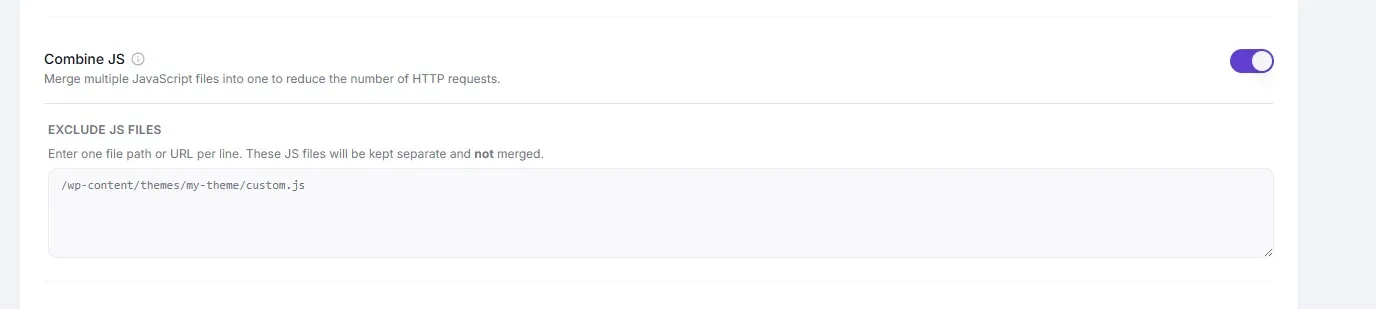
Settings #
| Setting | Type | Description |
|---|---|---|
| Combine JS | Toggle | Merges all enqueued JavaScript files into one bundled file. |
| Exclude JS Files | Text area | One file path or URL keyword per line. Files matching these are kept separate and not merged. |
How It Works #
WordPress loads scripts by enqueueing them individually — a typical site can have 10–30 separate JS files. With Combine JS enabled, SpeedyGo concatenates all of them into one file before serving the page. The browser makes one request instead of many.
Performance Impact #
| Metric | Typical improvement |
|---|---|
| Number of HTTP requests | Reduced by 60–90% for JS |
| Page load time (HTTP/1.1) | Noticeable improvement |
| Page load time (HTTP/2) | Smaller improvement (HTTP/2 handles parallel requests efficiently) |
How to Enable #
- Go to Cache Settings → Asset Optimization.
- Under CSS & JS Optimization, toggle Combine JS to ON.
- Click Save Changes.
- Test thoroughly: navigation menus, sliders, popups, forms, WooCommerce cart, checkout.
- For any broken feature, identify the script causing it (browser DevTools console) and add it to Exclude JS Files.
Exclude JS Files #
Enter one file path or URL keyword per line. Partial matches work.
/wp-content/plugins/woocommerce/assets/js/
 /wp-content/themes/my-theme/js/critical.js
 jquery
 stripe
 paypal
Scripts whose paths contain any of these strings are kept separate and loaded normally.
Common Scripts to Exclude #
| Script | Why exclude |
|---|---|
| jQuery | Some themes require jQuery to load before their own scripts — combining can break the order |
| WooCommerce checkout JS | Payment processing scripts often have strict load requirements |
| Stripe / PayPal | Payment provider scripts must be loaded from their own CDN |
| Google reCAPTCHA | Externally loaded — cannot be combined |
| Chat widgets (Crisp, Intercom, Zendesk) | Load from external CDN; combining breaks them |
HTTP/2 Consideration #
On HTTP/2 servers, the browser can load multiple JS files in parallel at little extra cost. Combine JS provides less benefit and more risk on HTTP/2. Check with your host whether HTTP/2 is enabled:
- If HTTP/2 is enabled → consider skipping Combine JS and using Minification + Defer Scripts instead
- If HTTP/1.1 → Combine JS provides the largest benefit
Troubleshooting #
| Symptom | Likely cause | Fix |
|---|---|---|
| JS console errors on load | Script load-order broken by combination | Identify the script in DevTools and add it to Exclude JS Files |
| Navigation menu not working | Theme JS depends on separate jQuery load | Exclude jquery from combination |
| Slider / carousel broken | Slider script depends on another script being loaded first | Exclude the slider plugin’s JS folder |
| Payment form not submitting | Payment gateway JS combined incorrectly | Exclude payment provider scripts (stripe, paypal, etc.) |
Tips #
Warning: Combine JS is the most likely Asset Optimization setting to cause conflicts. Always test the full site — menus, sliders, forms, checkout — before considering the task done.
Tip: Enable JavaScript Minification alongside Combine JS for maximum JS size reduction with a single merged and minified bundle.


