5 mins read
WooCommerce Speed Optimization: How to Make Your Store Faster
Share Article :


Quick summary
A slow store loses sales. This guide covers WooCommerce speed optimization in plain English: why stores get slow, which pages to cache and which to never cache, how to fix product images and scripts, and how to test your buying journey. It ends with a step-by-step plan and a checklist you can use today.
A shopper finds your product. They tap “Add to cart.” The button spins. Nothing happens. They tap again, then close the tab and buy from someone else.
You never see this lost sale. Your analytics just shows one more visit that did not convert.
A WooCommerce store is heavier than a normal WordPress site. It has product images, filters, carts, payments and live stock. The good news is that you can speed it up without breaking any of that. Here is how.
Why does speed matter so much for a store?
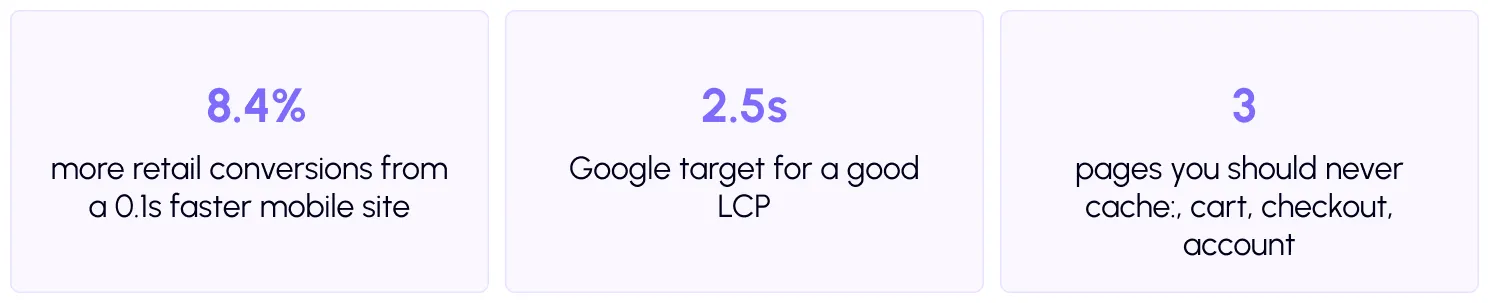
For a blog, a slow page loses a reader. For a store, it loses money. A well-known Google and Deloitte study found that making a mobile site just 0.1 seconds faster lifted retail conversions by 8.4%. A tenth of a second is smaller than a blink.
Speed also affects search. Google uses Core Web Vitals to judge page experience, and stores with heavy pages often struggle with LCP and INP.
Why are WooCommerce stores slow?
Most slow stores share the same few problems.
Big product images. Stores have many photos, and each product often has several.
Long category pages. A page showing 60 products loads 60 images, prices and buttons at once.
Too many plugins. Sales pop-ups, review widgets, chat and upsell tools each add scripts.
Live pages that cannot be cached. Carts and checkouts must stay fresh, so they need extra care.
A busy database. Orders, sessions and product data grow fast over time.
Which WooCommerce pages should you cache?
Caching saves a ready-made copy of a page, so WordPress does not rebuild it for every visitor. It is the biggest speed win for stores. But some pages are personal, so they must never be shared between shoppers.
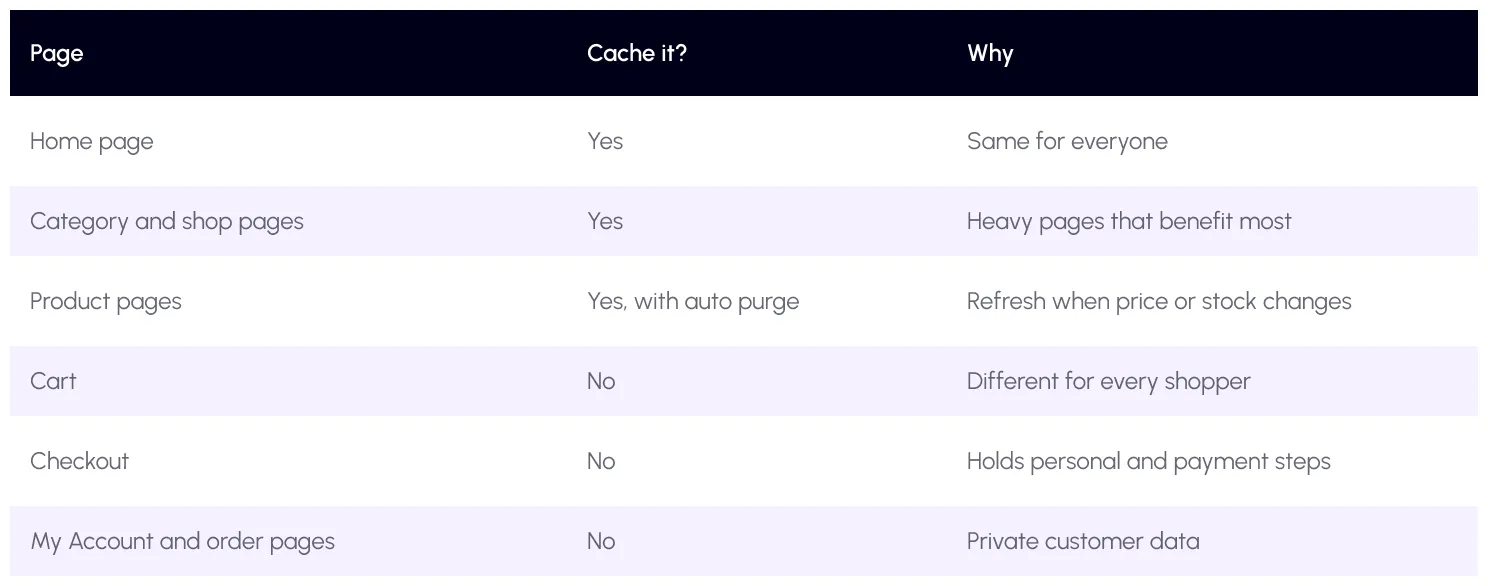
WooCommerce explains this in its guide toconfiguring caching plugins. SpeedyGo is built for this. Its features page says it optimizes WooCommerce and other stores for faster loading without affecting cart or checkout functionality. See theSpeedyGo features for details.
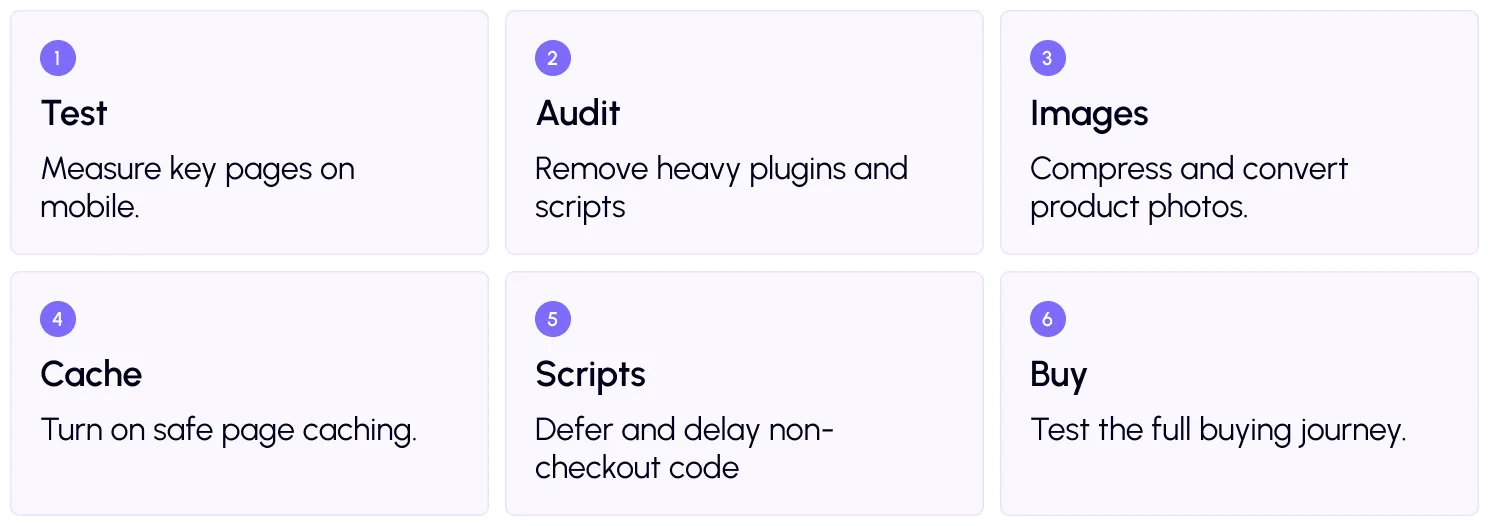
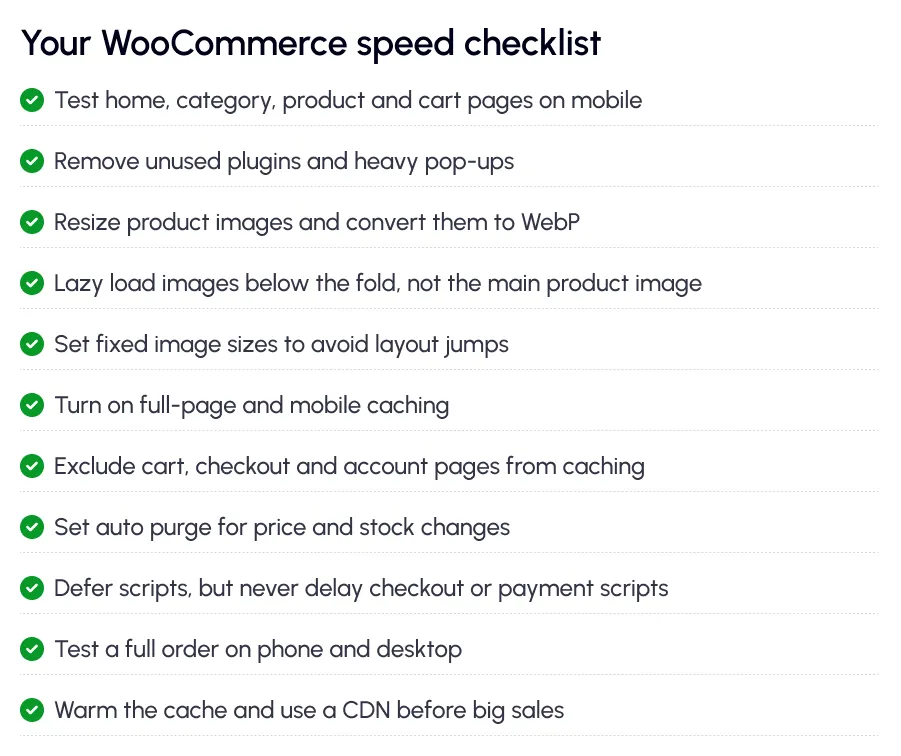
WooCommerce speed plan: 6 steps
Step 1: Test your key pages
Test four pages: home, a category page, a product page and the cart. Use thefree SpeedyGo speed test or PageSpeed Insights, and check mobile scores first. Save them so you can compare later.
Step 2: Audit your plugins
Ask of every plugin: does it help sales? Remove anything unused. Then look at heavy extras like pop-ups, live chat and review widgets. If a tool is not earning its weight, replace it or load it only where needed.
Step 3: Fix your product images
Product images are usually the heaviest part of a store. Resize them to the size they show at, and convert them to WebP. SpeedyGo does this withWebP conversion, and WebP quality control keeps products looking sharp.
Uselazy load on long category pages, so images load as shoppers scroll. But do not lazy load the main product image at the top, because Google warns that lazy-loading your LCP image slows the page down.
Also give every image a fixed size. This stops the page from jumping while it loads, which is measured asCumulative Layout Shift. Nothing is more annoying than a button that moves just as you tap it.
Step 4: Turn on safe page caching
Turn onfull-page caching and mobile caching, since most shoppers use phones. Check that cart, checkout and account pages are excluded, using the table above. On a large store,object caching can also reduce database work.

Step 5: Control your scripts
Scripts slow taps and clicks. Usedefer scripts so pages show first, and delay JS interaction for extras like chat and pop-ups. But be careful. Never delay scripts that payment, cart or checkout need. Test those first.
Step 6: Test the whole buying journey
This step protects your revenue. On your phone and desktop, browse a category, open a product, pick a variation, add to cart, apply a coupon and complete a test order. Also test logging in and using your account page.
If anything breaks, undo the last setting you changed and exclude that script or page.
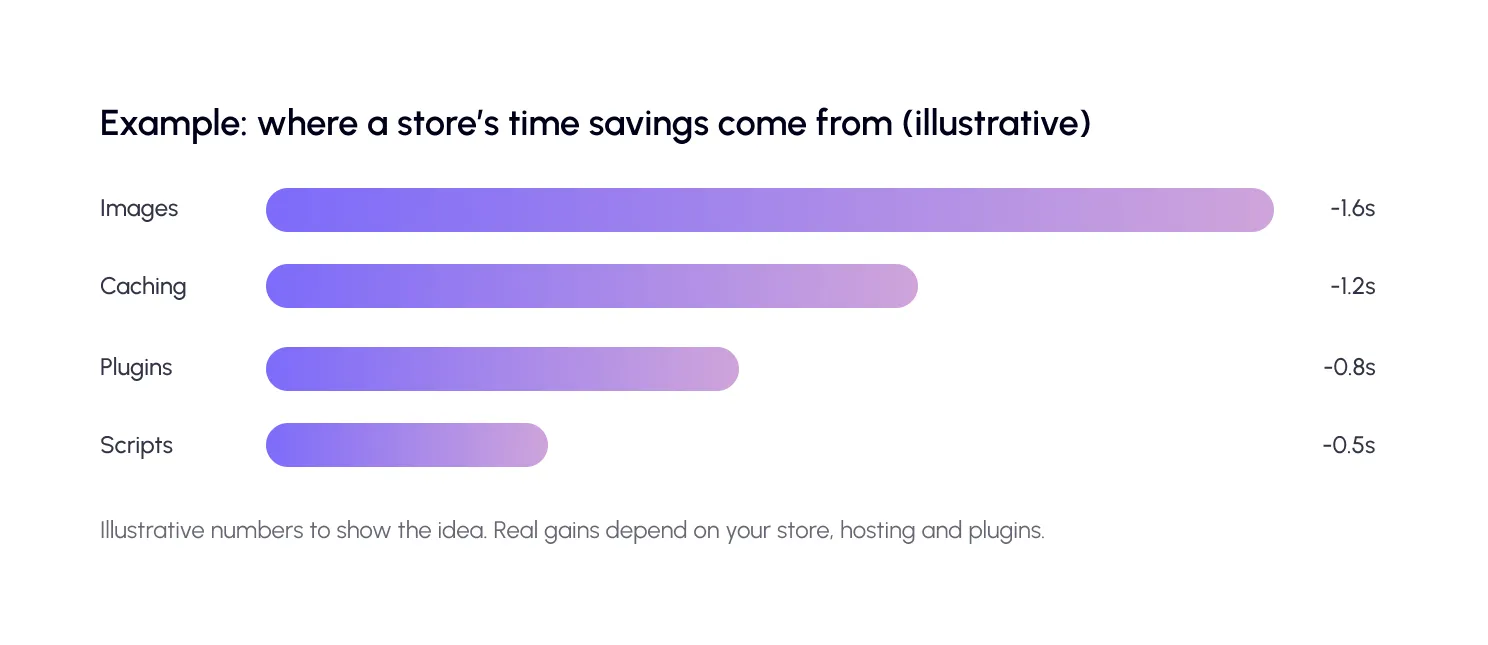
A real-life example
Imagine a home decor store with 300 products. The main category page shows 60 large photos, a sales pop-up, and a review widget. On a phone, it takes over five seconds to show the first product.
The owner converts photos to WebP and adds lazy load, then removes an old pop-up plugin. They turn on page caching with the cart, checkout and account pages excluded, and defer the review scripts. Then they test a full purchase on two phones.
The category page now feels quick, and the checkout works exactly as before. Faster pages mean more shoppers reach the product, and more reach the buy button.
Common mistakes to avoid
The biggest mistake is caching the wrong pages. If cart or account pages are cached, shoppers may see wrong or private information.
The second is delaying payment scripts. Speed means nothing if the pay button does not work.
The third is testing only on desktop. Most store visits come from phones, so test there first.

Frequently Asked Questions
Find answers to common questions about WooCommerce speed optimization, including caching, image compression, mobile performance, checkout issues, and how faster pages can improve sales.
How do I speed up my WooCommerce store?
Test your key pages, remove heavy plugins, compress and convert product images to WebP, turn on safe page caching, defer scripts and test your full buying journey.
Which WooCommerce pages should not be cached?
Do not cache the cart, checkout and My Account pages. They are personal to each shopper and must stay fresh.
Does caching break WooCommerce?
Not when set up correctly. Problems appear if cart or checkout pages are cached, so exclude them and test a full order after every change.
Why is my WooCommerce site slow on mobile?
Common causes are large product images, too many plugins and scripts, and no caching. Mobile phones are slower than desktops, so they feel these problems more.
Does SpeedyGo support WooCommerce?
Yes. SpeedyGo optimizes WooCommerce stores without affecting cart or checkout. WooCommerce support is included from the Plus plan, along with technical fixes and human support hours.