5 mins read
How to Speed Up Elementor Websites Without Breaking Your Design
Share Article :



Quick summary
Elementor makes design easy, but it can also make pages heavy. This guide shows how to speed up Elementor website pages while keeping your layout exactly as you built it. You will learn what slows Elementor down, how to fix images, fonts and scripts, and how to turn on caching safely. It ends with a checklist you can follow step by step.
You spent weeks on your Elementor design. Every section is polished. Every animation feels right. Then you open the site on your phone, and you wait. And wait. Now you face the classic fear. If you speed it up, will something break? Will the layout jump? Will the slider stop working?
The good news: you can make a faster Elementor website and keep your design. You just need to fix the right things, in the right order.
Why do Elementor sites feel slow?
Elementor is not “bad for speed.” It is a page builder, and page builders add layers. Each layer adds code the browser must load and read. Most slow Elementor sites suffer from the same few problems.
- Too many elements. Every section, column and widget adds HTML. Deeply nested layouts create very large pages.
- Big images and videos. Full-width hero images and background videos are usually the heaviest files on the page.
- Many fonts and icons. Each font family and weight is another download.
- Add-on plugins. Extra widget packs load their own scripts and styles, even for widgets you never use.
- No caching. Without it, WordPress rebuilds every Elementor page for every visitor.
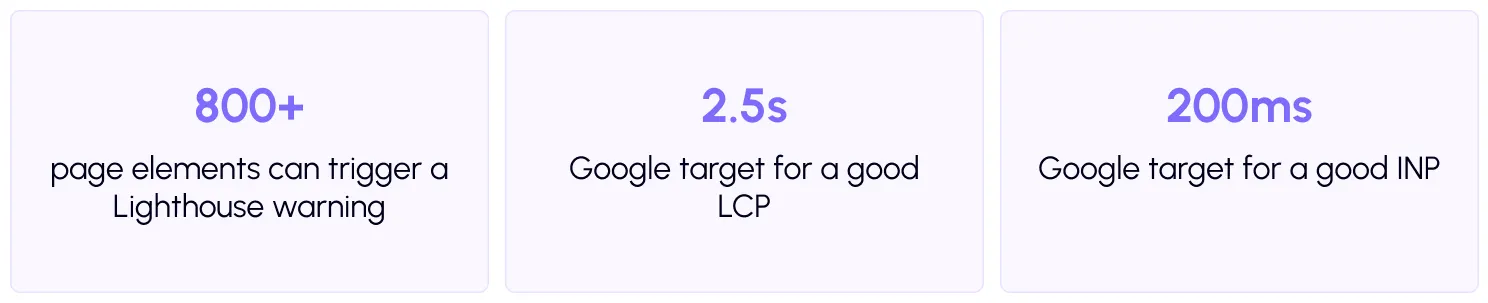
That first number matters. Google’s Lighthouse tool flags pages with a very large DOM, which means too many HTML elements. It starts towarn when a page has more than about 800 elements. Elementor pages with many nested sections can pass this easily.

How do you test an Elementor site before changing anything?
Do not guess. Measure first. Run your home page and one inner page through thefree SpeedyGo speed test or PageSpeed Insights. Save the scores and take screenshots of your design on desktop and phone.
Those screenshots are your safety net. After every change, compare the page with the screenshot. If anything looks different, you know exactly what caused it.


What are the biggest Elementor speed problems and fixes?
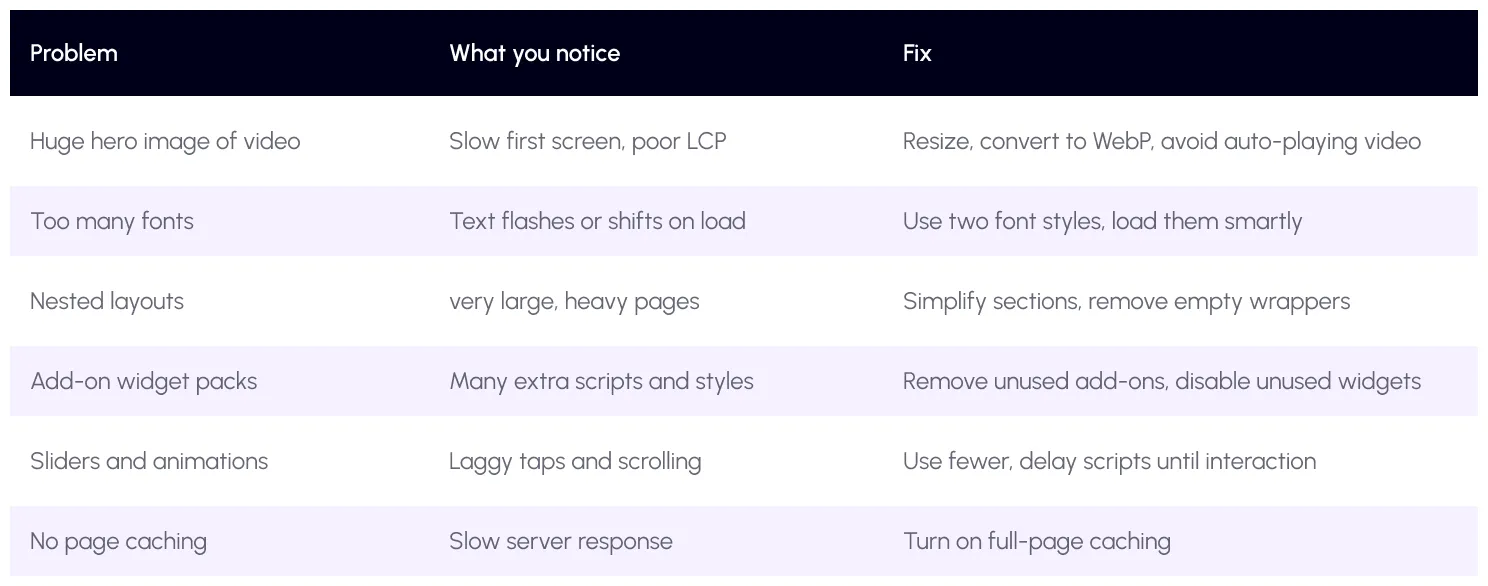
Here is a quick guide to match what you see with what to do.
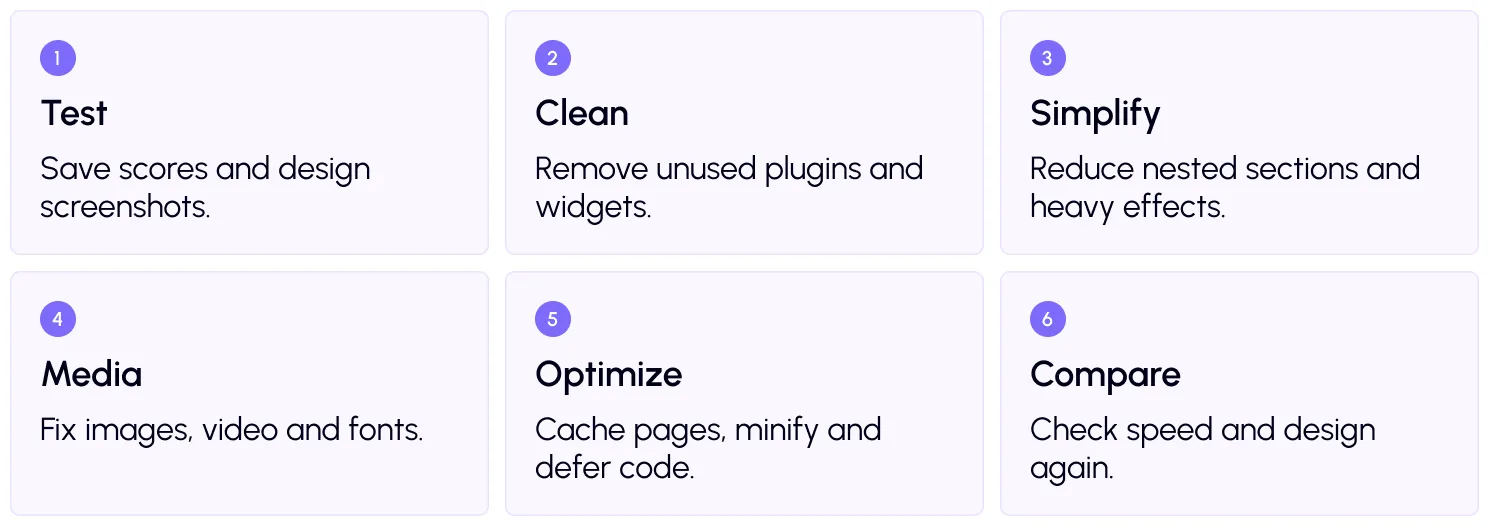
Elementor speed plan: 6 steps
Step 2: Clean up plugins and widgets
Go through your plugin list. Remove any add-on you barely use. If an add-on pack has a settings page, disable the widgets you do not need. Fewer widgets mean fewer scripts.
Step 3: Simplify your layout
Look at your busiest page. Are there sections inside sections inside columns? Try to flatten them. Delete empty containers and old hidden sections. Use spacing and padding settings instead of blank spacer widgets.
This makes the page lighter, and it also makes future edits easier.
Step 4: Fix images, video, and fonts
Start with images. Resize them to the size they actually display at, then convert them to WebP. SpeedyGo does this automatically withWebP conversion, and you can control the look withWebP quality control. For more detail, read our image format guide on the SpeedyGo blog.
Then turn onlazy load so images below the first screen wait until needed. But be careful with the top image.
For fonts, use no more than two families and only the weights you need. Google recommends smart loading practices in itsfont best practices guide. SpeedyGo plans also include deferred font loading.

For videos, avoid auto-playing background videos where you can. A still image with a play button is much lighter.
Step 5: Cache and optimize your code
Now the big win. Turn onfull-page caching, so Elementor pages are saved and served quickly. If your design differs on phones, usemobile caching too.
Next, shrink your code withCSS optimization andJavaScript optimization. Usedefer scripts to let the page show first, anddelay JS interaction to hold heavy scripts like chat widgets until the visitor interacts. That helps your INP score.
Not sure where to begin? SpeedyGo hasoptimization presets with a safe starting point.
How do you avoid breaking your design?
This is the most important part. Follow three rules.
One change at a time. Turn on one setting, then compare with your screenshot. If a slider or menu breaks, undo that setting or exclude that script.
Test the interactive parts. Click menus, open pop-ups, use sliders, submit forms and, on a store, go through the cart.
Be careful with combining files. Merging CSS or JavaScript files can sometimes change how things load. Test these settings closely.
Step 6: Compare
Re-run your tests and compare speed and looks. Check Core Web Vitals such as LCP, INP and CLS, which Google explains in itsCore Web Vitals guide. Then check again after a week, when the cache is fully built.
A real-life example
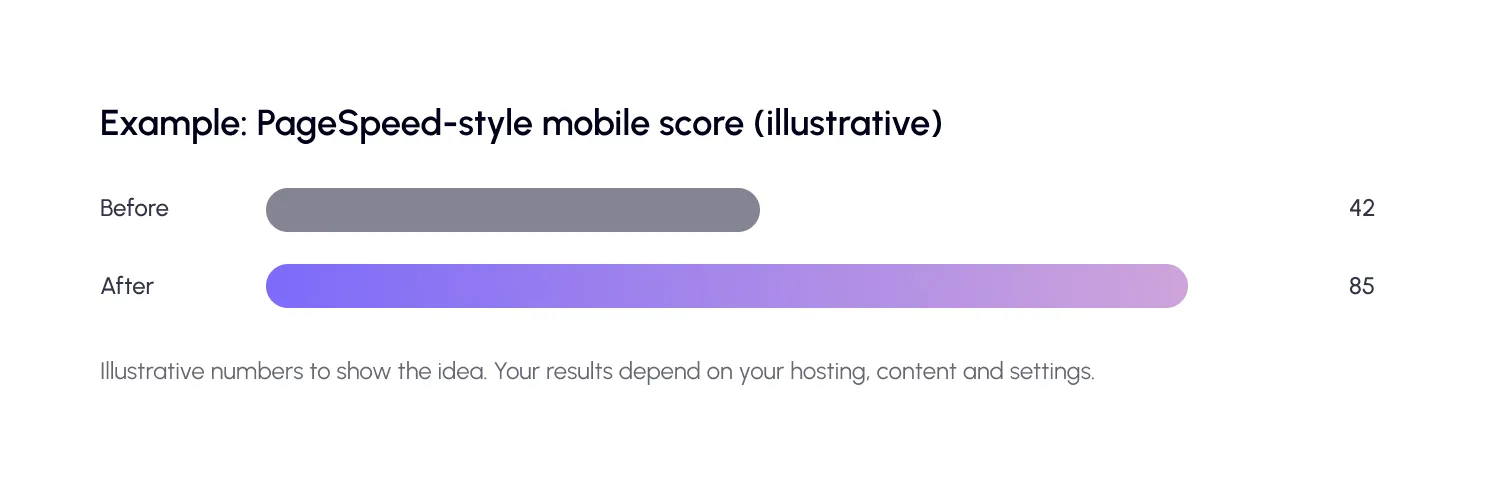
A local service business has an Elementor home page with 12 sections, a background video, four fonts and three add-on plugins. On a mid-range phone, it takes over five seconds to show the main image.
The owner removes two add-ons, replaces the video with a compressed WebP image, cuts the fonts to two, and turns on caching, lazy load and script deferral. The layout looks the same. But the page now feels quick, and the phone call button responds instantly.
Common mistakes to avoid
The biggest mistake is switching everything on at once. When the design breaks, you will not know why.
Another is chasing a perfect 100 score. A site that looks great, works well, and feels fast beats a perfect number.
And do not forget mobile. Most visitors use phones, so test there first.

Frequently Asked Questions
Find answers to common questions about Elementor website speed, performance optimization, caching, image lazy loading, SEO, and keeping your design intact.
Why is my Elementor website slow?
Usually because of big images, many fonts, heavy add-ons, deeply nested layouts and missing caching. Testing your page shows which one matters most.
How do I speed up my Elementor website?
Clean up plugins, simplify the layout, compress images to WebP, limit fonts, turn on caching and defer scripts. Test after every change.
Will optimization break my Elementor design?
It can if you change many settings at once. Change one thing at a time and compare with screenshots. If something breaks, undo that setting or exclude the script.
Should I lazy load all images in Elementor?
No. Lazy load images below the first screen. Keep your top image loading normally, since it is usually your LCP element.
Does SpeedyGo work with Elementor?
Yes. SpeedyGo lists Elementor among the popular themes and plugins it is compatible with, and its team can help if you see any issues.