9 mins read
Fixing a Slow WordPress Admin Dashboard: A Clean Guide
Share Article :


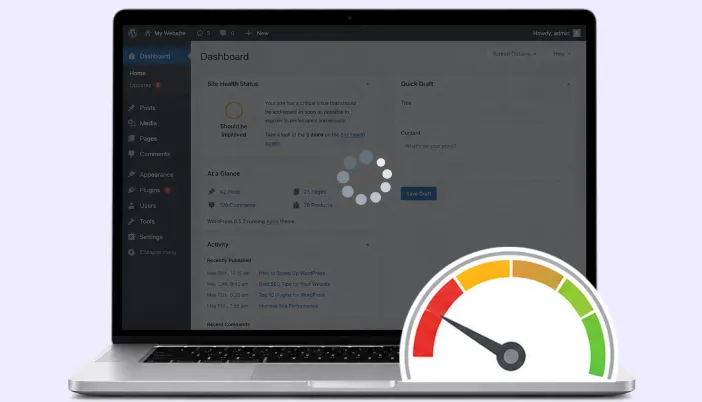
In this blog, you will learn why the WordPress admin dashboard often feels so much slower than the front end of your own site, what’s usually causing it, and a clean, step-by-step way to actually fix it.
Here’s a real example worth knowing: On one slow WooCommerce store with 500 products, simply adding proper object caching reduced admin page load time from 3.8 seconds to just 1.1 seconds and cut database queries per page from 142 to 31. The site, products, and content stayed the same, the difference was simply having a backend that wasn’t unnecessarily working overtime on every click.
If your front end loads in a couple of seconds but wp-admin takes eight, you’re not imagining it, and you’re definitely not alone. Let’s go through why this happens and how to fix it properly, not just paper over it.
Why wp-admin is slower than your front end
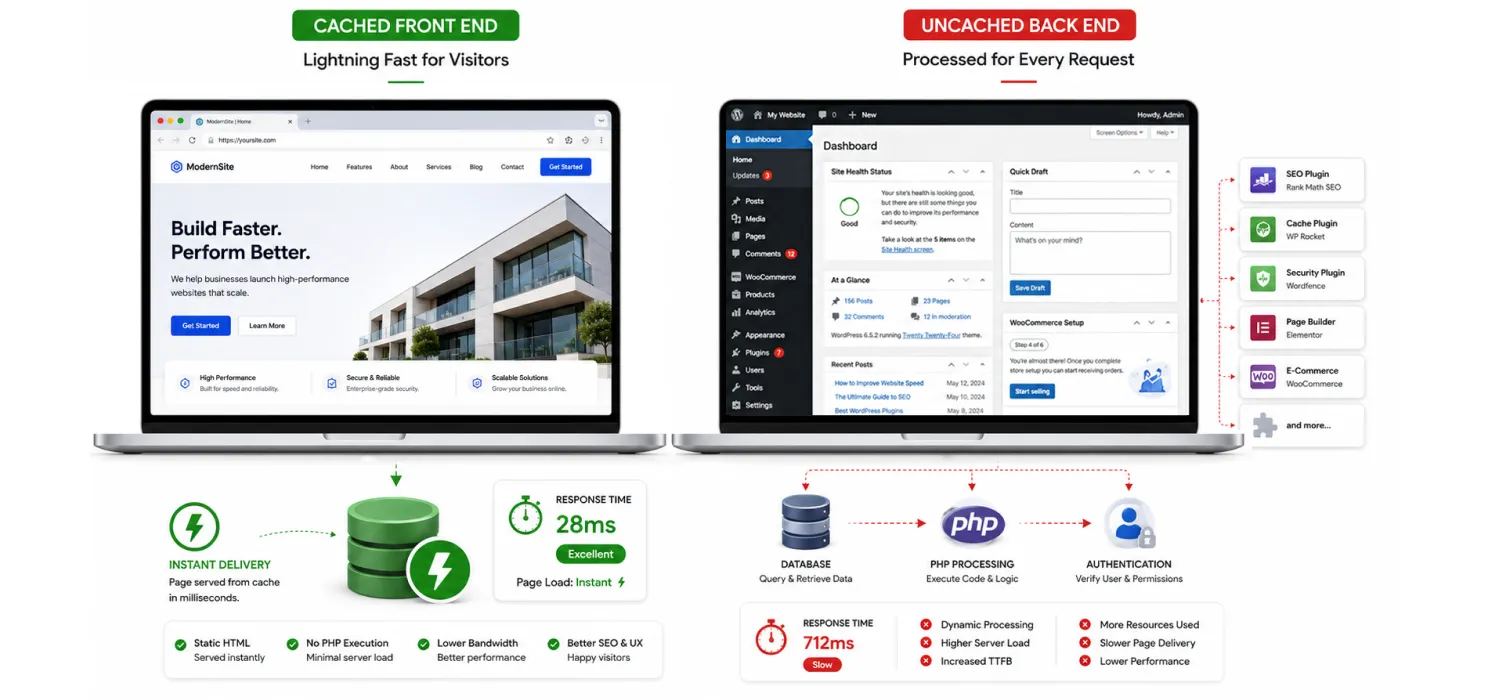
This is the part most people don’t realize: your front end can be cached, but your admin dashboard basically can’t be. Every time you load a page in wp-admin, WordPress has to run PHP fresh, check who you are and what you’re allowed to do, query the database, and load every active plugin’s admin code, even the plugins that have nothing to do with the page you’re on.
A regular visitor hitting your homepage might get a page served instantly from a cache. You, logged in and trying to edit a post, get none of that. You get the full, uncached weight of your site every single time.
As one performance guide put it plainly:
“A slow WordPress dashboard is not just annoying, it kills productivity.”
That’s really the heart of it. This isn’t just a cosmetic annoyance. If you or your team spend real time in wp-admin every day, a slow dashboard is a real, ongoing cost, measured in actual hours.
Note: A slow front end and a slow admin dashboard often have completely different causes. Fixing your WordPress speed optimization issues with a caching plugin usually does very little for wp-admin, since most caching plugins are built to skip logged-in users entirely.
A quick way to figure out what’s actually slow
Before changing anything, it helps to understand the reason WordPress website is slow and narrow down where the slowness is actually coming from. Different symptoms usually point to different causes.
| What you’re noticing | Likely cause |
| Every single admin page feels slow | Heartbeat API, weak hosting, or no object caching |
| Only the post/page editor is slow | Gutenberg editor overhead, often from certain blocks or plugins |
| Only specific list screens (Posts, Products) are slow | A plugin adding heavy custom columns or filters |
| Slowness only after logging in, on the dashboard home | Too many dashboard widgets loading external data |
| Site was fine, then suddenly got slow | A recently installed or updated plugin |
Tip: Install the free Query Monitor plugin before you do anything else. It shows you exactly how many database queries ran on a page and how long each one took, so instead of guessing, you can see precisely what’s slowing things down.
The usual suspects
Once you dig in, the causes tend to repeat across most WordPress sites:
- Too many active plugins, several of which load scripts and styles on every admin page, even where they’re not needed
- A bloated wp_options table full of autoloaded data that gets pulled in on every single request
- No object caching, meaning the same database queries run over and over instead of being remembered
- The Heartbeat API checking in with the server every 15 to 60 seconds, even when nothing needs checking
- An outdated PHP version doing everything slower than it needs to
- Weak hosting resources that are fine for a simple front end but buckle under admin-side processing
- Security, backup, and analytics plugins running background tasks on every page load
None of these on their own is usually catastrophic. It’s the combination, stacked up over months or years, that turns a snappy dashboard into a frustrating one.
The actual fixes, step by step
1. Clean up autoloaded data
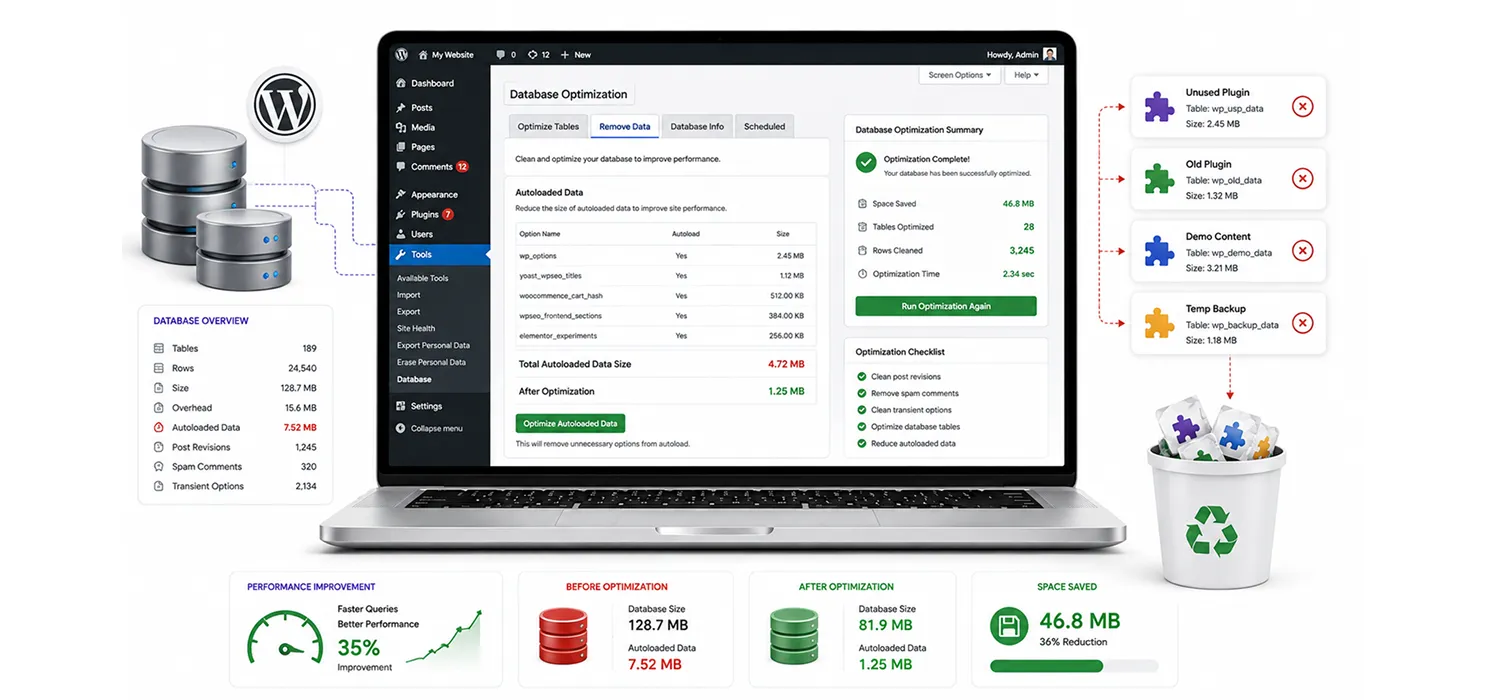
Every WordPress site has a wp_options table, and a portion of it gets “autoloaded” on every single page request, admin or not. Old plugins often leave settings behind in this table long after you’ve deactivated them, and it quietly grows for years.
- Aim to keep total autoloaded data under 800KB
- Use a plugin like WP-Optimize, or a tool like Query Monitor, to check your current autoload size
- Clean out settings left behind by plugins you no longer use
This one fix alone has been known to take sites with 30 or more megabytes of autoloaded data from 8-plus second dashboard loads down to something reasonable, without touching anything else.
2. Add object caching
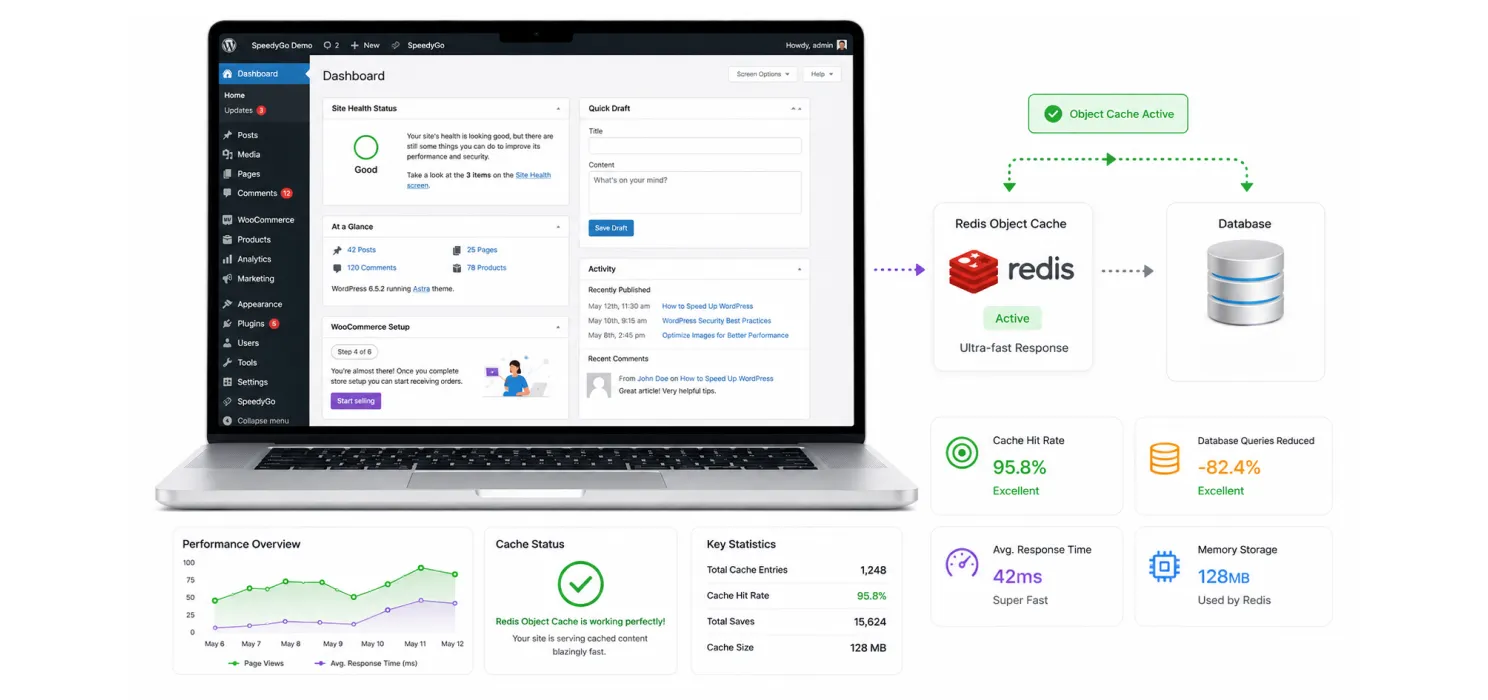
This is usually the single biggest improvement available. Object caching (using Redis or Memcached) stores the results of database queries in memory, so WordPress doesn’t have to ask the same question of the database on every page load.
- Check if your host offers Redis or Memcached, most decent managed WordPress hosts do
- Install a plugin like Redis Object Cache to connect WordPress to it
- Confirm it’s actually working. A misconfigured object cache does nothing for you, even if it looks installed
3. Get the Heartbeat API under control
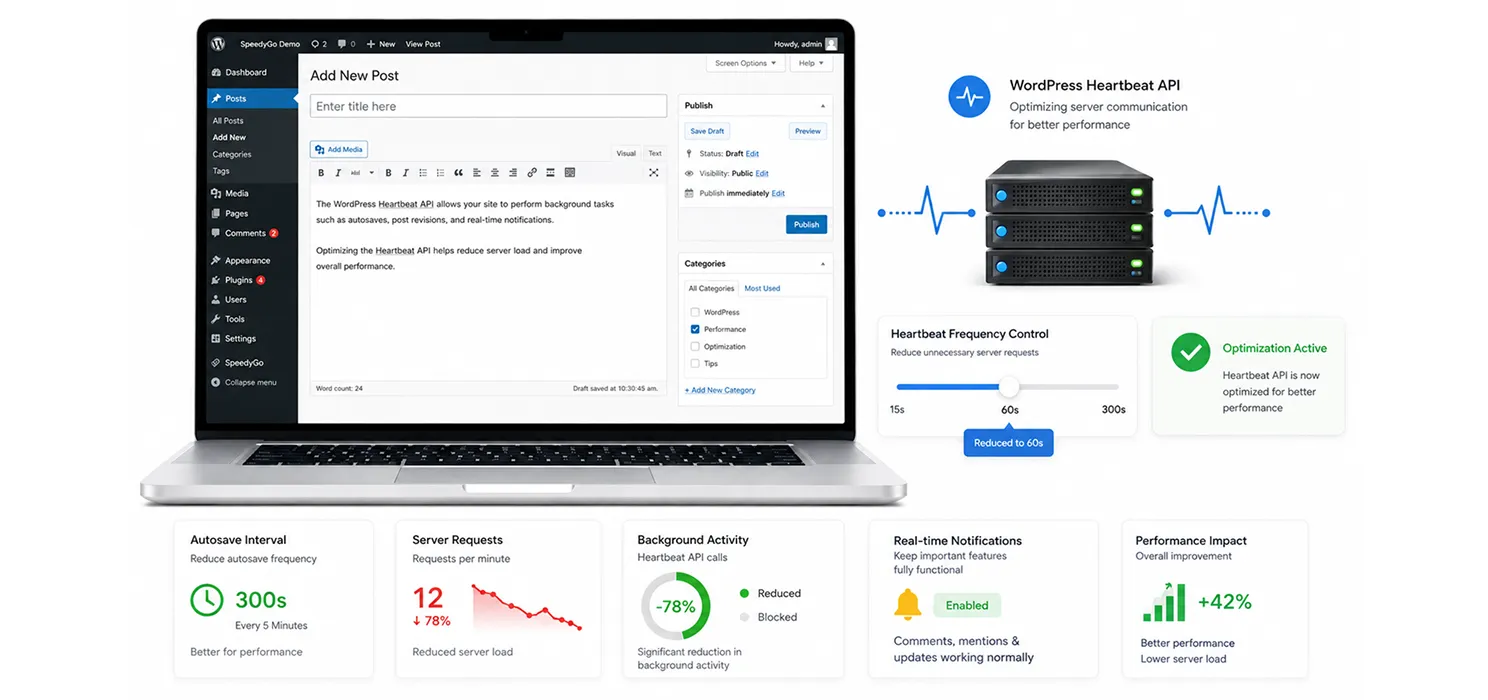
WordPress uses the Heartbeat API to power autosave and real-time notifications, but by default it can check in with your server every 15 seconds on some screens, which adds up fast across a busy day.
- Install a lightweight control plugin like Heartbeat Control
- Slow the frequency down, or disable it entirely on screens where you don’t need real-time updates
- Increase the autosave interval in wp-config.php from the default 60 seconds to something like 300 seconds
4. Update PHP and check your memory limit
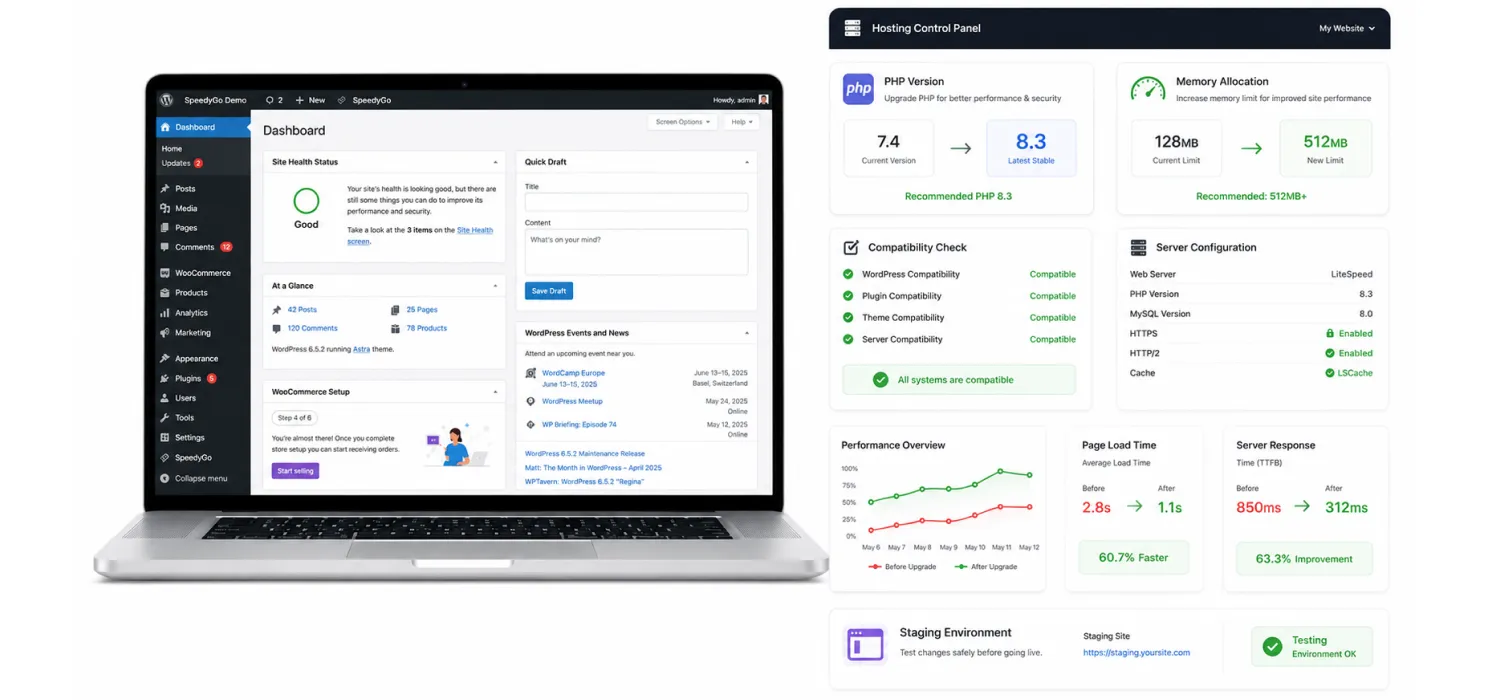
- Run the latest stable PHP version your plugins support. Jumping from an old version like 7.4 to a current one has been shown to deliver noticeable speed gains with zero code changes
- Increase your WordPress memory limit if you’re regularly hitting memory exhaustion errors
- Always test PHP upgrades on a staging site first, since older plugins can occasionally break on newer PHP versions
5. Audit your plugins properly
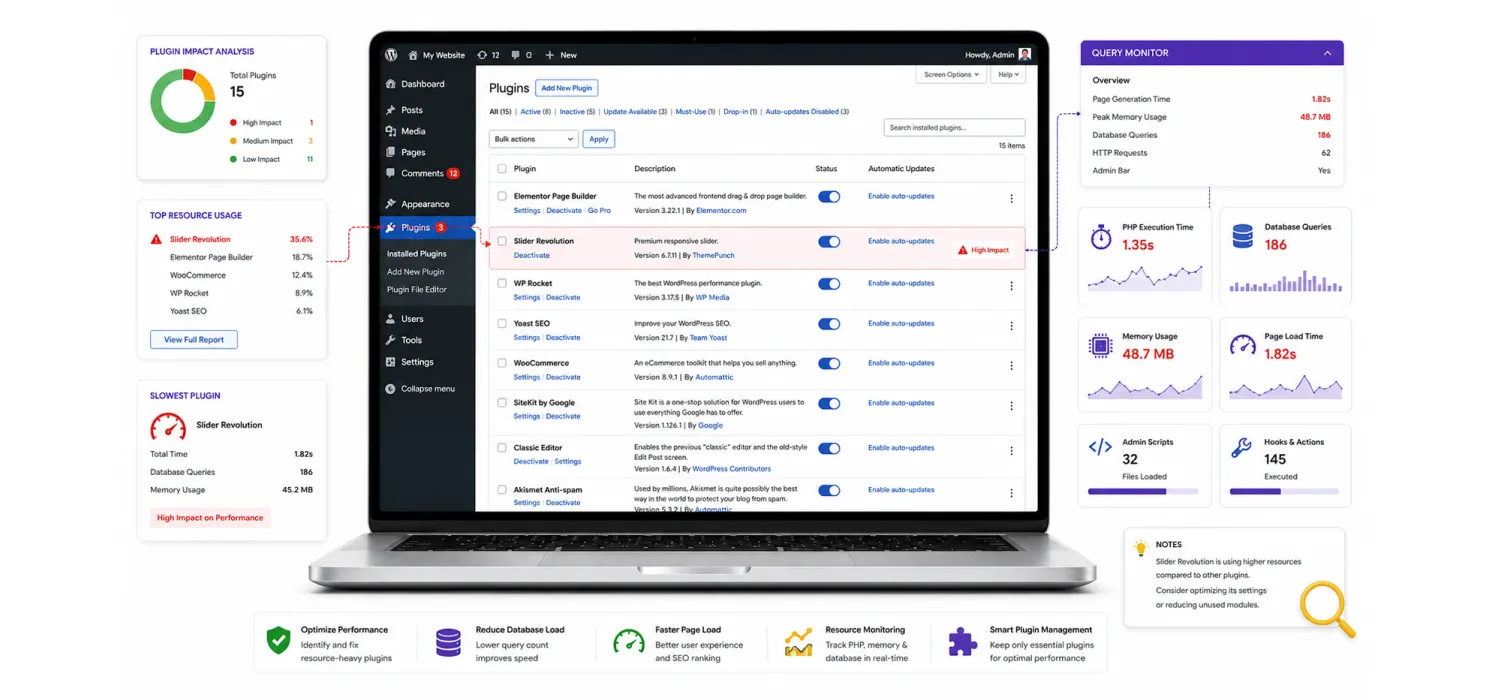
- Use Query Monitor to see which plugins are adding the most queries or the heaviest admin scripts
- Deactivate plugins one at a time and re-check dashboard speed, rather than guessing which one is the culprit
- Look closely at security scanners, page builders, analytics dashboards, and import/export tools. These are common offenders because they load heavy JavaScript and fire extra queries on nearly every admin page
Tip: If disabling plugins one by one feels tedious, deactivate all of them at once, confirm the dashboard is fast, then reactivate them one at a time, checking speed after each. It’s faster than it sounds and tells you exactly which plugin is the problem.
If you’re unsure which optimization plugins are worth keeping, our guide to Best WordPress Speed Optimization Plugins compares some of the most useful options.
6. Turn off what you don’t need on the dashboard home screen
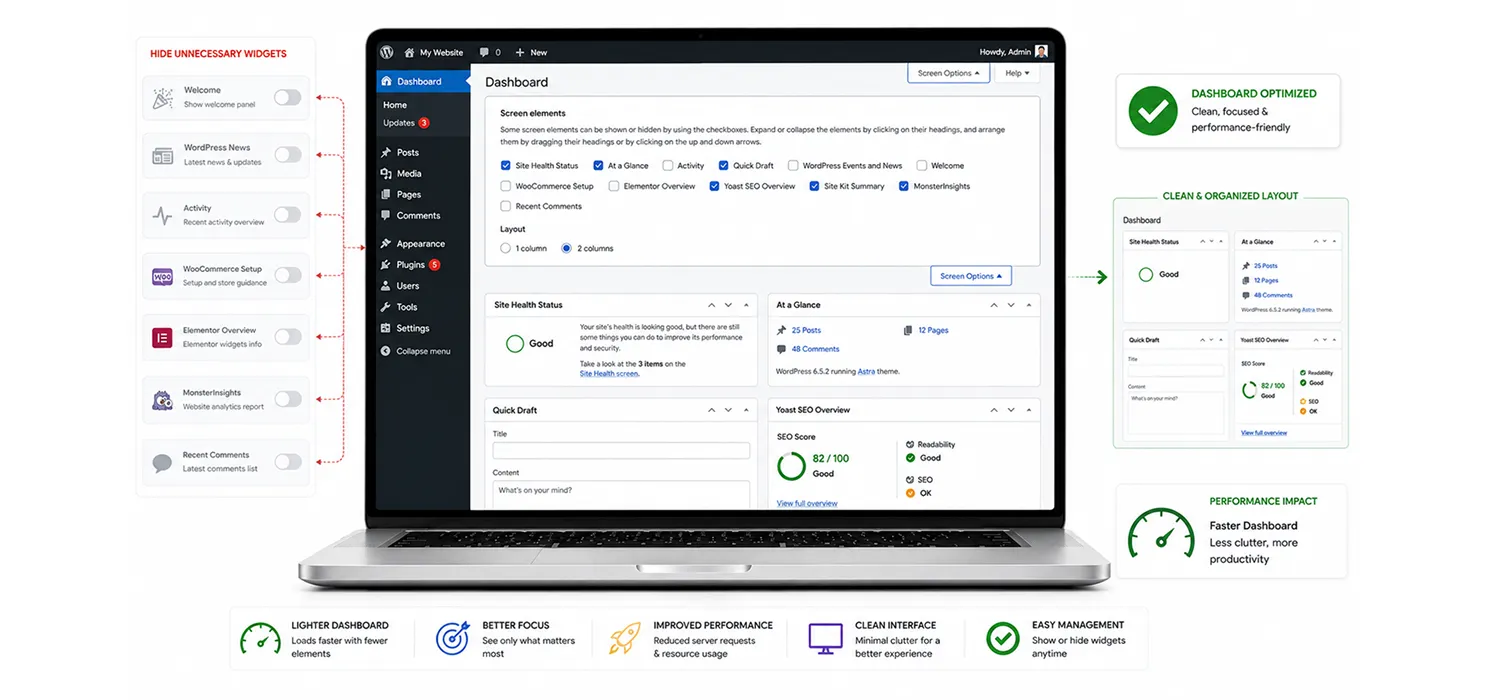
The main dashboard screen often loads welcome panels, news feeds, and third-party widgets you never actually look at. Each one adds its own request.
- Use Screen Options at the top of the dashboard to turn off widgets you don’t use
- Disable the WordPress news widget and any plugin-added dashboard widgets that pull external data
7. Check your actual hosting resources
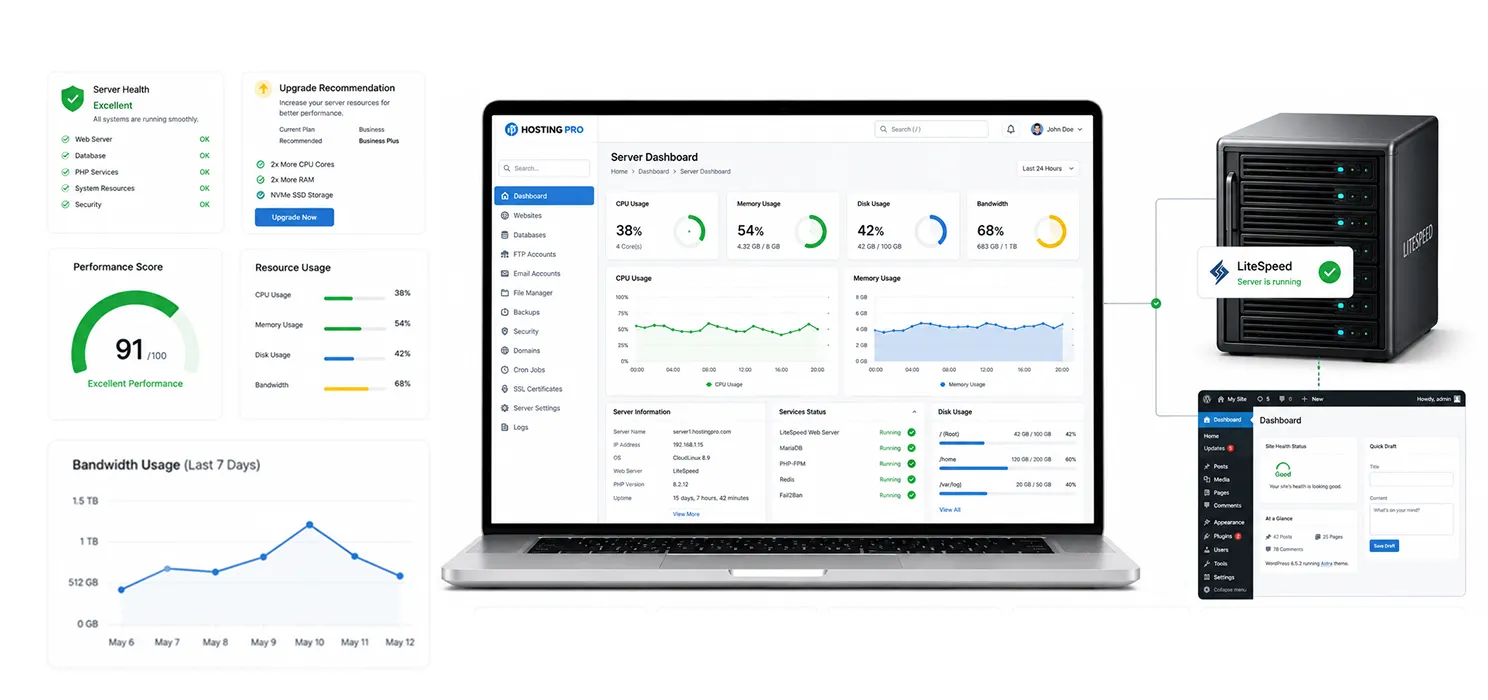
Sometimes the honest answer is that your hosting simply isn’t built for the amount of admin-side work your site demands.
Sometimes the honest answer is that your hosting simply isn’t built for the amount of admin-side work your site demands. If server response time is also an issue, see our guide on Improve WordPress TTFB.
- Check your CPU usage in your hosting account. It should generally sit well under 50%
- If you’re consistently maxing out resources during normal admin use, that’s a sign it’s time for a hosting upgrade, not another plugin tweak
- Server technology matters too. Hosts running LiteSpeed instead of Apache tend to handle the same workload with noticeably less CPU and memory strain
Keeping it fast going forward
Fixing a slow dashboard once isn’t the end of the story. It tends to creep back unless you build a few habits in:
- Check your autoloaded data size roughly once a month
- Run a transient cleanup weekly, or automate it with a plugin
- Re-run Query Monitor after installing any new plugin, before it becomes part of your normal workflow. For more practical ways to speed up WordPress, you can also follow our step-by-step guide.
- Keep an eye on plugin updates. The most common reason a fixed dashboard slows down again is a new plugin nobody performance-checked first
Note: If your dashboard was fast last month and is suddenly slow now, the most likely cause is something that changed recently, not something that’s always been there. Check your recent plugin and theme update history before assuming it’s a deeper hosting issue.
Wrapping up
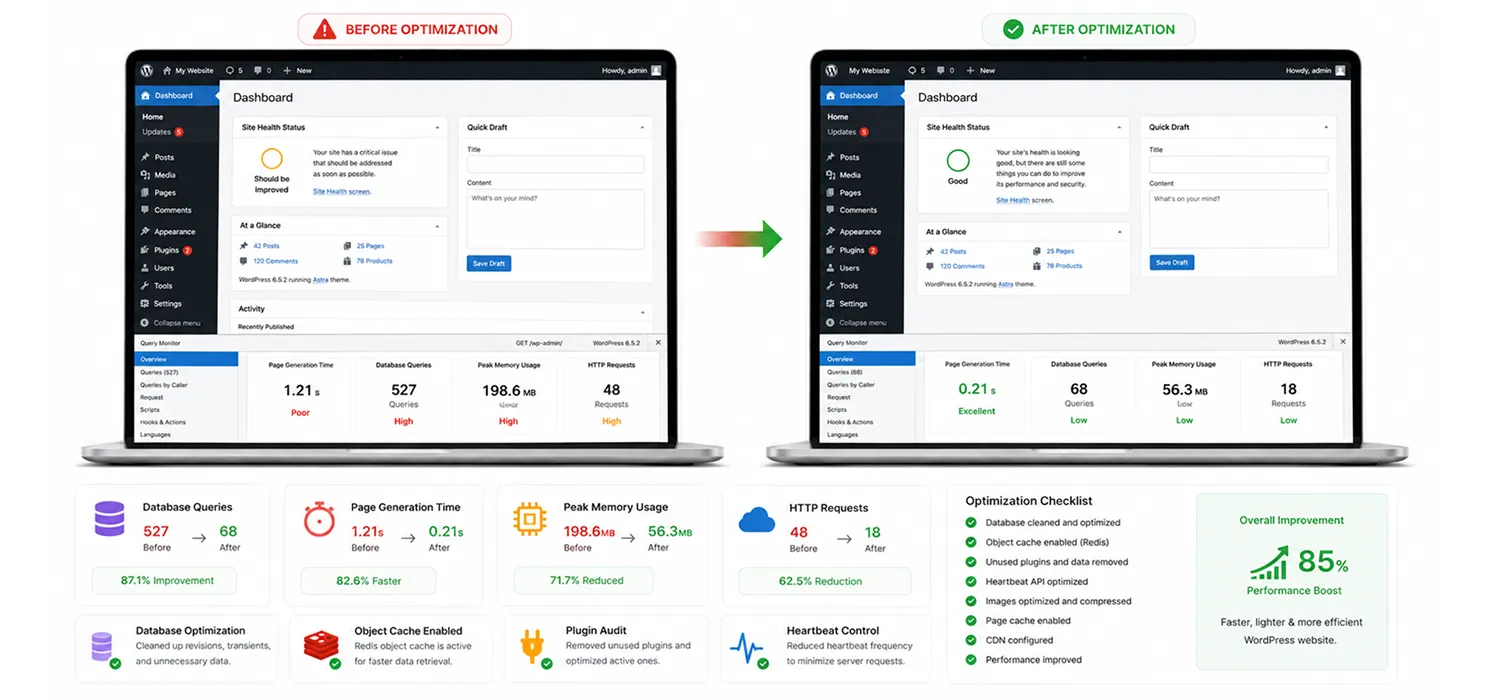
A slow WordPress admin dashboard isn’t something you have to live with, and it’s rarely one single thing gone wrong. If you’ve gone through the usual fixes and your site is still struggling, WordPress Optimization Services can help identify deeper performance issues. It’s usually a handful of small inefficiencies (a bloated options table, missing object cache, an overactive Heartbeat API, too many unaudited plugins) all adding their own small delay, which stack into something genuinely painful to work in every day.
Go through the fixes in order, measure with Query Monitor as you go, and you’ll usually see real, noticeable improvement well before you’ve worked through the whole list. And once it’s fast again, a little regular maintenance is a lot easier than fixing the same problem twice.
Frequently Asked Questions
Find answers to common questions about slow WordPress admin dashboards, object caching, hosting, plugins, database performance, and ways to improve wp-admin speed.
Will a normal caching plugin fix this?
Not usually. Most caching plugins are built to speed up pages for logged-out visitors and specifically skip logged-in admin sessions, so they won’t touch wp-admin speed on their own.
Is this a WordPress problem or a hosting problem?
Often both, working together. Weak hosting makes every inefficiency worse, but even excellent hosting can’t fully compensate for a bloated database and a dozen poorly optimized plugins.
How much difference does object caching really make?
On sites with real content and traffic, it’s been shown to cut admin load times by 50 to 70 percent in some cases. It’s usually the single highest-impact fix on this list.
Do I need a developer to do all of this?
Some steps (installing a plugin, checking a setting) are fine for most site owners. Deeper fixes like autoload cleanup, PHP upgrades, or diagnosing specific slow queries are safer with some technical comfort, or a developer’s help, especially on a live production site.