
Full page caching stores an entire WordPress page as a static HTML file the moment the first visitor loads it. Every subsequent visitor receives that pre-built file directly — no PHP execution, no database queries. This is the single highest-impact optimization available in SpeedyGo.
Dashboard path: Cache Settings → Caching & Preloading
Section: Full Page Caching
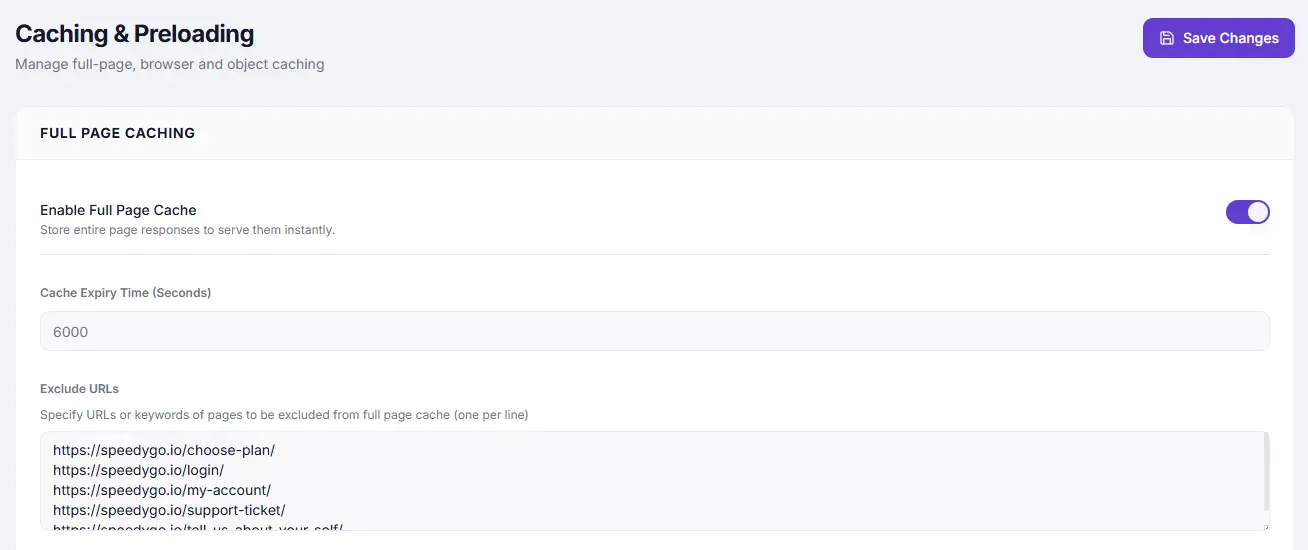
Settings #
| Setting | Type | Description |
|---|---|---|
| Enable Full Page Cache | Toggle | Master switch. Turn ON to start caching pages. |
| Cache Expiry Time (Seconds) | Number | How long a cached page is kept before it is regenerated. Default: 6000 (100 minutes). |
| Exclude URLs | Text area | One URL or keyword per line. Pages matching these paths are never cached. |
| Exclude WooCommerce Pages | Toggle | Automatically excludes /checkout, /cart, and /my-account from cache. |
Recommended Values #
| Setting | Recommended | Notes |
|---|---|---|
| Cache Expiry Time | 86400 (24 hours) | For static content. For frequently updated sites, use 3600 (1 hour). |
| Exclude URLs | /checkout, /cart, /my-account, /wishlist | Any page that shows user-specific data must be excluded. |
How to Enable #
- Go to Cache Settings → Caching & Preloading.
- Under Full Page Caching, toggle Enable Full Page Cache to ON.
- Set Cache Expiry Time (e.g.
86400for 24 hours). - If you use WooCommerce, turn ON Exclude WooCommerce Pages.
- Add any other dynamic pages to Exclude URLs — one per line.
- Click Save Changes in the top-right header.
What to Exclude #
Always exclude pages that show personalised or dynamic content:
/checkout
 /cart
 /my-account
 /wishlist
 /members
 /dashboard
 /login
 /register
You can also use partial keywords — /account will match any URL containing that string.
Troubleshooting #
| Symptom | Likely cause | Fix |
|---|---|---|
| Logged-in users see stale content | User-specific pages are being cached | Add user account URLs to Exclude URLs |
| WooCommerce cart count stays at 0 | Cart page is cached | Enable Exclude WooCommerce Pages |
| Changes to a page are not showing | Cache not expired yet | Lower Cache Expiry Time or enable Auto Purge on Save (Cache Preloading section) |
| Admin bar showing to logged-out visitors | Cache captured a logged-in page | Ensure you were logged out when testing; clear the cache |
Tips #
Tip: Combine Full Page Caching with Cache Warm-up (in the Cache Preloading section) so pages are pre-built before real visitors arrive, not on the first cold request.
Important: Always exclude pages that display user-specific content. Caching these can expose one visitor’s data to another — especially critical on membership sites and WooCommerce stores.


