
CSS Combination (Combine CSS) merges all WordPress-enqueued stylesheets into a single CSS file. This reduces the number of HTTP requests the browser makes to load the page’s styles, which can meaningfully speed up page rendering — especially on HTTP/1.1 connections.
Dashboard path: Cache Settings → Asset Optimization
Section: CSS & JS Optimization
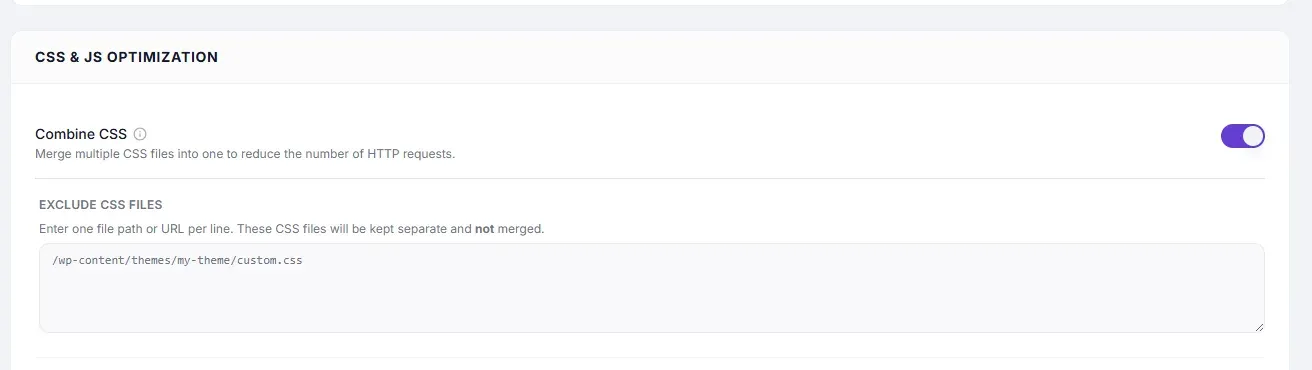
Settings #
| Setting | Type | Description |
|---|---|---|
| Combine CSS | Toggle | Merges all enqueued CSS files into one bundled stylesheet. |
| Exclude CSS Files | Text area | One file path or URL keyword per line. Files matching these are kept separate and not merged. |
How It Works #
WordPress loads stylesheets by enqueueing them individually — a typical site can have 5–20 separate CSS files. With Combine CSS enabled, SpeedyGo concatenates all of them into one file. The browser makes one request instead of many, and the file can be cached aggressively by the browser on repeat visits.
Performance Impact #
| Metric | Typical improvement |
|---|---|
| Number of CSS HTTP requests | Reduced by 70–90% |
| Page render start time | Faster — fewer render-blocking stylesheet requests |
| HTTP/1.1 sites | Significant improvement |
| HTTP/2 sites | Smaller improvement (parallel requests are cheap on HTTP/2) |
How to Enable #
- Go to Cache Settings → Asset Optimization.
- Under CSS & JS Optimization, toggle Combine CSS to ON.
- Click Save Changes.
- Test your site thoroughly — check header, navigation, footer, sidebars, sliders, and any plugin-specific styling.
- If anything looks broken, identify the conflicting stylesheet and add it to Exclude CSS Files.
Exclude CSS Files #
Enter one file path or URL keyword per line. Partial matches work.
/wp-content/plugins/elementor/assets/css/
 /wp-content/themes/my-theme/style-critical.css
 woocommerce
Stylesheets whose paths contain any of these strings are kept separate.
Common Stylesheets to Exclude #
| Stylesheet | Why exclude |
|---|---|
| Elementor / Divi / page builder CSS | Page builders generate dynamic CSS that must load in a specific order |
| WooCommerce CSS | Cart/checkout styling can break if load order changes |
| Critical CSS (above-the-fold) | Should load first, before the combined bundle |
| Print stylesheets | Only needed for print — combining wastes bytes on screen visitors |
Load-Order Issues #
Combining CSS merges files in the order WordPress enqueues them. Some styles are designed to override others and depend on a specific load order. If the combined file loads styles in the wrong sequence, some overrides may fail.
Fix: Add the conflicting stylesheet to Exclude CSS Files. It will load separately (in its original position in the queue) while the rest are combined.
HTTP/2 Consideration #
On HTTP/2 servers, multiple CSS files can load in parallel with minimal overhead, so the benefit of combining is reduced. If your site is on HTTP/2 and you experience conflicts, skip Combine CSS and use CSS Minification alone instead.
Troubleshooting #
| Symptom | Likely cause | Fix |
|---|---|---|
| Layout shifted or elements unstyled | CSS load-order conflict | Add the conflicting CSS file to Exclude CSS Files |
| Page builder sections broken | Page builder CSS combined incorrectly | Exclude the page builder’s CSS directory (e.g. elementor) |
| WooCommerce store layout broken | WooCommerce CSS position changed | Exclude woocommerce from combination |
| Font not loading | Font CSS (Google Fonts, icon fonts) merged and broken | Exclude the font stylesheet URL |
Tips #
Tip: Enable Combine CSS one section at a time — if something breaks, you will know it is the most recently enabled setting causing the issue.
Tip: Use CSS Minification alongside Combine CSS to both reduce requests and reduce file size simultaneously.


