
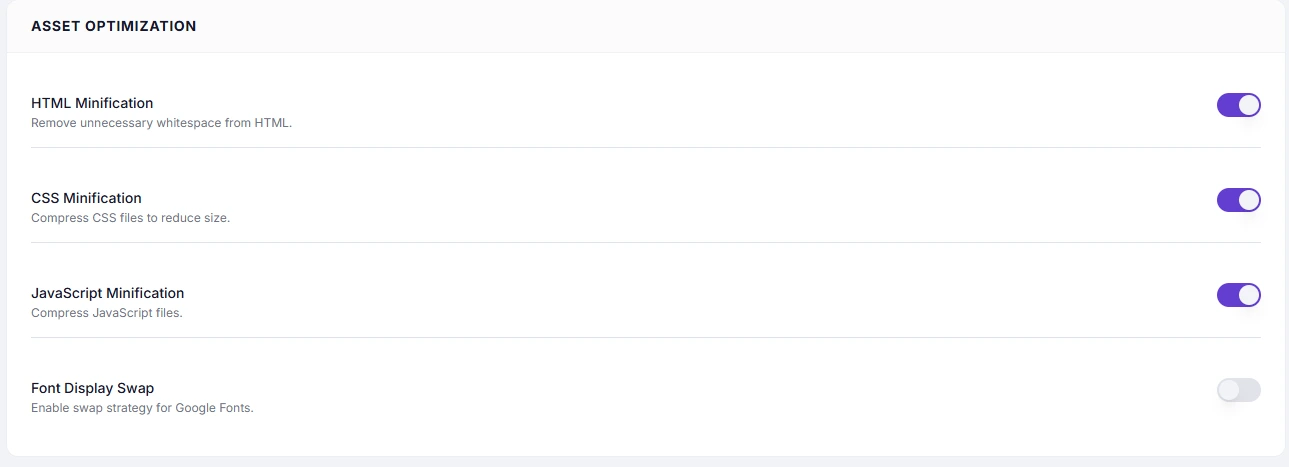
HTML Minification removes unnecessary characters from the HTML sent to the browser — whitespace, line breaks, and HTML comments — before the response is transmitted. The page renders identically; it is simply delivered in fewer bytes.
Dashboard path: Cache Settings → Asset Optimization
Section: Asset Optimization
What Gets Removed #
- Whitespace and line breaks between HTML tags
- HTML comments (
<!-- ... -->) - Redundant formatting and indentation
What Does NOT Change #
- Page content visible to visitors
- CSS, JS, or image files (those have their own settings)
- The structure or order of HTML elements
Performance Impact #
| Metric | Typical improvement |
|---|---|
| HTML payload size | 5–15% reduction |
| Time To First Byte (TTFB) | Slight improvement |
| First Contentful Paint (FCP) | Slight improvement |
The gains are modest compared to Full Page Caching or JS optimizations, but it is safe and effective to combine with other settings.
How to Enable #
- Go to Cache Settings → Asset Optimization.
- Toggle HTML Minification to ON.
- Click Save Changes.
- Visit your site and confirm the layout appears correctly.
Troubleshooting #
| Symptom | Likely cause | Fix |
|---|---|---|
| Inline-block elements have unexpected gaps | Theme uses whitespace between display: inline-block elements for spacing | Disable HTML Minification, or fix the theme CSS to use explicit margins instead |
| HTML comments used by a plugin are stripped | Plugin relies on HTML comment markers (e.g. for A/B tests) | Disable HTML Minification if the plugin breaks |
Tips #
Note: Some themes rely on HTML whitespace between inline-block elements (e.g. navigation items). If you notice unexpected gaps in the layout after enabling, disable HTML Minification and use CSS
marginorgapfor spacing instead.
Tip: HTML Minification is the safest minification option to enable first. Start here before adding CSS or JS minification.


