
The Import / Export tab lets you back up your SpeedyGo configuration to a JSON file and restore it — or copy it to another site. This is useful before making major changes, switching presets, or migrating to a new domain.
Dashboard path: Cache Settings → General → Import / Export tab
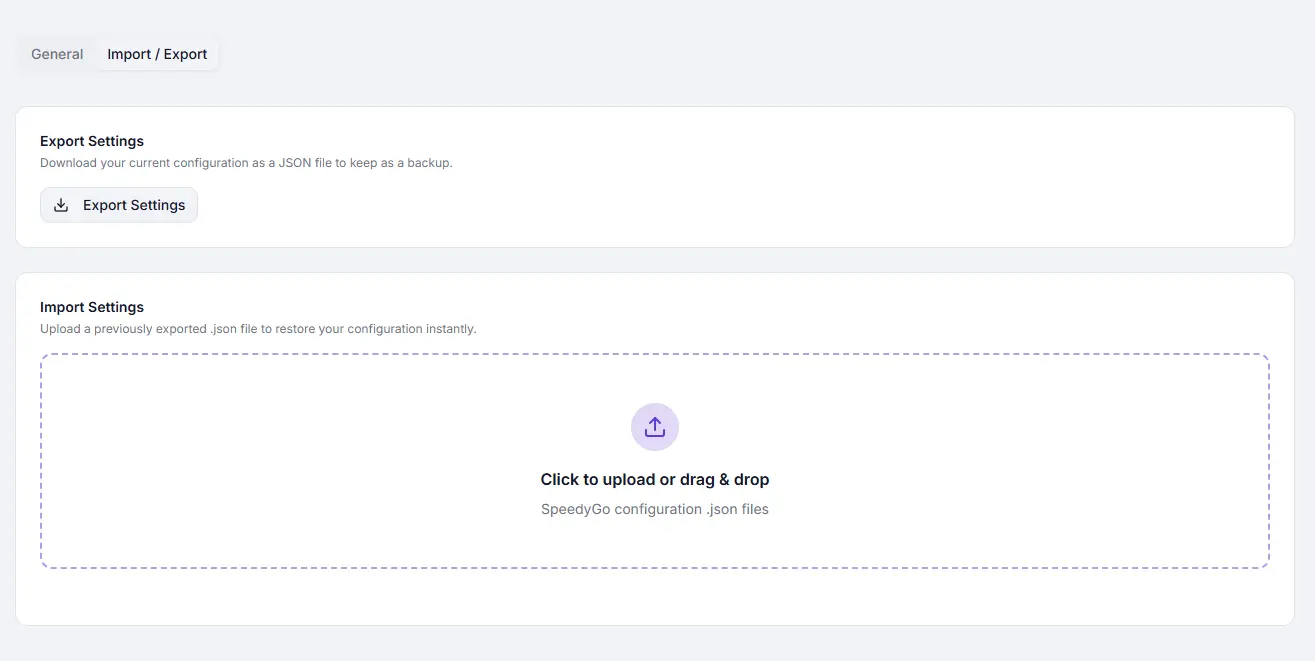
Export Settings #
Downloads your current configuration as a JSON file containing all option values.
How to Export #
- Go to Cache Settings → General.
- Click the Import / Export tab.
- Click Export Settings.
- A file named
speedygo-settings-YYYY-MM-DD.jsondownloads automatically.
The exported file captures your complete configuration at the time of export, including all toggle states, expiry values, and exclusion lists.
Import Settings #
Upload a previously exported JSON file to restore or copy settings. The import uses a two-step confirmation flow — your current settings are not overwritten until you confirm.
How to Import #
- Go to Cache Settings → General → Import / Export.
- Click the upload area or drag and drop a
.jsonfile onto it. - A confirmation dialog appears showing the filename and asking how to proceed.
- Choose one of:
- Back up & Import — downloads a backup of your current settings first, then applies the imported file
- Import — applies the imported file immediately without downloading a backup
- Cancel — discards the imported file; nothing changes
- After confirming, the file is loaded into the UI. A staged confirmation screen shows the filename.
- Click Process and Save to write the imported settings to your site.
- Click Reset and Clear to discard the import and restore your previous settings.
Confirmation Dialog #
The dialog shown when you drop or select a file:
| Button | What it does |
|---|---|
| Back up & Import | Downloads speedygo-backup-YYYY-MM-DD.json of your current settings, then applies the import |
| Import | Applies the import immediately — no backup download |
| Cancel | Closes the dialog; no changes are made |
Tip: Use Back up & Import any time you are importing settings you have not tested before. The backup lets you restore in one step if anything goes wrong.
Plan Restrictions on Import #
When importing on a Free plan, certain premium-only options in the imported file are automatically overridden:
| Option | Free plan behavior |
|---|---|
| JS Interaction Delay | Forced to OFF |
| CDN Scope (paid) | Forced to null |
A toast notification informs you if any options were disabled during import.
How to Copy Settings to Another Site #
- On the source site, export from Cache Settings → General → Import / Export.
- On the destination site, import the downloaded
.jsonfile from the same tab. - Use Import (no backup needed if the destination is a fresh install) or Back up & Import to be safe.
- Click Process and Save.
Troubleshooting #
| Symptom | Likely cause | Fix |
|---|---|---|
| “Invalid configuration format” error | File is not a valid SpeedyGo export | Only import files exported from SpeedyGo |
| Premium settings disabled after import | Importing on a Free plan | Upgrade to Pro or remove those settings from the JSON manually |
| Import applied but site behaves unexpectedly | Incompatible settings from a different server | Use Reset and Clear, then apply settings manually |


