
The Images & Media page controls two features: lazy loading (defer off-screen images) and WebP conversion (serve modern, smaller image files automatically).
Dashboard path: Cache Settings → Images & Media

Lazy Load #
Lazy loading prevents off-screen images and iframes from downloading until the user scrolls near them. This reduces the initial page weight and improves Largest Contentful Paint (LCP) for the visible portion of the page.
Settings #
| Setting | Type | Description |
|---|---|---|
| Enable Lazy Load | Toggle | Globally enables lazy loading for all images and iframes on the site. |
How to Enable #
- Go to Cache Settings → Images & Media.
- Under Lazy Load, toggle Enable Lazy Load to ON.
- Click Save Changes.
Tips #
Note: The browser’s native lazy loading (
loading="lazy") is used where supported. Images that are visible in the initial viewport (above the fold) are NOT lazy-loaded regardless of this setting — browsers handle this correctly automatically.
WebP Conversion #
WebP is a modern image format that produces files 25–35% smaller than JPEG and 26% smaller than PNG, at equivalent visual quality. SpeedyGo automatically converts your site’s images to WebP and serves them to browsers that support the format. Browsers that don’t support WebP receive the original image.
Settings #
| Setting | Type | Description |
|---|---|---|
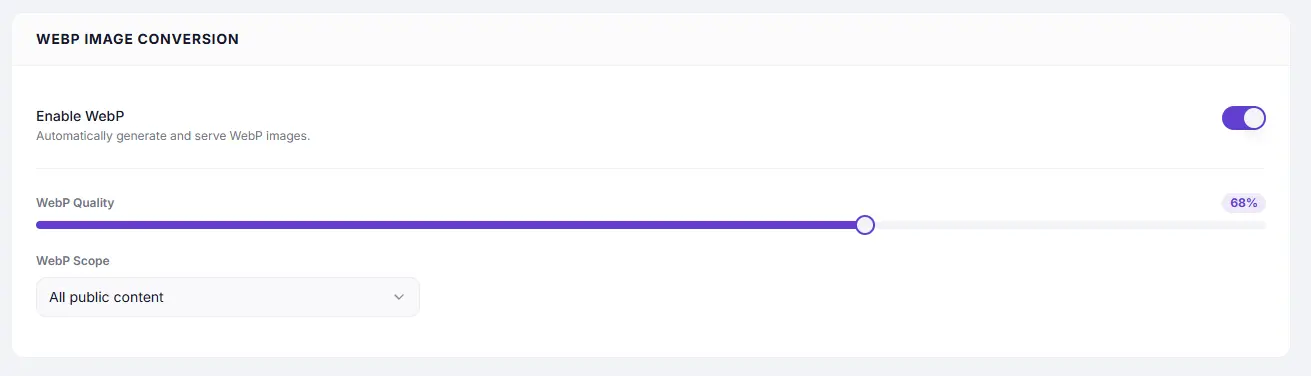
| Enable WebP | Toggle | Activates automatic WebP generation and delivery. |
| WebP Quality | Slider (1–100) | Controls the quality of generated WebP files. Higher = better quality, larger file. |
| WebP Scope | Select | All public content — convert images across the entire site. Specific post IDs — convert images only on selected pages. |
| Select Specific Pages | Accordion | Visible when scope is Specific post IDs. Expand a post type, search, and tick individual pages to include. |
| Clear WebP Cache | Button | (Free plan only) Deletes all generated WebP files so they are regenerated on next visit. |
Recommended Values #
| Setting | Recommended | Notes |
|---|---|---|
| WebP Quality | 80 | Good balance of quality and file size. Go up to 90 for photography sites. |
| WebP Scope | All public content | Use Specific post IDs only if you want to limit conversion to key landing pages |
How to Enable #
- Go to Cache Settings → Images & Media.
- Toggle Enable WebP to ON.
- Set WebP Quality using the slider (recommended:
80). - Choose WebP Scope:
- Select All public content to convert images on all pages.
- Select Specific post IDs to target selected pages — expand a post type, search, and tick the pages you want.
- Click Save Changes.
How to Select Specific Pages #
- Set WebP Scope to Specific post IDs.
- An accordion list of post types appears (Posts, Pages, Products, etc.).
- Click a post type to expand it.
- Use the search box to find a specific page.
- Tick the checkbox for each page you want to include.
- Repeat for other post types.
- Click Save Changes.
Important: Closing an accordion collapses and deselects all items for that post type. Keep accordions open for post types whose selections you want to keep.
Troubleshooting #
| Symptom | Likely cause | Fix |
|---|---|---|
| Images still showing as JPEG/PNG | Server does not support WebP output | Check your host supports WebP generation; verify the SpeedyGo plugin is active on WordPress |
| WebP quality too low | Quality slider set below 70 | Increase WebP Quality slider |
| Specific pages not converting | Post IDs not selected | Re-open the accordion and tick the desired pages |
| Lazy load breaking above-fold image | Native lazy load issue | This is handled automatically by browsers; no fix needed |


