
CSS Minification removes whitespace, comments, and redundant characters from stylesheets before they are sent to the browser. The visual result is identical — the files are simply smaller and download faster.
Dashboard path: Cache Settings → Asset Optimization
Section: Asset Optimization
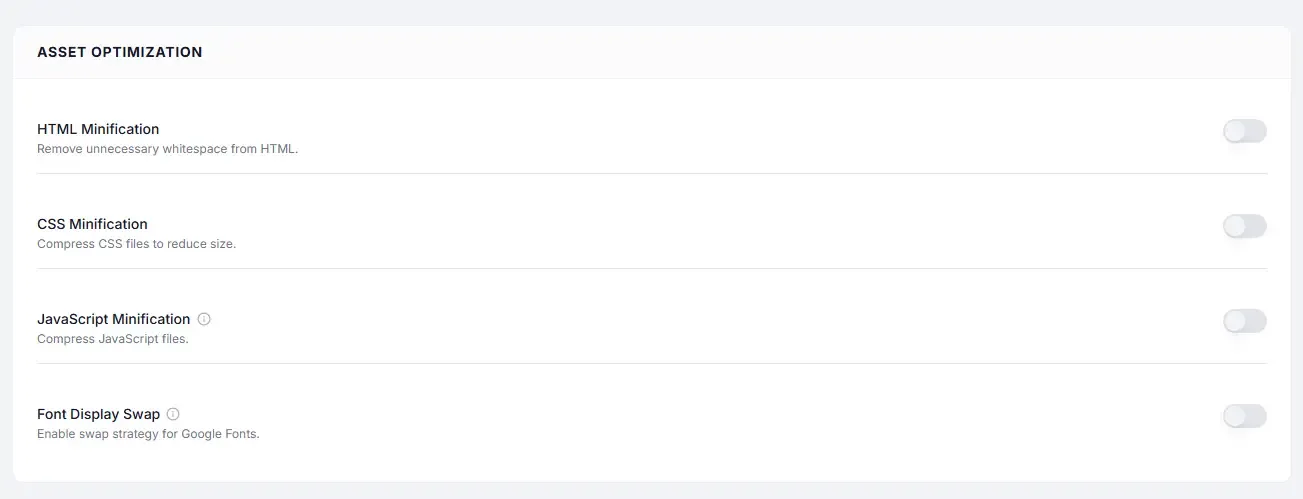
Settings #
| Setting | Type | Description |
|---|---|---|
| CSS Minification | Toggle | Compresses all enqueued CSS files by stripping non-functional characters. |
What Gets Removed #
| Before minification | After minification |
|---|---|
| Whitespace and line breaks | Removed |
CSS comments (/* ... */) | Removed |
| Redundant semicolons | Removed |
| Extra spaces around selectors and values | Removed |
| Empty rules | Removed |
The stylesheet renders identically in the browser.
Performance Impact #
| Metric | Typical improvement |
|---|---|
| CSS file size | 15–40% reduction |
| Render-blocking time | Slightly reduced (smaller files parse faster) |
| Combined with Gzip / Brotli | 60–80% total reduction vs original |
How to Enable #
- Go to Cache Settings → Asset Optimization.
- Under Asset Optimization, toggle CSS Minification to ON.
- Click Save Changes.
- Check the visual layout of your site — header, navigation, footer, sidebars, page content.
When Minification Can Cause Issues #
CSS Minification is extremely safe — it only removes non-functional characters. Issues are very rare:
| Case | Issue | Fix |
|---|---|---|
Themes using whitespace-dependent display: inline-block for spacing | Gaps between elements may disappear | Fix the theme CSS to use explicit margin/padding instead of whitespace |
| Malformed CSS in a plugin | Minifier may parse incorrectly | Update the plugin; the malformed CSS is the root issue |
Troubleshooting #
| Symptom | Likely cause | Fix |
|---|---|---|
| Unexpected gaps in navigation or inline elements | Whitespace between inline-block elements removed | Fix spacing in CSS using margin or gap; or disable CSS Minification |
| No visible change to the site | Correct — minification is transparent to visitors | No action needed |
Tips #
Tip: CSS Minification is the safest optimization to enable first — before Combine CSS, Combine JS, or Defer Scripts. Start here.
Tip: Enable CSS and HTML Minification together for a combined reduction in total page weight with virtually no compatibility risk.


