
The API Key page manages the connection between the SpeedyGo dashboard and the SpeedyGo plugin installed on your WordPress site. Without a valid API key, the dashboard cannot read or apply settings to your site.
Dashboard path: Settings → API Key
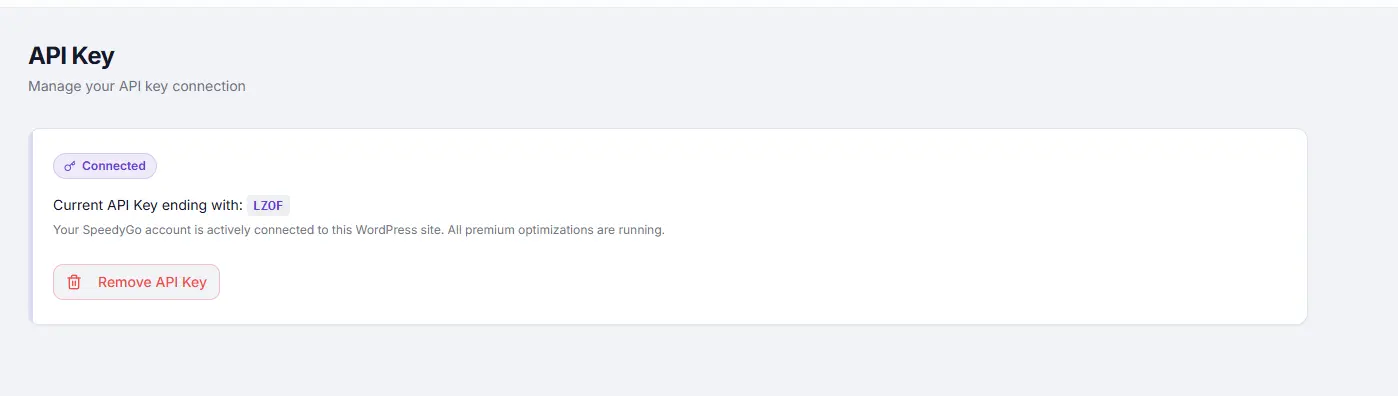
Connection Status #
The page shows a status badge and the last 4 characters of your current API key (e.g. ...AB12).
| Status | Meaning |
|---|---|
| Connected | Dashboard is communicating with your WordPress site. All optimizations are active. |
| Disconnected | The connection has been lost. Dashboard controls are disabled and caching is not managed. |
The green or red pulsing dot in the top bar (site selector area) also reflects this connection status at all times.
Removing the API Key #
Warning: Your API key is bound to the domain registered at purchase. It cannot be transferred or used on a different domain.
If you remove the API key and want to use SpeedyGo on a different domain, you will need to purchase a new license for that domain.
Reconnecting only works if you are restoring the key to the same domain it was originally registered for.
Steps #
- Go to Settings → API Key.
- Click Remove API Key.
- Confirm in the dialog that appears.
After removal, the page reloads automatically and shows a Disconnected status.
Reconnecting After Removal #
- Go to speedygo.io and log in to your account.
- Navigate to My Account → Subscriptions tab.
- Select the specific subscription for your domain.
- On the subscription page, scroll to the License section and locate your API key.
- Copy the API key shown there.
- Go to your WordPress admin panel and open the SpeedyGo plugin settings page.
- Paste the API key into the connection field.
- Save — your site is now active and connected for that domain.
Troubleshooting #
| Symptom | Likely cause | Fix |
|---|---|---|
| Status shows Disconnected after a working connection | Plugin deactivated or WordPress site unreachable | Check the SpeedyGo plugin is active in WordPress admin |
| API key accepted but site not responding | Firewall or server blocking outbound requests | Contact your host — the SpeedyGo plugin must be able to receive requests from the dashboard API |
| Dashboard shows settings but changes not applied to site | API key expired or plugin version mismatch | Remove and re-add the API key; update the WordPress plugin |
| Remove API Key button not responding | Network issue | Refresh the page and try again; check browser console for errors |
Tips #
Note: The API key is tied to your SpeedyGo account license. Each WordPress site you manage gets its own key through the SpeedyGo account portal.
Tip: If you migrate your WordPress site to a new server, you will need to reconnect the API key from the SpeedyGo plugin settings on the new installation.


