
SpeedyGo uses the Google PageSpeed Insights API to run performance tests and retrieve Core Web Vitals scores. You must provide your own Google API key to use the PageSpeed Analytics feature.
Dashboard path: Analytics → PageSpeed
Plan: Pro only
What the API Does #
The Google PageSpeed Insights API analyses a given URL and returns:
- Performance score (0–100)
- Core Web Vitals: FCP, LCP, TBT, CLS, Speed Index
- Lab data simulating mobile and desktop conditions
- Opportunities and diagnostics for improvement
SpeedyGo sends a request to the API, receives the results, and stores them in your dashboard history.
Getting a Google API Key #
- Go to Google Cloud Console.
- Create a new project (or select an existing one).
- In the left sidebar, go to APIs & Services → Library.
- Search for PageSpeed Insights API and click it.
- Click Enable.
- Go to APIs & Services → Credentials.
- Click Create Credentials → API Key.
- Copy the generated key.
Free tier: The PageSpeed Insights API has a generous free quota (hundreds of requests per day). For typical usage you will not need billing enabled.
Configuration in SpeedyGo #
| Field | Description |
|---|---|
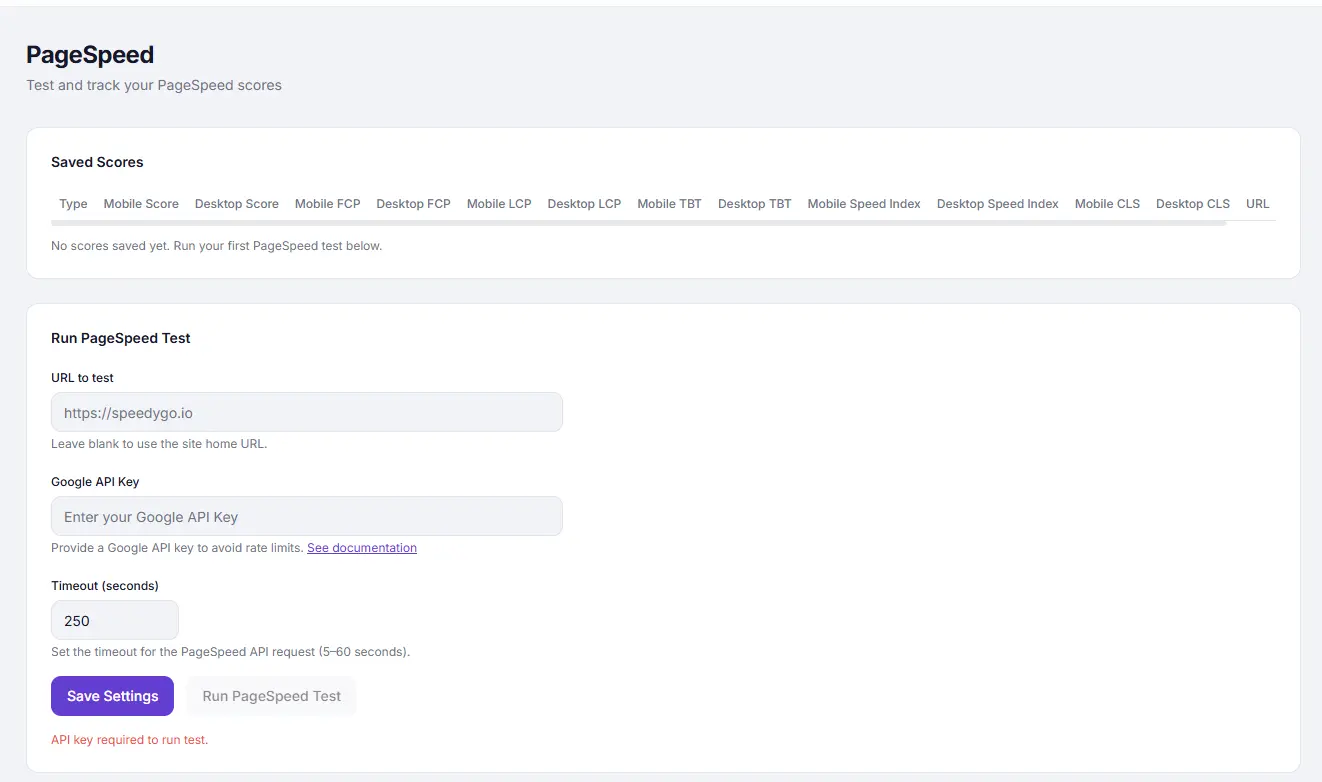
| URL to test | The full page URL to analyse (e.g. https://yoursite.com/). Defaults to your site domain if left blank. |
| Google API Key | Your API key from Google Cloud Console. |
| Timeout (seconds) | How long to wait for the API response. Default: 250. Increase to 300 if tests time out. |
How to Configure #
- Go to Analytics → PageSpeed.
- Enter the URL you want to test.
- Paste your Google API Key in the API Key field.
- Leave Timeout at 250 unless you experience timeouts.
- Click Save Settings.
- Click Run PageSpeed Test to run your first test.
API Key Security #
- Your API key is stored in the SpeedyGo dashboard and sent only to googleapis.com during test requests.
- Consider restricting the key to the PageSpeed Insights API only in Google Cloud Console (APIs & Services → Credentials → Edit API key → API restrictions).
- Do not share your API key publicly.
API Quotas and Limits #
| Quota | Default |
|---|---|
| Requests per day | 25,000 (free) |
| Requests per second | 400 |
For typical PageSpeed monitoring (a few tests per day), the free quota is more than sufficient. If you hit quota limits, the test will return an error — wait 24 hours or enable billing in Google Cloud Console.
Troubleshooting #
| Symptom | Likely cause | Fix |
|---|---|---|
| “API key not valid” error | Wrong key or key not enabled for PageSpeed API | Re-check the key in Google Cloud Console; ensure PageSpeed Insights API is enabled |
| Test times out | API response slow or timeout value too low | Increase Timeout to 300 or 400 |
| “Quota exceeded” error | Daily API quota reached | Wait 24 hours or enable billing in Google Cloud |
| Test runs but shows 0 scores | API returned empty data | Re-run the test; check the URL is publicly accessible |
| URL to test shows wrong domain | URL field left blank and license domain incorrect | Enter the full URL manually |
Tips #
Tip: Restrict your API key in Google Cloud Console to the PageSpeed Insights API only. This limits the key’s exposure if it is ever accidentally shared.
Tip: Test your homepage and your most important landing page or product page. These are the pages most likely to be indexed and ranked by Google.
Note: The API tests a live, publicly accessible URL. Make sure your site is not behind a login wall, maintenance mode, or IP restriction when running a test.


