
SpeedyGo lets you turn off the Bunny CDN anytime without deleting your settings, files, or other optimisations. When CDN is disabled, your website automatically goes back to serving images, CSS, JavaScript, and fonts from your own server.
Dashboard path: Integrations → CDN
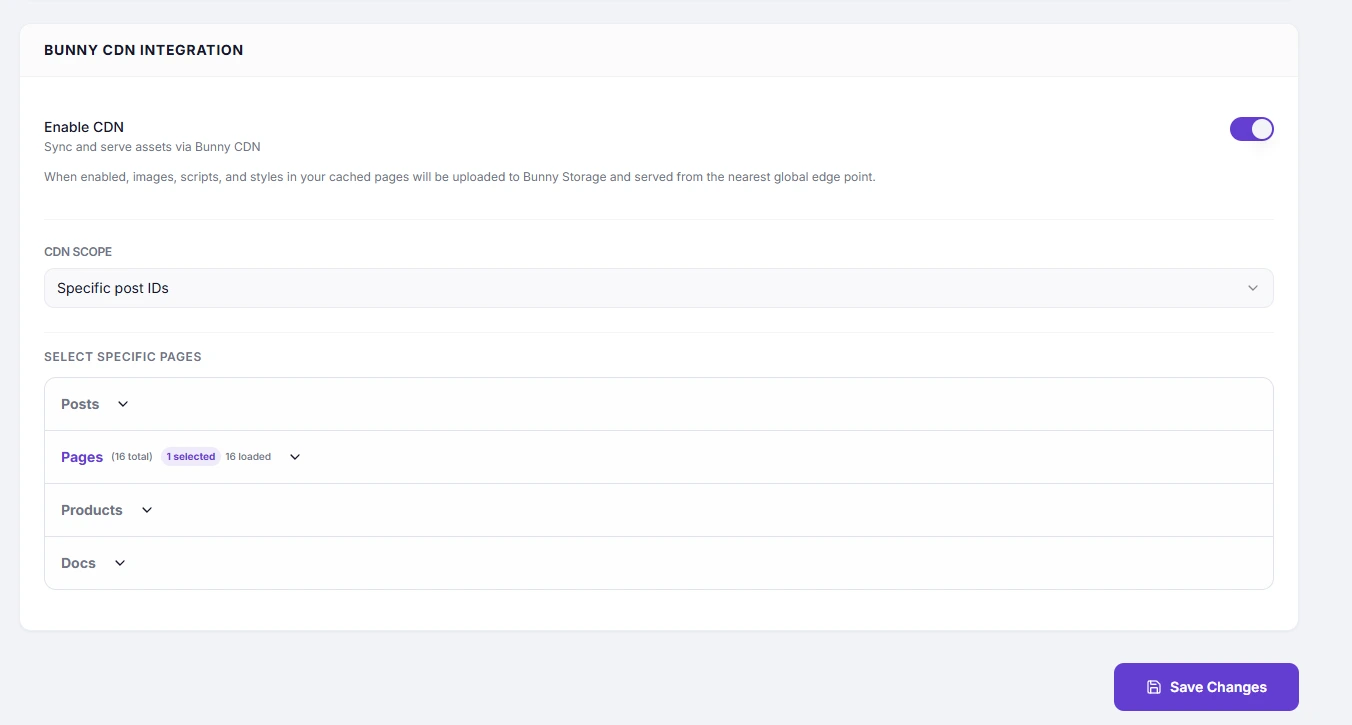
How to Disable CDN #
- Open your SpeedyGo dashboard.
- Go to Integrations → CDN.
- Switch the Enable CDN toggle to OFF.
- Click Save Changes.
- Wait for the confirmation that your CDN settings have been updated.
What Happens After Disabling #
- Your website stops serving assets from the CDN.
- Images, CSS, JavaScript, and fonts are served from your origin server again.
- Your website cache is cleared automatically.
- CDN copies of your assets are cleared.
- Your other SpeedyGo optimisations continue working normally.
What Is Not Affected #
| Item | What Happens |
|---|---|
| CDN Allowance | Kept. You can enable the CDN again later. |
| Subscription | Not affected. Disabling CDN does not cancel your plan. |
| Other Optimisations | Continue working normally. |
| Website Files | Safe. Your original files remain on your own server. |
If Your Site Still Uses the CDN #
- Check that the CDN toggle is actually OFF and the settings were saved.
- Clear your browser cache or open the website in a private window.
- Clear any additional cache from Cloudflare, your hosting provider, or another caching plugin.
Quick check: Open your website, choose View Page Source, and search for b-cdn.net. If there are no matches, the CDN is no longer being referenced by the page.
Why Can CDN Turn Off Automatically? #
If your CDN bandwidth or storage allowance is exhausted, SpeedyGo may automatically disable the CDN to prevent your website from breaking or unexpected charges. The dashboard will show the reason, and the CDN can be enabled again when allowance becomes available.
How to Enable CDN Again #
- Go to Integrations → CDN.
- Switch Enable CDN to ON.
- Click Save Changes.
- On Pro plans, a new CDN sync starts automatically.
Your previous CDN configuration is retained, so you do not need to configure everything again.
Still Stuck? #
Contact support with your website address and details about what you are seeing. The SpeedyGo team can check your CDN status and help identify any remaining caching or configuration issue.


